Nothing feels worse than watching your crosshair land on target and still losing the gunfight. If your aim feels heavy or delayed, you are likely dealing with WARDOGS input lag, not bad aim.
Input lag is different from FPS problems and different from network lag too. It is the delay between physically moving your mouse and seeing that movement reflected on screen.
So how do you actually tell input lag apart from everything else? If your FPS stays stable but aiming still feels delayed, the issue is almost certainly settings-related rather than a performance or network problem.
This guide covers exactly what causes input lag in WARDOGS and the specific settings that make your inputs feel instant again, from render settings to your monitor and network setup.
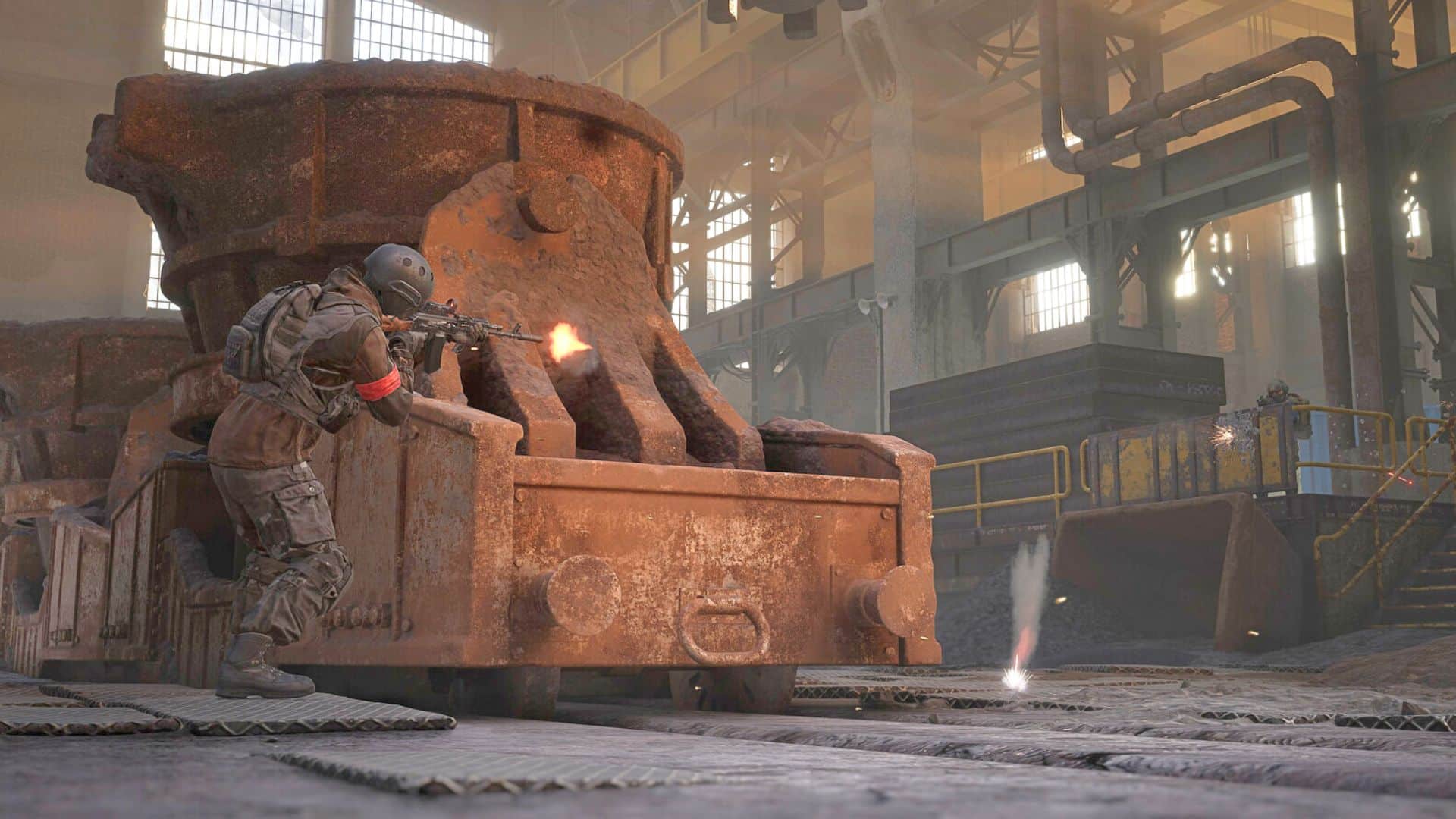
WARDOGS Input Lag: What It Actually Feels Like
Input lag shows up as a small but noticeable gap between your physical mouse movement and what happens on screen. It is subtle, but competitive players notice it immediately.
Consequently, distinguishing input lag from FPS drops or network lag is the first step toward actually fixing it rather than chasing the wrong problem.
Input Lag Versus FPS Drops Versus Network Lag
These three problems get confused constantly, but they each need a different fix:
- Input lag: Controls feel heavy or delayed even with stable FPS.
- FPS drops: Controls feel heavy only when your frame rate visibly dips.
- Network lag: Hits register inconsistently or you rubber-band, despite responsive aiming.
Why Competitive Players Care So Much About Input Lag
In fast-paced firefights, even a few milliseconds of delay can be the difference between winning and losing a duel. That is exactly why input lag matters more in WARDOGS than in slower, less reaction-based games.
What Causes WARDOGS Input Lag?
Several settings and hardware factors combine to create the total delay you feel between input and on-screen response.
The Biggest Contributors To Input Lag
Here are the most common causes, roughly ordered by impact:
- VSync enabled, adding a queue of rendered frames
- Conflicting frame caps set in both the game and GPU software
- High display response time or an outdated monitor
- Wireless mouse or keyboard latency
- Background processes competing for CPU resources
Settings That Directly Reduce Input Lag
Use this table to prioritize which settings actually move the needle on input responsiveness:
| Setting | Input Lag Impact | Recommended State |
|---|---|---|
| VSync | High | Off |
| NVIDIA Reflex | High | On (or On + Boost) |
| Frame Rate Cap | Moderate | Set once, not in both places |
| Mouse Polling Rate | Moderate | As high as your mouse supports |
| Fullscreen Mode | Moderate | Exclusive Fullscreen over Borderless |
Does NVIDIA Reflex Actually Reduce WARDOGS Input Lag?
Yes, for supported GPUs it makes a real difference. Reflex synchronizes your CPU and GPU pipelines for just-in-time rendering, cutting out unnecessary delay in the rendering process.
How Reflex Works Under The Hood
Rather than letting your GPU render frames as far ahead as possible, Reflex keeps the render queue tight so what you see matches your most recent input more closely. This is precisely why competitive shooters have widely adopted it.
Should You Use Reflex Or Reflex Plus Boost?
Reflex alone reduces latency, while Reflex Boost also keeps your GPU clocks higher during less demanding scenes. Testing both settings during an actual WARDOGS match will show you which combination feels best on your specific hardware.
Is VSync The Reason WARDOGS Feels Delayed?
Very often, yes. VSync queues up rendered frames to prevent screen tearing, but that queue directly adds input delay, sometimes a noticeable amount.
Turning Off VSync Correctly
Disable VSync in the WARDOGS settings menu first, then check your GPU control panel to make sure it is not being forced on globally as well. Both locations need to agree, or you may still experience the delay.
What About Screen Tearing Without VSync?
If you notice screen tearing after disabling VSync, an upscaling mode like DLSS or FSR combined with a sensible frame cap usually resolves it without reintroducing the input delay VSync causes.
Pro Tips: WARDOGS Input Lag
- Set your frame cap in only one place: Conflicting caps between the game and GPU software can quietly add input delay.
- Use exclusive fullscreen mode: Borderless windowed mode typically adds a small amount of extra latency compared to true fullscreen.
- Increase your mouse polling rate: A higher polling rate reduces the time between physical movement and registered input.
- Test Reflex settings in a real match: Menu feel does not always match how Reflex behaves during actual 100-player firefights.
Common Mistakes WARDOGS Players Make With Input Lag
- Leaving VSync on by default: Many players never touch this setting after installing the game. Fix: turn it off in both the game and your GPU control panel.
- Setting frame caps in two places at once: This creates conflicting limits that add unnecessary delay. Fix: cap your frame rate in only one location, not both.
- Ignoring peripheral latency: A cheap wireless mouse or keyboard can add measurable delay on its own. Fix: use a wired peripheral or a high-quality low-latency wireless one.
Can Your Monitor Cause WARDOGS Input Lag?
Yes, and it is one of the most overlooked contributors. Even with perfect settings and a fast PC, an older monitor with a slow response time adds delay that no software fix can remove.
Monitor Settings Worth Checking
Before assuming a hardware upgrade is necessary, check these settings first:
- Enable Game Mode in your monitor's on-screen display if available
- Disable any post-processing features like motion interpolation
- Confirm your monitor is running at its maximum supported refresh rate
- Use the shortest, highest-quality cable your monitor supports
When A Higher Refresh Rate Monitor Is Worth It
If you are running a 60Hz monitor and consistently hitting 100+ FPS in WARDOGS, a higher refresh rate display will noticeably reduce the perceived input lag, since frames reach your eyes faster and more often. Pairing a 144Hz or higher panel with Reflex tends to deliver the most noticeable overall improvement.
How Do You Test For Input Lag Objectively?
Relying purely on how a game feels can be misleading, since perception varies session to session. A more objective approach helps confirm whether your changes are actually working.
Simple Ways To Measure Improvement
Try these methods to get a clearer picture of your actual input lag:
- Use a high-speed camera or slow-motion phone recording to compare mouse movement to screen response
- Test with NVIDIA's latency measurement tools if your GPU supports them
- Compare the feel of aim tracking before and after each settings change
- Keep notes on which specific changes felt most noticeable
Reduce Input Lag Even Further With ExitLag
Settings changes handle the input lag created locally on your PC, but a chaotic network connection can still make your inputs feel inconsistent even with perfect settings. That is where ExitLag comes in.
ExitLag is not a VPN: it is a game connection optimizer that scans multiple network paths in real time and automatically routes you through the fastest, most stable option available.
Why Network Stability Complements Low Input Lag Settings
Reflex and VSync fixes handle the delay inside your PC, but a poor network route adds its own separate delay on top of that. Fixing both layers together gives you the most responsive possible experience in WARDOGS.
- Lower and more consistent ping alongside your local settings
- Reduced packet loss that can otherwise mask a well-tuned setup
- Fewer disconnects during peak server congestion
- Coverage across 1,500+ servers in 190+ countries
Combine Local And Network Fixes For The Best Result
ExitLag supports over 4,000 games and is trusted by more than 30 million users running 18 million optimizations every week. It does not modify game files, inject code, or interact with anti-cheat systems, so it runs safely alongside WARDOGS.
Once your settings are dialed in, grab the ExitLag Download so your network is not the last remaining source of delay in your WARDOGS matches. With your display, PC, and connection all optimized together, every shot should finally feel as instant as it looks.
All game images used in this blog post belong to Bulkhead and Team17. They are used for informational and educational purposes only and do not imply endorsement or affiliation with the rights holders.