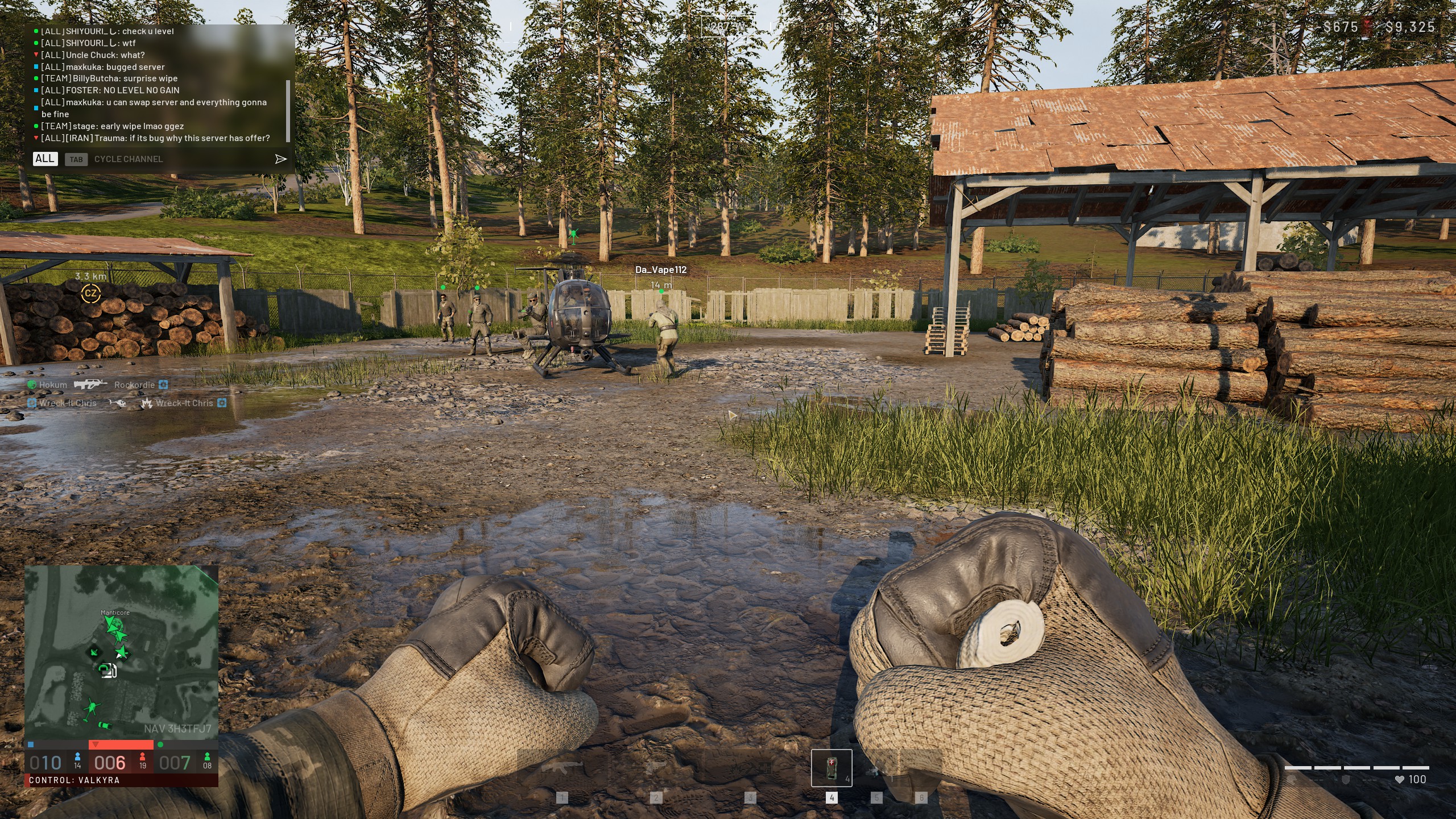
If you searched for WARDOGS Latency because your character is rubber-banding, freezing mid-fight, or getting kicked at the worst possible moment, you are not alone. Early Access titles with large player counts are notoriously demanding on both your PC and your internet connection, and WARDOGS Latency problems tend to show up in very specific, recognizable patterns.
WARDOGS just landed in Early Access and the 100-player king of the hill battles are brutal enough without your connection working against you. Between packet loss, distant server regions, and background apps eating your bandwidth, network problems can ruin an otherwise clean match. This guide breaks down exactly what causes them and how to fix them.
The short answer: most WARDOGS connection issues come from either an unstable route to the game server (packet loss or a distant region) or local network congestion, not necessarily a slow internet plan. Distinguishing high ping from FPS stutter, checking your server region, and routing your connection more efficiently solves the majority of cases. Below, we walk through every angle so you can get back to holding the zone.
Why Does WARDOGS Latency Happen in the First Place?
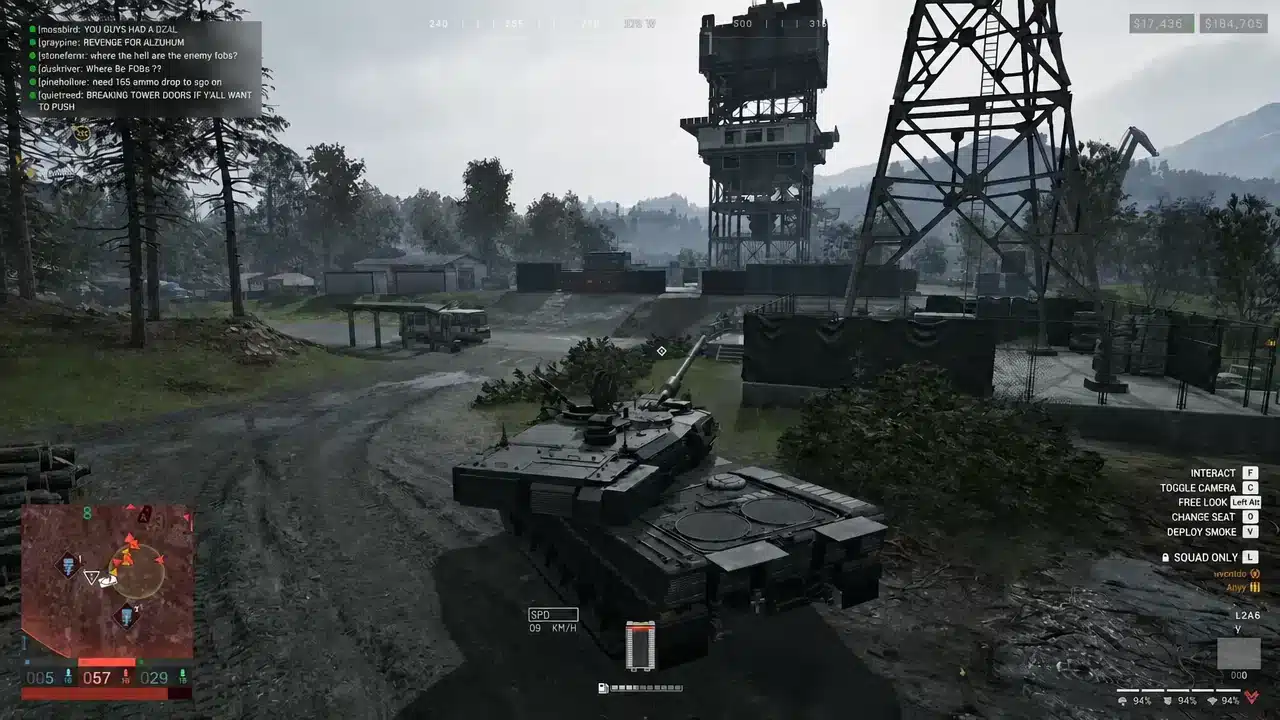
WARDOGS is a MilSim-inspired shooter built around large-scale, persistent skirmishes across a massive sandbox map. That design puts constant pressure on the network layer, since dozens of players are exchanging position, hit, and vehicle data at once.
Understanding the root causes helps you troubleshoot faster instead of blindly changing settings that will not fix anything.
Server Load and Region Selection
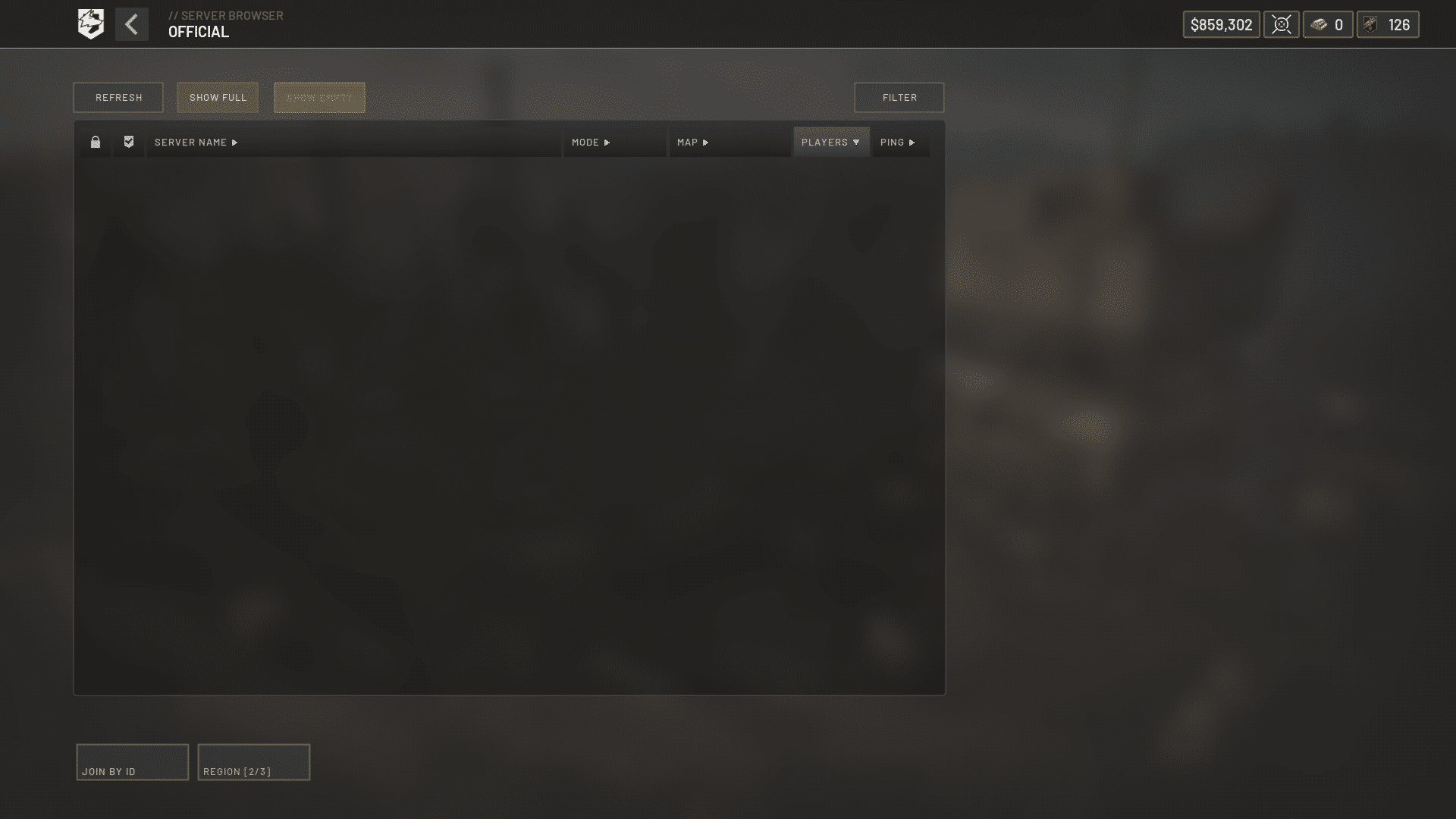
WARDOGS uses a server browser with regional selection rather than a single opaque matchmaking queue. That is good news, because it means you have direct control over which region you connect to.
- Choosing a distant region adds unavoidable round-trip latency, even on a great connection.
- A crowded 100-player server can strain tick rate during large fights, which feels like latency even when your own connection is fine.
- Community servers, now available at Early Access launch, can vary in quality depending on the host.
Packet Loss vs Raw Ping
This is the distinction most players miss. Normal ping combined with rubber-banding or teleporting almost always points to packet loss, not latency. The number on your ping counter will not reveal it.
Because WARDOGS matches involve constant player interaction and continuous data exchange, even a small amount of packet loss causes:
- Noticeable rubber-banding when moving.
- Delayed or inconsistent hit registration.
- Sudden position corrections that make gunfights feel unfair.
Why WARDOGS Keeps Disconnecting
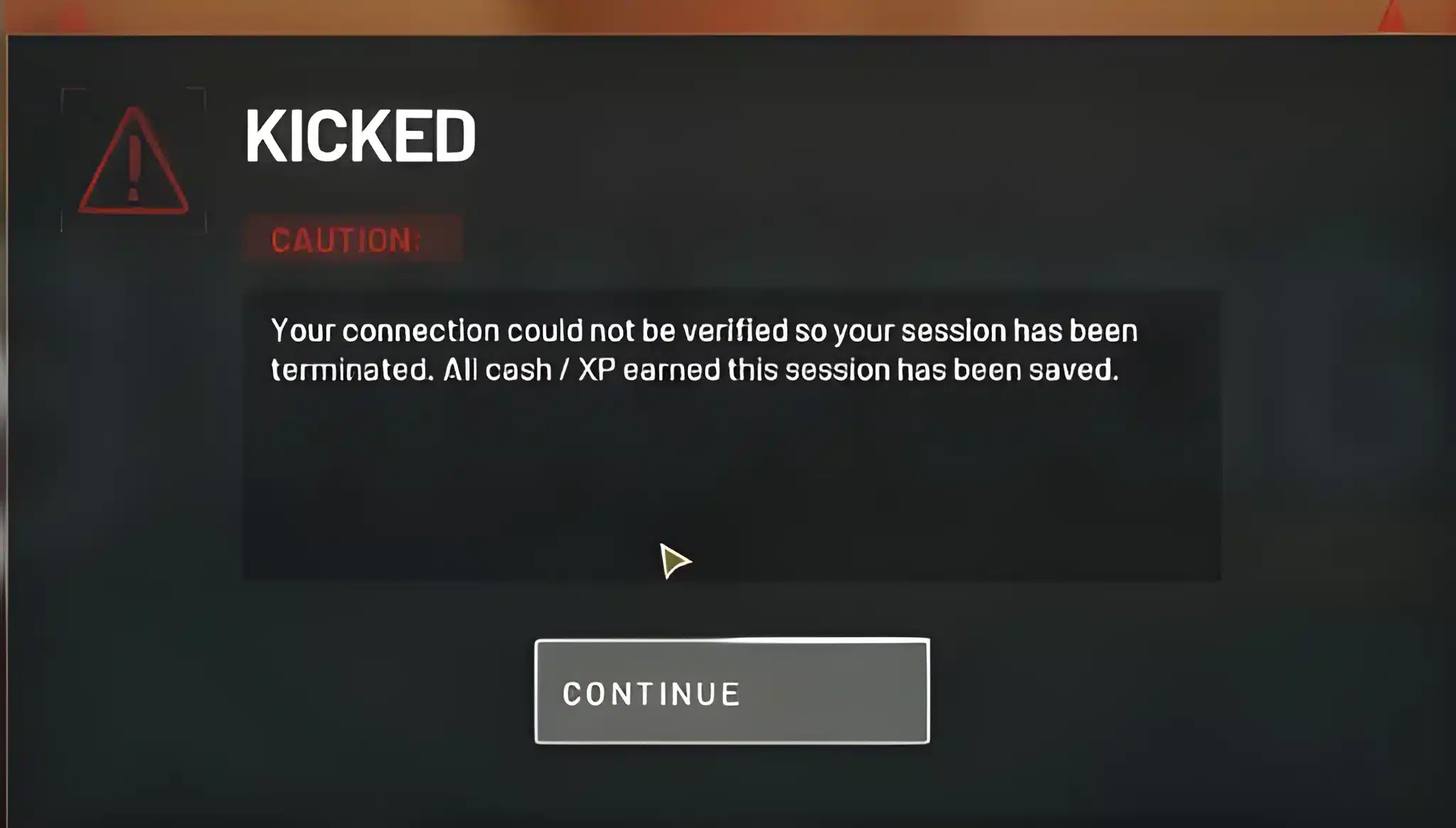
If you are getting fully dropped from matches rather than just experiencing lag, the cause is usually different from a simple high-ping scenario. Full disconnects point to something breaking the connection entirely, not just slowing it down.
Before touching any settings, confirm the issue is not global. If official channels report a server-side problem, there is nothing to fix on your end.
Local Network Interference
If other players in your household or friends in your squad are connecting fine, the problem is almost always local to your setup.
- Anti-cheat not running: WARDOGS relies on its anti-cheat service being active; if it fails to launch, matchmaking or session validation can fail.
- Firewall blocking the game: Windows Firewall or third-party security software can silently drop the ports WARDOGS needs.
- VPN interference: A standard VPN can conflict with matchmaking authentication and cause repeated disconnects.
- Wi-Fi congestion: Crowded 2.4 GHz networks are a frequent cause of dropped packets that eventually trigger a disconnect.
Bufferbloat and Background Traffic
Bufferbloat happens when your router queues too much traffic and latency spikes under load, even though your baseline speed looks fine.
A simple test: play WARDOGS while your network is quiet, then again while something else is uploading or downloading heavily. If ping rises sharply during that second test, bufferbloat is very likely your culprit, and closing background downloads or streaming apps will help immediately.
How to Tell High Ping From FPS Stutter
This is one of the most common points of confusion in WARDOGS, and it matters because the fix is completely different depending on which one you are actually experiencing.
Many players assume any hitch is a "lag" problem and start tweaking network settings, when the real issue is sitting entirely on the PC side. Here is how to tell them apart quickly.
Reading the Symptoms Correctly
- High ping, smooth movement: Everything feels delayed uniformly, but not choppy. This usually means you picked a distant region or a poorly routed connection.
- Normal ping, rubber-banding: Packet loss. The ping counter looks fine, but you teleport or snap back during fights.
- FPS drops, ping unaffected: A performance issue, not a network one. If your frame rate drops from 90 to 20 during a firefight, that is CPU or GPU load, not your connection.
- Stutter during traversal only: Usually points to storage. Installing on an SSD reduces asset streaming hitches significantly.
A Quick Diagnostic Routine
- Record a short clip of a match using any monitoring overlay that tracks ping, FPS, and frame time together.
- Note the exact moment a hitch happens.
- Compare the numbers at that timestamp: if ping spiked, it is network related; if FPS dropped while ping stayed flat, it is a performance issue.
- Repeat once on Ethernet to rule out Wi-Fi entirely before concluding it is a hardware bottleneck.
Below is a quick reference table comparing the most common symptoms, their real cause, and the fastest fix.
| Symptom | Likely Cause | Fastest Fix |
|---|---|---|
| Uniform delay, no rubber-banding | Distant server region | Switch to the closest healthy region in the server browser |
| Normal ping but teleporting/rubber-banding | Packet loss on the route | Use a more stable routed connection or wired Ethernet |
| Frequent full disconnects | Firewall, VPN, or anti-cheat conflict | Allowlist the game, disable standard VPN, confirm anti-cheat is running |
| FPS drops with stable ping | CPU/GPU performance bottleneck | Lower graphics settings, close background apps |
| Hitches only during travel | Storage or asset streaming | Move install to an SSD |
| Ping spikes only under load | Bufferbloat from background traffic | Pause downloads/streaming while playing |
How to Use ExitLag to Improve WARDOGS Network Stability
Once you have ruled out local performance issues and confirmed the problem is route-related, the next step is fixing the path your data takes to the WARDOGS servers. This is exactly where a dedicated connection optimizer earns its place in your setup.
ExitLag is not a VPN. It does not encrypt your traffic or mask your IP, and it has no effect on apps outside the games it supports. Instead, it analyzes multiple real-time network paths between your PC and the WARDOGS servers, then picks the fastest and most stable one available at that moment.
Why This Directly Targets WARDOGS Latency
The two biggest WARDOGS network complaints, packet loss and unstable routing, are precisely what ExitLag's core technology addresses.
- Multipath Technology: Sends your connection through multiple simultaneous routes. If one path degrades or drops packets, traffic automatically shifts to a healthier route without interrupting your match.
- Multi-Internet: Supports up to four simultaneous connections (Wi-Fi, Ethernet, mobile hotspot) with instant failover, so a single flaky network does not mean an automatic disconnect.
- Real-time Optimization: Continuously reduces delay and packet loss by rerouting away from congested hops between you and the WARDOGS server.
- Traffic Shaper: Prioritizes your game traffic over other background processes competing for bandwidth on your network.
Setting It Up for WARDOGS
Getting started takes only a few minutes and does not touch your game files in any way:
- Grab the ExitLag Download and install the client on your PC.
- Search for WARDOGS in the supported games list (part of a catalog of 4,000+ titles).
- Select a route toward your preferred region using the AI-powered routing suggestion or manual selection.
- Launch WARDOGS through the client and let real-time optimization handle the rest during your match.
ExitLag runs alongside more than 1,500 servers across 190+ countries and is used by over 30 million players, processing roughly 18 million optimizations every week. It does not modify game files, inject code, or interact with anti-cheat systems, which means it stays safely compatible with WARDOGS' anti-cheat protections.
One important note: avoid running ExitLag alongside a traditional VPN, since the two can conflict over routing and actually make matters worse instead of better.
Pro Tips: WARDOGS Latency
- Pick population over proximity carefully: A slightly farther region with a stable, well-populated server often beats the closest region if that closest one is overloaded.
- Test wired before blaming your ISP: Switching to Ethernet for a single match instantly rules out Wi-Fi interference as the source of packet loss.
- Watch consistency, not averages: A steady 45ms connection plays better than one averaging 25ms but spiking to 180ms randomly.
- Close bandwidth hogs before queuing: Cloud backups, game updates, and streaming apps running in the background are common silent culprits behind mid-match spikes.
Common Mistakes WARDOGS Players Make
- Blaming ping for every stutter: Players see any hitch and assume it is network related. Fix: check FPS and frame time alongside ping before touching any network setting.
- Running a VPN and an optimizer together: Stacking a standard VPN with a routing tool causes conflicts and can worsen the exact problem you are trying to solve. Fix: disable one before running the other.
- Ignoring server region selection: Many players let matchmaking auto-select and never check the server browser. Fix: manually pick the closest healthy-population region every session.
- Never testing wired Ethernet: Sticking with congested Wi-Fi and assuming the game itself is broken. Fix: test one full match wired before concluding anything about the game's netcode.
At the end of the day, most WARDOGS Latency complaints come down to two things: where your traffic is routed and whether your own machine is contributing to the problem. Fix the routing with a tool built for exactly that job, rule out local performance bottlenecks with the diagnostic steps above, and the disconnects and rubber-banding tend to disappear fast. If you play on mobile companion apps or other supported titles too, ExitLag for Android and ExitLag for iOS extend the same real-time routing to those platforms as well.
All game images used in this blog post belong to Bulkhead and Team17. They are used for informational and educational purposes only and do not imply endorsement or affiliation with the rights holders.