AION 2 Chat Not Working can leave you playing in silence, unable to follow your party or answer anyone. In a report shared with the ExitLag team, a player could neither send messages nor see incoming ones.
Fortunately, the fix was quick. AION 2 Chat Not Working cleared up as soon as the player enabled Redirect Login in ExitLag, and normal text chat came back without any reinstall or account change.
So, here is the direct answer: if you have AION 2 Chat Not Working, open ExitLag, select the AION 2 profile, turn on Redirect Login and apply the routes. You don’t even need to close the game, since AION 2 reconnects quickly and puts you back in the same spot.
If your problem starts before you even reach the character screen, and it is not really AION 2 Chat Not Working, our AION 2 unable to connect to login server troubleshooting guide covers that scenario. Here, the focus is narrower: getting messages flowing again when you can already play.

AION 2 Chat Not Working: The Redirect Login Fix
When AION 2 Chat Not Working hits both directions at once, Redirect Login is the first fix to try. In fact, it was the exact setting that restored chat in the reported case.
The process is short:
- Open ExitLag and select the AION 2 profile.
- Turn on the Redirect Login option.
- Apply the routes and let the game reconnect.
What The Reported Case Looked Like
The symptoms matter, because they tell you whether your AION 2 Chat Not Working problem matches. Notably, the player was not just waiting for a reply in a quiet channel.
Instead, the report showed:
- No incoming messages visible in any channel
- Outgoing messages failing to send
- The rest of the game working normally
- No mute or restriction notice on screen
In other words, when AION 2 Text Chat breaks this way, it fails all at once, across every channel. Switching channels is not a solution, so there is no reason to waste time on it.
What Redirect Login Actually Does
ExitLag Redirect Login extends ExitLag optimization by applying it to login, chat, voice, and other connections, helping resolve routing issues and ensuring stability across all game services. Therefore, it matters for text chat even though its name points to login.
Moreover, chat runs on its own connection inside AION 2. As a result, the game world can keep loading while messages stop flowing, which is exactly the AION 2 Chat Not Working pattern Redirect Login addresses.
For a deeper look at how the feature fits into ExitLag’s routing, read our explanation of how Redirect Login and ExitLag routing work.
Do You Need To Close AION 2 First?
No. You can enable Redirect Login and apply the routes with AION 2 open. The game will load and reconnect quickly, and even inside a dungeon or during an event you return to the same place.
However, if you still have AION 2 Chat Not Working after enabling it mid-session, try a clean restart:
- Close AION 2.
- Keep ExitLag open with the AION 2 profile selected and Redirect Login enabled.
- Apply the routes again.
- Launch AION 2 through Steam.
AION 2 Cannot Chat Right Now: Check What Is Missing
When AION 2 Cannot Chat Right Now, a quick check tells you where to start. A silent chat window, a message that never sends and a visible restriction notice each point to a different next step.
Quick Diagnosis Table
Use this comparison before changing anything else:
| What You Observe | What To Check First | Where Redirect Login Fits
|
|---|---|---|
| No incoming messages and you cannot send, across channels | Redirect Login status and routes applied | Redirect Login can fix it: this is the exact reported case |
| Incoming messages appear, but yours fail | Any displayed restriction, error or channel rule | Redirect Login can fix it if no account or channel explanation appears |
| One channel looks empty while others work | Channel selection, filters and real activity | Uncommon pattern, but Redirect Login is still worth testing |
| Game movement and chat both stop updating | Overall connection and service status | Redirect Login can help, since it covers all game connections |
| You see an explicit mute or restriction notice | The notice and official account support | Redirect Login cannot remove an account restriction |
Clearly, the strongest match for AION 2 Chat Not Working is failure in both directions. Even so, Redirect Login takes seconds to enable, so it is worth testing in every row except an explicit mute.
How To Test Incoming And Outgoing Messages
After enabling Redirect Login, confirm the result with a real test instead of trusting an empty window. Here is the cleanest way to do it:
- Ask a friend or party member to send you a short message.
- Check whether it appears in your chat window.
- Reply with a simple message.
- Ask whether your reply arrived on their side.
This checks both directions separately. Consequently, you know for sure whether the AION 2 Chat Not Working fix worked on your connection.
Is It AION 2 Chat Muted Or A Connection Problem?
Searches for AION 2 Chat Muted often describe two very different situations. One is an actual moderation restriction, while the other is a silent window caused by a broken connection.
Signs Of A Real Mute
An account restriction usually announces itself. Look for:
- A moderation or mute notice on screen
- A cooldown message when you try to send
- A channel requirement you don’t meet yet
- Other players confirming they see the rest of the chat normally
In these cases, routing cannot help. Instead, follow the notice and contact official support if the restriction seems wrong.
Signs Of A Routing Problem
On the other hand, a connection issue tends to look like this:
- No notice or error at all
- Nothing arriving in any channel
- Messages leaving your screen but never reaching anyone
- Everything returning after a reconnect
A blank chat panel by itself does not prove a mute. Therefore, if there is no notice, treat it as AION 2 Chat Not Working caused by routing and enable Redirect Login first.
How To Use ExitLag In AION 2: Step By Step
ExitLag is a game connection optimizer, not a VPN. It analyzes multiple network paths in real time and picks the fastest, most stable route between your PC and the AION 2 servers.
Setting Up ExitLag With Redirect Login
The whole process takes about a minute:
- Download ExitLag: Get the PC app from the official site. New users get a free trial.
- Log in: Install, open the program and sign in with your account.
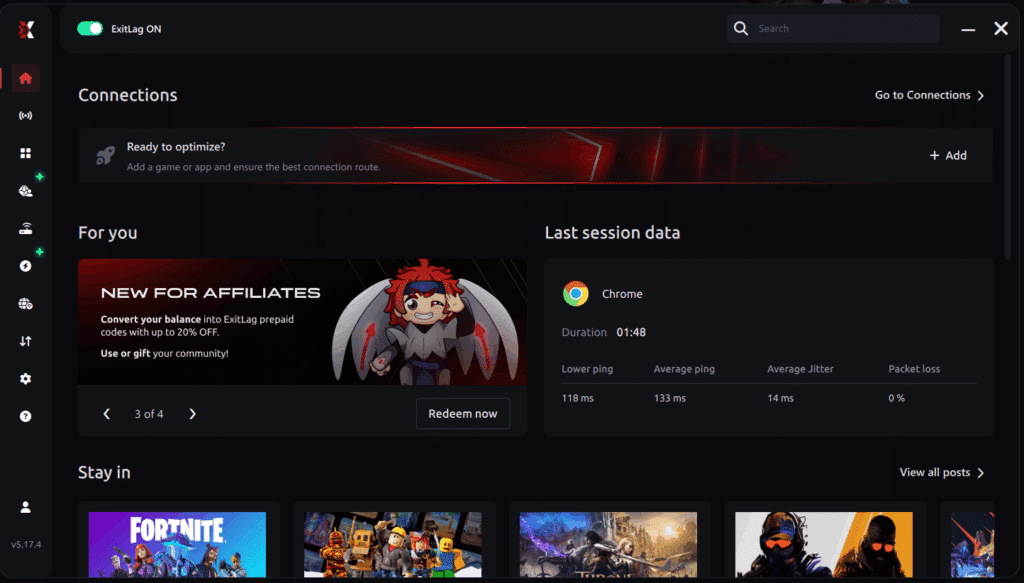
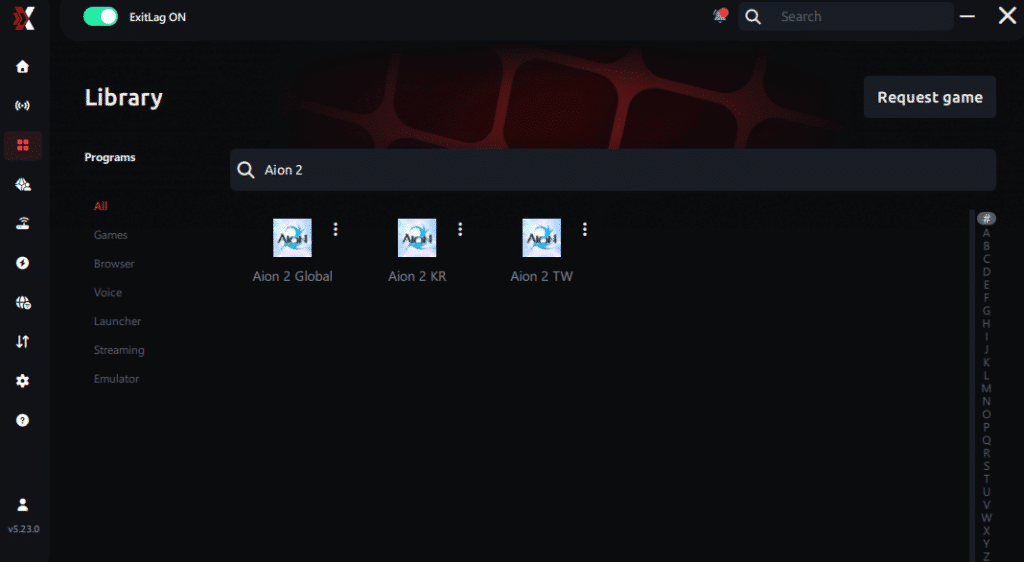
- Select the game: Type “AION 2” in the search bar and pick it from the list. If regional profiles appear, choose the one matching your server region.
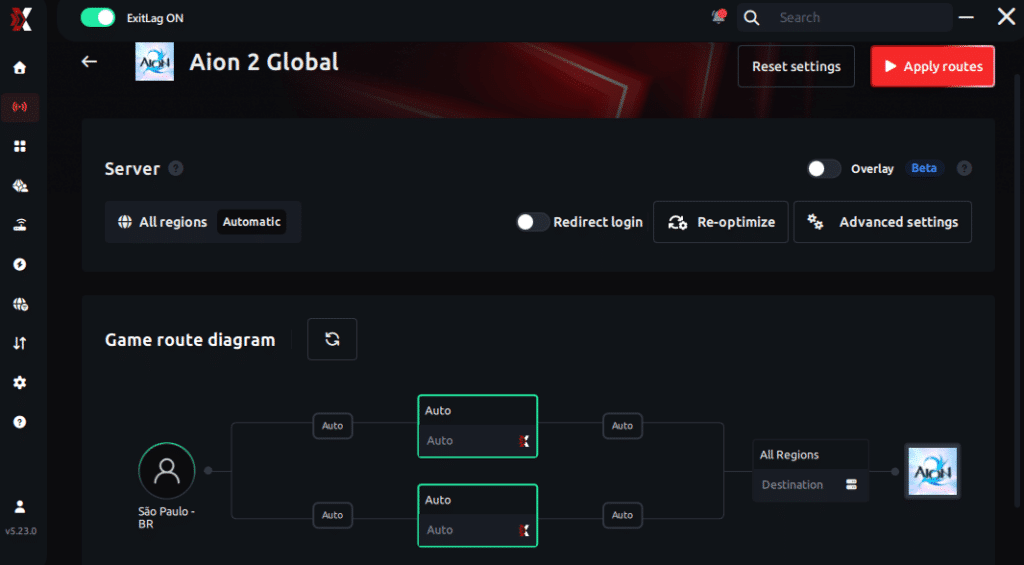
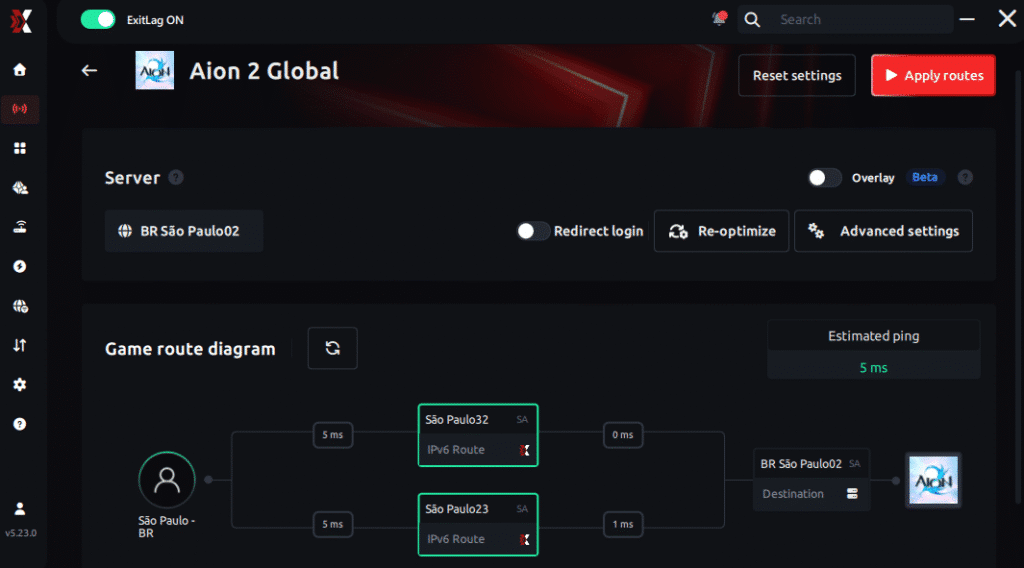
- Choose between automated or manual route
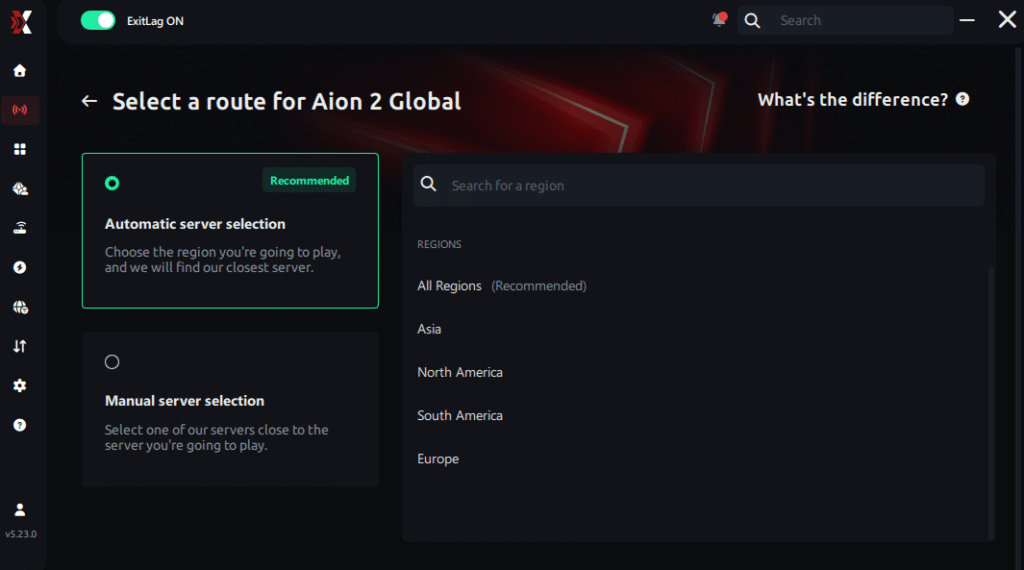
Based on the results, you can let ExitLag automatically select the best route or manually choose the server that showed the lowest latency for your connection.
AI-optimized automated route
Based on the results, you can let ExitLag automatically select the best route through AI-optimized . The system analyzes multiple connection paths in real-time and automatically identifies the most efficient route for your connection, ensuring the lowest possible latency without requiring manual choices.
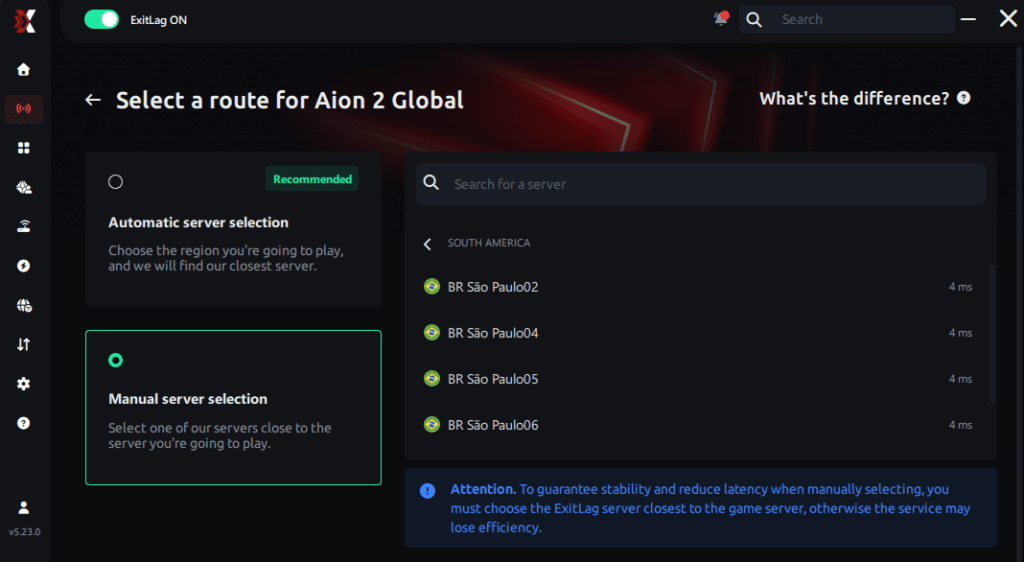
Manual route
If you prefer to have full control over your connection, you can manually choose the server based on the ping test results. Simply select the server that showed the lowest latency or the one that best meets your specific gaming needs, allowing complete customization of your experience.
- Enable Redirect Login: If you are having problems with chat or login, turn on the Redirect Login option. Don’t skip this step, since it is the setting that restored chat in the reported case.
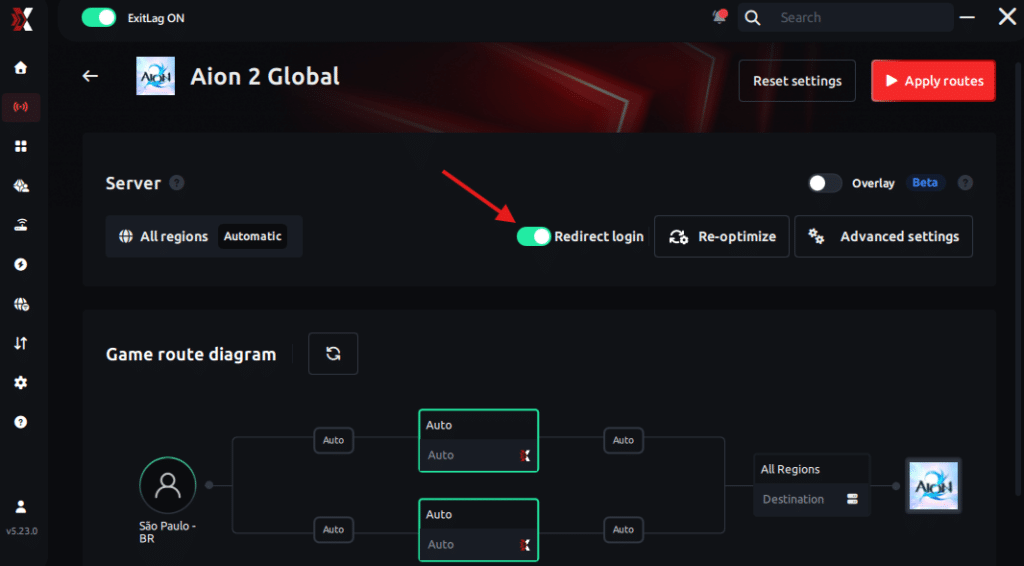
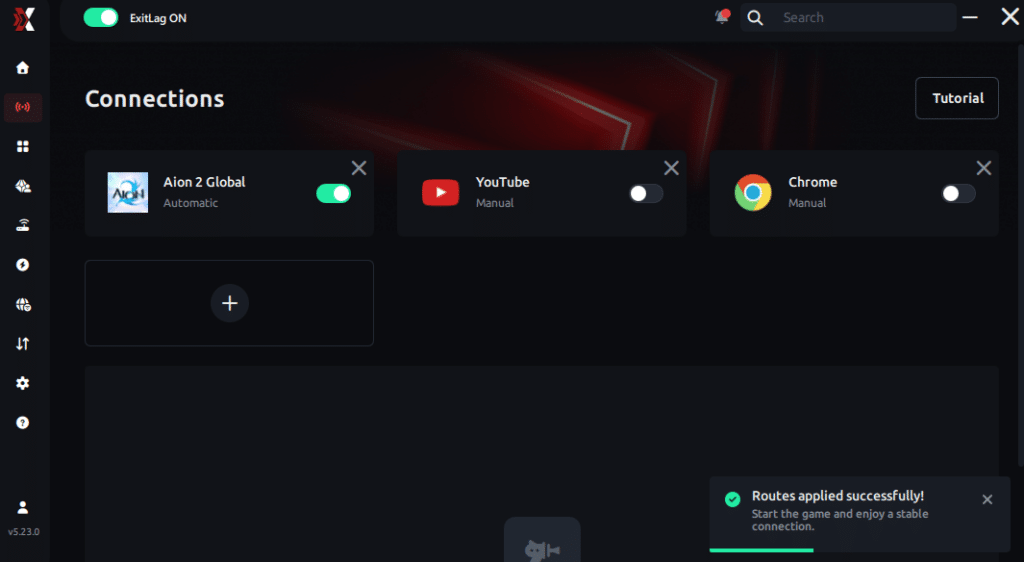
- Apply routes: Click “Apply routes” or the play button to start optimizing.AI-optimized automated route:
Manual route:
- Wait a few seconds until optimization is complete: In a few seconds, ping indicators appear in the interface.
- Play: Launch AION 2 through Steam. If the game is already open, it reconnects quickly and keeps you where you were.
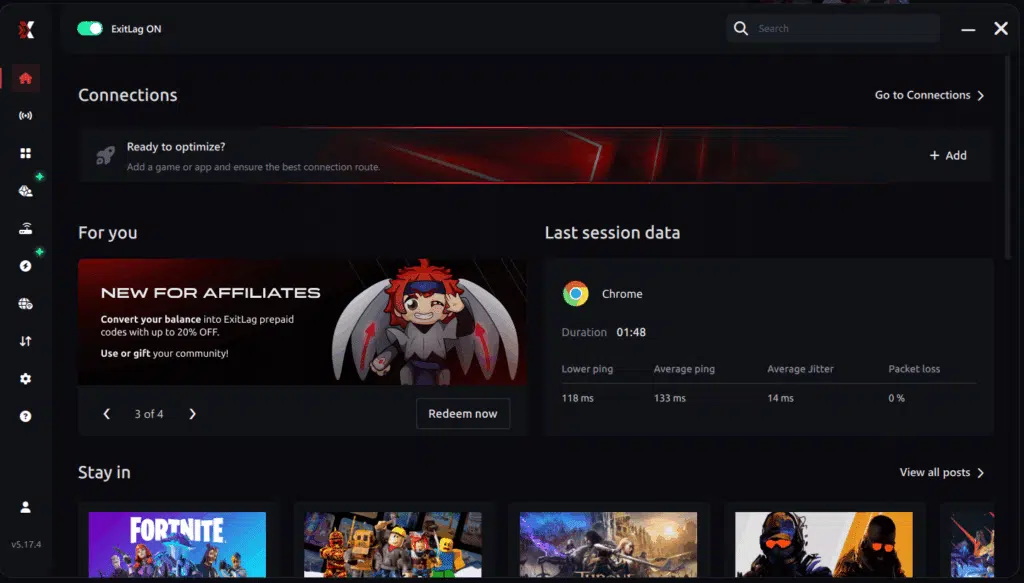


Once your character loads, ask another player to send a message and confirm they receive your reply. That is the fastest way to confirm AION 2 Chat Not Working is gone.
Why ExitLag Works For AION 2 Text Chat
Beyond Redirect Login, several ExitLag features help keep every AION 2 connection stable:
- Real-time Optimization: Reduces delay and packet loss, so commands and messages reach the server faster.
- Multipath Technology: Sends packets through multiple routes at once, so if one path fails, the others keep the connection alive.
- Multi-Internet: Supports up to 4 simultaneous connections, with another taking over instantly if one drops.
- Traffic Shaper: Prioritizes game traffic and limits bandwidth used by other apps.
In addition, ExitLag does not modify game files, inject code or interact with anti-cheat systems. Just remember not to run it alongside a VPN, since that reduces its effectiveness.
Ready to get your messages flowing again? Grab the ExitLag Download for PC, enable Redirect Login and jump back into AION 2.
How To Use Ping For Games In AION 2
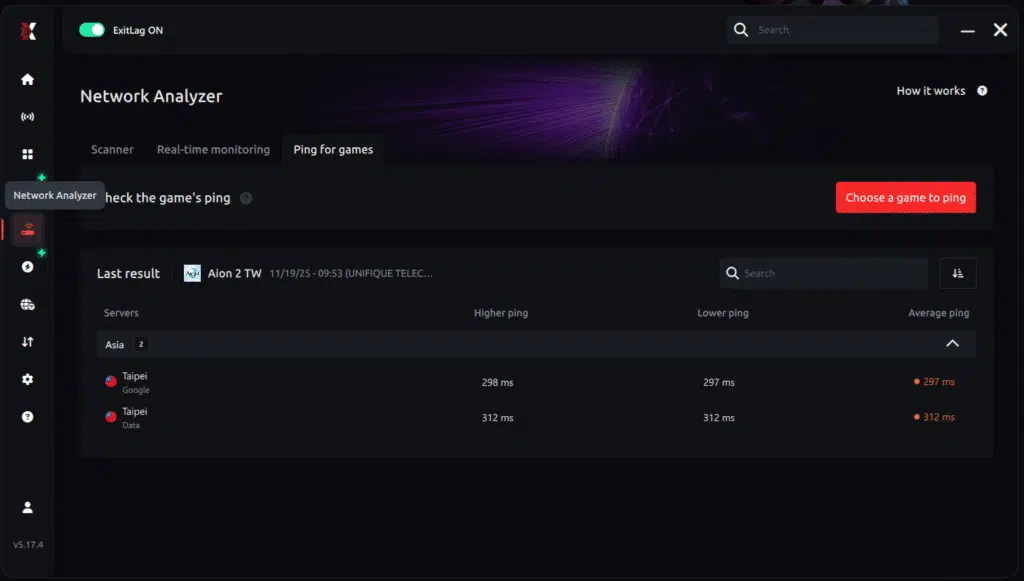
Ping for Games is ExitLag’s free connection tester, built into the app. It helps you compare AION 2 destinations before choosing a route.
Running The Ping Test
Follow these steps:
- Open ExitLag on your PC.
- Go to the Network Analyzer in the software menu.
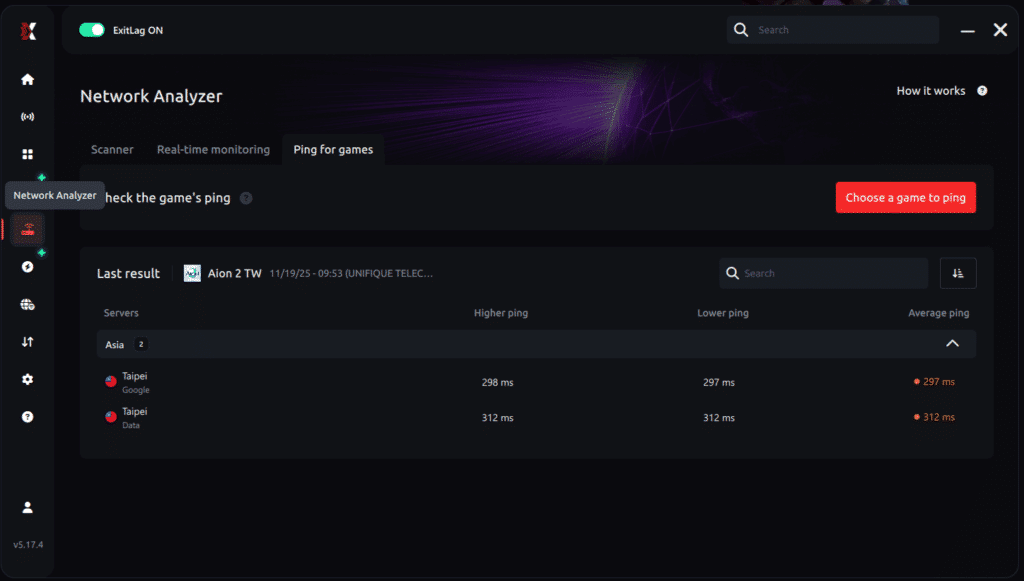
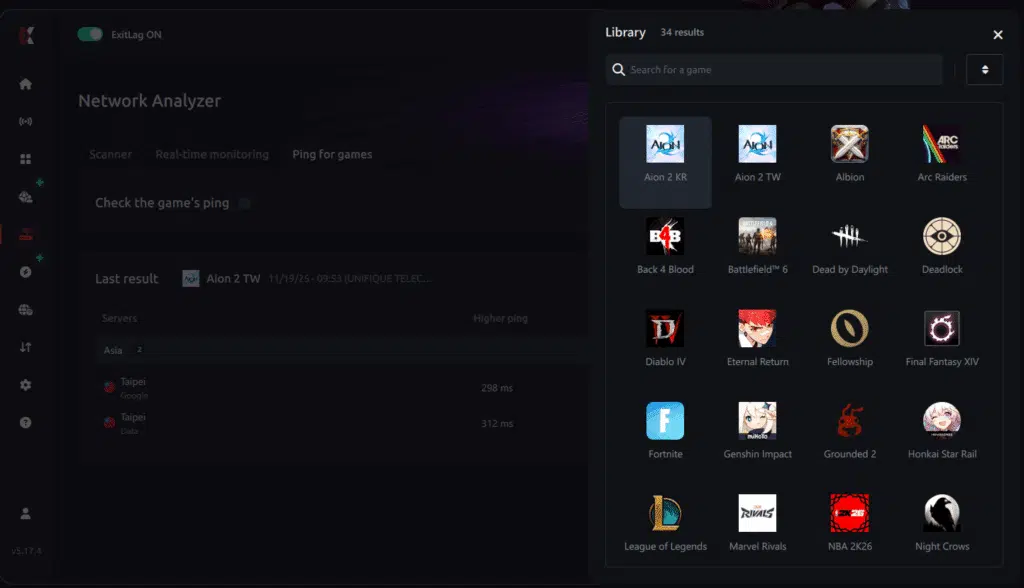
- Choose AION 2 from the game list.
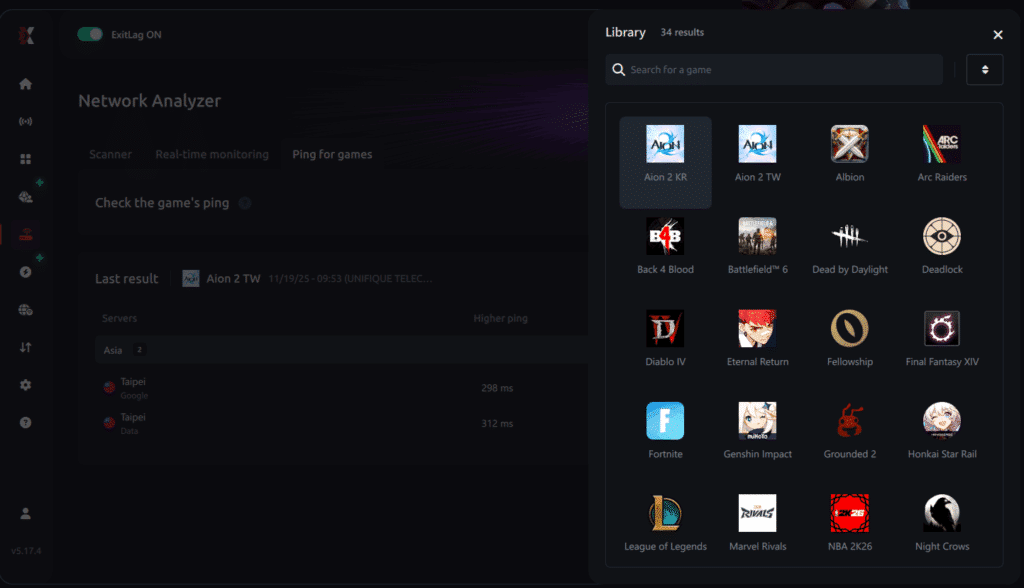
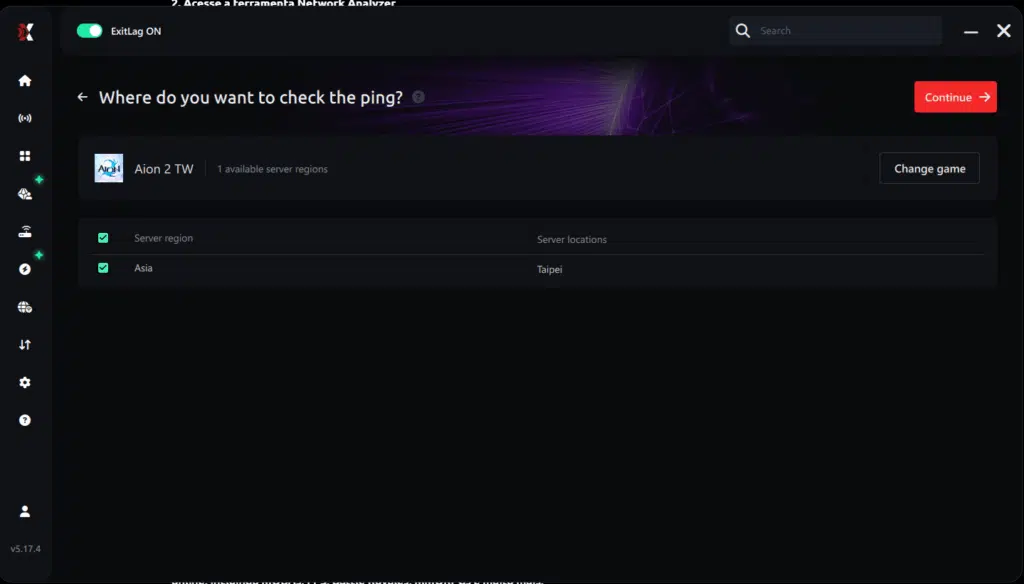
- Select the exact server or regional destination you play on.
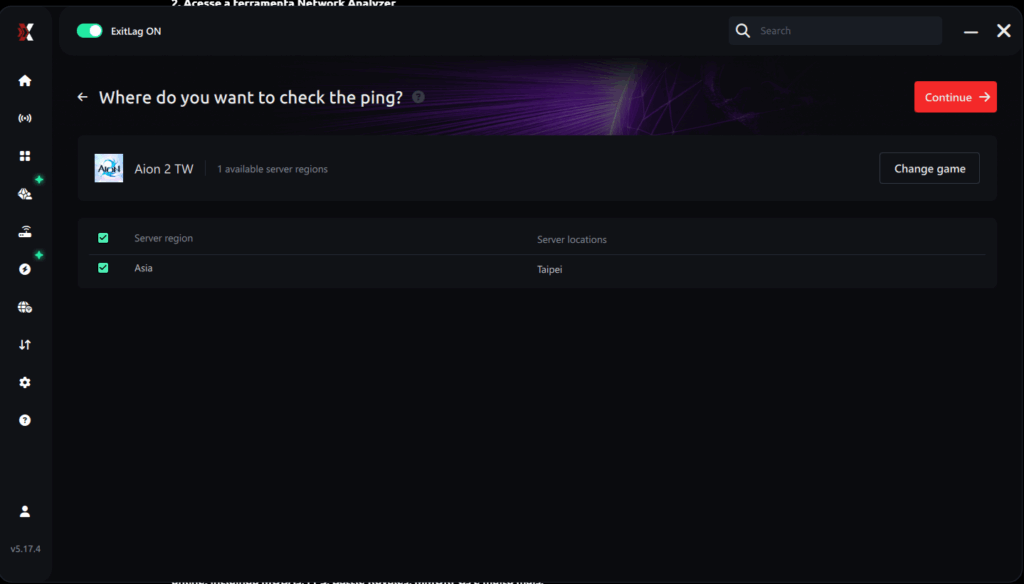
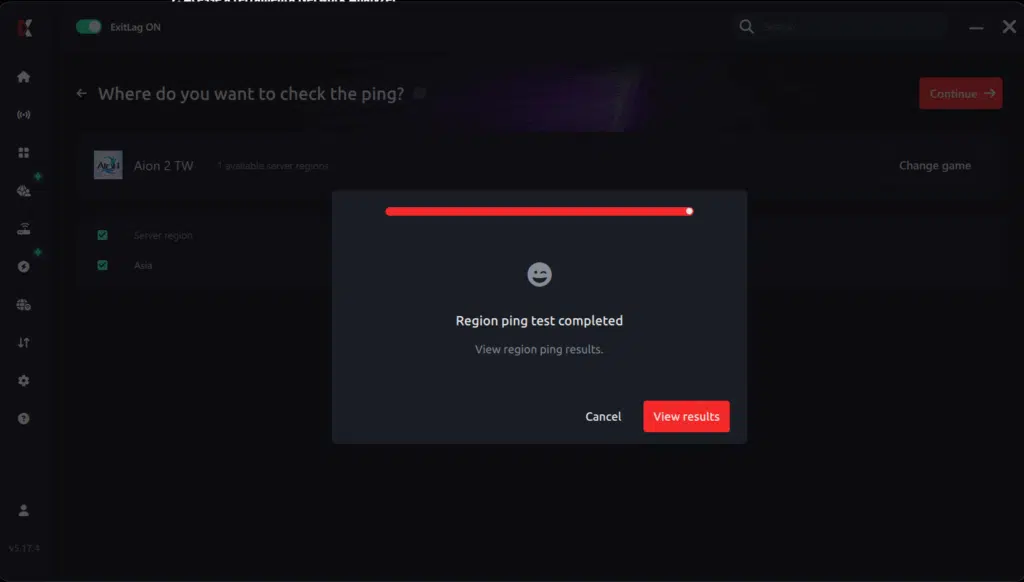
- Start the test with one click.
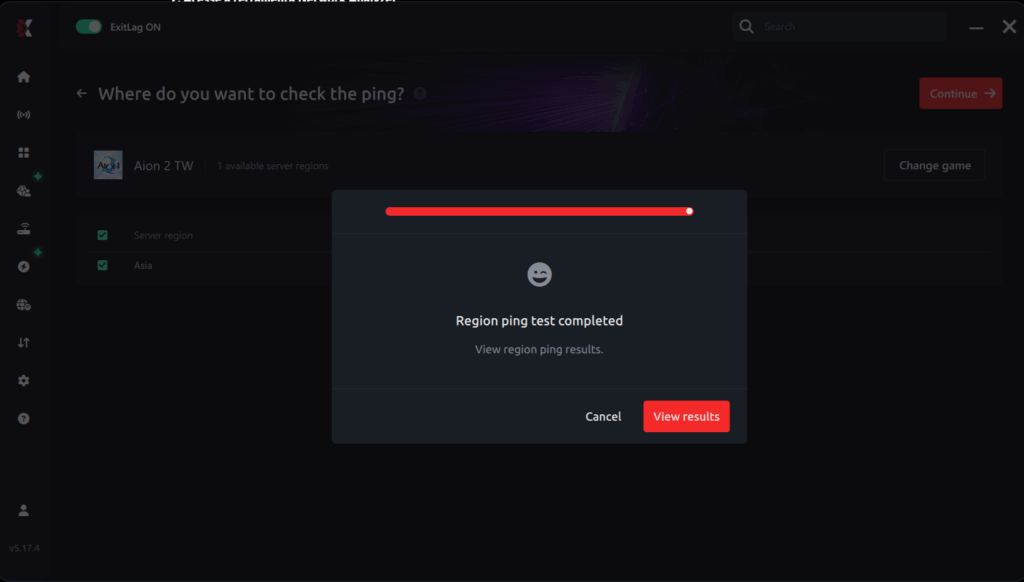
- Pick the destination with the lowest ping, apply the routes with Redirect Login enabled and launch the game.
Reading Your Results
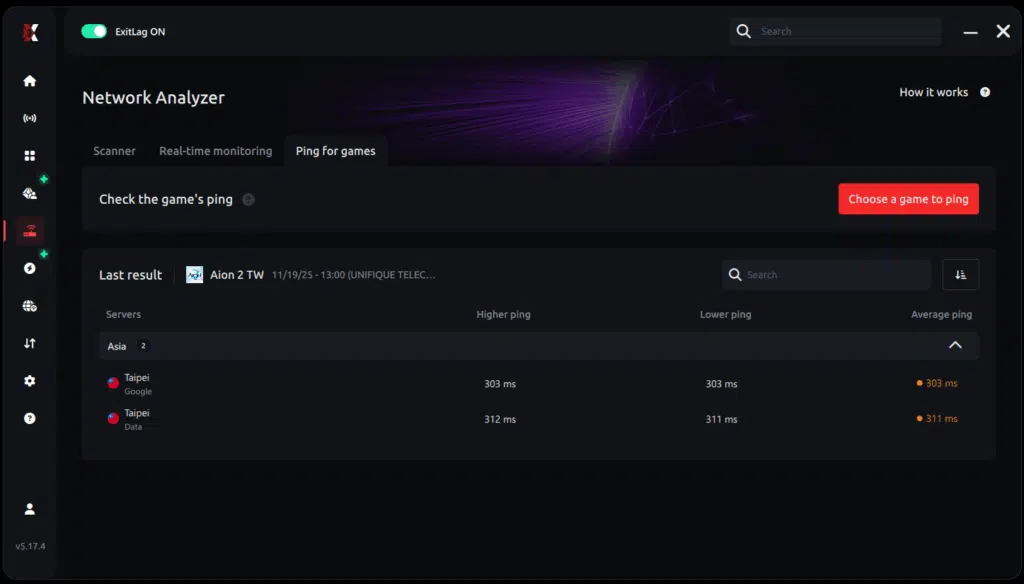
Results appear in milliseconds, sorted from best to worst. Keep these points in mind:
- Ping measures latency, not whether chat works
- Jitter shows how much that latency varies
- Packet loss shows data that never arrives
- A routing destination does not move your character to another world server
In short, a good ping result is a starting point, not proof that AION 2 Chat Not Working is solved. Your real success test is still sending and receiving messages.
Cannot Chat Right Now AION 2? What To Do If It Continues
If you still see Cannot Chat Right Now AION 2 after enabling Redirect Login, avoid changing everything at once. Instead, work through a few controlled checks.
Restart With ExitLag Already Configured
First, close AION 2 completely while keeping ExitLag open with Redirect Login enabled. Then apply the routes and relaunch the game through Steam.
Next, repeat the same chat test with the same character and the same friend. If you try a different route, change only the route and keep Redirect Login on. For broader fixes, our guide on how to fix server connection issues in AION 2 goes deeper.
Check Official Service Notices
Sometimes the problem is on the server side. Maintenance windows and patches can affect chat features, and recent updates have already fixed chat-related bugs such as emote commands.
So, check the news and update history on the official AION 2 page on Steam before assuming your connection is at fault. Also, follow any instructions attached to current announcements.
Send A Useful Support Report
If AION 2 Chat Not Working persists, prepare these details for ExitLag support or the game’s support team:
- Your server region and game version on Steam
- Whether incoming messages, outgoing messages or both are missing
- The selected ExitLag profile and whether Redirect Login is enabled
- Whether you enabled Redirect Login with the game open or before launching it
- Any visible error or restriction notice, plus the approximate time
Keep your account credentials private when sharing screenshots. Precise details help support separate a routing problem from a restriction or service issue.
Pro Tips: Keeping AION 2 Chat Stable
- Leave Redirect Login on for AION 2: Since it covers chat, voice and login, keeping it enabled prevents the same issue from returning mid-session.
- Test chat right after logging in: A quick message to a friend reveals problems before a raid starts, when a silent chat costs the most.
- Use a wired connection: Ethernet removes Wi-Fi interference that causes packet loss on every connection, chat included. Our AION 2 connection optimization guide covers more local tweaks.
- Change one thing at a time: Testing route, profile and settings together hides which change actually helped.
Common Mistakes AION 2 Players Make With Chat Issues
- Switching channels to fix it: When chat breaks, it breaks everywhere, so channel hopping changes nothing. Fix: enable Redirect Login right away.
- Forgetting to enable Redirect Login: Many players select the route and launch the game without turning it on. Fix: check the Redirect Login option every time you configure the AION 2 profile.
- Assuming a blank window means a mute: Without a notice, a silent chat is usually a connection issue. Fix: look for an explicit restriction message before contacting account support.
- Lowering graphics settings: Shadows and textures have nothing to do with messages that never arrive. Fix: focus on routing and connection stability instead.
Frequently Asked Questions
These answers cover the reported fix and the checks that confirm it.
How Do I Fix AION 2 Chat Not Working With ExitLag?
Select the AION 2 profile in ExitLag, enable Redirect Login and apply the routes. You can do this with the game open, since AION 2 reconnects quickly and keeps you in place. If chat still fails, restart the game through Steam with ExitLag already configured.
Why Can I Play AION 2 But Not See Chat Messages?
Being in the game does not mean every connection works. Chat runs on its own connection, and Redirect Login extends ExitLag optimization to it. In the reported case, enabling it restored both incoming and outgoing messages.
Does Redirect Login Remove A Chat Mute?
No. Route optimization does not change account permissions or remove moderation restrictions. If AION 2 shows an explicit mute notice, use the game’s official support process.
Can I Try ExitLag With AION 2 For Free?
Yes. The official ExitLag trial currently offers three days free with no credit card required. After that, pricing depends on the plan you choose.
Final Thoughts On AION 2 Chat Not Working
The reported AION 2 Chat Not Working problem had a clear pattern: no incoming messages, no outgoing messages and no notice on screen. Enabling Redirect Login in ExitLag brought chat back without leaving the game.
The Short Version
- Select the AION 2 profile in ExitLag
- Turn on Redirect Login
- Apply the routes, with the game open or closed
- Test both directions with another player
Your Next Step
If you’re dealing with AION 2 Chat Not Working, don’t waste time switching channels or reinstalling. Enable Redirect Login, apply your routes and get back to talking with your party.
All game images used in this blog post belong to NC (NCSOFT). They are used for informational and educational purposes only and do not imply endorsement or affiliation with the rights holders.
Got questions or want to connect with other players? Join the conversation at the ExitLag Forum!