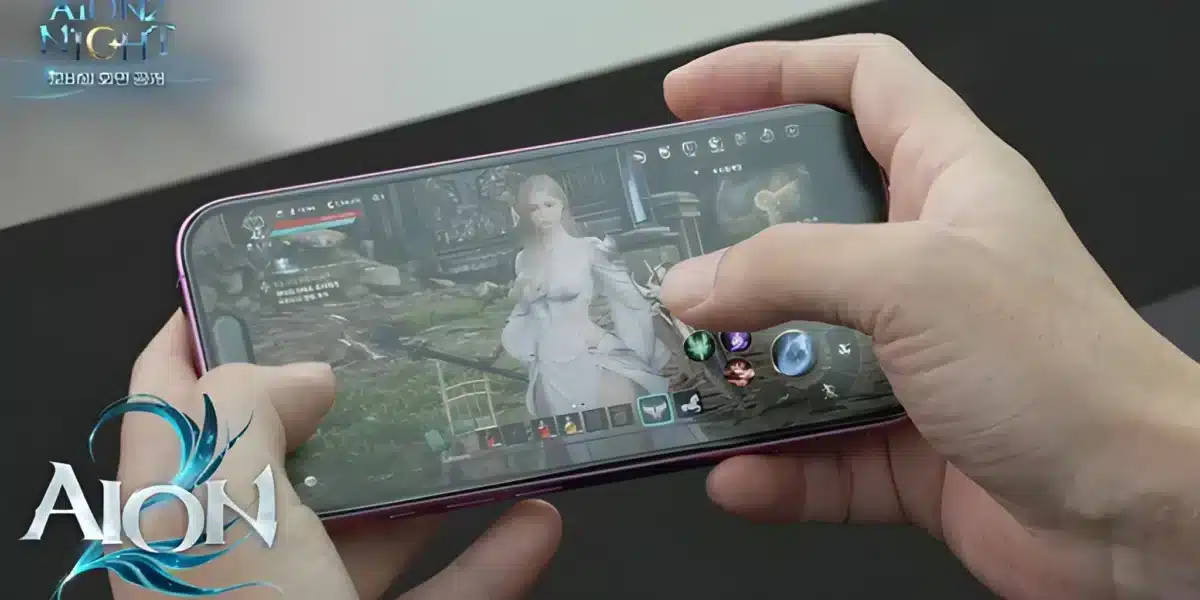
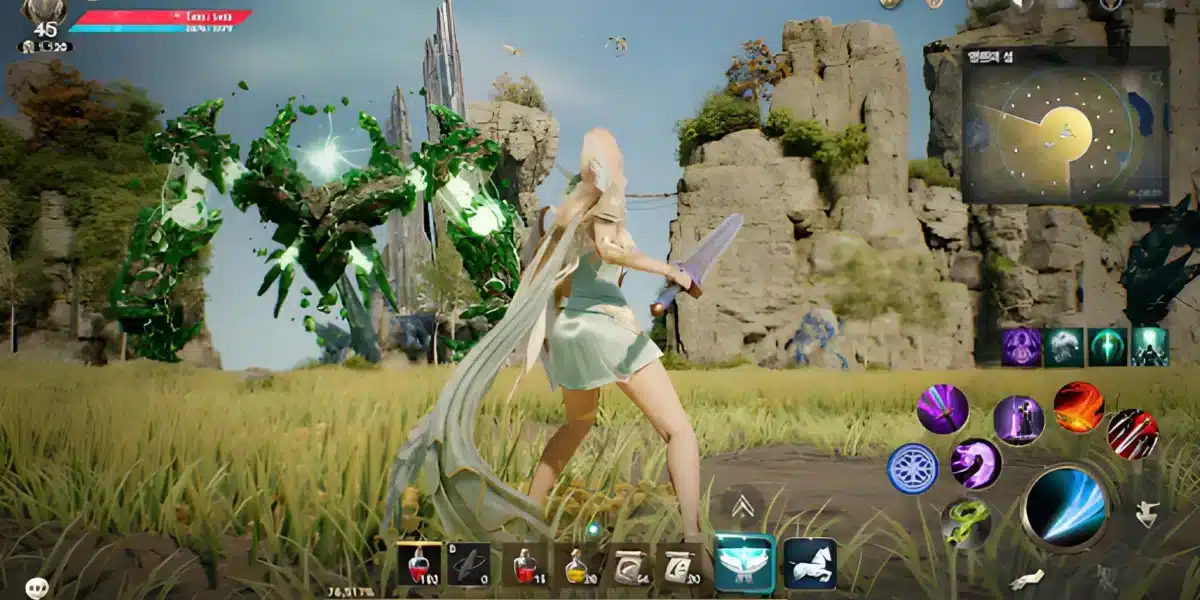
Aion 2 is finally here, and a lot of players are asking the same question before they even log in. Can you play this MMORPG with a gamepad instead of a mouse and keyboard? It is a fair question, since so many modern online RPGs now ship with proper controller menus.
Aion 2 Controller Support is one of the most searched topics right now, and for good reason. The game launched as a PC title through Steam and NCSoft’s own PURPLE launcher, which already changes expectations compared to a console-first release.
So here is the direct answer: Aion 2 does not have official, fully advertised controller support at launch. However, Xbox-style gamepads can register basic movement and combat inputs on PC, while deeper menus and combos still lean on mouse and keyboard. It works, but it is a supplementary option rather than a primary playstyle.
That distinction matters a lot for anyone planning their first sessions in Atreia. Before you plug in a pad and expect a console-style experience, it helps to understand exactly what is confirmed, what is community-tested, and where the rough edges are.
Aion 2 Controller Support: What Is Confirmed Right Now
NCSoft has not published an official controller compatibility list or a dedicated gamepad settings menu for the global release. Consequently, everything players know today comes from testing rather than a marketing page.
That said, the picture is not empty. Community testers connecting Xbox-compatible pads before launching the client report that movement, camera control, jump, and dash all register correctly.
- Basic movement and camera rotation work out of the box
- Jump, dash, and some combat buttons map to face buttons automatically
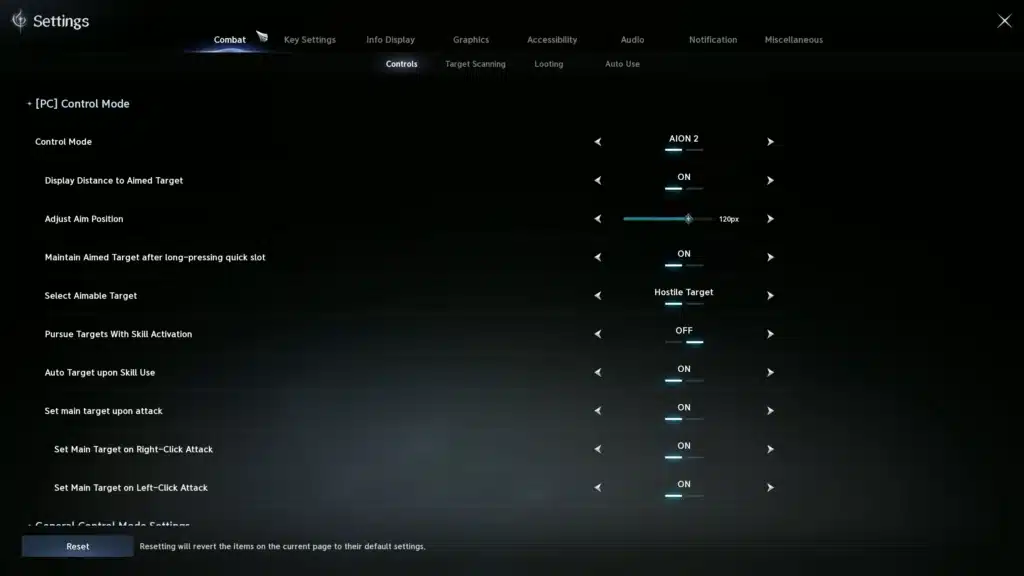
- There is no in-game remapping screen for controller inputs
- Menus, inventory, and skill setup still expect mouse and keyboard
Does Aion 2 Support Xbox And PS5 Controllers?
Xbox controllers currently behave more consistently on PC because Windows and Steam both treat XInput devices as a native standard. As a result, a wired or wireless Xbox pad is usually recognized the moment it is connected.
PlayStation’s DualSense has not been specifically confirmed as compatible in the same way. Some players report partial recognition through Steam, but it is not guaranteed and results vary between builds.
Is Aion 2 Coming To Console?
At this stage, Aion 2 is a PC-only release for the global audience, available through Steam and PURPLE. There is no confirmed PS5 or Xbox Series X/S version for Western servers.
Reports out of Japan mention that NCSoft may be exploring a console port down the line. Nothing has been confirmed for a release window, so treat this as a possibility rather than a promise.
Aion 2 Controller Setup On PC: Step By Step
Even without an official gamepad menu, plenty of players are running Aion 2 with a controller successfully. The key is doing the connection steps in the right order.
Getting a stable setup mostly comes down to timing and patience, since the game currently detects controllers at specific moments rather than continuously.
How Do You Set Up A Gamepad On Aion 2 PC?
- Connect your controller to your PC before launching the game client.
- Confirm the pad is recognized in Windows (check the Xbox Accessories app or Steam’s controller settings).
- Launch Aion 2 through Steam or PURPLE with the controller already active.
- Use the pad to navigate the title screen and login flow to confirm it is being read.
- Once in-game, test movement and your basic attack combo before committing to a full session.
- If inputs feel unresponsive, disconnect, reconnect, and relaunch the client.
Following that order matters more than it should, honestly. Several players who plugged in a controller mid-session reported it simply being ignored until they restarted the game.
Default Aion 2 Gamepad Support Bindings
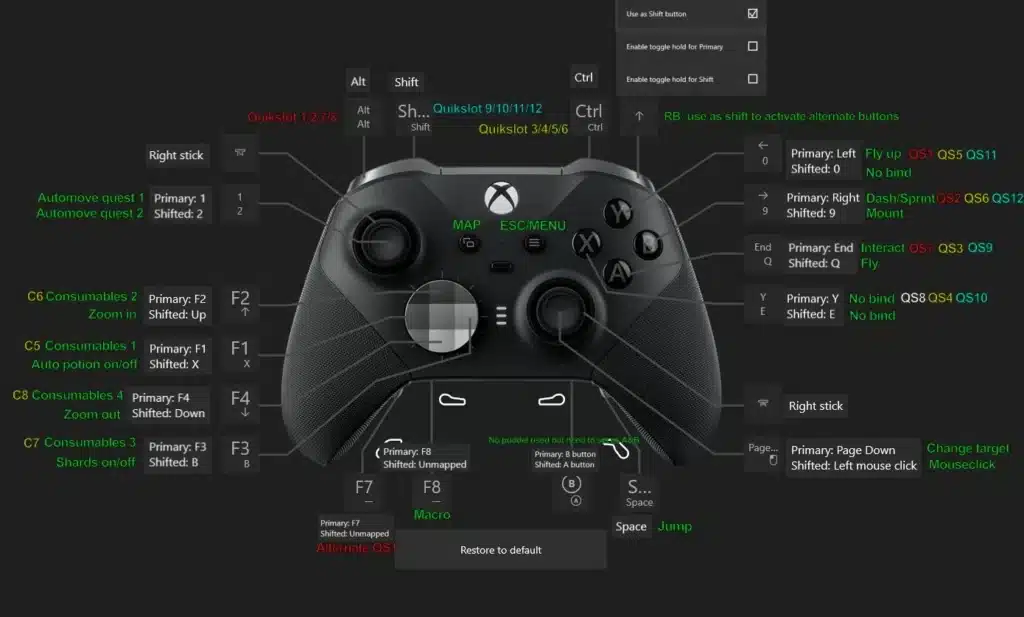
Because there is no remapping menu yet, the default Aion 2 Gamepad Support layout is fixed. Here is what tends to hold true across community reports:
- Left stick handles movement, right stick handles camera
- Face buttons cover jump, dash, and a basic attack
- Shoulder buttons and triggers are tied to a handful of skills
- Start or menu buttons open limited UI panels, not the full inventory
Aion 2 Xbox Controller Vs Aion 2 PS5 Controller
Since both consoles have loyal fan bases, it makes sense to compare how each device behaves specifically inside Aion 2 on PC. The differences are more about driver support than raw hardware quality.
Understanding this before you buy or dig out an old pad can save you a frustrating first hour with the game.
Xbox Controller Performance
An Aion 2 Xbox Controller setup tends to be the smoother of the two options right now. Because XInput is baked into Windows, there is less friction between the hardware and the client.
- Plug and play recognition in most cases
- Consistent input registration for movement and jump
- Works well with third-party mapping tools like Steam Input
PS5 DualSense Compatibility
An Aion 2 PS5 Controller setup can work through Steam’s controller configuration layer, but it is less predictable. DualSense uses a different input protocol natively, so Steam has to translate it.
- May require enabling PlayStation configuration support inside Steam
- Some buttons or triggers can behave inconsistently between sessions
- Wired connection is generally more reliable than Bluetooth for this game
Aion 2 Controller Compatibility: Where It Falls Short
No guide would be honest without covering the limits. Aion 2 was designed around manual, hit-confirm combat, which changes how well a controller actually performs compared to precision mouse aiming.
Furthermore, the lack of a dedicated settings menu means every workaround is community-driven rather than officially supported.
Combat And Combo Limitations
Aion 2 combat rewards precise timing and combo chaining, and much of that design assumes keyboard shortcuts for quick swaps between skills. Controllers simply have fewer inputs available at once.
- PvP and endgame content still favor mouse and keyboard precision
- Combo starters and follow-ups can be harder to chain smoothly on a pad
- Advanced rotations often require more buttons than a standard controller offers
Menus, Inventory, And UI
Even players who enjoy controller combat usually keep a mouse nearby. Inventory management, crafting, and social menus were not built with a pad-first interface in mind.
- Trading and auction house browsing is faster with a mouse
- Skill setup screens are easier to navigate with keyboard shortcuts
- Some menus simply do not respond to controller input at all
Here is a quick snapshot comparing the three common setups players are testing right now.
| Setup | Basic Movement | Combat Reliability | Menus & Inventory |
|---|---|---|---|
| Xbox Controller (PC) | Reliable | Good for basic combos | Requires mouse/keyboard |
| PS5 DualSense (PC via Steam) | Mostly reliable | Inconsistent on some inputs | Requires mouse/keyboard |
| Mouse and Keyboard | N/A | Best for PvP and endgame | Fully supported |
Pro Tips: Aion 2 Controller Setup
- Connect before launch: Plugging in your pad before opening the client avoids detection issues that force a full restart.
- Keep a mouse within reach: Even dedicated gamepad players switch to mouse for trading, crafting, and skill setup screens.
- Use Steam Input for DualSense: Enabling PlayStation configuration support inside Steam improves recognition for PS5 pads specifically.
- Test combos early: Before committing to a long session, run your basic attack chain to confirm the buttons are firing as expected.
- Update your controller drivers: Outdated Xbox or PlayStation drivers are a common cause of missed inputs during combat.
Common Mistakes Aion 2 Controller Players Make
- Launching the client before connecting the pad: This often means the controller is never detected that session. Fix: always connect and confirm recognition first, then launch Aion 2.
- Expecting full in-game remapping: There is no built-in controller menu yet, so players waste time hunting for settings that do not exist. Fix: use Steam Input or a third-party mapper for custom layouts instead.
- Relying on a controller for endgame PvP: The manual hit-confirm combat system favors keyboard speed. Fix: switch to mouse and keyboard for competitive content and save the pad for casual exploration.
- Ignoring Bluetooth latency on PS5 pads: Wireless DualSense connections can introduce input delay. Fix: use a wired USB connection for more consistent timing.
Aion 2 Controller Support: Getting A Smoother Connection
Whichever setup you choose, input responsiveness matters even more when you are using a controller. A gamepad is already less precise than a mouse, so any network delay makes combat timing feel worse.
This is exactly where ExitLag fits into the picture for MMORPG players. It is not a VPN, so it does not hide your traffic or slow things down with encryption overhead.
Instead, ExitLag is a game connection optimizer that scans multiple network paths in real time and automatically picks the fastest, most stable one to the game’s servers.
For a title like Aion 2, that stability shows up in ways that matter during actual play:
- Tighter response between a stick or trigger input and the action landing on screen
- More stable connections during group content, dungeons, and world bosses
- Fewer disconnects that can interrupt a controller session mid-combo
ExitLag supports over 4,000 titles across PC and Mobile, backed by more than 1,500 servers spread across 190-plus countries, and it is trusted by over 30 million players who run more than 18 million optimizations every week.
Its real-time optimization and multipath technology work together so that if one route degrades, your connection quietly shifts to a better one. For players juggling co-op content alongside a gamepad’s slightly higher input latency, that consistency is worth having.
Grabbing the ExitLag Download before your next Aion 2 session takes a few minutes and can make combat feel noticeably tighter, whether you are on mouse and keyboard or testing out Aion 2 Controller PC play for the first time.
All game images used in this blog post belong to NCSoft. They are used for informational and educational purposes only and do not imply endorsement or affiliation with the rights holders.
Got questions or want to connect with other players? Join the conversation at the ExitLag Forum!