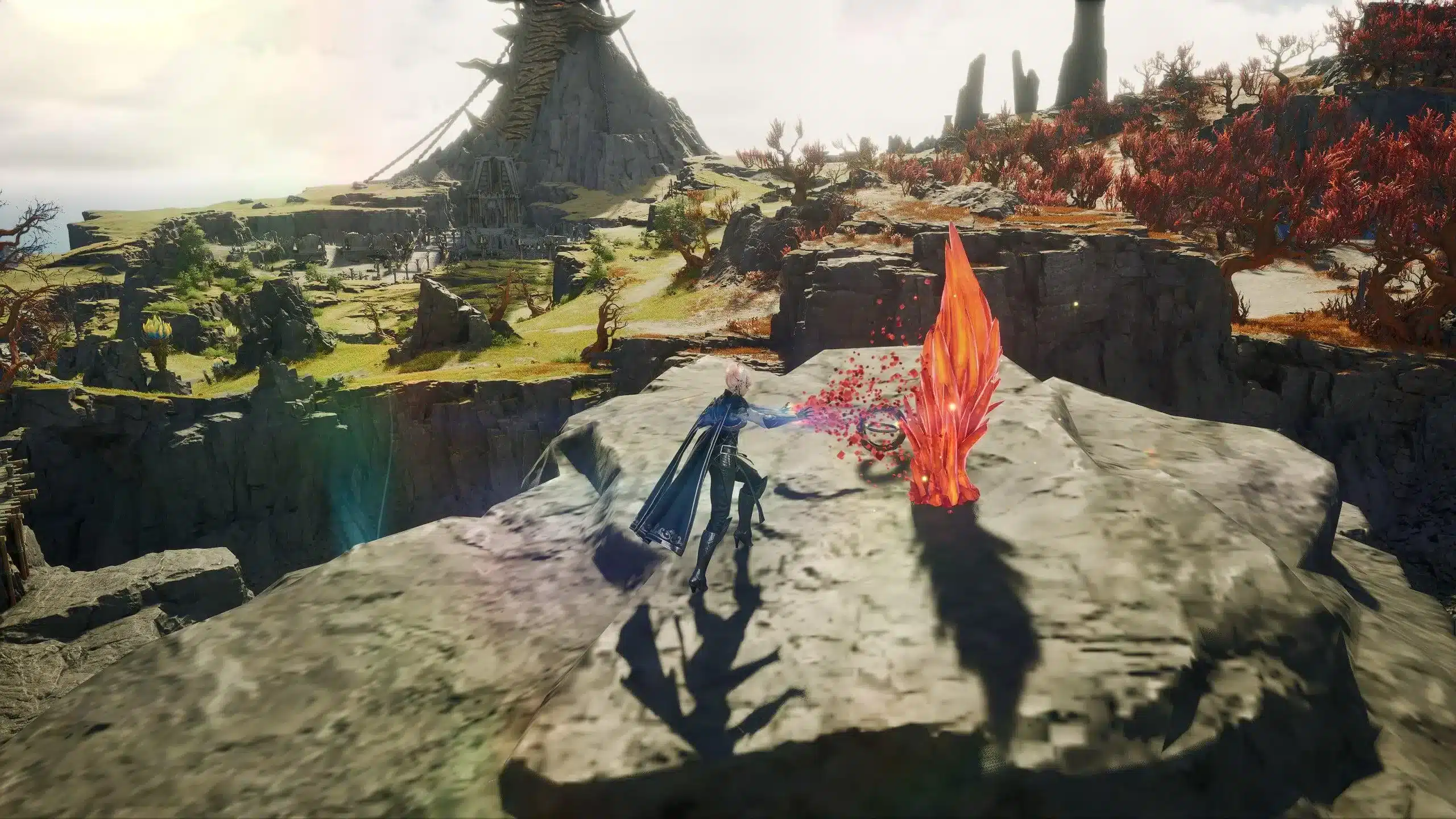
Input lag in Aion 2 is the gap between the moment you press a key and the moment your character's action registers in the game world. At 30ms, it is invisible. At 80ms, experienced players begin to feel it. At 150ms and above, Aion 2's entire combat system starts to break down: skill chains misfire, aerial positioning becomes unreliable, and Abyss PvP turns into a guessing game where your actions arrive too late to matter.
Aion 2 is not a forgiving game for high input lag. AION 2 features fast-paced combat that blends precision, timing, and positioning with traditional tab-targeting. The hybrid combat system processes inputs in near real time. Every skill chain, dodge, and aerial attack depends on the server receiving your action within a narrow timing window. Miss that window and the skill simply does not register, the dodge does not fire, or the enemy has already moved when your hitbox arrives.
Understanding exactly where input lag comes from, and more importantly how to eliminate it, is one of the highest-leverage improvements you can make to your Aion 2 experience. This guide covers all three layers of input delay, the local fixes that address the first two, and how ExitLag solves the third one, which is the cause most players never actually fix.
The Three Sources of Input Lag in Aion 2
Most guides about input lag treat it as a single problem with a single fix. It is not. There are three completely distinct sources of input delay in Aion 2, each requiring a different solution.
Source 1: Display Input Lag
Display input lag is the delay between your monitor receiving a rendered frame and actually displaying it to your eyes. It is caused by your monitor's panel processing: the image scaling, color correction, and image processing your monitor applies before showing each frame.
In most gaming scenarios, display input lag is relatively small: 1ms to 10ms on gaming monitors, up to 30ms to 50ms on budget TVs used as monitors. It is fixed by choosing a gaming monitor with low response time and enabling Game Mode on your display to bypass post-processing.
Display input lag is the only source that is not network-related. If you play Aion 2 offline or on a local server and still feel input delay, your display is contributing.
Source 2: PC Processing Lag
PC processing lag is the delay caused by your computer taking too long to process each game frame. When your CPU or GPU is overloaded, the time between your keypress and the frame that reflects your action being sent to your display increases.
Aion 2's use of Unreal Engine 5 means it demands significant computing power. Players using lower-end CPUs or GPUs might experience lagging and stuttering even if their internet is stable.
PC processing lag appears as a general sluggishness that affects everything: menu navigation, character movement, and ability response. It is worse during graphically intense scenes like Abyss mass PvP and world boss fights where dozens of players and effects are rendered simultaneously.
Source 3: Network Input Lag
Network input lag is the delay caused by the time your action takes to travel from your device to NC's game servers and return as a confirmed result. Ping is the time it takes for data to travel from your computer to the game server and back. Measured in milliseconds, the lower the number, the better. In real-time action games like Aion 2, every millisecond counts.
With low ping, your actions are instantaneous. With high ping, everything is delayed. You see enemies moving erratically, your abilities take time to activate, and dodging becomes nearly impossible. For competitive games or complex raids, this can mean the difference between victory and defeat.
Network input lag is the most common cause of the input delay Aion 2 players complain about, and it is the one that persists even after the other two are addressed. It is also the one that ExitLag is specifically built to solve.
How to Identify Which Source Is Affecting You
Before applying any fix, identify your specific source of input lag.
| Symptom | Most Likely Source |
|---|---|
| Input delay in all games, single-player and online | Display lag or PC processing lag |
| Input delay only in Aion 2 and online games | Network input lag |
| Delay worse during busy scenes, better when alone | PC processing lag |
| Delay constant regardless of what is on screen | Network input lag |
| Delay fluctuates with time of day | ISP routing congestion |
| Delay constant at any time of day | Geographic routing inefficiency |
| Delay appears suddenly and disappears | Packet loss causing retransmission |
Run this simple test to isolate network lag specifically:
- Open Command Prompt
- Type ping -t 8.8.8.8 and let it run for 60 seconds
- Watch for "Request timed out" lines (packet loss) and large variance in response times
- If results are clean but you still have in-game lag, the issue is in the routing between your ISP and NC's servers specifically
Fixing Display Input Lag
This is the simplest layer to address:
- Enable Game Mode on your monitor in the display's settings menu. This bypasses post-processing that adds delay.
- Use your monitor at its native refresh rate. A 144Hz monitor set to 60Hz adds unnecessary delay.
- If using a TV as a monitor, switch from TV mode to PC mode or Game mode in the TV settings. TV processing pipelines add 20ms to 100ms of input lag that game monitors do not.
- Connect via DisplayPort rather than HDMI where possible. Some HDMI implementations add additional processing frames.
Fixing PC Processing Lag in Aion 2
Close background applications: Every background process consuming CPU or GPU cycles delays frame delivery. Close browsers, streaming clients, Discord video calls, and any other non-essential software before playing.
Set Aion 2 to High Priority in Task Manager:
- Open Task Manager with Ctrl + Shift + Esc
- Go to the Details tab
- Right-click on the Aion 2 process and select Set Priority, then High
- Confirm the change
This tells Windows to allocate CPU cycles to Aion 2 before any other background process.
Disable Xbox Game Bar and background recording:
- Press Win + I to open Settings
- Go to Gaming, then Xbox Game Bar
- Toggle off all options
Game Bar's continuous screen capture adds measurable frame delivery delay.
Enable Windows Game Mode:
- Press Win + I, go to Gaming, then Game Mode
- Toggle Game Mode on
Game Mode reduces background process scheduling interference during gaming sessions.
Cap your in-game frame rate:
An uncapped frame rate pushes your GPU to 100% utilization at all times, leaving no headroom for consistent frame delivery. Cap your frame rate to your monitor's refresh rate minus 5 to 10 frames. A 144Hz monitor runs best at a 134 to 139 FPS cap rather than uncapped.
Verify game files:
Corrupted game files can cause lag unrelated to internet. Verify file integrity through the NC PURPLE launcher to eliminate this variable.
Monitor PC temperature:
Overheating can cause throttling and affect overall performance. Adjust graphics settings to reduce heat if temperature is an issue. Thermal throttling occurs when your CPU or GPU exceeds safe temperature limits and reduces its clock speed to protect itself. The symptom is sudden performance drops that appear after 20 to 30 minutes of play.
Fixing Network Input Lag in Aion 2
This is where most players get stuck. They apply the display and PC fixes, see improvement, but still feel input delay during Abyss PvP and skill chains. The remaining delay is network-based, and it requires addressing the routing path between your device and NC's game servers.
Step 1: Switch to Wired Ethernet
Wi-Fi introduces variable latency from signal interference, competing devices, and the wireless protocol's acknowledgment overhead. The average Wi-Fi connection adds 5ms to 30ms of additional latency compared to a wired connection, and that variance is what makes skill chains feel inconsistent rather than uniformly delayed.
Connect your PC directly to your router with an Ethernet cable (Cat5e or Cat6) and disable Wi-Fi on your device to ensure all traffic uses the wired connection. This one change eliminates an entire category of network-based input lag.
Step 2: Disable Nagle's Algorithm
Nagle's Algorithm is a Windows network optimization that buffers small packets before sending them, combining multiple small transmissions into a single larger one. This reduces bandwidth consumption but increases latency for real-time applications like Aion 2, where each action must reach the server as quickly as possible regardless of packet size.
To disable it:
- Open the Registry Editor (Win + R, type regedit)
- Navigate to HKEY_LOCAL_MACHINE\SYSTEM\CurrentControlSet\Services\Tcpip\Parameters\Interfaces
- Find the subkey that corresponds to your active network adapter (it will contain your current IP address)
- Create two new DWORD (32-bit) values:
- Name: TcpAckFrequency → Value: 1
- Name: TCPNoDelay → Value: 1
- Restart your PC
These two registry values tell Windows to send each network packet immediately rather than waiting to bundle it. The result is reduced per-action latency that Aion 2's skill chain system directly benefits from.
Step 3: Select the Correct Server Region
If you are too far from the server, the inherent physical latency cannot be eliminated. In that case, try connecting to the nearest available server.
Aion 2's global launch in September 2026 adds dedicated servers for North America, South America, Europe, and Japan. For players currently on the KR or TW servers, switching to your regional server at global launch is the single biggest latency reduction available, potentially cutting 100ms to 200ms of input lag for players in the Americas and Europe.
In-game, always select the server whose geographic region is closest to your physical location.
Step 4: Fix ISP Routing with ExitLag
When all the local fixes above are applied and input lag persists, you have reached the final and most impactful layer: the routing path between your ISP and NC's game servers.
Your internet provider routes your traffic through a network path chosen for cost efficiency and general traffic management, not for gaming performance. That path may pass through nodes in cities that are geographically or logically inefficient for reaching NC's servers. During peak hours, those same nodes become congested with general internet traffic, and your Aion 2 packets compete with video streaming, file downloads, and web browsing from millions of other users on the same network infrastructure.
MMORPGs rely on constant data transmission between your PC and the game's servers. When network congestion occurs or routes are inefficient, your ping time increases, causing movement delay or attack desync.
This is the problem that ExitLag was built to solve.
How ExitLag Eliminates Aion 2 Input Lag at the Routing Level
ExitLag is a connection optimizer used by over 30 million players across 4,000+ game titles including Aion 2. It is not a VPN. A VPN redirects all your traffic through a different server and typically adds latency rather than reducing it. ExitLag operates at a different level: it analyzes the network routing between your device and NC's game servers specifically and selects the fastest, most stable path available.
ExitLag optimizes the data route after it leaves your home network, so it is compatible with any carrier. It works regardless of your provider, and you can let ExitLag automatically select the best route or manually choose the server that showed the lowest latency for your connection.
Real-Time Optimization
ExitLag continuously monitors every available route to Aion 2's servers and switches to the lowest-latency path in real time. When your ISP's default route degrades because of congestion during evening peak hours, ExitLag reroutes your connection through a less-congested alternative without interrupting your session. The result is that the input lag spikes you previously experienced during busy gaming hours disappear, replaced by a stable, consistently low ping across the entire session.
For Aion 2's skill chain system specifically, route stability matters as much as average ping. A connection that averages 60ms but spikes to 200ms every few minutes causes more perceptible input lag during those spikes than a consistent 80ms connection ever would. ExitLag's routing stability addresses both the average and the spikes simultaneously.
Multipath Technology
ExitLag's Multipath Technology is the feature that most directly addresses input lag caused by packet loss. Instead of sending your game data through a single network path, ExitLag routes the same data through multiple simultaneous paths at once.
When a packet is lost on one path because of congestion or a failing network node, the identical packet arriving through a different path ensures that NC's server receives your action without delay. From the server's perspective, your action arrived on time and without gaps. From your experience, the skill chain fired cleanly, the dodge registered, and the aerial repositioning landed correctly.
Packet loss as low as 1% causes perceptible input lag in a game as timing-sensitive as Aion 2. Multipath Technology drops effective packet loss to near zero by making packet loss on any single path irrelevant.
Traffic Shaper
ExitLag's Traffic Shaper actively prioritizes Aion 2 traffic above every other application on your device. Background processes, system updates, automatic cloud backups, browser tabs, and streaming services all compete with Aion 2 for your connection's bandwidth and routing capacity.
Without Traffic Shaper, a Windows update that begins downloading at 3 MB/s in the background spikes your ping during the download and creates packet competition that manifests as input lag. With Traffic Shaper active, those background activities cannot claim bandwidth at the expense of your game traffic. Aion 2's packets go first, every time.
Multi-Internet
ExitLag's Multi-Internet feature supports up to four simultaneous internet connections. For players who have both a wired connection and a mobile data connection available, ExitLag uses both simultaneously. If your primary wired connection experiences a brief instability during a dungeon run or Abyss PvP session, the secondary connection carries your game traffic without a disconnection or perceptible input lag spike.
For Aion 2 specifically, where being disconnected from an Abyss event costs Abyss Points and potentially the outcome of a PvP exchange, the insurance of a backup connection is more valuable than most players realize before they need it.
How to Set Up ExitLag for Aion 2
Setup takes approximately 3 minutes:
- Download ExitLag from exitlag.com/free-trial and install it on your PC
- Open ExitLag and search for Aion 2 in the game library
- ExitLag displays your real-time latency to every available Aion 2 server region simultaneously: KR, TW, NA, SA, EU, Japan
- Select your target region (the one geographically closest to you)
- Choose Automated routing to let ExitLag always select the best path, or Manual to lock a specific route you have tested
- Click Apply Routes or Play
- Launch Aion 2 through the NC PURPLE launcher normally
- In-game, check your latency indicator or enable any available network debug display to confirm improved ping stability
The difference is measurable. Skill chains that previously had perceptible delay fire cleanly. Aerial repositioning in the Abyss lands where you intended. Boss mechanics that required precise timing become achievable.
Aion 2 Input Lag Fix Checklist
Work through this list before your next session:
Display Game Mode enabled on monitor
Frame rate capped at monitor refresh rate
Wired Ethernet connection active (not Wi-Fi)
Background applications closed
Aion 2 process set to High Priority in Task Manager
Xbox Game Bar and background recording disabled
Windows Game Mode enabled
Nagle's Algorithm disabled in Windows Registry (TcpAckFrequency = 1, TCPNoDelay = 1)
Correct regional Aion 2 server selected for your geographic location
ExitLag installed, configured for Aion 2, and active before launching the game
NC PURPLE launcher updated to the latest version
PC temperature within normal range (no thermal throttling)
Acceptable Ping Ranges for Aion 2
Ideally, keep ping below 80ms for a smooth experience. Between 80ms and 150ms the game is still playable, but you will notice some delay. Above 150ms, the experience begins to be compromised, especially in PvP.
For Aion 2's Abyss PvP and skill chain combat specifically, the practical targets are:
| Ping Range | Combat Experience | Abyss PvP Viability |
|---|---|---|
| Under 50ms | Input feels instant | Fully viable, competitive |
| 50 to 80ms | Minimal delay, generally unnoticeable | Viable at all levels |
| 80 to 120ms | Slight skill delay, noticeable in fast exchanges | Viable, some disadvantage |
| 120 to 150ms | Clear delay in skill chains | Playable, meaningful disadvantage in duels |
| 150 to 200ms | Skill timing disrupted, aerial combat unreliable | High disadvantage, frustrating |
| Above 200ms | Rubberbanding, missed inputs, failed skills | Not viable for competitive play |
Pro Tips: Eliminating Aion 2 Input Lag
- Run ExitLag before you open the PURPLE launcher, not after: ExitLag needs to establish its routing before the game connects to NC's servers. Starting ExitLag after you are already in-game means the optimization applies only after reconnection.
- Test your ping during Abyss peak hours specifically: Input lag that only appears during evening sessions is ISP congestion during peak hours, not a constant issue. ExitLag's automated routing is most valuable precisely during these windows because it reroutes around congestion as it appears.
- Use ExitLag's manual route selection to test alternative paths: The automated mode selects the best route based on ExitLag's real-time testing. The manual mode lets you lock a specific route and test it across multiple sessions. Some players find that a specific manually-selected route consistently outperforms automated selection for their specific ISP and region combination.
- Combine Nagle's Algorithm disabling with ExitLag: These two fixes address different layers of the same problem. Nagle's Algorithm disable reduces buffering-induced delay at the OS level. ExitLag reduces routing-induced delay at the network level. Both active together produce lower and more consistent input latency than either one alone.
Common Mistakes When Fixing Aion 2 Input Lag
- Attributing all input lag to server problems: When skill chains feel delayed, the instinct is to blame NC's servers. Server overload does cause input lag, but it is periodic and correlates with announcement-level events like patch launches or content releases. Persistent input lag at the same time every day is ISP congestion, not server problems. Fix: test at different times of day. Consistent lag regardless of time is routing. Time-correlated lag is congestion.
- Using a generic VPN to reduce ping: Traditional VPNs often worsen ping by adding extra routing layers. A consumer VPN is not built for gaming: it tunnels all your traffic through a geographically fixed server that may be further from NC's servers than your ISP's default path. The encryption overhead alone adds latency. ExitLag is purpose-built for gaming routing optimization, not general traffic privacy. Fix: uninstall any consumer VPN before installing ExitLag, and never run both simultaneously.
- Fixing only one layer and expecting complete resolution: Display lag, PC processing lag, and network lag all contribute to total input delay simultaneously. Addressing only one while the others remain unsolved produces partial improvement at best. Fix: work through the full checklist above in order, addressing each layer before moving to the next.
Fix Your Aion 2 Input Lag Today
Input lag in Aion 2 is not something you have to accept. Every layer of it is fixable with the right approach, and the routing layer that causes the most persistent, hard-to-diagnose input delay is exactly what ExitLag addresses.
Download ExitLag and try it free.
AION 2 and related marks are trademarks of NC (NCSoft). Used for informational and educational purposes only.