Experiencing battlefield 6 latency issues can quickly turn an exciting multiplayer match into a frustrating experience. Whether you’re dealing with delayed hit registration, rubberbanding, or sudden ping spikes, network problems can make even the best strategy ineffective during Battlefield’s large-scale battles.
Many battlefield 6 latency issues aren’t caused by the game’s servers alone. Your internet connection, routing path, hardware, and even background applications can all contribute to higher latency. Understanding where these problems originate is the first step toward creating a smoother online experience.
So, what causes bf6 latency issues, and how can you fix them? Battlefield 6 features massive maps, dozens of simultaneous players, destructible environments, and constant data synchronization between clients and servers. Because of this complexity, maintaining a stable network connection is just as important as having powerful hardware.
Fortunately, most latency problems can be reduced through proper network optimization, smart server selection, and a few configuration changes. This guide explains the most common causes of Battlefield 6 network issues and provides practical solutions that help improve stability during online matches.
Whether you’re competing in Conquest, Breakthrough, or other multiplayer modes, reducing latency allows your actions to register more consistently, giving you a better chance of winning firefights and supporting your squad.
Battlefield 6 Latency Issues Explained
Before attempting to solve network problems, it’s important to understand what latency actually means.
Many players use the term “lag” to describe every performance issue, but latency is only one part of overall online performance.
What Is Latency?
Latency measures how long it takes for information to travel between your computer and the Battlefield 6 game server.
This delay is measured in milliseconds (ms).
Generally:
- Under 30 ms is excellent.
- 30–60 ms is very good.
- 60–100 ms remains playable.
- Above 100 ms may introduce noticeable delays.
- Above 150 ms often causes significant gameplay issues.
Lower latency allows your actions to reach the server faster, resulting in smoother movement and more responsive combat.
How Battlefield 6 Displays Network Performance
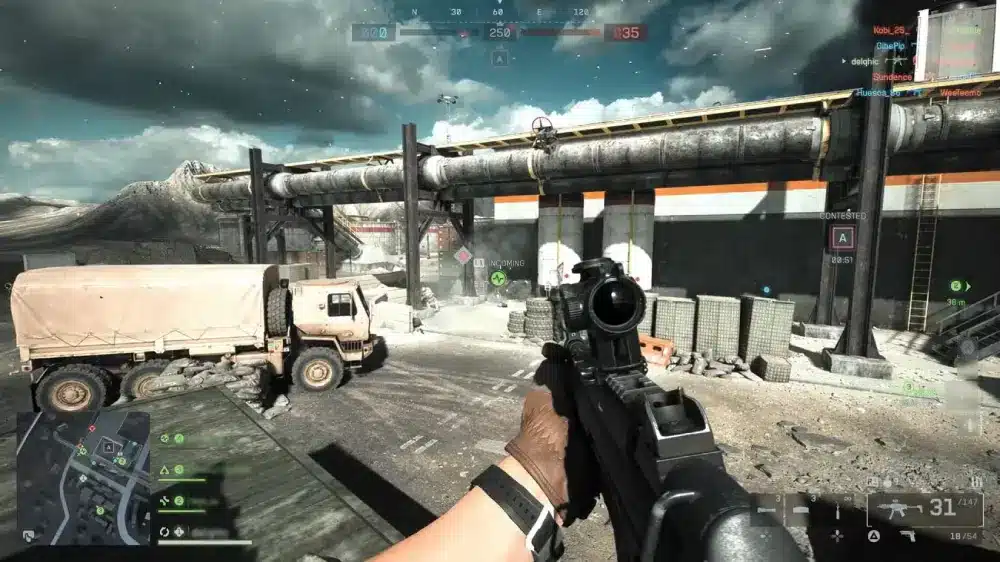
Battlefield 6 includes network monitoring tools that help players identify connection problems.
Depending on your settings, you can monitor:
- Current ping
- Packet loss
- Network performance graph
- Connection quality indicators
These tools make it easier to determine whether problems originate from your own connection or external network conditions.
Checking the in-game network graph before changing settings can save time by identifying the actual source of performance issues.
Ping vs. Packet Loss vs. Jitter
These networking terms are often confused.
They represent different problems.
Ping
Ping measures communication delay between your computer and the server.
Higher ping creates slower response times.
Packet Loss
Packet loss occurs when some data never reaches its destination.
Even low packet loss can produce:
- Rubberbanding
- Teleporting players
- Delayed shots
- Missing hit markers
Jitter
Jitter measures variations in latency.
Instead of maintaining a consistent connection, your ping constantly rises and falls.
High jitter often feels worse than moderately high ping because gameplay becomes unpredictable.
Common Causes of Battlefield 6 Latency Issues
Several factors contribute to battlefield 6 latency issues.
Fortunately, many of them can be addressed without replacing your hardware.
Server Distance
Physical distance remains one of the biggest contributors to latency.
The farther your data travels, the longer communication takes.
Whenever possible, join servers located closest to your region.
Even small reductions in distance can noticeably improve responsiveness.
Wi-Fi Interference
Wireless networks introduce additional latency and instability.
Common sources of interference include:
- Thick walls
- Multiple connected devices
- Neighboring Wi-Fi networks
- Microwave ovens
- Bluetooth devices
Whenever possible, use a wired Ethernet connection.
This provides:
- Lower latency
- Greater stability
- Reduced packet loss
- More consistent gameplay
ISP Routing
Your Internet Service Provider determines how your traffic reaches Battlefield servers.
Sometimes your connection follows inefficient routes that unnecessarily increase latency.
Poor routing can create problems even when both your internet speed and Battlefield servers are functioning normally.
Network Congestion
Heavy internet usage affects gaming performance.
Background traffic may include:
- Streaming video
- Cloud backups
- File downloads
- Game updates
- Multiple household users
Reducing unnecessary bandwidth usage often improves online responsiveness immediately.
Background Downloads
Automatic downloads frequently occur without players realizing it.
Programs commonly responsible include:
- Operating system updates
- Game launchers
- Cloud storage services
- Streaming applications
- Antivirus software
Closing these applications before launching Battlefield helps preserve available bandwidth.
BF6 Latency Issues: Symptoms to Watch For
Not every networking problem appears the same.
Learning to recognize symptoms makes troubleshooting easier.
Rubberbanding
Rubberbanding causes your character to move forward before suddenly snapping back to a previous position.
This usually indicates:
- Packet loss
- High latency
- Server synchronization issues
Delayed Hit Registration
You fire accurately, yet enemies appear unaffected until moments later.
Delayed hit registration often results from:
- High ping
- Network congestion
- Packet loss
In competitive firefights, even small delays can determine the outcome.
Desynchronization
Desync occurs when your client and the server disagree about player positions.
Symptoms include:
- Being eliminated after reaching cover
- Opponents appearing to teleport
- Delayed animations
- Inconsistent movement
Slow Player Movement
Movement may feel sluggish despite maintaining a high frame rate.
Unlike FPS drops, latency-related movement delays affect interaction with the server rather than graphical performance.
Packet Loss Indicators
Packet loss often produces several symptoms simultaneously:
- Stuttering movement
- Missing bullets
- Delayed interactions
- Players freezing briefly
Recognizing these signs helps distinguish network problems from hardware limitations.
| Symptom | Likely Cause | Recommended Fix |
| Rubberbanding | Packet loss | Improve network stability |
| High ping | Distant server | Select a nearby region |
| Delayed hit registration | Latency | Reduce network congestion |
| Stuttering movement | Jitter | Use Ethernet and optimize routing |
| Desync | Packet loss or unstable routing | Improve connection quality |
Basic Fixes Before Changing Advanced Settings
Many players immediately adjust advanced router settings.
However, simple solutions often resolve most connection problems.
Use Ethernet
A wired connection remains the most effective upgrade for competitive gaming.
Compared to Wi-Fi, Ethernet provides:
- Lower latency
- Stable packet delivery
- Reduced interference
- Better consistency
Restart Your Network Equipment
Restarting your modem and router clears temporary network issues.
Power cycle both devices by:
- Turning them off.
- Waiting approximately one minute.
- Turning the modem back on.
- Waiting until it reconnects.
- Powering on the router.
This simple process often resolves temporary routing problems.
Update Network Drivers
Outdated drivers may introduce compatibility issues or reduce network efficiency.
Regularly update:
- Ethernet drivers
- Wi-Fi drivers
- Motherboard chipset drivers
Keeping drivers current helps maintain stable performance.
Select the Closest Servers
Whenever Battlefield allows regional server selection, prioritize nearby locations.
Lower physical distance generally produces lower ping.
Monitor the Network Graph
Rather than guessing, regularly check Battlefield’s built-in network performance graph.
Monitoring:
- Ping
- Packet loss
- Latency spikes
- Jitter
Helps determine whether your connection remains stable throughout each match.
Here is Part 2, continuing the article in publication-ready format.
Advanced Solutions for Battlefield 6 Latency Issues
Basic troubleshooting can solve many connection problems, but persistent battlefield 6 latency issues may require deeper network adjustments. These advanced solutions focus on reducing congestion, improving routing, and preventing unnecessary applications from competing for bandwidth.
Before changing router or firewall settings, record your current ping, packet loss, and jitter. This gives you a reliable baseline for comparing results after each adjustment.
Change Your DNS Server
A DNS server translates website and service names into network addresses. Changing DNS does not always reduce in-match ping directly, but it can improve connection reliability when accessing online services, authentication systems, and matchmaking infrastructure.
Popular public DNS options include:
- Google Public DNS
- Cloudflare DNS
- Quad9
After changing your DNS settings, restart your router and computer. Then test Battlefield again to determine whether connection stability improves.
Avoid changing several settings at once. Testing one adjustment at a time makes it easier to identify which solution actually helps.
Configure Router QoS
Quality of Service, usually called QoS, allows a router to prioritize gaming traffic over less time-sensitive activities.
When configured correctly, QoS can prevent streaming, downloads, and cloud backups from creating sudden ping spikes during multiplayer sessions.
You can often prioritize:
- Your gaming PC
- Battlefield traffic
- Real-time applications
- Ethernet-connected devices
Router interfaces vary by manufacturer. Therefore, consult the official documentation for your device before changing QoS settings.
Poorly configured QoS may make performance worse, especially on older routers. Use automatic gaming prioritization when available.
Close Background Network Traffic
Background traffic is one of the most common causes of bf6 latency issues.
Before launching Battlefield 6, check for applications using your connection. These may include:
- Game launcher updates
- Video streaming platforms
- Cloud synchronization services
- File-sharing tools
- Browser downloads
- Voice applications with screen sharing
- Operating system updates
Use the operating system’s network monitor to identify programs consuming bandwidth.
Closing unnecessary applications leaves more connection capacity available for the game and reduces the risk of network congestion.
Review VPN Usage
A standard VPN may increase latency because it sends your traffic through an additional server.
However, performance depends on the route used. In some situations, a normal ISP route may be inefficient, while an optimized gaming route can provide greater stability.
When testing a VPN or routing service, compare:
- Average ping
- Jitter
- Packet loss
- Match consistency
Do not judge performance based only on one short test. Compare several matches at similar times of day.
Check Firewall Exceptions
Firewalls and security applications can interfere with multiplayer communication when Battlefield or its launcher does not have the correct permissions.
Confirm that the game, EA app, and related services are allowed through your firewall.
Avoid disabling security software entirely. Instead, create specific exceptions for trusted applications.
You should also verify that your router is not applying restrictive filtering rules that interrupt game traffic.
Battlefield 6 Updates and Known Network Problems
Not every connection problem comes from the player’s home network. Online games can experience server-side instability, matchmaking disruptions, or regional outages.
When battlefield 6 latency issues suddenly affect many players at the same time, server conditions may be responsible.
Launch and Update-Related Problems
Major updates can create temporary instability because many players download content and reconnect simultaneously.
Common update-related symptoms include:
- Longer matchmaking times
- Sudden disconnections
- Unstable ping
- Login failures
- Delayed server responses
In these situations, changing your home network may not solve the problem.
Check official Battlefield and EA service channels for confirmed incidents before performing major troubleshooting.
Regional Server Congestion
Server performance can vary by region and time of day.
Even if your connection works normally in the afternoon, evening demand may lead to:
- Higher latency
- Slower matchmaking
- Less consistent server selection
- Increased jitter
Testing the game during different hours can reveal whether congestion follows a predictable pattern.
If latency becomes worse only during peak periods, your ISP or regional network infrastructure may also be contributing to the problem.
Ongoing Stability Improvements
Live-service games receive regular updates that address performance, balance, matchmaking, and networking.
After every major update:
- Review official patch notes.
- Update the game client.
- Restart the EA app.
- Verify game files.
- Recheck your network graph.
Sometimes a patch changes local files or network behavior, so repeating basic diagnostics after an update is worthwhile.
How ExitLag Helps Reduce Battlefield 6 Latency
Even with a fast internet plan, poor routing can still cause unstable gameplay. Your ISP may send traffic through congested or inefficient paths before it reaches the Battlefield server.
ExitLag helps optimize this route in real time.
Its proprietary technology analyzes multiple network paths and selects more stable options for game traffic. This can help reduce packet loss, minimize jitter, and improve connection consistency when the default ISP route is unreliable.
Key ExitLag technologies include:
- Real-Time Optimization: Continuously analyzes connection performance and adjusts the route when necessary.
- Multipath Connection: Sends packets through multiple simultaneous routes to improve stability.
- Traffic Shaper: Prioritizes gaming data and reduces competition from unnecessary traffic.
- Multi-Internet: Allows compatible users to combine more than one connection for additional redundancy.
ExitLag cannot repair overloaded game servers or increase FPS caused by weak hardware. However, it can help when bf6 latency issues are related to unstable routing, packet loss, or poor paths between your PC and the server.
This is especially useful in Battlefield 6, where delayed shots, vehicle controls, and movement inputs can negatively affect large-scale multiplayer battles.
ExitLag supports PC and Mobile platforms and works with more than 3,000 games. Its setup process is simple:
- Create an ExitLag account.
- Download and install the application.
- Search for Battlefield 6.
- Choose or automatically apply optimized routes.
- Launch the game and compare connection performance.
Best Practices to Prevent Future Latency Problems

Fixing latency once is helpful, but maintaining a stable setup prevents the same issues from returning.
Regular monitoring makes it easier to identify changes before they become severe.
Maintain Your Home Network
Routers and modems can lose stability after running continuously for long periods.
To maintain performance:
- Keep router firmware updated.
- Restart equipment when instability appears.
- Replace damaged Ethernet cables.
- Position Wi-Fi routers away from interference.
- Disconnect unused devices.
- Avoid placing the router inside enclosed furniture.
A modern router with strong traffic management can also perform better in households with many connected devices.
Monitor Game and System Updates
Outdated software can create compatibility and performance problems.
Regularly update:
- Battlefield 6
- The EA app
- Windows
- Network drivers
- Router firmware
- Security software
After updating, restart your computer before testing the game.
Optimize Your PC Without Confusing FPS and Latency
Low frame rates and high latency may feel similar, but they require different solutions.
If the network graph shows normal ping while the game stutters, the problem may be related to hardware performance.
Lower graphics settings when you notice:
- FPS drops
- Input stutter
- GPU overload
- CPU spikes
- Slow texture loading
Network changes will not repair graphical bottlenecks.
Likewise, reducing graphics quality will not fix packet loss.
Play on Nearby Servers
Server distance directly affects latency.
Always prioritize nearby regions when possible. Automatic matchmaking may occasionally place players in less suitable locations, particularly when the local player population is low.
Use a server browser or region selector when the game provides one.
Avoid Peak Network Congestion
If your household shares one connection, schedule large downloads and backups outside gaming hours.
It is also useful to avoid:
- 4K streaming during matches
- Simultaneous console updates
- Large cloud uploads
- File synchronization
- Multiple active game downloads
A bandwidth schedule can reduce conflicts without requiring other users to disconnect completely.
Battlefield 6 Network Problem Comparison
| Problem | Most Likely Cause | Recommended Solution |
| Constant high ping | Distant server or inefficient route | Choose a closer region and optimize routing |
| Sudden ping spikes | Network congestion | Close downloads and configure QoS |
| Rubberbanding | Packet loss | Use Ethernet and test route stability |
| Delayed hit registration | High latency or jitter | Reduce background traffic and monitor ping |
| Frequent disconnections | Firewall, Wi-Fi, or server instability | Check permissions and use a wired connection |
| Good ping but visible stutter | Low FPS or system bottleneck | Optimize graphics and monitor hardware usage |
| Problems only at peak hours | ISP or regional congestion | Test at different times and optimize routing |
| Problems after an update | Game files or temporary server load | Verify files and check official service updates |
Signs Your Connection Is Unstable
Your connection may require further optimization when you notice:
- Ping changing dramatically every few seconds
- Repeated packet loss warnings
- Enemies freezing and suddenly moving
- Delayed weapon or vehicle inputs
- Being moved backward after running
- Frequent disconnections from matches
- Hit markers appearing late
- Voice chat breaking up during combat
A single brief spike does not always indicate a serious problem. Repeated symptoms across multiple matches are more important.
Network Optimization Checklist
Before entering a competitive or long Battlefield session, confirm that:
- You are using Ethernet.
- Background downloads are paused.
- Cloud backups are disabled temporarily.
- Your router firmware is current.
- Battlefield is allowed through the firewall.
- You selected a nearby region.
- The in-game network graph is enabled.
- Other household devices are not saturating the connection.
- ExitLag is configured for the correct game and region.
- Your game client and network drivers are updated.
8 Ways to Reduce Battlefield 6 Latency
- Connect your PC directly to the router with Ethernet.
- Choose the closest available Battlefield server.
- Close downloads, streams, and cloud applications.
- Restart your modem and router.
- Update network drivers and router firmware.
- Configure QoS to prioritize gaming traffic.
- Monitor packet loss and jitter using the in-game graph.
- Use ExitLag to optimize unstable routing paths.
Apply these changes individually and test after each one. This prevents unnecessary adjustments and helps identify the real source of the problem.
Frequently Asked Questions
Battlefield 6 may lag because of high ping, packet loss, Wi-Fi interference, server distance, background traffic, weak hardware, or temporary server instability.
Check the network graph first. If ping is stable but FPS is low, the issue is more likely related to system performance than latency.
Start with Ethernet, pause background downloads, restart your router, and select the closest server.
Then monitor ping, jitter, and packet loss. If the problem continues, configure QoS, update drivers, check firewall permissions, and optimize the connection route.
Packet loss can be caused by Wi-Fi interference, ISP congestion, overloaded routers, damaged cables, or inefficient routing.
Switching to Ethernet and reducing network traffic are the best first steps.
Temporary server-side problems can happen during outages, major updates, or high-demand periods.
Check official EA and Battlefield service updates when many players report similar problems simultaneously.
ExitLag can help when connection problems come from poor routing, packet loss, or unstable paths between your PC and the server.
It does not increase hardware performance or repair server outages, but it can provide a more stable network route during multiplayer sessions.
How to Fix Battlefield 6 Latency Issues for Smoother Matches
The best way to solve battlefield 6 latency issues is to identify whether the problem comes from your PC, local network, ISP route, server region, or the game service itself.
Begin with simple changes. Use Ethernet, stop background downloads, restart your network equipment, and select nearby servers. Then use the network graph to measure ping, jitter, and packet loss before moving to advanced settings.
For persistent routing problems, ExitLag can analyze multiple connection paths in real time and choose more stable routes. This helps reduce packet loss and connection fluctuations, allowing you to focus on objectives, squad coordination, and firefights instead of bf6 latency issues.
Ultimately, solving battlefield 6 latency issues requires a combination of stable hardware, proper network configuration, nearby servers, and reliable routing. With ExitLag supporting your connection, Battlefield 6 multiplayer can feel smoother, more responsive, and more consistent across every large-scale battle.
All game images used in this blog belong to Electronic Arts and Battlefield Studios. They are used for informational/educational purposes only and do not imply endorsement or affiliation with the rights holders.
Got questions or want to connect with other players? Join the conversation at the ExitLag Forum!