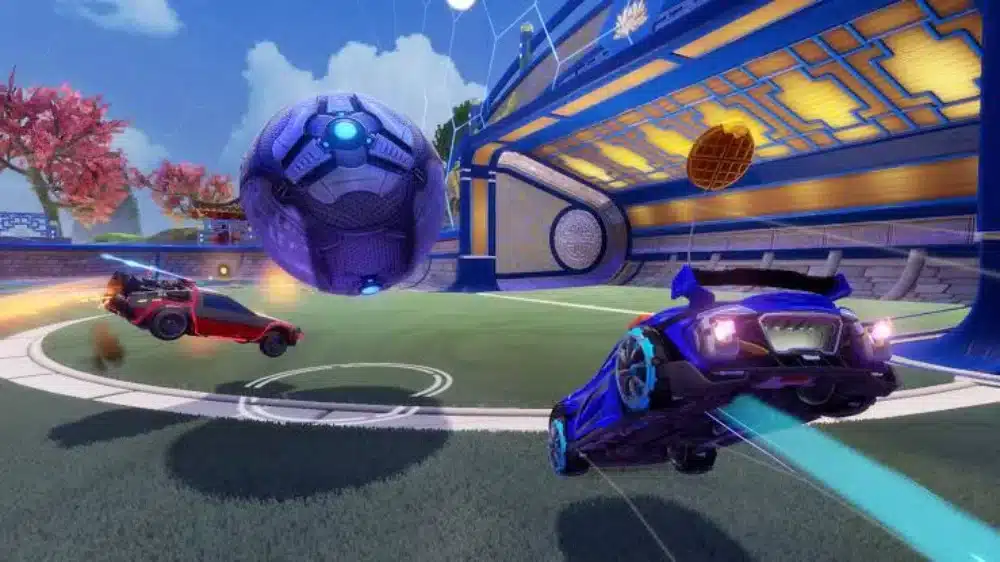
Mastering the best Rocket League settings can dramatically enhance your performance, consistency, and comfort. Whether you’re chasing Grand Champion or just getting started, optimizing your gameplay through precise configuration gives you a competitive edge.
Why Your Rocket League Settings Matter
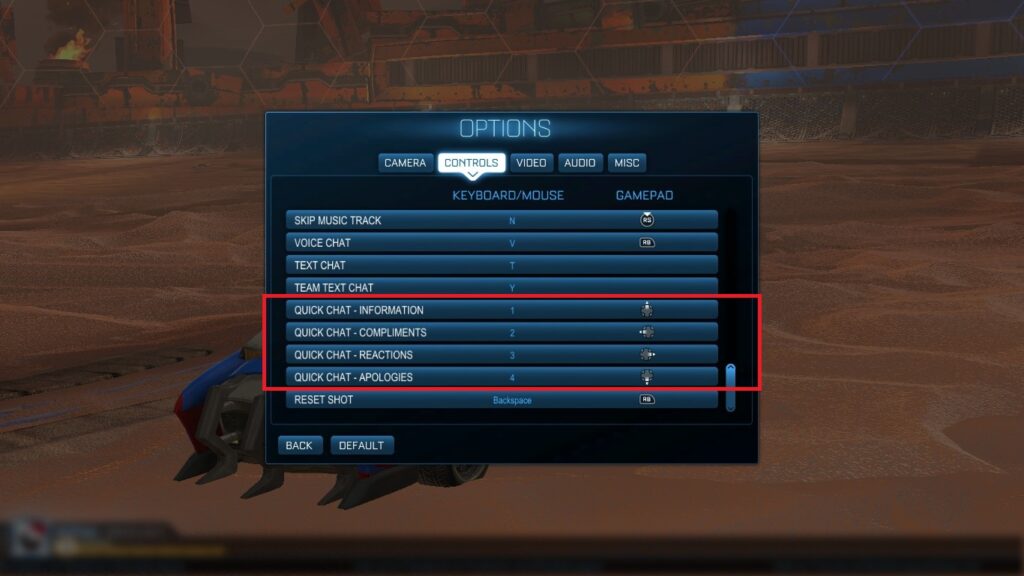
Settings directly impact how you see, move, and react in Rocket League. Without fine-tuning, players often suffer from input lag, unclear visuals, and inconsistent control responsiveness. The best settings for Rocket League are designed to:
- Minimize visual clutter
- Improve controller feedback
- Reduce latency and input delay
- Maximize visibility on all arenas
- Provide consistency across game modes
- Support mechanical precision
- Increase FPS for smoother gameplay
- Reduce mental fatigue during long sessions
- Improve overall confidence and situational awareness
Boost your Rocket League experience using ExitLag to reduce lag and improve connection stability.
Rocket League Best Settings: Display and Graphics
For smooth gameplay, prioritize performance over aesthetics. Lowering unnecessary effects helps maintain high FPS and visual clarity. High FPS reduces input delay and ensures consistent timing.
| Setting | Recommended Value |
| Resolution | Native monitor resolution |
| Display Mode | Fullscreen |
| Vertical Sync | Off |
| Anti-Aliasing | Off or FXAA Low |
| Render Quality | High Performance |
| Render Detail | Custom |
| World Detail | Performance |
| Particle Detail | Low |
| Effect Intensity | Low |
| Weather Effects | Off |
| Dynamic Shadows | Off |
| Ambient Occlusion | Off |
| Bloom | Off |
Why Fullscreen Matters
Fullscreen mode ensures the game receives full GPU priority and reduces display latency. Windowed or borderless modes may introduce stutters or frame capping.
Removing Visual Distractions
Disabling weather effects, dynamic shadows, and post-processing features like bloom reduces clutter, which is crucial in competitive play where even milliseconds count.
Best Rocket League Controller Settings for Precision
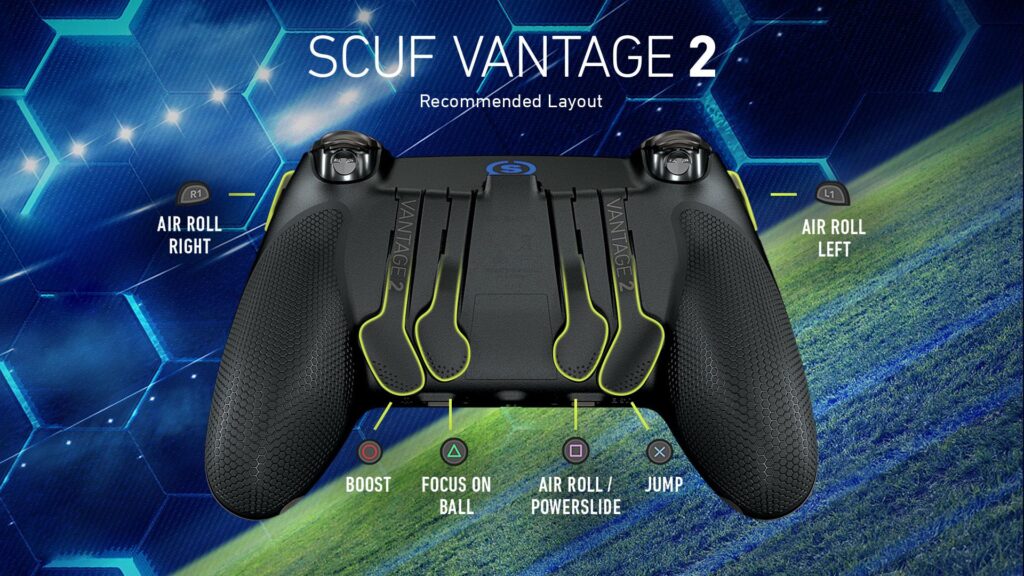
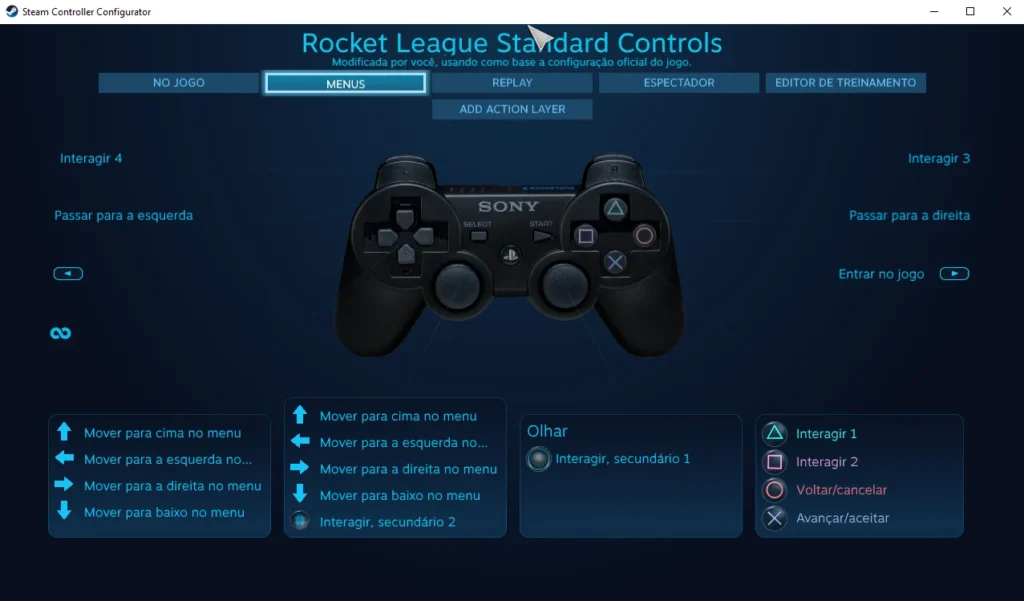
Your controller configuration is critical to mechanical consistency. Use the best Rocket League controller settings to ensure smooth movement, aerials, and recovery plays.
Recommended Controller Bindings:
- Powerslide: LB / L1
- Air Roll (Left/Right): LB or RB / L1 or R1
- Jump: A / Cross
- Boost: B / Circle
- Ball Cam Toggle: Y / Triangle
- Rear View: R3
- Throttle / Brake: Default (RT / LT)
Many players switch air roll and powerslide to separate buttons for better aerial control. Some even map air roll left/right to paddles if using controllers like SCUF or Xbox Elite.
Sensitivity & Deadzone:
| Setting | Value |
| Steering Sensitivity | 1.30 – 1.60 |
| Aerial Sensitivity | 1.30 – 1.60 |
| Controller Deadzone | 0.03 – 0.05 |
| Dodge Deadzone | 0.70 – 0.80 |
Low deadzone settings reduce delay between thumbstick movement and in-game response. However, if your controller has stick drift, you may need to increase the deadzone slightly.
Interface and Camera Settings That Matter
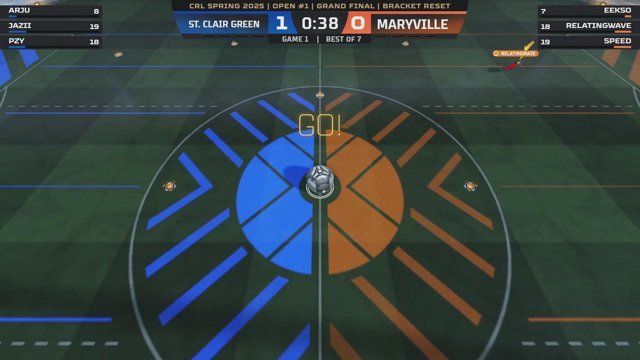
To improve field awareness, tweak your interface and camera setup accordingly.
Interface Settings:
- Nameplate Scale: 130–150%
- Nameplate Mode: Always Visible
- Match Notifications: Time Only
- Ball Indicator: On
- Team Colored Boost Meter: On
These interface tweaks make it easier to track players and play strategically.
Extra Display Tips:
- Colorblind Mode: Useful for better color contrast
- Color Intensity: Increase for visibility
- Text Size: Medium or Large to avoid distraction
Camera Reminder:
If you haven’t optimized your camera yet, visit our complete Best Camera Settings Rocket League guide to maximize aerial control and vision.
Audio Settings for Competitive Focus
Sound cues in Rocket League provide information like boost pickups, demos, and ball touches. Use these recommended audio settings:
| Setting | Recommended Level |
| Master Volume | 80% |
| Gameplay | 100% |
| Music | 0–30% |
| Ambient | 0–20% |
| Interface | 50% |
| Voice Chat | 50–70% |
Turning down non-gameplay sounds reduces distractions and allows better focus on in-game actions.
Training Packs to Test Your Settings
After applying the rocket league best settings, practice with these training packs:
- Aerial Shots – Pro (Code: 7918-0656-2317-70C1)
- Wall to Air Dribbles (Code: C58C-E60B-9D1C-3A4C)
- Fast Recoveries (Code: C1A7-5E4D-3966-14BC)
- Backboard Reads (Code: 30F3-03C8-9D7E-5C89)
- Speed Flicks (Code: 1352-0A6F-B278-C0D3)
Use Free Play to experiment with responsiveness and view angle. Notice how easier it is to recover, rotate, and challenge with optimal settings.
Additional Performance Tips
- Limit background apps while playing
- Enable high-performance mode in your GPU settings
- Use a wired connection to avoid input lag
- Adjust monitor refresh rate to match Rocket League’s FPS
- Update controller firmware for responsiveness
- Use ExitLag to reduce packet loss and high ping
- Disable overlays from Steam, Discord, or GeForce Experience
- Clear Rocket League cache regularly for smoother performance
Competitive Advantages of Optimized Settings
The benefits of applying the best settings for Rocket League go beyond visuals:
- More accurate car control
- Better timing on flicks, aerials, and challenges
- Reduced mental fatigue from visual clutter
- Quicker reads on bounces and ball trajectory
- Confidence boost during ranked matches
- Improved ability to multitask in chaotic scenarios
- More consistent execution of mechanical skills
Conclusion: Unlock Peak Performance with the Best Rocket League Settings
The best Rocket League settings create a foundation for growth, improvement, and high-level consistency. Fine-tuning your graphics, controller layout, and interface doesn’t just make the game more enjoyable—it transforms your potential.
Don’t let poor settings hold you back. Apply these changes today and supercharge your climb up the ranked ladder.
FAQ: Best Rocket League Settings
What are the best settings for Rocket League on PC?
Use fullscreen mode, high performance rendering, and disable effects like bloom and shadows to maximize FPS.
What’s the best Rocket League controller deadzone setting?
Most pros use 0.03–0.05 for responsiveness without unwanted drift.
Should I use air roll left/right or just air roll?
Air roll left/right provides more control for advanced mechanics and recoveries.
Do Rocket League settings affect lag?
Yes. High visual settings can drop FPS and cause input delay. ExitLag also helps reduce network-related lag.
Can these settings be used on console?
Yes. Graphics options are limited, but camera, controller, and interface settings can be optimized the same way.
How do I test my Rocket League settings?
Play custom training, free play, and casual matches. Notice your response time, comfort, and ability to control the ball.
Do pro players use custom settings?
Yes. Most pros use highly personalized settings for graphics and input to match their reflexes and playstyle.
Can these settings help new players?
Absolutely. They reduce distractions, increase FPS, and simplify car control—helping beginners focus on skill development.
Should I copy pro settings exactly?
Use them as a starting point, but always adjust to what feels most natural for your hands, eyes, and reaction time.
What’s a good FPS target for Rocket League?
Aim for 144+ FPS if your monitor supports it. Consistency is more important than raw numbers.
Got questions or want to connect with other players? Join the conversation at the ExitLag Forum!