

Experiencing CS2 lag spikes during a competitive match can be incredibly frustrating. One moment your game runs smoothly, and the next you’re teleporting across the map, missing shots, or freezing during crucial firefights. Since Counter-Strike 2 demands precision and quick reactions, even a brief spike in latency can make the difference between winning and losing a round.
Many players dealing with CS2 lag spikes assume the issue is caused solely by their internet connection. While network problems are a common cause, sudden lag can also result from hardware limitations, outdated drivers, background applications, overheating, or temporary server issues. Identifying the true source of the problem is essential before applying a fix.
So, what causes lag spikes in Counter-Strike 2? Unlike constant high ping, lag spikes are sudden increases in latency or interruptions in game performance that occur for short periods. These spikes can be caused by packet loss, unstable routing, CPU bottlenecks, GPU overload, or fluctuations in your local network.
Fortunately, most lag spikes can be reduced—or even eliminated—with the right combination of system optimization and network improvements. Whether you’re playing Premier, Competitive, or Casual matches, optimizing your setup helps deliver a smoother and more responsive experience.
In this guide, you’ll learn the most common causes of cs2 lag, practical solutions, and the best settings to improve stability during every match.
What Causes CS2 Lag Spikes?
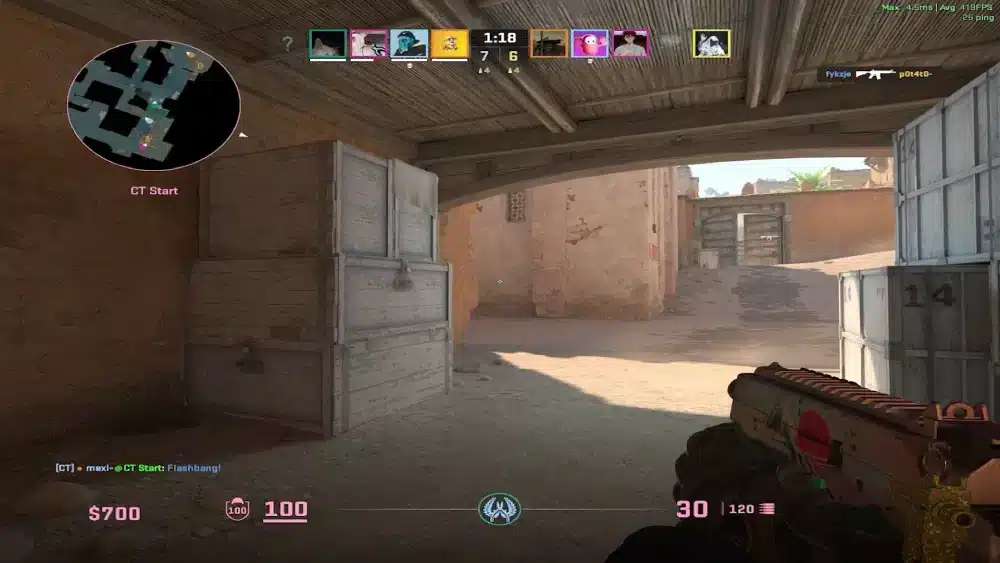
Several different factors can produce CS2 lag spikes. Some originate from your hardware, while others are caused by network conditions or the game servers themselves.
Understanding which category your problem falls into makes troubleshooting much easier.
Network Instability
An unstable internet connection is one of the leading causes of sudden lag.
Common networking issues include:
- Wi-Fi interference
- ISP congestion
- Unstable routing
- Temporary internet interruptions
- Bandwidth saturation
Even a fast internet connection can experience lag spikes if packets are delayed or dropped while traveling to the game server.
Packet Loss
Packet loss occurs when data fails to reach the server or your computer.
When this happens, Counter-Strike 2 must retransmit information or compensate for missing data, resulting in:
- Rubberbanding
- Delayed movement
- Missed hit registration
- Teleporting players
- Inconsistent gameplay
Unlike consistently high ping, packet loss often causes unpredictable performance problems.
Server Issues
Occasionally, the problem isn’t on your end.
Valve servers may experience:
- Temporary maintenance
- Heavy player load
- Regional congestion
- Unexpected outages
If many players report similar issues simultaneously, server-side problems may be responsible.
Checking community forums or Steam’s service status can help determine whether the issue is widespread.
Hardware Bottlenecks
Counter-Strike 2 places greater demands on modern hardware than its predecessor.
Older systems may experience lag-like symptoms caused by:
- CPU limitations
- GPU overload
- Insufficient RAM
- Slow storage devices
- Thermal throttling
Although these problems aren’t true network lag, they often feel similar during gameplay.
Understanding CS2 Lag
Before attempting to fix performance issues, it’s important to understand the difference between several commonly confused terms.
High Ping vs Lag Spikes
High ping refers to consistently elevated network latency.
Lag spikes are sudden, temporary increases in latency that occur unexpectedly.
For example:
- Constant 90 ms ping represents high latency.
- A connection that jumps from 20 ms to 250 ms for a few seconds experiences lag spikes.
The second situation is generally more disruptive because it is unpredictable.
Tick Rate and Server Synchronization
Counter-Strike 2 servers constantly exchange information with players.
Server synchronization determines how accurately player positions, shots, and movement are processed.
If communication becomes unstable due to lag spikes, players may notice:
- Delayed hit registration
- Desynchronized movement
- Opponents appearing to teleport
- Delayed grenade effects
Stable networking helps maintain consistent synchronization throughout the match.
Frame Time vs Network Latency
Not every stutter is caused by the internet.
Poor frame pacing may result from:
- GPU bottlenecks
- CPU spikes
- Background software
- Driver issues
Monitoring both FPS and network statistics helps determine whether the issue is hardware-related or network-related.
How to Fix CS2 Lag Spikes
Most players can significantly improve stability by following several straightforward optimization steps.
Verify Game Files
Corrupted game files occasionally create unexpected performance issues.
To verify your installation:
- Open Steam.
- Navigate to your Library.
- Right-click Counter-Strike 2.
- Select Properties.
- Open Installed Files.
- Click Verify integrity of game files.
Steam automatically replaces missing or damaged files.
Update Graphics Drivers
Graphics driver updates often include performance improvements specifically designed for newer games.
Both NVIDIA and AMD regularly release Game Ready drivers that optimize Counter-Strike 2 performance.
Installing the latest stable driver helps eliminate compatibility problems and improve frame consistency.
Optimize Graphics Settings
Running unnecessarily demanding settings may overload your hardware.
If you’re experiencing performance issues, consider reducing:
- Shadow quality
- Ambient occlusion
- Anti-aliasing
- Shader detail
- Particle quality
Competitive players often prioritize high frame rates over maximum visual quality.
Use Ethernet Instead of Wi-Fi
Wireless connections remain vulnerable to interference.
Whenever possible:
- Connect your PC directly to the router using Ethernet.
- Avoid crowded wireless channels.
- Minimize interference from nearby devices.
A wired connection generally provides lower latency, greater stability, and fewer packet losses.
Best In-Game Settings for Smoother Gameplay
Optimizing Counter-Strike 2 doesn’t stop with your hardware.
Several in-game adjustments improve consistency.
Video Settings
For competitive gameplay:
- Prioritize high FPS.
- Reduce unnecessary visual effects.
- Use settings appropriate for your hardware.
Maintaining stable frame times is often more valuable than achieving maximum graphical quality.
Network Settings
Although Counter-Strike 2 automatically manages many networking features, players should still:
- Select the closest available server region.
- Avoid downloading files during matches.
- Close unnecessary network applications.
Reducing background traffic helps stabilize latency.
Close Background Applications
Many programs continue consuming system resources while gaming.
Examples include:
- Web browsers
- Cloud synchronization software
- Video streaming platforms
- File downloads
- RGB control software
Closing unnecessary applications frees CPU, RAM, and network resources.
How ExitLag Helps Reduce CS2 Lag Spikes
Because Counter-Strike 2 relies heavily on low latency and stable packet delivery, network routing plays a major role in overall performance.
ExitLag improves cs2 lag by continuously analyzing multiple network routes and selecting the most efficient path to Valve’s game servers. Instead of relying solely on your ISP’s default routing, its proprietary Multipath Connection technology sends traffic through optimized routes that reduce congestion and improve stability.
Combined with Real-Time Optimization, Traffic Shaper, and Multi-Internet technologies, ExitLag helps minimize packet loss, reduce latency fluctuations, and eliminate many of the routing issues responsible for sudden lag spikes.
For competitive Counter-Strike 2 players, a more stable connection means smoother movement, more consistent hit registration, and greater confidence during every round.
Advanced Fixes for CS2 Lag Spikes
If you’ve already updated your drivers, verified your game files, and switched to a wired connection, but you’re still experiencing CS2 lag spikes, it’s time to investigate more advanced optimizations. Many persistent performance issues are caused by network configuration, Windows settings, or system management rather than Counter-Strike 2 itself.
The following solutions can help eliminate recurring lag spikes and provide a more consistent competitive experience.
Optimize Your Router
Your router plays a critical role in maintaining a stable connection during online matches.
For better performance:
- Restart your router regularly.
- Update the router firmware.
- Enable Quality of Service (QoS) if available.
- Prioritize your gaming PC over other devices.
- Minimize the number of connected devices during competitive matches.
QoS allows gaming traffic to take priority over downloads, video streaming, and other bandwidth-intensive activities.
Consider Your DNS Configuration
Changing your DNS server won’t directly reduce ping, but it can improve the speed of initial server lookups and provide a more stable browsing experience.
Popular public DNS providers include:
- Google Public DNS
- Cloudflare DNS
- Quad9
While DNS changes won’t eliminate CS2 lag spikes, they may contribute to a more responsive overall network environment.
Optimize Windows Network Settings
Several Windows features can affect gaming performance.
Before launching Counter-Strike 2:
- Disable unnecessary startup applications.
- Pause Windows Update downloads.
- Turn off cloud synchronization temporarily.
- Close bandwidth-heavy software.
- Ensure your network adapter drivers are up to date.
These adjustments reduce resource usage and minimize interruptions during gameplay.
Adjust Power Management Settings
Power-saving modes sometimes reduce CPU or network adapter performance.
For desktop gaming PCs, selecting the High Performance or Ultimate Performance power plan helps maintain consistent system responsiveness.
Laptop users should also play while connected to AC power whenever possible, as battery-saving modes can limit hardware performance.
How to Prevent CS2 Lag
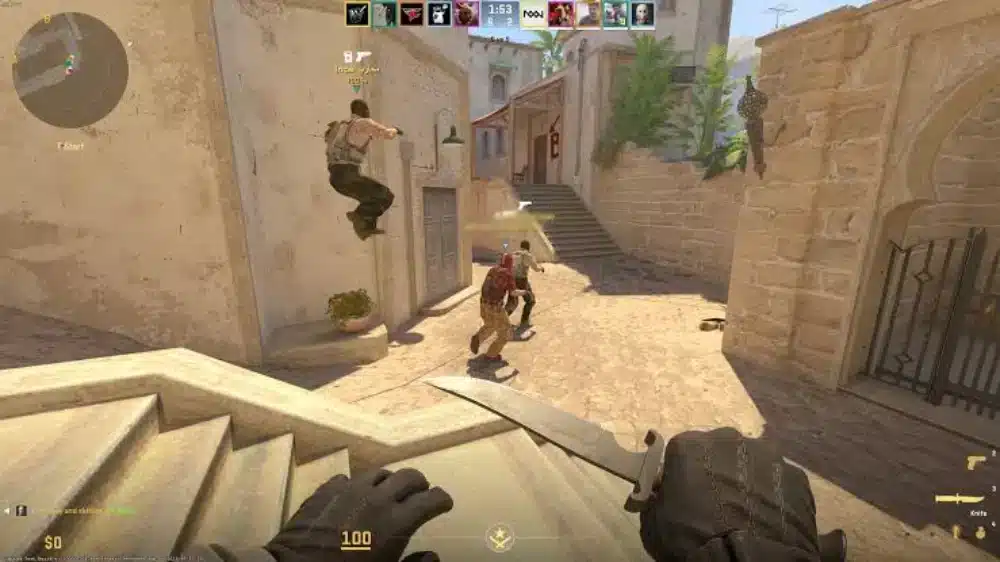
Preventing cs2 lag is much easier than troubleshooting it during a competitive match.
Monitor System Temperatures
Overheating is one of the most common causes of sudden FPS drops that players mistake for lag.
Watch your:
- CPU temperature
- GPU temperature
- Fan speeds
If temperatures become excessive, your hardware may automatically reduce performance to protect itself.
Cleaning dust from your PC and improving airflow can significantly improve stability.
Close Unnecessary Applications
Many background applications consume valuable system resources.
Before playing Counter-Strike 2, close:
- Web browsers with multiple tabs
- Streaming software
- File synchronization services
- Video editing programs
- Large downloads
- Virtual machines
Reducing background activity helps maintain stable frame times.
Keep Windows Updated
Microsoft regularly releases updates that improve hardware compatibility, networking, and security.
Likewise, keeping your motherboard chipset drivers, audio drivers, and network adapter drivers current helps prevent compatibility issues.
Remember to restart your computer after installing updates to ensure all changes take effect.
Choose the Closest Server
Physical distance affects latency.
Whenever possible, connect to the nearest available Valve server.
Shorter routes generally produce:
- Lower ping
- More stable latency
- Better hit registration
- Reduced packet loss
Playing on distant servers inevitably increases response times, regardless of internet speed.
Common Mistakes That Cause CS2 Lag Spikes
Many players unknowingly create conditions that contribute to poor performance.
Outdated Drivers
Old graphics drivers may introduce:
- Lower FPS
- Game instability
- Rendering issues
- Performance inconsistencies
Updating drivers regularly ensures optimal compatibility with Counter-Strike 2.
Overheating
Thermal throttling reduces hardware performance automatically.
Symptoms include:
- Sudden FPS drops
- Stuttering
- Inconsistent frame times
- Increased input delay
Proper cooling is essential for long gaming sessions.
Network Congestion
Household internet usage affects gaming performance.
Large downloads, video streaming, or multiple active users can increase latency during matches.
Scheduling bandwidth-intensive activities outside gaming sessions helps maintain a stable connection.
Packet Loss
Packet loss remains one of the leading causes of CS2 lag spikes.
Even when your ping appears low, missing packets can cause:
- Rubberbanding
- Delayed shots
- Teleporting players
- Match desynchronization
Reducing packet loss often improves gameplay more than lowering ping alone.
Common Problems and Solutions
| Problem | Possible Cause | Recommended Solution |
| Sudden lag spikes | Packet loss or unstable routing | Use Ethernet and optimize routing |
| High ping | Distant server or ISP routing | Choose a closer server and improve routing |
| Low FPS with stuttering | CPU or GPU bottleneck | Lower graphics settings and monitor temperatures |
| Random freezes | Background applications | Close unnecessary software |
| Frequent packet loss | Wi-Fi interference | Switch to Ethernet and reduce wireless congestion |
Signs Your Lag Is Caused by Your PC
Your hardware is likely responsible if you notice:
- FPS drops without increased ping.
- High CPU or GPU usage.
- Overheating components.
- Stuttering during explosions or smoke effects.
- Performance improving after lowering graphics settings.
These symptoms generally indicate local performance limitations rather than network issues.
Signs Your Lag Is Caused by Your Network
Your connection is likely the problem if you experience:
- Rubberbanding.
- Players teleporting.
- Delayed hit registration.
- Packet loss warnings.
- Sudden ping spikes.
- Stable FPS but inconsistent gameplay.
Monitoring both network statistics and frame rates helps identify the true source of the problem.
Complete Troubleshooting Checklist
Use this checklist if you’re still experiencing CS2 lag spikes:
- Verify the integrity of your game files.
- Update graphics and network drivers.
- Restart your modem and router.
- Connect using Ethernet instead of Wi-Fi.
- Close unnecessary background applications.
- Monitor CPU and GPU temperatures.
- Lower demanding graphics settings.
- Update Windows and chipset drivers.
- Select the nearest available game server.
- Optimize your network routing with ExitLag.
Testing one change at a time makes it easier to determine which solution provides the greatest improvement.
Frequently Asked Questions
Lag spikes can result from packet loss, unstable internet connections, overloaded hardware, overheating, background applications, or temporary server issues. Identifying whether the problem is network-related or hardware-related is the first step toward resolving it.
To reduce cs2 lag, verify your game files, update your drivers, use an Ethernet connection, optimize your graphics settings, close unnecessary background applications, and ensure your PC is not overheating.
Yes. Packet loss interrupts communication between your computer and the game server, often causing rubberbanding, delayed hit registration, teleporting players, and sudden spikes in latency.
Absolutely. Ethernet connections provide greater stability, lower latency, and significantly less interference than Wi-Fi, making them the preferred choice for competitive Counter-Strike 2 players.
Yes. ExitLag helps reduce CS2 lag spikes by optimizing network routes between your PC and Valve’s servers. Its Multipath Connection, Real-Time Optimization, Traffic Shaper, and Multi-Internet technologies improve route stability, reduce packet loss, and minimize latency fluctuations, providing a smoother competitive experience.
Final Thoughts
Dealing with CS2 lag spikes can be frustrating, especially in a game where every millisecond matters. Fortunately, most performance issues can be resolved by identifying whether the problem originates from your hardware, your local network, or the game servers.
Keeping your drivers updated, monitoring system temperatures, reducing background activity, and using a wired connection all contribute to smoother gameplay. Equally important is maintaining a stable network with minimal packet loss and consistent latency.
For players looking to gain every competitive advantage, ExitLag adds another layer of optimization by intelligently selecting the most efficient network routes in real time. Combined with proper PC optimization and a reliable internet connection, it helps deliver faster, more stable gameplay, allowing you to focus on strategy, aim, and teamwork instead of connection issues.
Disclaimer: All game images used in this blog belong to Valve Corporation. They are used for informational and educational purposes only and do not imply endorsement or affiliation with the rights holders.
Got questions or want to connect with other players? Join the conversation at the ExitLag Forum!




