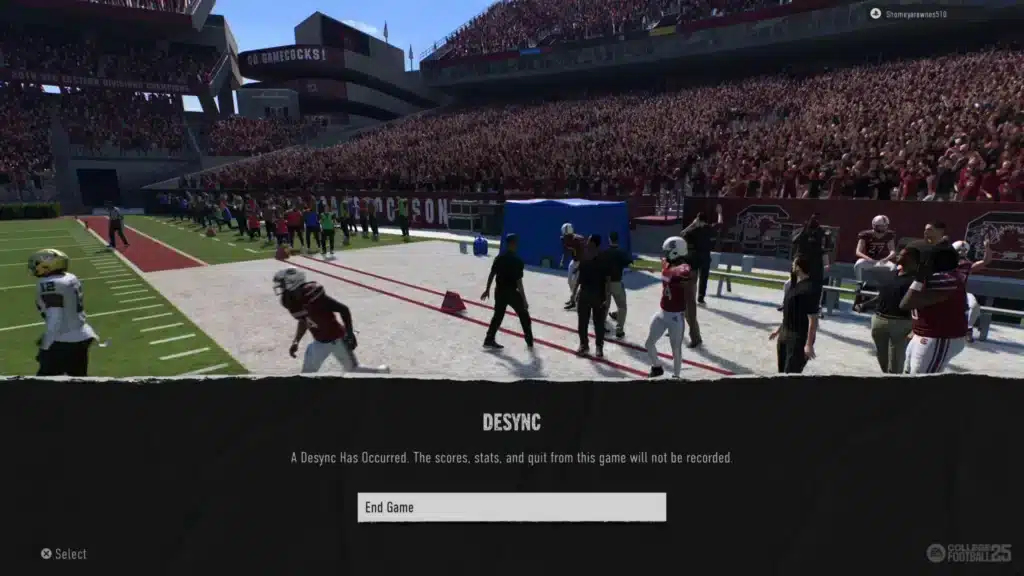
If you have been mid-drive in Road to the College Football Playoff and suddenly watched the screen freeze, glitch, or boot you out entirely, you already know the pain. Desync CFB 26 has become one of the most talked about problems in College Football 26 since online play ramped up this season.
Desync CFB 26 happens when your console or PC loses sync with EA’s game servers, so both sides stop agreeing on what is actually happening in the match. Players report scores locking in, tackles that never register, or a full disconnect that still counts as a loss.
In short, a desync has occurred ncaa 26 message means the server and your client fell out of sync, usually because of network instability, server congestion, or a mismatch in connection quality between you and your opponent. It is frustrating, but it is fixable on your end in most cases.
This guide breaks down exactly why Desync CFB 26 happens, what EA has said about it, and the practical steps competitive and casual players are using right now to cut down disconnects. We will also cover the settings, router tweaks, and connection tools that actually move the needle.

What Is the Desync CFB 26 Error?
Desync, short for desynchronization, occurs when the data your console sends and the data the EA server processes stop lining up in real time. Instead of a smooth, shared simulation of the game, each side ends up seeing a slightly different version of the same play.
In College Football 26, this typically shows up during Play a Friend, Road to the College Football Playoff, and Ultimate Team matches. The game may freeze for a few seconds, rubber-band players around the field, or simply kick you to the main menu with a loss recorded.
Server-Side Causes of a Desync Has Occurred Ncaa 26
EA has publicly acknowledged the issue and confirmed the team is investigating it. Community reports point to a few recurring server-side triggers.
- Heavy player volume overwhelming matchmaking servers during peak hours.
- Server region mismatches, where two players are matched across long distances.
- Backend hiccups in Road to the College Football Playoff specifically, since it handles more live data than offline modes.
- Ultimate Team traffic spikes during promo weekends, which strain shared server infrastructure.
Player-Side Network Issues That Trigger Desync
However, not every desync is EA’s fault. Your own connection plays a huge role in how often you see this error.
Common player-side triggers include unstable Wi-Fi, a restrictive NAT type, packet loss on your ISP’s route, or background devices eating your bandwidth mid-match. Fixing these usually reduces desync frequency even before EA ships a server-side patch.
Why Does “A Desync Has Occurred” Show Up in NCAA 26?
Many players search for this exact wording because it appears as an on-screen prompt right before the game disconnects. Understanding when it hits helps you predict and avoid it.
Road to the College Football Playoff Trigger Points
The error tends to appear most in ranked Road to the College Football Playoff games, especially once a match becomes competitive. Several players on EA’s forums describe it hitting right when a comeback starts, which suggests server load or a sync recalculation issue rather than random bad luck.
Ultimate Team and Play a Friend Patterns
Ultimate Team matches during high-traffic events show more frequent desync than casual Play a Friend sessions. Furthermore, cross-platform matchups (console versus PC) appear to desync slightly more often than same-platform games, based on widespread community reports.
How to Fix Cfb 26 Desync on Console and PC
You cannot patch EA’s servers yourself, but you can eliminate most of the variables on your side. Start with this quick checklist before jumping into your next online match.
- Switch from Wi-Fi to a wired ethernet connection whenever possible.
- Confirm your NAT type is Open rather than Moderate or Strict.
- Close background downloads, streaming apps, or cloud backups running during matches.
- Restart your router and console before longer online sessions.
- Turn off crossplay temporarily if you keep matching with distant opponents.
Quick Settings Checklist Before You Queue Up
Beyond your network, in-game and console settings can reduce how often Cfb 26 Desync interrupts a match. Check these every time you boot up ranked play.
- Update College Football 26 to the latest patch on your platform.
- Set your matchmaking region to the closest available server.
- Disable crossplay in your platform’s privacy or gameplay settings if issues persist.
- Clear your console or PC’s cache to remove corrupted temporary files.
- Run a speed test and confirm upload speed is stable, not just download.
Router and Network Fixes That Actually Help
Enabling UPnP on your router usually solves NAT-related instability, since it lets College Football 26 negotiate the ports it needs automatically. Additionally, forwarding EA’s recommended ports manually gives you a more direct, predictable connection.
If you share your home network with streamers, gamers, or smart devices, that congestion alone can cause packet loss. Therefore, prioritizing your gaming device’s traffic makes a real difference during ranked sessions.
Here is how the most common fixes compare in terms of effort and impact:
| Fix | Effort Level | Typical Impact on Desync CFB 26 |
|---|---|---|
| Switch Wi-Fi to Ethernet | Low | High, removes wireless interference |
| Enable UPnP / Port Forward | Medium | High, fixes NAT-related drops |
| Disable Crossplay | Low | Medium, avoids distant matchups |
| Close Background Apps | Low | Medium, frees bandwidth |
| Wait for EA Server Patch | None | Variable, out of player control |
Pro Tips: Desync CFB 26
- Play during off-peak hours. Server load drops significantly late at night or early morning, which reduces the odds of a desync has occurred ncaa 26 popping up during competitive play.
- Stick to your region’s servers. Matching with players far away adds latency variance that increases desync risk, so avoid manually queuing into distant lobbies when possible.
- Test your connection before ranked runs. A quick ping and packet loss check tells you whether your network is stable enough for Road to the College Football Playoff before you commit to a match.
- Keep firmware updated. Router firmware updates often patch bugs that cause dropped packets, which directly reduces desync frequency over time.
- Avoid Ultimate Team during promo spikes. Server congestion peaks right after card drops, so waiting an hour can save you a frustrating loss.
Common Mistakes Cfb 26 Players Make
- Playing ranked on unstable Wi-Fi. Fix: switch to a wired connection, since even strong Wi-Fi signals fluctuate enough to cause packet loss during long matches.
- Ignoring NAT type warnings. Fix: enable UPnP or manually forward EA’s required ports so your connection type shows Open instead of Strict.
- Blaming every loss on server issues. Fix: run a speed test first, since local network problems cause a large share of reported Cfb 26 Desync incidents.
- Leaving crossplay on by default. Fix: disable it in settings when you notice frequent long-distance matchups, then re-enable it once desync reports calm down.
Stop Desync CFB 26 With a Smarter Connection
Even with every router setting dialed in, the route your data takes to EA’s servers still matters. This is where ExitLag comes in as a genuinely useful tool for online sports games.
ExitLag is not a VPN. It is a game connection optimizer that scans multiple network routes in real time and automatically picks the fastest, most stable path between your device and the game server, without encrypting traffic or masking your IP.
Why ExitLag Helps With Cfb 26 Desync
Since desync often comes from unstable or congested routing, smoothing out that path before packets even reach EA’s servers can meaningfully cut down on disconnects. ExitLag supports over 4,000 titles across PC and mobile, with more than 1,500 servers spread across 190-plus countries.
More than 30 million users rely on it, and the platform processes over 18 million optimizations every week. For a connection-sensitive game like College Football 26, that kind of route optimization is exactly what reduces mid-match instability.
Key Features for Stable Online Games
- Real-time Optimization: continuously reduces delay and packet loss along your route to the server.
- Multipath Technology: sends your data through multiple routes at once, so if one path fails, the others keep your connection alive.
- Multi-Internet: combines up to four internet connections simultaneously with automatic failover if one drops.
- Traffic Shaper: prioritizes your game’s traffic and limits bandwidth-hungry background apps.
- PC Boost: clears RAM and background processes for smoother performance during long sessions.
ExitLag does not modify game files, inject code, or interact with anti-cheat systems, so it stays safe to use with College Football 26 on PC or console setups where a companion app applies. If you want to try it before your next ranked run, grabbing the ExitLag Download only takes a couple of minutes to set up.
One important note: never run ExitLag alongside a VPN, since the two can conflict and actually reduce the optimization’s effectiveness.
Final Thoughts on Desync CFB 26
Desync CFB 26 is a real, widely reported issue, and EA has confirmed it is aware of the problem across Road to the College Football Playoff and Ultimate Team. However, that does not mean you are powerless while waiting for a server-side fix.
When to Expect an Official Fix
EA has not given a confirmed patch date as of July 2026, but the team continues to collect clip reports and bug submissions from players. Consequently, checking EA’s official forums before big online sessions helps you know if a fix or known-issue update has landed.
Quick Recap Checklist
Before your next match, run through this short list: wired connection, Open NAT type, updated game version, closest server region, and no unnecessary background traffic. Combine that with a route optimizer like ExitLag and you will cut down a large share of avoidable disconnects.
Desync CFB 26 will not disappear overnight, but a stable network setup puts the odds back in your favor. Focus on what you control, stay patched, and you will spend a lot less time staring at an error screen instead of the scoreboard.
All game images used in this blog post belong to EA Sports. They are used for informational and educational purposes only and do not imply endorsement or affiliation with the rights holders.
Got questions or want to connect with other players? Join the conversation at the ExitLag Forum!