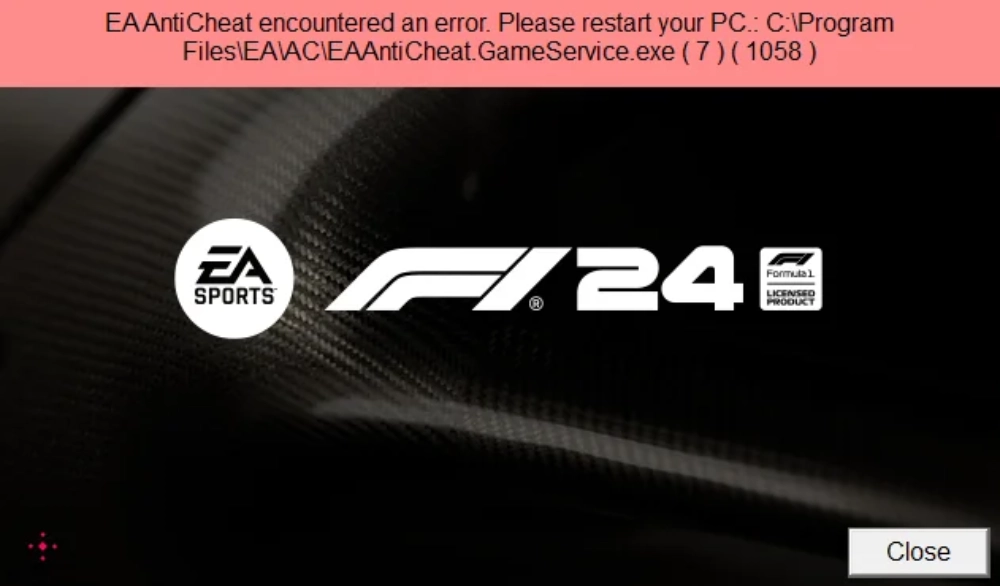
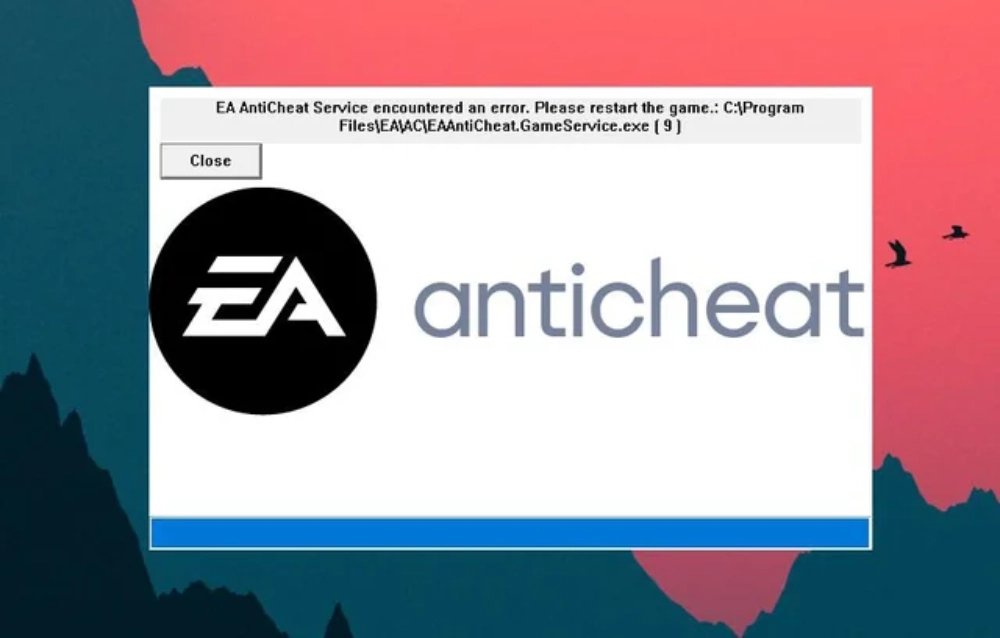
The message “EA AntiCheat encountered an error” can turn your excitement into frustration in seconds. Especially when you’re ready to dive into a match in FC 25, and all you get is an error screen. You’re not alone. Thousands of players face this every day—luckily, this guide is here to help you fix it.
Whether you’re struggling with launch issues, seeing “EA AntiCheat service encountered an error FC 25”, or need help with the EA AntiCheat installer, we’ve covered all the solutions.
And yes, if you’re looking to temporarily disable EA AntiCheat for testing purposes, we’ll explain that too.
What is EA AntiCheat?
EA AntiCheat is a security tool implemented by Electronic Arts to prevent cheating and hacking in their online games. It runs in the background to monitor suspicious behavior and software conflicts during gameplay.
It’s used in titles like:
- FC 25 (formerly FIFA)
- Battlefield series
- Apex Legends
- Madden NFL
EA AntiCheat is essential for fair play. But unfortunately, it often causes errors—especially after updates or game patches.
Why Does “EA AntiCheat Encountered an Error” Appear?
This error usually shows up during game launch. It prevents the game from starting and can be triggered by several reasons:
Common Causes:
- Corrupted or outdated EA AntiCheat files
- Missing permissions (admin rights)
- Conflicts with antivirus software
- Pending Windows updates
- Faulty EA AntiCheat installer or interrupted installation
- Running third-party cheat software in the background
Let’s dive into each possible cause and its fix.
How to Fix “EA AntiCheat Encountered an Error” Step-by-Step
Step 1: Run Everything as Administrator
EA AntiCheat requires administrative privileges to operate properly.
What to do:
- Right-click on your EA app, FC 25, and Steam/Epic launcher (if used)
- Choose “Run as administrator”
Also do this for the EAAntiCheat.GameServiceLauncher.exe file (usually found in C:\Program Files\EA\AC).
Step 2: Repair or Reinstall EA AntiCheat
If the service is corrupted, it won’t launch properly.
How to repair:
- Go to the EA AntiCheat folder: C:\Program Files\EA\AC
- Run EAAntiCheat.Installer.exe
- Select your game (FC 25)
- Click “Uninstall”
- Then “Install” again
Step 3: Update Windows and Drivers
Sometimes the issue lies in outdated components.
Checklist:
- Update Windows to the latest version
- Update your GPU drivers (NVIDIA/AMD)
- Make sure .NET Framework and Visual C++ Redistributables are up to date
Step 4: Disable Background Software
Some overlays or background apps cause interference.
Temporarily disable:
- Discord overlay
- MSI Afterburner
- Razer Synapse
- RGB lighting software
- Any cheat engine (even if inactive)
Restart your PC and try launching again.
Step 5: Fix “EA AntiCheat Service Encountered an Error FC 25”
This FC 25-specific error usually means the service failed to start.
Fix it by:
- Opening Windows Services (search: services.msc)
- Finding EA AntiCheat Service
- Right-click > Properties > Set to Automatic
- Click Start
If the service is missing, go back and reinstall using the installer.
What is the EA AntiCheat Installer?
The EA AntiCheat installer is a small executable file that lets you:
- Install EAAC manually
- Repair broken EAAC installations
- Uninstall the service for reinstallation
It’s typically located here: C:\Program Files\EA\AC\EAAntiCheat.Installer.exe
Pro tip: Always use the latest version from the official EA website.
How to Disable EA AntiCheat (For Testing Only)
If you’re trying to troubleshoot or test game mods in single-player, you might want to disable EA AntiCheat temporarily.
Important: Doing this will disable online play and could violate EA’s terms if misused.
How to disable EA AntiCheat:
- Go to your FC 25 install folder
- Find the file “EAAntiCheat.GameServiceLauncher.exe”
- Rename it to something like “EAAntiCheat.GameServiceLauncher.old”
- Try launching the game
If it works, you’ve confirmed the error is related to EAAC. Restore the file afterward.
Why You Shouldn’t Permanently Disable EA AntiCheat
While it’s okay to test things offline, never try to bypass EA AntiCheat for online play. Doing so can result in:
- Account bans
- Matchmaking restrictions
- Permanent suspensions
It’s best to fix the root issue instead.
EA AntiCheat and FC 25: Compatibility Issues
With FC 25 being the latest EA Sports flagship, the integration of EA AntiCheat is still buggy for many.
Common issues include:
- The game failing to launch entirely
- Crashes after the AntiCheat splash screen
- Error FC 25 looping during login
To avoid all this:
- Keep your EA client and FC 25 fully updated
- Avoid using mods until EAAC is stable
Troubleshooting Matrix: What to Do Based on the Error Type
Here’s a complete table to help you identify your exact error and the corresponding solution:
| Error Message | Likely Cause | Recommended Fix | Tools Needed |
| EA AntiCheat encountered an error | Admin permissions missing | Run EA App, FC 25, and AntiCheat as administrator | Windows User Permissions |
| EA AntiCheat service encountered an error FC 25 | Service not running or corrupted | Restart from services.msc or reinstall EAAC | EAAC Installer |
| Installer error / Won’t install | Corrupted files or antivirus blocking setup | Disable antivirus, re-download installer, clear temp folders | EA AntiCheat Installer, Clean Boot |
| Game fails to launch post-EAAC screen | Background process conflict | Disable overlays, RGB software, close cheat engines | Task Manager, Discord, MSI Afterburner |
| Network-based EAAC errors | Packet loss or unstable routes | Use ExitLag to optimize routing | ExitLag, Network Monitor |
Keep this table handy next time EA AntiCheat throws an error at launch.
Extra Measures: Things That Work When Nothing Else Does
If you’ve tried everything and still get blocked:
1. Perform a Clean Boot
- Run msconfig
- Disable all non-Microsoft services
- Reboot and run FC 25 standalone
2. Reinstall the Entire EA App
- Backup FC 25 data
- Uninstall the EA App
- Re-download and install from official site
3. Try a Different User Profile
- Create a new local Windows user
- Launch FC 25 from there
- If it works, the problem is tied to your main profile’s settings
These steps can reveal hidden software or registry problems that conflict with EAAC.
How ExitLag Solves Hidden EA AntiCheat Failures
While most people think EAAC issues are local, many errors stem from background network disruptions.
ExitLag resolves:
- Lost packets during EAAC handshake
- DNS inconsistencies
- Wrong geographic routing paths
Especially useful for:
- Players outside North America/EU
- Users with inconsistent Wi-Fi or dynamic IPs
You get:
- Stable game launches
- Reduced chance of EAAC handshake failures
- Better overall performance in FC 25 online modes
ExitLag isn’t just about ping. It prevents errors from even happening.
Start your Exitlag 3 days Trial!
Final Reminder: EA AntiCheat Must Stay Active for Online Play
Disabling EA AntiCheat permanently will:
- Block online gameplay
- Lead to possible EA account restrictions
- Void support for game crashes or bugs
If your game runs only when EAAC is renamed or removed, this is a red flag. Your system may be infected, misconfigured, or corrupted.
Please fix the root cause instead of bypassing protections.
FAQ – Frequently Asked Questions
Can I delete EA AntiCheat permanently?
You can, but the game will not launch. EAAC is mandatory for all online EA titles.
Why does EA AntiCheat reinstall after I remove it?
It’s built into the EA App and FC 25’s validation system. When detected as missing, it re-downloads automatically.
Can I use mods with EA AntiCheat?
Only offline and only with mods verified to be safe. EAAC may block unrecognized mods as potential cheats.
Does EA AntiCheat affect performance?
Not directly, but it can conflict with apps that also use kernel-level drivers, which may slow down boot or game startup.
How can I verify EA AntiCheat is running correctly?
Use services.msc to check that EA AntiCheat Service is running and set to Automatic.
Final Thoughts
You now have a complete master plan for tackling every major and minor EA AntiCheat error in FC 25.
From understanding how the installer works to disabling the service responsibly and using ExitLag to patch network gaps, you’re better equipped than 99% of players.
Stay sharp, stay safe, and always respect the security layers that keep online play fair and fun.
Play smarter with ExitLag—and say goodbye to EA AntiCheat headaches.
Disclaimer: The following information pertains exclusively to the fictional game ‘EA FC 25’ and its simulation mechanics. We do not support, encourage, or promote the use of hacks, exploits, or unfair gameplay. This content is purely educational about digital entertainment.
All game images used in this blog belong to Electronic Arts. They are used for informational/educational purposes only and do not imply endorsement or affiliation with the rights holders.
Got questions or want to connect with other players? Join the conversation at the ExitLag Forum!