
With version 1.0 now live, Enshrouded system requirements are back in focus for players who waited for the end of Early Access. Keen Games has retained the main hardware requirements, despite expanding the game world and introducing several changes.
The minimum configuration still requires 16 GB of RAM and a graphics card with 6 GB of dedicated video memory. However, meeting these specifications doesn’t guarantee high FPS. Resolution, location, and graphics settings also affect performance.
While the core Enshrouded system requirements remain unchanged, the October 15, 2026 update introduced optimizations for CPU usage, VRAM, and lighting. Here’s how to check your PC, understand the specifications, and find the best settings for your hardware.
Enshrouded System Requirements: Minimum and Recommended Specs
According to Steam, both configurations require Windows 10 64-bit, a broadband internet connection, and 60 GB of available storage. An SSD is recommended but isn’t mandatory.
| Component | Minimum requirements | Recommended requirements |
| Operating system | Windows 10 (64-bit) | Windows 10 (64-bit) |
| Processor | Intel Core i5-6400 / AMD Ryzen 5 1500X | Intel Core i7-8700 / AMD Ryzen 7 2700X |
| RAM | 16 GB | 16 GB |
| Graphics card | GTX 1060 / RX 580 / Intel Arc A380 | RTX 2070 Super / RX 6700 XT / Intel Arc A770 |
| VRAM | 6 GB | 6 GB or more |
| Storage | 60 GB available | 60 GB available; SSD recommended |
| Internet | Broadband connection | Broadband connection |
What Do These Requirements Mean for Performance?
The Enshrouded minimum requirements represent the entry-level hardware listed by the developer. They don’t guarantee 60 FPS, high graphics settings, or any specific resolution.
The Enshrouded recommended specs provide a stronger hardware baseline. However, Steam doesn’t associate these specifications with an official FPS target.
Both configurations list 16 GB of RAM. This doesn’t mean additional memory is useless, only that Steam doesn’t require more for the recommended tier.
The 6 GB VRAM requirement is also worth checking carefully. For example, the 3 GB version of the GTX 1060 falls below the published minimum.
Can My PC Run Enshrouded? How to Check
If you’re wondering, “Can my PC run Enshrouded?”, start by comparing your processor, graphics card, and memory against the official specifications.
On Windows, open Settings > System > About to check your processor, installed RAM, and whether you’re running a 64-bit operating system.
Next, open Task Manager > Performance > GPU to identify your graphics card and its dedicated video memory. You should also check the available storage space on the drive where you plan to install the game.
If one or more components fall below the minimum requirements, performance may suffer even at reduced graphics settings.
A GPU near the minimum specification may benefit from lower resolutions, upscaling, and reduced visual effects. However, insufficient RAM or VRAM can cause stuttering that lowering shadow quality alone won’t fix.
Installing the game on an SSD may also improve loading behavior, but it won’t compensate for an underpowered CPU or GPU.
What about Steam Deck? Steam currently classifies Enshrouded as Verified. Version 1.0 also introduced performance improvements aimed at handheld devices, although this classification doesn’t guarantee a fixed frame rate in every area.
Biggest Enshrouded Performance Bottlenecks
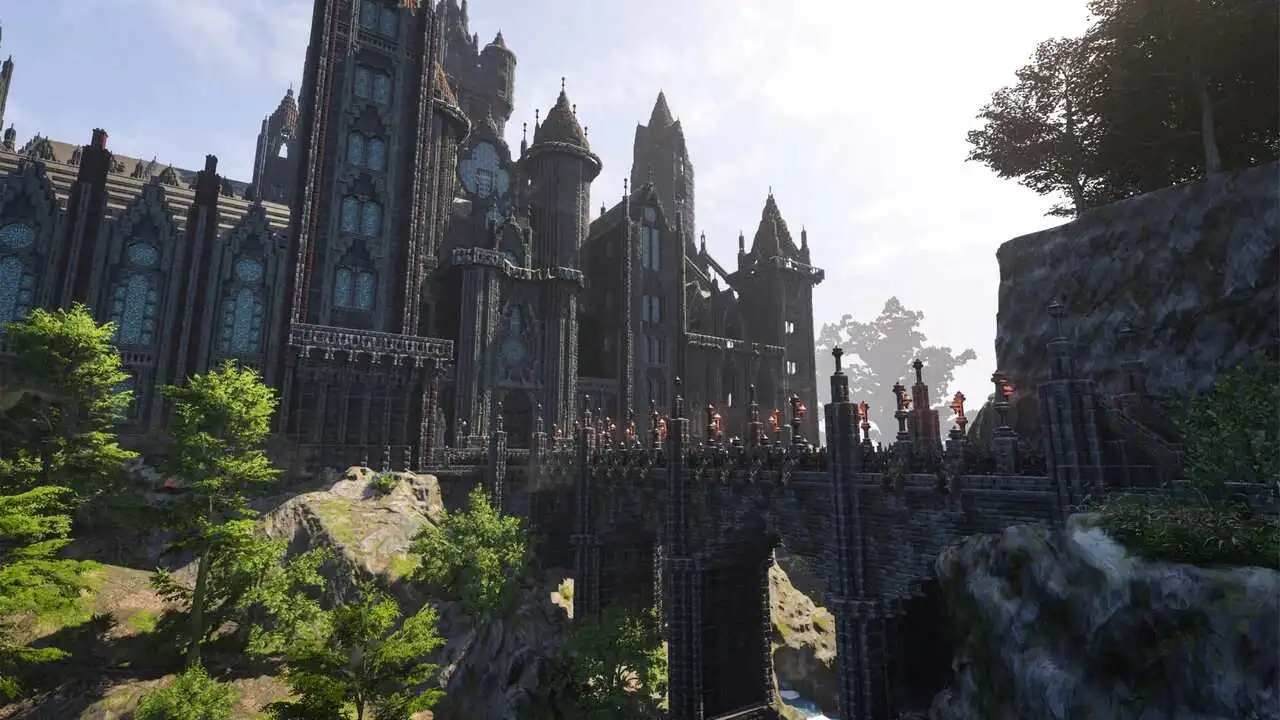
Enshrouded features an editable voxel-based world, and certain situations can put pressure on both the CPU and GPU. As a result, the biggest Enshrouded performance bottlenecks depend on your hardware and where you’re playing.
Large Bases and CPU Usage
Extensive bases, numerous objects, and cooperative worlds can increase processing demands.
If your FPS drops noticeably around complex constructions, monitor CPU and GPU utilization before deciding which component is responsible.
Version 1.0 introduced optimizations designed to reduce CPU overhead and address graphical performance issues around large bases.
Keen Games also implemented a rendering technique called brick rendering, improving how distant voxel terrain and structures are displayed.
These changes don’t eliminate the need to balance visual detail with available hardware.
Fog, Shadows, and Frame-Time Stability
Fog, shadows, and lighting effects can become demanding in certain environments.
The 1.0 update reworked point-light shadows, which are particularly relevant in constructions with multiple light sources. It also introduced improvements designed to reduce VRAM usage.
If you’re experiencing frequent frame-rate fluctuations, limiting FPS to a value your PC can consistently maintain may improve perceived smoothness.
Setting a 60 FPS cap is one option worth testing, but it isn’t a universal solution. The results depend on how consistently your hardware can maintain that frame rate.
Best Enshrouded Graphics Settings for FPS and Visual Quality
Even if your PC meets the Enshrouded system requirements, finding the right settings depends on your resolution, graphics card, and preferred balance between visual quality and FPS.
Rather than copying a single preset, start with the game’s automatically recommended settings and make gradual adjustments.
| Graphics setting | Suggested starting point | When to adjust |
| Upscaling / anti-aliasing | DLSS on RTX GPUs or FSR on compatible hardware, using Quality mode | Try Balanced mode if you need additional performance |
| Fog quality | Low or Performance | Lower it if FPS drops in fog-heavy areas |
| Shadows | Medium | Reduce it if performance falls in forests or heavily lit areas |
| Contact shadows | Off | Enable them again if you have performance headroom |
| Voxel detail | Low on older CPUs | Increase gradually while monitoring FPS around large bases |
| Textures | High, if sufficient VRAM is available | Lower the setting if you experience video memory limitations |
These recommendations are starting points rather than benchmark results from version 1.0.
A setting that improves FPS in a forest may have little effect inside a large base or on a different hardware configuration.
Outside the graphics menu, keep your GPU drivers updated and close resource-intensive background applications.
If you’re playing on a laptop, check your power profile and make sure the game is using the intended graphics processor.
An SSD may improve loading behavior, while a stable FPS cap can help reduce noticeable frame-rate fluctuations.
Enshrouded System Requirements and Co-op Connection Stability
Meeting the Enshrouded system requirements helps determine whether your PC can handle the game, but it doesn’t automatically solve connection-related problems.
In cooperative sessions, delayed actions may be caused by high latency, packet loss, or server-related issues rather than your graphics card.
ExitLag offers route optimization and technologies such as Multipath for situations where network connectivity is the problem.
PC Boost focuses on system adjustments and background processes. However, it doesn’t increase your hardware’s physical capabilities or guarantee additional FPS in Enshrouded.
If your PC meets the specifications and you want to explore tools for improving your online gaming experience, check out ExitLag for PC.
Got questions or want to connect with other players? Join the conversation at the ExitLag Forum!