

Stepping into custom roleplay servers completely transforms your Grand Theft Auto V experience. Millions of players use dedicated client modifications to explore custom maps, drive unique vehicles, and interact in persistent virtual worlds.
However, setting up everything correctly can feel overwhelming for beginners. If you want to master your FiveM Download, you must understand how to prepare your base game files and avoid common installation errors.
To initiate a successful FiveM Download, you must first install a clean, unmodified version of Grand Theft Auto V on your system. Next, fetch the official client executable from the developer website and run it inside a dedicated empty folder on your drive.
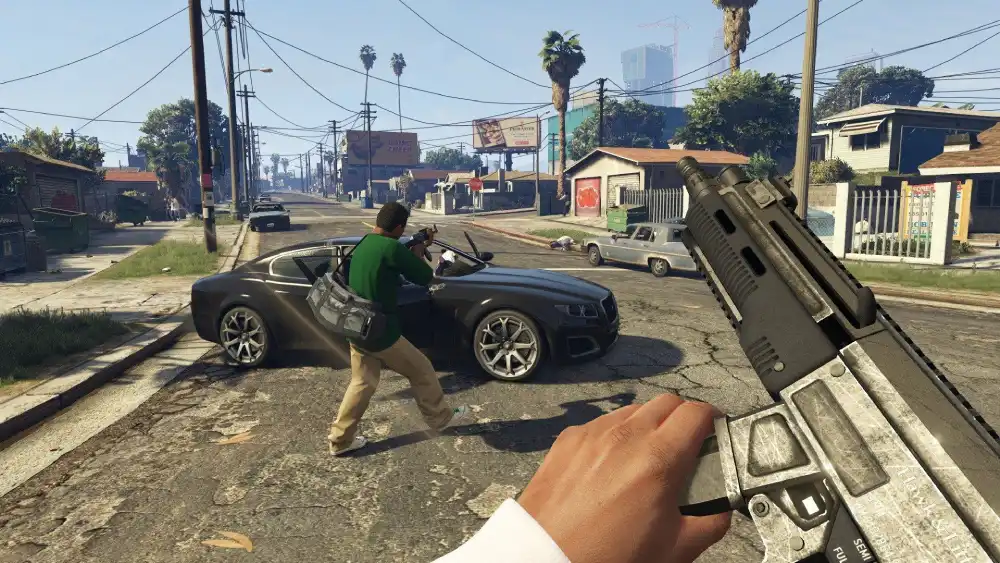
How To Download FiveM On PC Safely
Before modifying your game, you need to ensure your computer is fully prepared. Preparing your system prevents frustrating crash loops and missing texture errors during your initial launch.
Furthermore, knowing exactly How To Download FiveM On PC saves you hours of troubleshooting later. Your operating system must be fully updated to handle the modern custom server architecture.
In addition, you should ensure you have adequate storage space available. The modification requires several gigabytes of cache storage alongside the base game files.
Preparing Your Base Game
First, you must own a legitimate copy of Grand Theft Auto V through a verified digital storefront. Pirated copies or heavily modified single-player installations will not authenticate properly.
Consequently, you should verify your game file integrity through your specific launcher before proceeding. This step replaces any corrupted core engine files.
Always launch the base game into the main menu at least once. Therefore, the engine can generate the necessary configuration files required by the multiplayer modification.
Executing The Installer
Once your base game is ready, you can begin the actual installation process. Follow these specific steps to guarantee a flawless setup on your desktop.
- Create a brand new, empty folder on your desktop or secondary drive.
- Visit the official modification website and grab the executable file.
- Place the downloaded file directly into your newly created folder.
- Run the application and wait for the initial asset update to finish.
- Select your Grand Theft Auto V installation directory when prompted.
A Guide To FiveM Mods Download And Scripts
Adding custom visual enhancements or utility scripts requires manipulating your local application data. Many players look for a reliable FiveM Mods Download to improve their street racing visuals or police roleplay tools.
However, you must differentiate between client-side graphics packs and server-enforced resources. Understanding this distinction prevents you from getting banned by strict server administrators.
Moreover, installing unverified files can cause massive performance drops. You must remain vigilant about where you source your modifications in August 2026.
Client-Side Versus Server-Side Resources
Server-side mods are downloaded automatically when you join a specific community. Consequently, you do not need to install custom cars or server maps manually.
Conversely, client-side mods change how the game looks strictly on your personal monitor. These include custom crosshairs, enhanced streetlights, and realistic weapon sounds.
- Server mods stream directly to your cache folder automatically.
- Client graphics packs require manual placement in your local directories.
- Always check a server's rulebook before using client-side tracer mods.
- Clear your server cache if automated downloads freeze unexpectedly.
Managing Your Plugins Folder
Your local application data houses a dedicated plugins folder for external tools. Knowing how to navigate this directory is crucial for advanced customization.
First, locate your application shortcut, right-click it, and select the option to open the file location. Next, navigate to the application data folder to reveal your inner directories.
- Create a folder named exactly "plugins" if one does not exist.
- Store your visual enhancement dynamic link libraries here.
- Avoid placing massive texture packs in this specific folder.
- Delete outdated plugin files after major engine updates to prevent crashes.

How To Install Reshade Download FiveM Graphics
Enhancing your visual fidelity makes modern roleplay servers look incredibly realistic. Applying a proper Reshade Download FiveM configuration adds custom color grading and ambient occlusion to your screen.
Nevertheless, integrating these graphical injectors requires precise file placement. Incorrect installation frequently causes immediate crashes or missing effect warnings.
Therefore, you must follow a strict file migration process to ensure compatibility. This guarantees your custom lighting presets load seamlessly during gameplay.
Moving Necessary Files
You must install the graphics injector to your base Grand Theft Auto V directory first. After the initial setup, you must move the core files to your custom multiplayer client.
In fact, failing to transfer these files causes the injector to target the wrong executable. Follow this exact workflow to move your assets safely.
- Navigate to your base game folder and locate the injector files.
- Cut the dynamic link library, configuration file, and shader folders.
- Open your custom multiplayer application data directory.
- Paste all copied files directly into the plugins folder.
- Launch the client and press the designated overlay hotkey to test.
Fixing Common Visual Glitches
Sometimes, the graphics injector causes the user interface to lag significantly. Fortunately, this is a known issue with a very simple solution.
First, open the game settings menu while connected to a server. Then, navigate to the game section and enable the interface lag fix option.
Furthermore, if you experience sudden crash dumps, you may need to edit your configuration file. Add the specific injector recognition code into your local settings document to bypass security blocks.
How Do You Fix Stuck Loading Screens?
A failed FiveM Download process often results in infinite loading screens or asset verification loops. These frustrating issues usually stem from corrupted temporary files.
Consequently, knowing how to clean your temporary data solves the vast majority of connection timeouts. This maintenance should become a regular part of your gaming routine.
In addition, background applications occasionally block the client from downloading required server assets. Identifying these software conflicts restores your access immediately.
Clearing Your Cache Files
Your cache folder stores temporary server data to make subsequent connections much faster. However, when servers update their custom scripts, your old cache can cause severe conflicts.
First, close the game entirely and open your application data folder. Next, open the data directory and delete the specific cache folder.
- Never delete the folder labeled "game" within this directory.
- Deleting the server-cache folder forces a fresh asset download.
- Perform this action weekly to maintain optimal loading speeds.
- Restart your computer after clearing files to free up locked memory.
Checking Firewall Permissions
Overly aggressive security software frequently blocks the client from communicating with master server lists. Thus, your game might appear frozen while attempting to fetch connection data.
Always ensure your client executable is explicitly whitelisted in your security software. Furthermore, verify that your router is not blocking common gaming communication ports.
Are Custom Servers Safe To Play Today?
Many cautious players wonder about the security implications of joining unverified community servers. Since these servers force you to download custom assets, security concerns are entirely valid.
However, the core framework operates within a highly restricted sandbox environment. This isolation prevents malicious scripts from accessing your personal computer files.
Therefore, you can explore various roleplay communities without fearing immediate malware infections. Nevertheless, you should remain careful about external community links.
Official Platform Security
Server owners cannot force you to download executable files through the standard connection protocol. The system strictly limits downloads to game assets like textures, sounds, and restricted scripts.
Protecting Your Account Data
While the game client itself is secure, social engineering remains a massive threat. Community servers often require you to join external voice communication channels.
- Never share your publisher account credentials with server administrators.
- Avoid clicking suspicious links posted in community chat rooms.
- Use unique passwords for dedicated community forum registrations.
- Enable hardware authentication on your primary game accounts.
System Requirements And Performance Hardware
Executing a flawless FiveM Download requires hardware capable of handling immense processor loads. Because custom servers feature unoptimized assets, the performance demands are much higher than the base game.
Consequently, playing on an aging laptop usually results in severe stuttering and texture loss. Upgrading your core components ensures smooth driving and responsive combat.
The table below outlines the necessary hardware specifications required to maintain playable frame rates in 2026.
| Hardware Component | Absolute Minimum | Recommended 2026 Optimal |
| Processor (CPU) | Intel Core i5 3470 / AMD FX-8350 | Intel Core i7 12700K / AMD Ryzen 7 5800X3D |
| System Memory (RAM) | 8 GB | 32 GB High-Speed DDR4/DDR5 |
| Graphics Card (GPU) | NVIDIA GTX 660 / AMD HD7870 | NVIDIA RTX 4060 / AMD RX 7600 |
| Storage Drive | Standard Hard Drive (HDD) | NVMe Solid State Drive (SSD) |
Pro Tips: Optimizing Your Installation
Mastering How To Download FiveM is only the first step toward a perfect gaming experience. Applying advanced optimizations prevents frustrating frame drops during intense police pursuits.
Implement these verified community strategies to elevate your technical performance immediately.
Pro Tips: Game Optimization
- Install on an NVMe SSD: Streaming custom textures requires massive disk speed. Installing the client on a modern solid-state drive eliminates invisible roads and falling through the map.
- Limit your texture budget: Open your graphical settings and lower the extended texture budget slider. This prevents your graphics card memory from overflowing during crowded car meets.
- Use DirectX 11: Always ensure your rendering engine is set to DirectX 11 in the advanced graphics menu. Older rendering APIs cause severe stability issues with modern server scripts.
- Disable background recording: Turn off continuous desktop recording software while playing. These background applications consume critical processor threads needed for server synchronization.
Common Mistakes New Players Make
Even experienced gamers make critical errors when managing their custom installations. These simple blunders can force you to reinstall the entire application from scratch.
Avoid these specific pitfalls to maintain a healthy, stable directory structure.
Common Mistakes During Setup
- Modifying base game files: Players install single-player mods directly into their base game directory. Fix: Keep your base directory completely clean and use the dedicated plugins folder instead.
- Skipping driver updates: Users attempt to run heavy graphics injectors on outdated display drivers. Fix: Always install the latest official display drivers before modifying your visual settings.
- Ignoring server requirements: Players try connecting to strict whitelist servers without reading the required asset lists. Fix: Always join the community communication server first to verify you have the correct client build.
Fix Network Lag With ExitLag
Even with a perfect installation, severe network latency can ruin your competitive roleplay experience. When connecting to international servers, inconsistent routing causes rubber-banding and delayed voice communications.
ExitLag operates as a dedicated game connection optimizer that maps multiple network routes in real time. It automatically pushes your gaming data through the fastest, most stable server pathways available to eliminate packet loss completely.
Furthermore, its proprietary Multipath Technology ensures your connection never drops during critical moments. If one routing node fails, your data instantly reroutes through alternative channels without disconnecting your session.
In addition, the software includes a powerful PC Boost function that cleans your background memory and optimizes your operating system. This grants you higher frame rates while the Traffic Shaper restricts background bandwidth hogs.
You can instantly stabilize your desktop connections by grabbing your ExitLag Download right now. If you enjoy portable gaming on other platforms, check out ExitLag for Android for mobile stability. Apple users can also enhance their mobile routing by installing ExitLag for iOS today.
Final Thoughts On Your FiveM Download
Taking the time to complete your FiveM Download properly ensures endless hours of thrilling multiplayer entertainment. By organizing your plugins correctly and clearing your cache regularly, you avoid the most common technical headaches.
Remember to keep your base game unmodified and rely entirely on the dedicated client folders for external scripts. This disciplined approach guarantees your setup remains stable across all future updates.
Now that you fully understand the installation process, you are ready to dominate the streets. Secure your connection, load into your favorite city, and start building your ultimate criminal empire today.
All game images used in this blog post belong to Rockstar Games. They are used for informational and educational purposes only and do not imply endorsement or affiliation with the rights holders.



