

Fortnite parental controls give parents and guardians tools to manage how younger players communicate, spend money, access Fortnite experiences, add friends, use Creative tools, and spend time in the game. Because Fortnite has expanded far beyond Battle Royale into thousands of creator-made experiences, Epic’s controls now cover much more than simply turning voice chat on or off.
Parental controls do not determine which weapons or gameplay items appear in a match, but understanding Fortnite itself can still help families make informed decisions. For example, our guide to how the Shockwave Hammer works in Fortnite explains one of the many gameplay mechanics that can appear across Fortnite’s changing ecosystem. These content changes are separate from Fortnite parental controls, which focus on account permissions, communication, purchases, access, and playtime.
Fortnite parental controls can be configured through Fortnite itself or through the Epic Games account system. The settings use a six-digit parental PIN, and different restrictions can apply depending on the player’s age, region, Epic account status, and the parental settings selected for the account.
It is also important to separate Fortnite age restrictions from parental preferences. Some account limitations are connected to Epic’s Cabined Account system or legal age requirements, while others are settings that a parent or guardian can customize.
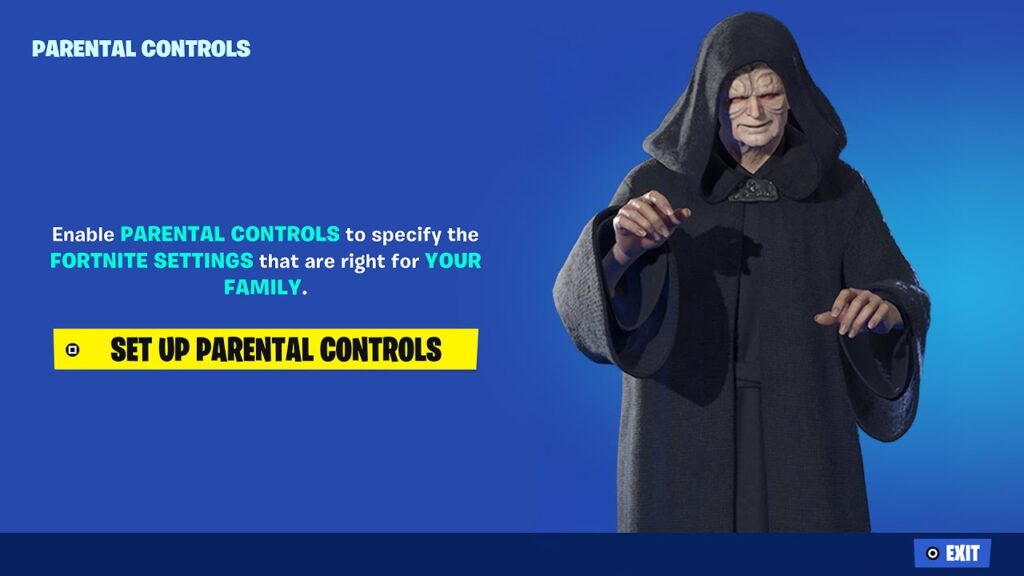
This guide explains how the controls work in 2026, how to create or reset the PIN, what Cabined Accounts mean, how age ratings affect Fortnite experiences, and what to do when an Epic account error looks like a parental-control problem.
How do I set up parental controls on Fortnite?
Setting up Fortnite parental controls is relatively straightforward, but the person configuring them should use an email address they control and choose a PIN the younger player does not already know.
The parental PIN is central to the system. It may be required when changing restrictions, approving certain purchases, adding friends when that option is enabled, or temporarily unlocking Fortnite experiences above the selected content-rating threshold.
How to create the parental controls PIN
You can start the setup directly inside Fortnite.
A typical setup process is:
- Launch Fortnite.
- Open the player menu.
- Select the main menu options.
- Choose Parental Controls.
- Select the option to set up parental controls.
- Confirm the parent or guardian email address.
- Create a six-digit PIN.
- Configure the desired restrictions.
Use a unique PIN rather than recycling a device PIN, birthday, or other number the child already knows.
Once parental controls are established, the PIN cannot simply be deleted from the Epic account. However, the individual restrictions can be changed, and a forgotten PIN can be reset through the account recovery process.
The PIN itself does not automatically restrict Fortnite.
The restrictions come from the settings selected inside the parental-control panel.
If the player can configure the PIN but Fortnite has trouble staying connected afterward, treat that as a separate problem. Our guide to Fortnite network connection lost errors and possible fixes focuses on connectivity rather than parental permissions.
Which settings should parents review first?
There is no single configuration that is right for every family.
However, the most important areas to review are:
- voice chat;
- text chat;
- mature-language filtering;
- Epic friend requests;
- Fortnite content ratings;
- purchase authorization;
- paid random items where available;
- Creative and UEFN access;
- time limits;
- time reports;
- third-party Sign in with Epic permissions;
- AI communication permissions.
A younger player’s Fortnite age and maturity level can influence which options make sense.
For example, a parent may allow communication with existing friends while preventing communication with everyone in a public experience. Another family may allow Battle Royale but restrict creator-made experiences above a certain age rating.
The objective is not necessarily to disable everything.
Fortnite parental controls are designed to give families granular choices instead of forcing every younger player into exactly the same configuration.
What can Fortnite parental controls restrict?
Modern Fortnite parental controls cover social features, content access, purchases, playtime, account connections, and some creative tools.
That is important because Fortnite is now a platform containing many different experiences. A child opening Fortnite may play Battle Royale, LEGO Fortnite, Fortnite Festival, Rocket Racing, or a creator-made island with its own content rating.
Parents should therefore review both the overall Epic account and individual Fortnite settings.
Fortnite age ratings and experience restrictions
Every Fortnite experience has an age rating.
Parents can select the maximum content rating available without a parental PIN. If a player tries to open an experience above that threshold, Fortnite can require the PIN before allowing access.
This makes the Fortnite age question more complicated than asking whether Fortnite as a whole is appropriate for a particular age.
Different experiences can have different ratings.
A family might allow lower-rated islands while keeping higher-rated experiences locked. The available rating labels also depend on the rating system used in the player’s region.
Fortnite Battle Royale itself may have a higher rating than some creator-made islands, so downloading Fortnite does not automatically mean every experience inside the platform becomes accessible.
Parents can also control access to Fortnite Creative and Unreal Editor for Fortnite.
That setting matters because players creating their own experiences can interact with content that has not yet passed through the same publication and age-rating process used for public islands.
The Fortnite Punk Sprite guide and gameplay overview provides another example of how quickly Fortnite’s content changes. Content-specific mechanics and seasonal features may come and go, while the parental-control framework determines which types of experiences and interactions a younger account can access.
Chat, friends, purchases, and playtime
Epic allows parents to choose who a younger player can communicate with through voice and text chat.
Possible permission levels can include:
- Everybody;
- Friends, team members, and connections;
- Friends Only;
- Nobody.
Age can limit the maximum setting available.
For children under 10, voice and text communication cannot be opened beyond Friends Only. For players under 13, the maximum is more restrictive than the completely open Everybody option.
Parents can also require the PIN whenever the child tries to send or accept an Epic friend request.
The mature-language filter provides another layer of protection. For younger users, some filtering rules are enforced automatically depending on age and channel type.
Purchase settings are separate.
A parent can require the PIN before real-money purchases made through Epic’s own payment system. This does not necessarily control purchases processed directly by PlayStation, Xbox, Nintendo, Steam, or another platform, so families should review the parental controls on the device as well.
Fortnite parental controls also include time-management features.
Parents can establish:
- daily playtime limits;
- specific windows when Fortnite can be played;
- permission for the child to request additional time;
- activity reports;
- weekly time-report emails.
These limits can apply across devices when the same Epic account is used, while console or operating-system restrictions can impose additional limits independently.
How do Cabined Accounts and Fortnite age rules work?
A Cabined Account is not simply another name for Fortnite parental controls.
It is an Epic account state designed for younger users who have not yet received the necessary parental consent for certain features.
Whether an account becomes Cabined depends on the player’s age and region.
What happens when a player has a Cabined Account?
If a player indicates that they are under 13 or under the relevant age of digital consent in their country, whichever threshold is higher, Epic can place the account into the Cabined Account system while parental consent is pending.
The player can still access important parts of Fortnite.
However, certain features can initially be unavailable, including:
- voice chat;
- free-text chat;
- real-money purchases;
- some third-party account connections;
- custom display names;
- SMS-based two-factor authentication;
- some Epic Games Store functions.
A parent or guardian can receive an email asking them to complete the consent process.
Once consent is completed, additional features may become available depending on the permissions selected by the parent.
This is why Fortnite age cannot be reduced to a universal “you must be 13 to play” statement.
Younger players can still use Fortnite, but the account experience and available features can be different.
Players should also enter their real date of birth.
Trying to bypass restrictions with a false age can create account-management problems later and does not provide a responsible solution to parental controls.
For current Fortnite information, game modes, events, and the wider ecosystem, players can visit the official Fortnite game website rather than relying on random pages that claim to control Epic account permissions.
What does being under 18 change on Epic Games?
Searches involving phrases such as 18 Epic Games often come from players trying to understand whether turning 18 automatically removes every restriction.
It does not work that simply.
Several different systems are involved:
- Cabined Account thresholds;
- regional age-of-digital-consent rules;
- parental-control settings;
- content ratings;
- communication protections;
- platform-level restrictions.
For example, Epic keeps voice and text reporting enabled for users under 18. This is separate from the question of whether a player is old enough to use a particular chat permission.
A player reaching 18 also does not automatically erase an existing parental PIN.
If the account has parental controls configured, the individual settings still need to be managed appropriately.
Similarly, searching 18 Epic Games does not refer to a special version of Fortnite or a separate Epic Games account type.
It is usually an age-related query.
The distinction between age-based defaults and manually configured parental settings is essential. A user can be old enough for a feature while still having restrictions selected on the account.
How do I turn off parental controls on Fortnite?
Fortnite parental controls can be adjusted, but Epic treats the parental PIN differently from the individual restrictions.
Once a parental PIN has been created on an Epic account, the PIN itself is not simply removed. Instead, the account holder with the PIN can modify or disable the individual restrictions.
This protects the settings from being erased casually by the younger player.
How to change or disable individual restrictions
Sign in to the Epic Games account and open the parental-control settings.
Enter the six-digit PIN.
From there, review each option and change the desired restriction.
Depending on the account, you may be able to adjust settings for:
- voice chat;
- text chat;
- friend requests;
- mature-language filtering;
- purchase authorization;
- content ratings;
- Creative access;
- time limits;
- account connections;
- AI communication.
If all optional restrictions are turned off or opened to the maximum level permitted for that account, the presence of the PIN alone does not mean Fortnite is actively being restricted.
Age-based limitations can still apply independently.
That means a parent cannot necessarily use the PIN to override every legal or age-based limitation imposed by Epic or another platform.
The same is true in reverse: removing a restriction in Epic’s settings does not automatically change PlayStation, Xbox, Nintendo, Windows, Android, or iOS parental controls.
Fortnite operates across multiple ecosystems, so families should review both levels.
What if you forgot the parental controls PIN?
A forgotten PIN should be reset through the Epic account process rather than guessed repeatedly.
The reset process depends on access to the email associated with the parental settings.
Parents or guardians who no longer have access to the relevant email may need to use Epic’s account or guardian support procedures to update the information.
Do not use websites claiming they can “remove” Fortnite parental controls remotely.
A third-party site does not need your Epic password, authentication code, email password, or console credentials to help you remember a six-digit PIN.
Likewise, terms such as controlage sometimes appear in searches related to parental restrictions, but controlage is not the name of a standard Fortnite parental-control setting.
Use the terminology displayed directly in Fortnite and the Epic account portal.
That reduces the chance of following instructions written for unrelated software or entering account information on an imitation website.
Why am I seeing Epic Games sign-in or age errors?
Not every restriction-looking message comes from Fortnite parental controls.
Epic accounts can produce login, account-linking, age, and parental-permission errors for completely different reasons.
Identifying the exact message is much more effective than resetting parental settings every time something goes wrong.
What does “You haven’t signed in on this account before” mean?
Players sometimes search for You haven’t signed in with this account before Epic Games after receiving a similar console login message.
The current Epic error is associated with an external console account that is not properly linked to the expected Epic Games account.
This can happen when:
- a PlayStation account is linked to a different Epic account;
- an Xbox account is linked elsewhere;
- a Nintendo account is connected to another Epic profile;
- Fortnite originally created an incomplete Epic account automatically;
- the player signs into the wrong Epic account while troubleshooting.
The first step is to determine which Epic account is actually connected to the console profile.
Do not immediately unlink accounts.
Disconnecting and reconnecting platform accounts without understanding the existing account structure can create additional complications with progress and account linking.
The phrase You haven’t signed in with this account before Epic Games is therefore not evidence that a parent has blocked Fortnite.

It is fundamentally an account-linking issue.
If parental controls are also active, both problems can exist at the same time, but they should be diagnosed separately.
What are controlage and bgams.com?
Search data can sometimes surface strange phrases near legitimate Fortnite account questions.
controlage does not correspond to a standard setting name used in Fortnite parental controls. Someone searching the term may be using shorthand, a typo, another service’s terminology, or trying to describe age controls generically.
The same caution applies to bgams.com.
The official Fortnite website uses the Fortnite domain, while Epic’s account and store services use Epic Games properties. bgams.com should not be assumed to be an official Epic Games account page simply because it appears in a Fortnite-related search or message.
Do not enter Epic credentials into an unfamiliar domain merely because it displays Fortnite branding.
Before signing in anywhere, check:
- the exact domain;
- whether you intentionally opened the page;
- whether Epic directed you there;
- whether the browser reports security problems;
- whether the page is unexpectedly requesting a password or two-factor code.
Fortnite account security is especially important for profiles containing purchased cosmetics, V-Bucks, Battle Pass progression, or years of gameplay history.
If a site promises to disable parental controls, change Fortnite age, generate V-Bucks, or unlock restricted Epic settings in exchange for login information, do not treat it as a legitimate shortcut.
How can ExitLag help with Fortnite online play?
ExitLag is not a parental-control tool.
It cannot change Fortnite parental controls, alter a player’s registered age, bypass a PIN, remove a Cabined Account, approve purchases, or unlock experiences restricted by a parent.
Its role is related to network routing during online gameplay.
That makes it relevant only when the problem involves connectivity rather than account permissions.
When can network route optimization help?
Fortnite communicates continuously with online infrastructure while you play.
Depending on the player’s ISP, region, destination server, and available routes, an inefficient network path can contribute to:
- unstable latency;
- ping spikes;
- jitter;
- packet-loss-related interruptions;
- inconsistent online responsiveness;
- connection instability.
ExitLag helps optimize supported game routes and may provide a more stable path when routing is part of the problem.
Results depend on the individual connection.
Parents configuring Fortnite parental controls should therefore think of safety settings and connection optimization as completely separate categories.
The controls determine how the account can interact.
ExitLag affects supported network routing.
Neither replaces the other.
What can ExitLag not fix?
ExitLag cannot:
- bypass Fortnite parental controls;
- discover a forgotten PIN;
- change Fortnite age information;
- complete parental consent;
- enable voice chat blocked by age rules;
- authorize purchases;
- unlock restricted Fortnite experiences;
- repair an incorrectly linked Epic account;
- solve the You haven’t signed in with this account before Epic Games issue automatically;
- increase FPS limited by hardware;
- restore Fortnite during a global outage;
- guarantee lower ping.
If a younger player wants access to a locked experience, the parent or guardian should review the content rating and decide whether to enter the PIN.
If Fortnite is disconnecting during an allowed experience, then network troubleshooting becomes relevant.
Families exploring different parts of Fortnite can also try Rocket Racing experiences available through Fortnite. The same Epic-level parental settings can continue to matter as players move between different experiences inside the wider Fortnite ecosystem.
FAQ about Fortnite parental controls
Fortnite parental controls interact with Epic account rules, age settings, platform restrictions, Cabined Accounts, and Fortnite’s individual experience ratings.
That overlap is why a simple problem such as missing voice chat or a locked island can have several different causes.
The answers below cover the most common questions.
Can a child play Fortnite with parental controls enabled?
Yes.
Parental controls do not automatically prevent Fortnite from launching.
Instead, they can limit selected features such as communication, purchases, content ratings, friend requests, Creative access, or playtime.
A Cabined Account can also continue playing Fortnite while some features remain unavailable until parental consent is completed.
What age should a child be to play Fortnite?
There is no single global answer because ratings vary by region and individual Fortnite experiences have their own classifications.
Parents should consider both the local rating and the child’s maturity.
The account’s Fortnite age information can also affect Cabined Account status and communication permissions.
Can parents block specific Fortnite experiences?
Parents can set a maximum Fortnite content rating.
Experiences above that threshold require the parental PIN before the younger player can access them.
This provides more flexibility than blocking the entire Fortnite platform.
Can parents limit how many hours Fortnite is played?
Yes.
Epic’s time-limit tools allow parents to establish daily limits and specific play windows for Fortnite and UEFN.
Parents can also enable time reports and decide whether the child is allowed to request additional time.
Device-level parental controls may impose separate limits.
Can I completely delete the Fortnite parental PIN?
Once the parental PIN has been established on the Epic account, it is not designed to be removed entirely.
However, individual restrictions can be adjusted or disabled.
The PIN itself does not restrict gameplay unless settings are configured to require it.
Does turning 18 remove Fortnite parental controls?
Not necessarily.
Searches such as 18 Epic Games often assume that every setting disappears automatically at adulthood, but age rules and manually configured parental settings are different systems.
Existing settings may still need to be adjusted through the parental-control panel.
Why is voice chat disabled even though parental controls allow it?
Age restrictions or Cabined Account status can affect communication.
Platform-level controls can also block chat independently of Epic’s settings.
Check both the Epic account and the console or device settings.
Why is Fortnite asking for a parental PIN before opening an island?
The island may have a content rating above the maximum rating selected in Fortnite parental controls.
A parent or guardian can review the experience and decide whether to unlock it with the PIN.
Does the purchase PIN block V-Bucks purchases?
Epic’s purchase-PIN setting applies to qualifying real-money payments made through Epic’s payment system.
It does not automatically control every payment handled directly by another gaming platform, and it does not work exactly the same way as spending already-owned V-Bucks.
Review platform parental controls as well.
What is a Cabined Account?
A Cabined Account is an Epic account for a younger player who is below the applicable age threshold and has not yet received the necessary parental consent for certain features.
The player can still access Fortnite, but features such as free-text chat, voice chat, real-money purchases, and some external account connections can initially be restricted.
What is controlage in Fortnite?
controlage is not the official name of a Fortnite parental-control feature.
If you encountered the term while searching for age restrictions, use Epic’s actual settings for content ratings, Cabined Accounts, communication permissions, and parental controls instead.
Is bgams.com an Epic Games website?
Do not assume bgams.com is an official Epic or Fortnite account service.
Use the known Fortnite and Epic Games services when managing sensitive account information, and verify the domain before entering passwords or authentication codes.
Why does Epic say I haven’t signed in with the account before?
The search phrase You haven’t signed in with this account before Epic Games generally relates to an account-linking problem on console.

Check which Epic Games account your PlayStation, Xbox, or Nintendo profile is actually connected to before changing anything.
It is not normally caused by Fortnite parental controls.
Can a parent restrict friend requests?
Yes.
Epic provides a setting that can require the parental PIN whenever the younger player sends or accepts an Epic friend request.
Platform-level friend systems can have their own independent controls.
Can parents turn off Creative mode?
Parents can restrict access to Fortnite Creative and Unreal Editor for Fortnite through the available parental settings.
This can be useful when a family wants the child to play published experiences while limiting access to unrated creation environments.
Do Fortnite parental controls work across devices?
Epic-level controls follow the Epic account and can therefore apply while the same account is used across supported devices.
Console and operating-system parental restrictions can still operate independently.
Families should review both layers instead of assuming one replaces the other.
Fortnite parental controls have evolved into a detailed system covering content ratings, communication, purchases, friends, Creative tools, account connections, AI interactions, and playtime. Parents should begin with the account’s real age information, create a secure PIN, and then choose restrictions based on the player rather than simply disabling every feature. If online matches later suffer from routing-related instability, ExitLag can help optimize supported network paths depending on the connection, but it cannot bypass or modify Fortnite parental controls. Review the settings regularly as the player grows and Fortnite continues adding new experiences.
All game images used in this article belong to their respective owners. They are used for informational and educational purposes only and do not imply endorsement or affiliation with the rights holders.
Got questions or want to connect with other players? Join the conversation at the ExitLag Forum!


