

Few things ruin a Victory Royale push faster than a sudden disconnect mid-fight. The Fortnite Network Connection Lost error kicks players out at the worst possible moment, often during build fights or the final circle.
This guide breaks down exactly why the error happens and how to resolve it permanently. We cover everything from basic router resets to advanced routing fixes that competitive players rely on.
If you keep seeing Network Connection Lost Fortnite messages, the Fortnite Network Connection Lost issue is almost always tied to routing instability between your device and Epic’s servers, not a broken game install. Understanding the real cause saves hours of pointless troubleshooting.
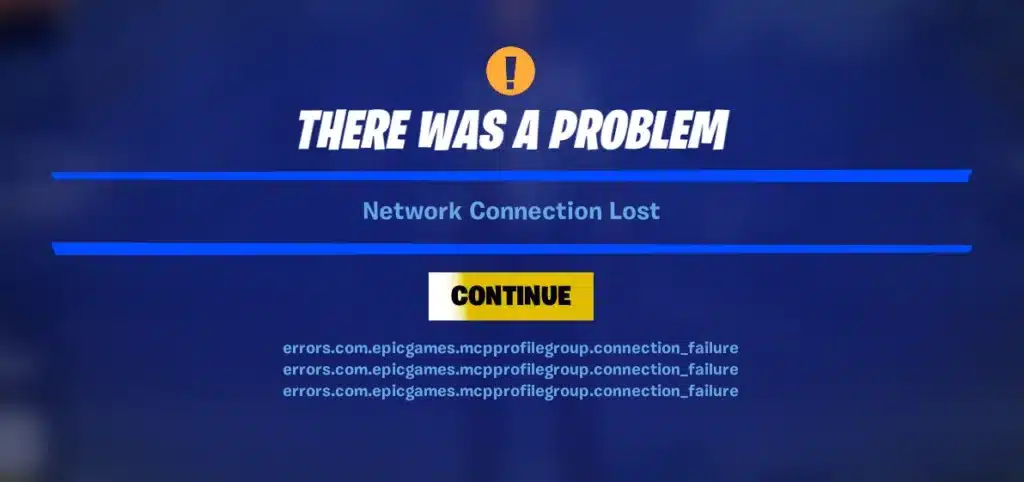
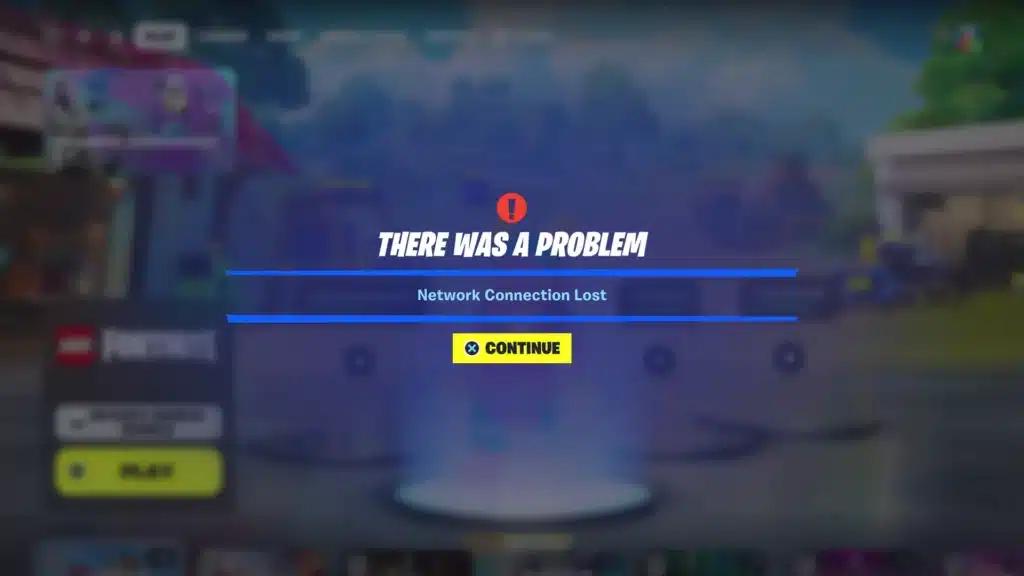
Fortnite Network Connection Lost: What Triggers The Error
This error message pops up whenever the game client loses its data stream to the matchmaking or game servers. It can appear during loading screens, mid match, or right at the lobby.
Because Fortnite is a live service title, the error is rarely a single cause. It is usually a combination of local network hiccups and backend routing problems.
Common Root Causes
Understanding the trigger helps you pick the right fix instead of guessing. Below are the most frequent causes reported by players and confirmed through official troubleshooting pages.
- Unstable Wi-Fi signal or interference from other devices on the same band
- ISP routing congestion during peak evening hours
- Firewall or antivirus software blocking Fortnite’s ports
- Outdated network drivers or router firmware
- Regional Epic Games server instability or scheduled maintenance
- NAT type conflicts on consoles behind restrictive routers
How Epic Games Servers Play A Role
Even with a perfect home connection, server-side congestion can trigger the same error. Epic Games publishes a public status page that tracks ongoing incidents across regions.
Before spending an hour resetting hardware, checking that page takes thirty seconds. It confirms whether the issue is local or affects everyone in your region.
Why Does Fortnite Say Network Connection Lost?
The short answer: your client stopped receiving server acknowledgments within the expected timeout window. Once packets stop arriving in sequence, the game assumes the connection dropped and force-closes the session.
This can happen even with strong bandwidth, because Fortnite relies on latency and consistency, not raw speed. A connection that is fast but bursty still triggers the error frequently.
Consequently, fixing this issue means targeting stability and route consistency, not just increasing download speed. That distinction matters when choosing between fixes below.
Quick Checks Before Deep Troubleshooting
Run through this short numbered list before touching advanced settings. It filters out the easy wins first.
- Check status.epicgames.com for active incidents in your region.
- Restart your router and modem, waiting 30 seconds between unplugging and reconnecting.
- Switch from Wi-Fi to a wired Ethernet connection if possible.
- Verify Fortnite game files through the Epic Games Launcher.
- Confirm your matchmaking region matches your physical location.
Console-Specific Considerations
PlayStation and Xbox players face additional NAT type restrictions that PC players do not. A Strict NAT type often causes matchmaking drops that look identical to a Network Connection Lost Fortnite message.
Opening the correct ports or enabling UPnP on your router resolves most of these cases. Consult your router’s manual for the specific port range Fortnite requires.
Advanced Troubleshooting For Persistent Network Connection Lost Fortnite Errors
Once the basics are covered, the next layer involves diagnosing actual packet behavior. This is where most casual guides stop, but competitive players go further.
Packet loss diagnostics reveal problems that a simple reboot never fixes. Tools like a continuous ping test or tracert can expose exactly where packets are dropping along the route.
Diagnosing Packet Loss Step By Step
Running a proper diagnostic takes a few minutes and gives you concrete data instead of guesswork.
- Open Command Prompt and run ping 8.8.8.8 -t for two minutes while gaming.
- Look for timeouts or spikes above 100ms, which indicate instability.
- Run tracert to the game server region to spot which network hop introduces delay.
- Note whether the issue happens on wired or wireless connections separately.
- Compare results during peak hours versus off-peak hours.
DNS And Router Configuration
Switching DNS providers is a quick but often overlooked fix. Many players report fewer disconnects after moving away from their ISP’s default DNS servers.
- Try Cloudflare DNS (1.1.1.1 and 1.0.0.1) for faster resolution
- Try Google DNS (8.8.8.8 and 8.8.4.4) as an alternative
- Flush your DNS cache after switching using ipconfig /flushdns
- Update router firmware to the latest version available
Router Quality of Service settings also make a real difference. Enabling QoS and prioritizing your gaming device’s traffic ensures Fortnite’s small, time-sensitive packets are not delayed behind background downloads or streaming devices.
Firewall, Antivirus, And Port Configuration
Security software is a frequent, underrated cause of the Network Connection Lost Fortnite error. Many antivirus suites silently block outbound game traffic without any visible warning.
Temporarily disabling your firewall to test the theory is a valid diagnostic step. If the error disappears, add Fortnite as an exception instead of leaving protection off permanently.
Ports Fortnite Needs Open
Add these to your router or firewall allow list to avoid future interruptions.
- TCP: 80, 443, 5222, 3478-3479
- UDP: 3478-3479, 5222, 9000-9100
- Allow both the Epic Games Launcher and FortniteClient-Win64-Shipping.exe
Cause Vs Fix: Quick Reference Table
| Cause | Symptom | Recommended Fix |
|---|---|---|
| ISP routing congestion | Random drops during peak hours | Switch DNS, contact ISP, use route optimization |
| Firewall blocking traffic | Instant disconnect on launch | Add Fortnite to firewall exceptions |
| Strict NAT type | Matchmaking failures on console | Enable UPnP or forward required ports |
| Wi-Fi interference | Intermittent lag then disconnect | Switch to wired Ethernet connection |
| Epic server incident | Everyone in region affected | Check status.epicgames.com, wait it out |
| Outdated router firmware | Recurring packet loss | Update firmware, reboot router |
Why Route Consistency Matters More Than Raw Speed
A gigabit connection with an unstable route still produces disconnects. What actually prevents the Fortnite Network Connection Lost error is a consistent, low-jitter path to the game server, not maximum bandwidth.
This is why some players with modest internet plans experience fewer drops than others on premium fiber. Routing quality, not headline speed, decides whether your session survives a fight.
Testing Route Stability Over Time
Consistency testing over a full gaming session reveals patterns invisible in a single ping test.
- Run background ping monitoring for an entire play session
- Log timestamps of every disconnect to spot a pattern
- Compare results across different times of day
- Check if the pattern matches ISP peak congestion windows
ExitLag: Smarter Routing For Battle Royale Stability
After trying the standard fixes, many competitive players add a dedicated routing tool to their setup. ExitLag is not a VPN, it is a game connection optimizer that analyzes multiple network paths in real time.
It picks the fastest, most stable route between your device and Fortnite’s servers. It does not encrypt traffic, does not mask your IP, and does not touch any application outside supported games.
In a Battle Royale title like this one, consistent routing directly prevents rubber-banding, desync, and the exact mid-match drops that trigger the Network Connection Lost Fortnite message. ExitLag currently supports over 4,000 titles across PC and Mobile.
- Real-time Optimization that adapts to changing network conditions instantly
- Multipath Technology that stays resilient even if one route fails
- Multi-Internet support with automatic failover between connections
- Traffic Shaper to reduce jitter on unstable home networks
- AI-powered routing that continuously selects the best available path
With over 1,500 servers across 190+ countries, ExitLag is used by more than 30 million users and processes over 18 million optimizations every week. It does not modify game files, does not inject code, and does not interact with anti-cheat systems, so it remains safe with supported titles.
It should not be used alongside a VPN, since both tools try to control routing at the same time. If persistent disconnects are costing you matches, grabbing the ExitLag Download and testing it during your next session is a practical next step.
Pro Tips: Fortnite Network Connection Lost
- Reboot the modem before the router. Power cycling in this order lets the modem re-establish a clean line from your ISP before the router rebuilds its local network table.
- Use a 5GHz band or wired connection. The 2.4GHz band is crowded with other household devices, which increases the odds of interference-driven packet loss.
- Manually select your matchmaking region. Auto-detection sometimes routes you through a congested server instead of the nearest healthy one.
- Keep only one device active during ranked play. Bandwidth contention from streaming or downloads on other devices amplifies jitter exactly when you need stability most.
Common Mistakes Fortnite Players Make
- Reinstalling the game immediately without checking server status. Fix: Check status.epicgames.com first, since a regional outage makes reinstalling pointless.
- Ignoring router firmware updates for months. Fix: Set a recurring reminder to check for firmware updates every few weeks, since outdated firmware causes recurring instability.
- Leaving firewall settings on maximum restriction without exceptions. Fix: Add Fortnite and the Epic Games Launcher explicitly to the allow list instead of disabling protection entirely.
- Blaming the game client for every disconnect. Fix: Run a packet loss diagnostic first, since the issue is frequently on the ISP or local network side, not the client.
Ultimately, most instances of the Fortnite Network Connection Lost error trace back to a combination of local network instability and inconsistent routing to Epic’s servers. Working through the checks above in order, from router resets to DNS changes to firewall exceptions, resolves the vast majority of cases.
For players who still see drops during high-stakes matches, pairing solid home network hygiene with a dedicated routing optimizer closes the remaining gap. Staying connected through the final circle should never come down to luck.
All game images used in this blog post belong to Epic Games. They are used for informational and educational purposes only and do not imply endorsement or affiliation with the rights holders.
Got questions or want to connect with other players? Join the conversation at the ExitLag Forum!

