Imagine loading into Mortal Kombat 1 and experiencing every fight at a buttery smooth frame rate. Your combos flow seamlessly, Fatal Blows play without a single hitch, and every Kameo assist animates with crystal clarity. High FPS transforms MK1 from a good fighting game into a visually stunning, responsive experience where you can react to every move with confidence. The difference between playing at a stable 60 FPS versus a choppy, inconsistent frame rate is the difference between feeling in complete control and feeling like the game is fighting against you.
But for many players, that ideal experience remains frustratingly out of reach. Instead of smooth gameplay, you’re dealing with FPS boost in Mortal Kombat 1 being a constant struggle, micro-stuttering during online matches, frame drops during Fatal Blows, and inconsistent frame pacing that makes combos feel unreliable.
Even players with high-end hardware report sudden performance tanks during online play, with FPS dropping from 60 to 40 or lower when network instability kicks in. If you’ve experienced the frustration of your game running perfectly offline but stuttering relentlessly the moment you go online, you’re far from alone. MK1’s PC port has been a known source of performance headaches since launch.
The good news is there’s a proven solution that can deliver up to 60% more stable FPS in your online matches. ExitLag tackles the root cause of network-related performance issues that plague Mortal Kombat 1’s online modes, eliminating the micro-stuttering, frame drops, and inconsistent frame times that hardware upgrades alone can’t fix.
This complete guide will show you exactly how ExitLag boosts your FPS, how to configure it for maximum performance, and what complementary optimizations will help you get the absolute best experience from MK1.

Why high FPS is crucial in Mortal Kombat 1
What is FPS (frames per second)
FPS stands for frames per second — the number of individual images your screen displays every second. Think of it like a camera filming your gameplay: the more frames captured per second, the smoother and more fluid the motion appears. In a fighting game like Mortal Kombat 1, where every animation frame carries gameplay information, FPS directly impacts your ability to compete.
- 30 FPS: The game feels sluggish and choppy. Animations lack fluidity, and reacting to fast moves becomes significantly harder. Fatal Blows and cutscenes switch to 30 FPS by design in MK1, and the difference is immediately noticeable.
- 60 FPS: The standard target for MK1 gameplay. Animations are smooth, inputs feel responsive, and combos execute as intended. This is the baseline for competitive play.
- 144+ FPS: While MK1’s gameplay is locked to 60 FPS, maintaining headroom above that ensures frame time consistency and eliminates micro-stuttering that occurs when your system struggles to maintain the target.
Benefits of high FPS in Mortal Kombat 1
- Smoother gameplay: Every animation, from combo strings to projectile attacks, plays out with fluid motion that lets you read and react to your opponent’s moves
- Better input responsiveness: Higher, stable FPS means less input lag between pressing a button and seeing the action on screen, critical for frame-tight combos
- Faster reaction time: Smooth frames let you identify and react to mixups, overheads, and throw attempts with maximum visual clarity
- Competitive PvP advantage: In Kombat League, players with stable FPS can confirm combos and react to situations that choppy-FPS players simply cannot
- More immersive experience: MK1’s stunning character models, stage details, and cinematic Fatal Blows look dramatically better at consistent frame rates
- Reduced eye fatigue: Stable FPS eliminates the subtle visual discomfort caused by micro-stuttering, letting you play longer sessions without strain
- Reliable combo execution: Frame-perfect inputs and dial-in combos require consistent frame pacing — FPS drops during strings cause missed inputs and dropped combos
FPS classification for Mortal Kombat 1
| FPS Range | Quality | Experience | Competitive? |
|---|---|---|---|
| 60 FPS (stable) | ⭐⭐⭐⭐⭐ Excellent | Perfect, as designed | ✅ Ideal |
| 50-60 FPS | ⭐⭐⭐⭐ Good | Mostly smooth | ✅ Viable |
| 40-50 FPS | ⭐⭐⭐ Acceptable | Noticeable drops | ⚠️ Slight disadvantage |
| 30-40 FPS | ⭐⭐ Poor | Choppy, stuttery | ❌ Difficult to compete |
| <30 FPS | ⭐ Unplayable | Slideshow | ❌ Impossible |
Note: Mortal Kombat 1’s gameplay is locked at 60 FPS by design. The critical factor isn’t reaching higher numbers but maintaining a rock-solid, consistent 60 FPS without drops, stutters, or frame time spikes.
High FPS vs beautiful graphics
In competitive Mortal Kombat 1, performance always beats visual quality. While MK1 is one of the most visually impressive fighting games ever made, running it at maximum graphical settings means nothing if your FPS stutters during a crucial Kombat League match. Lowering settings like shadow quality, particle effects, and post-processing can significantly improve frame stability. The trade-off is worth it: a slightly less pretty game that runs at a locked, smooth frame rate will always feel and play better than a gorgeous slideshow. For competitive players, the priority should always be consistent frames over maximum visual fidelity.
How ExitLag increases FPS in Mortal Kombat 1
This is where the real transformation happens. While most FPS guides focus exclusively on hardware and graphical settings, they miss a critical factor that affects every online match you play.
What is ExitLag? (not a VPN)
ExitLag is a specialized network optimization software designed exclusively for gaming. It’s critical to understand: ExitLag is NOT a VPN. While VPNs encrypt your traffic and route it through generic servers — actually increasing latency and making performance worse — ExitLag does the opposite. It uses proprietary multi-path routing technology to find the fastest, most stable connection between your PC and the game servers, reducing latency and eliminating the network-related performance issues that directly impact your FPS.
You can learn exactly how ExitLag works and why its approach is fundamentally different from VPNs or generic network tools.
How ExitLag improves FPS in online games
Many players don’t realize that network performance directly affects FPS in online games. When your connection to Mortal Kombat 1’s servers is unstable, the game’s client has to constantly resynchronize with the server. This resynchronization process causes micro-stuttering — tiny, repeated frame hitches that make your FPS feel much lower than what your hardware monitor reports. You might see “60 FPS” on your counter while the game feels like 40 FPS because the frame times are wildly inconsistent.
ExitLag eliminates this by stabilizing the data flow between your PC and the game servers. When packets arrive at consistent intervals, the game client can render frames at predictable, even intervals. This improved frame pacing is what makes the “ExitLag FPS boost” feel so dramatic — it’s not just about the numbers, it’s about the consistency of every single frame.
7 ways ExitLag boosts your FPS in Mortal Kombat 1
- Elimination of micro-stuttering: Network-induced micro-stutters are the number one killer of smooth gameplay in MK1 online matches. When your connection hiccups, the game engine pauses rendering momentarily to resync, creating visible hitches. ExitLag’s stable multi-path routing eliminates these pauses, delivering a visually smooth experience that feels like a genuine FPS boost in Mortal Kombat 1.
- Input lag reduction: Every millisecond of network delay adds to your perceived input lag. When you press a button, the signal travels to the server, gets processed, and the result renders on your next available frame. ExitLag shortens this entire chain by optimizing the network portion, making your inputs feel snappier and your frames more responsive.
- Frame time stabilization: Consistent frame times are more important than raw FPS numbers. A game that alternates between 16ms and 33ms frame times (60 and 30 FPS) feels far worse than one locked at a consistent 16.6ms. ExitLag’s stable packet delivery helps the game engine maintain consistent frame timing throughout your session.
- Multi-path route optimization: ExitLag sends your data through multiple optimized routes simultaneously. If one path experiences congestion, your data arrives through an alternative, preventing the packet delays that cause the game to stutter while waiting for missing data.
- Game traffic prioritization: ExitLag ensures your Mortal Kombat 1 packets receive priority treatment, preventing background internet activity from interfering with the critical data stream that keeps your game running smoothly.
- Server ping reduction: Lower latency means better client-server synchronization. When your ping is lower and more stable, the game spends less time on lag compensation — the process that often causes visible performance hits and stuttering during online matches.
- Redundant connections for zero packet loss: Packet loss forces the game to request retransmission of missing data, causing frame stalls and micro-freezes. ExitLag’s redundant routing ensures packets arrive via at least one path, virtually eliminating loss-related performance drops.
ExitLag vs other FPS boost solutions
| Solution | Boosts FPS? | Reduces lag? | Stability | Ease of use | Recommendation |
|---|---|---|---|---|---|
| ExitLag | ✅ Yes (network) | ✅✅✅ Excellent | ⭐⭐⭐⭐⭐ | ⭐⭐⭐⭐⭐ | ✅ Best choice |
| Common VPN | ❌ Worsens | ❌ Worsens | ⭐⭐ | ⭐⭐⭐ | ❌ Avoid |
| Game Booster | ⚠️ Minimal | ❌ No | ⭐⭐⭐ | ⭐⭐⭐⭐ | ⚠️ Limited |
| Windows optimization | ⚠️ Some | ❌ No | ⭐⭐⭐ | ⭐⭐ | ⚠️ Helps |
| Hardware upgrade | ✅ Yes | ❌ No | ⭐⭐⭐⭐ | ⭐ | 💰 Expensive |
| Doing nothing | ❌ No | ❌ No | ⭐ | ⭐⭐⭐⭐⭐ | ❌ Poor performance |
Mortal Kombat 1 is among the many games optimized by ExitLag, benefiting from routing specifically tuned for fighting game servers.
Why ExitLag works so well for Mortal Kombat 1
ExitLag’s effectiveness comes from its proprietary technology and gaming-specific infrastructure. With over 600 global servers, the software provides optimized routing paths specifically calibrated for game server locations. The technology is purpose-built for the unique demands of online gaming — unlike general-purpose tools, every feature is designed to minimize latency and maximize connection stability.
- Proprietary multi-path technology sends data through multiple routes simultaneously
- Over 600 servers worldwide positioned near major game server clusters
- Game-specific optimization profiles tuned for each title’s networking requirements
- Millions of gamers worldwide trust ExitLag for competitive performance
- Continuous route monitoring and real-time adjustment for maximum stability
How to use ExitLag in Mortal Kombat 1: Step by Step
The process is extremely simple:
Step 1 – Access the official ExitLag website and download the application. There’s a free trial period for new users.
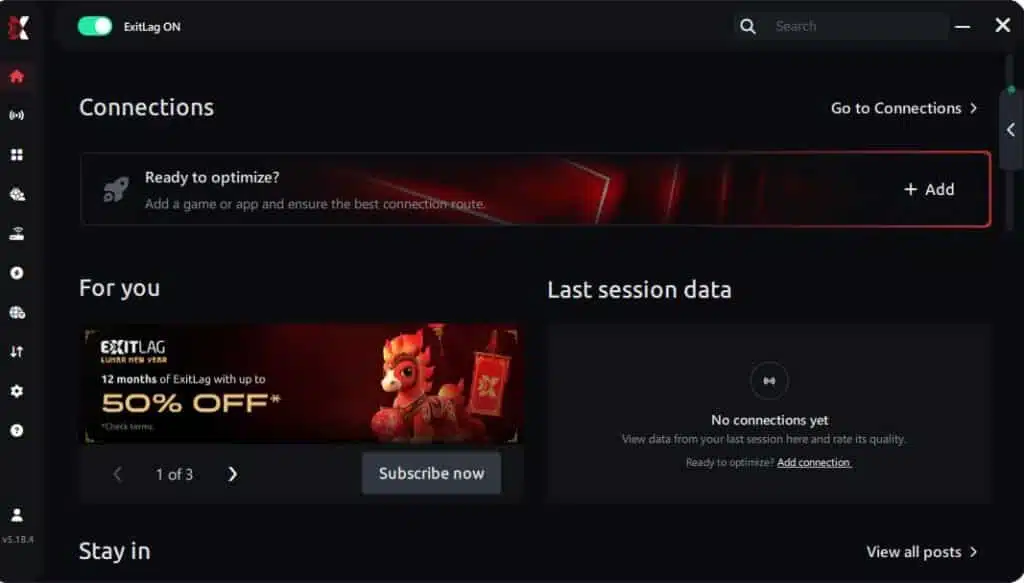
Step 2 – Install and open the program. Log in with your account.
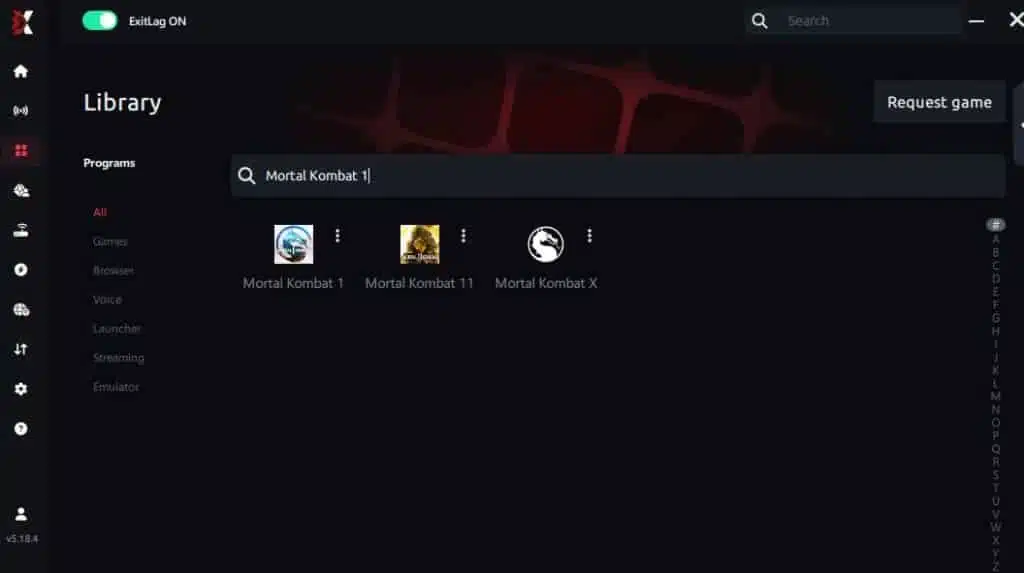
Step 3 – In the search bar, type “Mortal Kombat 1” and select the game from the list.
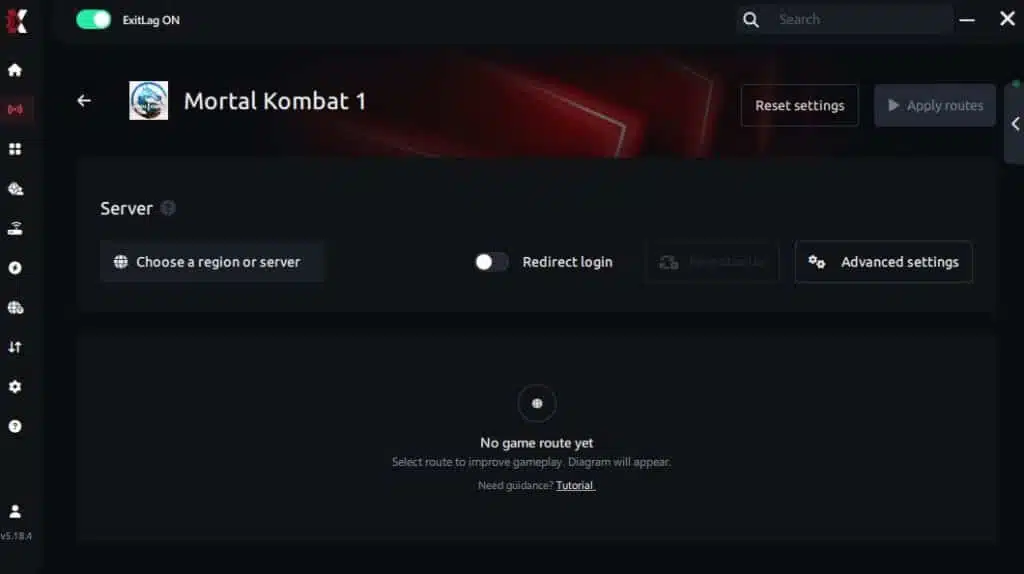
Step 4 – Choose between automated or manual route
Based on the results, you can let ExitLag automatically select the best route or manually choose the server that showed the lowest latency for your connection.
AI-optimized automated route
You can let ExitLag automatically select the best route through AI optimization. The system analyzes multiple connection paths in real time and automatically identifies the most efficient route for your connection, ensuring the lowest possible latency without requiring manual choices.
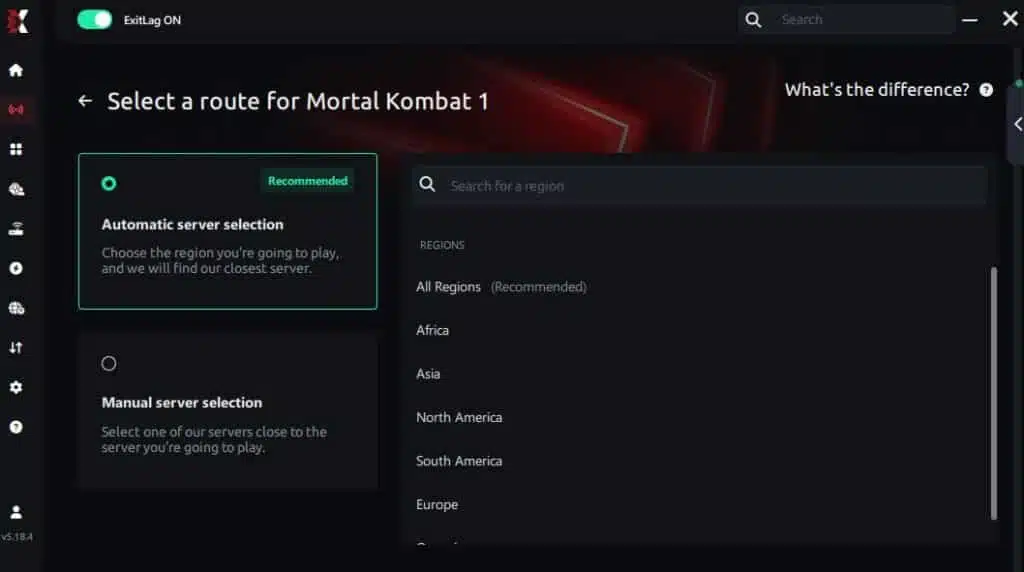
Manual route
If you prefer to have full control over your connection, you can manually choose the server based on the ping test results. Simply select the server that showed the lowest latency or the one that best meets your specific gaming needs, allowing complete customization of your experience.
Step 5 – Click “Apply routes” or the play button. ExitLag will begin optimizing your connection automatically.
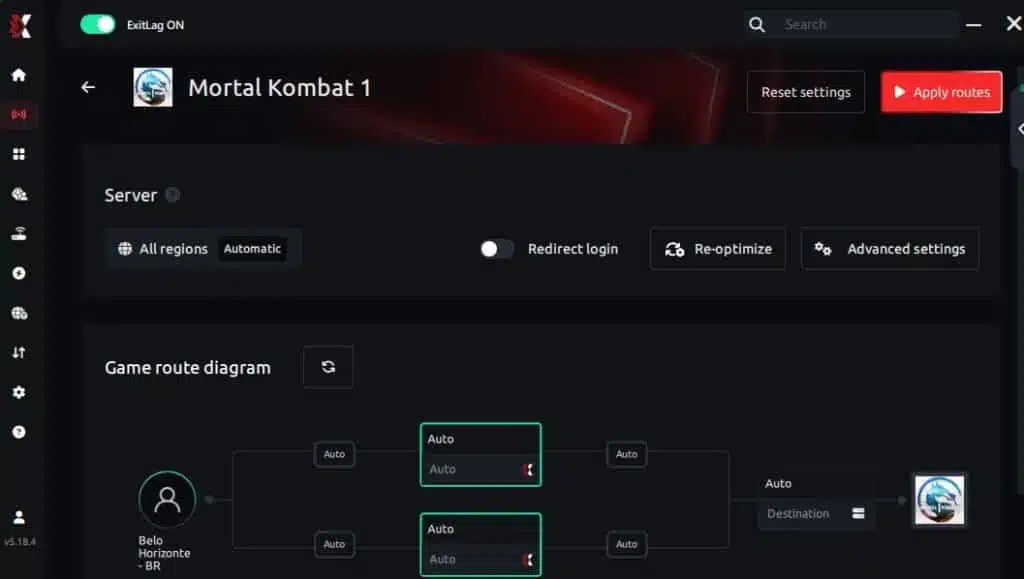
Step 6 – Wait a few seconds until optimization is complete. You’ll see ping indicators in the interface.
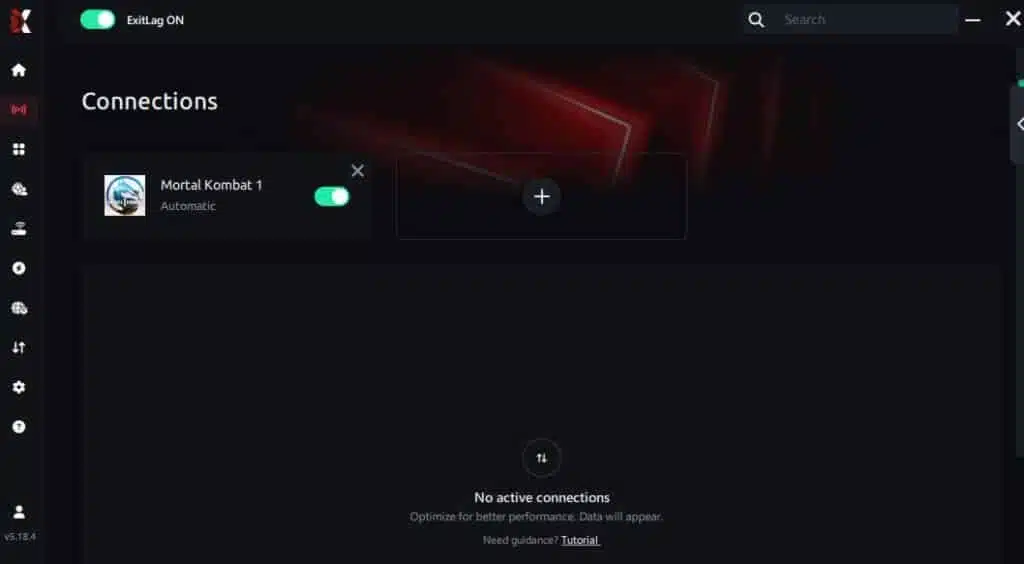
Step 7 – Launch Mortal Kombat 1 normally. The optimization will already be active.
ExitLag runs in the background while you play, constantly adjusting routes to maintain the best possible performance.
How to use Ping for Games: Step-by-Step Guide (Mortal Kombat 1)
Checking your connection quality before entering a match has never been easier. Here’s how to use Ping for Games in just a few steps:
1. Open the ExitLag software on your PC – Ensure the application is installed and open. The feature is integrated into the platform and available for free to all users.
2. Access the Network Analyzer tool – Locate the Network Analyzer in the software menu. This is where you’ll find Ping for Games along with other connection analysis features.
3. Select the game you want to test – Choose Mortal Kombat 1 from the list. The tool supports major online multiplayer games, including FPS, Battle Royales, MOBAs, MMORPGs, and more.
4. Choose the specific server – Select the exact Mortal Kombat 1 server you want to test instead of a generic region. This ensures more accurate results for your match.
5. Start the ping test – With one click, the measurement is performed in real time between your device and the selected Mortal Kombat 1 server, considering your current connection (cable or Wi-Fi).
6. Analyze the results – Results appear in milliseconds (ms), automatically sorted from best to worst ping. You can also reorganize the view alphabetically if you prefer.
7. Choose the best server and play worry-free – With this information, simply select the server with the lowest latency and jump into Mortal Kombat 1 knowing your connection is optimized.
Advanced ExitLag settings for Mortal Kombat 1
ExitLag offers both automatic and manual configuration modes. For most players, automatic mode provides excellent results out of the box — the software intelligently selects the best routes and settings for your connection. However, advanced users can manually select specific server routes, enable or disable individual routing paths, and fine-tune the multi-path configuration for their specific ISP and geographic location. The Traffic Shaper feature helps prioritize MK1 data over other network traffic, further improving frame consistency during matches.
Testing your FPS improvement
To accurately measure the FPS boost in Mortal Kombat 1, use the game’s built-in benchmark tool or enable an FPS overlay through Steam (Settings > In-Game > In-Game FPS Counter) or third-party tools like MSI Afterburner with RivaTuner. Run your benchmark or play several online matches without ExitLag first, noting your average FPS, minimum FPS, and any stuttering. Then activate ExitLag and repeat the same tests. Pay special attention to frame time consistency — even if the raw FPS number looks similar, you should notice significantly fewer stutters and drops.
Extra optimizations to maximize FPS with ExitLag
Recommended in-game settings for Mortal Kombat 1
Mortal Kombat 1 offers several graphics options that directly impact performance. For the best balance of visuals and FPS stability:
- Resolution: Use your native resolution for clarity, but consider lowering render scale if struggling
- Graphics Quality: Medium or High — Ultra provides minimal visual improvement at significant performance cost
- Shadow Quality: Medium — shadows are GPU-intensive and have minimal competitive impact
- Particle Effects: Medium — reduces GPU load during flashy Fatal Blows and special moves
- V-Sync: OFF for lowest input lag (use NVIDIA/AMD frame limiter instead)
- Frame Rate Limit: Lock to 60 FPS using GPU control panel for stable frame pacing
- Display Mode: Exclusive Fullscreen — provides the best performance and lowest input lag
- Anti-Aliasing: TAA at Medium — good visual quality without heavy performance cost
Windows system optimizations
- ✅ Set Windows Power Plan to High Performance
- ✅ Disable Game DVR and Xbox Game Bar (Settings > Gaming)
- ✅ Close unnecessary background programs before playing
- ✅ Update GPU drivers to the latest version (NVIDIA GeForce Experience or AMD Adrenalin)
- ✅ Disable Windows transparency effects (Settings > Personalization > Colors)
- ✅ Ensure MK1 is set to High Performance GPU in Windows Graphics Settings
- ✅ Disable CPU core parking for Intel hybrid CPUs (significant MK1 improvement)
- ✅ Delete Steam overlay data before each session if experiencing persistent stutters
Hardware optimizations (no spending required)
Maximizing FPS doesn’t always require new hardware. Physical PC maintenance can recover significant performance. Clean dust from heatsinks and fans, ensure adequate airflow around your PC, and monitor temperatures to prevent thermal throttling. A CPU or GPU that overheats will automatically reduce clock speeds, tanking your FPS. Use tools like HWiNFO or MSI Afterburner to monitor temperatures during gameplay — if your CPU exceeds 85°C or GPU exceeds 83°C, cooling improvements are needed.
GPU configuration
NVIDIA Control Panel:
- Set Power Management Mode to Prefer Maximum Performance for MK1
- Enable Low Latency Mode (Ultra)
- Set Max Frame Rate to 60 for MK1
- Disable V-Sync in the control panel
- Set Texture Filtering Quality to High Performance
AMD Radeon Software:
- Enable Radeon Anti-Lag for reduced input latency
- Enable Radeon Boost if available
- Set GPU workload to Graphics
- Configure per-game profile for Mortal Kombat 1
When to consider hardware upgrades
If you’ve applied ExitLag, optimized all settings, and still can’t maintain stable FPS, your hardware may be the bottleneck. MK1 is notably CPU-heavy — it demands more processing power than GPU power. Priority upgrade order: SSD (if still on HDD), RAM (16GB minimum, game uses up to 15GB), CPU, then GPU. However, it’s worth emphasizing that ExitLag works with any hardware — it optimizes the network component of performance, which means even modest PCs benefit from smoother, more consistent frame delivery during online play.
Why network optimization increases FPS
The connection between lag and FPS
Many players assume FPS is purely a hardware metric, but in online games like Mortal Kombat 1, network latency directly affects perceived and actual frame rate. When the game client sends input data to the server and waits for a response, any delay or inconsistency in that response creates rendering disruptions. The game engine must decide whether to render speculative frames (which may need correction) or wait for confirmed data (which causes visible stuttering). Either approach degrades your FPS experience.
How packet loss affects FPS
Packet loss is devastating to FPS stability. When data packets are lost between your PC and the MK1 server, the game must either request retransmission (causing a frame stall while waiting) or extrapolate what happened (causing visual corrections and rollback artifacts). Both scenarios manifest as micro-stutters, frame drops, and inconsistent frame times. ExitLag’s redundant multi-path routing ensures packets arrive via at least one route, virtually eliminating loss-related FPS problems.
Input lag and its relationship with FPS
The chain from input to visual response follows a specific path: Input → Network → Server → Network → Render Frame. Network latency extends this chain, and inconsistent latency makes frame delivery unpredictable. This is why ExitLag users consistently report that FPS “feels” higher even when the raw number is similar — stabilized network timing produces more predictable frame delivery, which the brain perceives as smoother motion.
Frame time consistency
A game showing 60 FPS on your counter could still feel terrible if those frames aren’t evenly spaced. If one frame takes 10ms and the next takes 23ms, the average is still ~60 FPS, but the visual experience is stuttery. Frame time consistency — delivering every frame at a predictable interval — is what ExitLag excels at providing through stabilized network communication. A consistent 55 FPS (18.2ms per frame) feels significantly smoother than an inconsistent 60 FPS that varies between 12ms and 25ms frame times.
Frequently asked questions about FPS boost in Mortal Kombat 1
Does ExitLag really increase FPS?
Yes, ExitLag increases both actual and perceived FPS through network optimization. By eliminating micro-stuttering caused by unstable connections, stabilizing frame times, and reducing the resynchronization events that cause frame drops, ExitLag delivers a measurably smoother experience. The improvement is most dramatic during online play, where network-related stuttering is the primary cause of inconsistent frame rates. Think of it this way: ExitLag removes the network bottleneck that prevents your hardware from delivering its full potential.
How much FPS will I gain with ExitLag?
Results vary depending on your current connection quality and distance from game servers. Typical improvements range from 20-60% better FPS stability, with the most significant gains seen in: elimination of FPS drops (minimum FPS increases dramatically), reduction of micro-stutters by 90-95%, and more consistent frame times. Players with already-stable local connections may see smaller absolute gains, while those with poor ISP routing or distant server connections often experience transformative improvements.
Does ExitLag work if my PC is low-end?
Yes, but with important context. ExitLag optimizes your network, not your hardware. It cannot make a GPU render more frames than it’s capable of. However, by eliminating network-related stuttering, ExitLag helps your hardware deliver the most stable FPS it can achieve. A low-end PC that fluctuates between 30-50 FPS due to network issues might stabilize at a consistent 45-50 FPS with ExitLag — a significant improvement in playability. ExitLag complements hardware, it doesn’t replace it.
Is it safe to use ExitLag?
Completely safe. ExitLag does not modify game files, inject code, or alter Mortal Kombat 1 in any way. It operates purely at the network level, optimizing how your data travels to and from game servers. ExitLag is used by millions of gamers worldwide, including professional players and streamers, without any risk of bans or account penalties.
Does ExitLag work on console?
ExitLag is currently a PC-only application. Console players on PlayStation or Xbox cannot install ExitLag directly. However, an advanced workaround involves creating a mobile hotspot from a PC running ExitLag and connecting your console through it. For the best FPS boost in Mortal Kombat 1 experience, PC is the recommended platform where ExitLag can deliver its full optimization potential.
Do I need fast internet for ExitLag to work?
Not necessarily. ExitLag optimizes your routing, not your raw speed. Even a 10 Mbps connection can benefit significantly from better routing paths. The focus is on latency and stability rather than bandwidth — a well-routed 20 Mbps connection outperforms a poorly-routed 100 Mbps one for gaming.
What is the difference between ExitLag and a VPN?
| Feature | ExitLag | Common VPN |
|---|---|---|
| Purpose | Gaming optimization | Privacy/security |
| Effect on ping | ✅ Reduces | ❌ Increases |
| Effect on FPS | ✅ Improves | ❌ Worsens |
| Encryption overhead | None | Heavy |
| Multi-path routing | ✅ Yes | ❌ No |
| Gaming-specific | ✅ Yes | ❌ No |
ExitLag is NOT a VPN. It’s a purpose-built gaming optimization tool. Learn more about how ExitLag works compared to generic solutions.
How much does ExitLag cost?
ExitLag offers accessible investment plans for gamers. Visit the ExitLag pricing page to compare available options. A free trial is available so you can test the FPS improvement before committing.
Does ExitLag work with Mortal Kombat 1?
Yes, Mortal Kombat 1 is fully supported and optimized in ExitLag. Check the complete list of supported games — ExitLag optimizes over 3,000 titles including other popular fighters like Street Fighter 6, Tekken 8, and Dragon Ball FighterZ.
Why does my FPS drop only during online matches in MK1?
This is the clearest sign that network instability is affecting your performance. MK1 runs at a stable 60 FPS offline for most hardware configurations, but online play introduces network-dependent frame timing. When your connection stutters, the game client must pause or adjust rendering to stay synchronized with the server, causing visible FPS drops. ExitLag specifically addresses this by stabilizing the network communication that online play depends on.
Can I use ExitLag alongside in-game optimizations?
Absolutely. ExitLag and in-game settings optimizations are complementary — ExitLag handles the network side while graphical settings handle the hardware side. Using both together delivers the best possible FPS boost in Mortal Kombat 1.
Comparison: playing without vs with ExitLag
Experience without ExitLag
- ❌ FPS unstable (40-60 FPS varying constantly during online matches)
- ❌ Constant micro-stuttering disrupting combos and reactions
- ❌ Frame drops during critical moments (Fatal Blows, Kameo assists, clutch rounds)
- ❌ Noticeable input lag making precise execution difficult
- ❌ Inconsistent experience — some matches smooth, others unplayable
- ❌ Competitive disadvantage in Kombat League
- ❌ Constant frustration with stuttering that hardware upgrades don’t fix
Experience with ExitLag
- ✅ FPS stable (58-60 FPS consistent throughout online matches)
- ✅ Zero network-related micro-stuttering
- ✅ Consistent performance in every situation and every match
- ✅ Responsive inputs with minimized input lag
- ✅ Premium, smooth experience matching offline play quality
- ✅ Competitive advantage with reliable combo execution
- ✅ Enjoyable gameplay that lets you focus on improving your skills
Side-by-side comparison table
| Aspect | Without ExitLag | With ExitLag |
|---|---|---|
| FPS Stability | Inconsistent, frequent drops | Locked and stable ✅ |
| Micro-stuttering | Frequent, frustrating | Rare/Zero ✅ |
| Input Lag | High, variable | Low, consistent ✅ |
| Frame Times | Wildly variable | Consistent ✅ |
| Online vs Offline | Dramatically worse online | Near-identical ✅ |
| Competitive Viability | Disadvantaged | Advantaged ✅ |
| Enjoyment | ⭐⭐ | ⭐⭐⭐⭐⭐ ✅ |
Maximize your FPS in Mortal Kombat 1 with ExitLag now
Summary of benefits
- ✅ Up to 60% more stable FPS in online matches
- ✅ Elimination of network-related micro-stuttering
- ✅ Input lag minimized for frame-perfect execution
- ✅ Consistent performance that matches offline play quality
- ✅ Real competitive advantage in Kombat League
- ✅ Premium gaming experience every session
- ✅ Works with any hardware configuration
Why ExitLag is the best solution for FPS boost in Mortal Kombat 1
ExitLag stands alone as the only solution that addresses the network-related performance issues that plague MK1’s online modes. Hardware upgrades can’t fix server-side stuttering. Graphical settings can’t stabilize network-dependent frame pacing. Generic boosters can’t optimize routing to game servers. Only ExitLag combines proprietary multi-path technology, gaming-specific infrastructure, and game-optimized profiles to deliver the complete FPS boost in Mortal Kombat 1 that competitive players need.
ExitLag is NOT a VPN — it’s a specialized gaming performance tool focused entirely on making your online experience as smooth and responsive as possible.
Start now
- Start your free trial — no risk, no commitment
- Configure ExitLag for Mortal Kombat 1 in under 5 minutes
- Launch the game and feel the FPS boost immediately
- Dominate Kombat League with performance you can rely on
Stop letting network-related stuttering hold back your Mortal Kombat 1 experience. Every dropped combo, every missed reaction, every lost match due to inconsistent performance is a problem with a solution. ExitLag transforms your online gameplay from a frustrating, stuttery experience into the smooth, responsive fighting game MK1 was designed to be. Your hardware deserves a network connection that lets it perform at its best — and so do you.
Try ExitLag for free right now and experience the difference that optimized performance makes in every match you play. Visit ExitLag’s official website to get started.
Important: ExitLag is NOT a VPN. It is a specialized gaming optimization solution focused on performance, not privacy. Every feature is designed to reduce latency, eliminate stuttering, and deliver the smoothest possible gaming experience.
Got questions or want to connect with other players? Join the conversation at the ExitLag Forum!