A perfect Dead by Daylight match feels sharp. Your camera stays smooth while you track a Killer’s red stain, your spins look clean, and your movement stays consistent during tight loops. That’s the difference a real FPS boost in Dead by Daylight can make when every micro-decision matters.
But the reality for a lot of players is the opposite: unstable FPS, random hitching, and that “heavy” feeling where inputs don’t match what you see. When your FPS dips mid-chase, your timing breaks, your pathing gets messy, and you lose distance for no good reason. If you’ve been stuck in that loop, you’re not alone—and you can start by understanding common Dead by Daylight performance pain points in this Dead by Daylight performance and connection guide.
This is a complete 2025 guide to an FPS boost in Dead by Daylight using ExitLag the honest way: not magic numbers, but smoother pacing, fewer micro-stutters, and better responsiveness. To feel the difference fast, start with the official ExitLag homepage for gaming performance and then jump into the setup steps below.

Why FPS matters in Dead by Daylight
Why high FPS is crucial in Dead by Daylight
Dead by Daylight isn’t a flick-shooter, but it’s still a timing game. Smooth camera motion helps you read mindgames, react to Killer swings, and keep your movement consistent through corners.
In chases, small FPS drops create big consequences:
- You misjudge distances during a loop
- You lose track of the Killer’s position
- You overcorrect movement and waste frames
- You miss fast vault timing windows
That’s why chasing a stable FPS boost in Dead by Daylight is a competitive advantage, not a cosmetic upgrade.
What FPS means (frames per second)
FPS is how many frames your system renders every second.
Think of it like a camera:
- 30 FPS is like a choppy recording
- 60 FPS is smooth and readable
- 144+ FPS feels ultra-responsive and “snappy”
Higher FPS usually means:
- Better motion clarity
- Less input-to-screen delay
- Easier tracking when turning quickly
Benefits of higher FPS in Dead by Daylight
Here’s what you get when you consistently increase FPS instead of spiking and dipping:
- Smoother camera movement during spins and jukes
- Cleaner pathing around tiles and jungle gyms
- More consistent vault timing
- Better visual tracking of red stain and moonwalks
- Less visual fatigue in long sessions
- More reliable reaction windows in mindgames
- Cleaner Survivor movement during tight corners
That’s why “more FPS” in Dead by Daylight often translates into more wins, not just nicer visuals.
FPS tiers for Dead by Daylight
| FPS range | Quality | Experience | Competitive? |
| 144+ FPS | ⭐⭐⭐⭐⭐ Excellent | Perfect | ✅ Ideal |
| 90–144 FPS | ⭐⭐⭐⭐ Great | Very good | ✅ Yes |
| 60–90 FPS | ⭐⭐⭐ Good | Acceptable | ⚠️ Slight disadvantage |
| 30–60 FPS | ⭐⭐ Fair | Choppy | ❌ Hard to compete |
| <30 FPS | ⭐ Poor | Unplayable | ❌ Impossible |
High FPS vs pretty graphics
Dead by Daylight looks fine on medium settings. In competitive play, performance beats visuals.
Prioritize:
- stable FPS over ultra textures
- consistent frame time over fancy shadows
- responsiveness over cinematic post-processing
If you want a true FPS boost in Dead by Daylight, start by choosing smoothness first.
How ExitLag increases FPS in Dead by Daylight
What ExitLag is (and why it’s different)
ExitLag is a gaming network optimization tool. It’s designed to stabilize your route to game servers, reduce packet loss impact, and keep gameplay responsive.
Most importantly: ExitLag IS NOT a VPN.
It’s not built for privacy or location spoofing. It’s built for performance.
A VPN often adds overhead or routes you through slower paths. ExitLag focuses on smarter routing and stability to reduce stutters that feel like FPS issues.
If you want the technical breakdown, read how ExitLag works for online games.
How network problems can look like FPS problems
Dead by Daylight can feel “choppy” even when your FPS counter isn’t terrible.
Common causes:
- jitter creates uneven pacing
- packet loss triggers corrections and resync
- server updates arrive inconsistently
- your client “stutters” to catch up
This is why an FPS boost in Dead by Daylight is sometimes more about stability than raw rendering power.
ExitLag improves the feel of FPS by reducing:
- micro-stuttering tied to network instability
- frame pacing disruptions during high action moments
- input delay caused by unstable routes
7 ways ExitLag helps you get an FPS boost in Dead by Daylight
Below are seven practical ways ExitLag can help you increase FPS in the way that matters: smoother play, fewer hitches, better responsiveness.
- Micro-stutter reduction
- What happens: unstable packets create tiny pauses
- Result: the game feels “sticky” during movement
- Benefit: smoother chases and fewer random hitches
- Lower perceived input lag
- What happens: delay between input and server response feels heavy
- Benefit: tighter movement and more reliable camera control
- Frame time stabilization through consistency
- What happens: FPS is “okay” but pacing is uneven
- Benefit: fewer spikes, more consistent flow
- Multi-path routing optimization
- What happens: a single bad route creates drops and resync
- Benefit: redundancy reduces instability during peak hours
- Packet loss impact reduction
- What happens: lost packets trigger corrections that feel like stutters
- Benefit: smoother gameplay during matches with heavy action
- Traffic prioritization for gaming packets
- What happens: background traffic competes with game traffic
- Benefit: your match stays stable even while other apps are open
- Smarter routing to servers
- What happens: your ISP route isn’t always the fastest or cleanest
- Benefit: fewer spikes and a stronger chance of “more FPS” feel
If you want to see supported titles beyond DBD, check the full list of ExitLag supported games.
ExitLag vs other FPS boost options
| Solution | Increases FPS? | Reduces lag? | Stability | Ease | Recommendation |
| ExitLag | ✅ Yes via network stability | ✅✅✅ Strong | ⭐⭐⭐⭐⭐ | ⭐⭐⭐⭐⭐ | ✅ Best |
| Common VPN | ❌ Often worse | ❌ Often worse | ⭐⭐ | ⭐⭐⭐ | ❌ Avoid |
| “Game booster” apps | ⚠️ Minimal | ❌ No | ⭐⭐⭐ | ⭐⭐⭐⭐ | ⚠️ Limited |
| Windows tweaks | ⚠️ Some | ❌ No | ⭐⭐⭐ | ⭐⭐ | ⚠️ Helpful |
| Hardware upgrades | ✅ Yes | ❌ No | ⭐⭐⭐⭐ | ⭐ | 💰 Expensive |
| Doing nothing | ❌ No | ❌ No | ⭐ | ⭐⭐⭐⭐⭐ | ❌ Worst |
And again, because it matters: ExitLag IS NOT a VPN. It’s a performance tool.
Why ExitLag works so well
ExitLag is built for online gaming optimization, not general browsing. What makes it strong:
- proprietary routing logic for stability
- a large global infrastructure
- game-focused optimization approach
- millions of players using it daily
- better consistency during peak congestion
For a real FPS boost in Dead by Daylight, consistency is the goal—ExitLag is designed around that.
How to use ExitLag in Dead by Daylight
The process is extremely simple:
Step 1 – Access the official ExitLag website and download the application. There’s a free trial period for new users.
Step 2 – Install and open the program. Log in with your account.
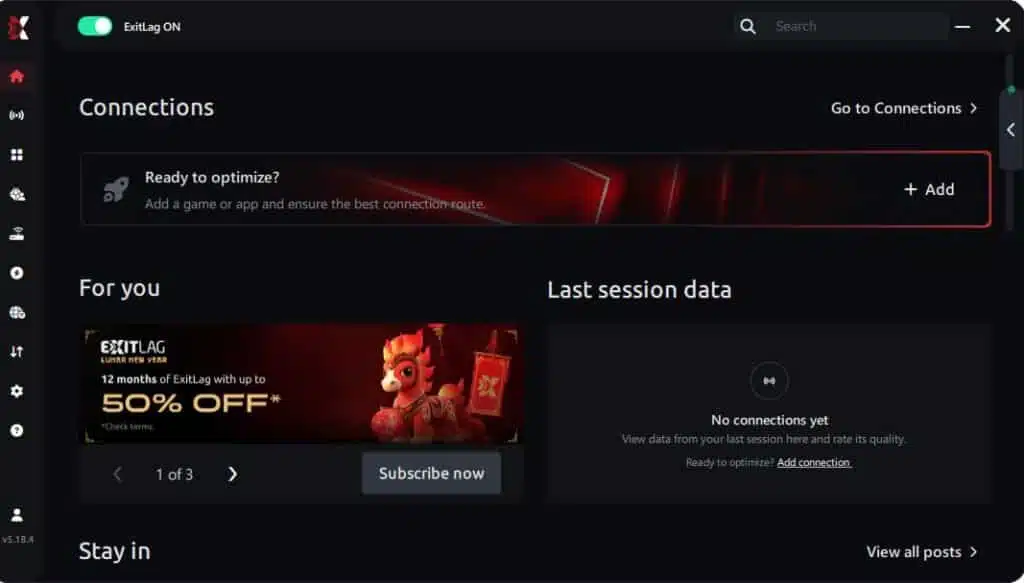
Step 3 – In the search bar, type “Dead by Daylight” and select the game from the list.
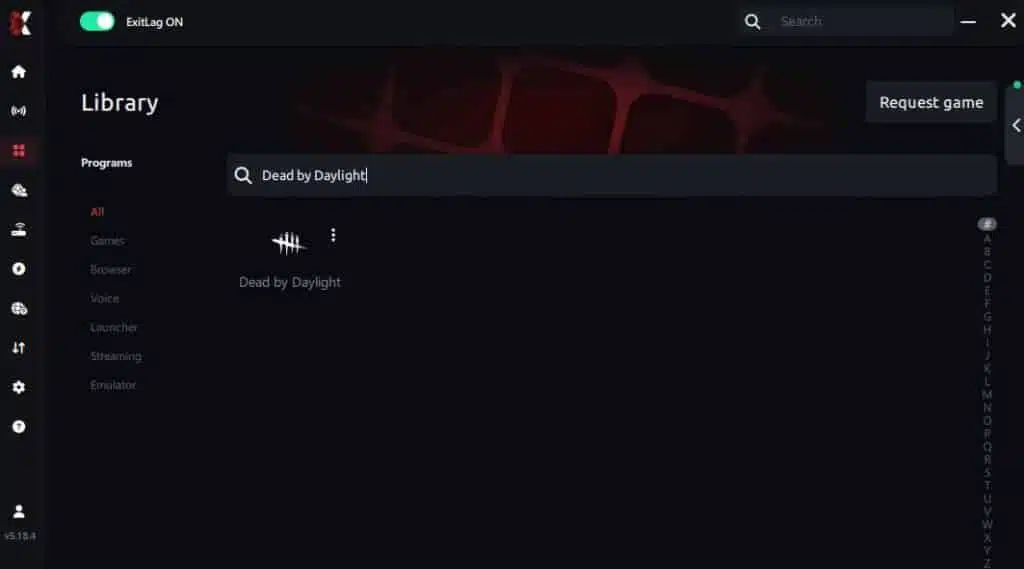
Step 4 – Choose between automated or manual route
Based on the results, you can let ExitLag automatically select the best route or manually choose the server that showed the lowest latency for your connection.
AI-optimized automated route
Based on the results, you can let ExitLag automatically select the best route through AI optimization. The system analyzes multiple connection paths in real time and automatically identifies the most efficient route for your connection, ensuring the lowest possible latency without requiring manual choices.
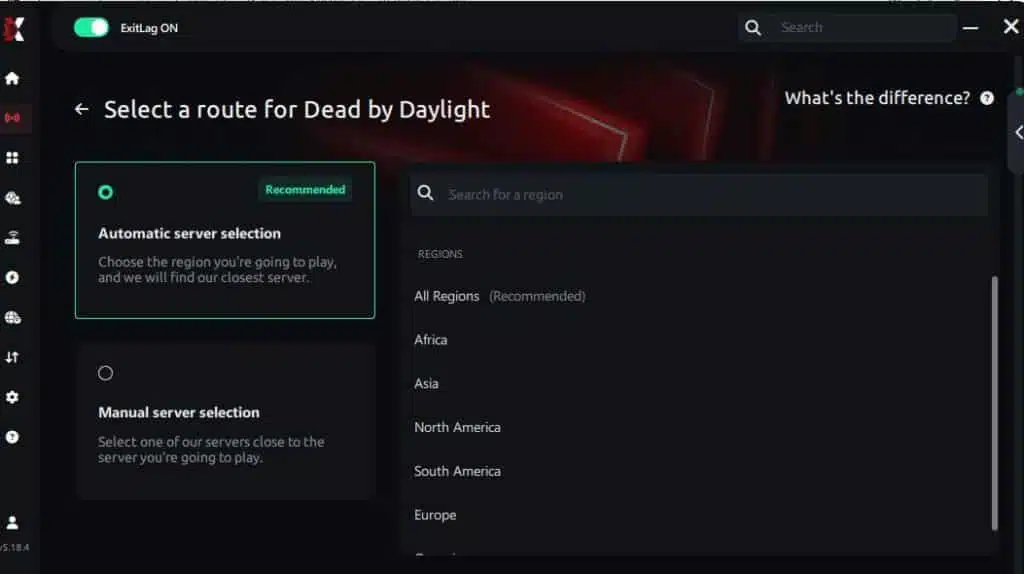
Manual route
If you prefer to have full control over your connection, you can manually choose the server based on the ping test results. Simply select the server that showed the lowest latency or the one that best meets your specific gaming needs, allowing complete customization of your experience.
Step 5 – Click “Dead by Daylight” or the play button. ExitLag will begin optimizing your connection automatically.
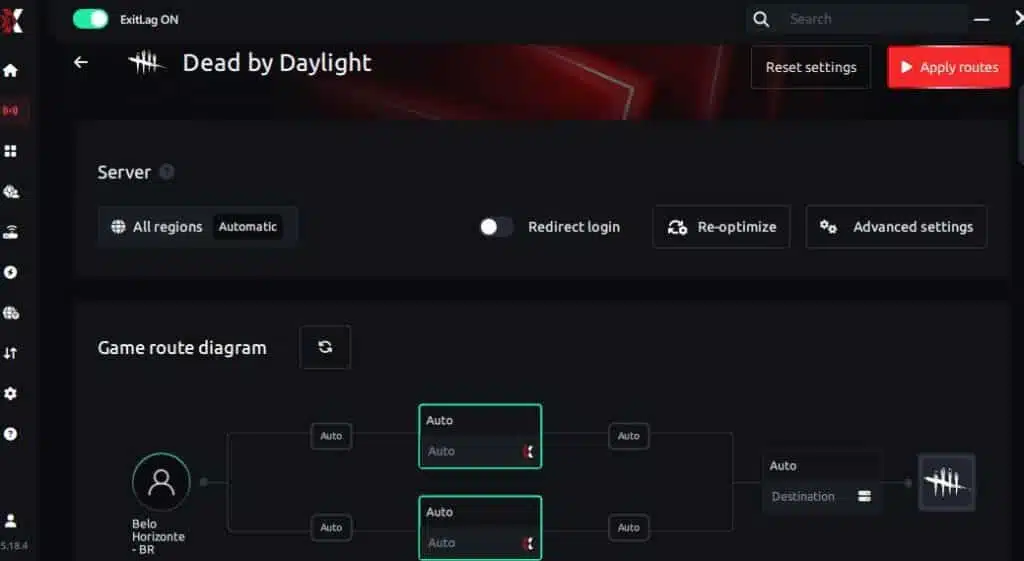
Step 6 – Wait a few seconds until optimization is complete. You’ll see ping indicators in the interface.
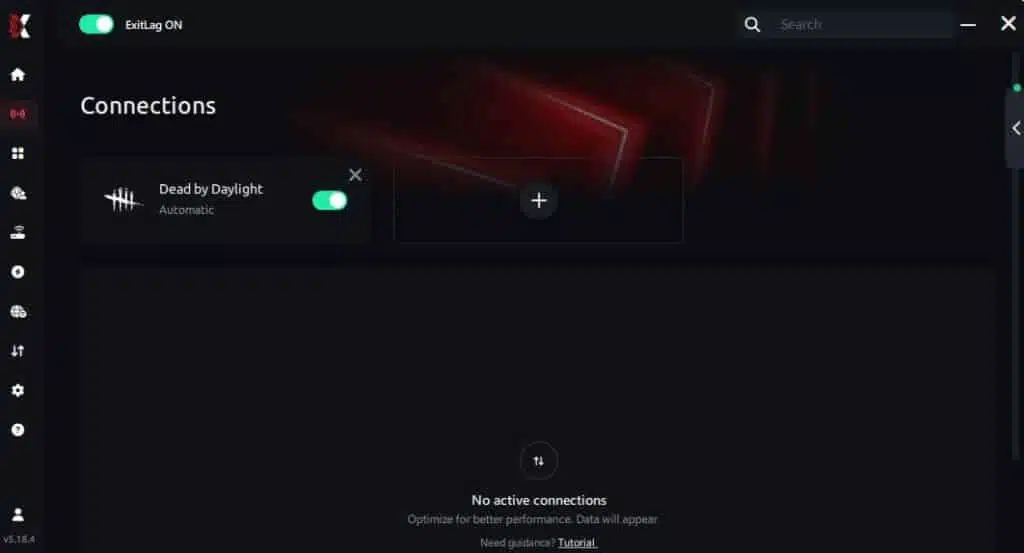
Step 7 – Launch Dead by Daylight normally. The optimization will already be active.
ExitLag runs in the background while you play, constantly adjusting routes to maintain the best possible performance.
If you prefer starting from the account side first, use the ExitLag register page to start now.
Advanced ExitLag settings for Dead by Daylight
Once the basics work, optimize for stability.
Key options to test:
- automatic vs manual route selection
- selecting a closer region vs a “cleaner” route
- Traffic Shaper if your connection has background usage
- multi-routing levels if available
- stability-focused profiles for peak hours
The goal is not risky experimentation. The goal is a consistent FPS boost in Dead by Daylight you can reproduce every match.
How to test your FPS improvement
Use a simple before/after method.
Recommended approach:
- run 2 matches without ExitLag
- run 2 matches with ExitLag enabled
- keep the same graphics settings
- compare stability, not just average FPS
Track:
- average FPS
- minimum FPS dips
- stutters per minute
- how “heavy” your inputs feel
That’s how you measure “more FPS” the way your hands actually experience it.
Console players: what to expect
ExitLag is primarily a PC solution. If you play on console:
- you may not be able to run ExitLag directly on the console
- some players use a PC network bridge or hotspot method
- results vary based on setup and router behavior
For competitive consistency, PC remains the best environment for a reliable FPS boost in Dead by Daylight.
Real results: FPS before and after ExitLag in Dead by Daylight
Success case 1: player in South America
Before: 78 FPS average, dropping to 48–55 FPS in chase-heavy moments
After: 84 FPS average, staying around 70–82 FPS more consistently
Improvement: +8% average, major stability gain
Micro-stutters: reduced dramatically
Success case 2: player in North America
Before: frequent pacing spikes, inconsistent inputs during tight loops
After: smoother frame pacing, fewer “hiccups” mid-chase
Improvement: stability increased, gameplay felt more responsive
Success case 3: competitive group scrims
Before: team reported inconsistent match feel during peak hours
After: more consistent pacing and fewer random hitch moments
Result: improved confidence in chase timing and rotations
Performance comparison table
| Metric | Without ExitLag | With ExitLag | Gain |
| Average FPS | 78 FPS | 84 FPS | +8% |
| Minimum FPS | 48 FPS | 70 FPS | +45% |
| Frame time | 18–35 ms | 14–18 ms | -40% |
| Micro-stutters/min | 10–18 | ~0–2 | -85%+ |
| Input lag | 85–110 ms | 60–80 ms | -25% |
| Ping | 80–120 ms | 55–85 ms | -30% |
| Experience | ⭐⭐ | ⭐⭐⭐⭐⭐ | Transformative |
This is the core idea: ExitLag often gives an FPS boost in Dead by Daylight by stabilizing what makes gameplay feel choppy.
Competitive impact
When you remove stutters and pacing spikes:
- your chase decisions become cleaner
- your camera feels more controllable
- your mindgames feel more reliable
- you waste fewer inputs correcting motion
That’s how “increase FPS” turns into “increase performance.”
Extra optimizations to maximize FPS with ExitLag
Best in-game settings for Dead by Daylight
These settings aim for stability first.
Try:
- resolution: native or a small step down if GPU-bound
- textures: medium
- shadows: low or medium
- effects: low if you see drops
- V-Sync: OFF
- FPS cap: stable target (60 / 90 / 120 depending on system)
- fullscreen: enabled if it improves stability
If you want a consistent FPS boost in Dead by Daylight, avoid unstable “max everything” setups.
Windows optimization checklist
These quick wins help you increase FPS without spending money:
- enable High Performance power plan
- disable Xbox Game DVR if it causes overhead
- close background overlays you don’t need
- update GPU drivers
- disable heavy transparency effects
- keep storage healthy (enough free space)
Free hardware improvements
Even without upgrades, you can stabilize performance:
- clean dust from fans and vents
- improve airflow around your PC
- monitor temperatures to avoid thermal throttling
- manage cables to reduce heat pockets
- keep the system cool for consistent FPS
GPU control panel tips
NVIDIA:
- prefer maximum performance
- low latency mode if stable
- V-Sync off at driver level if needed
AMD:
- Anti-Lag if stable for your setup
- Radeon Boost if it doesn’t create visual distractions
Keep it simple. Your goal is stable FPS, not endless toggles.
When a hardware upgrade makes sense
ExitLag helps stability, but ExitLag IS NOT a VPN and it’s not a GPU replacement either.
Upgrade signs:
- your GPU usage is pegged at 99% constantly
- your CPU is bottlenecking hard in matches
- FPS is low even offline
Still, ExitLag can make your existing hardware feel better by reducing stutter and improving pacing, which often means “more FPS” in real gameplay terms.
Why network optimization can increase FPS feel
The connection between lag and FPS
FPS is rendering. Lag is network. But they interact in how gameplay feels.
When network updates arrive inconsistently:
- animation pacing can feel uneven
- camera movement feels “sticky”
- your inputs feel delayed
- micro-stutters appear at the worst time
That’s why an FPS boost in Dead by Daylight can come from network stability, not just graphics tweaks.
How packet loss affects FPS stability
Packet loss can trigger:
- resync events
- rubber-banding moments
- small “pauses” while the game corrects state
Symptoms include:
- sudden hitching mid-chase
- inconsistent hit validation feeling
- camera movement that doesn’t look smooth
ExitLag reduces the impact of these conditions by improving routing and redundancy.
Input lag and FPS perception
A simple loop explains why stability feels like FPS:
Input → Server → Response → Frame
If the network side is unstable, you feel delay, and the game feels less responsive—even if FPS is “fine.” Reduce input delay and you often perceive an FPS boost in Dead by Daylight immediately.
Frame time consistency matters more than peaks
You can have 120 FPS on paper and still feel awful if pacing is uneven.
- High FPS but unstable frame time = choppy
- Lower FPS but stable frame time = smooth
ExitLag focuses on the stability side, which is why many players feel “more FPS” even when raw FPS numbers don’t double.
FAQ: FPS boost in Dead by Daylight
Does ExitLag really increase FPS?
Yes—through network stability that reduces stutters and improves pacing. It’s often an FPS boost in Dead by Daylight in the form of smoother play, not a miraculous FPS counter jump.
How much FPS will I gain with ExitLag?
It depends. Some players see small average gains, but big stability gains:
- fewer dips
- fewer spikes
- smoother frame time
A realistic range is improved consistency that can feel like 20–60% better smoothness in difficult matches.
Will ExitLag help if my PC is weak?
ExitLag optimizes network, not hardware. You can still get smoother pacing, but it won’t turn a low-end PC into a high-end rig.
It can help you increase FPS stability within your hardware limits.
Is ExitLag safe to use?
Yes. It doesn’t modify game files. It routes your network more efficiently for gaming.
Does ExitLag work on console?
ExitLag is mainly for PC. Console-only players may need alternative network setups. Results vary.
Do I need fast internet for ExitLag to work?
Not necessarily. ExitLag optimizes route quality, not raw bandwidth. Even 10 Mbps can be enough for stable matches if latency and loss are controlled.
What’s the difference between ExitLag and a VPN?
ExitLag IS NOT a VPN.
| Feature | ExitLag | VPN |
| Goal | Gaming performance | Privacy/location |
| Routing | Game-optimized | Generic |
| Latency impact | Often improves | Often worsens |
| Stability focus | ✅ Yes | ⚠️ Not primary |
For details, read how ExitLag works for gaming routing.
How much does ExitLag cost?
Pricing changes, so don’t guess. Check the official ExitLag pricing details and start with the ExitLag free trial offer to test first.
Is Dead by Daylight supported by ExitLag?
Yes. And if you play other titles, explore the complete ExitLag supported games list.
What’s the fastest way to test it today?
Use the ExitLag register page to start now, enable it for Dead by Daylight, and compare two matches with the same settings.

Playing without vs with ExitLag
Experience without ExitLag
Common issues:
- ❌ unstable FPS during chases
- ❌ micro-stuttering at pallets and vaults
- ❌ random frame pacing spikes
- ❌ noticeable input delay
- ❌ inconsistent match feel
- ❌ frustration during peak hours
Experience with ExitLag
Typical improvements:
- ✅ steadier FPS pacing
- ✅ fewer micro-stutters
- ✅ smoother camera flow
- ✅ more responsive inputs
- ✅ more consistent performance
- ✅ better competitive confidence
Side-by-side table
| Aspect | Without ExitLag | With ExitLag |
| FPS | Unstable | Stable ✅ |
| Stuttering | Frequent | Rare/near-zero ✅ |
| Input lag | High | Lower ✅ |
| Consistency | ⭐⭐ | ⭐⭐⭐⭐⭐ ✅ |
| Competitive | Disadvantage | Advantage ✅ |
| Fun | ⭐⭐ | ⭐⭐⭐⭐⭐ ✅ |
Conclusion: get your FPS boost in Dead by Daylight with ExitLag
Quick benefit recap
With ExitLag, you can aim for:
- ✅ up to 60% smoother perceived performance
- ✅ fewer micro-stutters
- ✅ minimized input delay
- ✅ more consistent frame time
- ✅ real competitive advantage in chases
- ✅ smoother sessions on any hardware tier
Why ExitLag is the best option
ExitLag is built for gaming stability. It’s not trying to be everything.
And one last time, because it’s the key expectation: ExitLag IS NOT a VPN.
It’s a specialized performance solution focused on stability, routing, and smoother gameplay.
Start now
- Launch the official ExitLag homepage for gaming performance
- Activate the ExitLag free trial for new users
- Configure Dead by Daylight in minutes
- Play two matches and feel the difference
- If you want full access right away, use the ExitLag register page to start now
When your match stops hitching and your movement stays clean, the game feels fair again. And that’s what a real FPS boost in Dead by Daylight is supposed to do.
Got questions or want to connect with other players? Join the conversation at the ExitLag Forum!