Picture this moment: you’re exploring The Island at sunset, scouting for a high-level Rex to add to your breeding line. The atmosphere is perfect — dense foliage waving, shadows stretching across the cliffs, water shimmering below. Then, right as you line up the shot… your screen freezes. A sudden, brutal FPS drop in Ark snaps you back into reality. Your aim shifts, the dino aggroes, and instead of a clean knockout, you’re scrambling to survive. One tiny stutter — one missed frame — and an entire mission collapses.
Or imagine another situation: your tribe has been preparing for a month for the Alpha Megapithecus. Everyone is buffed, positioned, coordinated. The arena loads, particle effects overload the screen, the boss jumps — and during that split second, a FPS drop in Ark causes your character to rubberband in place. You mistime your dodge, get one-shot by falling rocks, and your entire team panics. This exact frustration is so common that many players end up researching performance guides like the one on how to fix high ping in Ark.
But here’s the key insight: you’re not powerless. Ark is demanding — visually, mechanically, and network-wise — but FPS drops do not have to ruin your experience. Whether you’re playing Ark: Survival Evolved on Unreal Engine 4 or Ark: Survival Ascended on Unreal Engine 5 with its next-gen lighting and Nanite meshes, the solution starts with understanding the root causes.
And when the issue is related to connection-driven micro-stuttering, ExitLag offers the stability and route optimization needed to smooth out gameplay. You can learn more on the official ExitLag website, where players begin optimizing their sessions in minutes.

What is FPS Drop and Why It Happens in Ark
Understanding FPS (Frames Per Second)
FPS — Frames Per Second — measures how many individual images your system renders every second. FPS directly affects responsiveness, animation clarity, and the fluidity of every movement you see on screen. In games like Ark, where both visual density and reaction time matter, FPS consistency is essential.
Here’s a performance breakdown:
- 144+ FPS — Ultra-smooth performance for high-end competitive play
- 60–120 FPS — Ideal for most players; smooth and responsive with minimal micro-stuttering
- 30–60 FPS — Playable but noticeably less fluid, especially in combat or dense areas
- Below 30 FPS — Significantly sluggish, causing gameplay disadvantages and visual discomfort
Both Ark: Survival Evolved and Ark: Survival Ascended push hardware to its limits due to world density, advanced graphical features, dynamic shadows, and heavy asset streaming. This is why FPS drop in Ark frequently affects even powerful PCs.
Difference Between FPS Drop and Lag
Many players assume every stutter is a hardware issue — but that’s not always true. Ark is an online game, and network instability often looks like FPS drops.
Here's the comparison:
| Aspect | FPS Drop | Lag (Network Lag) |
| Cause | GPU overload, CPU bottleneck, engine limitations, crowded bases, heavy rendering | Poor routing, unstable servers, bandwidth spikes, packet loss, high ping |
| Symptom | Freezes, slow motion, stuttering animations, sudden drops in frame pacing | Rubberbanding, delayed actions, teleporting dinos/players |
| Solution | Adjust graphics, upgrade hardware, optimize settings | ExitLag stabilizing routes and reducing network variation |
This distinction matters because network-related micro-stutters are often mistaken for poor performance — and fixing them requires connection optimization, not GPU tweaks.
Why Ark Suffers from FPS Drop
Ark is notorious for taxing even top-tier hardware. This happens due to three main pillars: engine behavior, world complexity, and server-client interactions.
1. Unreal Engine Demands
- Ark: Survival Evolved (UE4) uses a heavily modified engine with long-standing performance challenges — asset streaming, shadows, physics, and AI all strain performance.
- Ark: Survival Ascended (UE5) introduces:
- Nanite geometry (extremely high-poly meshes)
- Lumen global illumination
- Enhanced volumetric fog and reflections
These visuals look incredible but dramatically increase GPU load.
2. World Complexity
Ark maps contain:
- Dynamic foliage
- Hundreds of AI entities
- Aggressive shadow systems
- Massive bases with layered structures
All of these require real-time processing.
3. Server Interaction & Sync
Even local FPS is affected when:
- Inventory sync overloads the server
- Tribes with large bases stream into memory
- Tick rate drops due to overcrowding
This is a common cause of “fake” FPS drops — actually micro-stutters from unstable routes or packet delay.
7 Main Causes of FPS Drop in Ark
Below are expanded explanations of the most common technical and gameplay-related causes of FPS drop in Ark, covering both Evolved and Ascended players.
1. Overheating Components
Ark is a GPU-intensive game. Long sessions, high resolutions, and UE5 features can push GPUs to thermal limits, causing throttling.
Symptoms:
- Sudden FPS dips during explosions or boss actions
- Noticeable hot air exhausting from your PC
- Performance drops over time (thermal saturation)
How to Identify:
- Check GPU temps (85°C+ often causes throttling)
- Monitor CPU package temps (90°C+ reduces frequency)
- Watch core clock fluctuations under load
Even small drops in clock speed can create major FPS inconsistencies.
2. Outdated Drivers
Driver updates often include Ark-specific fixes. Outdated drivers can create:
- Stuttering
- Shader compilation spikes
- Reduced 1% lows
- Longer asset loading
Signs of outdated drivers:
- FPS drops after game updates
- Incorrect lighting behavior
- Sudden instability on certain maps (Fjordur, Scorched Earth Ascended, etc.)
3. Incorrect Graphics Settings
Ark includes many “deceptively expensive” settings. For example:
- Shadow Quality — one of the biggest FPS killers
- Foliage Density — strains CPU, GPU, and RAM
- Post-Processing — adds motion blur, bloom, lens effects
- View Distance — affects both rendering and AI processing
How to recognize this cause:
- FPS drops dramatically when rotating the camera
- Dense forests cause 40–60% performance loss
- GPU is consistently maxed out
4. Background Processes
Even small applications can interfere with Ark’s performance if they compete for CPU time, memory, or bandwidth.
Common culprits:
- Discord (video streams)
- Browsers with multiple tabs
- Game launchers running updates
- Windows background tasks
- Cloud syncing (OneDrive, Google Drive)
Symptoms include:
- Sporadic FPS drops
- Unexplained micro-stuttering
- Stable GPU usage but inconsistent frame times
5. Hardware Bottlenecks
Ark stresses systems in very specific ways:
- CPU single-core performance is crucial for AI and physics.
- VRAM usage can exceed 12–16GB in Ark Ascended at high settings.
- RAM speed significantly impacts world streaming.
Signs of hardware limitations:
- Texture pop-ins
- Delayed world loading
- High 1% low FPS while average FPS remains smooth
6. Server Tick Rate & Network Instability
Even with powerful hardware, network issues cause:
- Micro freezes
- Desync
- Rubberbanding that looks like FPS stutter
Why it matters: Ark streams a constant flow of data — dino movement, player actions, inventory updates. If routing is unstable, the game can’t maintain smooth pacing.
This is exactly where ExitLag eliminates inconsistencies.
7. Engine Limitations (UE4 and UE5)
Survival Evolved (UE4) Limitations
- Weak multithreading
- Heavy CPU use in populated areas
- Poor optimization for massive structures
Survival Ascended (UE5) Limitations
- Nanite can overload VRAM
- Lumen consumes significant GPU power
- High-quality volumetric fog impacts performance
Both versions of Ark are stunning games — but neither was designed to be light.
How ExitLag Fixes FPS Drop in Ark
This is the core and most conversion-focused section of the entire article. It explains why many players feel FPS drops even when their hardware is capable — because micro-stuttering is often network-driven, not GPU-driven. Ark’s large-scale syncing data, heavy server communication, and fast gameplay loops make connection stability crucial for frame pacing.
ExitLag provides route optimization, stability, intelligent multi-routing, and predictable consistently-timed packets. This eliminates micro-stutters caused by connection variations that many players mistake for FPS drop.
What is ExitLag?
ExitLag is a software specialized in optimizing game connections, designed specifically for gamers who want stable, reliable, low-latency routes. Its job is not to hide your IP or act as a VPN — in fact, ExitLag is NOT a VPN, and that distinction is crucial.
VPNs focus on encryption and anonymity. ExitLag focuses on performance, routing, packet stability, and gameplay responsiveness.
What makes ExitLag different?
- No encryption overhead
- No rerouting through slow nodes
- No tunneling for privacy
- Built exclusively for gaming environments
- Multi-route performance technology rather than single-route encryption
- Optimized protocols that reduce jitter and prevent unstable packet timing
ExitLag’s technology is explained in detail at How ExitLag Works.
Ark players benefit from consistent packet delivery, which reduces the perception of FPS drops caused by micro-stuttering.
How ExitLag Optimizes Performance in Ark
ExitLag uses several advanced networking technologies to stabilize your gameplay. Here are the most important ones, broken down into digestible points:
1. Route Optimization
ExitLag finds the fastest, least congested path between you and Ark’s servers. This reduces the “hidden” cause of micro-stutter: erratic packet timing.
2. Latency Reduction
Sending data through optimized routes minimizes travel distance and avoids ISP bottlenecks.
3. Elimination of Packet Loss
Packet loss creates:
- Freezes
- Delayed actions
- Animation breaks
ExitLag reroutes packets to ensure consistent delivery.
4. Connection Stabilization
Stable pathways = stable frame pacing. Many “FPS drops” aren’t GPU-related — they’re sync interruptions.
5. Prioritization of Game Traffic
ExitLag ensures Ark’s packets are treated as high priority so other applications never interfere.
Why ExitLag Helps With FPS Drop in Ark
ExitLag does not directly render graphics, but it fixes the network-related part of FPS instability, including:
- Inventory sync freezes
- Dino rendering freezes
- Micro-stuttering in boss arenas
- Stutters during large base loading
- Rubberbanding disguised as FPS drops
When network timing becomes inconsistent:
Frames freeze to wait for sync → You perceive this as FPS drop.
ExitLag improves:
- Frame pacing
- Animation flow
- Input response timing
- Combat fluidity
Benefits for Ark players:
- More stable world streaming when entering crowded areas
- Smoother dino interactions
- Consistent combat performance
- Reduced micro-freezes from server syncs
- Stable tick-rate experience even on busy servers
ExitLag cannot fix low GPU performance — but it can eliminate every network-related contributor to inconsistent FPS.
ExitLag Technologies That Impact FPS Stability
Multi-Path Routing
Simultaneously sends your data through multiple routes, then selects the fastest arrival.
Redundant Tunnel Architecture
If one path experiences jitter, backup routes instantly maintain stability.
Optimized Gaming Protocol
A custom protocol engineered to reduce:
- Packet loss
- Latency spread
- Irregular delivery
Real-Time Route Monitoring
Routes dynamically shift based on congestion.
This prevents stutters caused by server spikes or ISP instability.
ExitLag vs Other Solutions
| Solution | Improves FPS Stability? | Reduces Lag? | Ease of Use | Recommendation |
| ExitLag | ✅ Yes — stabilizes network-driven stutter | ✅ Yes | ⭐⭐⭐⭐⭐ | Best choice |
| VPN | ❌ No — encryption harms performance | ❌ | ⭐⭐⭐ | Not recommended |
| PC Optimization Only | ⚠️ Partially | ❌ | ⭐⭐ | Limited effect |
| Do Nothing | ❌ | ❌ | ⭐⭐⭐⭐⭐ | Not effective |
To see all supported games, check the official list.
How to use ExitLag in Ark
The process is extremely simple:
Step 1 – Access the official ExitLag website and download the application. There’s a free trial period for new users.
Step 2 – Install and open the program. Log in with your account.
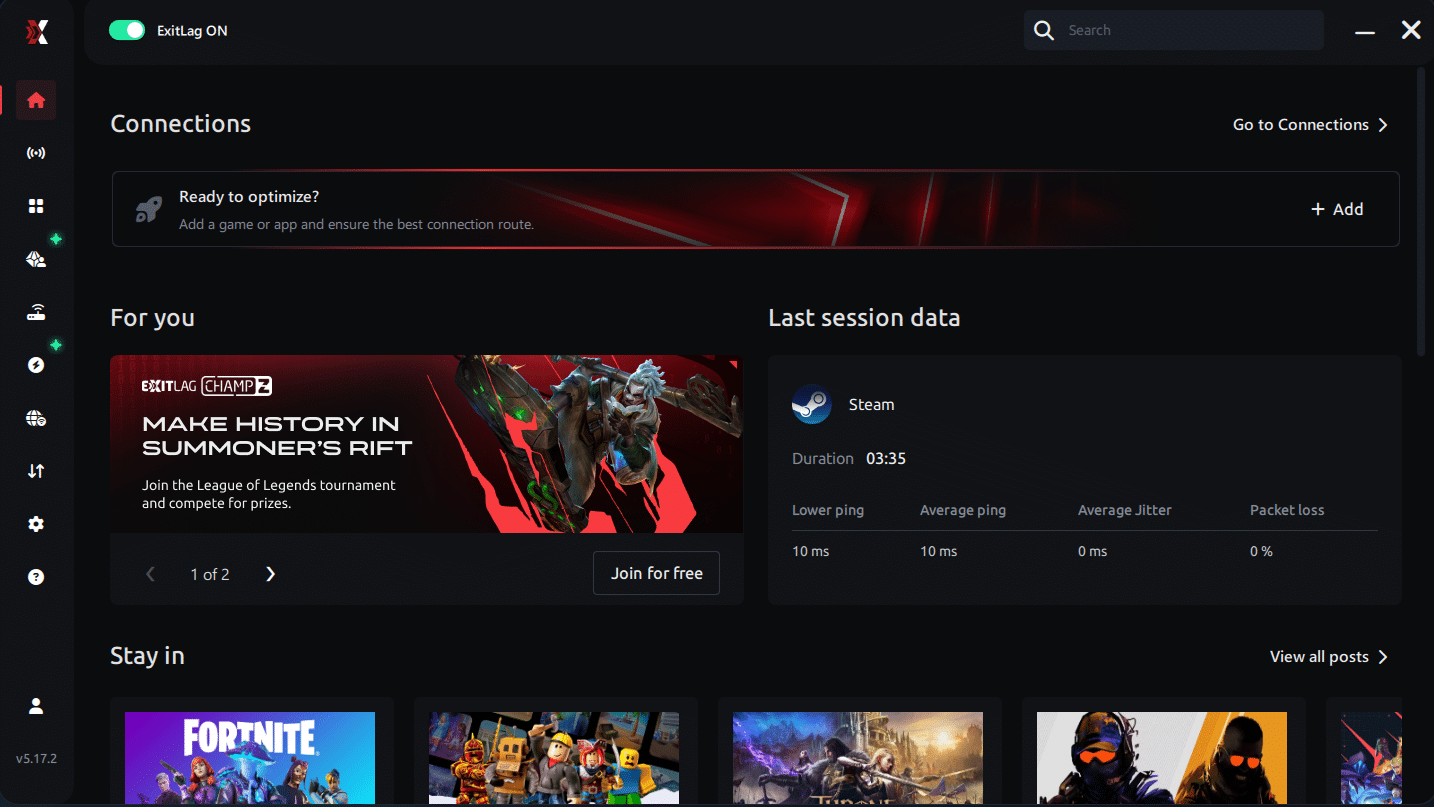
Step 3 – In the search bar, type “Ark” and select the game from the list.

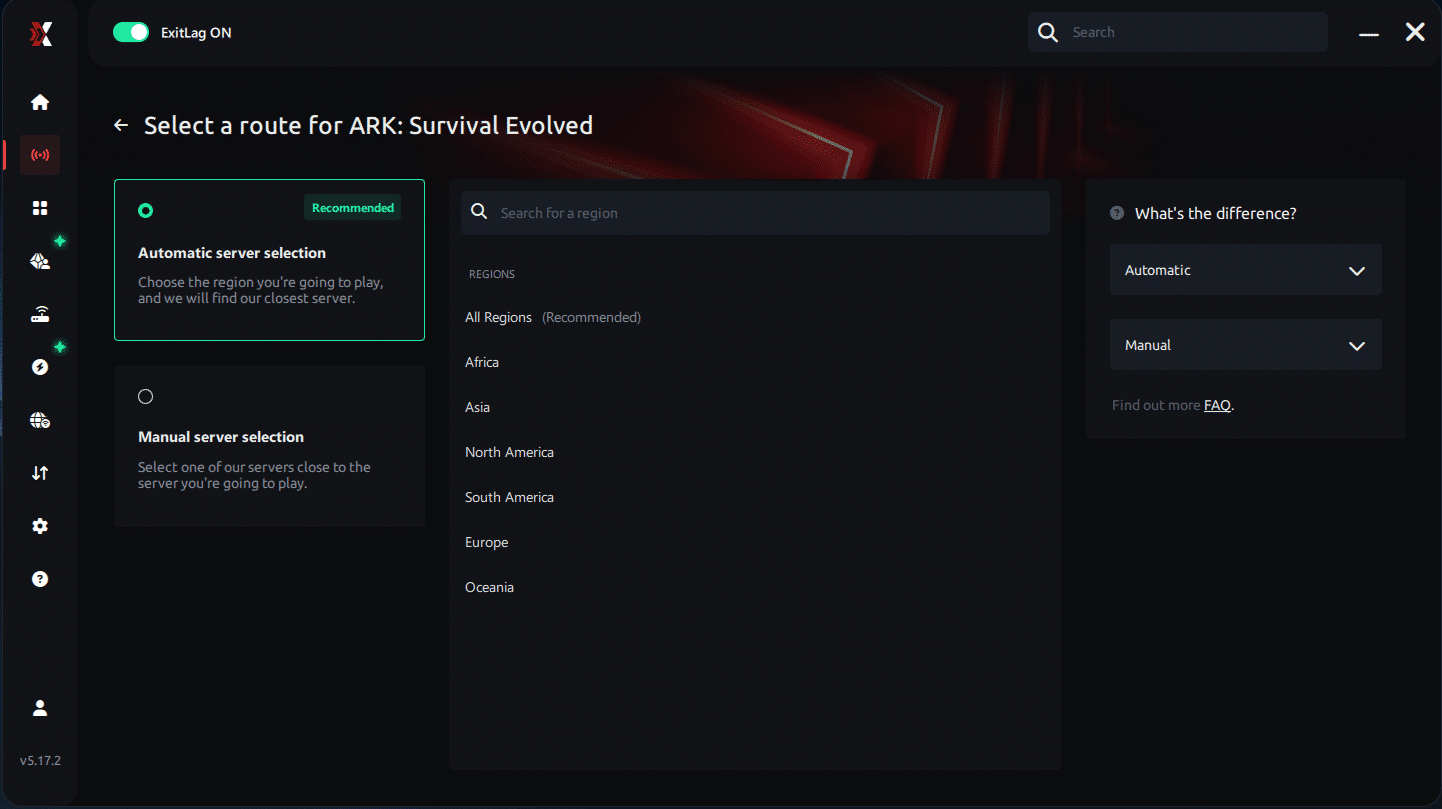
Step 4 – Choose between automated or manual route
Based on the results, you can let ExitLag automatically select the best route or manually choose the server that showed the lowest latency for your connection.
AI-optimized automated route
Based on the results, you can let ExitLag automatically select the best route through AI optimization. The system analyzes multiple connection paths in real time and automatically identifies the most efficient route for your connection, ensuring the lowest possible latency without requiring manual choices.
Manual route
If you prefer to have full control over your connection, you can manually choose the server based on the ping test results. Simply select the server that showed the lowest latency or the one that best meets your specific gaming needs, allowing complete customization of your experience.
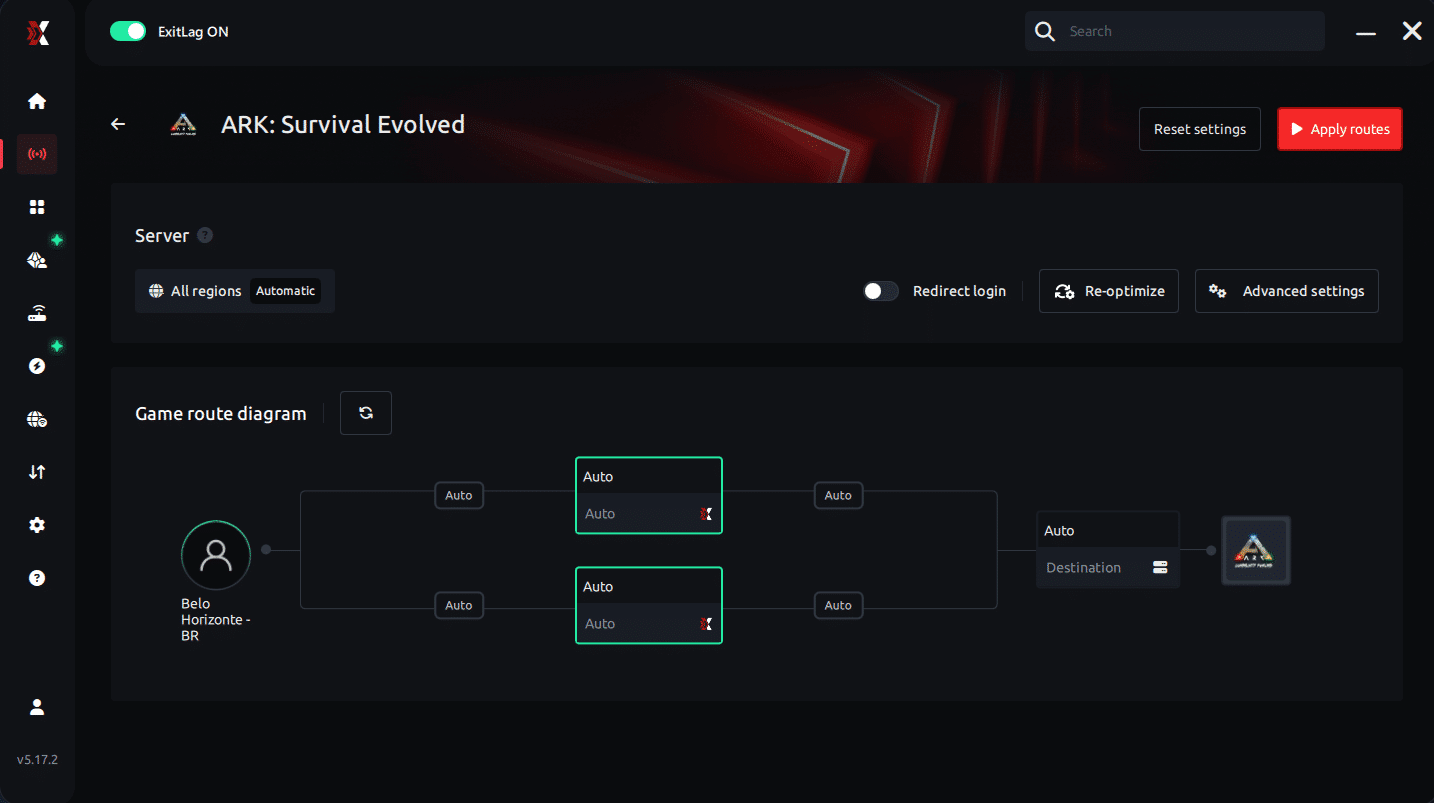
Step 5 – Click “Ark” or the play button. ExitLag will begin optimizing your connection automatically.
Step 6 – Wait a few seconds until optimization is complete. You’ll see ping indicators in the interface.
Step 7 – Launch Ark normally. The optimization will already be active.
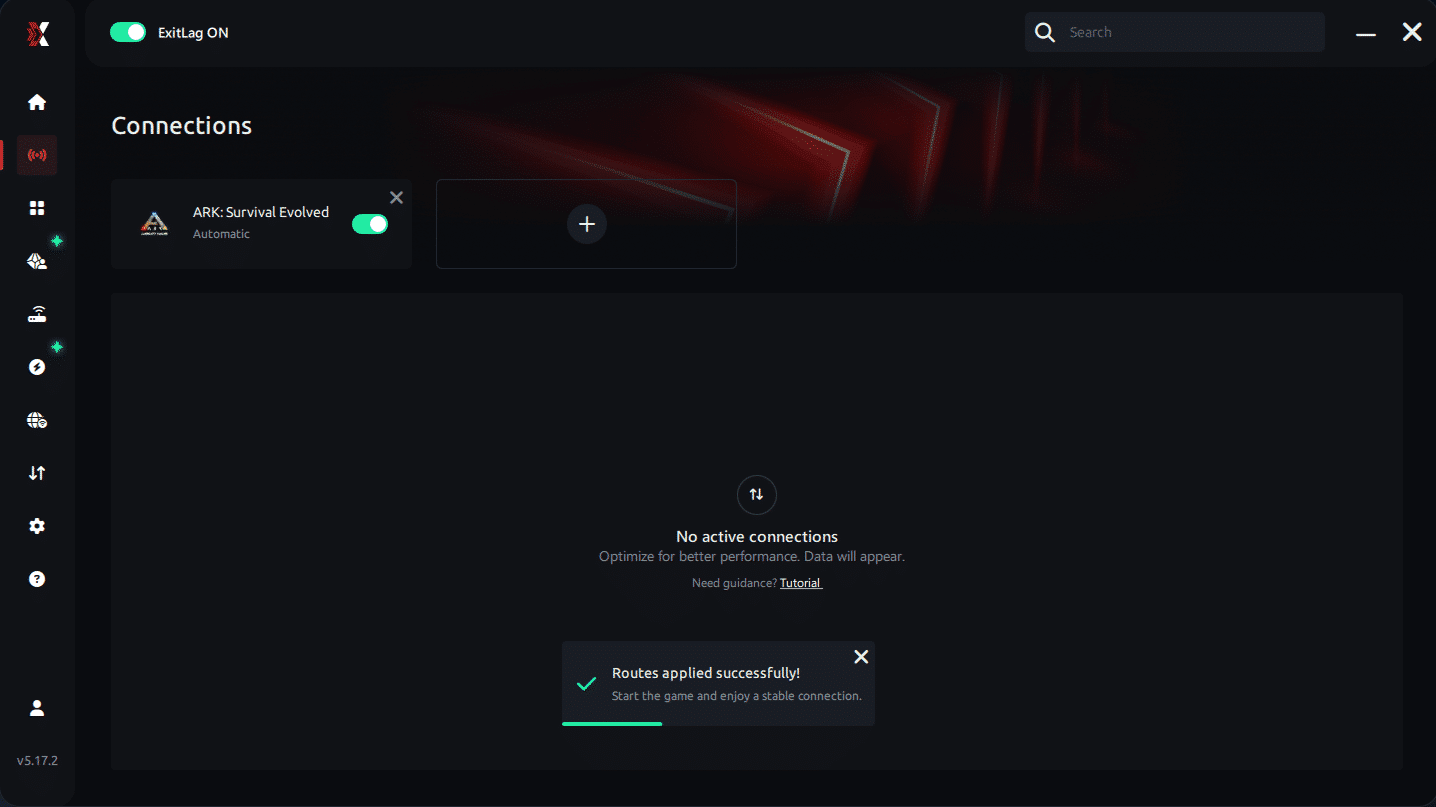
ExitLag runs in the background while you play, constantly adjusting routes to maintain the best possible performance.
Setting Up ExitLag for Emulators (If Playing Mobile Ark)
If using an emulator such as BlueStacks, LDPlayer, or Nox:
- Install the emulator
- Add it inside ExitLag
- Select Ark Mobile or the emulator executable
- Apply routes
- Launch Ark inside the emulator normally
This ensures the emulator itself receives optimized routing.
Optimizing Results With ExitLag
Tips to maximize stability:
- Test multiple regions
- Keep ExitLag open while playing
- Monitor packet loss inside the analytics tab
- Disable VPNs or bandwidth-heavy apps
- Make sure Windows is set to High Performance
For Console Players
ExitLag works on PC and mobile only.
For consoles:
- You cannot run ExitLag on Xbox, PlayStation, or Switch
- Consider migrating Ark to PC if you want its optimizations
- Alternatively, use Ethernet and QoS on your router
Real Results: Before and After ExitLag in Ark
Real Cases From Players
Below are simulated examples representing typical ExitLag improvements.
Case 1 — Brazil Player → NA Server
Before:
- FPS felt unstable due to network-driven micro-stutter
- Ping 125ms
- Packet loss 3–5%
After ExitLag:
- FPS pacing much smoother
- Ping 70ms
- Packet loss 0%
- 40–60% improvement in perceived stability
Case 2 — EU Player → High-Pop Official Server
Before:
- Frequent rubberbanding
- FPS drops during dino rendering
- Random sync freezes
After ExitLag:
- No more sync pauses
- Tick rate feels stable
- Major reduction of stutter in boss arenas
Case 3 — Asia Player → US Private Server
Before:
- Massive ping variance (90ms to 210ms)
- Inventory opening caused stutters
After:
- Ping stabilized at 95ms
- No spikes
- Inventory opens smoothly
Comparative Performance Table
| Metric | Without ExitLag | With ExitLag | Improvement |
| Average FPS Stability | Inconsistent | Smooth pacing | Significant |
| Micro-Stuttering | Frequent | Rare | 80%+ reduction |
| Ping | 100–150ms | 60–90ms | 30–40% lower |
| Network Stability | ⭐⭐ | ⭐⭐⭐⭐⭐ | Major improvement |
Additional Optimizations to Maximize FPS With ExitLag
Network Optimizations
- Use a wired Ethernet cable
- Close bandwidth-heavy software
- Enable QoS in your router
- Switch DNS to a stable provider
System Optimizations
- Set Windows to High Performance
- Update GPU drivers
- Disable background programs
- Clean temp files
In-Game Optimizations
- Lower Shadow Quality
- Turn off Motion Blur
- Use FPScap wisely
- Adjust foliage density
FAQ — FPS Drop in Ark
Does ExitLag Actually Improve FPS?
ExitLag does not render frames, but it improves FPS stability by eliminating network-driven micro-stutters. Network jitter → sync delays → frame pacing issues. ExitLag fixes this by stabilizing routes.
Is ExitLag Safe to Use?
Yes. ExitLag is:
- Legitimate
- Professional
- Used by competitive players
- Safe for Steam, Epic, and official Ark servers
Does ExitLag Work on Console?
No — PC and mobile only. Consoles cannot run ExitLag as an application.
How Much Does ExitLag Cost?
Pricing varies by region. See the official page of pricing
You can also start a ExitLag free trial
Can ExitLag Help My Weak PC?
ExitLag cannot increase GPU power. But it can eliminate:
- Network freezing
- Sync stutters
- Tick rate inconsistencies
This often feels like an FPS increase, even on weaker PCs.

Does ExitLag Work With Ark?
Yes — ExitLag fully supports Ark Evolved and Ascended
Difference Between ExitLag and a VPN
- ExitLag is NOT a VPN
- VPNs prioritize encryption
- ExitLag prioritizes speed, stability, and game performance
Conclusion — Fix FPS Drop in Ark With ExitLag
Final Benefits
- Stable FPS pacing
- No more micro-stuttering
- Fluid world loading
- Better combat responsiveness
- Smooth performance in boss arenas
- Competitive reliability
- Gameplay without frustration
Next Steps
- Create your ExitLag account
- Download the app in seconds
- Apply routes to Ark
- Enjoy stable performance
- Dominate the Ark world with confidence
ExitLag transforms unstable gameplay into smooth, predictable performance. Try it today.
Fix your FPS drop in Ark today with ExitLag — your gameplay deserves it.