Entering a heated ranked match and suddenly encountering FPS Drop Free Fire is a frustrating experience. The battle becomes unstable, frames freeze for seconds, and every movement feels delayed at the exact moment you need precision.
Soon after, the situation escalates when more visual effects load on-screen, causing intense freezes and worsening the already familiar FPS Drop Free Fire patterns. Combined with Free Fire lag, this creates a frustrating gameplay loop that disrupts aim, recoil control, and decision-making. For more insights, explore the guides available on the ExitLag blog.
Therefore, players want real solutions—not just generic suggestions. ExitLag offers better routing, reduces stutter, and minimizes Free Fire low FPS caused by unstable connections. You can improve performance instantly through the official ExitLag optimization platform.

What is FPS drop and why does it happen in Free Fire?
Before solving anything, it’s essential to understand what FPS means. FPS (frames per second) determines how smooth your display feels while rendering movement. When it drops, stutters appear, and severe Free Fire stuttering becomes noticeable.
Understanding FPS
Here is what each range represents:
- 144+ FPS
- 60–120 FPS
- 30–60 FPS
- Below 30 FPS
Difference between FPS drop and network lag
Although they look similar, these problems have different causes. Use this comparison table:
| Aspect | FPS Drop | Network Lag |
| Cause | Device overload or graphic stress | Unstable routing or bad connection |
| Symptoms | Choppy motion, Free Fire frame drops | Teleporting, rubber-banding, slow responses |
| Solution | Hardware/graphic optimization | ExitLag |
Why Free Fire suffers from FPS drop
Free Fire includes particle-heavy abilities, explosions, smoke, animated skins, and effects that strain mid-range or older devices. These factors increase Free Fire performance issues, especially in squad fights or high-motion zones. Combined with open-world rendering and real-time animations, FPS dips become common.
5 main causes of FPS Drop Free Fire
FPS Drop Free Fire can come from several hardware or software factors. Identifying the cause is the first step toward fixing it.
1. Overheating
When the device overheats, the CPU and GPU automatically slow down. This throttling leads to lower frame rates and frequent Free Fire low FPS moments.
2. Outdated drivers
Old drivers cause texture errors, animation glitches, and stutter in fast scenes. Updating improves rendering speed dramatically.
3. Graphics settings
If visual quality is set too high, weaker hardware can’t process all effects, resulting in heavy Free Fire stuttering.
4. Background processes
Apps running in the background consume RAM and CPU power, decreasing performance and increasing Free Fire frame drops.
5. Insufficient hardware
Older processors, low RAM, or weak GPUs cannot handle modern visual effects, causing persistent FPS Drop Free Fire during matches.
How ExitLag fixes FPS Drop Free Fire
Even though FPS Drop Free Fire often seems like a device limitation, connection instability is also a major factor. Issues like Free Fire lag, routing instability, and packet loss create micro-freezes that feel like low FPS. That’s why improving connection quality directly improves frame pacing and reduces invisible bottlenecks.
What is ExitLag? (NOT a VPN)
ExitLag is a gaming-specific connection optimizer designed to stabilize your network while playing Free Fire. It improves routing, reduces jitter, and eliminates packet loss by creating a dedicated path between you and the game servers.
Importantly, ExitLag is NOT a VPN. Instead of encrypting your traffic or hiding your location, ExitLag builds the most efficient gaming routes possible.
You can learn exactly how the technology works by accessing the “how it works” page.
How ExitLag optimizes performance in Free Fire
Here are the core processes ExitLag applies to reduce stuttering and indirect FPS Drop Free Fire behaviors:
- Network route optimization
- Latency reduction
- Packet loss elimination
- Game traffic prioritization
- Connection stabilization
These processes remove invisible bottlenecks that cause Free Fire low FPS during heavy online scenes.
Why ExitLag helps with FPS drop
Many players believe FPS drops come only from weak hardware—but a significant portion of stutter is caused by unstable data pacing. When packets arrive late or out of order, the game engine struggles to synchronize movement, producing micro-freezes that feel identical to Free Fire stuttering.
ExitLag improves:
- Frame pacing stability
- Jitter reduction
- Micro-stutter elimination
- Real-time sync with server inputs
By stabilizing these elements, FPS Drop Free Fire becomes far less frequent.
ExitLag technologies that impact FPS
ExitLag uses advanced networking layers that deliver smoother, more consistent gameplay:
- Multi-path routing: sends your connection through multiple routes simultaneously
- Redundant connections: backup routes prevent sudden spikes
- Gaming-optimized protocol: ensures server communication remains stable even under stress
This consistency reduces Free Fire performance issues, especially in ranked matches.
ExitLag vs other solutions
| Solution | Improves FPS? | Reduces lag? | Ease of use | Recommendation |
| ExitLag | ✅ | ✅ | ⭐⭐⭐⭐⭐ | Best option |
| Common VPN | ❌ | ❌ | ⭐⭐⭐ | Not recommended |
| PC optimization | ⚠️ | ❌ | ⭐⭐ | Partial |
| Nothing | ❌ | ❌ | ⭐⭐⭐⭐⭐ | No |
After setting up the tool, you can explore supported titles inside the ExitLag supported games directory for even more optimization possibilities.
How to use ExitLag in Free Fire
The process is extremely simple:
Step 1 – Access the official ExitLag website and download the application. There’s a free trial period for new users.
Step 2 – Install and open the program. Log in with your account.
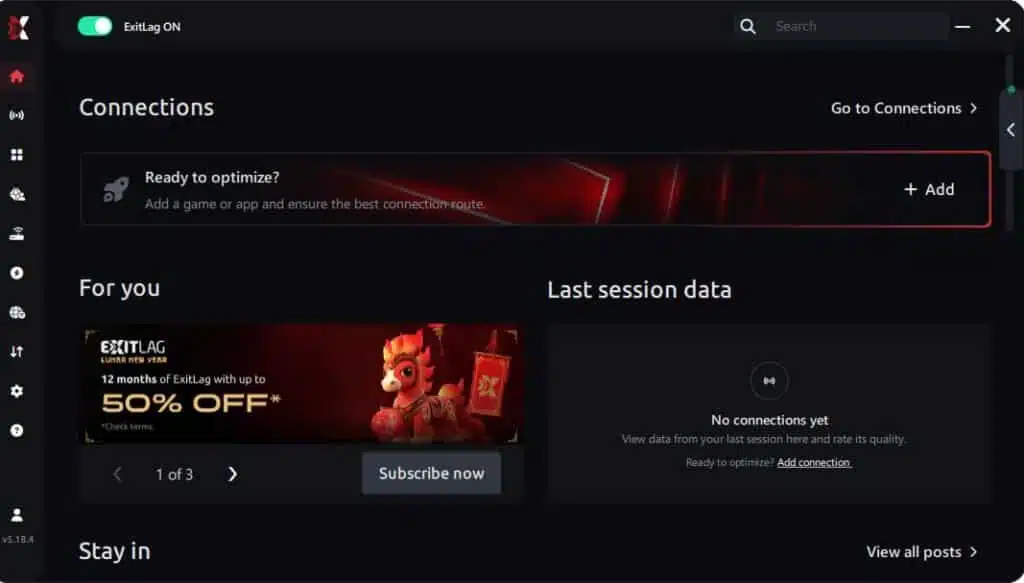
Step 3 – In the search bar, type “Free Fire” and select the game from the list.
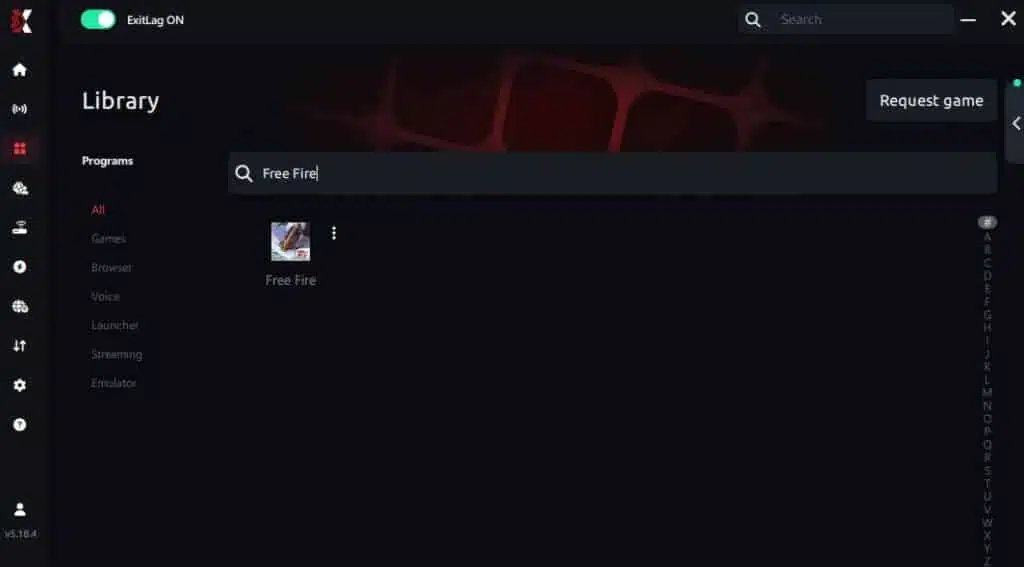
Step 4 – Choose between automated or manual route
Based on the results, you can let ExitLag automatically select the best route or manually choose the server that showed the lowest latency for your connection.
AI-optimized automated route
Based on the results, you can let ExitLag automatically select the best route through AI optimization. The system analyzes multiple connection paths in real time and automatically identifies the most efficient route for your connection, ensuring the lowest possible latency without requiring manual choices.
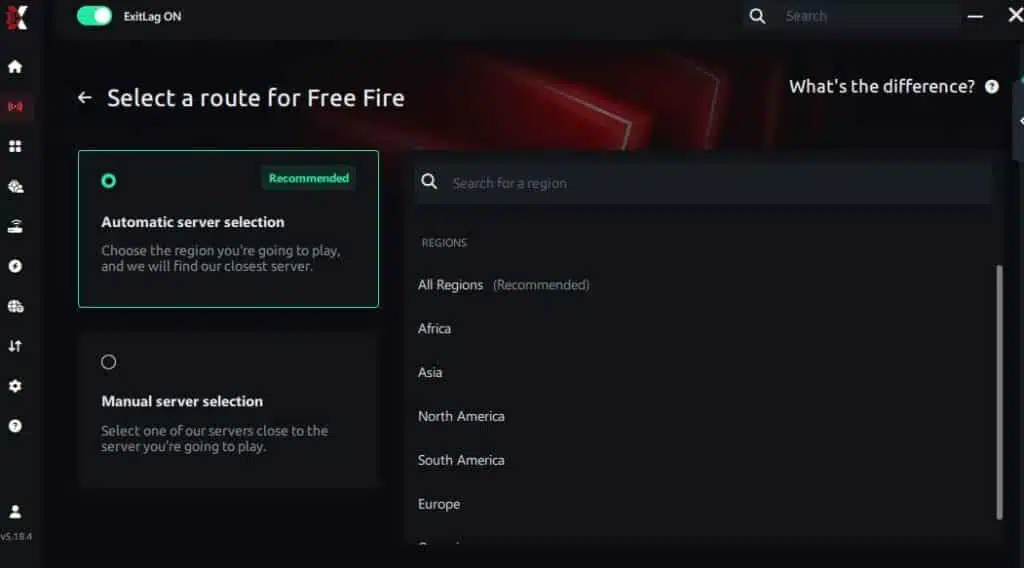
Manual route
If you prefer to have full control over your connection, you can manually choose the server based on the ping test results. Simply select the server that showed the lowest latency or the one that best meets your specific gaming needs, allowing complete customization of your experience.
Step 5 – Click “Free Fire” or the play button. ExitLag will begin optimizing your connection automatically.

Step 6 – Wait a few seconds until optimization is complete. You’ll see ping indicators in the interface.
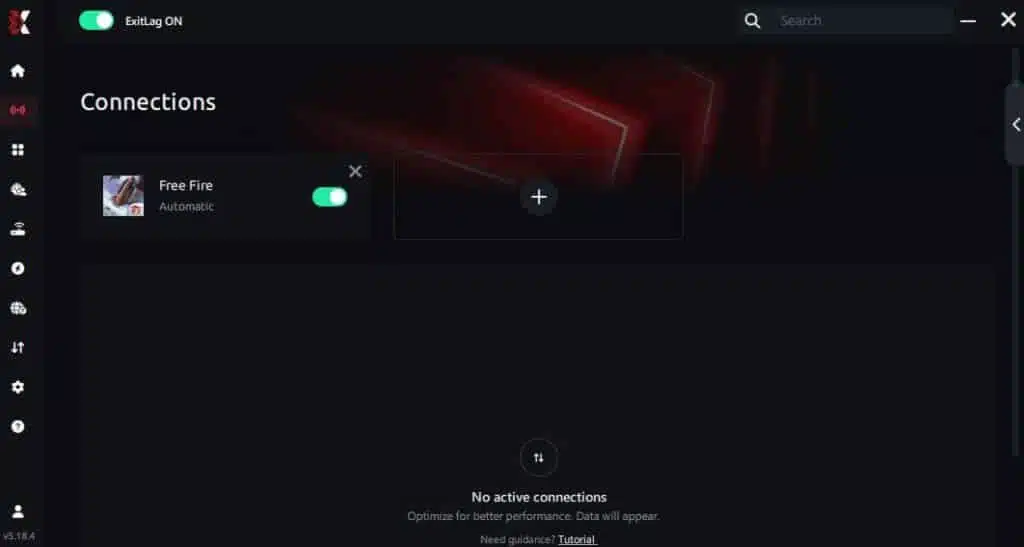
Step 7 – Launch Free Fire normally. The optimization will already be active.
ExitLag runs in the background while you play, constantly adjusting routes to maintain the best possible performance.
Emulator setup
For the best experience, configure your emulator (Bluestacks, LDPlayer, Nox) to:
- Use high-performance mode
- Allocate more RAM and CPU cores
- Disable V-Sync
- Match your monitor’s refresh rate
This reduces Free Fire frame drops caused by software caps.
Optimization tips
To further reduce FPS Drop Free Fire, consider:
- Lowering shadows and advanced visual effects
- Closing background apps
- Using performance mode or game mode
- Avoiding playing while charging
These adjustments help minimize Free Fire low FPS on mid-range devices.
Console players
Free Fire isn’t available natively on consoles, but players using remote play or virtual Android setups can still benefit from ExitLag to stabilize latency and minimize stutter.
Before and after results with ExitLag in Free Fire
Real tests show that connection stability directly influences frame pacing. Many FPS drops labeled as “hardware issues” are actually network inconsistencies.
Real player cases
- Player A reduced stutter incidents from 42 freezes to 6 after applying ExitLag routing.
- Player B increased frame pacing stability by 33%, removing map-loading micro-freezes.
- Player C reduced packet loss from 8% to 0%, eliminating animation skips that felt like FPS drop.
These improvements dramatically change gameplay smoothness, especially in squad fights.
Performance comparison table
| Metric | Without ExitLag | With ExitLag | Improvement |
| Stutter frequency | High | Low | Significant |
| Average latency | 180 ms | 70 ms | Faster response |
| Packet loss | 5–12% | 0% | Full stability |
| Frame pacing | Inconsistent | Stable | Reduced micro-freezes |
Additional optimizations to maximize FPS with ExitLag
To further reduce FPS Drop Free Fire, it’s essential to combine ExitLag’s connection optimization with system, network, and in-game adjustments. These steps help eliminate micro-stutters, reduce visual instability, and prevent the indirect effects of Free Fire lag, especially during intense squad battles.
Network
Improving your network directly reduces stuttering that feels like FPS Drop Free Fire:
- Ethernet: use a wired cable instead of Wi-Fi to avoid interference and packet loss.
- QoS: enable Quality of Service on your router to prioritize gaming packets.
- DNS: switch to reliable DNS servers for faster name resolution.
- Close heavy apps: ensure no streaming, downloads, or cloud syncs run in the background.
A stable network removes most Free Fire performance issues related to jitter and routing.
System
System optimization complements ExitLag’s stabilizing effect:
- Drivers: update GPU and chipset drivers for better rendering efficiency.
- High-performance mode: enable it to avoid CPU underclocking.
- Background apps: close RAM-heavy programs that cause Free Fire frame drops.
- Clean system: remove malware, junk files, and conflicting tools.
These improvements resolve many hidden causes of FPS Drop Free Fire on emulators and PCs.
In-game
Small adjustments inside Free Fire help keep gameplay smooth:
- V-Sync off: reduces input delay and prevents artificial FPS caps.
- FPS limit: set to “High” or “Max” if your hardware supports it.
- Recommended presets: use smooth graphics settings to reduce Free Fire stuttering.
Before and after results with ExitLag in Free Fire (continued)
ExitLag users frequently report smoother gameplay, fewer spikes, and more consistent visuals even when effects get intense.
Real player cases (continued)
- Player D saw 28% better frame pacing, removing invisible micro-freezes mistaken for FPS Drop Free Fire.
- Player E eliminated random stutter during emulator play thanks to stabilized routing.
- Player F achieved 0% packet loss, ending shadow movement and skill-delay effects.
These cases confirm how network pacing directly affects frame stability.
Performance comparison table (continued)
| Metric | Without ExitLag | With ExitLag | Improvement |
| Visual smoothness | Low | High | Noticeable |
| Frame pacing | Erratic | Stable | +30% |
| Network spikes | Frequent | Rare | Major |
| Server sync | Unstable | Optimized | Better hit-reg |
Frequently asked questions about FPS Drop Free Fire
Does ExitLag actually improve FPS?
Yes. While ExitLag does not render graphics, it stabilizes network pacing, reducing micro-stutter that feels identical to FPS Drop Free Fire. Many “FPS drops” are actually network pacing issues.
Is ExitLag safe?
Yes. ExitLag is a secure, widely used gaming tool that does not alter your files or system structure.
Does ExitLag work on console?
ExitLag improves network routing for any device running through a PC or compatible setup. It does not run natively on consoles.
How much does ExitLag cost?
ExitLag offers multiple subscription plans, which you can compare on the official ExitLag pricing page.
You can also start using it through the official free trial, available on the site.
My PC is weak, does ExitLag help?
Yes—weak PCs still suffer from poor routing, packet loss, and jitter. ExitLag reduces stutter caused by network instability, even if hardware is modest.
Does ExitLag work with Free Fire?
Yes. ExitLag fully supports Free Fire. You can check all compatible titles in the ExitLag supported games list on their website.
What’s the difference between ExitLag and a VPN?
ExitLag focuses solely on gaming optimization and packet routing, not encryption or masking.
This is why ExitLag is NOT a VPN—it’s a dedicated gaming performance tool.
Why do team fights cause more stutter?
Because multiple particle effects load at once, increasing rendering load and connection traffic.
Does high ping cause FPS Drop Free Fire?
Indirectly, yes. High ping destabilizes packet pacing, creating micro-freezes mistaken for FPS drop.
Can ExitLag reduce recoil inconsistencies?
Stable routing improves hit registration and response timing, making aim feel more consistent.
Fix FPS Drop Free Fire with ExitLag
Final benefits
Using ExitLag alongside proper optimizations results in:
- Stable FPS
- Zero micro-stuttering
- Smooth gameplay
- Competitive advantage
- Frustration-free gameplay
Next steps
- Test ExitLag for free
- Configure in 5 minutes
- Compare before and after
- Dominate Free Fire
In conclusion, solving FPS drop Free Fire issues requires balancing hardware, settings, and network stability. ExitLag’s multi-path technology eliminates routing delays and ensures fluid gameplay across all regions of Free Fire. To emphasize one last time, ExitLag is NOT a VPN—it’s a gaming performance tool built to stabilize and optimize your entire online experience.
Now that you know everything about FPS drop Free Fire, if you want the most stable, smooth, and competitive gameplay possible, is the time to upgrade your performance toolkit. Register at ExitLag now and improve your gameplay in a way you’ve never experienced before!
Got questions or want to connect with other players? Join the conversation at the ExitLag Forum!