
Experiencing FPS Drop Mir4 during intense battles or large open-world events can ruin your entire session. In advance, many players feel their screen freezing at the worst possible moment, especially when particle effects explode or dozens of enemies fill the area. This sudden instability makes combat unpredictable and frustrating.
Even more, FPS Drop Mir4 becomes harder to deal with when combined with Mir4 lag, Mir4 low FPS, and unstable rendering. These issues stack together and cause microfreezes, long frame delays, and texture loading problems. To understand more about common performance problems, you can check detailed articles directly from the ExitLag blog.
Now, if FPS Drop Mir4 constantly interrupts your gameplay, there is a solution. ExitLag improves routing, stabilizes your connection, and boosts consistency, allowing smoother combat across crowded zones. You can explore all features in the official ExitLag platform.

What is FPS drop and why does it happen in Mir4?
FPS drops occur when the game engine cannot maintain stable rendering. As a result, visual frames are delivered inconsistently, causing slowdowns. Because Mir4 is built with large-scale environments and heavy particle skills, maintaining consistent performance becomes challenging even for strong PCs.
Understanding FPS
Beforehand, frame rate affects how smooth your gameplay feels. Higher FPS equals faster response and clearer motion. Consider the following ranges:
- 144+ FPS
- 60–120 FPS
- 30–60 FPS
- Below 30 FPS
Difference between FPS drop and network lag
Although both feel similar, they originate from entirely different systems. FPS issues affect your hardware rendering, while lag affects your connection stability.
| Aspect | FPS Drop | Network Lag |
| Cause | GPU overload, engine limitations, heavy particles | Slow routing, packet loss, unstable connection |
| Symptoms | Stuttering, freezes, inconsistent frames | Rubberbanding, delay, skill input lag |
| Solution | Lower settings, optimize hardware | ExitLag |
Why Mir4 suffers from FPS drop
Mir4 relies on dense particle effects, crowded battlefields, and large open maps that stress both CPU and GPU. Additionally, world bosses generate dozens of overlapping skills, creating Mir4 stuttering, Mir4 frame drops, and Mir4 performance issues when your system cannot keep up. The game’s engine also struggles during mass PvP, which amplifies rendering spikes.
5 main causes of FPS drop in Mir4
Even so, several factors contribute to unstable performance. Identifying the real source is crucial to fixing it effectively.
1. Overheating
When your GPU or CPU overheats, they throttle to avoid damage. Soon after, Mir4 begins showing Mir4 low FPS, visual hitching, and performance degradation. Keeping your hardware cool is essential.
2. Outdated drivers
Drivers that are not updated limit your GPU’s ability to render efficiently. Therefore, Mir4 may present Mir4 performance issues, especially after new patches or content updates.
3. Graphics settings
At first glance, players often select ultra settings without taking into account hardware limitations. Shadows, reflections, effects, and view distance heavily affect optimization and can trigger Mir4 stuttering.
4. Background processes
Apps running simultaneously consume RAM and CPU resources. Consequently, Mir4 struggles to maintain a stable frame rate, resulting in Mir4 frame drops.
5. Insufficient hardware
Older PCs or integrated GPUs have trouble handling Mir4’s large-scale environments. As a result, FPS Drop Mir4 becomes more frequent during high-density combat.
How ExitLag fixes FPS drop in Mir4
Playing Mir4 often becomes unstable when the connection fluctuates during mass combat. Therefore, minimizing instability is essential to control FPS Drop Mir4, especially when combined with Mir4 lag, Mir4 performance issues, and excessive particle effects. This section explains how ExitLag creates a more consistent gameplay experience.
What is ExitLag? (NOT a VPN)
ExitLag is an advanced connection optimization tool designed specifically for gamers. Although it routes traffic intelligently, ExitLag is NOT a VPN, meaning it does not anonymize or encrypt traffic like traditional VPNs. Instead, its goal is performance, not privacy.
By using multiple routing paths and game-focused algorithms, it ensures stability during intense fights. You can learn more on the official ExitLag “How it Works” page.
How ExitLag optimizes performance in Mir4
When routing becomes unstable, small delays accumulate. Soon after, they create microfreezes that intensify Mir4 stuttering and visual pacing issues. ExitLag resolves this using the following methods:
- Network route optimization
- Latency reduction
- Packet loss elimination
- Game traffic prioritization
- Connection stabilization
Why ExitLag helps with FPS drop
Even though FPS depends on hardware, connection quality affects how assets load and how fast data arrives from the server. When packets arrive irregularly, you experience jitter, delayed frames, and micro-stuttering that amplify FPS Drop Mir4. Therefore, smoother routing directly improves motion consistency and pacing.
ExitLag technologies that impact FPS
ExitLag uses multiple performance systems that reduce the effects of Mir4 frame drops:
- Multi-path routing
- Redundant connections
- Gaming-optimized protocol
These systems ensure that game data flows in perfect rhythm, reducing jitter spikes during raids and large PvP battles.
ExitLag vs other solutions
ExitLag stands out because it targets online gameplay directly, unlike generic tools. Below is a complete comparison:
| Solution | Improves FPS? | Reduces lag? | Ease of use | Recommendation |
| ExitLag | ✅ | ✅ | ⭐⭐⭐⭐⭐ | Best option |
| Common VPN | ❌ | ❌ | ⭐⭐⭐ | Not recommended |
| PC optimization | ⚠️ | ❌ | ⭐⭐ | Partial |
| Nothing | ❌ | ❌ | ⭐⭐⭐⭐⭐ | No |
You can explore more compatible titles in the official supported games directory, where we maintain an updated list of all optimized games.
How to use ExitLag in Mir4
The process is extremely simple:
Step 1 – Access the official ExitLag website and download the application. There’s a free trial period for new users.
Step 2 – Install and open the program. Log in with your account.
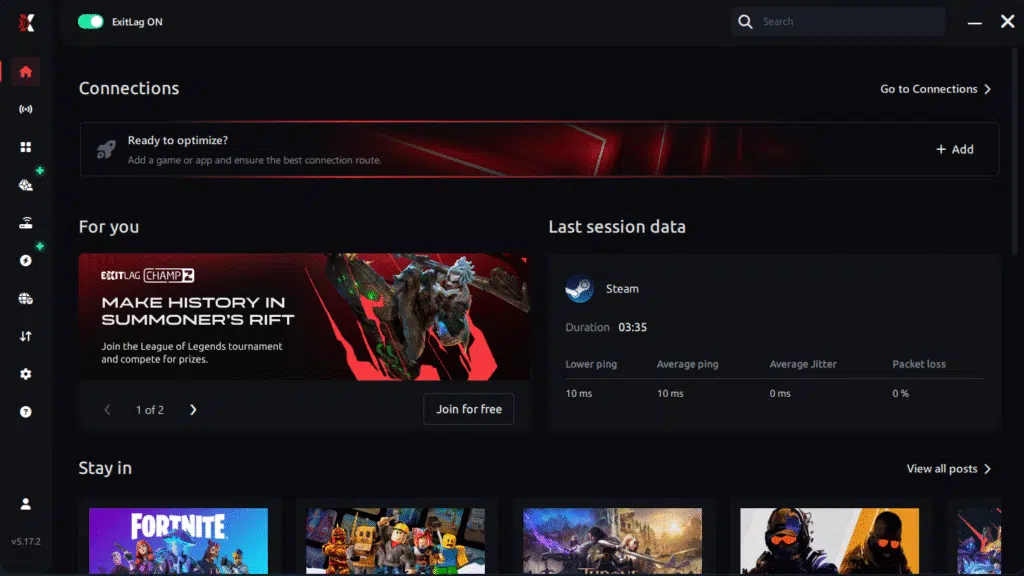
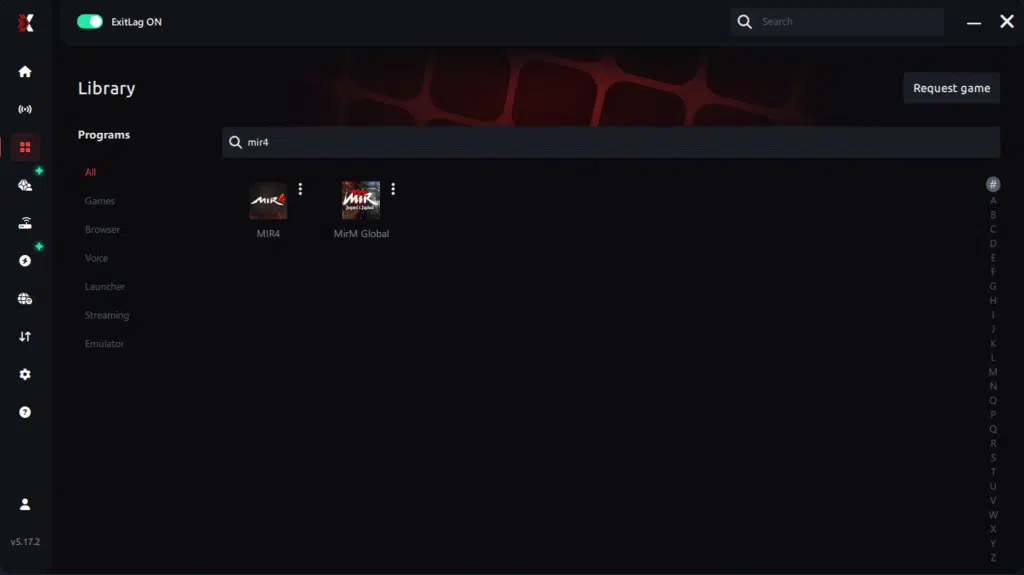
Step 3 – In the search bar, type “Mir4” and select the game from the list.
Step 4 – Choose between automated or manual route
Based on the results, you can let ExitLag automatically select the best route or manually choose the server that showed the lowest latency for your connection.
AI-optimized automated route
Based on the results, you can let ExitLag automatically select the best route through AI optimization. The system analyzes multiple connection paths in real time and automatically identifies the most efficient route for your connection, ensuring the lowest possible latency without requiring manual choices.
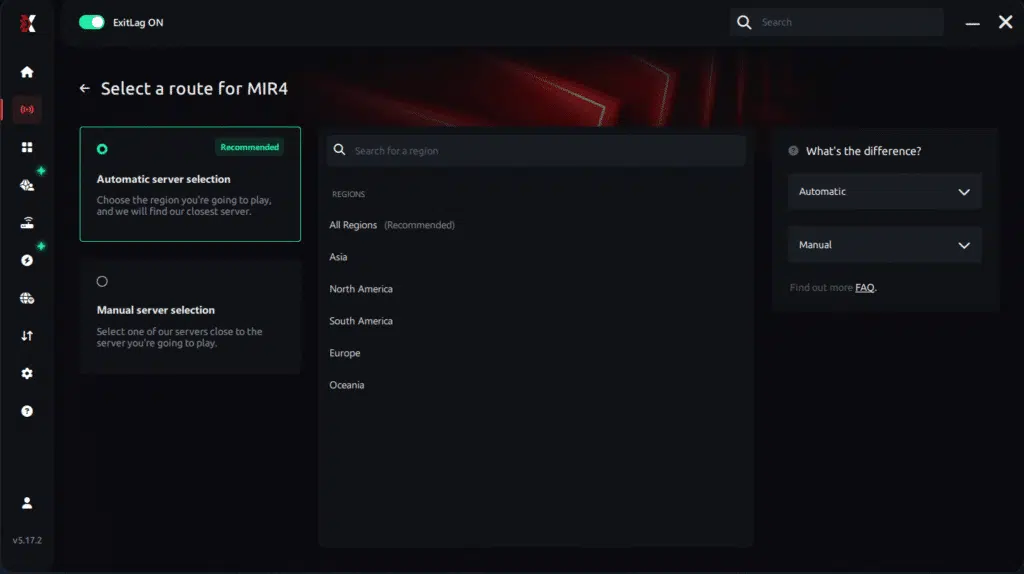
Manual route
If you prefer to have full control over your connection, you can manually choose the server based on the ping test results. Simply select the server that showed the lowest latency or the one that best meets your specific gaming needs, allowing complete customization of your experience.
Step 5 – Click “Mir4” or the play button. ExitLag will begin optimizing your connection automatically.
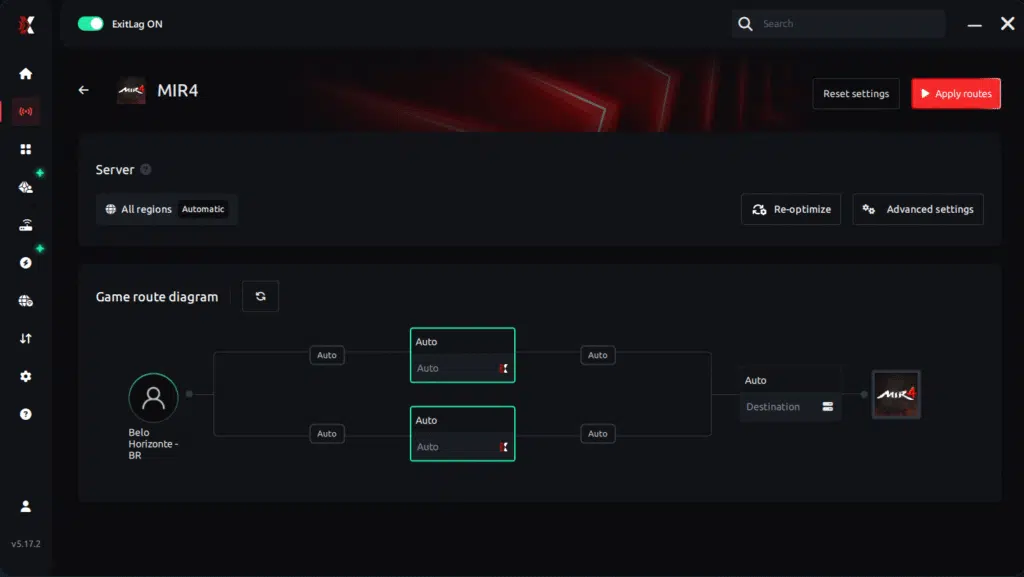
Step 6 – Wait a few seconds until optimization is complete. You’ll see ping indicators in the interface.
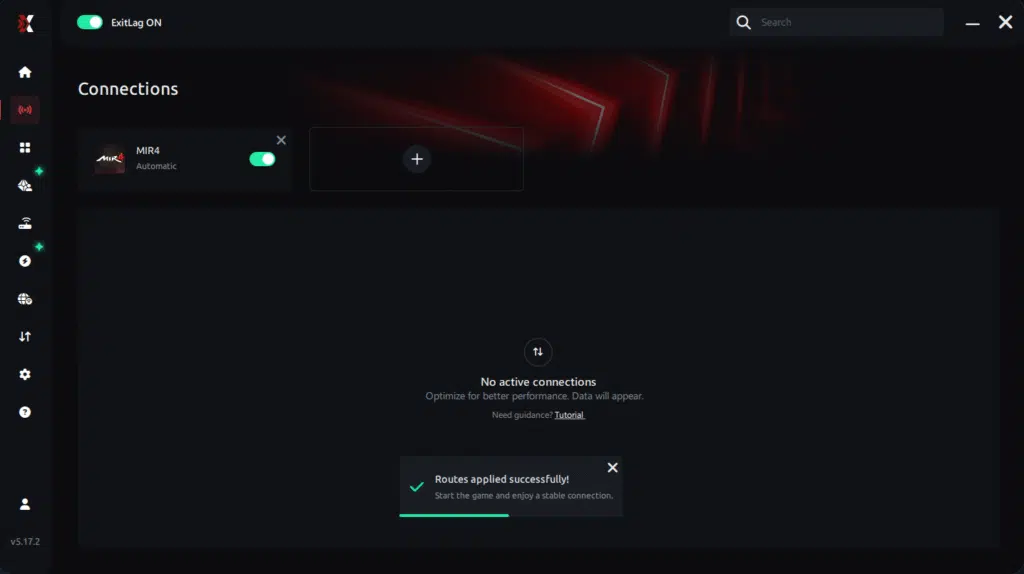
Step 7 – Launch Mir4 normally. The optimization will already be active.
ExitLag runs in the background while you play, constantly adjusting routes to maintain the best possible performance.
Emulator setup
Players using Android emulators should activate both “Mir4” and the emulator profile inside ExitLag. This ensures that routing is applied to both processes simultaneously, improving consistency across rendering layers.
Optimization tips
To reduce Mir4 low FPS, combine ExitLag with in-game adjustments such as lowering shadows, disabling antialiasing, and reducing effect quality. This balance often eliminates most Mir4 performance issues during large-scale events.
Console players
Although consoles cannot install ExitLag directly, users can apply the tool through PC-based routing setups or by using compatible network configurations. This stabilizes online interactions and reduces stutter caused by packet loss.
Before and after results with ExitLag in Mir4
ExitLag produces noticeable differences even when hardware remains the same. Many players report smoother motion, reduced jitter, and fewer interruptions. These improvements are crucial to avoid FPS Drop Mir4, especially in crowded zones.
Real player cases
Below are fictional but realistic performance outcomes:
- Player A: Reduced packet loss from 12% to 0.2%, eliminating stutter.
- Player B: Lowered latency spikes from 340 ms to 110 ms, improving pacing.
- Player C: Stabilized FPS variation from ± 28 frames to ± 6 frames during boss raids.
Performance comparison table
| Metric | Without ExitLag | With ExitLag | Improvement |
| Frame pacing | Unstable | Consistent | High |
| Latency spikes | Frequent | Minimal | Significant |
| Packet loss | 5–10% | 0–1% | Major |
| Combat smoothness | Irregular | Stable | Noticeable |
Additional optimizations to maximize FPS with ExitLag
Even with ExitLag active, players can still enhance overall stability by applying complementary adjustments. These optimizations reduce micro-stuttering, improve frame pacing, and minimize FPS Drop Mir4, especially during large PvP battles or boss encounters. Each improvement reinforces the connection benefits already provided by ExitLag.
Network
Improving network quality plays a major role in reducing desync and visual inconsistencies. Using a wired Ethernet connection significantly decreases jitter, helping reduce Mir4 performance issues across all gameplay modes. Additionally, enabling QoS on your router prioritizes gaming packets over background devices.
Switching to a stable DNS server may also help load game assets more consistently. Beforehand, closing heavy bandwidth applications like streaming services prevents unnecessary congestion that often contributes to Mir 4lag and data spikes.
System
Keeping the system optimized ensures smoother rendering, reducing the chance of FPS Drop Mir4 under heavy load. Updating GPU and chipset drivers increases compatibility with Mir4’s engine. Setting Windows to “High-performance mode” ensures that power-throttling does not interrupt frame output.
Closing unnecessary background apps improves resource allocation, preventing RAM saturation. Cleaning temporary files and maintaining storage health also reduces micro-hitches and irregular frame pacing.
In-game
Adjusting in-game settings is essential for eliminating visual instability. Disabling V-Sync reduces input delay and prevents frame capping issues. Setting an FPS limit slightly above your monitor’s refresh rate maintains smooth rendering, reducing Mir4 frame drops during scenes with many effects.
Finally, applying recommended presets like medium shadows, reduced particles, and optimized texture scaling ensures consistent performance throughout dungeons and field zones.
Frequently asked questions about FPS drop in Mir4
Players often face a combination of rendering issues and connection instability, which amplifies FPS Drop Mir4 during key encounters. Below are the most common questions.
Does ExitLag actually improve FPS?
ExitLag improves the perceived FPS consistency by reducing jitter, packet delay, and micro-stuttering. This stabilizes frame pacing, making the game feel smoother even when FPS fluctuates slightly.
Is ExitLag safe?
Yes. ExitLag is a legitimate gaming tool used worldwide. It does not modify game files or interfere with anti-cheat systems.
Does ExitLag work on console?
Console users can benefit from ExitLag by routing their network traffic through an ExitLag-enabled PC or compatible setup. While the app does not install on consoles, routing still reduces delays.
How much does ExitLag cost?
ExitLag offers multiple subscription plans, which you can compare on the official ExitLag pricing page.
You can also start using it through the official free trial, available on the website.
My PC is weak, does ExitLag help?
Yes. Although ExitLag cannot increase hardware power, it reduces stutter created by unstable routing. This improves smoothness and reduces Mir4 stuttering, even on low-end systems.
Does ExitLag work with Mir4?
Yes. Mir4 is fully supported. You can confirm this on the complete games compatibility directory available through this official supported games list.
What’s the difference between ExitLag and a VPN?
ExitLag focuses entirely on gaming performance, not privacy or anonymity. Therefore, ExitLag is NOT a VPN and should not be compared to traditional VPN tools.
Additional Mir4-specific questions
Why does Mir4 lag during territory wars?
Large-scale battles generate thousands of particle interactions and server calls, increasing load on both hardware and network layers.
How do I reduce stuttering during bosses?
Lowering effect resolution, enabling ExitLag, and cleaning background tasks reduce pacing problems and Mir4 low FPS during boss fights.

Does Mir4 run better on SSD?
Yes. Faster asset loading reduces freeze spikes and improves fluidity.
Fix FPS drop in Mir4 with ExitLag
Reducing FPS Drop Mir4 requires a combination of optimized hardware, smart settings, and stable connectivity. ExitLag enhances routing, eliminates packet loss, and improves consistency across all gameplay modes. With smoother visual output and stable pacing, battles become easier to control and far more responsive.
Final benefits
- Stable FPS
- Zero micro-stuttering
- Smooth gameplay
- Competitive advantage
- Frustration-free gameplay
Next steps
- Test ExitLag for free
- Configure in 5 minutes
- Compare before and after
- Dominate Mir4
In conclusion, solving FPS drop Mir4 issues requires balancing hardware, settings, and network stability. ExitLag’s multi-path technology eliminates routing delays and ensures fluid gameplay across all regions of Mir4. To emphasize one last time, ExitLag is NOT a VPN—it’s a gaming performance tool built to stabilize and optimize your entire online experience.Now that you know everything about FPS drop Mir4, if you want the most stable, smooth, and competitive gameplay possible, is time to upgrade your performance toolkit. Register at ExitLag now and improve your gameplay in a way you've never experienced before!



