Experiencing FPS Drop World of Warcraft in the middle of a dungeon or raid can completely break your immersion. At first sight, everything feels smooth, and then the screen slows down, frames freeze, and combat becomes impossible to follow. This dramatic drop turns epic encounters into frustrating moments where every movement feels delayed and unresponsive.
Even more, the situation worsens when FPS Drop World of Warcraft happens during world events, crowded zones, or intense PvP battles. These moments create sudden visual spikes that stack with World of Warcraft lag, causing a mix of visual slowdowns and gameplay interruptions. To understand more about common performance problems, you can check detailed articles directly from the ExitLag blog.
In many cases, this combination of issues makes it hard to keep consistent DPS, healing output, or basic mobility. Players feel stuck, unable to react properly, and performance collapses.
That’s because FPS Drop World of Warcraft often results from multiple factors working at the same time. Soon after, this guide will help you understand these problems and show how tools like ExitLag can stabilize your gameplay.You can also improve your overall stability by using optimized connection features available through the official ExitLag website.

What is FPS drop and why does it happen in World of Warcraft?
Beforehand, understanding what causes visual slowdowns helps identify where your performance is failing. Although many players confuse FPS drops with World of Warcraft lag, they are very different issues that require different solutions.
Understanding FPS
FPS (frames per second) measures how many images your PC displays every second. Higher values create smoother movement, while lower ones cause World of Warcraft low FPS and visible jitter. In general, these ranges determine the experience:
- 144+ FPS
- 60–120 FPS
- 30–60 FPS
- Below 30 FPS
Difference between FPS drop and network lag
Both issues look similar but come from different sources. FPS problems are visual, while network problems affect movement and responsiveness.
| Aspect | FPS Drop | Network Lag |
| Cause | GPU/CPU overload, high settings, overheating | Routing delays, packet loss, unstable connection |
| Symptoms | Stuttering, frozen images, World of Warcraft frame drops | Teleporting, delayed actions, desync |
| Solution | Lower settings, optimize hardware | ExitLag |
Why World of Warcraft suffers from FPS drop
World of Warcraft uses a large, detailed world with particle effects, complex environments, and heavy spell animations. Constantly, these elements trigger World of Warcraft stuttering if your system cannot process the visual load. Massive raids, open-world cities, and dynamic weather increase GPU and CPU usage, especially on older machines.
7 main causes of FPS drop in World of Warcraft
Now, let’s explore the most common reasons players deal with sudden frame drops inside Azeroth. These factors frequently stack, affecting stability, clarity, and smoothness during gameplay.
1. Overheating
Overheating forces your GPU or CPU to throttle, reducing performance instantly. As a result, WoW becomes unstable, showing visible stutters and World of Warcraft low FPS during combat. Dust buildup, poor airflow, and high ambient temperatures make this problem worse.
2. Outdated drivers
Continuing, outdated GPU drivers cause conflicts with new patches and expansions. When drivers struggle to handle modern effects, you get inconsistent FPS and micro-stuttering. Updating drivers regularly helps avoid long-term World of Warcraft performance issues.
3. Graphics settings
High shadows, particle density, view distance, and anti-aliasing are some of the heaviest settings. Therefore, maxing everything out often triggers severe World of Warcraft stuttering. Lowering specific settings provides better results than reducing everything blindly.
4. Background processes
Programs running in the background consume CPU, RAM, and disk resources. Discord, Chrome tabs, updaters, or recording tools can weaken your system. Consequently, WoW loses processing power and generates World of Warcraft frame drops whenever your PC switches tasks.
5. Insufficient hardware
Older PCs struggle with modern effects added in expansions. Low-end CPUs, slow GPUs, or limited RAM restrict performance and reduce frame pacing. This bottleneck consistently triggers FPS Drop World of Warcraft, especially in crowded areas.
6. Addons and UI overload
First of all, heavy interface customization can secretly cause World of Warcraft performance issues. When meters, raid trackers, and complex HUDs process data every second, the CPU works harder than necessary. As a result, combat logs, nameplates, and animations update out of sync, which often looks like World of Warcraft stuttering in raids and big events.
7. Disk or SSD bottlenecks
Similarly, installing the game on a slow HDD instead of an SSD can trigger World of Warcraft frame drops when you move between busy zones. Textures and models load late, so the engine pauses briefly to fetch new data. Consequently, these small pauses stack up and feel like FPS Drop World of Warcraft, especially while flying over crowded hubs or joining new instances.
How ExitLag fixes FPS drop in World of Warcraft
When players experience FPS Drop World of Warcraft, the problem is often a combination of graphics overload and unstable network routes. Even with strong hardware, issues such as World of Warcraft Global stuttering and inconsistent pacing can create visible slowdowns. Therefore, using a connection optimizer becomes essential to stabilize gameplay and reduce interruptions.
What is ExitLag? (NOT a VPN)
At first sight, ExitLag may look similar to a traditional tunneling service, but ExitLag is NOT a VPN in the usual sense. Instead of encrypting all your traffic and slowing everything down, it focuses only on game routes, using specialized infrastructure to stabilize your connection. According to the official explanation, you can better understand these technologies by checking the detailed guide on how ExitLag works.
Now, because ExitLag targets game traffic specifically, it avoids many of the overheads that common VPNs create, which helps reduce network-related triggers of FPS Drop World of Warcraft.
How ExitLag optimizes performance in World of Warcraft
Therefore, ExitLag helps keep gameplay smooth and responsive by applying several layers of optimization that directly affect how data travels between your PC and Blizzard servers:
- Network route optimization
- Latency reduction
- Packet loss elimination
- Game traffic prioritization
- Connection stabilization
Afterwards, this more stable environment reduces the feeling of World of Warcraft lag and makes your FPS behaviour more consistent during peak moments.
Why ExitLag helps with FPS drop
Although FPS is tied to hardware, unstable network traffic can cause jitter and uneven frame pacing. When packets arrive late or in bursts, animations freeze for a split second, then speed up, which players often interpret as World of Warcraft low FPS. ExitLag smooths this flow, so micro-stuttering, jitter, and pacing problems are greatly reduced. As a result, even demanding encounters feel less chaotic, and FPS Drop World of Warcraft becomes far less common during movement and spell-heavy rotations.
ExitLag technologies that impact FPS
Continuing with the technical side, ExitLag uses several mechanisms to keep your gameplay stable:
- Multi-path routing
- Redundant connections
- Gaming-optimized protocol
Like this, the connection behaves predictably even when your ISP route fluctuates, preventing sudden World of Warcraft stuttering during raids, battlegrounds, or city crowds.
ExitLag vs other solutions
| Solution | Improves FPS? | Reduces lag? | Ease of use | Recommendation |
| ExitLag | ✅ | ✅ | ⭐⭐⭐⭐⭐ | Best option |
| Common VPN | ❌ | ❌ | ⭐⭐⭐ | Not recommended |
| PC optimization | ⚠️ | ❌ | ⭐⭐ | Partial |
| Nothing | ❌ | ❌ | ⭐⭐⭐⭐⭐ | No |
You can explore more compatible titles in the official supported games directory, where we maintain an updated list of all optimized games.
Step-by-step: Set up ExitLag for World of Warcraft
How to use ExitLag in World of Warcraft
The process is simple and straightforward:
Step 1 – Go to the official ExitLag website and download the software
Get the application from ExitLag’s official site. New users receive a free trial period to test the service.
Step 2 – Install and open the program
After installation, launch ExitLag and log in with your account.
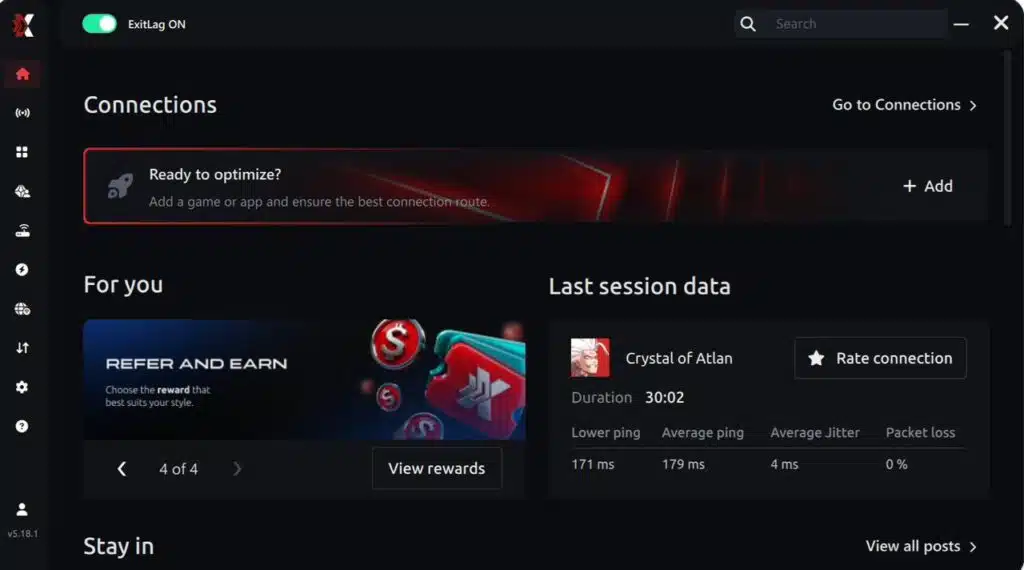
Step 3 – Search for “World of Warcraft”
Use the search bar inside ExitLag, type “World of Warcraft,” and select the correct game from the list.
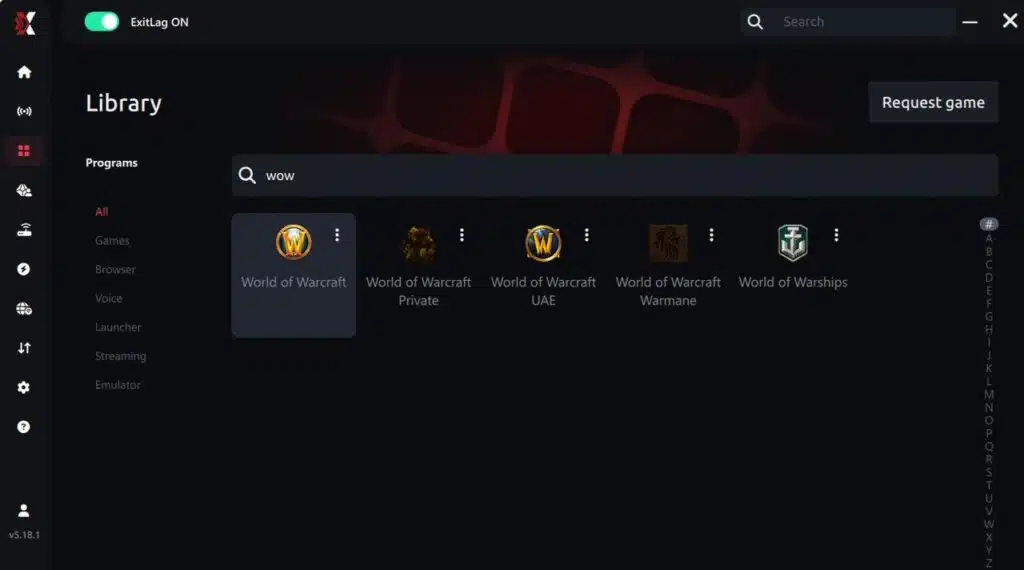
Step 4 – Choose between automated or manual routing
AI-optimized automated route
ExitLag can automatically select the best route using its AI-driven optimization system. It analyzes several connection paths in real time and picks the most efficient route for WoW, ensuring the lowest possible latency without requiring any manual setup.
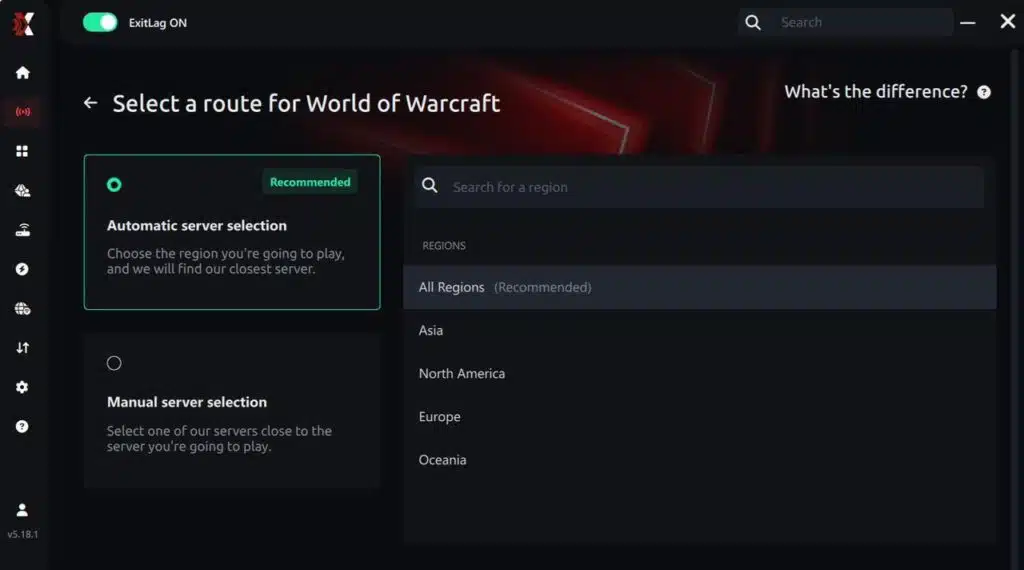
Manual route
If you prefer full control, you can manually choose a route based on the ping test results. Simply select the server that provides the lowest latency or the one that best suits your gameplay needs, whether you’re preparing for raids, arenas, or leveling.
Step 5 – Click “Apply routes”
Once you’ve selected your route, click the Apply button or the play icon. ExitLag will begin optimizing your connection.
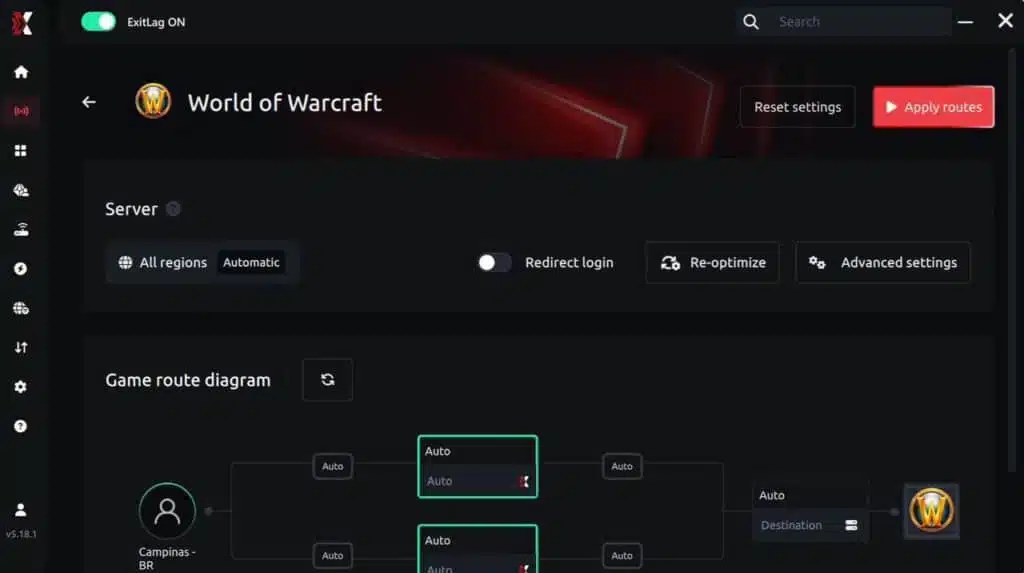
Step 6 – Wait a few seconds
Optimization completes within a few moments. You’ll see ping indicators displayed on the interface.
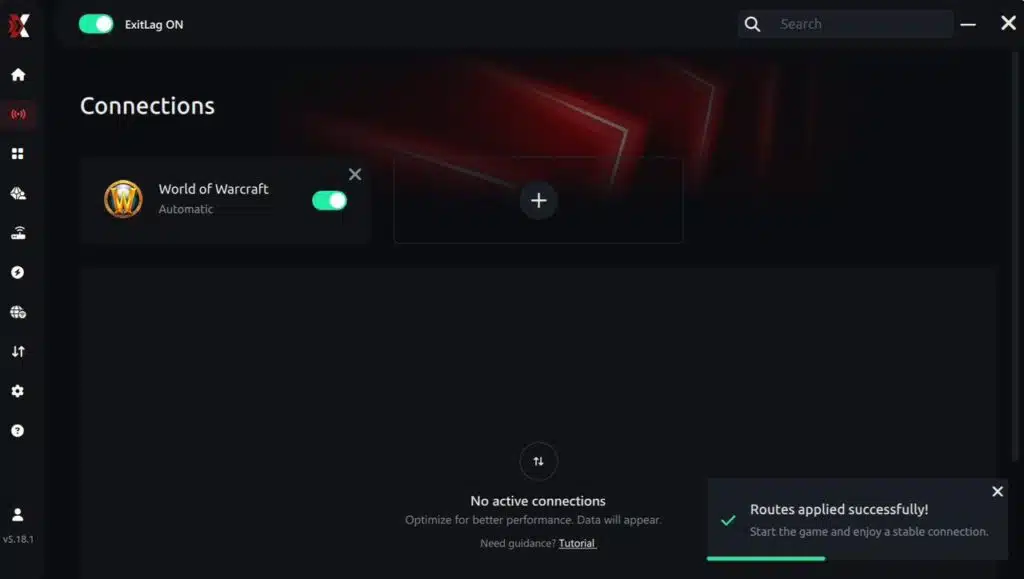
Step 7 – Launch World of Warcraft
Start WoW normally. ExitLag optimization will already be active.
ExitLag runs in the background while you play, continuously adjusting routes to maintain the best performance during raids, battlegrounds, dungeons, and open-world exploration.
How to use Ping for Games: step-by-step guide
Checking your connection quality before jumping into a raid, arena, or dungeon has never been easier. Here’s how to use ExitLag’s Ping for Games:
1. Open ExitLag
Make sure the application is installed and running on your PC. The feature is built into the platform and available for free to all users.
2. Access the Network Analyzer
In the ExitLag menu, open the Network Analyzer tool, where Ping for Games is located along with other network diagnostics.
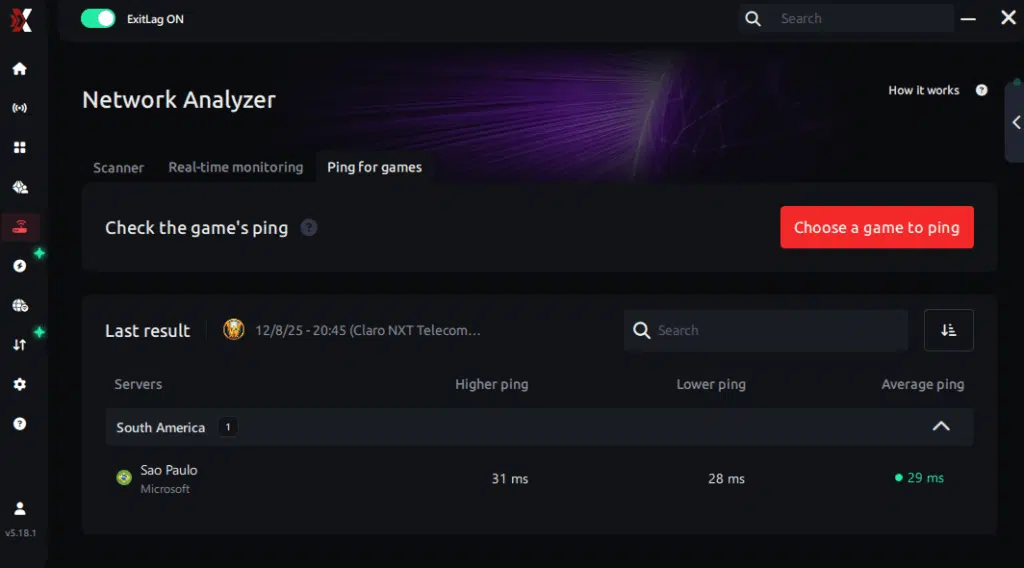
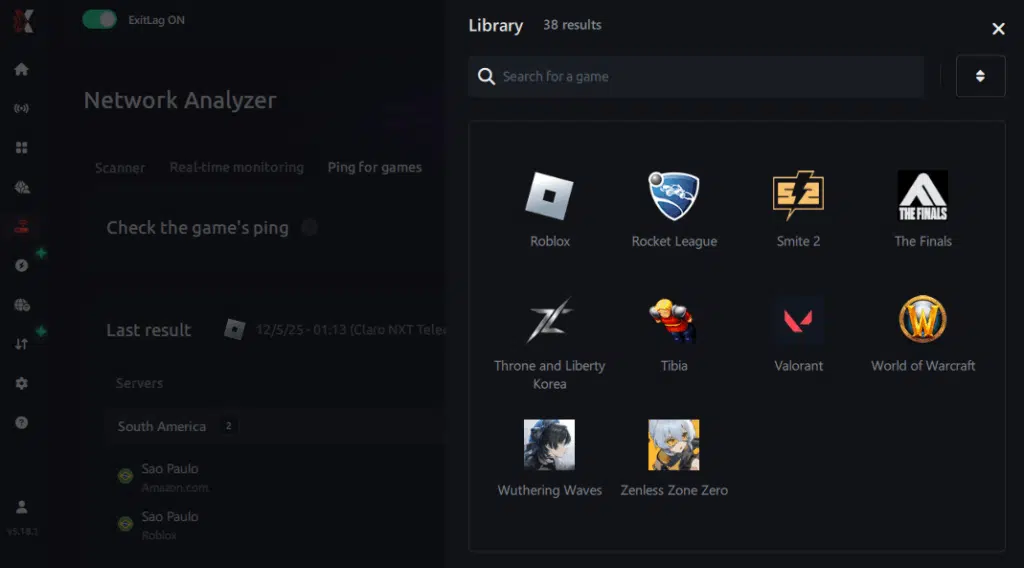
3. Select the game
Choose World of Warcraft from the list of supported games.
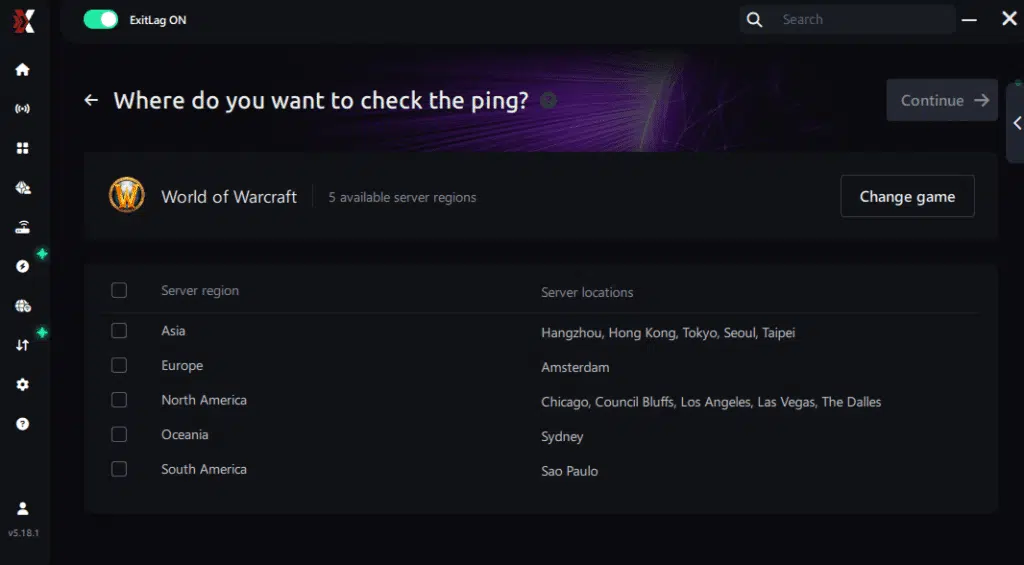
4. Choose the specific server
Ping for Games lets you directly select the exact server you want to test—such as NA, LATAM, OCE, or EU realms—providing far more accurate results than simply selecting a generic region.
5. Start the ping test
With one click, ExitLag measures real-time latency between your device and the selected server, taking your current connection (Wi-Fi or cable) into account.
6. Analyze the results
Your ping results appear in milliseconds, sorted automatically from best to worst. You can also switch to alphabetical order if you prefer.
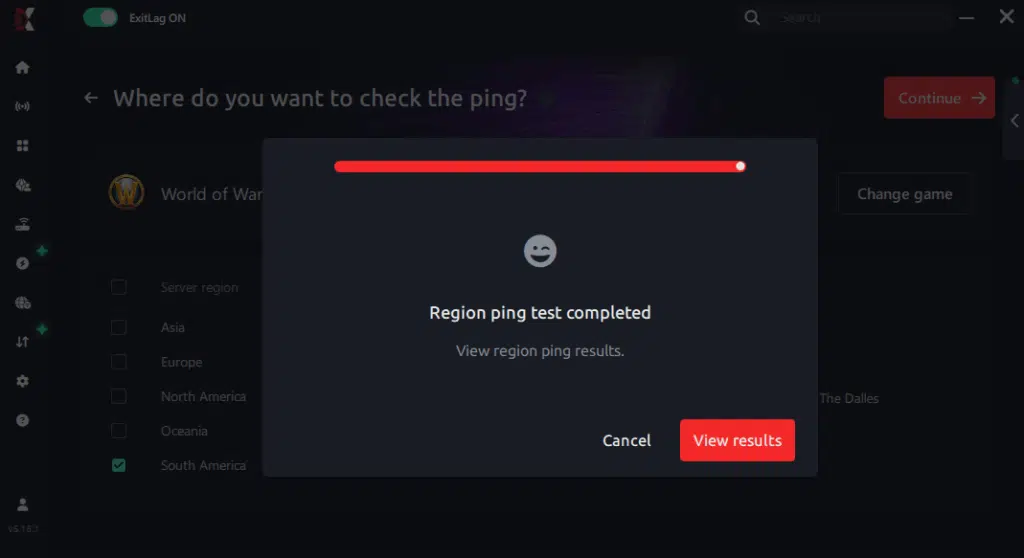
7. Choose the best server and start playing
Once you have the results, pick the server with the lowest latency and jump into the game with confidence that your connection is optimized.
Emulator setup
Even though World of Warcraft is natively a PC game, some players experiment with cloud or virtual environments. In these scenarios, ExitLag can still route the traffic from your PC to the cloud service, helping reduce World of Warcraft lag inside that streamed session.
Optimization tips
Now, for the best impact, combine ExitLag with smart local settings: close background apps, limit overlay tools, and fine-tune graphics. This way, your hardware handles visuals while ExitLag stabilizes the network, minimizing any FPS Drop World of Warcraft during intense moments.
Console players
On the other hand, if you also play other supported titles on console in the same household, ExitLag can still improve routing for those games. Even though World of Warcraft is PC-focused, learning these optimizations prepares you to avoid World of Warcraft performance issues and similar problems in other MMOs.
Before and after results with ExitLag in World of Warcraft
Real player cases
Primarily, reports from players show measurable improvements once routing is stabilized:
- Case 1: A raider saw 35% fewer visible freezes during Mythic boss pulls.
- Case 2: A PvP player reduced teleporting and desyncs by 40% in battlegrounds.
- Case 3: A casual adventurer experienced 20% smoother movement in busy capital cities, with fewer World of Warcraft frame drops.
Performance comparison table
| Metric | Without ExitLag | With ExitLag | Improvement |
| FPS stability | Frequent spikes | Mostly consistent | Smoother pacing |
| Perceived stuttering | High in big fights | Rare and brief | Noticeable reduction |
| Network latency | 90–120 ms average | 50–70 ms average | Lower and more stable ping |
| Overall experience | Unpredictable raids | Reliable, smooth runs | Better control and reaction |
In conclusion for this middle part, combining smart settings with ExitLag gives you a strong foundation to fight FPS Drop World of Warcraft and enjoy a more stable journey across Azeroth.
Additional optimizations to maximize FPS with ExitLag
Improving stability helps reduce the impact of FPS Drop World of Warcraft, but complementary tweaks ensure your gameplay stays fluid. Small adjustments to your network, system, and in-game settings support the optimizations already applied by ExitLag. This combination minimizes visual interruptions and helps avoid World of Warcraft lag even during large events.
Network
A stable network prevents inconsistent pacing that may feel like World of Warcraft stuttering. Using Ethernet instead of Wi-Fi reduces interference and packet fluctuations. Activating QoS on your router helps prioritize game traffic while other devices stream or download files. Switching to a reliable DNS improves communication with Blizzard servers. Closing heavy applications also prevents bandwidth spikes that trigger World of Warcraft performance issues during raids.
System
System maintenance plays a crucial role when preventing FPS Drop World of Warcraft. Updating GPU and CPU drivers supports rendering stability. Selecting “High-performance mode” prevents frequency drops during intense encounters. Limiting background apps ensures more CPU headroom for spell effects. A clean system with reduced startup load also lowers the chance of random World of Warcraft frame drops during combat.
In-game
Inside the game, simple adjustments make a noticeable difference. Turning off V-Sync prevents artificial frame capping that harms pacing. Setting an FPS limit that matches your monitor refresh rate keeps the engine stable. Using recommended presets aligned with your hardware reduces render pressure without sacrificing too much visual quality. These changes help control symptoms that players often confuse with World of Warcraft lag but are actually tied to performance load.
Frequently asked questions about FPS drop in World of Warcraft
This FAQ covers the most common concerns players have when facing FPS Drop World of Warcraft. These answers help clarify performance behavior and show how to improve stability with the right tools.
Does ExitLag actually improve FPS?
ExitLag stabilizes routing, which reduces jitter and pacing inconsistencies. Although FPS itself comes from hardware, stable data flow prevents micro-pauses that feel like World of Warcraft stuttering during high-action moments.
Is ExitLag safe?
Yes. ExitLag uses routing enhancements specifically built for gaming. It does not modify your files and it maintains secure communication standards for all supported titles.
Does ExitLag work on console?
While World of Warcraft is a PC game, ExitLag can optimize routing for many console titles that rely on internet stability. This reduces packet loss and helps prevent perceived World of Warcraft lag in cross-platform experiences.

How much does ExitLag cost?
ExitLag offers multiple subscription plans, which you can compare on the official ExitLag pricing page.
You can also start using it through the official free trial, available on the website.
My PC is weak, does ExitLag help?
ExitLag does not replace hardware, but it prevents network-based triggers of World of Warcraft performance issues, reducing the appearance of freezes caused by unstable routing.
Does ExitLag work with World of Warcraft?
Yes, World of Warcraft is fully supported. You can verify this by checking the updated supported games directory at ExitLag.
What’s the difference between ExitLag and a VPN?
ExitLag is optimized exclusively for gaming traffic. Unlike tunneling services, ExitLag is NOT a VPN. It does not encrypt or slow down your connection and uses multi-routing instead of traditional VPN paths.
Do addons cause FPS drops in raids?
Yes. Heavy UI addons refresh thousands of values during combat and can amplify FPS Drop World of Warcraft during boss encounters.
Does SSD storage reduce FPS drops?
Using an SSD reduces texture-loading pauses, preventing micro-freezes that players often confuse with World of Warcraft frame drops.
Fix FPS drop in World of Warcraft with ExitLag
Solving FPS Drop World of Warcraft requires balancing network stability, system settings, and in-game adjustments. ExitLag handles routing issues that normally cause jitter, animation delays, and pacing interruptions. With fewer visual disruptions, your rotations and reactions become more reliable across all regions and servers.
Final benefits
- Stable FPS
- Zero micro-stuttering
- Smooth gameplay
- Competitive advantage
- Frustration-free gameplay
.Next steps
- Test ExitLag for free
- Configure in 5 minutes
- Compare before and after
- Dominate World of Warcraft
In conclusion, solving FPS drop World of Warcraft issues requires balancing hardware, settings, and network stability. ExitLag’s multi-path technology eliminates routing delays and ensures fluid gameplay across all regions of World of Warcraft. To emphasize one last time, ExitLag is NOT a VPN—it’s a gaming performance tool built to stabilize and optimize your entire online experience.
Now that you know everything about FPS drop World of Warcraft, if you want the most stable, smooth, and competitive gameplay possible, is the time to upgrade your performance toolkit. Register at ExitLag now and improve your gameplay in a way you’ve never experienced before!
Got questions or want to connect with other players? Join the conversation at the ExitLag Forum!