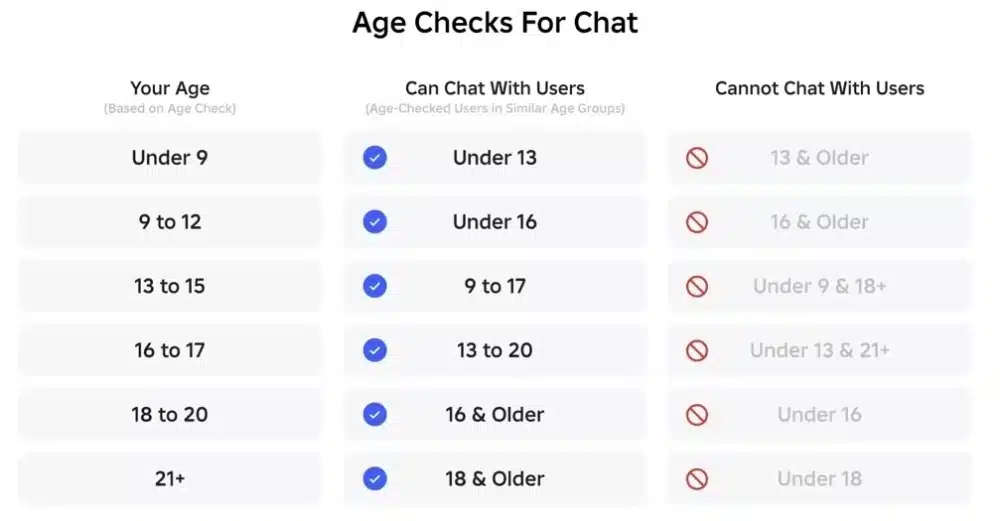
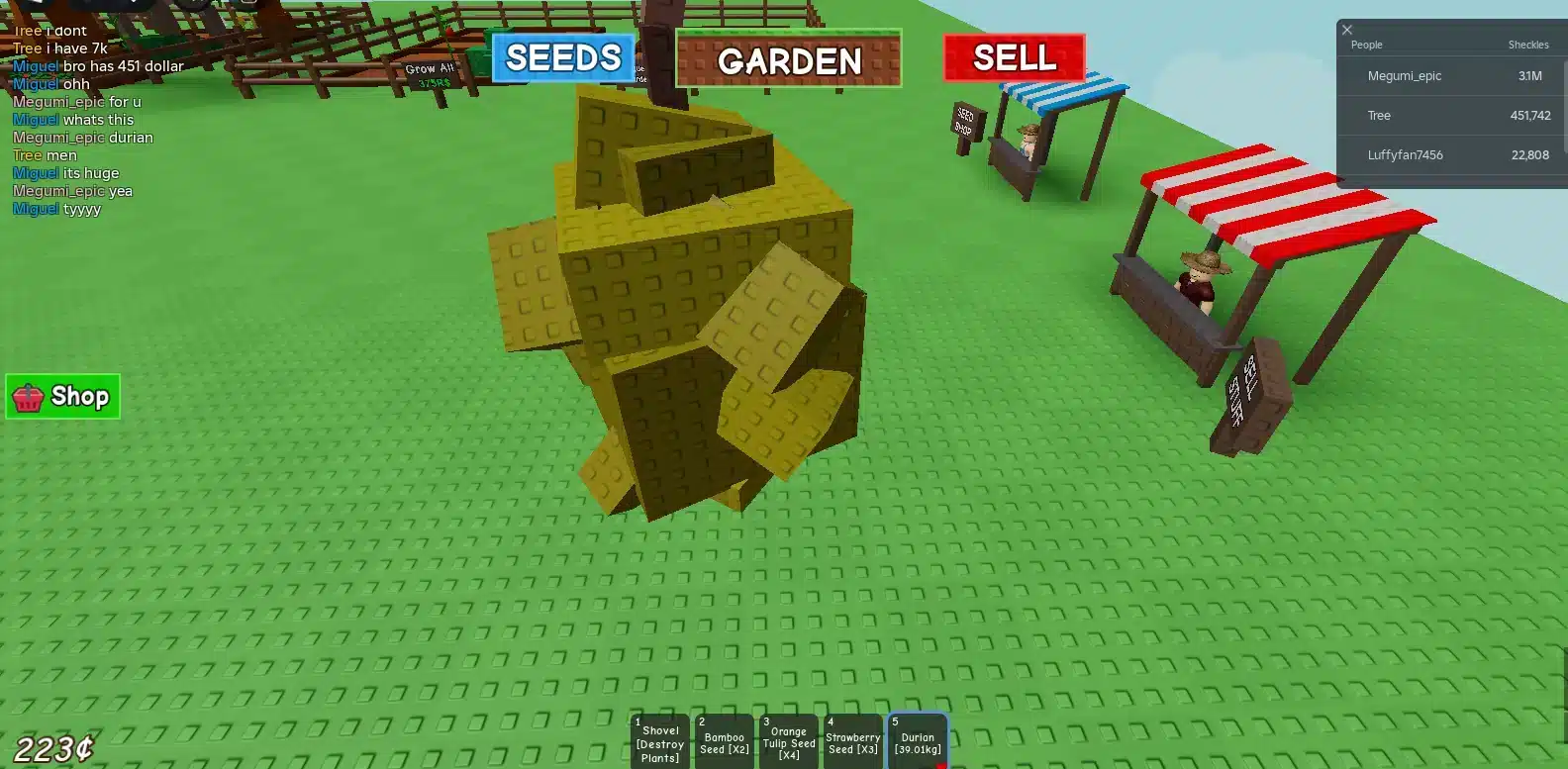
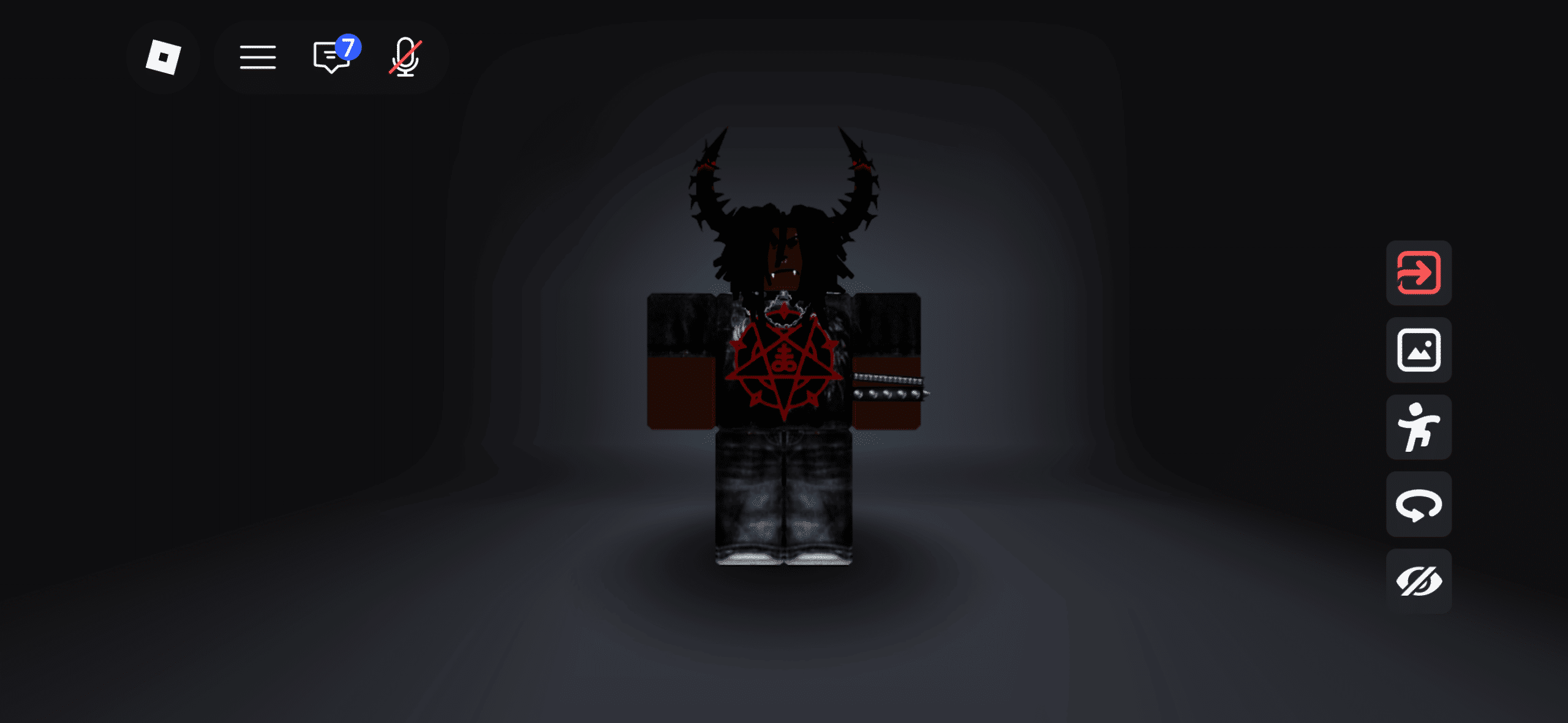
Learning how to appear offline on Roblox is one of the best ways to enjoy the platform with more privacy. Roblox is social by design, but not every player wants friends, followers, or other users to see when they are online, what experience they are playing, or whether they can be joined.
How to appear offline on Roblox is now more practical because Roblox provides visibility controls for online status and current experience activity. These settings do not make you completely invisible inside every server, but they can make selected users see you as offline on your profile or in their Friends list.
How to appear offline on Roblox depends on the visibility options available to your account. Roblox says options can vary by age and region, and may include friends, followers, users you follow, no one, or everyone on Roblox. That means your exact menu may look slightly different from another player’s account.
In this guide, you will learn how to appear offline Roblox users can see less of your activity, adjust Roblox privacy settings, understand the limits of Roblox invisible mode, hide online status Roblox visibility, and create a safer Roblox offline appearance for quieter play sessions.
Can you appear offline on Roblox?
Yes, you can appear offline on Roblox to certain users by changing your online status visibility. Roblox’s official help page explains that users outside your selected visibility preference will see you as offline on your Roblox profile or in their Friends list.
However, this is not the same as becoming fully invisible across the entire platform. If you are inside a public experience, other players in that same server may still see your avatar, username, chat messages, or gameplay actions. The offline setting mainly controls profile and Friends-list visibility.
That distinction matters. Many players search for Roblox invisible mode, but Roblox’s current tools are better described as visibility controls, not total invisibility.
What “appear offline” really means
When you adjust your online status visibility, Roblox limits who can see that you are online. This helps create a more private experience, especially if you want to play without being interrupted.
Using Roblox offline appearance settings can help when you want to:
- Play alone without friend requests.
- Avoid being joined by other users.
- Test experiences quietly.
- Reduce social pressure.
- Explore games without being watched.
- Stop others from tracking your activity.
- Prevent casual followers from seeing your status.
Still, this does not erase your presence everywhere. If you join an experience, people in that experience may still interact with you normally.
What offline mode cannot hide
Even after you hide online status Roblox visibility, some things may remain visible depending on the situation.
Offline appearance may not hide:
- Your avatar inside active servers.
- Your username in a player list.
- Your chat messages.
- Your profile information.
- Your groups or communities.
- Your public creations.
- Your marketplace items.
- Your presence if someone joins the same server by chance.
So, if your goal is complete privacy, combine online status settings with join restrictions, message limits, and cautious public server behavior.
How to appear offline on Roblox step by step
To manage how to appear offline on Roblox, use the official visibility settings. Roblox’s help page says users can go to Settings, open Privacy & content restrictions, then go to Visibility & private servers and choose a preferred visibility level under Online Status.
The steps may vary slightly between desktop and mobile, but the main path is the same.
On desktop
To appear offline Roblox players see from a computer:
- Open Roblox and log in.
- Click the gear icon in the top-right corner.
- Select Settings.
- Go to Privacy & content restrictions.
- Open Visibility & private servers.
- Go to Visibility.
- Find Online Status.
- Choose who can see you online.
- Select No one if you want the strongest offline-style option.
Once this is changed, people outside your selected preference should see you as offline on your profile or Friends list.
On mobile
To change Roblox privacy settings on mobile:
- Open the Roblox app.
- Tap More at the bottom-right.
- Tap Settings.
- Open Privacy & content restrictions.
- Go to Visibility & private servers.
- Open Visibility.
- Adjust Online Status.
- Choose No one, Friends, or another available option.
Mobile settings can change depending on app version, region, and account type. If you do not see the exact same menu, update the app and check your account’s privacy controls again.
How do you hide what game you are playing on Roblox?
Appearing offline is only part of the privacy setup. You may also want to hide which experience you are currently playing. Roblox provides a separate setting called Show current experience, which controls who can see the experience you are in and who can join you through visibility features.
This is important because some players do not mind appearing online, but they do not want others to see the exact game they are playing.
Show current experience setting
To hide your current experience:
- Go to Settings.
- Open Privacy & content restrictions.
- Go to Visibility & private servers.
- Open Visibility.
- Find Show current experience.
- Select your preferred visibility level.
- Choose No one for the most private option.
Roblox states that users outside your selected preference will not see the experience you are playing.
This is one of the most useful Roblox privacy settings for players who want a quieter session without fully disconnecting from friends.
How this affects joins
If someone can see your current experience and your join settings allow it, they may be able to join you. Roblox’s help page explains that users can join another player if that player is currently in an experience and allows people to follow them into that experience.
So, to hide online status Roblox activity more effectively, do not adjust only one setting. Combine online status visibility with current experience visibility and join permissions.
This gives you better control over:
- Who sees you online.
- Who sees what you are playing.
- Who can join your session.
- Who gets activity updates about you.
How do you stop people from joining you on Roblox?
If your main concern is being interrupted, you should adjust your join settings. Roblox has privacy and chat controls that let account owners limit or disable who can chat with them, send messages, follow them into experiences, or invite them to private servers.
This is different from simply appearing offline. A player might not see you as online, but join permissions are still worth reviewing separately.
Limit who can join your experiences
To reduce unwanted joins:
- Open Settings.
- Go to Privacy & content restrictions.
- Open Visibility & private servers.
- Review visibility and private server options.
- Limit who can follow or join you.
- Choose No one if available and appropriate.
If your account uses different privacy labels, look for settings related to joining, following into experiences, or current experience visibility.
This helps create a stronger Roblox invisible mode effect, even if Roblox does not offer complete invisibility.
Use private servers when needed
Private servers can also help if you want more control over who plays with you. Roblox explains that if an experience creator enables private servers, users can create or join private servers and configure access depending on the experience’s rules.
Private servers are useful when you want to:
- Play only with selected friends.
- Test something quietly.
- Avoid random public players.
- Record content without interruptions.
- Host a small group session.
- Keep social gameplay controlled.
However, private server availability and cost depend on the experience creator. Some are free. Others require Robux.
What Roblox privacy settings should you change?
The best Roblox privacy settings for offline-style play are the ones that reduce visibility and interaction at the same time. Online status is important, but it should not be the only setting you adjust.
For a stronger Roblox offline appearance, review every area that controls communication, activity, joining, and private servers.
Recommended privacy setup
A privacy-focused setup may look like this:
| Setting area | Recommended option |
| Online Status | No one or Friends |
| Show current experience | No one or Friends |
| Share activity updates | Off |
| Messages | Friends or No one |
| Experience chat | Limited based on preference |
| Join/follow permissions | Friends or No one |
| Private server invites | Friends or restricted |
| Friend requests | Limited to people you know |
Roblox’s official online status page also says users can turn Share activity updates on or off to control whether friends receive updates about recent in-experience activity.
Extra safety habits
Settings help, but behavior matters too.
Use these habits:
- Do not accept every friend request.
- Avoid sharing personal information.
- Do not tell strangers where you are playing.
- Avoid suspicious links.
- Leave servers that feel unsafe.
- Block or report users who harass you.
- Keep your account email secure.
- Enable stronger account protection when available.
- Review settings after Roblox updates.
If you are under 18, it can also be useful to review parental or guardian-managed settings. Roblox has continued updating safety and privacy tools, especially for younger users and families.
Is there a real Roblox invisible mode?
There is no full traditional Roblox invisible mode that makes you completely undetectable everywhere. What Roblox offers is a set of visibility controls that can make your online status and current experience less visible to selected users.
This is still useful. For most players, the goal is not total invisibility. The goal is fewer interruptions, fewer unwanted joins, and less social pressure.
Offline appearance vs invisible mode
Here is the difference:
| Feature | What it does |
| Offline appearance | Makes selected users see you as offline |
| Current experience visibility | Hides what experience you are playing from selected users |
| Join restrictions | Limits who can follow or join you |
| Private server access | Controls who can enter a private server |
| Full invisibility | Not fully available as a platform-wide mode |
So, when players ask how to appear offline on Roblox, the accurate answer is: you can create an offline appearance through settings, but you cannot become completely invisible in every public space.
When offline mode is useful
Offline-style settings are useful in many situations.
Use them when you want to:
- Play without being interrupted.
- Avoid social pressure.
- Take a break from friends.
- Explore new games quietly.
- Build or test without attention.
- Avoid being followed into experiences.
- Reduce unwanted messages.
- Control your social availability.
This can make Roblox feel more comfortable, especially if you use the platform often.
How can ExitLag improve private Roblox gameplay?
ExitLag does not change Roblox privacy settings, create a true Roblox invisible mode, or hide your profile. You still need to manage privacy inside Roblox. However, ExitLag can help improve the connection side of your Roblox sessions, which matters when you want quiet, stable gameplay.
If you are playing privately, testing experiences, joining selected friends, or using private servers, lag can still ruin the session. A smoother connection helps you focus on playing instead of dealing with delays, disconnects, or unstable movement.
Why connection stability matters
Connection problems can affect Roblox in several ways:
- Delayed movement.
- Rubber-banding.
- Slow loading.
- Failed joins.
- Disconnections.
- Lag during private servers.
- Delayed interactions.
- Choppy gameplay.
- Poor performance in larger experiences.
Even if you know how to appear offline on Roblox, your session can still feel frustrating if your connection is unstable.
Using ExitLag with Roblox
ExitLag helps optimize the route between your device and game servers. That can reduce route instability and improve session consistency, especially when your default connection path is poor.
ExitLag can help if you:
- Play Roblox often.
- Use private servers.
- Join friends in other regions.
- Experience random lag spikes.
- Deal with packet loss.
- Get disconnected during sessions.
- Want smoother gameplay while staying low-profile.
For better results, combine ExitLag with good local habits:
- Use wired internet when possible.
- Close downloads while playing.
- Avoid heavy streaming during Roblox sessions.
- Restart your router if needed.
- Keep Roblox updated.
- Choose servers carefully when possible.
ExitLag supports performance. Roblox settings support privacy. Together, they help create a smoother and quieter play experience.
FAQ
How do I appear offline on Roblox?
To appear offline on Roblox, go to Settings, open Privacy & content restrictions, select Visibility & private servers, then adjust Online Status. Choose No one if that option is available and you want the strongest offline-style privacy. Roblox says users outside your selected preference will see you as offline on your profile or Friends list.
Can I hide what game I am playing on Roblox?
Yes. Use the Show current experience setting under Visibility. Roblox says users outside your selected preference will not see which experience you are playing. This is one of the most useful ways to hide online status Roblox activity beyond the basic online indicator.
Does Roblox have invisible mode?
Roblox does not have a full platform-wide invisible mode. You can adjust visibility settings to create a Roblox offline appearance, but players in the same public server may still see your avatar or username.
Can people still join me if I appear offline?
They may not see you as online if your settings hide your status, but you should also restrict current experience visibility and join permissions. Roblox explains that players can join another user when the user is in an experience and allows people to follow them.
Where are Roblox privacy settings?
Roblox privacy settings are found under Settings. For online status and experience visibility, go to Privacy & content restrictions, then Visibility & private servers, then Visibility.
Can I turn off Roblox activity updates?
Yes. Roblox says users can control whether friends receive updates about recent in-experience activity by toggling Share activity updates on or off.
Stay private while playing Roblox
Learning how to appear offline on Roblox gives you more control over how visible you are while using the platform. You can limit who sees your online status, hide your current experience from selected users, turn off activity updates, restrict joins, and reduce unwanted interactions.
The key is understanding the limits. Offline appearance is not total invisibility. It helps selected people see less of your activity, but it does not erase your presence inside public servers or remove all profile visibility.
For the strongest setup, review:
- Online Status.
- Show current experience.
- Share activity updates.
- Join permissions.
- Message settings.
- Private server settings.
- Friend and follower behavior.
Once your privacy is set, focus on the quality of your session. How to appear offline on Roblox helps you stay low-profile, while ExitLag helps make Roblox gameplay smoother by reducing lag, improving route stability, and supporting quieter sessions without connection issues getting in the way.