Waiting hours for a modern hundred-gigabyte game to finish installing can completely ruin your gaming session. When you want to jump straight into new releases with friends, learning How To Boost Steam Download Speed becomes essential.
Fortunately, mastering How To Boost Steam Download Speed requires only a few straightforward adjustments inside your client and network configuration. You do not need expensive hardware upgrades to see an immediate improvement in your data transfer rates.
To boost your download performance immediately, switch your download region to an uncrowded nearby server, disable in-client bandwidth throttles, clear your download cache, and prioritize Steam traffic across your local network. These simple actions instantly unlock your true bandwidth potential.
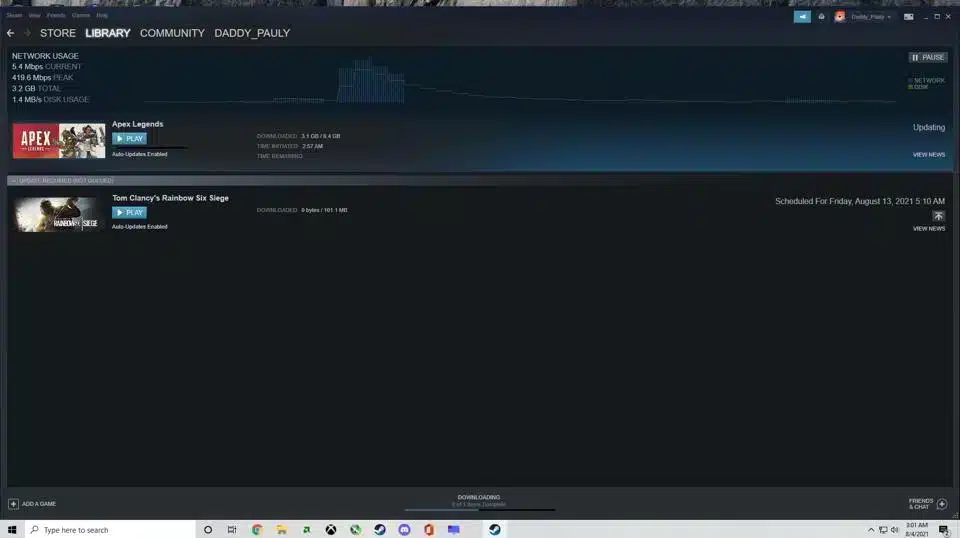
How To Boost Steam Download Speed: Core Client Configurations
Steam comes with several default parameters that are designed to protect general internet stability rather than maximizing raw transfer throughput. Consequently, fine-tuning these options directly inside your client settings yields immediate speed increases.
Furthermore, understanding how the platform handles background processing will prevent unnecessary throttling while you use your computer for other tasks.
Steam Menu -> Settings -> Downloads
Optimizing Download Regions And Server Routing
Steam operates hundreds of content delivery servers across the globe to distribute game files efficiently. However, the automatically selected server nearest to your physical location may suffer from heavy peak-time congestion.
When thousands of local players download a major game update simultaneously, transfer speeds plummet. Therefore, manually selecting an alternate server region located in an adjacent city or neighboring time zone frequently bypasses local bottlenecks and restores full bandwidth.
- Open Steam and click on the top-left menu bar.
- Select Settings, then navigate to the Downloads tab.
- Locate the Download Region dropdown menu.
- Select a nearby alternative server located in an adjacent region.
- Restart Steam to apply the server routing update.
Managing Bandwidth Limits And Background Downloads
The client features dedicated throttling controls that restrict transfer rates to preserve bandwidth for web browsing or other devices. If any throttle value is active, your client artificially caps incoming data far below your internet service plan limits.
In addition, Steam automatically pauses or heavily throttles downloads whenever a game is currently running. If you want updates to proceed while playing single-player titles, you must explicitly enable background downloading.
- Uncheck the Limit Download Speed toggle inside the Downloads menu.
- Check the Allow Downloads During Gameplay box if you game while downloading.
- Toggle off the Throttle Downloads While Streaming setting to eliminate background video limitations.
- Set the schedule auto-updates option to unrestricted hours so patches install immediately.
How To Boost Download Speed On Steam With Network Optimization
Your local network configuration plays a decisive role in maintaining high sustained throughput for large file chunks. Even with high tier fiber optic subscriptions, local network interference can severely restrict your effective transfer rate.
Therefore, optimizing your connection pipeline ensures that packets travel between game servers and your local drive without disruption. Applying a Steam Slow Download Fix begins right at your home router.
Switching From Wireless To Direct Ethernet
While modern Wi-Fi standards offer impressive top speeds, wireless signals remain vulnerable to channel interference, wall obstruction, and sudden packet drops. Consequently, your client repeatedly renegotiates TCP connections during sustained downloads.
Connecting your desktop or laptop directly to your router via a Cat6 Ethernet cable eliminates signal degradation entirely. As a result, your connection maintains maximum bandwidth saturation without intermittent slowdowns.
- Connect a dedicated Cat6 or Cat7 Ethernet cable between your computer and router.
- Disable active Wi-Fi adapters in Windows network settings to avoid route conflicts.
- Restart your network router once a week to clear internal memory buffer caches.
- Disconnect unused smart devices that consume local upload bandwidth in the background.
+------------------+ Direct Cat6 Cable +------------------+
| Router/Modem | ===============================> | Gaming PC / |
| Gigabit Port | Low Latency, Zero Packet Loss | Steam Client |
+------------------+ +------------------+
Clearing Download Cache And Resetting Network Stacks
Corrupted temporary files inside your local installation folder can create artificial bottlenecks. When Steam encounters damaged cached chunks, it repeatedly halts incoming data streams to verify file integrity.
Clearing the local download cache forces the client to rebuild its temporary storage indexes. This simple maintenance step resolves phantom transfer pauses and restores baseline speeds.
- Open your Steam Settings window and select the Downloads section.
- Click the Clear Download Cache button at the bottom of the window.
- Confirm the prompt and allow Steam to restart automatically.
- Log back into your account and resume your queued installations.
- Open Windows Command Prompt as administrator and execute netsh int ip reset if issues persist.
Advanced Windows And Storage Tweaks For Faster Steam Downloads
Downloading modern games is not merely an internet bandwidth task; it is also an intensive disk write and CPU decompression operation. Steam downloads compressed file packages and unpacks them in real time directly onto your drive.
If your storage drive or system scheduler cannot write data as fast as your connection provides it, the client pauses downloads to let storage catch up. Applying Faster Steam Downloads strategies requires balancing both network and hardware resources.
Disabling Windows Bandwidth Metering And Background Apps
Windows includes built-in quality of service rules and delivery optimization services that consume networking resources behind the scenes. In addition, cloud backup applications frequently initiate sync operations during massive file writes.
Shutting down background resource consumers ensures that Steam receives full system priority. This approach maximizes processing power for real-time file decompression.
- Open Task Manager by pressing Ctrl + Shift + Esc on your keyboard.
- Identify high bandwidth consumers in the Network column and end their tasks.
- Turn off peer-to-peer Windows Update Delivery Optimization in Windows Settings.
- Pause active OneDrive, Google Drive, or Dropbox synchronizations while downloading large games.
Configuring Antivirus Exclusions And High-Speed Storage
Third-party antivirus utilities actively scan incoming data packets and newly written storage blocks in real time. Because game updates contain tens of thousands of individual asset files, active antivirus scanning drastically increases disk write queues.
Adding your library folder to your security exclusions eliminates this constant disk access friction. Furthermore, installing games onto an NVMe Solid State Drive guarantees that write speeds never bottleneck incoming gigabit connections.
- Navigate to Windows Security and open Virus & Threat Protection settings.
- Scroll down to Exclusions and click Add or Remove Exclusions.
- Select Folder and choose your primary SteamLibrary directory.
- Move your default installation directory from a mechanical Hard Disk Drive to an NVMe Solid State Drive.
Steam Download Settings And Hardware Comparison
Selecting optimal storage and connection hardware is critical for sustaining uncapped transfer rates over long periods. The following comparison illustrates how different hardware configurations impact real-world game installations.
| Configuration Component | Standard Setup | Optimized Gaming Setup | Performance Impact |
| Network Connection | 2.4 GHz / 5 GHz Wi-Fi | Direct Cat6 Gigabit Ethernet | Eliminates packet loss and stabilizes throughput |
| Storage Drive Type | 7200 RPM Hard Drive (HDD) | NVMe PCIe M.2 SSD | Removes write bottleneck during file decompression |
| Windows Delivery Opt. | Default Enabled | Disabled / Restricted | Frees up background upload and download bandwidth |
| Antivirus Scanning | Real-Time On Library | Library Folder Excluded | Cuts disk queue overhead and CPU overhead |
| Client Server Region | Auto Selected | Manually Tested Congestion-Free | Bypasses peak hour server capacity limits |
Pro Tips: Steam Download Optimization
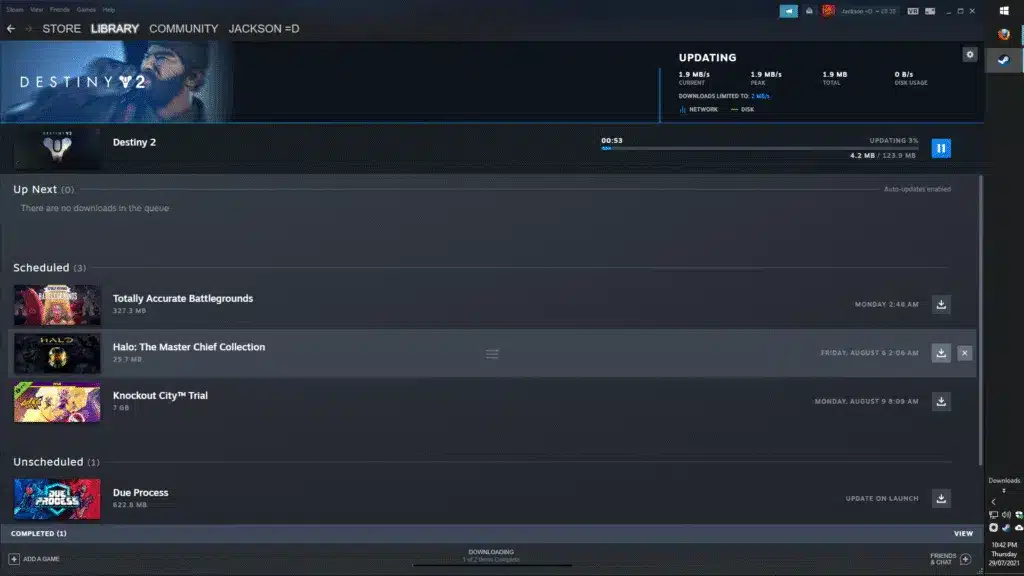
- Track Disk Usage Graphs: Observe the green disk usage line inside the Steam download manager. If the disk line flatlines while the network line drops, your storage drive is the real bottleneck rather than your internet provider.
- Change DNS To Public Providers: Configure your network adapter to use Cloudflare DNS (1.1.1.1) or Google DNS (8.8.8.8). Fast domain resolution helps Steam establish CDN connections much quicker.
- Adjust Process Priority: Open Task Manager, locate steam.exe under Details, and set priority to Above Normal. This gives the decompression process more CPU cycles during intense installations.
- Utilize Local Network Game Transfers: If you have multiple PCs on the same home network, enable Steam Local Network Transfers. The client copies game files directly across your local network at multi-gigabit speeds without using internet bandwidth.
Common Mistakes Steam Users Make
- Confusing Megabits With Megabytes: Many gamers mistake Megabits per second (Mbps) for Megabytes per second (MB/s) and assume their speed is broken. Fix: Remember that eight Megabits equal one Megabyte, so a 100 Mbps connection maxes out around 12.5 MB/s.
- Leaving Torrent Clients Open: Keeping peer-to-peer file sharing applications running saturates your router upload channel. Fix: Completely exit all torrent and file synchronization software before starting major game downloads.
- Downloading Over Saturated Home Connections: Launching massive downloads while other household members stream 4K video introduces heavy packet queuing. Fix: Schedule downloads overnight or configure router Quality of Service rules to balance bandwidth.
What Causes Steam Slow Download Fix Issues During Peak Hours?
Server congestion during global game releases remains the primary cause of sudden speed drops on otherwise fast internet connections. When millions of players attempt to download a major title at the exact same minute, CDN nodes reach their output bandwidth ceiling.
Moreover, internet service providers often practice dynamic traffic shaping during evening peak usage windows. If your provider detects prolonged high-bandwidth streams, it may deprioritize gaming traffic.
Identifying ISP Throttling
Internet service providers frequently manage total network loads by throttling sustained bulk data transfers. You can identify this behavior by running a standard browser speed test while your Steam download is actively crawling.
If your browser test achieves full speed while your game client stays restricted, your provider is likely throttling the specific protocols or ports used by the gaming platform.
- Compare third-party speed test results against active client transfer rates.
- Contact your service provider to verify if bandwidth data caps apply to your monthly plan.
- Enable DNS over HTTPS inside Windows to prevent transparent DNS redirection.
How Do You Flush Steam Download Stacks?
Over extended periods of continuous usage, network sockets inside the operating system and client can enter stale states. Flushing these networking caches restores normal handshaking protocols between your client and content distribution servers.
Executing a quick flush command resets internal communication sockets without deleting your installed games or custom preferences.
- Press Windows Key + R to open the Run dialog box.
- Type steam://flushconfig and press Enter.
- Confirm the prompt to reset your client configurations.
- Restart your computer to establish fresh networking routes.
Elevate Your Entire Gaming Network With ExitLag
Optimizing your local client and network settings solves storage and throughput bottlenecks, but overall gaming performance depends heavily on end-to-end connection routing. Once your games finish downloading, in-game responsiveness, ping stability, and zero packet loss become your top priorities.
ExitLag is a dedicated game connection optimizer engineered specifically to eliminate routing inefficiencies between your PC and gaming servers worldwide. Unlike generic networking tools, it actively maps out multiple server routes in real time.
[ Your Gaming PC ] ======= Dedicated Multipath Route =======> [ Game Server ]
(Automatic Failover & Lowest Ping)
By leveraging patented Multipath Technology, ExitLag transmits your critical gameplay packets across several simultaneous pathways. If one physical network route experiences unexpected jitter or packet loss, your game data seamlessly continues along the fastest remaining path without dropping a single input.
Furthermore, built-in Traffic Shaper features prioritize your gaming packets above all other software running on your computer. Combined with the integrated PC Boost utility, ExitLag cleans system memory and optimizes background processes to deliver ultra-smooth frame rates and responsive gameplay.
Ready to transform your online gaming experience with low ping and rock-solid connection stability? Get started today by securing your ExitLag Download and dominate every match without network lag.
Frequently Asked Questions About Steam Downloads
Understanding the finer details of how digital storefronts handle content delivery helps you diagnose issues quickly and keep your game library ready to play.
Why Does My Steam Download Stop And Start Continuously?
This behavior almost always points to a storage or CPU decompression bottleneck rather than an internet connection failure. Steam downloads compressed chunks of game files, writes them to your drive, and decompresses them simultaneously.
If your hard drive write queue becomes overloaded, the client intentionally pauses incoming network traffic until the disk finishes processing the current data block. Upgrading to an NVMe Solid State Drive or adding your library folder to antivirus exclusions resolves this stop-and-start pattern immediately.
Does Changing Download Region Affect Matchmaking?
Changing your download region inside the client settings only affects the content delivery servers used for game installations and file updates. It has no impact on in-game multiplayer server matchmaking.
Multiplayer matchmaking is determined by in-game server browsers or dedicated game server infrastructure based on real-time latency. Therefore, you can safely select an alternate download server without worrying about being placed into high-ping foreign lobbies.
Final Steps For Maximum Download Throughput
Taking complete control of your digital storefront configurations ensures you spend less time waiting on progress bars and more time playing your favorite games. By applying these client tweaks, optimizing your home network, and eliminating local hardware bottlenecks, you achieve stable, full-speed game installations every time.
Whenever you prepare for massive upcoming releases, remember that mastering How To Boost Steam Download Speed ensures your library is always updated at maximum velocity.
All game images used in this blog post belong to Valve Corporation. They are used for informational and educational purposes only and do not imply endorsement or affiliation with the rights holders.
Do you want to make any changes, or should I move on to the next step?