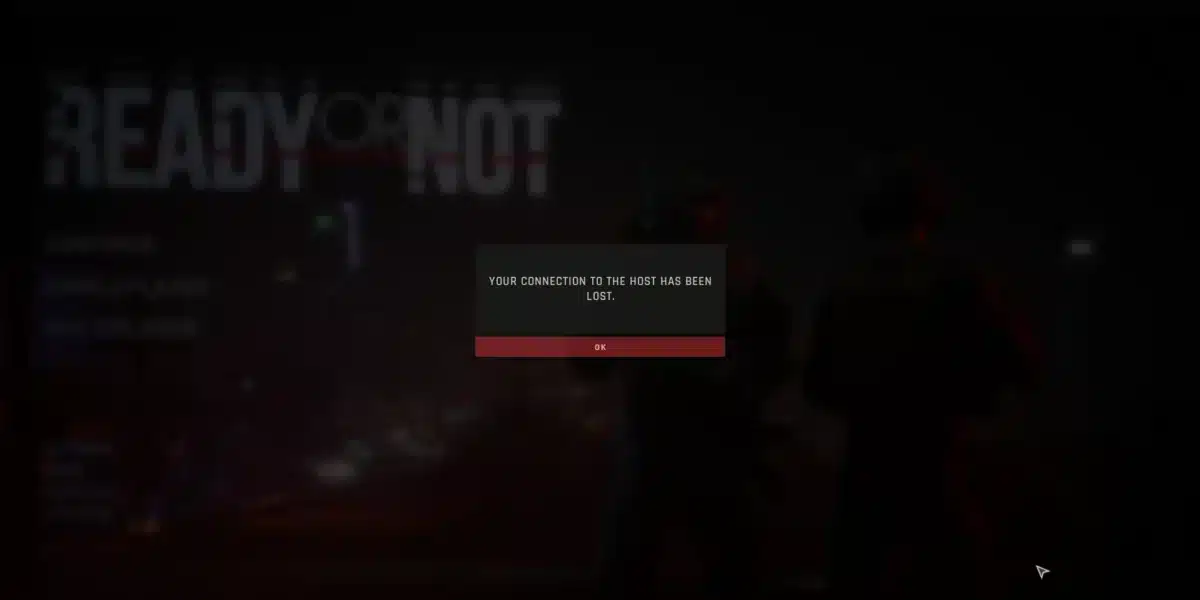
If your clicks feel delayed or your screen reacts a beat too late, you are dealing with Computer Latency. It is one of the most misunderstood problems in PC gaming.
Most players blame their internet first. However, the real culprit is often hiding inside the machine itself, not just the network cable.
Computer Latency is the total delay between an action and the moment it appears on screen. It includes your input device, your processor, your RAM, your GPU, and your display, not just your connection. Understanding each piece is the only way to actually fix it.
This guide breaks down every source of delay, how to measure it, and the exact settings that lower it. We also cover where a tool like ExitLag fits into the picture for online games.

What Is Computer Latency And Why It Matters
Computer Latency describes the time gap between an input event and the visible result of that event. Think of it as the full chain, not a single number.
Every step in that chain adds a few milliseconds. Individually they seem tiny, but stacked together they can turn a fast reaction into a missed shot.
This matters most in competitive games where reaction windows are measured in milliseconds. A sluggish system can make a skilled player feel slow, even with a strong internet connection.
The Full Latency Chain
Understanding the chain helps you know where to look when something feels off.
- Input device delay: Time for your mouse or keyboard signal to reach the PC.
- Processing delay: Time for the CPU to interpret that signal.
- Render queue delay: Time the GPU takes to draw the next frame.
- Display delay: Time your monitor takes to show the finished frame.
- Network delay: Time your data takes to reach a game server and return.
How Latency Differs From Lag And Ping
Many players use these words interchangeably, but they describe different things.
Ping is the round trip time between your PC and a server, measured in milliseconds. Latency is broader: it covers your entire system, including hardware and software.
Lag is simply what you feel, the visible stutter or delay. In short, latency causes lag, and ping is only the network slice of that latency.
What Causes High Computer Latency
There is rarely one single cause. Instead, several small delays usually combine to create a noticeable problem.
Outdated drivers, background software, weak hardware, and network congestion are the most frequent offenders. Each one adds its own layer of delay to the total.
Consequently, fixing latency means checking multiple areas at once rather than chasing a single setting.
Hardware-Related Causes
Your components each contribute a piece of the total delay.
- CPU bottlenecks: An overloaded processor cannot keep up with game logic, delaying frame generation.
- GPU render queue buildup: When your graphics card hits 100 percent usage, frames pile up before they display.
- RAM timings: Slower CAS Latency (CL) values on your memory can add microseconds to every data request.
- Storage speed: A slow hard drive causes longer load stutters that feel like latency spikes.
- Peripheral polling rate: A mouse with a low polling rate reports its position less often, adding delay.
Software And Network Causes
Software issues are often easier to fix than hardware limitations.
- Background applications: Browsers, launchers, and chat apps consume CPU cycles and bandwidth.
- Outdated GPU drivers: Old drivers miss out on newer latency-reduction optimizations.
- V-Sync enabled: This setting can add a full frame or more of input delay.
- Network congestion: Other devices on your Wi-Fi network compete for the same bandwidth.
- Poor routing: Your data may travel an inefficient path to reach the game server.
How To Reduce Computer Latency Step By Step
There is a logical order to troubleshooting Computer Latency, and most players skip straight to the wrong step. Start with software, then move to hardware.
Following a structured process saves time and avoids unnecessary purchases. Here is the sequence that experienced players actually use.
A Practical Optimization Checklist
- Update your GPU and chipset drivers to the newest stable versions.
- Close background apps that are not needed during play, especially browsers and overlays.
- Disable V-Sync and cap your frame rate slightly below your monitor’s refresh rate.
- Enable NVIDIA Reflex, AMD Anti-Lag, or Intel XeLL if your game supports it.
- Switch from Wi-Fi to a wired Ethernet connection whenever possible.
- Set your router to prioritize gaming traffic using Quality of Service settings.
- Adjust your mouse polling rate to 1000Hz for faster input reporting.
Reducing Input Lag Specifically
Input lag is the piece of the chain most players notice first, since it directly affects how responsive their clicks feel.
Lowering it usually means adjusting settings rather than buying new gear. A 165Hz or higher monitor paired with the right display mode matters more than raw GPU power for this specific delay.
Enable Full Screen Exclusive mode instead of Borderless Windowed where possible. This mode typically shaves several milliseconds off your total input chain.
Is Faster RAM Worth It For Lower Computer Latency
This is a common question among players building or upgrading a gaming PC. The short answer is yes, but only within reason.
CAS Latency measures the delay between a memory request and the moment data becomes available. Tighter timings reduce that delay slightly with every request your CPU makes.
However, frequency and timings work together. A memory kit rated CL16 at a higher clock speed can outperform a CL14 kit running slower, so balance both numbers rather than chasing one alone.
Latency Comparison Table
The table below shows typical latency ranges so you can benchmark your own setup.
| Latency Type | Good Range | Noticeable Delay | Poor Range |
|---|---|---|---|
| Network Ping (Competitive) | Under 30ms | 50 to 80ms | Over 100ms |
| Input Lag (Mouse to Screen) | Under 15ms | 15 to 30ms | Over 30ms |
| GPU Render Queue Delay | Under 10ms | 10 to 20ms | Over 20ms |
| RAM CAS Latency (Effective) | Under 10ns | 10 to 13ns | Over 13ns |
Does Upgrading My PC Actually Lower Latency?
Yes, but the gains depend on where your current bottleneck sits. Upgrading a GPU will not help much if your real problem is an overloaded CPU or outdated drivers.
Therefore, diagnose the bottleneck first using in-game frame time graphs or third-party monitoring tools. Spend money only on the component that is actually limiting you.
Pro Tips: Lowering Computer Latency
- Run a clean driver install: Old driver remnants can conflict with new versions and quietly add delay. A fresh install often fixes issues that look like hardware problems.
- Use a wired mouse for competitive play: Even top wireless mice add a small amount of latency compared to a direct wired connection at 1000Hz polling.
- Cap your frame rate below your refresh rate: This prevents GPU render queue buildup, which is one of the biggest hidden sources of input delay.
- Monitor background bandwidth usage: Cloud backups and auto-updating apps silently consume bandwidth exactly when you need it most.
- Check your router’s QoS settings: Prioritizing game traffic over streaming or downloads keeps your connection consistent during matches.
Common Mistakes Players Make With Computer Latency
- Blaming the internet for everything: Many players assume a network issue when the real cause is GPU render queue buildup or background CPU load. Fix: check frame time consistency before touching router settings.
- Leaving V-Sync enabled by habit: V-Sync can add a full frame or more of delay, undoing other optimizations entirely. Fix: disable it and use a frame rate cap instead.
- Ignoring driver updates: Outdated GPU drivers miss newer latency-reduction features like Reflex support. Fix: check for updates monthly, especially before major game patches.
- Overlooking Wi-Fi interference: Wireless networks are affected by walls, distance, and neighboring signals, causing inconsistent spikes. Fix: switch to Ethernet or move closer to the router.
How ExitLag Helps With Computer Latency In Online Games
Once your hardware and settings are optimized, the network portion of your Computer Latency is the next piece to address. This is where ExitLag becomes genuinely useful.
ExitLag is not a VPN. It is a game connection optimizer that analyzes multiple network paths in real time and picks the fastest, most stable route to your game’s servers.
It does not encrypt your traffic or mask your IP address, and it never touches apps outside the games you choose to optimize. That focus keeps it lightweight and safe to run alongside anti-cheat systems.
ExitLag supports over 4,000 titles across PC and Mobile, with more than 1,500 servers spread across 190+ countries. It is currently used by over 30 million players and processes 18 million optimizations every week.
Its Multipath Technology sends your packets through several routes simultaneously, so if one path degrades, the others keep your connection stable. Combined with Multi-Internet support for up to four simultaneous connections, this directly reduces packet loss and routing spikes that add to your total latency.
The Traffic Shaper feature also prioritizes your game’s data over other apps running in the background, which pairs perfectly with the QoS tips mentioned earlier. Meanwhile, PC Boost clears unnecessary background processes for smoother frame delivery.
If your matches suffer from inconsistent ping or sudden spikes despite a solid PC setup, grab the ExitLag Download and let its AI-powered routing find your fastest path automatically. Players on mobile titles can also get ExitLag for Android or ExitLag for iOS to keep their connection stable on the go.
Frequently Asked Questions
What Is A Good Computer Latency For Gaming?
A total system latency under 30 milliseconds feels instant to most players. Anything above 80 milliseconds becomes noticeable and starts affecting reaction-based gameplay.
Can Software Alone Fix High Latency?
In many cases, yes. Updating drivers, disabling V-Sync, and closing background apps solve a large share of latency complaints without any hardware changes.
Does ExitLag Reduce Input Lag Too?
ExitLag focuses on network routing and stability rather than input lag from your mouse or display. However, a more stable connection reduces the spikes that often get mistaken for input lag during online play.
All game images used in this blog post belong to their respective developers and publishers. They are used for informational and educational purposes only and do not imply endorsement or affiliation with the rights holders.
Got questions or want to connect with other players? Join the conversation at the ExitLag Forum!