Nothing kills a ranked match faster than rubber-banding, delayed hits, or a sudden freeze right as you push a corner. If you are reading this, you already know the feeling.
Learning How To Fix Bad Ping is not about buying a faster internet plan and hoping for the best. It is about understanding exactly where the delay comes from and attacking it step by step.
So, what is a bad ping in practice? Anything consistently above 100ms in a competitive shooter, or any ping that spikes wildly even if the average looks fine, counts as bad ping for gaming purposes.
This guide covers the real causes of high latency, the router and network settings that actually move the needle, and the ping ranges you should expect for different genres. We will also cover a tool that many gamers use as a direct solution when local fixes are not enough.

How To Fix Bad Ping: Where To Start
Before changing any settings, you need a clear picture of what is actually happening on your connection. Random guesses waste time and often fix nothing.
Check Your Current Ping First
Open a command prompt or terminal and ping your game server or a public server like 8.8.8.8. Watch the numbers for at least sixty seconds instead of a single result.
- Run the ping test while nothing else uses your network.
- Repeat it during peak hours (evenings and weekends) to spot congestion.
- Note both the average ping and the worst spikes, since spikes hurt gameplay more than a slightly higher baseline.
- Compare wired versus wireless results on the same device if possible.
Identify Wired vs Wireless Issues
Wireless signals are convenient, but they are also the single biggest hidden cause of bad ping in home networks. Walls, microwaves, and neighboring Wi-Fi channels all add interference.
Consequently, switching to a wired Ethernet connection is often the fastest fix available. It removes an entire layer of variability in one step, without touching your ISP plan or router firmware.
Why Is My Ping So Bad? Common Causes Explained
If you are asking Why Is My Ping So Bad, the answer usually falls into one of a handful of categories. Isolating the category saves hours of trial and error.
Network Congestion And Bandwidth Hogs
Shared bandwidth is the most common culprit at home. A household streaming, downloading updates, and gaming at the same time will always fight for the same pipe.
- Background downloads (game updates, cloud backups, torrents).
- Other devices streaming video in 4K while you play.
- Smart home devices constantly syncing in the background.
- A roommate or family member on a video call during your session.
Server Distance And Routing Problems
Even with a perfect home network, physical distance to the game server adds unavoidable latency. Data still has to travel through cables and routing hops across the internet.
Additionally, your ISP route to that server is not always the shortest one. Traffic can hop through congested exchange points, adding delay that has nothing to do with your local setup.
Is 100 Ping Bad? Is 200 Ping Bad?
These two questions come up constantly, and the honest answer depends on the game genre and your personal sensitivity to input delay.
When 100 Ping Is Fine
Is 100 Ping Good for casual play? Generally, yes. For turn-based games, most MMOs, and slower strategy titles, 100ms is playable and rarely noticeable to a relaxed player.
However, Is 100 Ping Bad for competitive shooters or fighting games? Absolutely. Hit registration becomes inconsistent, and opponents with lower ping will consistently win close engagements.
When 200 Ping Ruins Your Game
Is 200 Ping Bad across nearly every genre? Yes, in almost all cases. At this level, actions visibly lag behind your input, and fast-paced games become frustrating rather than fun.
Even slower-paced games start to suffer once ping crosses 200ms consistently, because server reconciliation delays become noticeable during any time-sensitive interaction.
What Ping Speed Is Good? Ping Ranges Explained
What Ping Speed Is Good varies by genre, but a general framework helps set realistic expectations before you start optimizing anything.
| Ping Range | Quality Tier | Typical Experience |
|---|---|---|
| 0-20ms | Excellent | Ideal for competitive shooters and fighting games |
| 21-50ms | Good | Smooth for almost all genres, barely noticeable delay |
| 51-100ms | Playable | Fine for casual and slower-paced games |
| 101-150ms | Rough | Noticeable delay, risky for ranked competitive play |
| 151ms+ | Poor | Visible lag, unplayable for fast reaction games |
Ping Ranges By Game Type
Different genres tolerate latency differently, so treat these numbers as a starting point rather than a strict rule.
- Competitive shooters and fighting games: aim for under 20-30ms whenever possible.
- Battle royales and team-based shooters: 30-60ms is a comfortable, competitive range.
- Real-time strategy games: under 150ms is generally acceptable.
- MMOs and turn-based titles: 150-250ms is tolerable, though not ideal.
- Cloud gaming services: stay under 40ms for a genuinely smooth stream.
Is 0 Ping Good? Setting Realistic Expectations
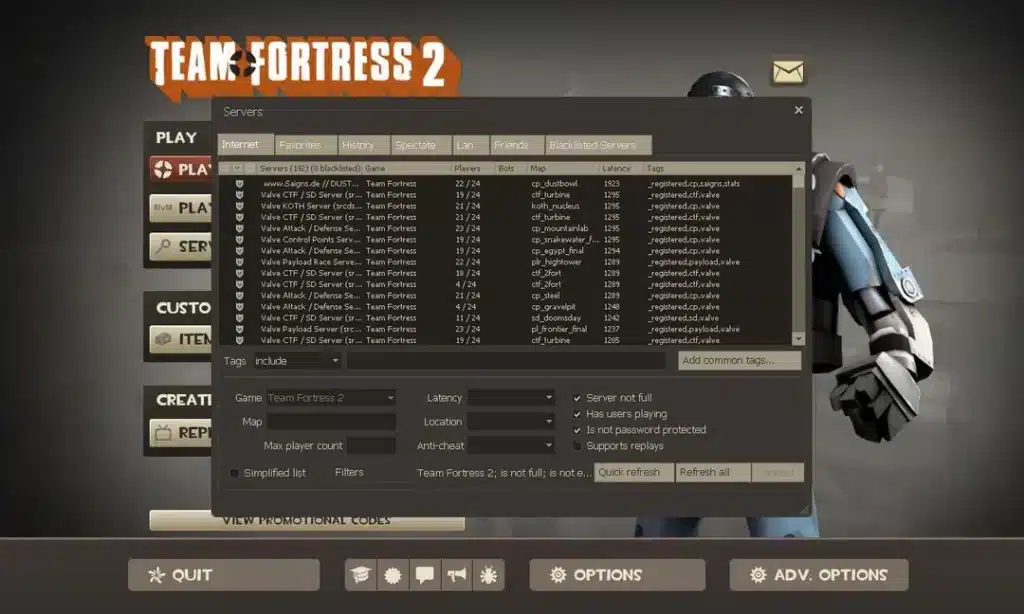
Is 0 Ping Good, and is it even achievable? In practice, true zero ping does not exist once data travels across a real network to a remote server.
What you actually want is the lowest, most stable ping your physical distance and connection allow, not a mythical zero. Consistency matters just as much as the raw number.
Router And Network Fixes For Bad Ping
Once you understand what counts as Bad Ping for your specific game, the next step is tuning your network so it stops working against you.
QoS And Traffic Prioritization
Quality of Service (QoS) lets your router prioritize game traffic over everything else sharing the connection. On an older or budget router, enabling this correctly can meaningfully cut ping spikes during peak household usage.
- Enable QoS and set your gaming device or console as the highest priority.
- Deprioritize large downloads, streaming boxes, and smart TVs.
- Look for advanced queue management features if your router supports them, since they specifically target bufferbloat under load.
- Restart the router after changing settings to apply them cleanly.
Firmware, DNS, And Ethernet Basics
Outdated router firmware occasionally introduces bugs that worsen latency under load. Manufacturers regularly release updates specifically to fix these kinds of issues.
Similarly, switching to a faster DNS provider can shave a few milliseconds off connection setup times. Meanwhile, a wired Ethernet cable remains more reliable than any Wi-Fi tweak you can apply.
Pro Tips: Fixing Bad Ping
- Use a wired connection whenever possible: Ethernet removes wireless interference entirely, which is often the single biggest source of inconsistent ping in home setups.
- Close background applications before playing: Launchers, cloud sync tools, and browser tabs quietly consume bandwidth and CPU cycles that your game needs for smooth packet handling.
- Reboot your router weekly: Routers accumulate memory leaks and connection tables over time, and a simple restart clears that buildup before it causes noticeable lag.
- Choose the closest game server manually: Many titles let you pick a region instead of relying on automatic matchmaking, and picking the nearest one reduces the physical distance data has to travel.
- Monitor for packet loss, not just ping: A moderate ping with heavy packet loss feels far worse than a slightly higher, stable connection, so track both metrics together.
Common Mistakes Bad Ping Players Make
- Blaming the ISP for everything. Many latency issues originate inside the home network, not the provider’s infrastructure. Fix: run wired tests and isolate devices before contacting your ISP.
- Ignoring jitter and packet loss. Focusing only on the average ping number hides spikes that actually ruin gameplay. Fix: track minimum, maximum, and average ping over a full session.
- Upgrading internet speed instead of fixing routing. A faster plan rarely lowers ping, since bandwidth and latency are different metrics. Fix: address congestion, distance, and routing before paying for more speed.
- Leaving default router settings untouched. Factory settings rarely prioritize gaming traffic. Fix: enable QoS and update firmware regularly.
Fixing Bad Ping With ExitLag
After covering the basics, it is worth mentioning the tool many gamers add once local fixes are not enough on their own. ExitLag is not a VPN, it is a game connection optimizer.
It works by analyzing multiple network routes in real time and automatically selecting the fastest, most stable path between you and the game server. It does not encrypt traffic, does not mask your IP, and does not touch anything outside supported games.
ExitLag currently supports over 4,000 titles on PC and Mobile, backed by more than 1,500 servers spread across 190+ countries. It is used by over 30 million players and processes more than 18 million optimizations every week.
For a topic this closely tied to latency, the relevant features are Multipath Technology, which routes your traffic through several paths simultaneously for resilience, and Multi-Internet, which combines up to four connections for automatic failover if one link degrades.
The Traffic Shaper feature also prioritizes your game’s packets over other apps on your machine, similar in spirit to router-level QoS but applied directly at the source. PC Boost cleans background processes and freed-up RAM before your session starts.
- Real-time route optimization to actively reduce delay and packet loss.
- Multipath routing across several simultaneous connections for stability.
- Multi-Internet failover using up to four connections at once.
- Traffic Shaper to prioritize in-game data over background apps.
- AI-powered routing that picks the fastest path with a single click.
ExitLag does not modify game files, does not inject code, and does not interact with anti-cheat systems, so it stays safe to use with all supported titles. It should not be run alongside a VPN, since the two can conflict over routing control.
If your ping is still inconsistent after adjusting your router and network, grabbing the ExitLag Download is a practical next step worth testing on your own setup.
Final Steps To Fix Bad Ping For Good
At this point, you have a full framework for how to fix bad ping: measure it accurately, identify whether the cause is local or external, and apply the right fix for your situation.
Start with the free changes first. Go wired, close background apps, enable QoS, and restart your router before spending money on anything else.
If those steps still leave you with spikes during peak hours or matches against distant servers, layering in a dedicated routing tool is the logical next move. Consistency, not a perfect number, is the real goal.
Ultimately, learning How To Fix Bad Ping pays off every time you queue up, because stable, low latency is what turns close losses into wins you actually deserve.
All game images used in this blog post belong to their respective developers and publishers. They are used for informational and educational purposes only and do not imply endorsement or affiliation with the rights holders.
Got questions or want to connect with other players? Join the conversation at the ExitLag Forum!