Nothing is more frustrating than losing a match because of Free Fire Lag or sudden delays. You line up the perfect shot, and then—everything freezes. Your character stutters, the enemies teleport, and victory slips away. This issue can happen to any player, regardless of having a good internet connection.
Therefore, understanding Free Fire Lag is essential before applying any solution. In this guide, we will explore what lag truly means, why it happens, and how you can fix it for good. By the end, you will know how to make your matches faster, smoother, and more enjoyable.
However, before fixing it, remember that lag is not always about internet speed. It often depends on how your data reaches the game servers. Like this, even players with strong connections can face delays during matches.
What is lag in Free Fire?
Lag in Free Fire refers to the delay between your in-game actions and what actually happens on the screen. For example, when you shoot, move, or use a skill, and your command takes time to appear, that delay is lag.
Lag can make characters move sluggishly or cause your shots to register late, turning an exciting battle into a frustrating experience. It can be caused by poor connection routes, network congestion, device performance issues, or server distance.
In short, lag is a breakdown in real-time communication between your device and the Free Fire servers.
Main causes of lag in Free Fire
Before we solve the issue, it is important to understand where it comes from. There are multiple reasons why lag can occur, and identifying them helps you take specific action.
1. Connection Route Problems
Your internet data does not travel directly to the Free Fire servers. Instead, it goes through different paths called “routes.” Sometimes these routes are inefficient or overloaded, creating longer response times.
2. Network Congestion
When too many users share the same network especially during peak hours data packets get delayed or lost, resulting in unstable gameplay.
3. Server Distance
If the Free Fire server you are connected to is geographically far from your location, your ping will increase, leading to higher latency and slower response.
4. Device Performance
Old devices, background apps, or low RAM can also make the game stutter even when your internet is fine.
Lag, ping, and FPS: The real difference
Many players confuse these terms, but they mean different things. Understanding them helps identify the root cause of the problem.
| Term | Description | Impact on Gameplay |
| Lag | Delay between your command and the in-game response | Late actions and input delays |
| Ping | Time it takes for data to travel to the server and back | High ping causes slow communication |
| FPS (Frames Per Second) | Number of frames displayed per second | Low FPS leads to visual stuttering |
Like this, you can quickly identify if your issue is with your network, device, or graphics settings before jumping into advanced fixes for Free Fire Lag.
Why does Free Fire lag happen even with a good internet connection?
It might surprise you, but even with strong internet, you can still face lag. This happens because your provider automatically selects connection routes that may not be the fastest or most stable for Free Fire.
Think of it as digital traffic. Your data takes a path full of congestion, detours, and unnecessary stops before reaching the game server. Therefore, you experience delays, stuttering, or disconnections even with high-speed internet.
The smart solution: ExitLag
What if you could manually select the best and fastest route for your connection? That is exactly what ExitLag does.
ExitLag is an advanced software designed to optimize your connection for gaming. It uses multi-route technology and intelligent tunneling to ensure your data always takes the most efficient path to the game servers.
Key benefits of using ExitLag for Free Fire:
- Lower Ping and Stable Connection: Experience faster response times and smoother matches.
- Fewer Packet Losses: Prevent interruptions and keep your gameplay consistent.
- Optimized Routes Worldwide: Automatically connects you to the best possible server.
- Easy to Use: No complex setup just install, select your game, and play.
- Compatible with Multiple Devices: Works perfectly on PC and emulators.
Therefore, ExitLag is not just a tool it is a complete connection optimization system for competitive players.
How to use ExitLag in Free Fire
The process is extremely simple:
Step 1 – Access the official ExitLag website and download the application. There’s a free trial period for new users.
Step 2 – Install and open the program. Log in with your account.
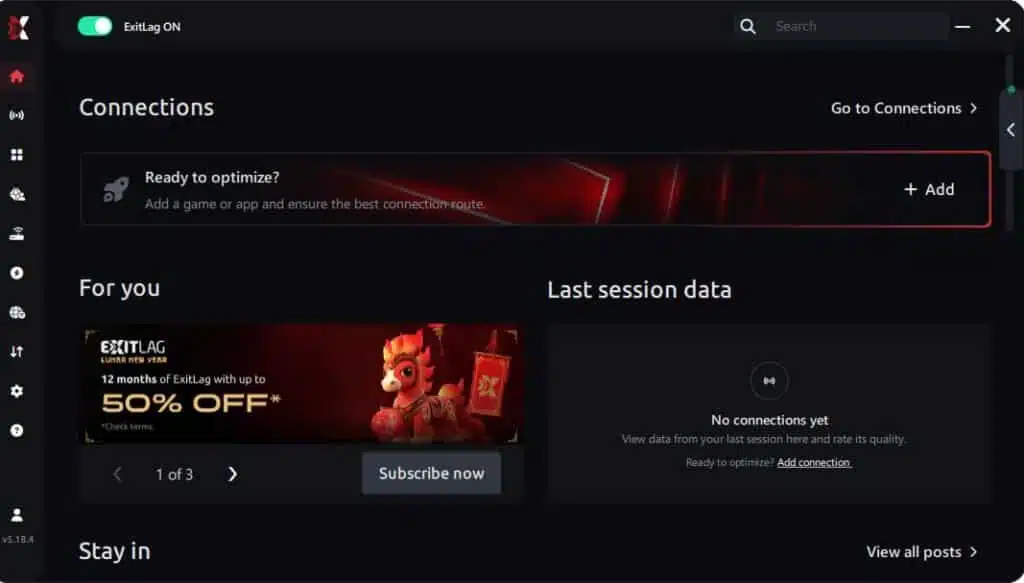
Step 3 – In the search bar, type “Free Fire” and select the game from the list.
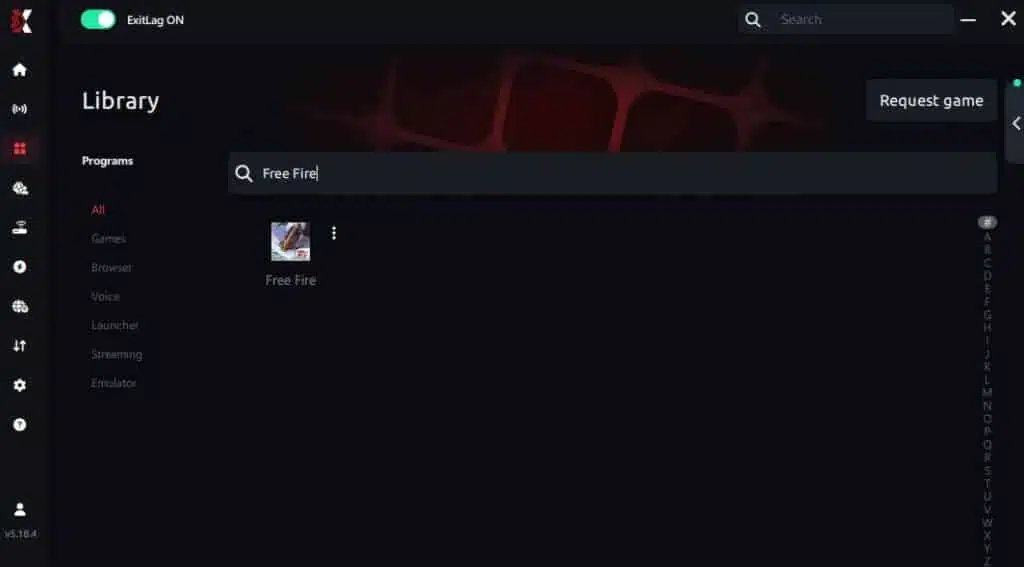
Step 4 – Choose between automated or manual route
Based on the results, you can let ExitLag automatically select the best route or manually choose the server that showed the lowest latency for your connection.
AI-optimized automated route
Based on the results, you can let ExitLag automatically select the best route through AI optimization. The system analyzes multiple connection paths in real time and automatically identifies the most efficient route for your connection, ensuring the lowest possible latency without requiring manual choices.
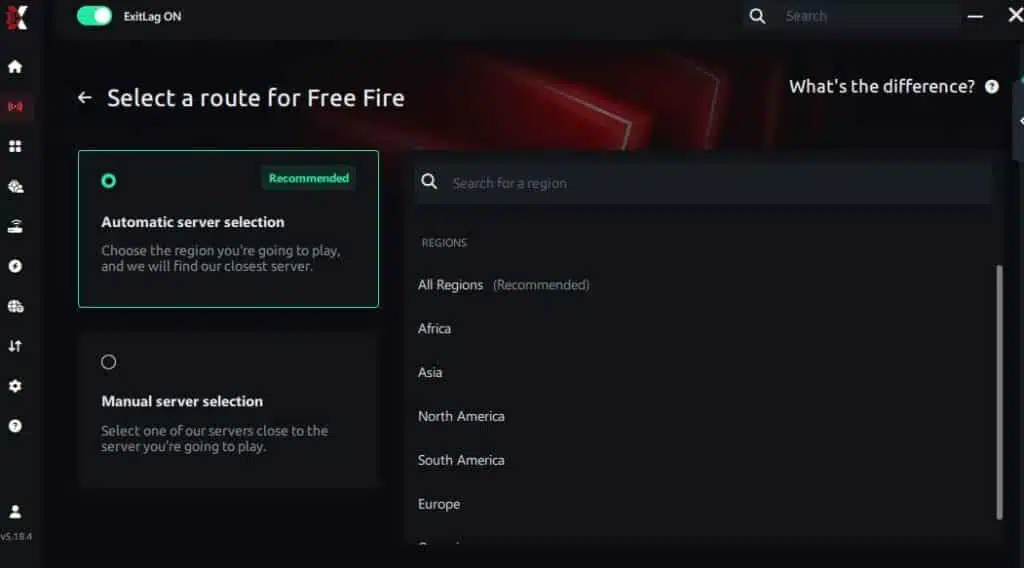
Manual route
If you prefer to have full control over your connection, you can manually choose the server based on the ping test results. Simply select the server that showed the lowest latency or the one that best meets your specific gaming needs, allowing complete customization of your experience.
Step 5 – Click “Free Fire” or the play button. ExitLag will begin optimizing your connection automatically.

Step 6 – Wait a few seconds until optimization is complete. You’ll see ping indicators in the interface.
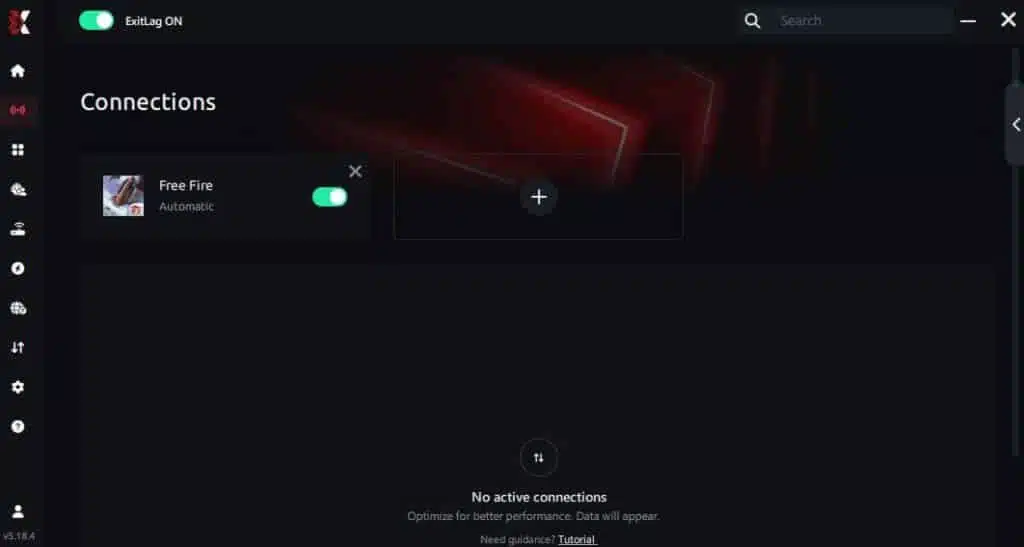
Step 7 – Launch Free Fire normally. The optimization will already be active.
ExitLag runs in the background while you play, constantly adjusting routes to maintain the best possible performance.
Additional tips to reduce lag
While ExitLag handles the network side, there are extra steps you can take to boost performance even more:
1. Close Background Apps
Applications like browsers or streaming services consume bandwidth and memory. Close them before playing.
2. Keep Your Device Cool
Overheating reduces device performance. Use cooling pads or play in a cool environment.
3. Update Drivers and Game Version
Ensure your system and game are updated to the latest versions for optimized performance.
4. Use a Stable Power Source
Sudden battery drops can cause lag spikes or disconnections.
5. Prefer Wired Connections
If possible, use Ethernet instead of Wi-Fi for more consistent data flow.
Combining these steps with ExitLag ensures your gameplay runs smoothly from start to finish.
The results: What you can expect
After optimizing your connection and device, you should experience:
| Improvement | Description |
| Ping Reduction | 30–70% lower ping depending on region and provider |
| More Stability | No random disconnects or teleporting enemies |
| Smoother FPS | Fewer frame drops and freezes |
| Better Competitive Edge | Faster reaction time in ranked matches |
Therefore, optimizing your connection does not just eliminate lag it enhances your overall performance and enjoyment.
Why ExitLag is the best choice for gamers
Free Fire is a competitive, fast-paced battle royale where milliseconds can decide your victory. A single delay can make you lose your advantage. ExitLag gives you full control of your connection, reducing instability and maintaining low ping even during peak hours.
Moreover, the software automatically adapts to server changes, ensuring your connection always takes the most efficient route. That means you spend less time lagging and more time winning.
Play Free Fire without lag ever again
In conclusion, lag in Free Fire can ruin your gaming experience even if you have a good internet connection. However, understanding what causes it, optimizing your network, and using ExitLag can transform your matches.
With ExitLag, you choose the best path for your data, reduce ping, and play with maximum stability. Finally, stop letting Free Fire Lag decide your matches. Download ExitLag today and experience Free Fire as it was meant to be played: smooth, fast, and completely lag-free.
Got questions or want to connect with other players? Join the conversation at the ExitLag Forum!