

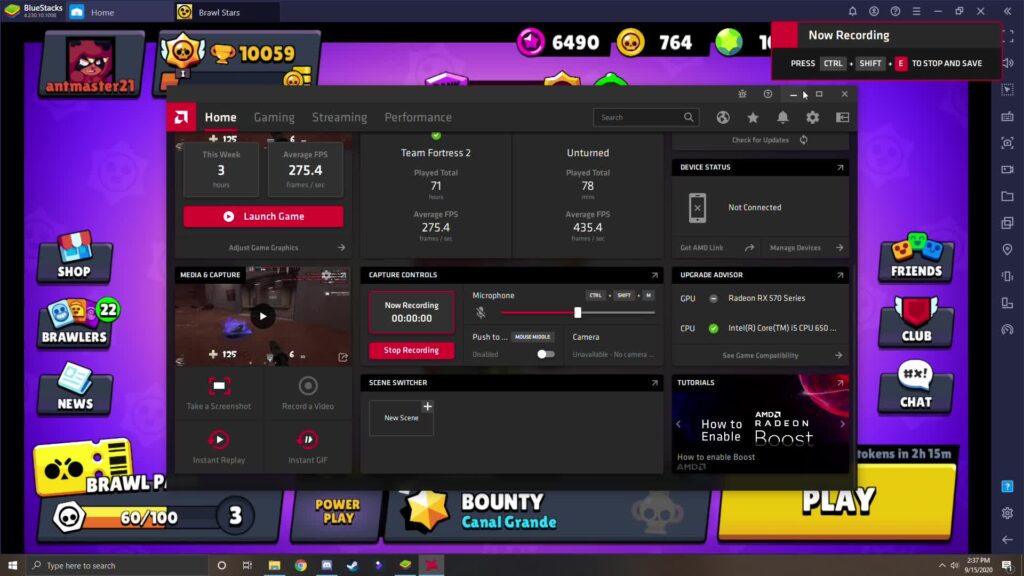
Learning How to play Brawl Stars on pc starts with selecting the right emulator for your system. Popular options like BlueStacks, NoxPlayer, and LDPlayer offer different advantages, from lightweight performance to advanced customization. Choosing wisely ensures a smooth start without technical issues.
Once the emulator is installed, configuring controls and graphics is key to mastering How to play Brawl Stars on pc. Mapping your keyboard and mouse efficiently, adjusting resolution, and enabling high frame rates allow for precise gameplay that rivals mobile performance.
Finally, understanding multiplayer mechanics and network optimization is essential for competitive play. By following the recommended steps, players can fully enjoy How to play Brawl Stars on pc, from casual matches to intense ranked battles, all with minimal lag and maximum responsiveness.
Choosing the Right Emulator
Not all Brawl Stars pc emulator options are created equal. While some prioritize speed, others focus on compatibility or extra features. Popular choices include:
- BlueStacks – User-friendly and highly compatible with most games.
- NoxPlayer – Lightweight, offering good performance on lower-end PCs.
- LDPlayer – Optimized for FPS and MOBA games, including Brawl Stars.
- Each emulator may require specific system settings.
- Drivers and updates must be maintained for stable performance.
Selecting the right emulator ensures a hassle-free start when learning How to play brawl stars on pc.
Emulator Installation Steps
Firstly, download the emulator from its official website. After installation, you must configure it for optimal performance:
| Step | Action | Notes |
| 1 | Install emulator | Follow official instructions |
| 2 | Configure resolution | Match your monitor for best visuals |
| 3 | Assign controls | Map keyboard and mouse properly |
| 4 | Log in to Google Play | Required to access Brawl Stars |
Following these steps ensures that your setup is ready to run Brawl Stars efficiently.
Understanding Game Mechanics
Understanding the core mechanics of the game is essential for improving performance. Each brawler has unique abilities, strengths, and weaknesses that influence how matches unfold. By analyzing attack patterns, super abilities, and movement speeds, players can make informed decisions that give them a competitive edge.
Balancing Offensive and Defensive Play
Success often depends on balancing aggressive and defensive strategies. Pushing forward too quickly can leave you vulnerable, while over-defending may limit opportunities to score points. Observing opponents, timing attacks, and coordinating with teammates helps maintain this balance and improve win rates.
Continuous Skill Improvement
Improving skills requires consistent practice and analysis. Reviewing match replays, experimenting with new brawlers, and learning from experienced players are effective ways to refine gameplay. Regular practice combined with strategic reflection ensures gradual improvement and sustained enjoyment of the game.
Adjusting Game Settings
After installation, optimizing in-game settings is critical.
- Graphics quality – Adjust according to PC performance to prevent lag.
- Frame rate – Target 60 FPS for smooth gameplay.
- Controls – Customize keyboard mapping to fit your playstyle.
Additionally, enabling features such as aim assist or keyboard shortcuts enhances your control during intense battles.
Account Management Tips
Sometimes, players face restrictions due to age verification. To avoid issues, understand the brawl stars age restriction rules. If you accidentally set the wrong birthdate, you can use the change birthday brawl stars option to correct it.
- Keep account information accurate to avoid bans.
- Contact Supercell support for account recovery if needed.
Fixing Underage Account Issues
Underage accounts can limit features or prevent access to multiplayer modes. The underage account fix involves verifying identity or adjusting parental controls.
- Log into your account.
- Navigate to settings > privacy.
- Follow instructions for age verification.
Once resolved, full access to Brawl Stars features is restored, allowing competitive and casual play alike.
Optimizing Network and Performance
Stable network connectivity is crucial, especially on PC where multiple background processes can interfere. Tools like ExitLag Pricing can help maintain low ping and reduce lag during matches.
- Check firewall and antivirus settings to prevent interference.
- Close unnecessary applications while playing.
A reliable network ensures your gameplay experience mirrors or exceeds mobile standards.
Key Control Tips
Keyboard and mouse controls can feel different from touchscreens. Some recommended mappings include:
- Movement – Arrow keys or WASD.
- Attack – Mouse left-click.
- Super ability – Mouse right-click or keyboard key.
- Switch Brawlers – Assigned number keys.
Adapting to PC controls quickly improves reaction times and in-game efficiency.
Multiplayer and Ranking Strategy
Understanding multiplayer modes and ranking progression is essential for competitive success.
- Gem Grab – Secure gems and defend the mine.
- Showdown – Last brawler standing wins.
- Brawl Ball – Score goals with teamwork.
Additionally, consistently reviewing map layouts and brawler strengths can make a significant difference in matches.
Troubleshooting Common Issues
PC users may encounter crashes, lag, or login problems. Common solutions include:
- Updating emulator and graphics drivers.
- Adjusting in-game settings.
- Checking network stability.
Following these steps keeps your gameplay smooth and uninterrupted.
Advanced Tips for Experienced Players
For players aiming to maximize performance:
- Use high-refresh monitors for faster reaction times.
- Configure macros for repetitive tasks like collecting resources.
- Monitor CPU and GPU usage to prevent overheating.
These enhancements are optional but significantly improve competitive play.
System Requirements for PC
Before starting, it’s essential to check if your PC meets the game’s requirements. A stable system ensures smooth gameplay and avoids crashes. Updating drivers and keeping your operating system current is highly recommended.
Installing BlueStacks Step-by-Step
Using Brawl Stars BlueStacks allows you to enjoy the game on PC with enhanced performance and control options. The setup process is straightforward and ensures that the game runs smoothly on most systems.
- Download the installer from the official BlueStacks website.
- Run the installer and follow the instructions carefully to complete the installation.
- Launch the emulator and log in with your Google account to access the Play Store.
- Update BlueStacks to the latest version for optimal performance and compatibility with Brawl Stars.
Installing NoxPlayer Step-by-Step
Setting up NoxPlayer is straightforward. After installation, you can configure performance options such as RAM allocation and resolution. It is also important to enable virtualization in BIOS for faster speed.
Configuring Keyboard and Mouse Controls
- Map movement to WASD or arrow keys.
- Assign attacks and abilities to mouse buttons.
- Use number keys to switch between options.
- Adjust sensitivity to suit your playstyle.
Proper configuration makes gameplay feel natural and responsive.
Optimizing Graphics Settings
Adjusting visual settings can dramatically improve performance. Lowering resolution slightly, disabling unnecessary effects, and enabling high FPS mode ensures smooth animations and reduces lag.
Adjusting Emulator Performance
- Allocate more CPU and RAM to the emulator.
- Close background applications for smoother gameplay.
- Enable virtualization for better responsiveness.
- Check for emulator updates regularly.
Understanding Matchmaking
Matchmaking is designed to pair players of similar skill levels. Learning how it works can help you plan strategies and choose the best brawlers for your rank.
Choosing the Best Brawlers
- Focus on versatile brawlers for early stages.
- Learn one brawler deeply to maximize performance.
- Experiment with different abilities to find personal favorites.
Exploring Game Modes
Each game mode offers unique challenges and strategies:
- Gem Grab – Collect and hold gems safely.
- Showdown – Last player standing wins.
- Brawl Ball – Teamwork is key to scoring goals.
- Heist – Break the enemy safe while defending your own.
Map Familiarity
Knowing each map is critical. Learn spawn points, choke points, and high-ground advantages. Familiarity allows faster rotations and better positioning during battles.
Managing Resources
- Use coins and gems wisely for upgrades.
- Track event timings to maximize rewards.
- Prioritize unlocking brawlers that suit your playstyle.
Customizing Controls
Some emulators allow advanced customization:
- Adjust key bindings for comfort.
- Create macros for repetitive actions.
- Save multiple profiles for different brawlers.
Multiplayer Communication
Coordinating with teammates significantly improves win rates, especially when playing Brawl Stars Windows versions. Effective communication allows your team to plan attacks, defend crucial points, and respond quickly to enemy movements.
- Use voice chat for instant coordination during fast-paced matches.
- Text chat can help share strategies when voice communication is unavailable.
- Assign roles within your team to ensure balanced offense and defense.
- Observe teammates’ positions to anticipate their actions and support them.
Troubleshooting Common Errors
- Restart the emulator if crashes occur.
- Check for updates regularly.
- Reinstall if persistent errors affect performance.
- Ensure antivirus programs are not blocking the emulator.
Enhancing Reaction Time
Improving reaction time can make a significant difference in competitive matches. Practicing and customizing your setup ensures better performance under pressure.
- Practice in training modes or practice arenas to refine your reflexes.
- Customize key bindings for quicker response and easier execution of combos.
- Keep peripheral devices, like mouse and keyboard, optimized and responsive to avoid input lag.
- Warm up before matches with short drills to maintain focus and agility.
- Study top players’ gameplay to identify techniques for faster decision-making.
Achievements and Rewards
Achievements provide additional incentives. Completing challenges unlocks skins, coins, and special items that enhance gameplay satisfaction.
Recording and Streaming Gameplay
- Use screen recording software to capture highlights.
- Optimize encoding settings to maintain FPS.
- Share replays with friends or online communities for feedback.
Final Thoughts
Ultimately, mastering Brawl Stars on PC opens up a world of enhanced visuals, precise controls, and improved performance. Beginners and veterans alike benefit from this setup, enjoying smoother gameplay and better multitasking capabilities.For those who want to take full advantage, learning How to play Brawl Stars on pc with optimized connectivity is essential. You can ensure a seamless experience by signing up at ExitLag Register, reducing lag and improving match stability for competitive and casual play alike.
Got questions or want to connect with other players? Join the conversation at the ExitLag Forum!




