

Learning how to play Fortnite on Chromebook is mainly about choosing the right cloud gaming service. ChromeOS cannot run the standard Windows version through the Epic Games Launcher, but supported streaming platforms can deliver the game through a compatible browser.
Players researching how to play Fortnite on Chromebook may also want to understand how much Fortnite changes between seasons. The Fortnite Chapter 5 season 1 items and mobility guide shows how weapons and movement systems can evolve while the basic Chromebook streaming process remains similar. The game runs on a remote server, and the Chromebook displays the video stream while sending your inputs back.
Knowing how to play Fortnite on Chromebook does not require unofficial launchers, modified files, or attempts to install the Windows Epic Games Launcher. The safest current options are NVIDIA GeForce NOW, Xbox Cloud Gaming, and Amazon Luna, although subscriptions, regional access, session limits, and supported controls differ between services.
Can you play Fortnite on a Chromebook?
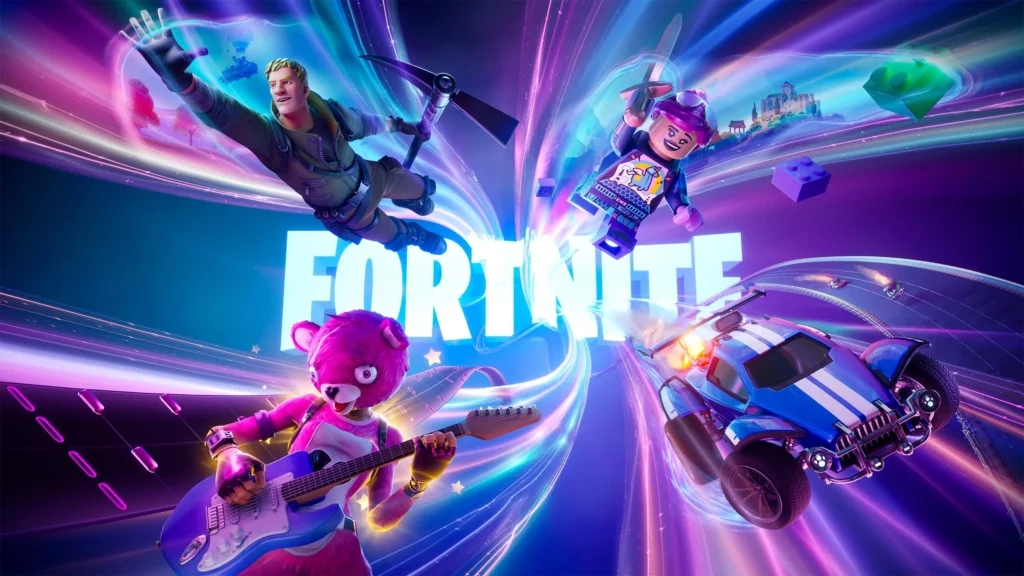
Yes, you can play Fortnite through supported cloud gaming services. Instead of installing the full game locally, the Chromebook connects to a remote system capable of running Fortnite and streams the session through the internet.
This makes Fortnite on Chromebook possible even on devices that do not have a dedicated gaming graphics card. However, cloud gaming depends heavily on connection stability, available bandwidth, latency, browser support, and the policies applied to managed devices.
Why Fortnite does not install normally on ChromeOS
The standard PC version of Fortnite is distributed through the Epic Games Launcher. That launcher is designed for supported Windows and macOS environments, not ChromeOS.
A Chromebook cannot normally open the Windows executable and install the game as if it were a gaming laptop. Linux support on some Chromebooks does not change this limitation because Fortnite is not officially distributed as a native Linux or ChromeOS game.
The Epic Games Store also does not officially support Chromebooks. Therefore, downloading an installer from an unofficial website will not create a legitimate ChromeOS version and may expose the device or Epic Games account to malware and credential theft.
The Android version is not a reliable workaround either. Some Chromebooks can run Android applications, but Epic Games does not list Chromebook as a supported Epic Games Store platform. Hardware architecture, graphics compatibility, input behavior, administrator restrictions, and app installation policies can all prevent the mobile version from working.
For most users asking can you play Fortnite on a Chromebook, the practical answer is yes through cloud gaming, not through a native ChromeOS installation.
Which cloud gaming services support Fortnite?
Epic Games identifies three main cloud services for playing Fortnite on Chromebook:
| Service | Basic requirement | Fortnite access | Main consideration |
| NVIDIA GeForce NOW | NVIDIA and Epic Games accounts | Free membership may be available | Free sessions can involve queues and limits |
| Xbox Cloud Gaming | Microsoft and Epic Games accounts | Fortnite can be played without Game Pass | Browser and regional support are required |
| Amazon Luna | Amazon and Epic Games accounts | Requires an eligible Amazon Prime or Luna plan | Availability varies by country |
| Remote access to your own PC | A separate gaming PC running Fortnite | Uses your existing local installation | More setup and potential input delay |
For many players, NVIDIA GeForce NOW for Chromebook offers the most PC-like streaming option. Xbox Cloud Gaming provides a particularly simple free route, while Amazon Luna may appeal to players who already have an eligible Amazon subscription.
The correct service depends on your location, preferred controls, available membership, and the quality of the connection between your Chromebook and the provider’s nearest data center.
How do you use NVIDIA GeForce NOW for Chromebook?
GeForce NOW streams the PC version of supported games from NVIDIA’s infrastructure. Fortnite is available through the service, and Chromebook users can normally access it through Chrome without installing the game locally.
Using NVIDIA GeForce NOW for Chromebook requires an NVIDIA account and an Epic Games account. The service may offer different membership levels with varying queue priority, session duration, resolution, frame rate, and server features.
How to set up GeForce NOW
Follow these steps on a personal or permitted Chromebook:
- Update ChromeOS and the Chrome browser.
- Open the GeForce NOW browser platform.
- Create or sign in to an NVIDIA account.
- Search for Fortnite in the game library.
- Connect the correct Epic Games account when requested.
- Choose the available membership or session option.
- Launch Fortnite.
- Confirm that the correct Epic account and locker appear.
Linking the correct account is important. Fortnite progression and cosmetics are associated with the Epic Games account, so signing in with another account may display a different locker or no previous progression.
Do not share an Epic Games password, two-factor authentication code, or email verification code with another person offering to configure the service. Complete the login only through the official authentication process.
Players interested in unusual collectibles can read the rarest Sprite in Fortnite guide after completing their setup. Cosmetics and collectible items remain associated with the linked Fortnite account rather than the Chromebook itself.
What connection does GeForce NOW need?
NVIDIA lists different bandwidth requirements according to the desired streaming resolution and frame rate. A basic high-definition stream requires less bandwidth than a high-resolution premium session.
For a practical Fortnite Chromebook setup, focus on consistency rather than the largest possible speed-test number. A connection can have high download speed but still deliver a poor cloud gaming experience when it suffers from packet loss, jitter, congestion, or frequent Wi-Fi interference.
Useful recommendations include:
- Use a 5 GHz or 6 GHz Wi-Fi connection when available;
- Stay close to the router;
- Prefer wired Ethernet through a compatible USB adapter when practical;
- Pause large downloads and cloud backups;
- Close unnecessary browser tabs;
- Avoid streaming high-resolution video on the same connection;
- Test a lower cloud-streaming resolution;
- Check whether the service reports packet loss or high latency;
- Compare performance at different times of day.
A Chromebook with a good screen, modern Wi-Fi, and responsive input can provide a better experience than an older device, but local hardware does not render the game in cloud mode. Its main tasks are decoding the video stream, displaying it smoothly, and sending keyboard, mouse, touch, or controller inputs.
Can you use keyboard and mouse?
GeForce NOW supports keyboard, mouse, and compatible controllers on supported Chromebook configurations. However, exact behavior may depend on the browser, game mode, membership, peripheral, and ChromeOS version.
A USB mouse is usually more suitable for Fortnite than a Chromebook trackpad. Trackpads are designed for navigation rather than rapid camera movement, aiming, building, and weapon switching.
Controllers can also work through USB or Bluetooth. Xbox and PlayStation controllers are common options, although button mapping and compatibility should be tested before entering a competitive match.
Cloud gaming always adds another stage between your input and the Fortnite server. The command travels to the cloud gaming system, the remote machine processes the game, and the resulting image is streamed back. This does not make competitive play impossible, but it means connection quality matters more than it would during a locally installed game.
How can you play Fortnite on Chromebook for free?
Xbox Cloud Gaming provides one of the simplest ways to stream Fortnite without purchasing Xbox Game Pass. You still need a Microsoft account, an Epic Games account, a supported region, a compatible browser, and an adequate internet connection.
The process takes place through the browser on ChromeOS. You do not need an Xbox console, and Fortnite does not need to be downloaded to the Chromebook.
How to use Xbox Cloud Gaming
Use the following process:
- Open the Xbox Cloud Gaming website in Chrome.
- Sign in with a Microsoft account.
- Search for Fortnite.
- Select the option to play through cloud gaming.
- Connect or sign in to the correct Epic Games account.
- Allow the session to load.
- Check the Fortnite account before making purchases or changing settings.
The service may ask you to accept permissions or connect accounts. Read each screen carefully, especially when more than one family member uses the same Microsoft or Epic Games profile.
Playing Fortnite on Chromebook through Xbox Cloud Gaming does not require the local Epic Games Launcher. Updates are handled on the remote platform, so you do not need to reserve the full installation size on the Chromebook.
Players following limited events and temporary activities can also consult the Fortnite Shiny Hours guide. Event information should always be checked against current in-game availability because cloud access does not extend expired quests or reward periods.
Does Xbox Cloud Gaming require a controller?
Fortnite supports keyboard and mouse through Xbox Cloud Gaming in compatible browsers, including Chrome. Controllers remain another useful option, particularly for players who already use one on a console.
When the input is not recognized:
- Update ChromeOS;
- Restart Chrome;
- Disconnect and reconnect the controller;
- Test USB instead of Bluetooth;
- Close extensions that alter keyboard or mouse behavior;
- Confirm that the browser tab has input focus;
- Check whether the school or company administrator blocks peripherals;
- Test the controller in another browser-based tool.
The game may use Xbox-style button prompts even when a different compatible controller is connected. This does not necessarily indicate a malfunction.
What are the disadvantages of the free method?
Free cloud access can involve queues, temporary capacity limits, variable image quality, and regional availability. Performance may also change during peak hours when many users attempt to connect.
The video stream can show compression artifacts during rapid building, camera movement, foliage, explosions, or crowded fights. Lowering the stream resolution may improve stability, although it reduces image detail.
Cloud gaming also consumes significant data. Players using a limited mobile hotspot or capped home plan should monitor usage before playing for long periods.
The answer to can you play Fortnite on a Chromebook for free is therefore yes, but free does not mean unrestricted. Service capacity, network quality, account requirements, and regional support still apply.
Is Amazon Luna good for Fortnite on Chromebook?
Amazon Luna is another officially recognized cloud option. Fortnite access requires a linked Epic Games account and an eligible Amazon subscription, such as Amazon Prime or a supported Luna plan, depending on the current rules in your region.
Luna works through supported browsers and does not require a local Fortnite installation. However, it is not available in every country, and membership conditions can change.
How to play through Amazon Luna
The general process is:
- Confirm that Luna is available in your country.
- Sign in to the correct Amazon account.
- Check whether your Prime or Luna plan includes Fortnite access.
- Open Luna in a supported version of Chrome.
- Select Fortnite.
- Link the correct Epic Games account.
- Connect a supported controller or configure the available input method.
- Launch the session.
Do not assume that an Amazon Prime subscription purchased in one country provides Luna access everywhere. Service availability, supported browsers, subscriptions, and data centers are regional.
The official Fortnite website is the safest starting point for current game information, account resources, news, and supported play options. Avoid search advertisements or copied pages that ask for credentials before clearly identifying the service.
How does Luna compare with other services?
Luna may be convenient for existing Amazon subscribers, while Xbox Cloud Gaming is often the most direct free option. GeForce NOW may provide more PC-oriented configuration choices, especially through higher membership tiers.
| Priority | Service to consider |
| Playing Fortnite without Game Pass | Xbox Cloud Gaming |
| PC-style cloud streaming options | GeForce NOW |
| Using an eligible Amazon membership | Amazon Luna |
| Avoiding cloud infrastructure entirely | A separate local gaming device |
No service is automatically best for every Fortnite Chromebook user. The closest data center may matter more than the advertised maximum resolution. Test the available options under similar conditions before paying for a long subscription.
Account progression can remain connected through the Epic Games account, but each platform may have its own login process and interface. Always verify the account shown before purchasing V-Bucks.
Can you play Fortnite on a school Chromebook?
A school Chromebook may technically support cloud gaming, but administrators can restrict websites, browser features, logins, extensions, applications, peripherals, and network traffic. The device also belongs to an educational environment with rules that users are expected to follow.
Guides about how to play Fortnite on school Chromebook should not be interpreted as instructions for bypassing school security. A blocked service does not mean there is a safe or permitted trick to unlock it.
Why school Chromebooks block cloud gaming
Schools may block cloud gaming because it can:
- Consume substantial bandwidth;
- Interfere with classes and assignments;
- Create account and privacy risks;
- Use communication features;
- Conflict with acceptable-use policies;
- Require services that the school does not manage;
- Add support demands for administrators;
- Compete with educational video calls and online tools.
Administrators may disable guest mode, developer mode, the Google Play Store, external accounts, VPN extensions, proxy websites, controller access, and private browsing.
Trying to remove management settings or circumvent network controls can violate school policy. It may also lead to account restrictions, loss of device access, disciplinary action, or additional security monitoring.
Therefore, the safe answer to how to play Fortnite on school Chromebook is to use it only when the school explicitly allows recreational cloud gaming and the network provides access without bypass methods.
What should you do when Fortnite is blocked?
Ask the school’s IT staff or a responsible administrator whether personal gaming is permitted during breaks or outside class. They may say no, limit it to a separate network, or explain that the Chromebook cannot be used for entertainment.
When access is not permitted, use a personal device and personal connection outside school. Do not install VPNs, unknown certificates, proxy extensions, modified browsers, or remote-access tools to evade restrictions.
A personal mobile hotspot may still violate school rules when used on a managed device. It can also consume large amounts of mobile data and provide an unstable cloud gaming connection.
The official Fortnite article about Star Wars taking over Fortnite Galactic Battle is a historical example of how seasonal experiences change over time. Missing an event during school hours does not justify bypassing device controls, and older themed content may no longer be available in its original form.
How do you improve Fortnite performance on a Chromebook?
Cloud gaming performance depends on the Chromebook, browser, home network, internet provider, service data center, and Fortnite session. Changing only one setting may not solve every issue.
Start by identifying the symptom. A blurry video stream is different from low in-game frame rate, input delay, audio breakup, a browser crash, or a server-side Fortnite outage.
Improve the network connection
Use these steps in order:
- Restart the Chromebook and router.
- Update ChromeOS.
- Connect to the closest stable Wi-Fi access point.
- Use 5 GHz, 6 GHz, or Ethernet when available.
- Pause downloads and video streams.
- Close unused tabs and applications.
- Disable unnecessary browser extensions.
- Test another cloud gaming provider.
- Reduce the streaming resolution and bit rate.
- Compare results outside peak hours.
Internet speed is only one metric. Cloud gaming also depends on latency, jitter, packet loss, and route consistency.
A speed test performed once cannot guarantee a stable hour-long session. Run several tests and compare what happens while the problem is visible.
Improve controls and image quality
Use full-screen mode to reduce distractions and give the stream more display space. Set Chrome zoom to its standard value if interfaces or cursor positions appear misaligned.
For mouse and keyboard:
- Use a USB mouse instead of the trackpad;
- Test a lower mouse polling rate if the cursor stutters;
- Disable acceleration only when you understand how it affects your aim;
- Keep sensitivity consistent while diagnosing input delay;
- Avoid Bluetooth devices with unstable connections.
For controllers:
- Charge the controller;
- Test USB when Bluetooth feels delayed;
- Remove duplicate paired devices;
- Check whether ChromeOS recognizes the controller;
- Reconnect it before launching the cloud session.
A high-refresh-rate Chromebook cannot force a free cloud tier to stream at the display’s maximum rate. The service membership, browser, device decoding capabilities, and session settings determine the available stream.
Can ExitLag help with Fortnite on Chromebook?
ExitLag is designed to optimize routes for supported locally installed games and applications. It does not currently support cloud-streamed games, and ChromeOS is not listed as a supported desktop operating system.
That means ExitLag should not be presented as a direct optimization solution for GeForce NOW, Xbox Cloud Gaming, or Amazon Luna sessions running on a Chromebook.
Why cloud gaming is different
When playing Fortnite locally, the device communicates with Fortnite infrastructure. A supported routing optimizer can analyze that game traffic and select available paths.
During cloud gaming, the Chromebook mainly communicates with the streaming provider. Fortnite itself runs inside the provider’s remote environment, and the user does not control the network route between that remote machine and Fortnite’s servers.
Because of that structure, using ExitLag on another device in the home does not automatically optimize a Chromebook cloud session. Installing unsupported software, Android packages, or extensions on ChromeOS is not an approved workaround.
When ExitLag may be relevant
ExitLag may be relevant when Fortnite is installed and running locally on a supported Windows, Android, or iOS device. In that situation, it can help optimize supported game routes and may improve connection stability when routing is contributing to the issue.
Results depend on the network and route. ExitLag cannot:
- Enable Fortnite installation on ChromeOS;
- Unlock cloud gaming at school;
- Bypass administrator restrictions;
- Improve a remote cloud provider’s internal route;
- Guarantee lower latency;
- Increase Chromebook hardware performance;
- Remove GeForce NOW queues;
- Provide Amazon Luna access in an unsupported region;
- Fix a Fortnite server outage;
- Increase FPS inside a remote cloud machine.
For Fortnite on Chromebook, focus on the cloud provider’s connection test, the local Wi-Fi setup, browser compatibility, and permitted device settings. Consider ExitLag when you move to a supported device running Fortnite locally.
Frequently asked questions about Fortnite on Chromebook
Chromebooks vary greatly in age, processor, memory, screen, Android compatibility, and administrator controls. The same method may work well on one personal device but remain blocked or unstable on another.
These answers summarize the safest current options.
Not through an officially supported native ChromeOS version. The Epic Games Store does not support Chromebook as a desktop platform.
Use an official cloud gaming service instead of downloading unofficial installers or modified packages.
Fortnite itself is free-to-play. Xbox Cloud Gaming allows Fortnite access without an Xbox Game Pass subscription, while other cloud providers may offer free tiers or require eligible memberships.
Optional Fortnite purchases, cloud subscriptions, and data usage can still create costs.
Xbox Cloud Gaming is a simple free option. NVIDIA GeForce NOW for Chromebook is another strong choice for players who prefer PC-oriented streaming settings. Amazon Luna can be convenient for eligible subscribers in supported regions.
Test availability and connection quality before choosing.
Yes. Sign in or link the correct Epic Games account through the chosen cloud service. Your progression, cosmetics, and supported account data should appear through that account.
Check the displayed name and locker before buying anything.
Only when the school permits it and the service is not blocked. Do not bypass administrator controls, network filters, or acceptable-use policies.
Use a personal device outside school when gaming is not allowed.
No. Cloud gaming requires an active internet connection throughout the session.
The Chromebook receives a live video stream and sends your inputs to a remote system, so losing the connection interrupts gameplay.
A low-end Chromebook may stream Fortnite because the game is rendered remotely. However, the device still needs a supported browser, adequate video decoding, responsive input, and a stable connection.
Very old devices may struggle with browser performance or modern video streams.
Additional memory can help ChromeOS manage browser tabs and background processes, but it does not directly reduce internet latency. Network quality and the cloud provider’s data-center route usually have a larger effect.
Close unnecessary applications before playing.
No direct support is currently available for cloud-streamed games or ChromeOS. ExitLag is more relevant when Fortnite runs locally on a supported operating system.
Do not install unofficial versions claiming to optimize Chromebook cloud gaming.
The safest answer to how to play Fortnite on Chromebook is to use an official cloud platform, connect the correct Epic Games account, and respect device-management rules. Start with Xbox Cloud Gaming or GeForce NOW, compare their performance on your connection, and consider testing ExitLag later when playing Fortnite locally on a supported device.
All game images used in this article belong to their respective owners. They are used for informational and educational purposes only and do not imply endorsement or affiliation with the rights holders.
Got questions or want to connect with other players? Join the conversation at the ExitLag Forum!

