

If your builds feel delayed or your shots refuse to register, the first thing you need is data, not guesswork. Learning how to show ping in Fortnite takes less than a minute and instantly changes how you troubleshoot lag. Once the numbers are on screen, you stop blaming random luck and start fixing the actual problem.
Most players never turn this feature on, which means they play entire seasons blind to their own connection quality. Knowing how to show ping in Fortnite through the built-in Net Debug Stats overlay gives you ping, packet loss, and bandwidth data in real time. It works on PC, console, and mobile, so there is no excuse to skip it.
To show ping in Fortnite, open the main menu, go to Settings, select the Game UI tab, and toggle Net Debug Stats to On. This single change places your live ping in the upper left corner of the screen during every match. From there, you can finally tell the difference between a genuine skill issue and a network problem.
This guide covers the exact steps for every platform, explains what each stat actually means, and shares the ping ranges competitive players target today. Furthermore, it breaks down common mistakes and practical fixes so your connection stops working against you.
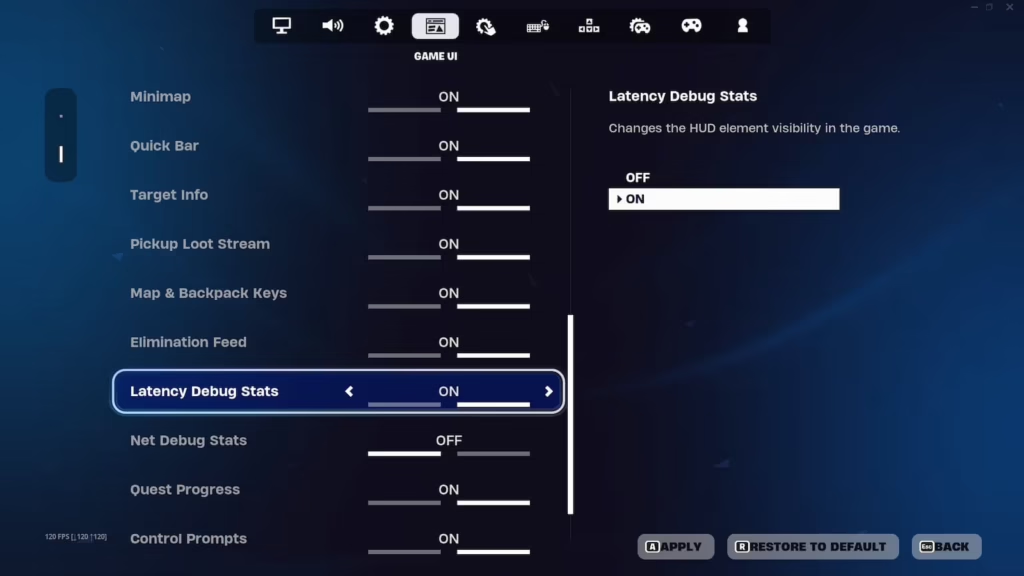
How To Show Ping In Fortnite Using Net Debug Stats
Epic built a native overlay specifically so players do not need third-party software to monitor their connection. Therefore, the fastest and safest way to check your numbers is through the in-game menu itself. The process is nearly identical across platforms, with only minor navigation differences.
On PC
Follow these steps on a keyboard and mouse setup:
- Launch Fortnite and reach the main lobby screen.
- Click the hamburger menu (three horizontal lines) in the top right corner.
- Select Settings, then open the Game UI tab.
- Scroll down to find Net Debug Stats and switch it to On.
- Click Apply to save the change.
On PlayStation And Xbox
Console players follow a nearly identical path through the pause menu:
- Press the Options or Menu button to open the in-game panel.
- Navigate to Settings, then the Game UI tab.
- Toggle Net Debug Stats to On.
- Confirm and apply the setting before dropping into a match.
On Nintendo Switch And Mobile
The same Game UI tab exists on Switch and mobile versions, though the layout is more compact. Tap or navigate to Settings, open Game UI, and enable Net Debug Stats there. Afterward, the overlay appears in the same top left position as on other platforms.
How To See Ping In Fortnite With Extra Network Tools
The built-in overlay is enough for most players, but some prefer deeper visibility into their connection. Knowing how to see ping in Fortnite beyond the default HUD can help you diagnose issues at the router or ISP level. This is especially useful if in-game numbers look fine but gameplay still feels inconsistent.
- In-game overlay apps: Some hardware brands offer overlay software that mirrors frame rate and network stats outside the game.
- Router admin panels: Most routers show connected device traffic, which helps confirm whether Fortnite is competing with other devices for bandwidth.
- Dedicated ping test sites: These test the raw route to Fortnite’s server region, useful for comparing wired versus wireless results.
- ISP status pages: Checking for regional outages rules out problems that have nothing to do with your settings.
Third-Party Ping Overlays
Some players run lightweight overlay tools alongside Fortnite to log ping history across sessions. This is useful for spotting patterns, such as spikes that always happen at the same time each evening.
Router And ISP-Level Checks
If your in-game ping looks stable but you still feel delay, the issue might sit further upstream. Checking your router logs or contacting your ISP can reveal congestion that the game itself cannot show you.
What Do Fortnite Net Debug Stats Actually Mean?
Turning the overlay on is easy, but reading it correctly is what actually helps you fix problems. The panel usually displays several numbers at once, and each one tells a different story about your connection.
- Ping (latency): The time, in milliseconds, it takes for data to travel between your device and the server.
- Packet loss: The percentage of data packets that never arrive, which causes rubber-banding and missed hits.
- Bandwidth usage: How much data is being sent and received, useful for spotting background downloads eating your connection.
- Server tick information: Related to how often the server updates game state, which affects how responsive builds and edits feel.
Ping represents a consistent delay, so a steady 60ms is predictable and often manageable. Packet loss, however, is random and far more disruptive, since a shot can vanish entirely instead of just arriving late. Indeed, many players with “acceptable” ping still struggle because packet loss is the real culprit.
How To See Your Ping In Fortnite And Judge If It’s Good
Once you know how to see your ping in Fortnite, the next question is what counts as a healthy number. Context matters here, since casual play tolerates more delay than a ranked or tournament match. The table below breaks down what to expect at each range.
| Ping Range | Quality | What You’ll Notice |
|---|---|---|
| 0-20ms | Excellent | Near-instant hit registration, ideal for competitive play |
| 20-50ms | Good | Very playable, minor delay rarely noticed |
| 50-100ms | Playable | Slight input delay, edits may feel a touch behind |
| 100-150ms | Poor | Noticeable lag, missed builds, frustrating firefights |
| 150ms+ | Unplayable | Rubber-banding, delayed hits, frequent disconnects |
Why Stability Matters More Than The Number
A perfectly stable 60ms connection often beats an unstable one that swings between 20ms and 90ms. Consistency lets your brain adjust its timing, while fluctuating ping makes every gunfight feel unpredictable. Therefore, when reviewing your Net Debug Stats, watch the trend over several minutes, not just a single reading.
Is Low Ping The Only Thing That Matters?
Not entirely. Packet loss above two to five percent can ruin an otherwise strong connection, regardless of the ping number shown. Players have even won tournaments while playing on higher ping to distant regions, proving that stability and packet loss deserve just as much attention.
Advanced Tips To Keep Your Fortnite Ping Low
Showing your ping is only step one. Next, you need habits and settings that actually keep that number low and stable across long sessions.
Pro Tips: Fortnite Ping Optimization
- Use a wired connection: Ethernet removes wireless interference entirely, which drastically reduces packet loss compared to Wi-Fi.
- Close background downloads: Updates and cloud syncs quietly eat bandwidth, inflating both ping and packet loss during matches.
- Restart your router weekly: This clears temporary congestion and resets the connection path to your ISP’s network.
- Pick the closest server region: Manually selecting a nearby data center in matchmaking settings shortens the physical distance your data travels.
- Monitor Net Debug Stats during warmup: Checking numbers before a ranked match helps you catch problems before they cost a match.
Common Mistakes Fortnite Players Make
- Ignoring packet loss and only watching ping: Players fixate on the ping number while a small packet loss percentage quietly ruins hit registration. Fix: Watch both stats together, not just latency.
- Playing on Wi-Fi during ranked sessions: Wireless interference causes inconsistent spikes that a wired connection would avoid. Fix: Connect via Ethernet whenever competitive results matter.
- Never checking server region settings: Many players stay on a default region that is farther away than necessary. Fix: Manually select the closest region in matchmaking preferences.
- Assuming Net Debug Stats will fix lag by itself: Enabling the overlay only shows the problem, it does not solve it. Fix: Pair the overlay with real optimization steps, including a stable router setup and route optimization tools.

How To Show Ping In Fortnite And Keep It Low With ExitLag
Seeing your ping is only useful if you can also do something about it. This is where a dedicated connection optimizer earns its place in a serious player’s toolkit. ExitLag is not a VPN. It is a game connection optimizer that analyzes multiple network routes in real time and automatically picks the fastest, most stable path to Fortnite’s servers.
What Is ExitLag
ExitLag does not encrypt traffic, mask your IP, or touch apps outside supported games. It supports over 4,000 titles on PC and Mobile, backed by 1,500+ servers spread across 190+ countries. More than 30 million players rely on it, with 18 million optimizations processed every week.
Key Features That Reduce Ping
- Real-time Optimization: Continuously adjusts your route to reduce delay and packet loss as network conditions change.
- Multipath Technology: Runs multiple simultaneous routes, so if one path degrades, your connection stays resilient.
- Multi-Internet: Combines up to four simultaneous connections for extra stability during peak hours.
- Traffic Shaper: Prioritizes Fortnite’s game traffic over other background activity on your network.
- PC Boost: Cleans RAM and closes unnecessary background processes that can quietly inflate ping.
- AI-powered routing: Finds the fastest available path with a single click, no manual configuration required.
Is ExitLag Safe to Use With Fortnite?
Yes. ExitLag does not modify game files, does not inject code, and does not interact with anti-cheat systems in any way. It is safe alongside Fortnite, Valorant, CS2, League of Legends, and many other supported titles. However, it should not be run alongside a VPN, since the two tools can conflict over routing.
If you have already learned how to show ping in Fortnite and want to actively lower that number, downloading the tool is the logical next step. You can grab the ExitLag Download and start testing routes before your next ranked session. Finally, combine it with the habits above for the most consistent results possible.
All game images used in this blog post belong to Epic Games. They are used for informational and educational purposes only and do not imply endorsement or affiliation with the rights holders.
Got questions or want to connect with other players? Join the conversation at the ExitLag Forum!



