You join a Minecraft server, ready for PvP, building or a tense ranked-style minigame, but suddenly your jitter starts kicking in. Your ping is constantly fluctuating, blocks places with delay, hits don’t register when they should, and this connection instability turns every duel or clutch moment into pure frustration.
Worse than just high ping, jitter makes your connection unpredictable — you never know when your commands will actually be executed. If that sounds like your reality on Hypixel, lifesteal SMPs, or any competitive server, it’s time to understand the problem and fix it. You can also check all supported titles in the official supported games list at official supported games list.
What is jitter in Minecraft?
In online games, jitter is the irregular variation in your network latency — the time it takes for data to travel between your PC and the game servers. Instead of a stable ping like 40 ms, your latency jumps around: 40 ms → 120 ms → 70 ms → 150 ms → 60 ms. That unstable pattern is exactly what we call jitter.
While ping measures how long it takes for one packet to go from you to the server and back, jitter measures how inconsistent that timing is over multiple packets. You can adapt to a constant delay, but when there’s instability from moment to moment, your response time becomes impossible to predict.
Ideally, your latency should fluctuate no more than 5–10 ms. When the variation is higher, you start seeing delayed hits, rubberbanding, weird knockback and block placements that feel “sticky” or slow, especially on competitive servers.
How jitter affects your gameplay in Minecraft
Jitter destroys consistency, and consistency is everything in Minecraft jitter scenarios, especially on PvP or mini-game servers. Some common issues include:
- Inconsistent commands – Sometimes your block places instantly, other times it appears almost a second later, breaking your rhythm when bridging or clutching.
- Difficulty dodging/dodges – Your strafes and jumps don’t sync with what the server sees, so you still get hit even when you clearly moved on your screen.
- Broken combos – Sword or axe combos, rod tricks, or crystal PvP chains fail because your actions arrive at the server with random delay.
- Sudden death moments – Opponents seem to “teleport” or jump positions, and you die before you can react.
- Frustration in PvP – Duels, arenas and ranked-style modes become guesswork because you can’t trust your timing.
- Wasted resources – Golden apples, totems, potions and ender pearls activate too late, costing you fights and gear.
- Inconsistent hit registration – Hits sometimes don’t register even when your crosshair is locked on the target.
- Impossible precise aim/movement – Bow shots, crossbow snipes and block clutches feel off because your timing keeps changing.
If your mechanics feel fine in single-player but fall apart online, jitter is probably a big part of the problem.
Main causes of jitter in Minecraft
Network congestion
When many devices share your connection — phones streaming, smart TVs, cloud backups, downloads — your router constantly juggles bandwidth. That traffic chaos changes packet priority and timing, which creates jitter and unstable ping during Minecraft sessions.
Unstable routing
Your data bounces through multiple routers before it reaches the Minecraft servers. If your ISP selects suboptimal or changing paths, your latency becomes unstable. Even if your average ping looks okay, the variation between packets may still be high, which is exactly what causes inconsistent gameplay.
Unstable Wi-Fi
Wi-Fi is convenient but fragile. Walls, distance, interference from other networks and even household appliances can break signal quality. Each small disturbance can alter packet timing and increase instability, which you feel as delayed response time, hits and block placements.
ISP problems
Some ISPs have overloaded infrastructure or poor peering with Minecraft hosting providers. Even with “good speeds” on paper, your real-time traffic may suffer from jitter and spikes because of backend congestion or misconfigured network equipment.
Distance from servers
The farther you are from your chosen Minecraft servers (Hypixel, PvP practice servers, SMP hosts, etc.), the more network hops your packets must travel through. Each hop adds potential delay variation. Long routes can still show decent ping, but with jitter that ruins PvP consistency.
Game-specific conditions
On big Minecraft networks, server load during peak hours or large events can lead to inconsistent processing times. That can create the feeling of “rubberbanding” or delayed hits even when your own connection seems fine.
How to identify and measure jitter in Minecraft
Extended ping test
To properly check for jitter, don’t just run a single-speed test.
- Open Command Prompt or Terminal on your PC.
- Run a continuous ping to a reliable endpoint (often your server’s IP or a nearby gateway).
- Let it run for several minutes, especially during your usual play time.
If you see values jumping from 30 ms to 150 ms to 60 ms to 200 ms and back again, you’re dealing with jitter, not just high ping. A healthy connection shows much tighter variation between minimum and maximum values.
In-game signs
You can also detect jitter directly in Minecraft by how it feels:
- The displayed ping in the server list or debug screen keeps changing instead of staying stable.
- The game feels inconsistent: some matches are smooth, others are full of strange delays.
- You experience intermittent rubberbanding while sprinting, bridging, or strafing.
- Hits and block placements sometimes register instantly, sometimes with noticeable lag.
- Your gameplay feels unstable even when the game claims your ping is “low.”
When these symptoms appear often — especially on PvP servers — you’re likely facing significant jitter.
Jitter levels in Minecraft
Jitter reference table
| Jitter level | Variation range (ms) | Gameplay experience in Minecraft |
| 0–5 ms | Excellent | Smooth block placing, consistent PvP |
| 5–15 ms | Good | Mostly stable, minor inconsistencies |
| 15–30 ms | Playable | Noticeable issues in duels and precise aims |
| 30–50 ms | Bad | Hard to combo, clutch, or land precise hits |
| 50+ ms | Critical | Competitive PvP and minigames nearly unplayable |
The closer you are to the 0–5 ms range, the more your online experience will match your actual skill level.
Basic solutions to reduce jitter in Minecraft
Prioritize your connection
- Use ethernet cable Switch from Wi-Fi to a wired connection. Ethernet removes wireless instability and drastically reduces variation in latency.
- Close background applications Shut down browsers, launchers, streaming apps and downloads while playing. Extra traffic creates unpredictable spikes in response time.
- Limit devices on the network Ask others at home to pause heavy usage (4K streaming, large downloads) when you are doing serious PvP. Fewer active devices = more stable routing.
- Disable automatic updates OS updates, game launchers and cloud sync tools can start using bandwidth without warning, injecting jitter straight into your match.
- Update network drivers Outdated drivers can cause inconsistent packet handling. Make sure your network adapter and motherboard drivers are up to date.
- Minecraft-specific tip Avoid running too many heavy mods, resource packs or extra clients in the background, especially on lower-end PCs. High CPU usage can interact with network timing and make ping behavior less predictable.
Configure QoS on router
Quality of Service (QoS) is a feature on many routers that lets you prioritize certain devices or traffic types. By assigning your PC or Minecraft ports as high priority, your router ensures that game packets are processed before less important traffic, like downloads or video streams.
This doesn’t guarantee lower ping, but it significantly reduces jitter by making packet delivery more consistent, even when the network is busy.
Check with your ISP
If you’ve optimized your local setup and still experience heavy jitter, the problem may lie with your ISP. Contact support and explain that your online games (especially Minecraft) suffer from instability and inconsistent ping. Ask them to check line quality, signal levels, and routing, or to provide a better modem/router if yours is outdated.
ExitLag: the definitive solution to eliminate jitter in Minecraft
What is ExitLag?
ExitLag is a specialized software focused on connection optimization for online games. Instead of relying on whatever path your ISP randomly assigns, this powerful stabilizer actively chooses and maintains the best possible routes between your PC and game servers, including popular Minecraft networks and hosts. Built by gamers for gamers, it was created to solve exactly what causes jitter, spikes and random delays.
If you want to understand more about the underlying engine and routing intelligence, you can explore the official technology page at ExitLag technology page.
ExitLag works on PC and mobile (through PC/emulator setups), but not on consoles.
How ExitLag eliminates jitter in Minecraft
ExitLag uses its Multi-Internet technology to keep your latency stable during every fight, clutch, and building session. Instead of sending your packets down a single, unreliable route, it spreads and optimizes them across multiple paths.
You can dig deeper into this Multi-Internet logic and traffic handling in the detailed how-it-works guide at how ExitLag works.
Here’s how it tackles jitter:
- Multiple simultaneous routes Your Minecraft traffic is sent through several optimized routes at once. If one path becomes congested, others keep your ping stable.
- Smart packet selection ExitLag automatically picks packets that arrive faster and discards slower ones, eliminating many of the variation spikes you would normally feel.
- Real-time route optimization The software constantly analyzes route performance. When it detects instability, it adjusts to a more stable path without interrupting your session.
- Reduced hops By cutting unnecessary routers between you and the servers, ExitLag reduces the number of points where delay variation can occur.
- Intelligent buffer management ExitLag smooths out short-lived ISP fluctuations by controlling how traffic reaches the game, so your response time stays predictable even when your network isn’t perfect.
Benefits of ExitLag for Minecraft players
1. Ping stabilization ExitLag keeps your ping within a narrower range, so your gameplay feels more consistent when placing blocks, fighting, or clutching.
2. Jitter elimination Its multi-route system and smart packet selection dramatically reduce jitter, making PvP, bridging and combo plays much more reliable.
3. Better timing in PvP and PvE With stable latency, your sword swings, bow shots, ender pearl throws and totem pops happen when you expect them to, instead of randomly early or late.
4. Competitive advantage On practice servers, duels, UHC, SkyWars or BedWars, a stable connection is a huge edge. When your hits and knockback are consistent, your real skill can shine.
5. Works for any server region Whether you’re connecting to local servers or international networks, ExitLag can optimize paths to different hosting locations worldwide.
6. Simple and friendly interface You don’t need deep networking knowledge. Just install, select Minecraft, apply the settings, and let the software do the heavy lifting.
Is it worth using ExitLag in Minecraft?
ExitLag is especially worth it if you:
- Regularly face jitter and random spikes on Minecraft servers.
- Play on international or distant hosts.
- Take PvP seriously, whether in duels, ranked-style systems or tournaments.
- Usually play during your ISP’s peak congestion hours.
- Depend on Wi-Fi or an ISP known for unstable routing.
- Have lost fights, gear or ranked progress because of unpredictable delay.
- Want your combos, clutches and timing-based plays to be consistent.
You can review current plans and options on the official pricing page at ExitLag pricing page.
How to use ExitLag in Minecraft
The process is extremely simple:
Step 1 – Access the official ExitLag website and download the application. There’s a free trial period for new users.
Step 2 – Install and open the program. Log in with your account.
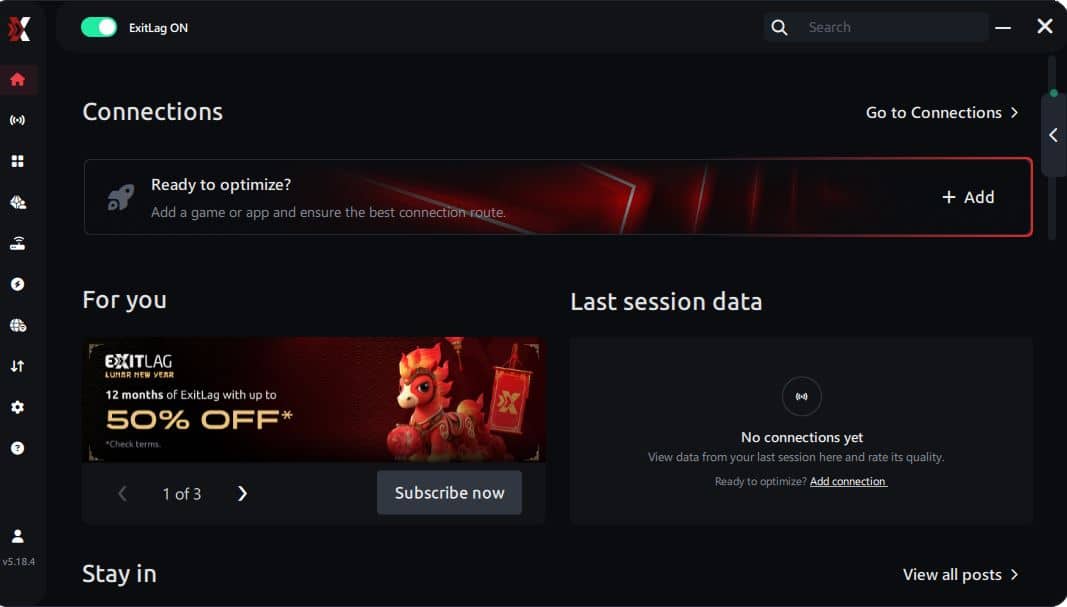
Step 3 – In the search bar, type “Minecraft” and select the game from the list.
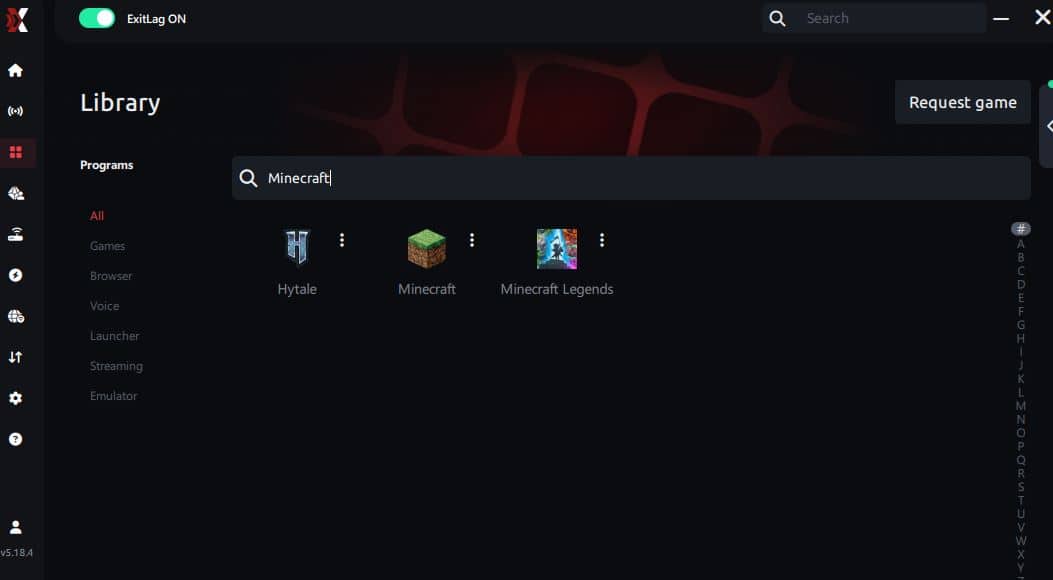
Step 4 – Choose between automated or manual route
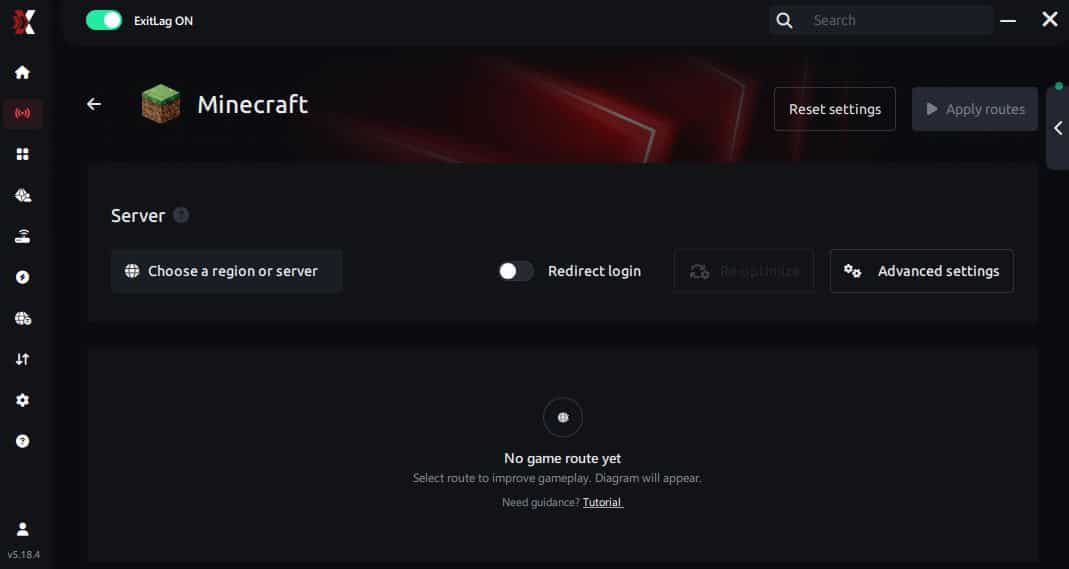
Based on the results, you can let ExitLag automatically select the best route or manually choose the server that showed the lowest latency for your connection.
AI-optimized automated route
Based on the results, you can let ExitLag automatically select the best route through AI optimization. The system analyzes multiple connection paths in real time and automatically identifies the most efficient route for your connection, ensuring the lowest possible latency without requiring manual choices.
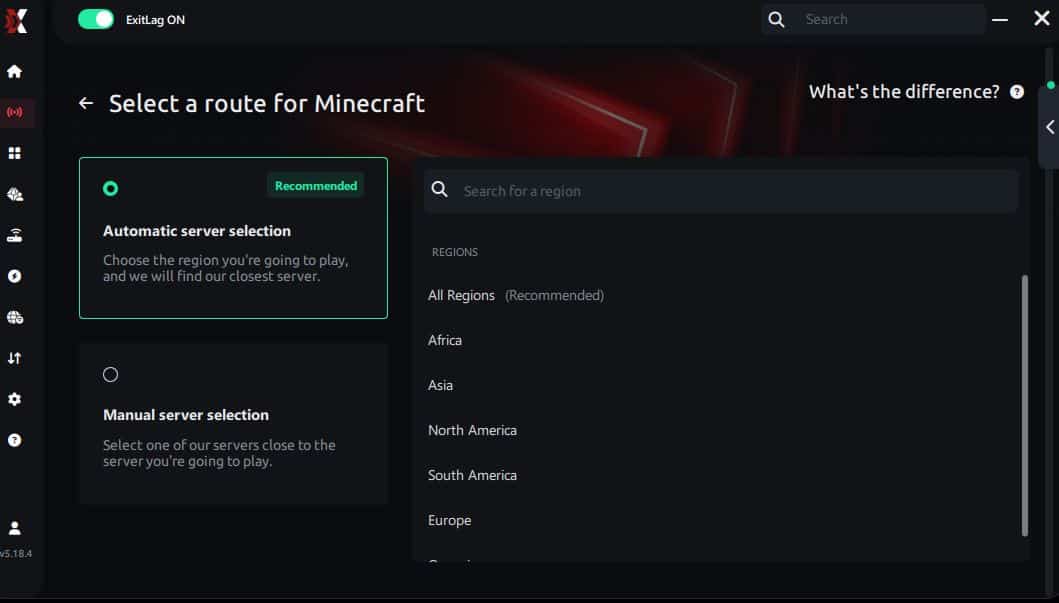
Manual route
If you prefer to have full control over your connection, you can manually choose the server based on the ping test results. Simply select the server that showed the lowest latency or the one that best meets your specific gaming needs, allowing complete customization of your experience.
Step 5 – Click “Minecraft” or the play button. ExitLag will begin optimizing your connection automatically.
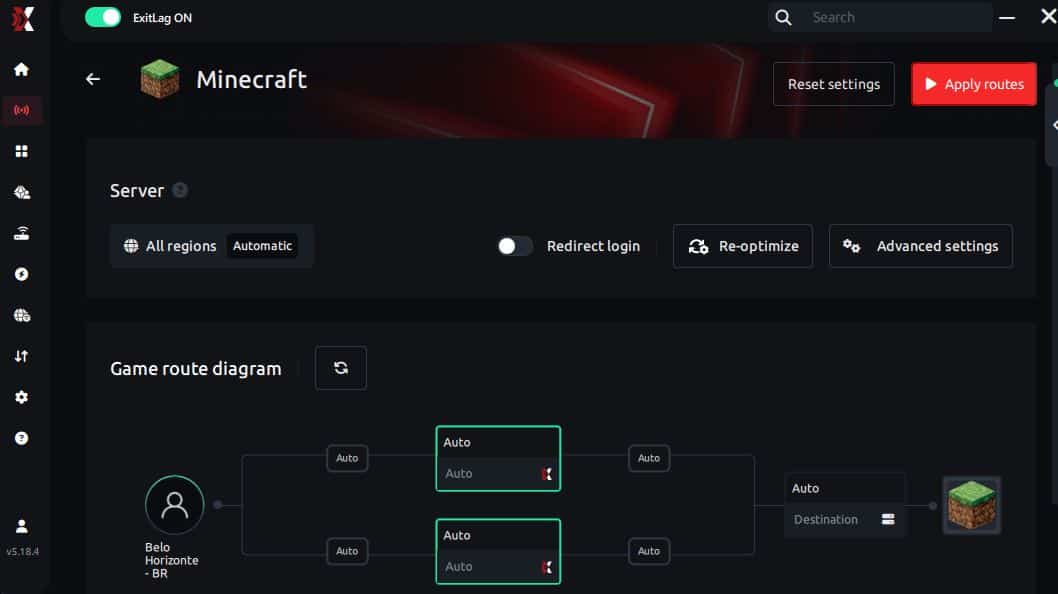
Step 6 – Wait a few seconds until optimization is complete. You’ll see ping indicators in the interface.
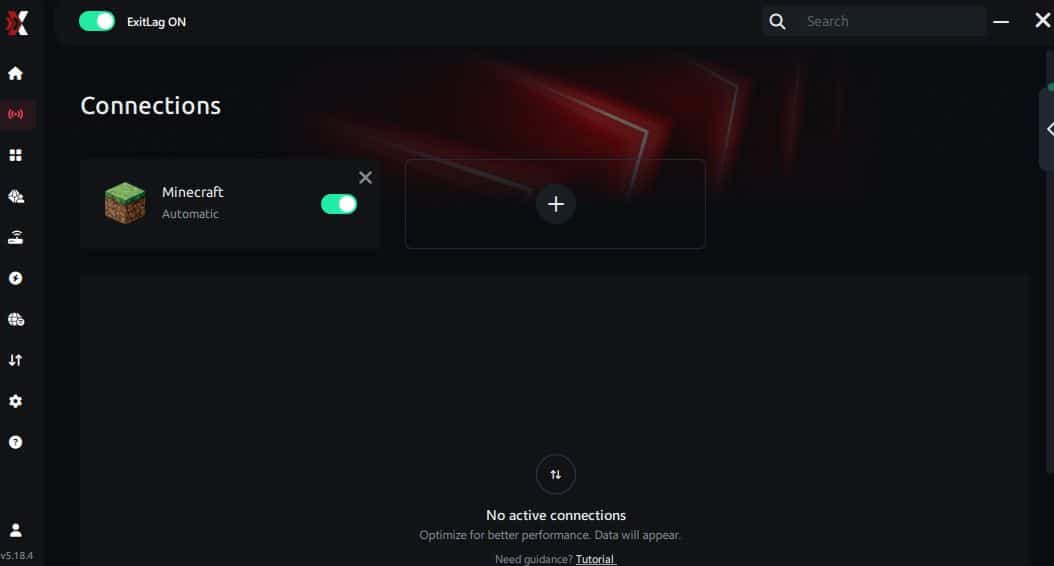
Step 7 – Launch Minecraft normally. The optimization will already be active.
ExitLag runs in the background while you play, constantly adjusting routes to maintain the best possible performance.
And remember the core onboarding steps:
- Create your ExitLag account
- Download ExitLag
- Choose Minecraft and apply the routes
- Enjoy the best experience with ExitLag ON!
FAQ: frequently asked questions about jitter in Minecraft
1. What is the difference between jitter, lag, and packet loss?
Jitter is the variation in your ping over time, which makes your response time unpredictable. Lag usually refers to overall delay caused by high latency. Packet loss happens when some data never reaches the servers at all.
You can have low ping but high jitter, which feels terrible in Minecraft: block placements, hits and knockback become inconsistent and frustrating.
2. Why does my ping keep fluctuating in Minecraft?
Your ping may fluctuate due to network congestion (many devices sharing the same connection), unstable routing from your ISP, Wi-Fi instability, distance from the servers, or high server load. Each of these factors can introduce inconsistent packet timings.
When your ping number jumps constantly instead of staying stable, you are likely experiencing jitter, not just a simple lag spike.
3. Is jitter worse than high ping in Minecraft?
In many cases, yes. A stable 100 ms ping can be more playable than latency that jumps from 30 ms to 200 ms and back again. With a constant delay, you can adjust your timing; with jitter, your timing changes every fight, making combos, bow shots and clutches much harder to execute.
For Minecraft PvP, where every hit and movement matters, jitter is often more damaging than a moderately high but stable ping.
4. How can I tell if I have jitter while playing Minecraft?
You probably have jitter if:
- Your ping value constantly jumps instead of staying close to a single number.
- Your gameplay feels inconsistent — sometimes responsive, sometimes sluggish.
- You notice random rubberbanding, delayed hits, and late block placements.
- Fights that should be easy suddenly feel impossible, even against weaker players.
Running a longer ping test outside the game and observing the variation between minimum and maximum values is the best way to confirm.
5. Does Wi-Fi cause jitter?
Yes, Wi-Fi is one of the most common sources of jitter. Wireless signals are vulnerable to interference, distance, walls and other networks. This leads to instability in packet timing, which you feel as unpredictable delay.
For competitive Minecraft, especially PvP, a wired Ethernet connection is strongly recommended to keep your latency and response time consistent.
6. Does ExitLag solve problems other than jitter?
Yes. In addition to reducing jitter, ExitLag is designed to lower ping, avoid unstable routes, reduce packet loss, and improve overall connection optimization for many online games. It focuses on making your link to game servers more efficient and stable, so all your actions feel more responsive.
This is especially useful when your ISP’s default routing is poor or congested during your usual play hours.
7. Do I have to keep ExitLag open while I play Minecraft?
Yes. ExitLag must remain running in the background for its optimizations to work. You can minimize it, but closing the program will revert your traffic to your ISP’s standard routing and remove the Multi-Internet advantages that reduce jitter.
8. Are certain Minecraft modes more affected by jitter?
Absolutely. Modes that depend on precise PvP timing — like duels, UHC, SkyWars, BedWars, practice servers and crystal PvP — suffer the most from Minecraft jitter. Parkour, bridging and clutching are also heavily impacted because each block placement and movement must be perfectly timed.
On more casual survival or building servers, jitter is still annoying but less game-breaking than in intense PvP environments.
Conclusion
Jitter can turn a relaxing building session or a high-stakes Minecraft duel into a frustrating mess of delayed hits, weird knockback and lost fights. But you don’t have to accept random instability as “normal internet.” With the right local tweaks and a dedicated routing solution, you can finally enjoy smooth, predictable gameplay that reflects your real skill — not your ISP’s luck.
If you want to dive deeper into connection tips, game-specific guides and optimization strategies, you can explore more articles on official ExitLag blog.
Investing in a stable connection means more than just fewer deaths: it means enjoying Minecraft the way it was meant to be played — responsive, fair and free from surprise delays when it matters most.
Ready to stop losing fights and clutches to Minecraft jitter and start playing with stable, predictable ping? Take the next step, stabilize your connection, and unlock your full potential in every server by starting your free trial at start your free ExitLag trial.