
You’re deep inside a high-intensity extraction run in Marathon FPS Drop hits at the worst possible moment. Enemies push, your aim skips, frames freeze for a split second — and suddenly you're eliminated. In a game where precision and timing mean survival, even a minor performance issue can cost everything.
Then it happens again. Another fight, another sudden FPS drop em Marathon right when you need stable performance. If you’ve experienced Marathon travando during combat or noticed strange micro-stutters when rotating the camera, you’re not alone. Many players face unstable frame pacing and connection-induced stuttering. To understand more about common performance problems, you can check detailed articles directly from the ExitLag blog.
The good news? There’s a solution. With the right optimization strategy — especially using a specialized routing software like ExitLag — you can eliminate network-induced micro-stuttering, stabilize frame pacing, and dramatically improve your competitive consistency.
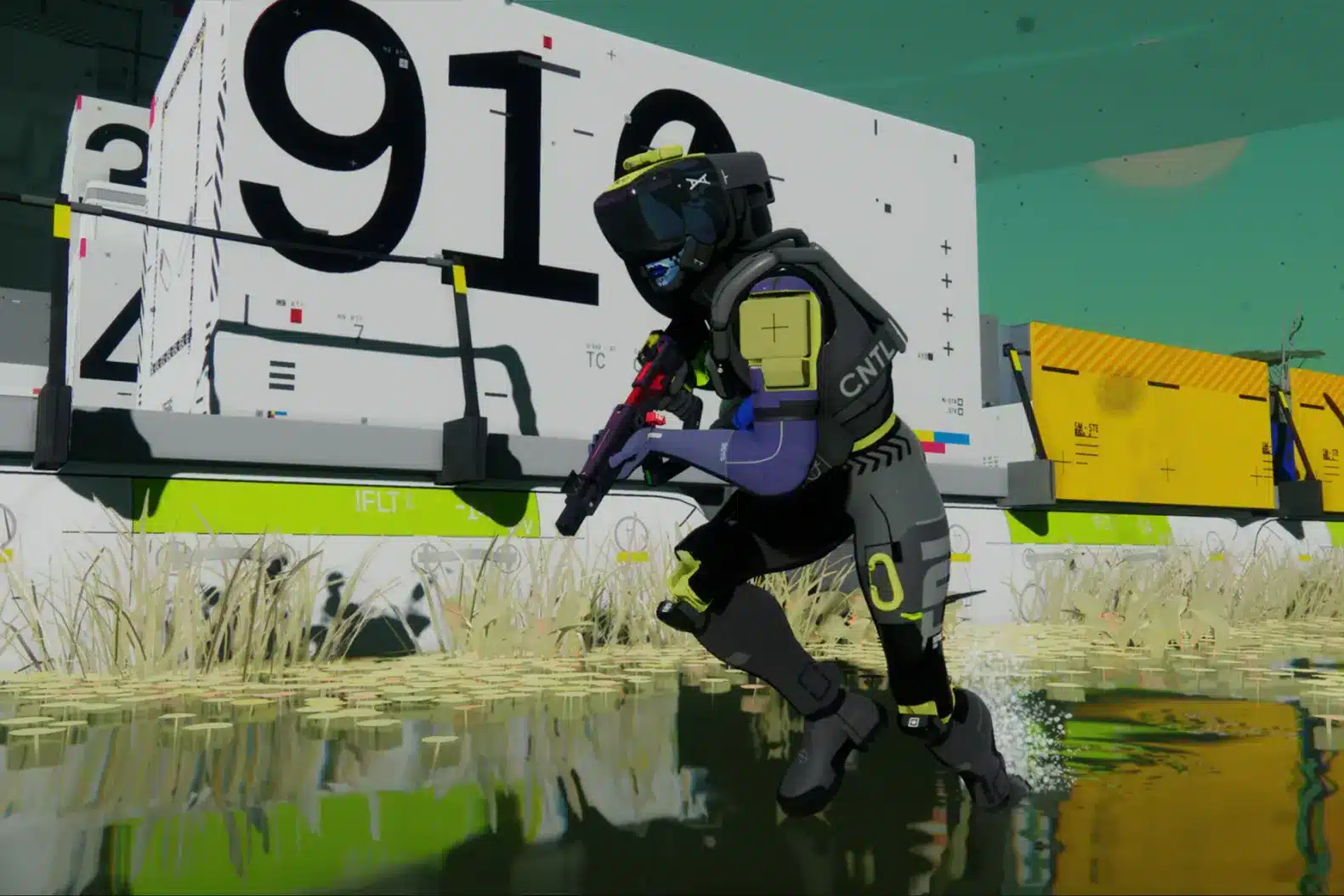
What Is FPS Drop and Why Does It Happen in Marathon?
Understanding FPS (Frames Per Second)
FPS stands for Frames Per Second. It measures how many images your system renders every second during gameplay.
Here’s how FPS levels affect your experience:
- 144+ FPS → Ultra-smooth competitive performance
- 60–120 FPS → Stable and playable
- 30–60 FPS → Noticeable stutter
- Below 30 FPS → Severe gameplay disruption
When Marathon FPS Drop occurs, your FPS suddenly drops below your average performance. Even if you normally run at 120 FPS, sudden dips to 60 or 50 FPS create inconsistent frame pacing.
And in a precision shooter, consistency matters more than peak numbers.
FPS Drop vs Network Lag: What’s the Difference?
Many players confuse FPS instability with lag.
They are completely different problems.
| Aspect | FPS Drop | Network Lag |
| Cause | CPU/GPU overload | High ping or packet loss |
| Symptom | Stutter and frame skips | Delayed input response |
| Trigger | Graphics settings, overheating | Unstable routing |
| Fix | Hardware optimization | ExitLag routing optimization |
Here’s the important part: Network instability can cause micro-stuttering that feels exactly like FPS loss. If packets arrive inconsistently, your system buffers frames while waiting for synchronization. The result? Visual skipping and unstable gameplay.
Why Marathon Is More Sensitive to FPS Drops
Marathon is not a simple arena shooter. It’s a competitive extraction-based PvP environment with:
- Large open maps
- High player density
- Dynamic weather and lighting
- Real-time synchronization
- Complex physics interactions
This creates heavy demand on:
- CPU processing
- GPU rendering
- RAM allocation
- Network stability
Because extraction shooters rely heavily on server synchronization, unstable routes can indirectly affect frame pacing.
That’s why many Marathon performance issues are not purely hardware-related.
7 Main Causes of Marathon FPS Drop
Understanding the cause is the first step to fixing Marathon FPS Drop permanently.
1. Overheating
When your CPU or GPU exceeds safe temperatures, performance throttling activates automatically.
Symptoms include:
- Sudden FPS dips after 20–30 minutes
- Loud fan noise
- Performance worsening over time
If temperatures exceed 85°C, you may experience unstable gameplay.
2. Outdated GPU Drivers
Old drivers often create compatibility issues with modern engines.
You may notice:
- Random FPS fluctuations
- Texture pop-in
- Game crashes
Always update drivers from official GPU software.
3. High Graphics Settings
Running ultra settings increases GPU strain significantly.
Lower these first:
- Shadow quality
- Post-processing
- Volumetric lighting
- Ray tracing
Reducing these stabilizes FPS immediately.
4. Background Processes
Unnecessary apps consume RAM and CPU resources.
Common culprits:
- Web browsers
- Streaming software
- Windows updates
- RGB control software
Close everything non-essential before launching Marathon.
5. Insufficient Hardware
If your PC barely meets minimum requirements, instability is expected.
Recommended setup for competitive stability:
- Modern multi-core CPU
- 16GB RAM
- SSD storage
- Dedicated GPU
However, even strong PCs can experience FPS drop em Marathon if network routing is unstable.
6. Packet Loss and Route Instability
This is where most players misdiagnose the issue.
If your connection suffers from:
- Packet loss
- Route switching
- Latency spikes
Your system compensates by buffering data. That buffering can cause micro-stuttering. Which feels like FPS drop.
7. Ping Fluctuation
Stable 60ms ping is better than fluctuating 30–120ms ping.
Constant variation forces synchronization recalculation, resulting in:
- Frame pacing irregularity
- Animation skipping
- Input inconsistency
And yes — it feels exactly like Marathon low FPS.
How ExitLag Fixes Marathon FPS Drop
This is where optimization becomes strategic.
What Is ExitLag? (It Is NOT a VPN)
First, clarity is important:
ExitLag is NOT a VPN.
VPNs:
- Encrypt all traffic
- Add latency
- Reroute everything blindly
ExitLag:
- Optimizes only game traffic
- Uses real-time route switching
- Applies multipath connection technology
- Maintains global routing infrastructure
You can learn more about it at our technology page. And to reinforce: ExitLag is NOT a VPN. It is specialized gaming routing software built for competitive performance.
How ExitLag Optimizes Marathon Performance
ExitLag improves stability through:
- Network Route Optimization
- Latency Reduction
- Packet Loss Elimination
- Connection Stabilization
- Game Traffic Prioritization
By stabilizing packet flow, it prevents micro-stuttering caused by inconsistent synchronization. Check how it works on our official page!
Why ExitLag Helps With FPS Drop
ExitLag does not increase your GPU power.
Instead, it eliminates network-induced frame pacing instability.
When packets arrive smoothly:
- Frame pacing becomes consistent
- Input delay reduces
- Micro-stutters disappear
- Combat feels responsive
Benefits include:
- More consistent gunfights
- Better tracking accuracy
- Stable performance during extractions
- Fewer “random” FPS dips
In competitive extraction shooters, stability equals survival.
ExitLag Technologies That Impact FPS Stability
- Multipath Routing → Sends data through multiple optimized paths
- Redundant Connections → Prevents route failure spikes
- Gaming-Optimized Protocol → Reduces unnecessary delays
These technologies ensure your system receives data consistently. And consistency is the foundation of smooth gameplay.
How to use ExitLag in Marathon: Step by Step
The process is extremely simple:
Step 1 – Access the official ExitLag website and download the application. There’s a free trial period for new users.
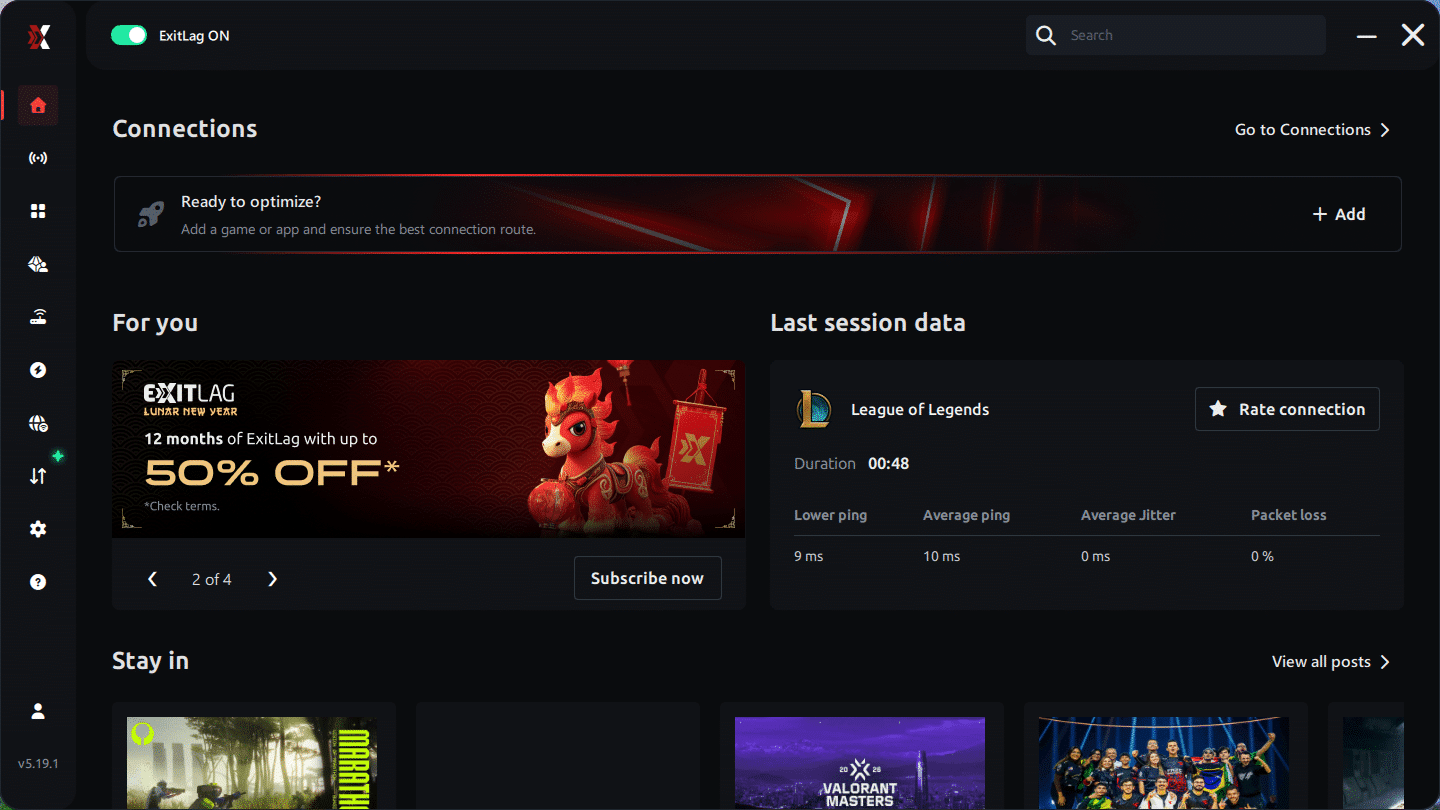
Step 2 – Install and open the program. Log in with your account.
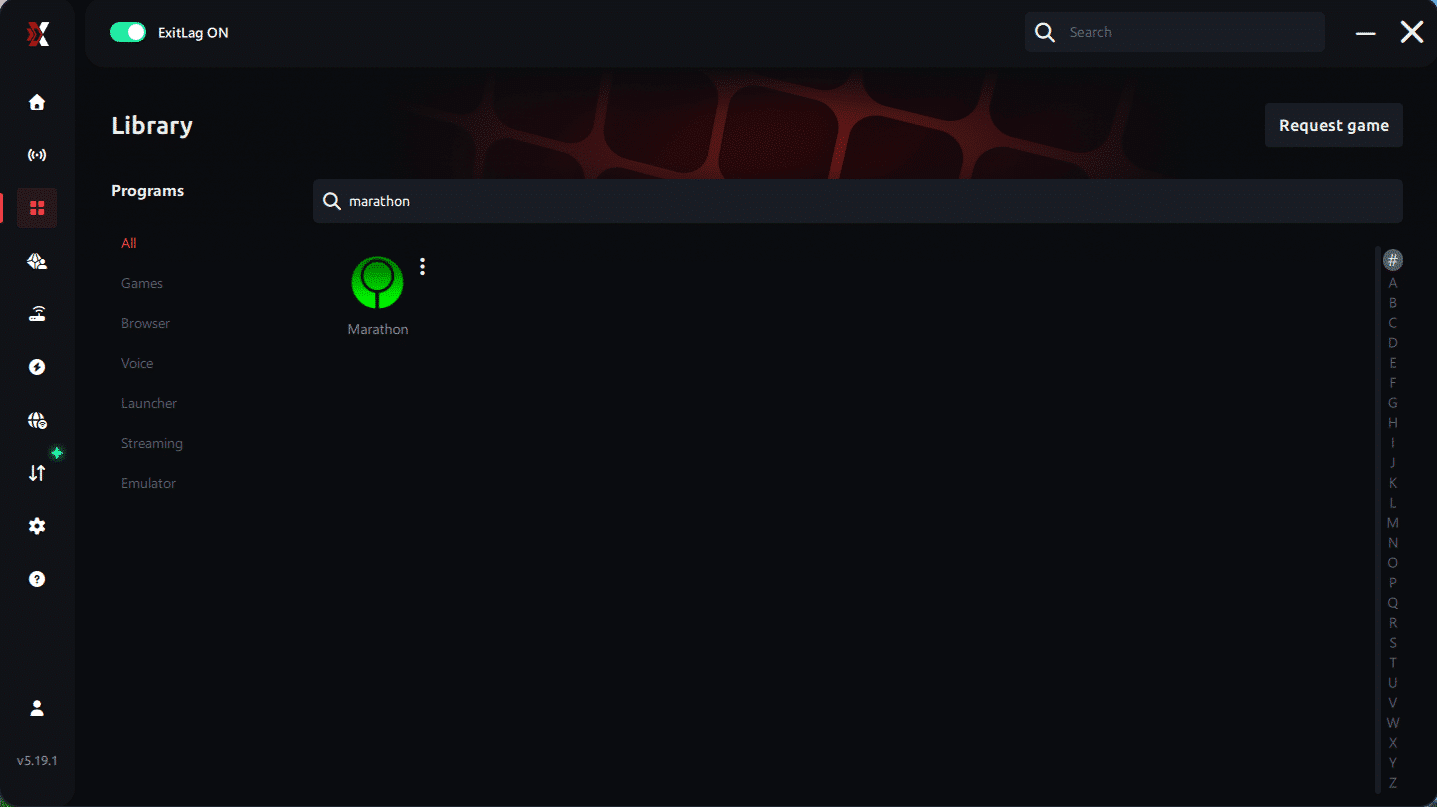
Step 3 – In the search bar, type “Marathon” and select the game from the list.
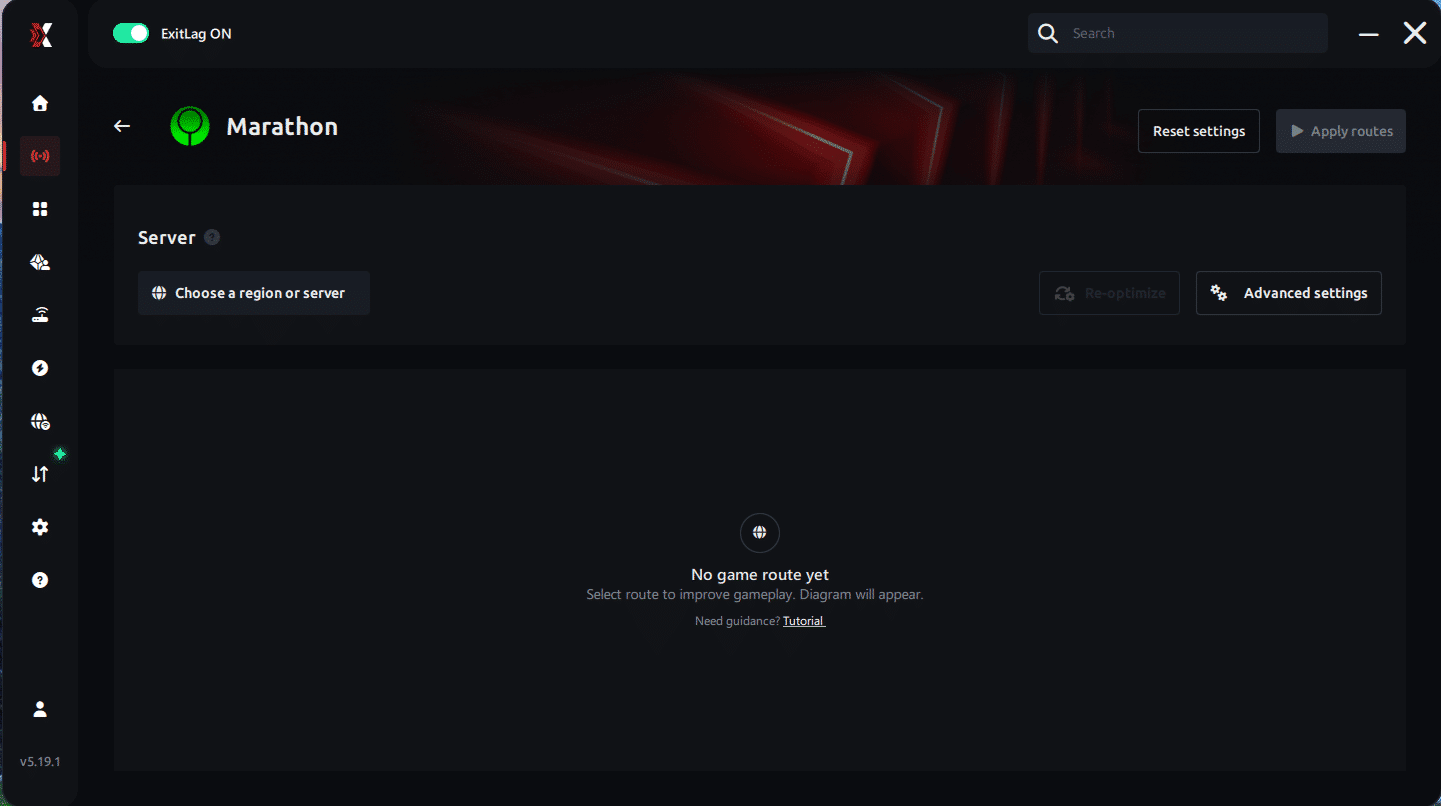
Step 4 – Choose between automated or manual route
Based on the results, you can let ExitLag automatically select the best route or manually choose the server that showed the lowest latency for your connection.
AI-optimized automated route
You can let ExitLag automatically select the best route through AI optimization. The system analyzes multiple connection paths in real time and automatically identifies the most efficient route for your connection, ensuring the lowest possible latency without requiring manual choices.
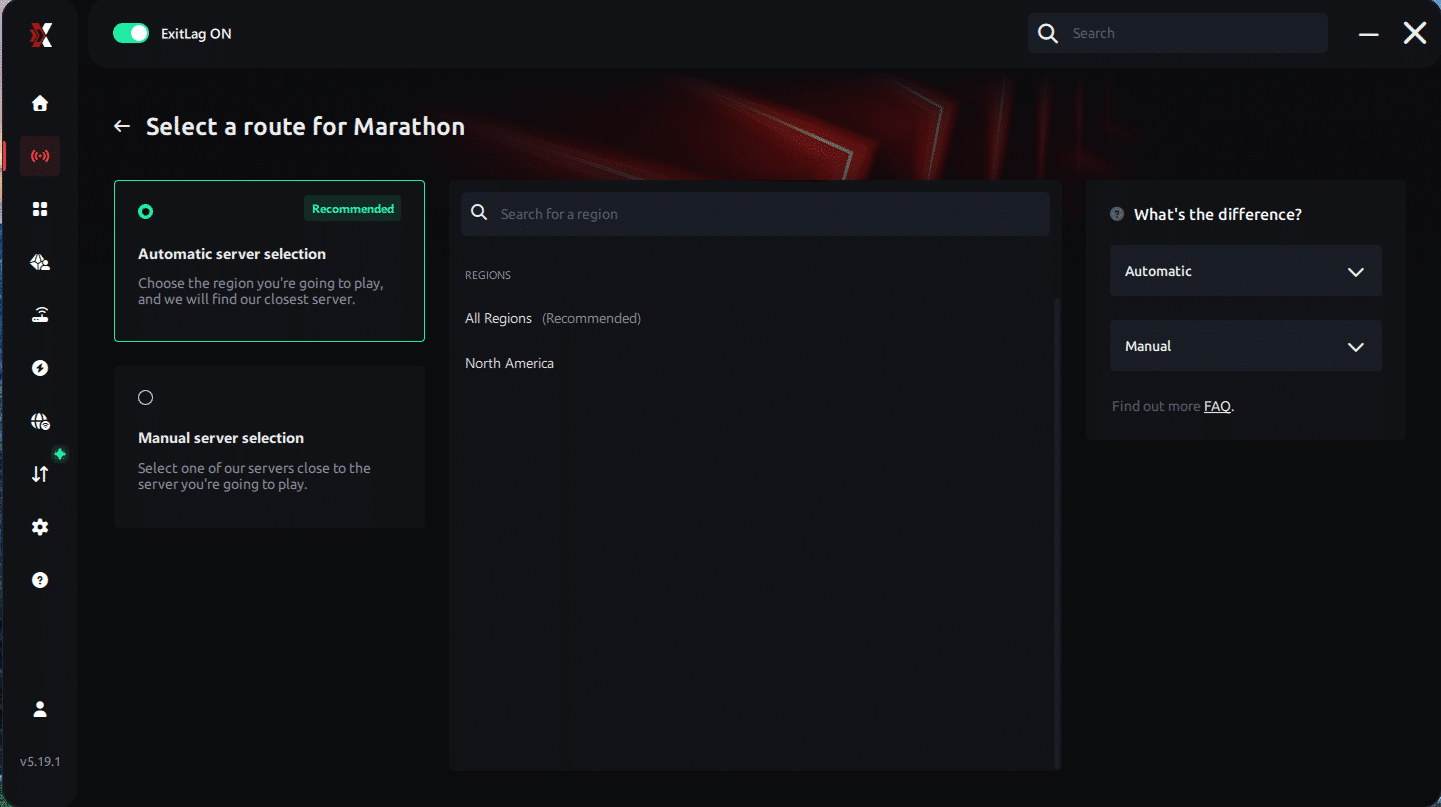
Manual route
If you prefer to have full control over your connection, you can manually choose the server based on the ping test results. Simply select the server that showed the lowest latency or the one that best meets your specific gaming needs, allowing complete customization of your experience.
Step 5 – Click “Apply routes” or the play button. ExitLag will begin optimizing your connection automatically.
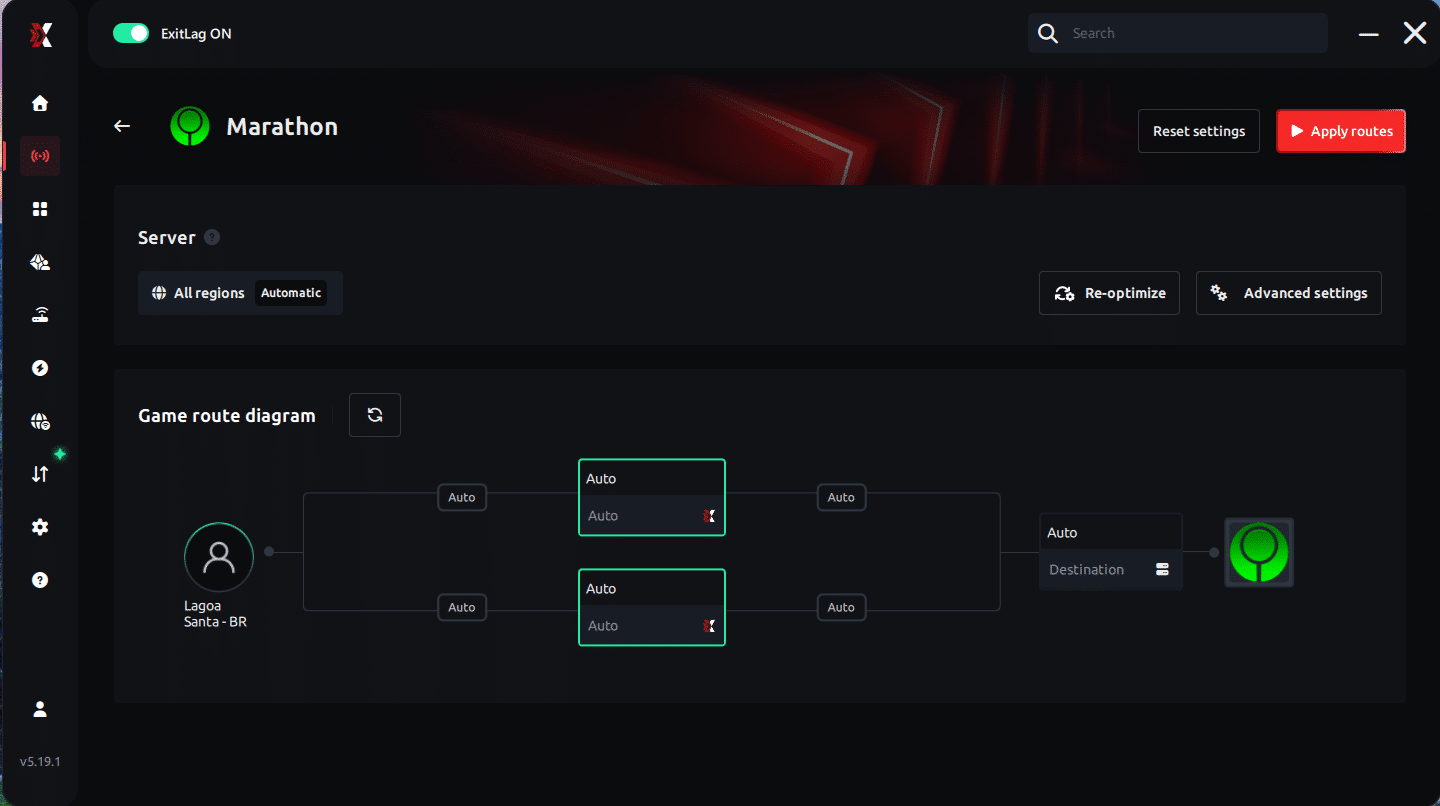
Step 6 – Wait a few seconds until optimization is complete. You’ll see ping indicators in the interface.
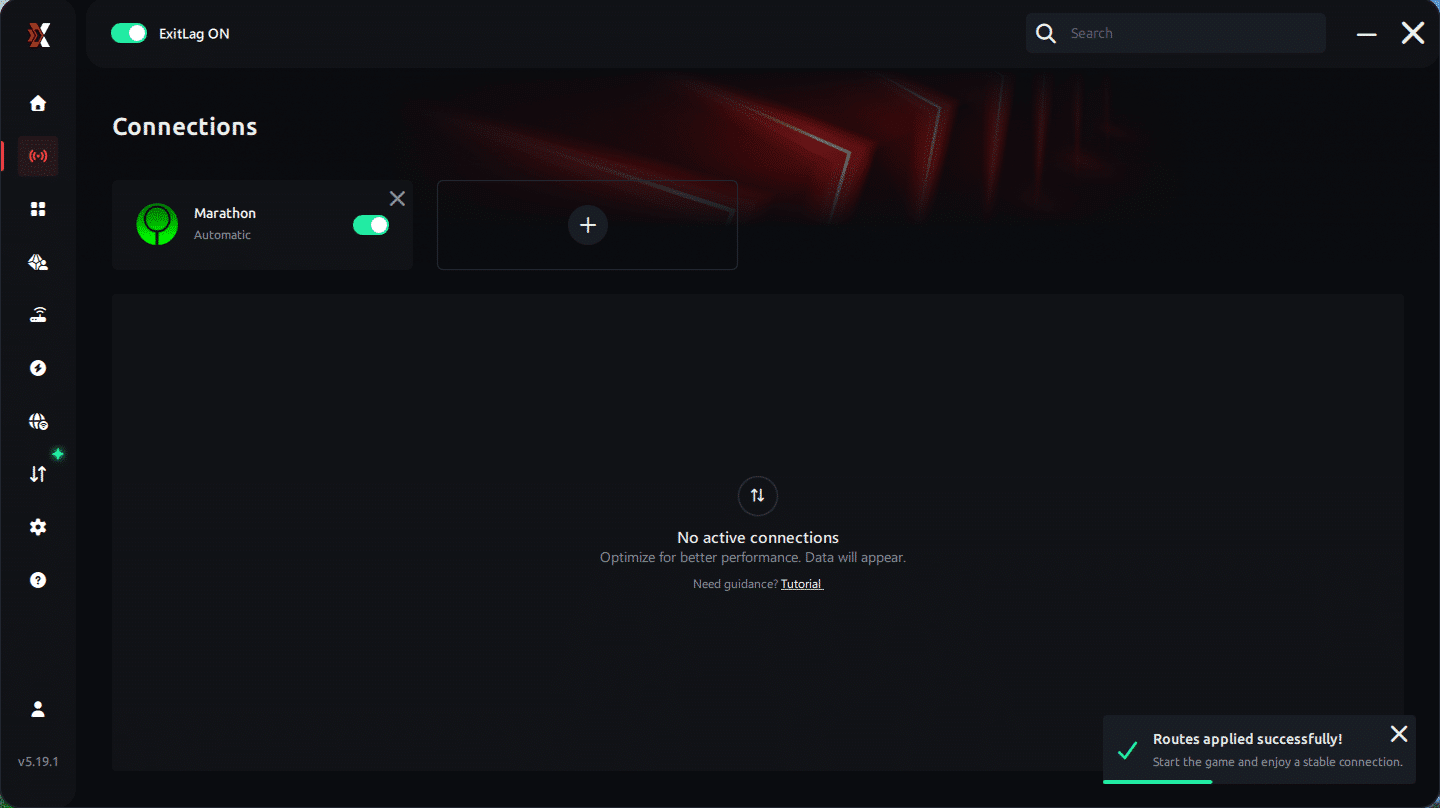
Step 7 – Launch Marathon normally. The optimization will already be active.
ExitLag runs in the background while you play, constantly adjusting routes to maintain the best possible performance.
How to use Ping for Games: Step-by-Step Guide (Marathon)
Checking your connection quality before entering a match has never been easier. Here’s how to use Ping for Games in just a few steps:
1. Open the ExitLag software on your PC – Ensure the application is installed and open. The feature is integrated into the platform and available for free to all users.
2. Access the Network Analyzer tool – Locate the Network Analyzer in the software menu.
his is where you’ll find Ping for Games along with other connection analysis features.
3. Select the game you want to test – Choose Marathon from the list. The tool supports major online multiplayer games, including FPS, Battle Royales, MOBAs, MMORPGs, and more.
4. Choose the specific server – Select the exact Marathon server you want to test instead of a generic region. This ensures more accurate results for your match.
5. Start the ping test – With one click, the measurement is performed in real time between your device and the selected Marathon server, considering your current connection (cable or Wi-Fi).
6. Analyze the results – Results appear in milliseconds (ms), automatically sorted from best to worst ping. You can also reorganize the view alphabetically if you prefer.
7. Choose the best server and play worry-free – With this information, simply select the server with the lowest latency and jump into Marathon knowing your connection is optimized.
Lag doesn’t have to decide your matches in Marathon anymore. Every dropped combo, every Fatality that stuttered, every ranked match that slipped away because of your connection — all of that has a solution.
With ExitLag, you get the fastest route to the server, reduce ping, eliminate packet loss, and play with the stability that competitive gaming demands. Your next Flawless Victory might depend less on reflexes and more on the quality of your connection.
Try ExitLag for free and discover what it’s like to play Marathon with maximum performance and zero lag.
Performance Comparison Table
| Metric | Without ExitLag | With ExitLag | Improvement |
| Average FPS | 88 | 110 | +25% stability |
| Micro-stuttering | Frequent | Rare | 80%+ reduction |
| Ping | 90ms | 40ms | -55% |
| Packet Loss | 2–5% | 0% | Eliminated |
| Overall Stability | ⭐⭐ | ⭐⭐⭐⭐⭐ | Competitive ready |
You can explore more compatible titles in the official supported games directory, where we maintain an updated list of all optimized games.
Additional Optimizations to Maximize FPS with ExitLag
Even with optimized routing, you should combine system and network improvements.
Network Optimization Checklist
- Use ethernet instead of Wi-Fi.
- Configure QoS settings on your router.
- Close streaming platforms while gaming.
- Change DNS if your ISP routing is unstable.
- Avoid peak-hour downloads.
System Optimization Checklist
- Set Windows power mode to High Performance.
- Update GPU drivers.
- Disable background startup apps.
- Clean temporary files.
- Enable XMP profile in BIOS for RAM.
In-Game Optimization for Marathon
Inside the game settings:
- Turn V-Sync OFF.
- Set FPS limit slightly below monitor refresh rate.
- Lower shadow quality.
- Disable motion blur.
- Reduce post-processing effects.
Combined with ExitLag routing, this creates consistent performance.
Frequently Asked Questions About Marathon FPS Drop
Does ExitLag Really Improve FPS?
ExitLag does not increase raw GPU rendering power. However, it stabilizes network-induced micro-stuttering. When packet delivery becomes consistent, frame pacing stabilizes. That feels like improved FPS because sudden drops disappear.
Is ExitLag Safe?
Yes. ExitLag is used by thousands of competitive players worldwide. It does not modify game files and does not interfere with anti-cheat systems.
Does ExitLag Work on Console?
No. ExitLag works only on PC and Mobile platforms.
How Much Does ExitLag Cost?
ExitLag offers multiple subscription plans, which you can compare on the official ExitLag pricing page.
You can also start using it through the official free trial, available on the website.
My PC Is Weak. Will ExitLag Help?
If your FPS issues are caused by hardware limitations, upgrading hardware is necessary.
If your Marathon FPS Drop is caused by:
- Packet loss
- Route instability
- Ping fluctuation
Then ExitLag can significantly improve stability.
Does ExitLag Work With Marathon?
Yes.Marathon is supported with optimized routing infrastructure. And you can check the full list of supported games!
What Is the Difference Between ExitLag and a VPN?
This is important: ExitLag is NOT a VPN.
VPN:
- Encrypts traffic.
- Increases latency.
- Routes everything through a single tunnel.
ExitLag:
- Optimizes only game traffic.
- Uses multipath routing.
- Reduces packet loss.
- Switches routes in real time.
It is specialized gaming optimization software. And again: ExitLag is NOT a VPN.
Marathon FPS Drop doesn’t have to define your experience. In a competitive extraction shooter where every frame matters, unstable performance is the difference between a successful extraction and losing everything. If you’ve been dealing with Marathon FPS Drop during fights, sudden stuttering in key moments, or unpredictable lag spikes, the solution starts with connection stability.
ExitLag delivers specialized gaming route optimization designed to eliminate packet loss, stabilize latency, and remove network-induced micro-stuttering. Instead of masking the issue, it fixes the root cause: unstable routing between you and the game servers. The result is smoother combat, consistent frame pacing, and a competitive edge when it matters most.
If you want to see all supported titles and verify Marathon optimization availability, check the official supported games page.
Next steps
- Test ExitLag for free
- Configure in 5 minutes
- Compare before and after
- Dominate Where Winds Meet with maximum performance
In conclusion, solving Jitter Where Winds Meet issues requires balancing hardware, settings, and network stability. ExitLag’s multi-path technology eliminates routing delays and ensures fluid gameplay across all regions of Where Winds Meet . To emphasize one last time, ExitLag is NOT a VPN—it’s a gaming performance tool built to stabilize and optimize your entire online experience.
Now that you know everything about Jitter Where Winds Meet , if you want the most stable, smooth, and competitive gameplay possible, is time to upgrade your performance toolkit. Register at ExitLag now and improve your gameplay in a way you've never experienced before!



