With Marvel Rivals becoming one of the most discussed hero shooter experiences, many Apple users are searching for a reliable way to enjoy the game without switching to a Windows computer. Although the title was designed primarily for Windows platforms, dedicated players are exploring different methods to access Marvel Rivals Mac gameplay through cloud services, virtualization software, and compatibility solutions.
The demand for Marvel Rivals Mac solutions continues to grow because many Mac users already have powerful machines with Apple Silicon processors, including M1, M2, and M3 models. However, running a competitive multiplayer game on macOS requires understanding compatibility limitations, performance expectations, and the best available workarounds.
What is Marvel Rivals Mac?

It refers to the different methods that allow Mac users to play Marvel Rivals despite the absence of an official macOS version. These methods include cloud gaming platforms, Windows virtualization through Parallels, compatibility layers such as CrossOver, and remote streaming solutions from dedicated gaming PCs.
Marvel Rivals Mac Compatibility and Official Support
Marvel Rival does not currently have a native macOS version. The official release focuses on Windows computers and console platforms, meaning Apple users cannot simply download a dedicated Mac installer and launch the Rivals game.
However, that does not mean Mac users are completely excluded. Several technologies allow players to access the Windows version indirectly.
The best solution depends on the hardware available, internet connection quality, and the type of experience the player wants.
Current Platform Availability for Marvel Rivals
Before choosing a workaround, it is important to understand where the game officially runs.
| Platform | Official Support | Workaround Required | Expected Performance |
| Windows PC | Yes | No | Full performance |
| Intel Mac | No | Yes | Moderate depending on setup |
| Apple Silicon Mac | No | Yes | Variable performance |
| Cloud Gaming | Depends on service | Yes | Stable with strong internet |
The biggest difference between Intel Macs and Apple Silicon Macs comes from architecture. Newer Apple processors provide better efficiency and memory management, making virtualization and translation solutions more practical.
Key Facts About Marvel Rivals Compatibility on Mac
Players researching Marvel Rivals Mac options should consider several important factors:
- There is no official macOS client available.
- Apple Silicon Macs usually provide better results than older Intel models.
- Cloud gaming is often the easiest method.
- Virtual machines may experience anti-cheat restrictions.
- Performance depends heavily on graphics translation and network quality.
Because Marvel Rivals is a fast-paced competitive shooter, stability is just as important as raw performance. A setup that launches the game but creates input delay or connection problems may not provide a satisfying experience.
How to Play Marvel Rivals on Mac: Best Methods Explained
There are multiple ways to access Marvel Rivals through macOS. Each option has advantages and limitations.
The right choice depends on whether the player prioritizes convenience, performance, or technical control.
Cloud Gaming Services for Marvel Rivals Mac
Cloud gaming is usually the simplest approach for Mac users. Instead of running the game locally, the service runs the Windows version on remote hardware and streams the result to your device.
Popular options include:
- NVIDIA GeForce NOW when supported
- Boosteroid
- Xbox Cloud Gaming alternatives when available
This method removes the need for Windows installation and avoids many hardware limitations.
However, the quality depends on internet stability. A fast connection with low latency is essential because every action must travel between the Mac and the cloud server.
For competitive players, using optimized routing can make a significant difference. ExitLag helps improve connection consistency by selecting better network paths and reducing unnecessary packet loss.
Virtualization With Parallels Desktop
Another popular approach is running Windows through virtualization software.
Parallels Desktop allows Mac users to install Windows environments and access PC applications without restarting their computer.
This method is especially interesting for users with Apple Silicon devices because modern Macs provide stronger virtualization performance.
Still, there are limitations:
- DirectX features may not work perfectly.
- Graphics performance is lower than native Windows gaming.
- Anti-cheat systems may detect virtual environments.
- Resource allocation must be configured correctly.
For casual matches, this method may work well. For highly competitive gameplay, cloud gaming or native Windows hardware usually provides better consistency.
CrossOver and Wine Compatibility Layers
Compatibility layers translate Windows applications so they can operate inside macOS.
CrossOver is one of the most recognized tools in this category. It avoids creating a complete virtual machine, which can reduce overhead.
However, results vary significantly between games.
Factors that influence success include:
- Game updates
- Anti-cheat compatibility
- Graphics requirements
- macOS version
- Processor architecture
Because of these variables, CrossOver should be considered an experimental option rather than a guaranteed solution.
Marvel Rivals Mac Download Options and Installation Methods
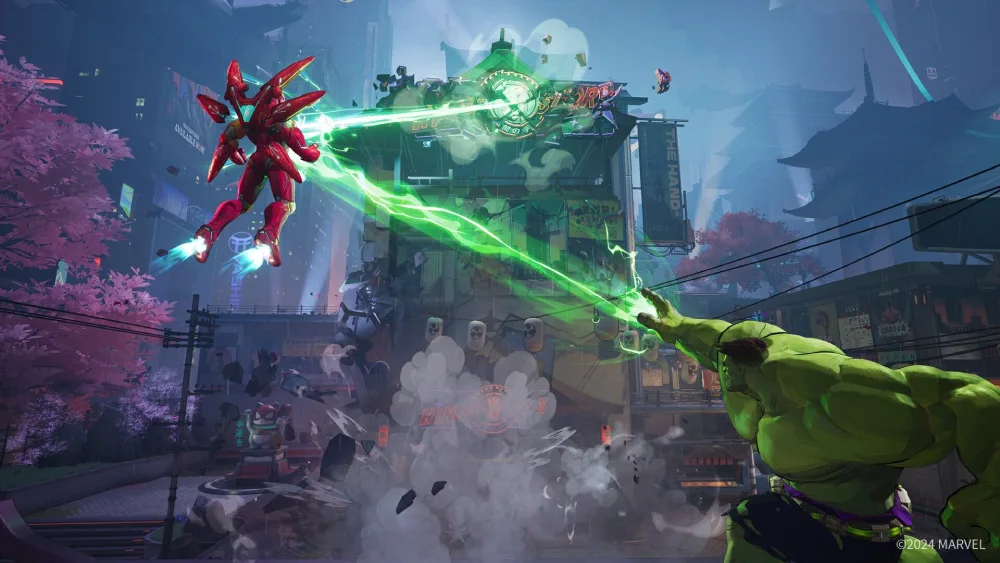
Many players search for a direct Marvel Rivals download for Mac, but there is currently no official macOS installer.
Any working solution requires accessing the Windows version through another platform.
The safest options include:
Recommended Ways to Access Marvel Rivals on Mac
- Use a trusted cloud gaming service.
- Install Windows through Parallels if your Mac hardware supports it.
- Test compatibility tools from official developers.
- Avoid unofficial game wrappers and modified installers.
Unofficial “Mac ports” often create security risks and may fail because competitive games rely on anti-cheat technology.
Downloading unknown files claiming to provide a native version can result in malware, broken installations, or account security problems.
Marvel Rivals Performance Settings for Mac Users
Getting the game running is only the first step. Competitive players need to optimize every part of the setup.
Whether using cloud gaming or virtualization, reducing unnecessary workload improves responsiveness.
Recommended Performance Adjustments
Players should consider:
- Lowering graphics quality to reduce GPU pressure.
- Disabling V-Sync to reduce input delay.
- Limiting FPS to a stable value.
- Closing unnecessary background applications.
- Using wired internet whenever possible.
A stable 60 FPS experience is usually better than unstable higher frame rates.
Apple Silicon vs Intel Mac Performance
Apple Silicon devices generally provide better results than older Intel Macs because of improved architecture and unified memory.
M1, M2, and M3 systems handle virtualization more efficiently, especially when compared with older Intel models that often struggle with graphics-heavy workloads.
Intel Macs may still work, but expectations should be realistic.
The main limitations include:
- Older GPU capabilities.
- Higher thermal limitations.
- Less efficient virtualization performance.
- Reduced compatibility with modern gaming workflows.
Best Marvel Rivals Mac Setup Recommendations
Different players have different priorities. The following comparison helps identify the best approach.
| User Profile | Recommended Method | Reason |
| Casual player | Cloud gaming | Easy setup |
| Competitive player | Windows gaming PC streaming | Lowest latency |
| Apple Silicon owner | Parallels or cloud | Better compatibility |
| Older Intel Mac user | Cloud gaming | Avoids hardware limits |
For most users, cloud gaming provides the easiest balance between accessibility and performance.
Players who already own powerful Mac hardware may prefer virtualization for more control.
Is Marvel Rivals on Mac Through Parallels Worth It?
Playing Marvel Rivals through Parallels can be possible, but expectations need to be managed.
The experience depends on several technical elements.
Advantages of Using Parallels
Benefits include:
- Direct control over Windows settings.
- Local installation experience.
- No dependency on streaming quality.
- Ability to test different configurations.
Limitations of Virtual Machines
However, virtualization introduces challenges:
- Lower graphics performance.
- Possible anti-cheat conflicts.
- Additional CPU and memory usage.
- Increased configuration complexity.
For testing and casual gameplay, Parallels can be useful. For ranked competitive sessions, players may prefer alternatives with lower latency.
Improving Network Performance With ExitLag
Connection quality plays a major role in any online shooter. Even powerful hardware cannot compensate for unstable routing.
ExitLag helps optimize the connection between the player and game servers by analyzing routes and selecting more efficient paths.
For Marvel Rivals Mac users, this is especially useful when playing through cloud platforms or virtual environments.
Key advantages include:
- More stable server communication.
- Reduced packet loss.
- Better route selection.
- Improved consistency during matches.
A smoother connection can help reduce sudden lag spikes and improve overall responsiveness.
Advanced Configuration for Marvel Rivals Mac Performance
Running Marvel Rivals through macOS workarounds requires more than simply installing software and launching the game. Because the experience depends on virtualization layers, streaming infrastructure, and network quality, advanced configuration can significantly improve stability.
Players who want the best possible experience should focus on three main areas: hardware allocation, graphics settings, and connection optimization.
A properly configured setup can reduce unnecessary delays and provide a smoother experience, especially during competitive matches where reaction time matters.
Optimizing Marvel Rivals Through Parallels Desktop
For players using Parallels Desktop, resource management is one of the most important steps.
A virtual machine shares the Mac’s hardware resources with macOS, meaning poor configuration can create performance problems.
Recommended adjustments include:
- Allocate at least 8GB of RAM when possible.
- Assign multiple CPU cores to the Windows environment.
- Enable gaming-focused profiles when available.
- Keep enough resources available for macOS background processes.
- Use Windows performance settings instead of power-saving modes.
Apple Silicon devices usually handle these adjustments better because their unified memory architecture allows more efficient resource distribution.
However, even with strong hardware, virtualization cannot always match native Windows performance.
Cloud Gaming Optimization for Marvel Rivals Mac
Cloud gaming removes many hardware limitations, but it introduces a different challenge: connection quality.
A powerful internet connection is essential because every movement, ability activation, and camera adjustment depends on communication with the remote server.
Players should prioritize:
- Wired Ethernet connections whenever possible.
- 5GHz Wi-Fi networks instead of older wireless bands.
- Lower streaming resolution if latency increases.
- Closing applications that consume bandwidth.
- Avoiding peak congestion periods.
Services such as Boosteroid and other cloud platforms can provide a practical way to access the game without installing Windows locally.
For competitive users, connection optimization tools can further improve stability by reducing inefficient routing paths.
Marvel Rivals Mac Performance Benchmarks and Expectations
Performance expectations are one of the most important aspects of playing Marvel Rivals through macOS solutions.
Unlike native Windows systems, Mac workarounds introduce additional processing layers that can affect FPS, loading times, and responsiveness.
The following estimates represent common results depending on hardware and configuration:
| Setup | Expected FPS | Latency Experience | Overall Result |
| M1/M2 Mac through virtualization | 40–60 FPS | Moderate delay | Playable |
| Cloud gaming at 1080p | Around 60 FPS streaming | Depends on connection | Consistent |
| Older Intel Mac virtualization | Lower performance | Higher delay risk | Limited |
| Dedicated Windows PC streaming | Near-native | Lowest latency | Recommended |
These results show that cloud gaming often provides the most predictable experience, while virtualization offers more direct control but requires additional adjustments.
Best Marvel Rivals Settings for Mac Users
Optimizing in-game settings can help reduce unnecessary performance pressure.
Because the game was not designed specifically for macOS environments, lowering demanding visual effects can create a smoother experience.
Recommended In-Game Settings
Players should consider:
- V-Sync: Disabled
- Shadows: Low
- Effects Quality: Low or Medium
- Anti-Aliasing: Medium
- Resolution Scale: Around 90%
- Frame Rate Limit: Stable 60 FPS
The goal is consistency rather than maximum visual quality.
A stable frame rate improves aiming, movement control, and overall responsiveness.
Recommended Virtual Machine Settings
For players using Windows through virtualization:
- Enable hardware acceleration.
- Use Windows High Performance power mode.
- Disable unnecessary visual effects.
- Keep storage optimization enabled.
- Avoid running multiple demanding applications simultaneously.
Small adjustments can reduce system overhead and improve responsiveness.
Marvel Rival Characters and Gameplay Performance Considerations
The variety of heroes and abilities in Marvel Rivals creates different performance demands during matches.
Large visual effects, team battles, and ability combinations can increase GPU usage.
Players using Mac workarounds may notice performance drops during moments with:
- Multiple ultimate abilities.
- Large team fights.
- Heavy particle effects.
- Complex environmental destruction.
Understanding these situations helps players adjust settings before entering competitive matches.
The experience can vary depending on the selected heroes, graphics configuration, and connection stability.
Controller Support and Input Compatibility
Many players prefer using controllers for hero shooters, especially when playing through cloud gaming services.
Mac setups support several controller options, but compatibility depends on the method being used.
| Controller | Connection Method | Compatibility |
| Xbox Series Controller | Bluetooth or USB | Excellent |
| PlayStation DualSense | Bluetooth or USB | Good, some features limited |
| Third-party controllers | USB or mapping software | Depends on software |
Cloud gaming platforms generally provide easier controller support because input processing happens through the streaming service.
Virtual machines may require additional configuration tools.
Improving Controller Response
For better responsiveness:
- Connect controllers directly instead of using hubs.
- Keep firmware updated.
- Avoid wireless interference.
- Test input delay before competitive matches.
Small latency improvements can make a noticeable difference in fast-paced gameplay.
Common Marvel Rivals Mac Problems and Solutions
Even when the setup is correct, players may encounter technical issues.
Understanding common problems makes troubleshooting faster.
Game Crashes After Login
Possible causes:
- Virtual machine conflicts.
- Overlay software.
- Driver limitations.
Solutions:
- Launch in windowed mode.
- Disable Discord overlays.
- Close unnecessary background programs.
- Update virtualization software.
Connection Spikes During Matches
Possible causes:
- Poor routing.
- Wi-Fi instability.
- Network congestion.
Solutions:
- Switch to Ethernet.
- Select closer servers.
- Optimize routing with ExitLag.
- Reduce cloud streaming quality if necessary.
Audio Problems in Virtualized Windows
Possible causes:
- Incorrect output selection.
- Windows audio configuration issues.
Solutions:
- Check Parallels audio settings.
- Restart the virtual machine.
- Confirm the correct output device.
Advanced Setup: Streaming Marvel Rivals From a Windows PC

Some Mac users choose a hybrid approach by running the game on a dedicated Windows gaming computer and streaming it to their Mac.
This method can provide almost native performance while allowing the Mac to act as a lightweight gaming device.
Required components include:
- A Windows gaming PC.
- A capable GPU.
- Stable home network.
- Streaming software such as Moonlight or Steam Remote Play.
This solution is especially attractive for players who already own gaming hardware but prefer using a MacBook or iMac as their main device.
Community Tools and Recommended Practices
The Mac gaming community frequently shares configuration improvements, compatibility reports, and performance adjustments.
Players often discuss:
- Virtual machine optimizations.
- Compatibility updates.
- Controller solutions.
- Streaming improvements.
However, users should be careful when downloading unofficial scripts or modified files.
The safest approach is always:
- Use official software sources.
- Keep tools updated.
- Avoid unknown installers.
- Review community feedback before making system changes.
Future Outlook for Marvel Rivals Mac Support
Many Mac users continue waiting for official macOS support.
At the moment, there is no confirmed native Mac version. However, platform expansion is possible as gaming on Apple devices continues to evolve.
The growth of Apple Silicon hardware has increased interest in Mac gaming because modern devices offer significantly better performance than previous generations.
If official support arrives in the future, it could provide:
- Better optimization.
- Improved graphics performance.
- Native controller support.
- More reliable anti-cheat compatibility.
Until then, workarounds remain the primary solution for Apple users.
For Marvel Rivals Mac players who want smoother matches and more stable online sessions, ExitLag can improve the connection quality by optimizing network routes, reducing unstable latency, and helping maintain a more consistent connection during competitive battles.
FAQ: Marvel Rivals Mac
Can I install Marvel Rivals directly on Mac?
No. Marvel Rivals does not currently offer a native macOS version. Mac users need alternative methods such as cloud gaming, virtualization, compatibility layers, or remote streaming.
What is the best way to play Marvel Rivals on Mac?
For most users, cloud gaming provides the easiest experience. Players with powerful Apple Silicon devices may also test virtualization solutions like Parallels.
Does ExitLag work with Marvel Rivals Mac setups?
Yes. ExitLag can help improve connection stability by optimizing network routes, reducing packet loss, and creating a smoother online experience.
Is Parallels good enough for competitive Marvel Rivals matches?
Parallels can work for casual gameplay, but virtualization limitations may affect performance. Competitive players usually prefer cloud gaming or dedicated Windows hardware.
Can Apple Silicon Macs run Marvel Rivals better than Intel Macs?
Generally, Apple Silicon Macs provide better results because of their newer architecture, improved efficiency, and stronger virtualization capabilities.