Matchmaking error messages can stop you from joining a match even when your internet appears to be working normally. These errors may come from game servers, regional matchmaking, connection instability, account restrictions, crossplay settings, or temporary bugs.
Matchmaking error does not always mean the same thing across every game. Fortnite, Valorant, ARC Raiders, TF2, and other online titles use different matchmaking systems, so identifying the exact game and error message is essential before trying to fix it.
Matchmaking error means the game could not successfully place your account into a multiplayer session. In many cases, the best first steps are to check server status, restart the game, verify your connection, and determine whether the issue affects only one playlist or the entire matchmaking service.
Matchmaking Error: What Does It Mean?
A matchmaking system connects players who are trying to enter the same multiplayer mode. It may consider region, party size, playlist, skill parameters, platform, crossplay settings, and server availability before creating a match.
When that process fails, the game may return a generic error or a more specific code. That is why what is matchmaking error has a different answer depending on the title you are playing.
Common reasons matchmaking fails
Matchmaking errors can be caused by:
- Server maintenance;
- Regional outages;
- Game updates;
- Network instability;
- DNS problems;
- Crossplay conflicts;
- Party configuration;
- Unsupported playlists;
- Account restrictions;
- Firewall or proxy settings;
- Corrupted game files;
- Temporary bugs.
Some issues are entirely server-side, meaning there is nothing wrong with your device. Others come from your local connection or game configuration.
The most important rule is to avoid changing many settings at once. Start with the simplest checks and move toward more advanced troubleshooting only if the error continues.
Server issue or local problem?
A useful first step is identifying whether other players are experiencing the same issue. If matchmaking suddenly fails for many users at the same time, a server outage or maintenance window is more likely.
If only your account or device is affected, investigate your connection, game files, account settings, crossplay configuration, or party setup.
This distinction can save a lot of time because restarting your router will not fix a server outage, while waiting for maintenance will not solve a broken local network configuration.
Fortnite Matchmaking Error: Main Causes
The Fortnite matchmaking error is one of the most common examples because Epic Games uses several numbered matchmaking errors for Battle Royale, Creative, tournaments, and events.
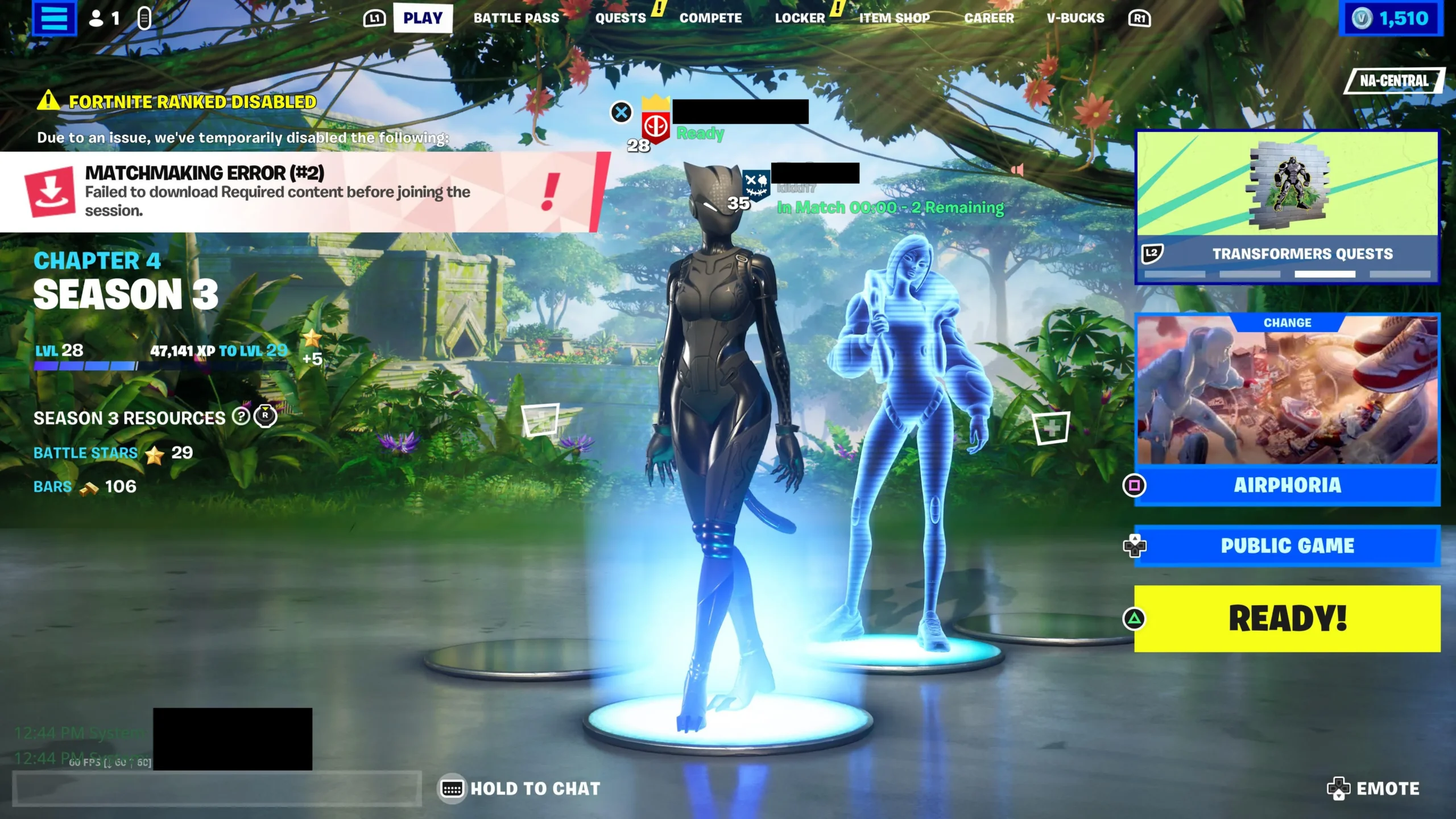
Epic states that Matchmaking Errors #1, #2, and #3 are mainly connected to server maintenance or network connection problems.
Matchmaking Error 1 Fortnite
Matchmaking error 1 Fortnite generally means Fortnite could not connect you to a match. Epic recommends checking service status first and then moving to connection troubleshooting if there is no active outage.
A current variation, Matchmaking Error #1 [1.1.2], is also a known Fortnite issue. Epic says some players may be unable to join matches and recommends switching to another playlist before queueing again as a temporary workaround.
Try this order:
- Check Fortnite server status;
- Restart Fortnite;
- Change to another playlist;
- Queue again;
- Restart your device;
- Restart your router if needed;
- Check your DNS and proxy settings;
- Verify game files on PC.
If the problem started immediately after a Fortnite update, check official status information before changing advanced network settings.
Fortnite Matchmaking Error #2 and #3
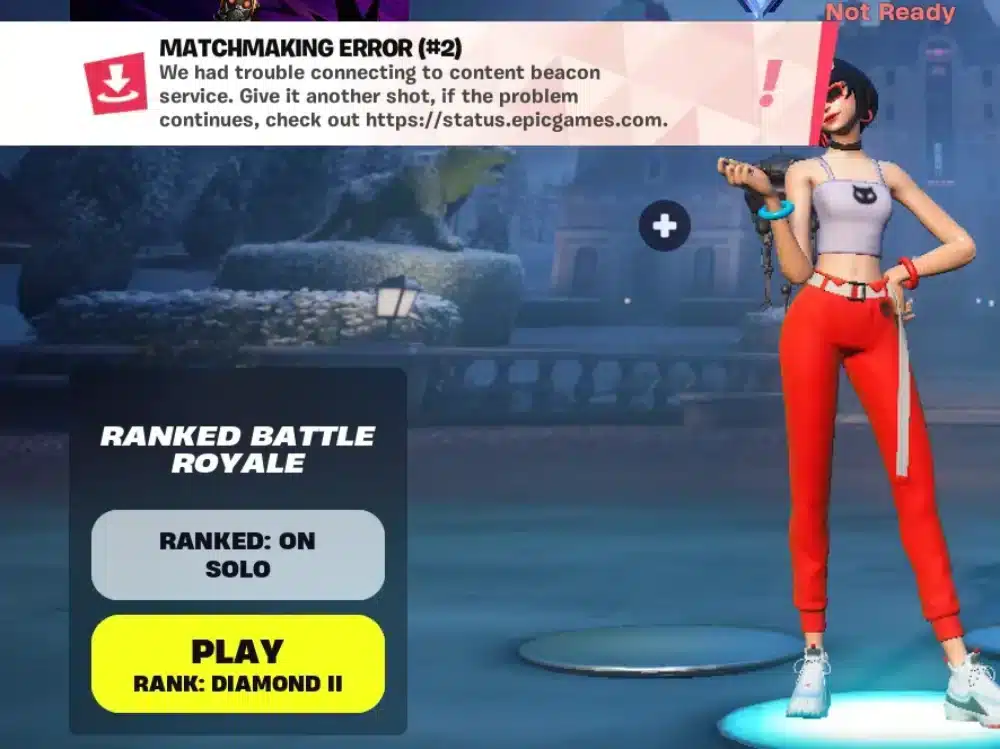
Matchmaking Error #2 may indicate a problem connecting to Fortnite's content service or that your account does not have permission to access specific content. This can happen with competitive modes if eligibility requirements are not met.
Matchmaking Error #3 indicates that available sessions may be full, and Epic recommends waiting briefly before trying again.
The table below summarizes the main Fortnite errors.
|
Fortnite Error |
Possible Meaning |
First Step |
|
Matchmaking Error #1 |
Connection or server problem |
Check status and retry |
|
Error #1 [1.1.2] |
Known matchmaking issue |
Switch playlist and requeue |
|
Error #2 |
Content service or permission issue |
Check mode eligibility |
|
Error #3 |
Match capacity issue |
Wait and retry |
|
Error #5 |
Unable to connect to match |
Check server and network |
|
Error #7 |
Matchmaking connection issue |
Restart and troubleshoot connection |
Epic also states that Error #5 is usually associated with server or network problems.
Fortnite Event Matchmaking Error
A Fortnite event matchmaking error can become especially frustrating because live events often attract a large number of players at the same time.
High demand, eligibility requirements, playlist timing, or server availability can all affect whether you successfully enter an event.
Join events early
Do not wait until the last minute to join a major Fortnite event.
If a playlist opens before the event begins, enter as early as Epic recommends. Once matchmaking capacity becomes limited, retrying at the final moment may not be enough.
Epic's matchmaking documentation confirms that some errors occur when Battle Buses are already full or when a tournament session has already started.
Therefore, preparation matters more during live events than during normal Battle Royale matches.
Check event eligibility
Some competitive or special playlists have participation requirements.
These may involve:
- Account eligibility;
- Tournament rules;
- Rank requirements;
- Region;
- Age requirements;
- Account security settings.
If Fortnite explicitly says you do not have permission to play the content, do not assume the problem is your connection.
Review the event requirements first.
Error Could Not Enter Matchmaking Valorant
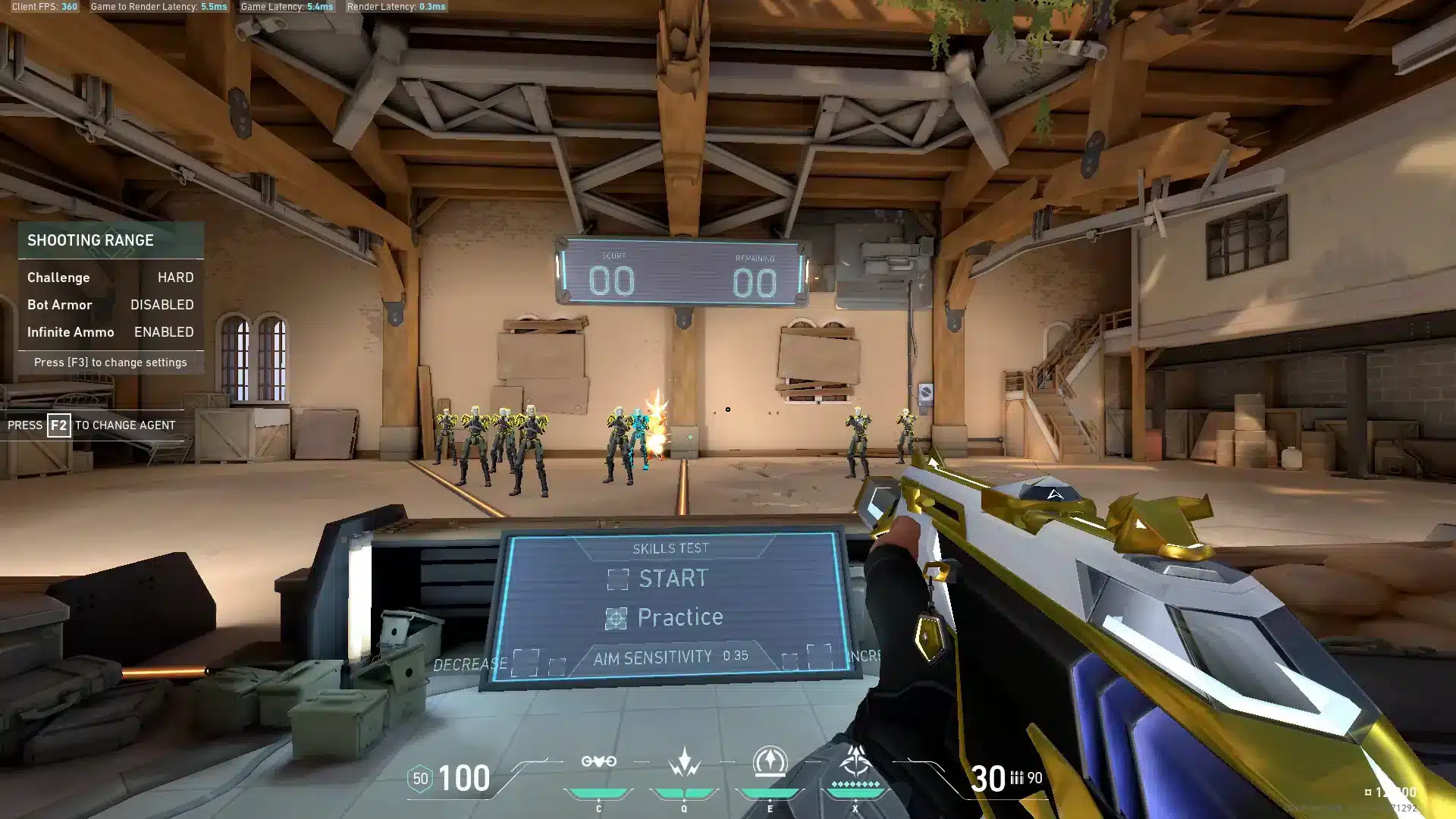
The phrase error could not enter matchmaking Valorant usually refers to a situation where the Riot client or game cannot successfully place the player into a queue.
Unlike Fortnite, Valorant may show different messages depending on whether the problem involves the client, Riot services, Vanguard, account status, or connectivity.
Restart Riot Client and Valorant
Start with the simplest steps.
Close Valorant completely, exit Riot Client, and reopen both applications. If the problem continues, restart the PC before trying another queue.
Also check:
- Riot service status;
- Whether Valorant is updated;
- Vanguard status;
- Internet stability;
- Firewall settings;
- Party configuration.
If the error appears only while grouped with other players, test matchmaking alone. That can help determine whether the problem is related to the party rather than your individual account.
Do not confuse queue restrictions with connection errors
Some matchmaking messages are connected to account restrictions rather than networking.
If Valorant explicitly shows a queue penalty, suspension, competitive restriction, or eligibility message, changing DNS or restarting your router will not remove it.
Always read the exact error before troubleshooting.
That is one of the most important principles for solving any matchmaking error efficiently.
ARC Raiders Matchmaking Error
The arc raiders matchmaking error can involve server connectivity, crossplay compatibility, party status, or matchmaking behavior.
Embark has continued updating the game's matchmaking system throughout 2026, including changes designed to improve squad-size matching and match quality.
Check crossplay settings
Recent ARC Raiders updates have specifically improved matchmaking error messages when crossplay settings are incompatible.
If you are playing in a party across multiple platforms, confirm that everyone has compatible crossplay settings.
A mismatch can prevent matchmaking from starting even if every player's internet connection is functioning normally.
Also check whether:
- Everyone is online;
- The party is correctly formed;
- No member disconnected;
- Everyone has the same game version;
- Crossplay is enabled where necessary.
ARC Raiders has also fixed cases where a squadmate signing out and rejoining could leave a party stuck and unable to start matchmaking.
Matchmaking can take longer in some conditions
Embark has explained that matchmaking quality can vary by region, map conditions, population, and time of day. The developer has also tested algorithm changes that may take longer to create a better match.
Therefore, a longer queue does not automatically mean matchmaking is broken.
If the system eventually creates a match without showing an error, it may simply be searching for a better lobby.
Matchmaking Error TF2
A matchmaking error TF2 can involve Steam services, Team Fortress 2 servers, party configuration, or game files.
Because TF2 depends heavily on Steam infrastructure, troubleshooting should include both the game and Steam itself.
Restart Steam and TF2
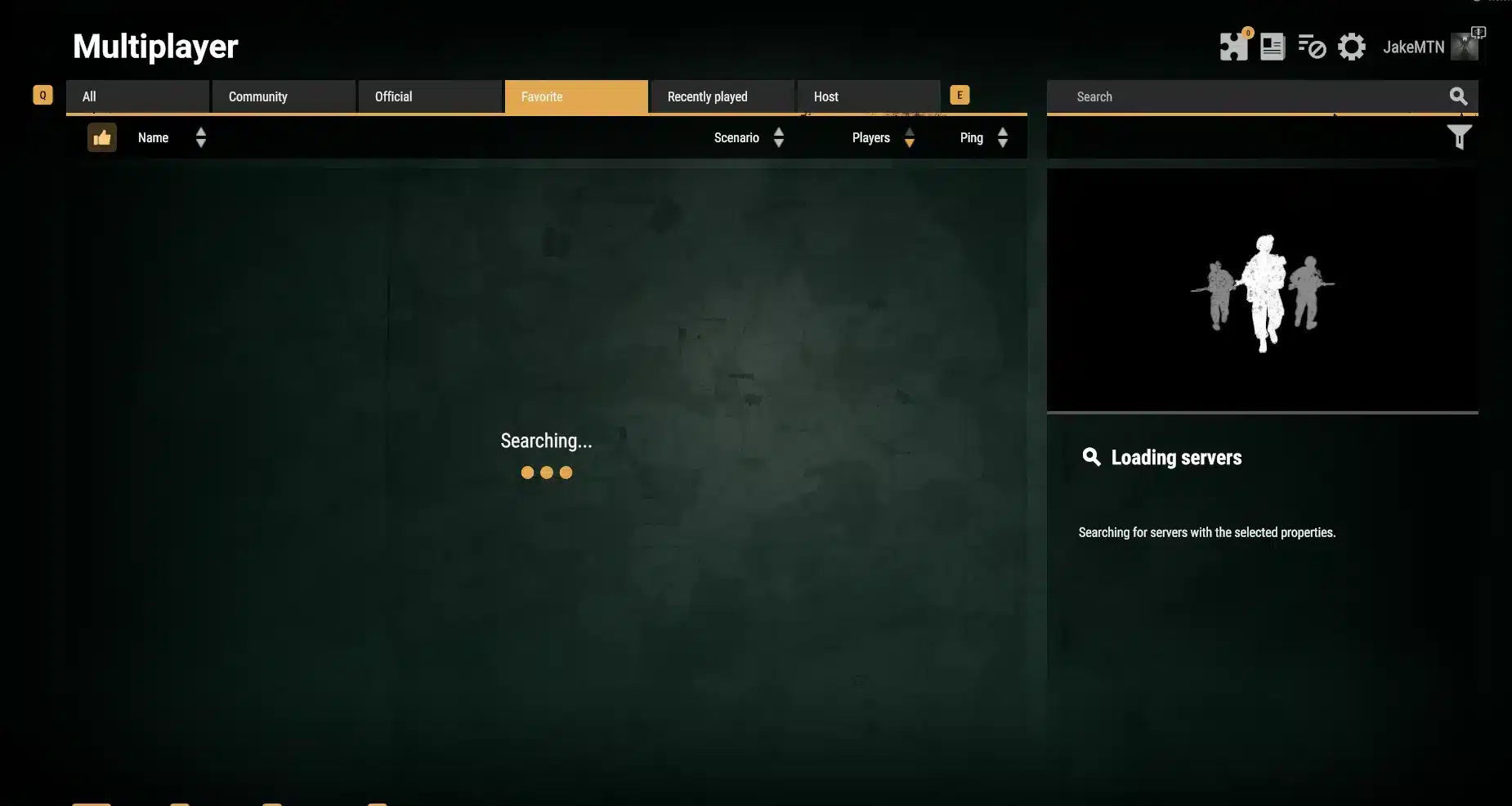
If tf2 matchmaking error appears unexpectedly, fully exit Team Fortress 2 and restart Steam.
Then check:
- Steam connection status;
- TF2 update status;
- Game file integrity;
- Party status;
- Firewall settings;
- Server availability.
If only Casual matchmaking fails while community servers still work, the problem may be connected specifically to official matchmaking services.
Verify game files
Corrupted or missing files can occasionally create unexpected behavior after updates.
Use Steam's file verification feature before reinstalling the entire game.
A typical process is:
- Open Steam.
- Go to Library.
- Right-click Team Fortress 2.
- Open Properties.
- Select Installed Files.
- Choose Verify integrity of game files.
- Restart Steam after verification.
This is useful not only for matchmaking error tf2 but also for other launch or update-related problems.
How to Fix Matchmaking Error in Any Online Game
Different games have different systems, but several troubleshooting steps work across most online titles. The best approach is to move from server-side checks to local troubleshooting.
Start with server status
Before changing anything on your device, check whether the game has an active outage.
Look at:
- Official status page;
- Official social channels;
- Launcher notices;
- In-game announcements;
- Recent patch notes.
This is particularly important if a matchmaking error suddenly appears immediately after maintenance or a large update.
Fortnite's official support specifically recommends checking server status before moving to local network troubleshooting.
Restart the game and device
Temporary authentication or connection problems can disappear after restarting. Use this sequence:
- Close the game.
- Close the launcher.
- Restart your device.
- Reopen the launcher.
- Update the game if necessary.
- Try matchmaking again.
If this fixes the problem, there is no reason to move into more advanced network changes.
Check Your Internet Connection
Matchmaking depends on a stable connection between your device and game services.
A connection can appear fast during normal browsing while still suffering from packet loss, routing instability, or latency spikes.
Restart your router
Restarting the router can refresh the network connection and resolve temporary connectivity problems.
Epic lists restarting the modem or router among its Fortnite matchmaking troubleshooting steps.
After restarting:
- Wait for the connection to stabilize;
- Reconnect your device;
- Stop unnecessary downloads;
- Launch the game;
- Test matchmaking again.
If possible, compare Wi-Fi with a wired Ethernet connection.
Reduce network congestion
Other devices can compete for network resources. While troubleshooting, pause:
- Large downloads;
- Cloud backups;
- 4K streaming;
- Game updates;
- File synchronization;
- Torrents.
This does not mean matchmaking requires huge bandwidth. Stability and latency are often more important than raw download speed.
DNS, NAT, Crossplay, and Matchmaking
Some multiplayer problems involve network configuration rather than simple internet outages.
DNS, NAT type, proxy settings, and crossplay can affect how the game reaches online services.
Check NAT on consoles
A restrictive NAT configuration can make multiplayer connections harder.
Epic recommends checking NAT-related settings when troubleshooting Fortnite party and connection problems on consoles.
If console matchmaking repeatedly fails:
- Check NAT type;
- Restart the router;
- Enable UPnP if appropriate;
- Check platform network status;
- Review router restrictions.
Avoid making advanced port-forwarding changes unless you understand your network or the game's official support specifically recommends them.
Check crossplay
Crossplay settings can also affect matchmaking.
This is particularly important when party members use different platforms. Fortnite support includes crossplay configuration among multiplayer troubleshooting steps, while ARC Raiders has specifically improved error messages for crossplay incompatibility.
If the problem affects only a cross-platform party, compare settings between all players.
Best Order to Fix Matchmaking Error
Troubleshooting becomes much easier when you test one variable at a time.
Avoid resetting network settings, reinstalling the game, and changing DNS simultaneously because you will not know which change actually solved the problem.
Follow this checklist
Try these steps in order:
- Read the exact error message.
- Check the game's official server status.
- Restart the game.
- Restart the launcher.
- Restart your device.
- Change playlist or game mode.
- Test matchmaking without a party.
- Check crossplay settings.
- Restart your router.
- Stop heavy background traffic.
- Verify game files.
- Check NAT, DNS, firewall, and proxy settings.
- Reinstall only as a last resort.
This sequence covers the most common causes without immediately using drastic solutions.
Test after every major change
After each step, attempt matchmaking again. The table below can help identify the likely category.
|
Symptom |
Likely Area |
First Check |
|
Everyone reports errors |
Server outage |
Official status |
|
Only one playlist fails |
Playlist or event issue |
Change mode |
|
Only party matchmaking fails |
Party or crossplay |
Test solo |
|
All games have connection problems |
Local network |
Router and ISP |
|
One game fails after update |
Game files or patch |
Verify files |
|
Error mentions permission |
Account eligibility |
Check requirements |
|
Queue works but takes long |
Matchmaking population |
Wait or change region/time |
The more specific the symptom, the easier it becomes to identify the correct fix.
Can ExitLag Help With Matchmaking Errors?
ExitLag can help when the underlying problem involves network routing, packet loss, or unstable latency between your device and supported game servers.
However, it cannot repair server outages, account restrictions, missing game files, expired event eligibility, or developer-side matchmaking bugs.
When route optimization may help
A route optimizer may be relevant if you experience:
- Unstable connection to game servers;
- Packet loss;
- Large ping spikes;
- Poor routing from your ISP;
- Repeated connection failures without a server outage.
This is different from a matchmaking system being completely unavailable. For example, if Fortnite's servers are undergoing maintenance, route optimization will not restore matchmaking.
Identify the cause first
The best approach is always diagnosis first. Check server status, verify your game, restart your network, and determine whether the matchmaking error follows your connection or affects everyone.
Once local routing becomes the likely cause, connection optimization may become more relevant.
FAQ
Here are quick answers to common questions about matchmaking problems across multiplayer games.
What is matchmaking error?
A matchmaking error means a game could not place you into an online match. Causes can include server outages, connection problems, party issues, permissions, or game bugs.
How do I fix Fortnite matchmaking error?
For a Fortnite matchmaking error, check Epic server status, restart Fortnite, change playlists, verify your connection, and follow Epic's network troubleshooting steps.
What is Matchmaking Error 1 Fortnite?
Matchmaking error 1 Fortnite means the game could not connect you to a match. Some variants may also be known Fortnite bugs with specific workarounds.
Why does ARC Raiders show a matchmaking error?
An arc raiders matchmaking error can involve server connectivity, party state, or incompatible crossplay settings. Recent updates improved messages explaining these failures.
Why does TF2 matchmaking fail?
A tf2 matchmaking error may involve Steam services, game files, connection problems, or official matchmaking availability.
Can ExitLag fix a matchmaking error?
ExitLag may help if the issue is caused by unstable network routing, latency, or packet loss, but it cannot fix server outages, account restrictions, or game-side bugs.
Fix Matchmaking Error and Play Smoother With ExitLag
Once you identify the cause of a matchmaking error, apply the appropriate fix rather than changing random settings. Server outages require patience, while network, party, crossplay, or local game problems need different troubleshooting steps.
If unstable routing, packet loss, or latency is interfering with matchmaking in supported games, ExitLag can help optimize the connection path between your device and game servers.
Try ExitLag and enjoy a more optimized connection for your online matches!