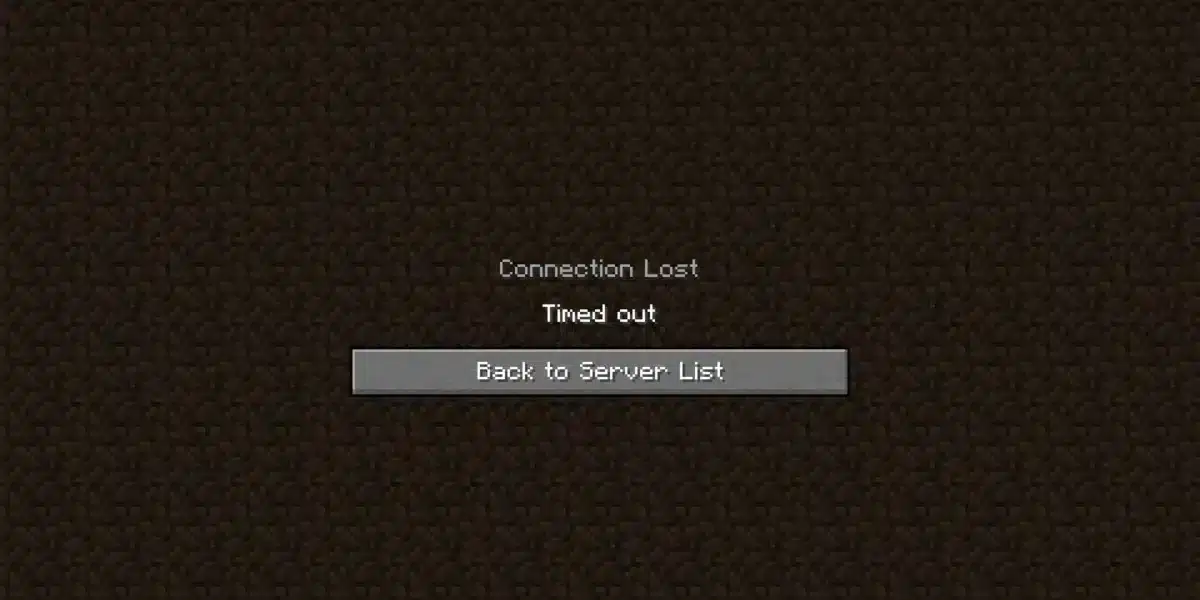
Nothing kills a perfect PvP clip or a smooth redstone build faster than a laggy connection. If blocks take a second to place or mobs teleport around you, your Minecraft Server Ping is probably the culprit, not your PC.
Understanding Minecraft Server Ping is the first step toward fixing it. Once you know what the number actually measures, you can tell whether the problem is your internet, your router, or the server itself.
In simple terms, Minecraft Server Ping is the round-trip time, measured in milliseconds, between the moment your client sends an action and the moment the server confirms it. A lower number means a snappier, more responsive game. This guide breaks down exactly how it works on both Java and Bedrock, how to check it, and how to lower it for good.
Whether you play casually on a survival realm or grind competitive PvP servers, ping affects everything you do online. Furthermore, understanding the difference between network lag and server lag will save you hours of frustration troubleshooting the wrong thing.
Minecraft Server Ping: What It Actually Measures
Every time you move, place a block, or swing a sword online, your client sends a data packet to the server. The server processes it and sends a response back.
That round trip is your ping, expressed in milliseconds (ms). Consequently, the lower the number, the faster your actions register in the game world.
Minecraft Server Ping is not the same thing as your frame rate or your internet download speed. You can have a gigabit connection and still see a high ping if your route to the server is inefficient.
How Ping Is Measured on Java Edition
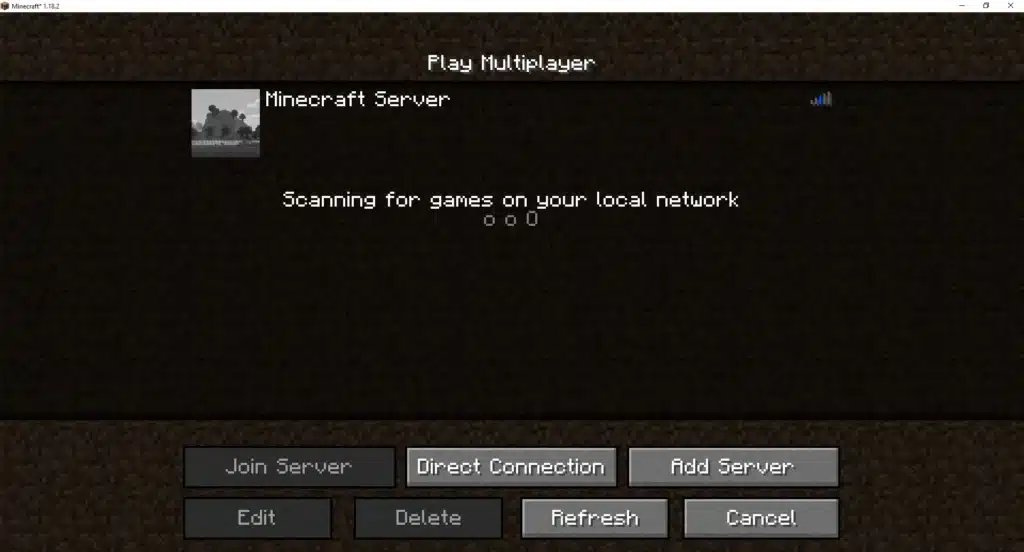
Java Edition servers run on TCP port 25565 by default, using the traditional Minecraft handshake protocol. Therefore, when you hover over a server in the multiplayer list, the client actively pings that address and returns a number in milliseconds.
- The signal bars next to a server name represent an estimate of your connection quality.
- Hovering your mouse over those bars shows the exact ping value in a tooltip.
- Pressing Tab in-game also lists ping for every connected player.
How Ping Works on Bedrock Edition
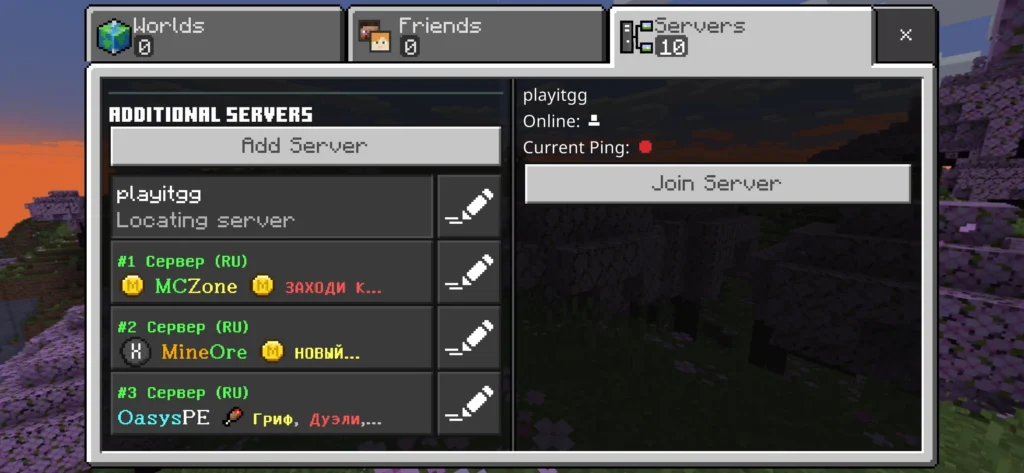
Bedrock Edition (Windows, console, and mobile) uses UDP port 19132 with a RakNet-based protocol instead. As a result, the interface is noticeably different from Java.
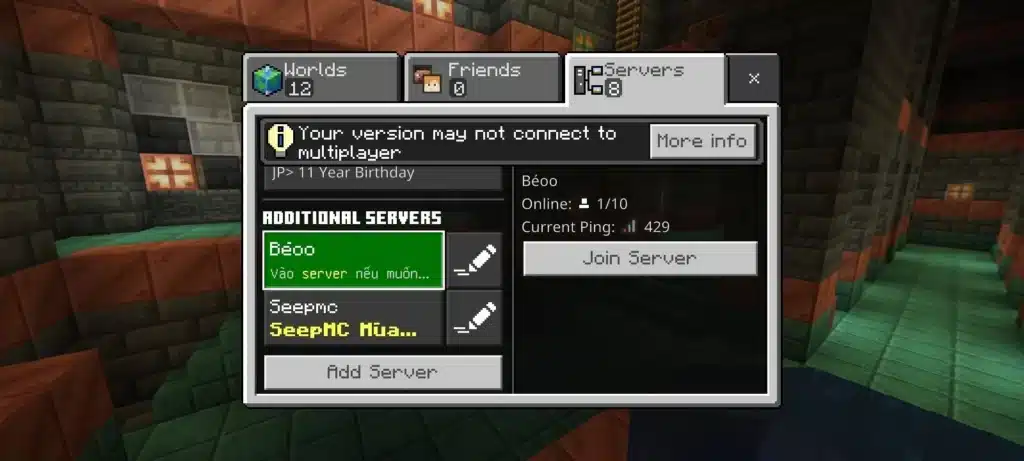
Bedrock does not always expose a precise millisecond number in the same way Java does. Featured servers typically show online status and player counts, but a detailed ping figure is not always displayed on the surface. Players connecting to Java servers through cross-play tools like Geyser may also notice slightly higher latency due to the extra translation layer.
How to Check Your Mc Server Ping in Minutes
Before you try to fix anything, confirm your actual numbers. Guessing wastes time and often leads to changing the wrong setting.
Here is how to check it step by step:
- Launch Minecraft and open the Multiplayer menu.
- Locate your server in the list and look at the signal bars on the right.
- Hover over the bars to see your exact Ping Minecraft Server value in milliseconds.
- Join the world, press F3, then press F3 + 3 to open the ping graph for a live, detailed view.
- Alternatively, press and hold Tab to see every player’s ping listed at the top of the screen.
Using the F3 Debug Screen
The F3 debug overlay is the most detailed built-in tool Java Edition offers. Once you enable the ping graph with F3 + 3, it plots your last 240 ping samples on the right side of the screen.
This graph also shows your minimum, average, and maximum ping over that window. Consequently, it is far more useful than a single snapshot number for spotting spikes.
Command Line and Third-Party Tools
You can also drop into a command prompt or terminal and run a standard ping command against the server’s IP address. Several websites and apps exist specifically to test Mc Server Ping before you even launch the game, which is handy when comparing multiple servers.
What Causes High Minecraft Ping?
High Minecraft Ping rarely comes from one single source. Instead, it is usually a combination of distance, routing, and local network conditions.
Common causes include:
- Physical distance: the farther you are from the server’s data center, the more hops your packets travel.
- Inefficient routing: your ISP may send traffic through a longer path than necessary, even to a nearby server.
- Wi-Fi interference: wireless connections are more prone to packet loss and jitter than wired ones.
- Background bandwidth usage: downloads, streaming, or cloud backups running while you play compete for the same connection.
- Outdated network drivers: old drivers on your router or PC can introduce unnecessary processing delay.
However, not every lag spike means your ping is bad. Server-side hiccups, overloaded hardware, or a poorly optimized modpack can feel identical to network lag but require completely different fixes.
Is High Ping the Same as Server Lag?
No, and this is one of the most common points of confusion among players. Ping measures the network delay between you and the server specifically.
Server lag, often tracked as TPS (ticks per second), reflects how well the server itself is performing. A server can hold a stable 20 TPS while one player still lags badly because of their own high ping. Conversely, everyone on a server can rubber-band at once when TPS drops, regardless of individual connections.
How to Tell Which One You Have
- If only you are lagging while everyone else plays smoothly, it is almost certainly your Minecraft Server Ping.
- If the entire server freezes, rubber-bands, or drops frames at the same moment, that points to TPS or hardware issues on the host side.
- If your ping number looks fine but movement still stutters, packet loss (not raw latency) is often the real problem.
Good Ping vs Bad Ping: What the Numbers Mean
Not all ping values are equal, and Minecraft even color-codes the signal bars to help you interpret them at a glance. The table below breaks down what each range typically means in practice.
| Ping Range | Signal Color | What It Feels Like |
|---|---|---|
| 0-50 ms | Green | Excellent, near-instant response, ideal for PvP |
| 51-100 ms | Yellow | Good, smooth for most survival and building |
| 101-200 ms | Gold/Orange | Fair, occasional delay noticeable in combat |
| 201-300 ms | Red | Poor, visible rubber-banding and delayed hits |
| 300 ms+ | Dark Red | Terrible, frequent disconnects and desync |
Indeed, competitive PvP players usually want to stay under 100 ms, while casual survival or creative building is far more forgiving.
How to Reduce Minecraft Server Ping
Once you have identified network latency as the problem, several proven fixes can bring your numbers down. Some take five minutes, others require a bit more setup.
Try these adjustments in order:
- Switch from Wi-Fi to a wired Ethernet connection whenever possible.
- Close background downloads, streaming apps, and cloud sync tools before playing.
- Restart your router and update its firmware if it has not been updated recently.
- Choose a server region physically closer to you when multiple options exist.
- Enable QoS or SQM (Smart Queue Management) on your router to prioritize game traffic.
- Update your network adapter drivers to the latest stable version.
Why Router Settings Matter More Than Most Players Think
Simple router adjustments, like configuring QoS and setting accurate bandwidth values, can shave a meaningful chunk off your latency while also reducing bufferbloat under load. Modern gaming routers with SQM features are especially effective because they manage queues instead of just prioritizing traffic blindly.
Why Your Route to the Server Matters
Even with a fast connection, your ISP might route your traffic inefficiently to reach a specific Minecraft host. This is exactly where a dedicated route optimizer becomes valuable, since it can find a faster path automatically.
Pro Tips: Minecraft Server Ping
- Test at different times of day. Ping often spikes during peak hours when your ISP’s local network is congested, so a late-night comparison reveals your true baseline.
- Use wired connections for competitive sessions. Wi-Fi introduces variable jitter even when average speed looks fine, and that inconsistency hurts fast-paced combat more than raw ping does.
- Keep your client updated. Outdated Minecraft versions sometimes carry networking bugs that were already patched, so staying current avoids fighting a problem that no longer exists.
- Limit render distance on weaker connections. A high render distance increases the amount of chunk data your client requests, which can indirectly worsen perceived lag on unstable networks.
- Monitor packet loss, not just ping. A stable 120 ms connection often feels better than an unstable 60 ms one, because dropped packets cause the rubber-banding players actually complain about.
Common Mistakes Minecraft Players Make
- Blaming the server for every lag spike. Fix: check your own F3 ping graph first; if only you are affected, the issue is on your end, not the host’s hardware.
- Ignoring background bandwidth usage. Fix: pause downloads, cloud backups, and video streams on your network before joining a match.
- Assuming a VPN always helps. Fix: a VPN can sometimes reduce ping by improving routing, but it can also add overhead, so test both ways before committing to one.
- Never restarting the router. Fix: reboot your router regularly and check for firmware updates, since outdated firmware quietly degrades performance over time.
- Confusing FPS drops with network lag. Fix: low FPS is a graphics or CPU issue, while stutter tied to hits not registering or block placement delay points to Minecraft Ping problems instead.
Fix Minecraft Server Ping for Good With ExitLag
If you have tried the basics and your Minecraft Server Ping is still inconsistent, the issue is likely somewhere along your route to the server, not your local setup. This is where a dedicated tool like ExitLag makes a real difference.
ExitLag is not a VPN. It is a game connection optimizer that analyzes multiple network routes in real time and automatically picks the fastest, most stable path between your device and the game server.
It does not encrypt your traffic, does not mask your IP, and does not affect any apps outside supported games. ExitLag currently supports over 4,000 titles across PC and mobile, with more than 1,500 servers spread across 190+ countries, trusted by over 30 million users worldwide.
For Minecraft specifically, a few features address ping directly:
- Real-time Optimization: continuously reduces delay and packet loss by adjusting your route on the fly.
- Multipath Technology: sends your packets through multiple routes at once, so if one path fails, another keeps your connection alive.
- Multi-Internet: combines up to four simultaneous internet connections with automatic failover if one drops.
- Traffic Shaper: prioritizes your game traffic and limits bandwidth from other apps competing for your connection.
- PC Boost: clears background processes and RAM usage for smoother, more consistent frame times while you play.
Conclusion
Since Minecraft is cross-platform across PC, console, and mobile through Bedrock, ExitLag covers you no matter how you play. You can grab the ExitLag Download for desktop, or if you play on the go, install ExitLag for Android or ExitLag for iOS directly on your phone.
ExitLag does not modify your game files, does not inject code, and does not interact with anti-cheat systems, so it stays safe alongside major titles. Just avoid running it alongside a separate VPN, since stacking the two typically reduces the optimization’s effectiveness.
Between checking your ping correctly, fixing router settings, and routing your traffic through a faster path, you now have a complete toolkit. Consistently low Minecraft Server Ping means fewer missed hits, smoother building sessions, and far less frustration overall.
All game images used in this blog post belong to Mojang Studios / Microsoft. They are used for informational and educational purposes only and do not imply endorsement or affiliation with the rights holders.
Got questions or want to connect with other players? Join the conversation at the ExitLag Forum!