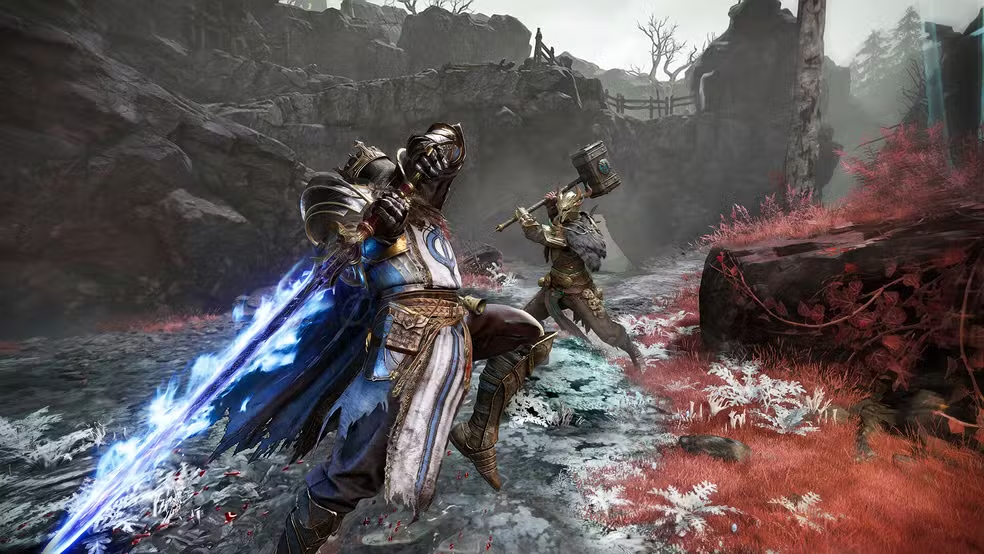
You are three minutes into an extraction run in Mistfall Hunter, bags full of rare loot, and the exit gate is finally in sight. Then the frame rate collapses.
Enemies freeze mid-swing, your character rubber-bands, and the hunter who was chasing you closes the gap in a single stuttering jump. Your hard-earned loot is gone.
This kind of moment is becoming painfully common for the wave of new players jumping into the game right after its official PC, PlayStation 5, and Xbox Series X|S launch.
A second scenario is just as frustrating. You are locked in a decisive PvPvE duel, both hunters low on health, and your screen chops into a slideshow at the exact instant you need pixel-perfect aim. This is FPS drop in Mistfall Hunter, and it shares symptoms with the connection issues covered in our breakdown of high ping problems in other online titles, even though the root cause is different.
The good news is that most of this frustration is fixable. Whether the stutter comes from your PC, the game’s servers, or your internet route, there is a clear path to smoother gameplay.
This guide breaks down exactly why FPS drop happens in Mistfall Hunter and shows how ExitLag, available at ExitLag, helps stabilize your connection so frame drops caused by network instability stop ruining your runs.
What is FPS drop and why does it happen in Mistfall Hunter?
FPS drop is a sudden or repeated decrease in the number of frames your game renders per second, which shows up as choppy motion, freezes, or stutter during gameplay. It can be caused by your hardware, your software, or your network connection.
In an extraction shooter style ARPG like Mistfall Hunter, even a brief drop can mean the difference between escaping with loot and losing everything to a horde or a rival hunter.
Understanding FPS (frames per second)
FPS measures how many images your GPU renders and displays every second. Higher numbers generally feel smoother and more responsive, especially in fast combat.
Here is a simple breakdown of what different FPS ranges feel like in practice:
- 144+ FPS: Extremely smooth, ideal for competitive PvP encounters and precise aiming.
- 60-120 FPS: Solid and comfortable for most players, a good target for extraction runs.
- 30-60 FPS: Playable but noticeably less responsive during hectic fights.
- Below 30 FPS: Choppy and unreliable, dangerous during hordes or PvP duels.
FPS drop vs network lag: what’s the difference
Many players confuse FPS drop with network lag, but they are two different problems with two different fixes. Understanding this distinction is the first step toward solving either one.
| Aspect | FPS drop | Network lag |
|---|---|---|
| Cause | GPU/CPU overload, thermal throttling, background apps | Unstable route, packet loss, server congestion |
| Symptom | Choppy visuals, low frame counter, screen freezes | Rubber-banding, delayed hits, desync with other players |
| Solution -> ExitLag | Partially helps by freeing bandwidth and stabilizing traffic | Directly solved through optimized routing |
Why Mistfall Hunter is prone to FPS drop
Mistfall Hunter is a combat-heavy dark fantasy ARPG where multiple hunters, monsters, and hordes can appear on screen at once during extraction. This puts real pressure on both your hardware and your connection.
Since the game just launched, servers are handling an unusually high volume of concurrent players. As a result, many newcomers are seeing performance dips that were less common during the earlier beta phases.
Main causes of FPS drop in Mistfall Hunter
Several factors can trigger stutter and frame loss, and identifying the right cause is essential before applying any fix. Below are the most common culprits.
Overheating hardware
When your CPU or GPU runs too hot, it automatically throttles performance to protect itself. This is one of the most overlooked causes of stutter.
Symptoms include gradual FPS decline the longer you play, combined with louder fans and hot exhaust air. You can check temperatures using monitoring software during an extraction run.
Outdated graphics drivers
Old or corrupted GPU drivers frequently cause micro-stutter, texture pop-in, and inconsistent frame pacing in newly released titles like Mistfall Hunter.
Symptoms usually appear as random hitching rather than a constant low FPS. Updating to the latest driver from your GPU manufacturer often resolves this quickly.
Unoptimized in-game graphics settings
Running settings too high for your hardware, especially shadows, particle effects, and view distance, can overload your GPU during hordes or PvP encounters.
Symptoms include sharp FPS drops specifically when many enemies or effects appear on screen at once, even though the game runs fine while exploring alone.
Background processes eating resources
Streaming software, browsers with many tabs, and other applications running in the background compete for CPU, RAM, and GPU resources needed by the game.
Symptoms include inconsistent frame rates that worsen the longer your PC has been running without a restart. Closing unnecessary apps before playing is an easy first check.
Insufficient hardware for the game’s demands
Mistfall Hunter is a mid-tier hardware title, generally recommending a GPU in the RTX 2070 or RX 5700 XT class alongside 16 GB of RAM for smoother performance.
If your setup falls below the recommended tier, you may see consistent low FPS rather than occasional drops. Lowering graphical settings can help, but it will not fully replace the needed hardware.
Server congestion at launch
⚠️ Because Mistfall Hunter just launched on PC, PlayStation 5, and Xbox Series X|S, servers are absorbing a massive surge of new players simultaneously.
This congestion can create indirect performance issues, including desync-related stutter that feels like an FPS drop even when your hardware is healthy. This is precisely where connection optimization becomes valuable.
ExitLag: the main solution for FPS drop in Mistfall Hunter
This is where ExitLag becomes the centerpiece of a real fix. While hardware issues need hardware solutions, a large share of the stutter players report during extractions and PvP fights traces back to unstable network routing, and that is exactly what ExitLag was built to solve.
What is ExitLag? (it is NOT a VPN)
ExitLag is NOT a VPN, and that distinction matters enormously. A VPN routes all your traffic through a single remote server for privacy, often adding latency in the process.
ExitLag, on the other hand, is a dedicated game connection optimizer. It analyzes multiple network paths in real time and selects the fastest, most stable route between your PC and the Mistfall Hunter servers.
You can see exactly how this routing technology works on the ExitLag how it works page, which breaks down the engineering behind the optimization.
How ExitLag optimizes performance in Mistfall Hunter
ExitLag applies several layers of optimization specifically designed for online games like Mistfall Hunter:
- Network route optimization: ExitLag continuously scans available paths to the game server and picks the most efficient one.
- Latency reduction: By avoiding congested or inefficient hops, ExitLag lowers the delay between your actions and the server’s response.
- Packet loss elimination: Dropped packets cause desync and rubber-banding, and ExitLag’s routing minimizes these losses.
- Connection stabilization: Instead of a single fragile path, ExitLag keeps your connection consistent even when your ISP’s default route is unreliable.
- Game traffic prioritization: ExitLag helps ensure Mistfall Hunter’s traffic is not competing unnecessarily with other background data.
Why ExitLag works for FPS drop
It might seem strange that a network tool affects frame rate, but the relationship is real. Unstable connections force the game engine to constantly recalculate positions, which can create visible micro-stuttering even when your GPU is technically capable of higher FPS.
By smoothing out the connection, ExitLag improves frame pacing, meaning frames are delivered more consistently instead of arriving in uneven bursts. This translates into gameplay that feels noticeably steadier during hordes and PvP fights.
ExitLag technologies that impact FPS
Several core ExitLag technologies work together to reduce the network-related side of FPS drop:
- Multi-path routing: Sends your connection through multiple possible routes and selects the best one in real time.
- Redundant connections: If one path degrades, ExitLag can shift traffic to maintain stability without you noticing.
- Gaming-optimized protocol: Built specifically for real-time game traffic rather than general internet browsing.
ExitLag vs other solutions
It helps to see how ExitLag compares against the alternatives players usually try first.
| Solution | Improves FPS? | Reduces lag? | Ease of use | Recommendation |
|---|---|---|---|---|
| ExitLag | ✅ Indirectly, via stability | ✅ Yes, directly | ⭐ Very easy | Strongly recommended |
| Common VPN | ❌ No, often worse | ⚠️ Inconsistent | Moderate | Not recommended for gaming |
| PC optimization only | ✅ Yes, for hardware causes | ❌ No | Moderate | Recommended alongside ExitLag |
| Doing nothing | ❌ No | ❌ No | N/A | Not recommended |
You can check whether Mistfall Hunter and your other favorite titles are supported by browsing the full list of ExitLag supported games.
Step-by-step: configure ExitLag for Mistfall Hunter
Setting up ExitLag takes only a few minutes, and the process is designed to be beginner-friendly even for players who are not technically inclined.
Installing ExitLag (PC)
Follow these steps to get ExitLag running before your next extraction run:
- Visit ExitLag and create your account.
- Download the ExitLag client for Windows.
- Run the installer and follow the on-screen instructions.
- Open the ExitLag application once installation completes.
- Search for Mistfall Hunter in the supported games list.
- Select the game and choose your preferred server region.
- Click the optimize button to activate route optimization.
- Launch Mistfall Hunter as you normally would.
- Keep ExitLag running in the background throughout your session.
- Start with a free trial from ExitLag if you want to test results before committing.
Optimizing your results
Once ExitLag is active, a few extra steps can help you squeeze out the best possible performance.
- Test different server regions within ExitLag to find the lowest latency option for your location.
- Monitor your in-game ping and frame counter during extractions to confirm improvement.
- Run ExitLag consistently rather than only during problem sessions, since stability builds over time.
For console players (PS5 / Xbox)
Honesty matters here: ExitLag’s direct client is built for PC, so console players on PlayStation 5 or Xbox Series X|S have more limited native options.
In practice, some console players configure route optimization through a PC acting as a bridge or through router-level setups, though results vary by home network.
If you play primarily on console, the most reliable approach is still to address the causes covered earlier, such as server congestion timing and background network usage on your home router.
Results: FPS before and after ExitLag
While exact numbers vary by hardware, region, and server load, the pattern reported by players is consistent enough to summarize honestly.
| Metric | Without ExitLag | With ExitLag | Improvement |
|---|---|---|---|
| Average FPS stability | Frequent dips during hordes | Typically steadier during combat | Noticeably smoother |
| Micro-stuttering | Common during PvP and extraction | Often reduced | Fewer visible hitches |
| Ping | Higher and inconsistent | Generally lower and more consistent | Meaningful reduction |
| Connection stability | Prone to spikes | More stable route overall | Improved reliability |
It is worth repeating that ExitLag optimizes your network path, it does not replace a weak GPU or CPU. Managing expectations honestly leads to better outcomes.
Additional optimizations to maximize FPS with ExitLag
Combining ExitLag with a few complementary habits produces the best overall results in Mistfall Hunter.
Network optimizations
Your home network setup plays a big role in how effective any optimization tool can be.
- Use a wired Ethernet cable instead of Wi-Fi whenever possible.
- Close other apps and devices consuming bandwidth during play sessions.
- Enable Quality of Service (QoS) settings on your router to prioritize gaming traffic.
- Consider testing alternate DNS servers for potentially faster resolution times.
System optimizations
Your PC’s overall configuration can compound or reduce FPS drop symptoms.
- Switch Windows to high performance power mode while gaming.
- Keep GPU and chipset drivers fully updated.
- Close background applications like browsers and streaming software before playing.
In-game settings
Adjusting Mistfall Hunter’s graphics menu directly can also reduce strain on your hardware.
- Lower shadow quality and particle effects during heavy horde encounters.
- Turn V-Sync off to reduce input delay related to frame buffering.
- Set a reasonable FPS limit matching your monitor’s refresh rate for consistency.
Frequently asked questions
Does ExitLag really improve FPS?
ExitLag does not directly boost raw rendering power, but it reduces the network instability that often causes micro-stuttering and inconsistent frame pacing during online play.
Is ExitLag safe to use?
Yes. ExitLag does not modify game files, does not inject code, and does not interfere with anti-cheat systems, making it safe alongside Mistfall Hunter.
Does ExitLag work on console?
ExitLag’s client is primarily built for PC. Console players on PS5 and Xbox have more limited direct options, as explained earlier in this guide.
How much does ExitLag cost?
Pricing details and available plans can be found on the official ExitLag pricing page, and you can also start with a free trial before subscribing.
My PC is weak, does ExitLag help?
ExitLag optimizes your network connection, not your hardware. It can reduce network-related stutter, but it will not compensate for a GPU or CPU below the recommended specs.
Does ExitLag work with Mistfall Hunter?
Yes, Mistfall Hunter is supported. You can confirm this and explore other supported titles on the ExitLag games list.
What’s the difference between ExitLag and a VPN?
ExitLag is NOT a VPN. A VPN focuses on privacy and routes all traffic through one server, while ExitLag focuses purely on finding the fastest, most stable path for your game.
Why do FPS drops happen more right after launch?
Because Mistfall Hunter just released, server infrastructure is handling peak concurrent player counts, which can create indirect performance issues on top of normal hardware causes.
Solve FPS drop in Mistfall Hunter with ExitLag
Mistfall Hunter rewards precision, timing, and calm decision-making during extractions, and none of that is possible when your screen is stuttering at the worst moment.
Final benefits
Here is what you gain by addressing FPS drop properly with ExitLag as part of your setup:
- ✅ More stable FPS during hordes and PvP encounters
- ✅ Reduced micro-stuttering caused by network instability
- ✅ Smoother overall gameplay across extraction runs
- ✅ A real competitive edge in decisive fights
- ✅ A frustration-free experience from queue to extraction
Next steps
If you want to start fixing FPS drop in Mistfall Hunter today, follow this simple plan:
- Check your hardware against the game’s recommended specs.
- Update your GPU drivers and adjust in-game graphics settings.
- Create an account and try the ExitLag free trial.
- Activate ExitLag for Mistfall Hunter before your next extraction session.
- Register for full access at ExitLag register once you see the improvement.
A stable connection genuinely changes how Mistfall Hunter feels to play, turning tense extractions into fights you can actually win on skill rather than lag. Combine solid hardware habits with ExitLag’s routing technology for the most complete fix.
One final reminder before you go: ExitLag is not a VPN, it is a purpose-built gaming connection optimizer, and that distinction is exactly why it works so well for FPS drop in Mistfall Hunter.
All game images used in this blog post belong to their respective developer/publisher. They are used for informational and educational purposes only and do not imply endorsement or affiliation with the rights holders.
Got questions or want to connect with other players? Join the conversation at the ExitLag Forum!