

Mobile Legends PC has become increasingly popular among gamers who want to enjoy this dynamic mobile MOBA on a bigger screen. If you’re wondering how to play Mobile Legends on PC, this article will provide a complete guide covering everything from the Mobile Legends emulator options to keyboard controls.
We will explore the best emulator for Mobile Legends, including popular choices like Mobile Legends Bluestacks, and walk you through the Mobile Legends PC download process. Whether you want to run Mobile Legends PC or optimize your gameplay with keyboard controls, this guide has you covered.
Is it possible to play Mobile Legends on PC?

Mobile Legends is originally designed as a mobile game, but many players ask, can you play Mobile Legends on PC? The answer is yes. Although the game is made for smartphones and tablets, it can be played on a PC using emulators—software that simulates a mobile device on your computer. This allows you to enjoy Mobile Legends for Windows with the advantages of a larger screen and better controls.
The game is compatible with popular versions of Windows, including Windows 10 and Windows 11. Using a reliable Mobile Legends emulator, you can easily run the game smoothly on your PC. This option makes it possible for players who prefer desktop gaming to experience Mobile Legends without switching devices.
Recommended Emulators for Mobile Legends PC
When choosing a Mobile Legends emulator to play on your PC, it’s important to pick one that offers good performance, low resource consumption, and stability. Here are some of the best options available:
- BlueStacks: Official partner of Moonton, the developer of Mobile Legends, BlueStacks offers excellent compatibility and frequent updates tailored for the game.
- LDPlayer: Known for its lightweight design and smooth gameplay, LDPlayer is a great alternative for players with mid-range PCs.
- MEmu: A versatile emulator with good multitasking features, suitable for running multiple game instances.
- NoxPlayer: Popular for its customizability and stable performance, especially favored by gamers who want precise control settings.
Practical Comparison: Performance, Consumption, and Stability
| Emulator | Performance | Resource Consumption | Stability | Notes |
| BlueStacks | High | Medium-High | Very Stable | Official partner, best for updates |
| LDPlayer | High | Low-Medium | Stable | Lightweight, good for older PCs |
| MEmu | Medium-High | Medium | Stable | Good multitasking options |
| NoxPlayer | Medium | Medium | Stable | Highly customizable |
For most users, BlueStacks stands out as the best emulator for Mobile Legends because of its official support and optimized settings, but LDPlayer is an excellent choice if you want a lighter alternative with solid performance.
How to Install and Configure Mobile Legends on PC

If you want to enjoy Mobile Legends on your computer, follow this simple step-by-step guide to the Mobile Legends PC download and setup process. This will also show you how to play Mobile Legends on PC smoothly with optimized settings.
Step 1: Download a Mobile Legends Emulator
First, visit the official website of your chosen emulator, such as BlueStacks or LDPlayer, and download the installer.
Step 2: Install the Emulator
Run the installer file and follow the on-screen instructions to install the emulator on your PC.
Step 3: Log in to Google Play Store
Open the emulator and sign in to your Google Play account (or create one if you don’t have it). This step is necessary to access the Play Store and download Mobile Legends.
Step 4: Search for Mobile Legends and Install
Use the emulator’s Play Store interface to search for “Mobile Legends: Bang Bang.” Click Install and wait for the download to complete.
Step 5: Adjust Graphics and FPS Settings
Once installed, launch Mobile Legends and go to the game settings. Adjust the graphics quality and FPS according to your PC’s capability to ensure smooth gameplay.
By following these steps, you will successfully complete the Mobile Legends PC download and be ready to dive into the action. With the right configuration, you’ll have an optimized experience and understand exactly how to play Mobile Legends on PC like a pro.
Mobile Legends Keyboard Controls for PC
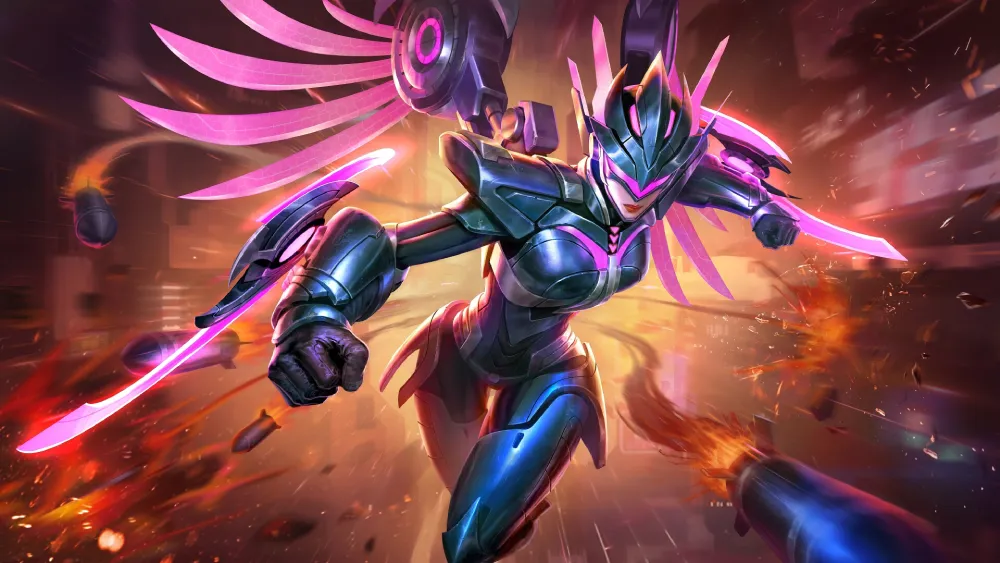
Playing Mobile Legends on PC with an emulator unlocks the advantage of precise Mobile Legends keyboard controls, especially using the MOBA mode available in popular emulators like BlueStacks and LDPlayer. This mode maps essential in-game actions to your keyboard and mouse, making gameplay faster and more efficient.
Ideal Keyboard Setup for Movement and Skills
- Movement: Use the W, A, S, D keys to control your hero’s movement, just like in traditional PC MOBAs.
- Basic Attack: Assign the Spacebar or Left Mouse Button for your hero’s basic attack.
- Skills: Map your hero’s skills to easy-to-reach keys such as Q, W, E, R for quick casting.
- Recall and Items: Set keys like B for recall and 1, 2, 3, 4 for item activation to maintain smooth gameplay.
This configuration allows quick reactions and better control over your hero during intense team fights.
Suggested Keyboard Layout for Mobile Legends
| Action | Suggested Key | Description |
| Move Up | W | Move hero forward |
| Move Left | A | Move hero left |
| Move Down | S | Move hero backward |
| Move Right | D | Move hero right |
| Basic Attack | Spacebar / Left Click | Perform normal attack |
| Skill 1 | Q | Cast first skill |
| Skill 2 | W | Cast second skill |
| Ultimate Skill | R | Cast ultimate skill |
| Recall | B | Return to base |
| Use Item 1 | 1 | Activate first item |
| Use Item 2 | 2 | Activate second item |
| Use Item 3 | 3 | Activate third item |
| Use Item 4 | 4 | Activate fourth item |
Using Mobile Legends keyboard controls configured this way can significantly improve your responsiveness and gameplay experience on PC. Most emulators also allow customizing these controls further to suit your play style.
Benefits and Limitations of Playing Mobile Legends on PC
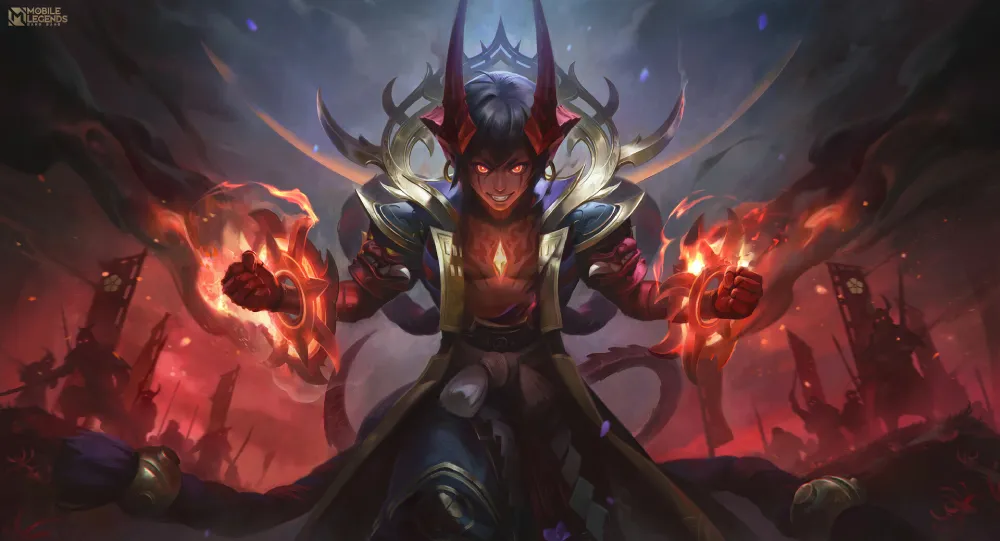
Playing Mobile Legends on PC offers several advantages but also comes with some limitations that players should be aware of.
Benefits
- Larger Screen and Better Visibility: Playing on a PC provides a much bigger display than mobile devices, allowing you to see the battlefield more clearly and improve situational awareness.
- Enhanced Control with Keyboard and Mouse: Using Mobile Legends keyboard controls gives you more precise and faster responses compared to touchscreen controls.
- Ideal for Content Creators: The PC setup makes it easier to record gameplay, stream live, and create professional content thanks to built-in recording tools and better hardware.
Limitations
- Requires a Decently Powerful PC: Running a Mobile Legends emulator smoothly demands a PC with good processing power and enough RAM, which may not be available for all players.
- Risk of Account Ban: Using unauthorized scripts, macros, or automation tools while playing Mobile Legends on PC can result in penalties or permanent bans from the game.
Conclusion
Playing Mobile Legends PC offers an exciting way to experience this popular MOBA with better controls and visuals. Whether you’re using BlueStacks or another emulator, this setup can elevate your gameplay to the next level. To ensure smooth and stable connections during ranked matches, especially when playing via emulator, consider using ExitLag — a tool designed to optimize your internet connection and reduce lag.
Frequently Asked Questions (FAQ)
Can you play Mobile Legends on PC?
Yes, you can play Mobile Legends on PC using emulators such as BlueStacks or LDPlayer, allowing you to run Mobile Legends for Windows smoothly.
How to install Mobile Legends on Windows?
Download a trusted Mobile Legends emulator like BlueStacks, log in to Google Play within the emulator, search for Mobile Legends, and install it. Then adjust the settings for optimal performance.
What’s the best emulator for Mobile Legends?
BlueStacks is widely considered the best emulator for Mobile Legends due to its official partnership with Moonton and optimized features. LDPlayer is also a strong alternative.
How do I set up keyboard controls?
Most emulators offer a MOBA mode that lets you configure keyboard controls for movement, skills, and attacks. You can customize keys like W, A, S, D for movement and Q, W, E, R for skills.
Is it safe to play Mobile Legends on emulator?
Yes, it is safe if you use official emulators and avoid third-party scripts or automation tools. Using unauthorized software can result in account bans.



