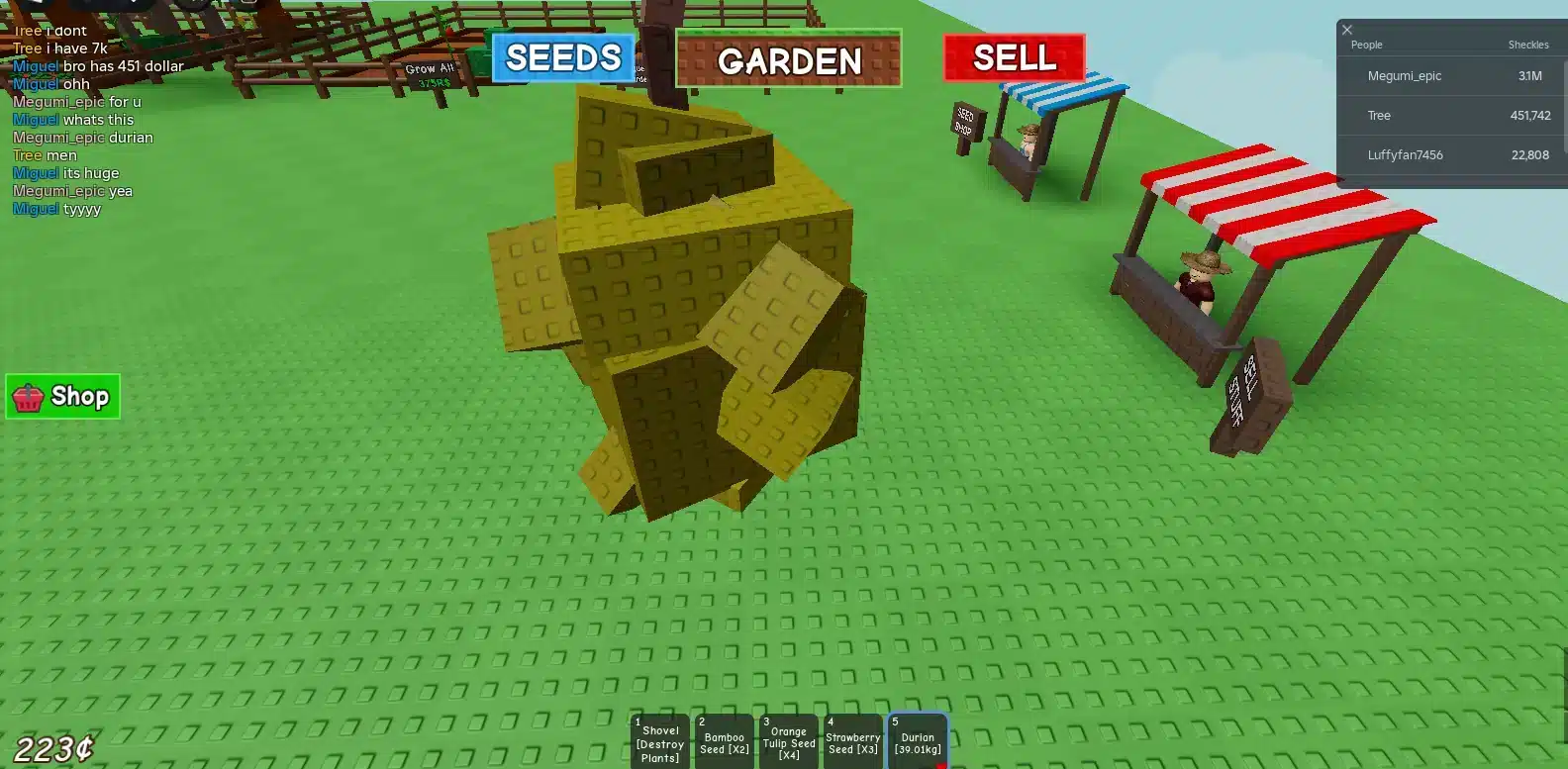
Grow A Garden has exploded into one of the biggest farming experiences on Roblox, and with that growth comes crowded servers, heavier scripts, and constant stutter. Players searching for a No Lag Grow A Garden Script usually want two things at once: automation that saves time and a game that still runs smoothly.
That combination is harder than it sounds. A No Lag Grow A Garden Script adds extra background processes on top of an already demanding game, which can push your FPS and your connection to their limits.
The direct answer is this: a well optimized No Lag Grow A Garden Script reduces stutter by trimming unnecessary loops, using lightweight performance modes, and pairing with proper graphics settings and a stable connection. Fixing lag is rarely about the script alone, it is about the whole setup around it.
In this guide, we will break down why lag happens with these scripts, how to configure your device correctly, and which habits separate a smooth session from a laggy mess. We will also cover the ban risk, common mistakes, and how connection tools fit into the picture.
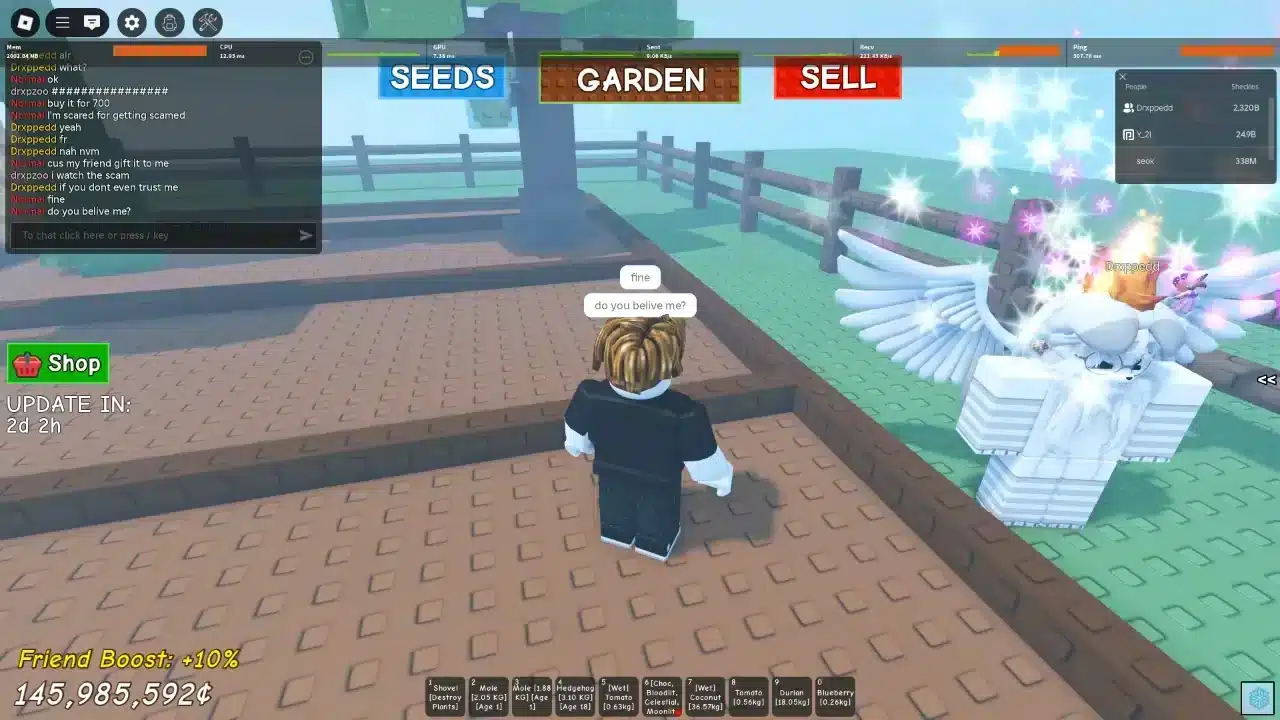
What Is A No Lag Grow A Garden Script?
A No Lag Grow A Garden Script is a third-party Lua script, run through an executor, that automates repetitive tasks inside Grow A Garden. This includes auto farming, auto watering, auto selling, and seed spawning.
The "no lag" label refers to versions built with lighter code and configurable performance modes. Developers optimize these scripts to avoid overloading your client while automation runs in the background.
How These Scripts Work
Scripts are injected through an executor such as Delta, KRNL, or Synapse X. Once loaded, the script hooks into the game's functions to automate actions that would normally require manual clicking.
- Auto harvest loops that collect crops without input
- Auto sell modules that clear inventory automatically
- Auto rebuy and watering routines for sprinklers
- Seed and pet spawners tied to in-game events
Each of these features runs continuously, which is exactly why performance can drop if the script is not optimized.
Why Lag Happens In The First Place
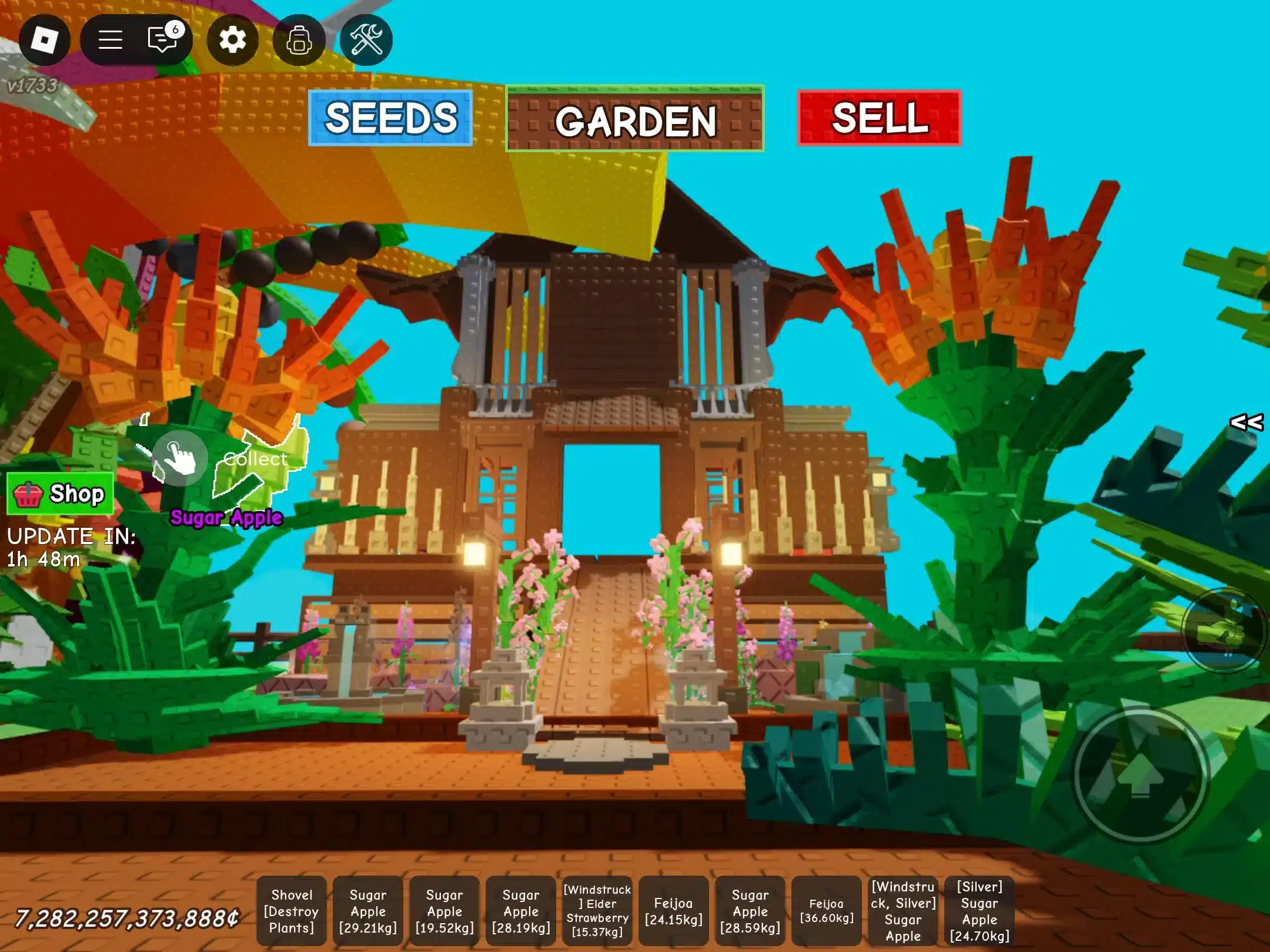
Grow A Garden already asks a lot from your device. Players juggle farming, upgrades, events, and now expanded areas like the Fall Harvest World, all rendered in real time.
Adding a script on top increases CPU load, memory usage, and network requests. Consequently, an unoptimized No Lag Grow A Garden Script can actually cause more lag than playing manually.
Best Settings To Reduce Grow A Garden Lag
Before blaming the script, it helps to check the basics. Most performance issues come from graphics settings, background apps, or an outdated Roblox client.
Graphics And Roblox App Settings
Open the Roblox in-game menu and drop the graphics quality slider to level 1 or 2. This single change is often the most effective fix, especially on mobile devices.
Here is a quick checklist to run through every session:
- Lower graphics quality to the minimum comfortable level
- Close background apps before launching Roblox
- Update the Roblox app to the latest version
- Restart your device if frame drops persist
- Disable unnecessary browser tabs or overlays while playing
Executor And Script Performance Modes
Most modern hubs paired with a No Lag Grow A Garden Script include selectable performance tiers, often labeled LowEnd, Normal, Fast, or Ultra. Choosing LowEnd on older devices reduces script overhead significantly.
Furthermore, disabling features you are not actively using (like pet spawners or event trackers) frees up processing power for the features that matter most to you.
Is It Safe To Use A No Lag Grow A Garden Script?
This is the question every player should ask before installing anything. Third-party scripts run outside of Roblox's official tools, which means they carry real risk.
Ban Risk And Roblox Terms Of Service
Using any script, including a No Lag Grow A Garden Script, goes against Roblox's Terms of Service. If the anti-exploit system flags your session, you could face a temporary suspension or, in repeated cases, a permanent ban.
- No script is ever completely undetectable
- Developers patch scripts frequently, so features can break without warning
- Fresh servers with fewer players lower detection exposure
- Testing on an alternate account is strongly recommended before using a main account
Signs A Script Source Is Trustworthy
Not all script sources are equal. Reliable ones are updated frequently, do not require suspicious permissions, and are transparent about what each feature does.
Avoid sources that demand personal information, ask you to disable your antivirus, or bundle unrelated downloads. These are red flags for malware rather than a genuine automation tool.
How Do You Fix Lag While Running A Grow A Garden Script?
Even with a lightweight script, your server choice and network stability play a huge role. This is where most players overlook easy wins.
Server And Region Tips
Joining a heavily populated public server strains both your device and your connection at the same time. As a result, switching to a less crowded server through the browse menu often clears up stutter immediately.
Region also matters. Playing on servers far from your physical location increases latency, which can desync farming actions like harvesting or selling in real time.
Device And Network Optimization
Beyond in-game settings, your home network setup affects how stable your session feels. Wired connections are generally more consistent than Wi-Fi, particularly during peak hours.
- Restart your router if ping spikes appear frequently
- Avoid running downloads or streaming while farming
- Use a wired connection when possible for PC sessions
- Monitor ping through Roblox settings to catch spikes early
Advanced Tips For Smooth Grow A Garden Farming
Once the basics are covered, a few advanced habits can push performance even further. These are the details that separate casual players from those who never deal with stutter.
Managing Executor Overhead
Running multiple apps alongside your executor consumes memory that your No Lag Grow A Garden Script needs to run cleanly. Closing browser tabs, Discord overlays, and recording software before launching the game frees up meaningful resources.
Large, poorly optimized scripts with excessive loops also strain your CPU. Choosing a hub known for clean code, rather than the flashiest feature list, pays off in stability.
Optimizing For Mobile Devices
Mobile players face an additional challenge: heat. Overheating throttles performance significantly, especially during long farming sessions.
Take short breaks every 20 to 30 minutes, keep your device out of direct sunlight, and remove thick cases that trap heat while gaming.
| Performance Factor | Impact On Lag | Recommended Fix |
|---|---|---|
| Graphics Quality | High | Lower to level 1 or 2 in Roblox settings |
| Executor Performance Mode | High | Select LowEnd or Normal mode |
| Server Population | Medium | Join servers with fewer active players |
| Network Stability | High | Use a wired connection or a routing tool |
| Background Apps | Medium | Close unused apps before launching |
| Device Temperature (Mobile) | Medium | Take breaks, avoid direct sunlight |
Pro Tips: No Lag Grow A Garden Script
- Test on an alt account first: This protects your main progress if a script gets flagged or a feature misbehaves unexpectedly.
- Disable unused modules: Every active feature in a No Lag Grow A Garden Script consumes resources, so turn off what you are not using right now.
- Keep your executor updated: Outdated executors are less optimized and more likely to conflict with the latest Grow A Garden update.
- Pick fresh, low-population servers: Fewer players means less strain on both your device and your connection, reducing stutter noticeably.
- Pair automation with a stable connection: A smooth script means little if packet loss interrupts your farming actions mid-action.
Common Mistakes Grow A Garden Players Make
- Running Ultra performance mode on a low-end device: This overloads the CPU and causes worse stutter than playing manually. Fix: switch to LowEnd or Normal mode based on your actual hardware.
- Ignoring server region when joining: Playing on a distant server increases ping and desyncs farming actions. Fix: browse servers and prioritize ones closer to your region.
- Stacking multiple scripts at once: Running several hubs together multiplies background processes and crashes are far more common. Fix: use one well maintained No Lag Grow A Garden Script rather than layering tools.
- Never updating the executor or script: Old versions break after game updates and can cause unpredictable lag spikes. Fix: check for updates before every session, especially after a patch like the Fall Harvest update.
Boost Your No Lag Grow A Garden Script Setup With ExitLag
Scripts and settings only solve half the problem. The other half is your actual connection to the Grow A Garden servers, and that is where a routing tool makes a real difference.
ExitLag is not a VPN. It is a connection optimizer that analyzes multiple network paths in real time and automatically selects the fastest, most stable route to the game's servers.
Why Connection Stability Matters For Farming Games
Automation features like auto sell and auto harvest rely on constant, quick communication with the server. Packet loss or ping spikes can interrupt those actions right when timing matters most, like during a rare seed spawn.
Consequently, a stable route reduces the chance that your No Lag Grow A Garden Script misfires an action due to a dropped packet rather than an actual game issue.
How ExitLag Complements Your No Lag Grow A Garden Script
ExitLag supports thousands of titles across PC and mobile, with a large global server network built specifically to cut ping and reduce instability. Its Multipath technology sends data through multiple routes at once, so if one path fails, others keep your connection alive.
For players juggling automation, events, and crowded servers, that stability translates directly into fewer desyncs and smoother farming runs. You can grab the ExitLag Download to optimize your PC sessions, or set up ExitLag for Android and ExitLag for iOS if most of your Grow A Garden time happens on mobile.
ExitLag does not modify game files, inject code, or interact with anti-cheat systems, so it works independently from any script you choose to run. Just remember not to run it alongside a VPN, since that reduces its effectiveness.
Whether you are fine tuning graphics settings, picking a lighter performance mode, or trying to keep a No Lag Grow A Garden Script running smoothly through a big event, the connection underneath everything still matters most. Combine smart in-game settings with a stable route, and those frustrating drops become far less common.
All game images used in this blog post belong to Do Big Studios (Grow a Garden developer). They are used for informational and educational purposes only and do not imply endorsement or affiliation with the rights holders.