

Dealing with Packet Loss Aion 2 can turn intense PvP battles and PvE encounters into a frustrating experience filled with delayed skills, character freezes, and sudden disconnections. Many players assume these issues come from weak internet, but in reality, routing instability and data transmission failures are often the real cause. Understanding why packet loss happens in Aion 2 is the first step to restoring smooth gameplay across online titles.

What is packet loss in Aion 2?
Packet loss happens when data packets sent from your computer fail to reach the game servers during transmission. In Aion 2, every action, moving, attacking, casting skills, is broken into small data packets that must arrive in the correct order for the game to respond properly.
When packet loss occurs, some of these messages never arrive, similar to sending text messages that simply disappear before reaching the recipient. The server keeps waiting for missing data, causing freezes, delayed responses, or forced resynchronization.
Even a small amount of packet loss can severely disrupt combat flow, positioning, and reaction timing, making the game feel unstable even with good ping.
How packet loss affects your gameplay in Aion 2
Packet loss directly impacts real gameplay situations in Aion 2:
- Delay in commands, where skills activate seconds later
- Rubberbanding, pulling your character back during movement
- Sudden disconnections, removing you from the server mid-fight
- Teleport enemies, making targets appear in unexpected positions
- Skills don’t register, abilities used but not executed
- Hit registration fails, attacks that visually connect but deal no damage
These problems are especially punishing during PvP, sieges, and high-level dungeons.
Main causes of packet loss in Aion 2
Inefficient routing
Your connection passes through multiple routers before reaching the game servers. When routes are inefficient, data packets may be dropped along the way, increasing packet loss.
Unstable connection
Problems with your ISP, modem, or router can cause intermittent signal drops that interrupt data flow.
Distance from servers
The farther your location is from Aion 2 servers, the higher the chance of packet loss due to long transmission paths.
Network congestion
Peak hours and multiple devices sharing the same network can overload routes, leading to discarded packets.
Faulty hardware
Damaged Ethernet cables, outdated routers, or failing network cards can all contribute to packet loss.
Large-scale PvP and sieges
Massive battles increase server load and amplify the impact of unstable connections.
How to identify packet loss in Aion 2
Inside Aion 2, Packet Loss Aion 2 often appears as inconsistent latency, rubberbanding, or lag even when ping seems low. These visual clues indicate missing data rather than simple delay.
You can also run command-line tests, such as continuous ping commands, to observe packet drops and instability between your device and the server.
If responses time out or fluctuate heavily, packet loss is likely present.
Testing at different times of day helps identify congestion-related issues.
Comparison table: with and without exitlag
| Connection Element | Without ExitLag | With ExitLag |
| Ping | fluctuates often | stable and reduced |
| Packet Loss | frequent spikes | minimized |
| Route Stability | unpredictable | optimized |
| Combat Response | delayed skills | instant and consistent |
| Rubberbanding | common | nearly eliminated |
Solving packet loss in Aion 2
Solving packet loss requires stabilizing the route between you and the game servers. ExitLag handles this by testing multiple paths in real time and selecting the fastest one. However, you can also support stability by:
- avoiding peak congestion hours
- using an ethernet cable instead of Wi-Fi
- closing background applications
- ensuring no other devices overload the network
Like this, both manual adjustments and optimized routing work together to reduce interruptions and create smoother gameplay.
How to use ExitLag in Aion 2
The process is extremely simple:
Step 1 – Access the official ExitLag website and download the application. There’s a free trial period for new users.
Step 2 – Install and open the program. Log in with your account.
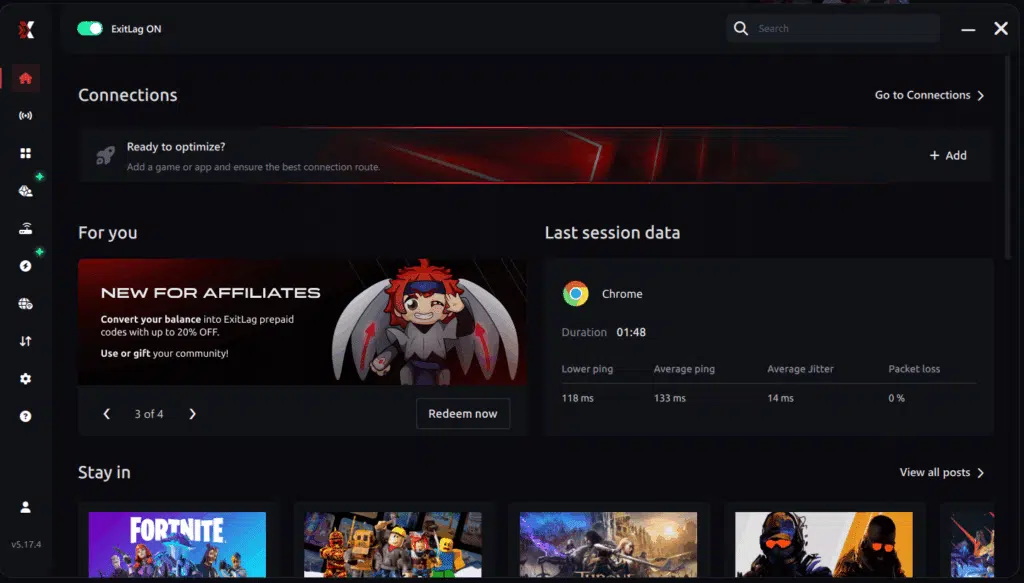
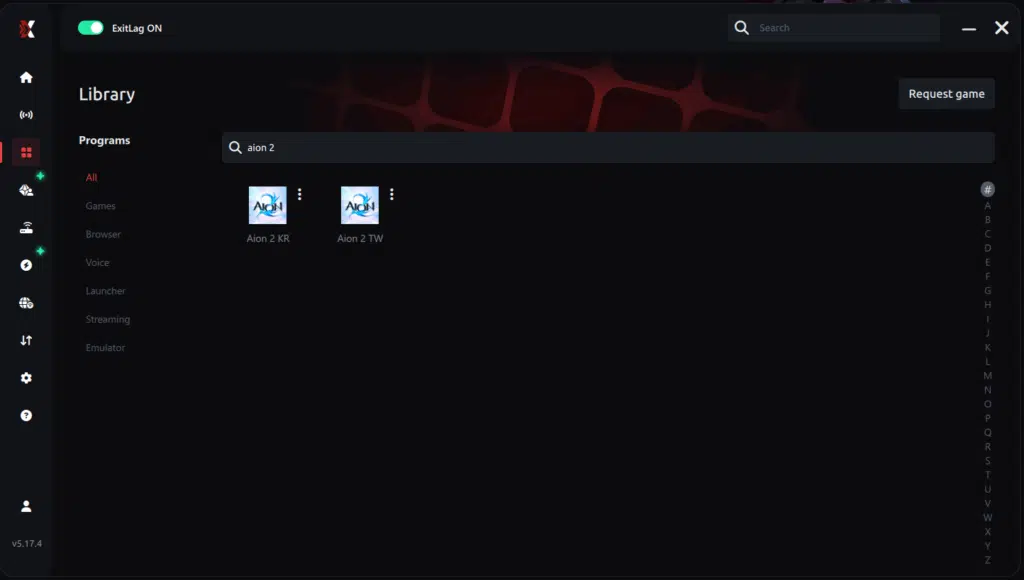
Step 3 – In the search bar, type “Aion 2” and select the game from the list.
Step 4 – Choose between automated or manual route
Based on the results, you can let ExitLag automatically select the best route or manually choose the server that showed the lowest latency for your connection.
AI-optimized automated route
Based on the results, you can let ExitLag automatically select the best route through AI-optimized . The system analyzes multiple connection paths in real-time and automatically identifies the most efficient route for your connection, ensuring the lowest possible latency without requiring manual choices.
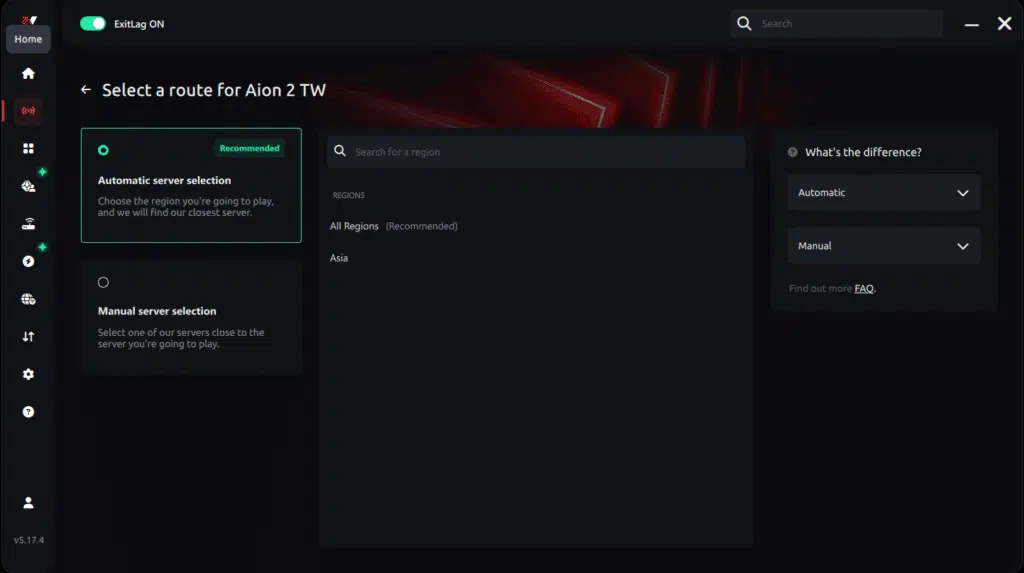
Manual route
If you prefer to have full control over your connection, you can manually choose the server based on the ping test results. Simply select the server that showed the lowest latency or the one that best meets your specific gaming needs, allowing complete customization of your experience.

Step 5 – Click “Apply routes” or the play button. ExitLag will begin optimizing your connection automatically.
AI-optimized automated route:

Manual route:

Step 6 – Wait a few seconds until optimization is complete. You’ll see ping indicators in the interface.
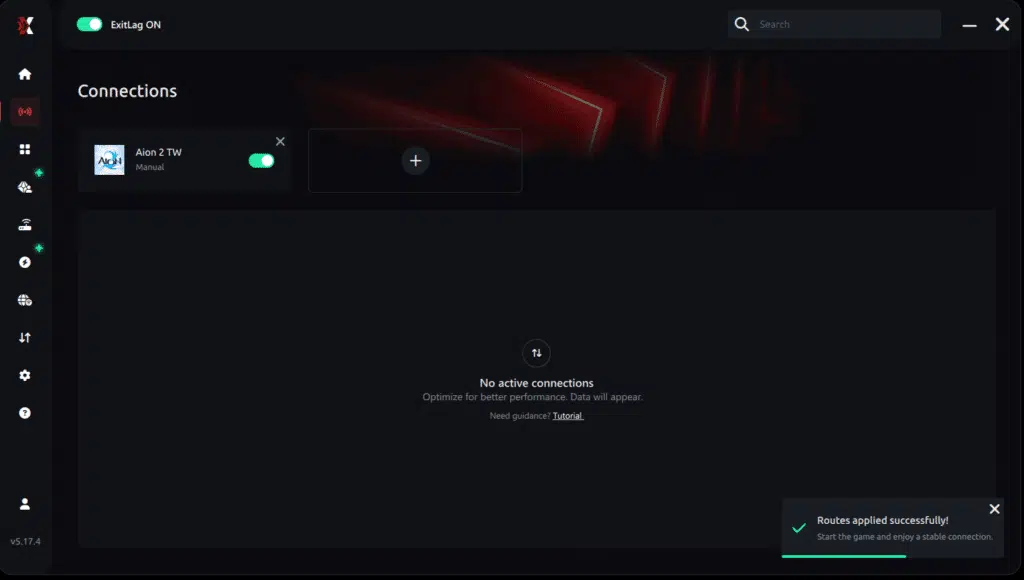
Step 7 – Launch Aion 2 normally. The optimization will already be active.
ExitLag runs in the background while you play, constantly adjusting routes to maintain the best possible performance.
How to use Ping for Games: step-by-step guide
Checking your connection quality before entering a match has never been easier. Here’s how to use Ping for Games in just a few steps:
1. Open the ExitLag software on your PC
Ensure the application is installed and open. The feature is integrated into the platform and available for free to all users.
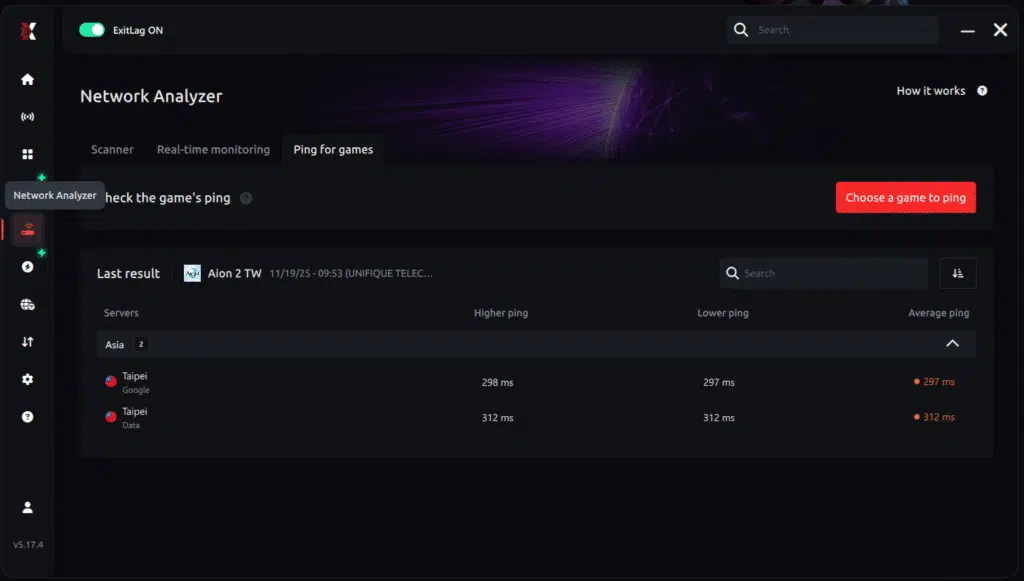
2. Access the Network Analyzer tool
Locate the Network Analyzer in the software menu. This is where you’ll find Ping for Games along with other connection analysis features.
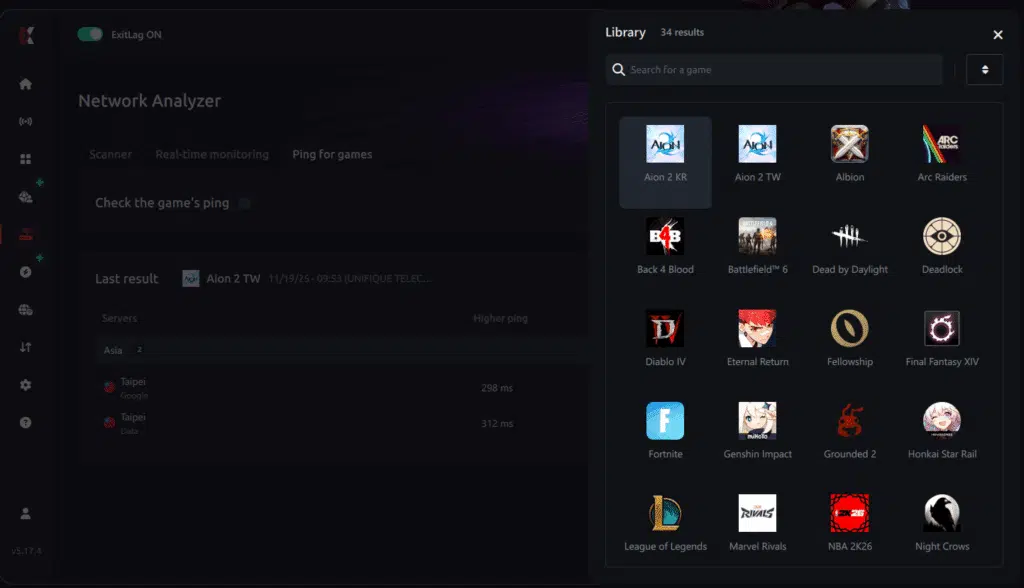
3. Select the game you want to test
Choose from the list the title you plan to play. The tool supports major online multiplayer games, including MOBAs, FPS, Battle Royales, MMORPGs, and more.
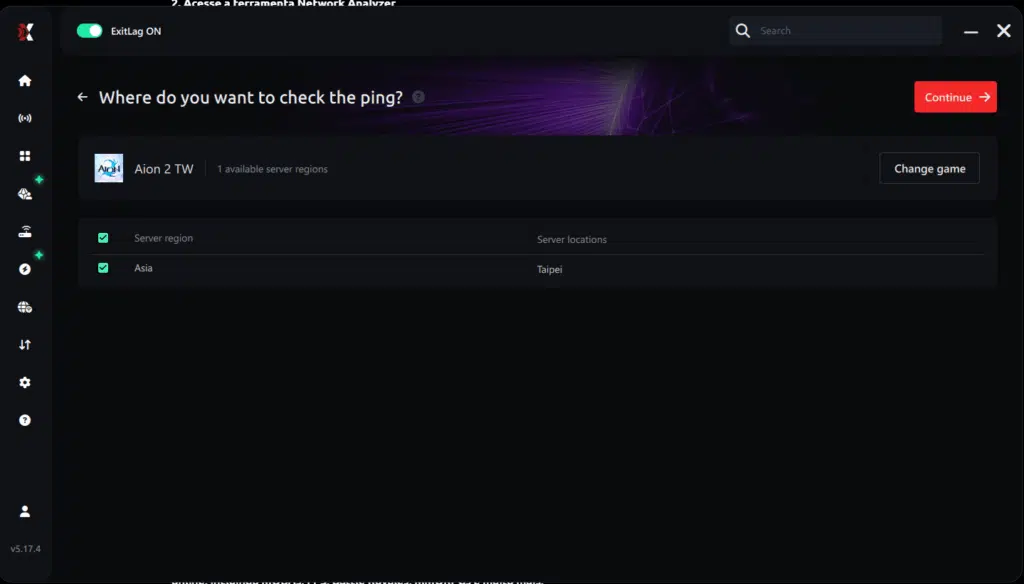
4. Choose the specific server
Now you select directly the server you want to test, instead of just a generic region. This ensures much more accurate results for your choice.
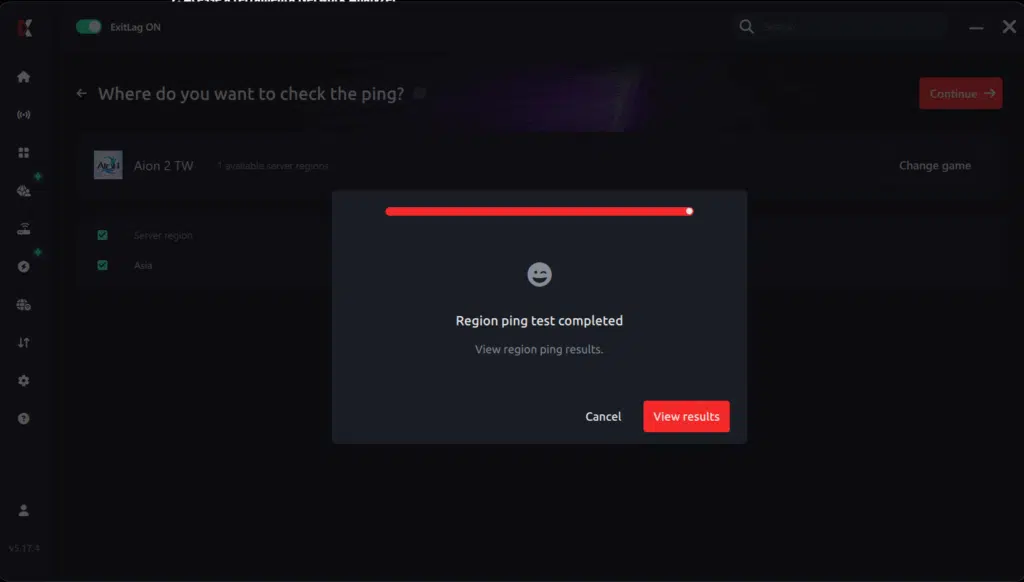
5. Start the ping test
With one click, the measurement is performed in real-time between your device and the chosen server, considering your current connection (cable or Wi-Fi).
6. Analyze the results
Results appear in milliseconds (ms), automatically sorted from best to worst ping. You can also reorganize the view alphabetically, if you prefer.
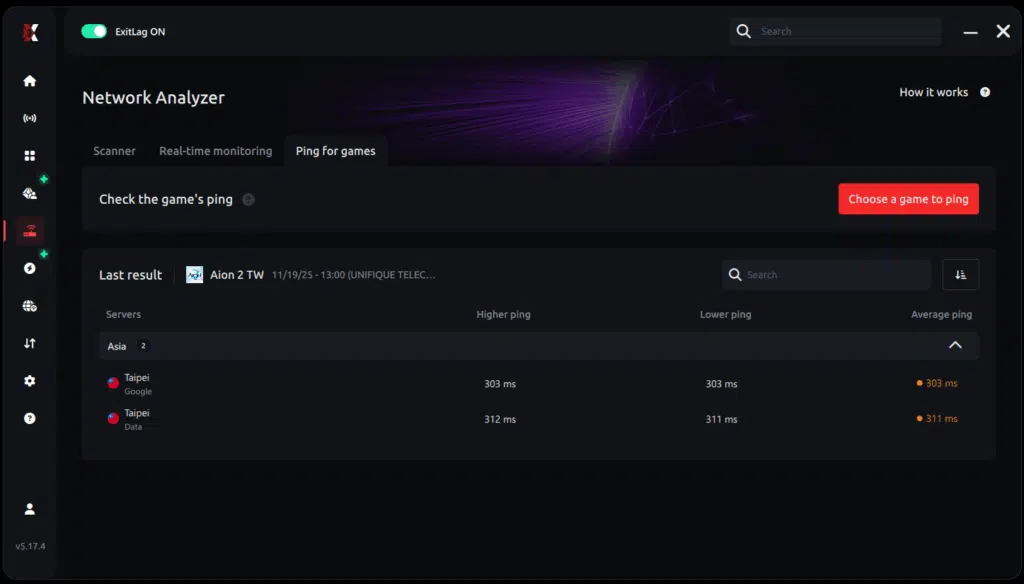
7. Choose the best server and play worry-free
With the information in hand, just select the server with the lowest latency and enter the match knowing your connection is optimized.performance connection optimized specifically for competitive gameplay.

How to use ping for games: step-by-step guide
If you want to monitor or improve your ping manually, follow this simple guide:
- open the Windows command prompt (cmd)
- type: ping -t [IP address of the server]
- observe the fluctuations — high spikes mean route instability
- close background downloads or heavy applications
- switch to a wired connection
- restart your router if instability continues
Finally, while ping tests help identify the problem, optimizing the route with ExitLag is what actually fixes it permanently.
Final thoughts & call to action
Aion 2 offers rich combat and competitive content that requires precision, stability, and quick reactions to succeed. However, none of this truly matters if lag dictates your performance and interrupts crucial battles in the worst moments. With the right tools, you can finally overcome instability and fix Packet loss Aion 2 Lag for good during every match. This ensures a smoother and more consistent gameplay experience that aligns with the demands of competitive players.
Don’t let connection issues decide your matches or determine the outcome of your progression inside the game. ExitLag allows you to stabilize routes instantly, reduce packet loss, and eliminate unpredictable spikes that ruin combat flow. By trying ExitLag for free, you immediately feel the difference in skill responsiveness and overall gameplay fluidity. This creates the ideal environment for players aiming to improve, compete and fully enjoy Aion 2 without interruptions.
Got questions or want to connect with other players? Join the conversation at the ExitLag Forum!




