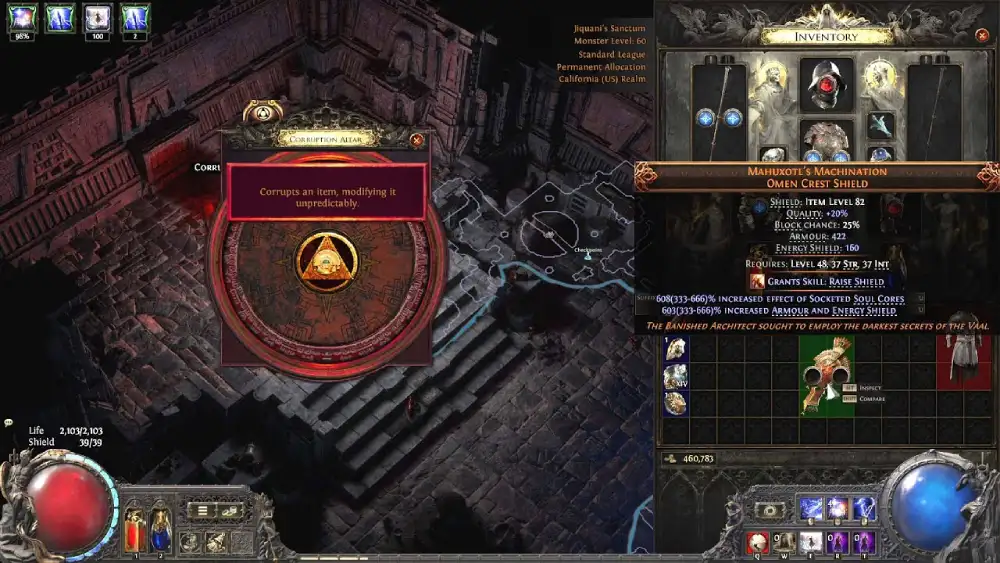
Path of Exile 2 throws loot at you constantly. After a few maps, the ground looks like a junkyard, and the one Divine Orb you actually need hides under a pile of useless gear. That is exactly the problem a loot filter solves.
This guide explains how a PoE2 Loot Filter works, which strictness to choose, and how to install one on every platform. If you are still picking a character, our overview of Path of Exile 2 classes helps you choose before you tune your filter.
So, how do you use a PoE2 Loot Filter? On PC, download a .filter file and place it in Documents\My Games\Path of Exile 2, then select it under Options, Game, Filters. On console, follow a filter on the Item Filter Ladder at pathofexile.com and select it in game. NeverSink's filter with Semi-Strict strictness is the most common starting point.


PoE2 Loot Filter: what it does
A loot filter is a text file that tells the game how to display each item. It can hide junk, highlight valuable drops, and play sounds for rare finds.Main features of a loot filter
- Hiding junk: Low-value items disappear from the ground so you stop wasting time.
- Custom colors: Different item tiers get different text and background colors.
- Alert sounds: Valuable currency and uniques play distinct sounds.
- Light beams: Top drops, such as high-tier Waystones, can show a beam you see from far away.
- Minimap icons: Important items appear on the map so you never walk past them.
Why every player needs one
Without a filter, you spend more time reading item names than playing. As you progress into endgame mapping, the number of drops grows quickly. Therefore, a good filter speeds up your clears, protects your attention, and helps you notice the drops that matter for your build and your wealth.NeverSink strictness levels explained
NeverSink's filter is the most widely used option, and it comes in seven strictness levels. Each level hides more items than the one before it.Strictness levels table
| Level | Strictness | Best for |
|---|---|---|
| 0 | Soft | Brand new players who want to see almost everything |
| 1 | Regular | Early campaign and learning item types |
| 2 | Semi-Strict | Recommended starting point for most players |
| 3 | Strict | Late campaign and early mapping |
| 4 | Very Strict | Established endgame characters |
| 5 | Uber Strict | Fast mapping with strong gear |
| 6 | Uber Plus Strict | Only the most valuable drops |
How to pick your strictness
Start on Semi-Strict while you learn the game. As your character gets stronger, move up one level at a time when the screen still feels cluttered. However, avoid Very Strict or higher while leveling, unless your character already has excellent gear. These levels hide items you may still need for upgrades.Available styles
NeverSink also offers visual styles that change colors and effects without changing which items show. The options include Aura, Cobalt, Custom Sounds, Dark Mode, Mythic, Vaal, and Zen. The Aura style uses glowing outlines, which many players find easier to read on controllers and handheld screens.How to install a PoE2 Loot Filter on PC
PC players have two options: local files or online filters that update themselves.Installing a local filter step by step
- Download the filter: Get the latest release from the official NeverSink repository or export one from FilterBlade.
- Extract the files: Use 7-Zip or a similar tool if the download is compressed.
- Copy the .filter file: Paste it directly into %userprofile%\Documents\My Games\Path of Exile 2.
- Avoid subfolders: Do not place it inside the onlinefilters folder, since the game manages that folder itself.
- Select it in game: Press Escape, open Options, go to Game, and choose your filter under Filters.
Using online filters on PC
Online filters update automatically. Log in to pathofexile.com, open your account, choose Item Filters, and follow a filter from the Item Filter Ladder. After that, restart the game or refresh the filter list in Options. The followed filter appears in the dropdown and updates without new downloads, although you cannot edit it or apply styles.How to use a PoE2 Loot Filter on console and Steam Deck
Console players cannot copy files, but they can still use the same filters through their account.Console setup step by step
- Visit pathofexile.com: Log in with the account linked to your console.
- Open Item Filters: Click your account name, then choose Item Filter Ladder.
- Select Path of Exile 2: Set the game dropdown to the second game.
- Follow a filter: Pick a NeverSink strictness and click Follow.
- Select it in game: Open Options, find the Item Filter dropdown, choose your filter, and save.
Steam Deck setup
On Steam Deck, switch to Desktop Mode and copy the .filter file into the Path of Exile 2 folder inside the game's Proton prefix, under Documents\My Games. Alternatively, online filters from the ladder also work once you log in to your account. If a cloud filter does not appear right away, use the refresh button next to the dropdown.Customizing your filter with FilterBlade
FilterBlade is a companion website built for NeverSink's filter. It lets you preview and tweak every rule without editing text files.What you can change
- Strictness: Pick the base level and adjust it later.
- Specific item types: Show or hide bases that matter to your build.
- Sounds: Change alert volume so key drops stay audible during big fights.
- Appearance: Apply styles and change colors for each tier.
How to save and sync
After customizing, you can download the file for local use or sync it to your account so it appears on every platform you play on. In addition, FilterBlade offers a paid auto-updater for players who want local filters refreshed without manual downloads.Pro Tips: PoE2 Loot Filter
- Update every league: Filters downloaded as files do not update themselves. Re-download at least once per league.
- Raise strictness gradually: Jumping straight to Uber Strict can hide useful items.
- Turn up alert sounds: Loud drop sounds help you notice valuable currency in chaotic maps.
- Show your build's bases: Use FilterBlade to keep base types relevant to your character visible.
Common Mistakes players make with loot filters
- Placing the file in the wrong folder: The game cannot see it. Fix: copy it directly into the Path of Exile 2 folder.
- Using an outdated filter: New items may show incorrectly. Fix: download the latest version each league.
- Going too strict while leveling: You miss upgrades. Fix: stay on Semi-Strict or Strict until mapping.
- Editing a followed online filter: Ladder filters cannot be edited. Fix: customize through FilterBlade instead.
FAQ: PoE2 Loot Filter
What is the best PoE2 Loot Filter?
NeverSink's filter is the most popular choice. It offers seven strictness levels and works with FilterBlade for easy customization.Can I use a loot filter on PS5 or Xbox?
Yes. Follow a filter on the Item Filter Ladder at pathofexile.com, then select it in the game's options.Why does my filter not show in game?
The file may be in the wrong folder or inside a subfolder. For online filters, use the refresh button next to the filter list.Which strictness should beginners use?
Semi-Strict is the recommended starting point for most players.Why your connection matters with a PoE2 Loot Filter
A clean screen helps you react faster, but lag can still ruin a map. In a game with so many monsters and effects, stability matters.How lag affects your mapping
- Delayed skills: Your attacks fire after the danger arrives.
- Rubberbanding: You snap back into enemy packs.
- Disconnections: You can lose a map and its loot.
- Slow loot pickup: Items take longer to collect in crowded areas.
How ExitLag helps
ExitLag is a connection optimizer for online games that finds the fastest and most stable route to the Path of Exile 2 servers. Its Multipath Technology sends data through several routes at once, so if one becomes unstable, the others keep you connected. As a result, every skill and pickup responds on time, even in dense maps. To get started, download the ExitLag app, search for Path of Exile 2, select your region, and apply the routes.PoE2 Loot Filter: final thoughts
A good filter turns chaotic loot into clear choices. Install it once, adjust strictness as you grow, and update it every league.Key takeaways
- Loot filters hide junk and highlight valuable drops.
- NeverSink has seven strictness levels, with Semi-Strict as the usual start.
- PC players can use local files or online filters.
- Console players follow filters on pathofexile.com.