

The term Project Zomboid cheat engine continues to trend among survival fans looking to gain control or enhance their multiplayer experience. However, most players misunderstand what this actually means. Rather than relying on risky third-party software, Project Zomboid provides official, built-in tools that allow you to manage your world, moderate players, and test mods safely. This guide will explore how server owners can legally and effectively use cheats within the game’s systems, without compromising their files, servers, or player community.
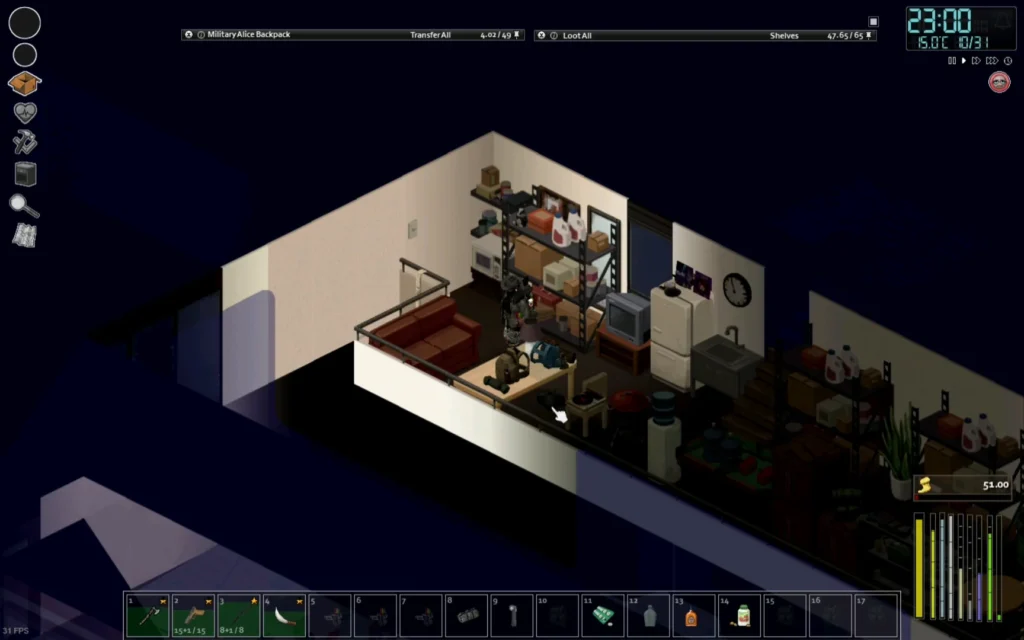
What Is Project Zomboid Cheat Engine?
When players search for a cheat engine for Project Zomboid, they usually refer to methods that alter game data such as item quantities, player stats, or zombie behavior. While memory editors like Cheat Engine can technically manipulate these values, they are not safe for online play and may corrupt your game data.
Instead, The Indie Stone (Project Zomboid’s developer) includes official tools that replicate many functions external software provides – safely. These include Admin Mode, Debug Mode, and Sandbox Controls.
In short, you can achieve much of what a cheat engine offers without risking your Steam account or breaking multiplayer sync.
Who Can Use Cheats in Project Zomboid?
Only players with admin-level access can safely enable cheats in Project Zomboid multiplayer. In single-player, any user can enable Debug Mode for creative control, mod testing, or scenario building.
Admin Permissions in Multiplayer
To activate admin tools, you need:
- Access to the server configuration files.
- Your username registered as an admin in servertest.ini.
- Admin login credentials within the game.
Once logged in as an admin, you gain access to:
- Teleportation tools
- Player and zombie control
- Weather, time, and loot management
- Instant healing and stat adjustment
- Item spawning
These features are identical to cheat functions but integrated natively into the Project Zomboid system.
How to Enable Admin Mode
Admin controls in Project Zomboid are primarily accessed through chat commands or the console. Common examples include:
- /additem [username] [itemID] – Give a player a specific item.
- /teleport [username] – Move a player instantly to your location.
- /ban [username] – Remove a disruptive player.
Admins can also use contextual menus in the Players list when logged in with admin privileges, providing quick access to teleport, heal, or kick options.
Debug Mode: The Ultimate Single-Player Cheat Tool
If you’re experimenting in single-player, Debug Mode is your best ally. This mode unlocks a toolbar with dozens of developer tools, giving you complete creative control over your world.
How to Enable Debug Mode
- In your Steam Library, right-click Project Zomboid.
- Click Properties → General → Launch Options.
- Enter the command:
-debug - Launch the game. You’ll see a new menu titled Debug.
Debug Tools You Can Access
- Item spawner for any object in the game.
- Character editor for instant healing or XP boosts.
- Teleportation between map coordinates.
- Weather and lighting control.
- Zombie population adjustments.
- Map viewer to reveal the entire world instantly.
Some debug features may be disabled in multiplayer unless you have full admin permissions. Additionally, certain mods can conflict with Debug Mode, causing interface issues.
Differences Between Admin Mode and Cheat Engine
| Feature | Cheat Engine | Admin/Debug Mode |
| Safety | Unsafe, may corrupt data | Fully supported by the game |
| Multiplayer | Usually banned | Fully supported for server admins |
| Updates | Breaks after patches | Maintained with each build |
| Features | Memory editing only | Full in-game control tools |
| Ban Risk | High (Steam or server) | None |
As seen above, Project Zomboid’s native cheat tools outperform third-party editors in both stability and capability.
Customizing Sandbox Settings: Legal Cheating for Fun
One of the most powerful tools for server owners is the Sandbox Configuration. This allows you to alter the entire gameplay experience without external mods.
Common Sandbox Tweaks:
- Reduce or increase zombie population.
- Modify infection chances or disable it completely.
- Boost loot abundance for creative servers.
- Change day length and environmental factors.
- Adjust NPC settings (planned for Build 42, when officially released with NPC integration).
Each change updates server-side, ensuring all players experience the same balanced environment.
Why You Should Avoid External Cheats in Project Zomboid
Using memory editors or cheat engines introduces major risks:
- Data corruption: Modifying live game memory can destroy save files.
- Desync issues: Multiplayer sessions will crash or desynchronize.
- Bans: Public servers detect unauthorized data modification.
- Malware risk: Cheat downloads often include malicious scripts.
The game’s own debug and admin modes eliminate all these problems, offering a risk-free solution.
Boosting Performance with ExitLag
Even with admin powers, lag can ruin gameplay. Multiplayer servers with high player counts or large zombie populations are notorious for desync and latency. Some players report that ExitLag can help stabilize connections and reduce ping spikes, though it is not officially affiliated with Project Zomboid or its developers.
Possible Benefits for Project Zomboid Players
- Lower and more stable ping (as reported by users).
- Fewer connection drops during raids or events.
- Faster response time during large zombie swarms.
- Consistent performance even under server load.
Whether you’re managing a large RP server or playing in co-op, network optimization tools may help make your experience smoother.
Advanced Debug Tools and Features
The Debug Mode in Project Zomboid isn’t just a sandbox playground – it’s an essential toolkit for testing mods, creating cinematic sequences, or troubleshooting gameplay mechanics. Understanding its deeper layers allows players to fully leverage its potential.
Essential Advanced Debug Options
- Brush Tool: Edit map areas, add vegetation, or place structures for map customization.
- Loot Editor: Modify spawn rates of items in containers to test economy balance.
- AI Control Panel: Observe zombie pathfinding, aggression levels, and reaction triggers.
- Vehicle Debugger: Repair, refuel, or reposition vehicles instantly for smoother testing.
- Animation and Behavior Debugger: Test player movement, combat animations, and mod interactions.
These tools are invaluable for mod creators and server managers who want to fine-tune the in-game balance or quickly troubleshoot bugged environments.
Debug Mode Limitations
While Debug Mode provides massive flexibility, some of its functions are disabled in multiplayer for non-admin users. Even with admin access, a few advanced scripts require local execution to avoid desyncs or server crashes.
Pro Tip: Always back up your world before using complex debug commands, especially those altering terrain, AI, or map assets.
Server Console and Chat Commands
While the debug panel offers a GUI-based approach in single-player, server owners rely heavily on console and chat commands to maintain control and structure during live gameplay.
Common Admin Commands
| Command | Function |
| /additem [username] [itemID] | Gives a specific item to a player. |
| /teleport [username] | Instantly teleports a player to your location. |
| /createhorde | Spawns a zombie horde nearby for testing or events. |
| /grantadmin [username] | Promotes a user to admin level. |
| /removeadmin [username] | Revokes admin privileges. |
| /godmod [username] | Makes a player invincible temporarily. |
| /startrain and /stoprain | Control weather conditions manually. |
| /addxp [username] [perk] [amount] | Grants experience points to specific skills. |
| /save | Forces the server to save current progress. |
Most of these commands can be executed either from the in-game chat (if logged as admin) or directly through the server console. For safety, always confirm the command syntax via the official PZWiki or The Indie Stone forums before applying changes live.
Automation Through Server Configurations
Server hosts can automate many administrative tasks by editing the configuration file (servertest.ini). Examples include:
- Auto-saving world data at fixed intervals.
- Restricting PvP modes.
- Automatically banning repeat offenders.
- Limiting zombie population dynamically.
Automation ensures consistency and reduces the need for constant manual supervision during peak hours.
Debug and Mod Development Use Cases
For content creators and developers, Debug Mode is more than a cheat menu, it’s a creative environment. Here are some legitimate uses:
- Testing Mod Compatibility – Check item spawning, balance, and recipe integration.
- Map Building and Story Design – Use the Brush Tool and Teleport functions to craft story-driven experiences.
- AI Tuning – Monitor zombie behavior and adjust aggression parameters to suit difficulty levels.
- Cinematic Creations – Freeze time, remove UI, and adjust lighting to capture immersive screenshots or videos.
These practices show that Project Zomboid’s debug system is not just for “cheating” but also for development and creativity.
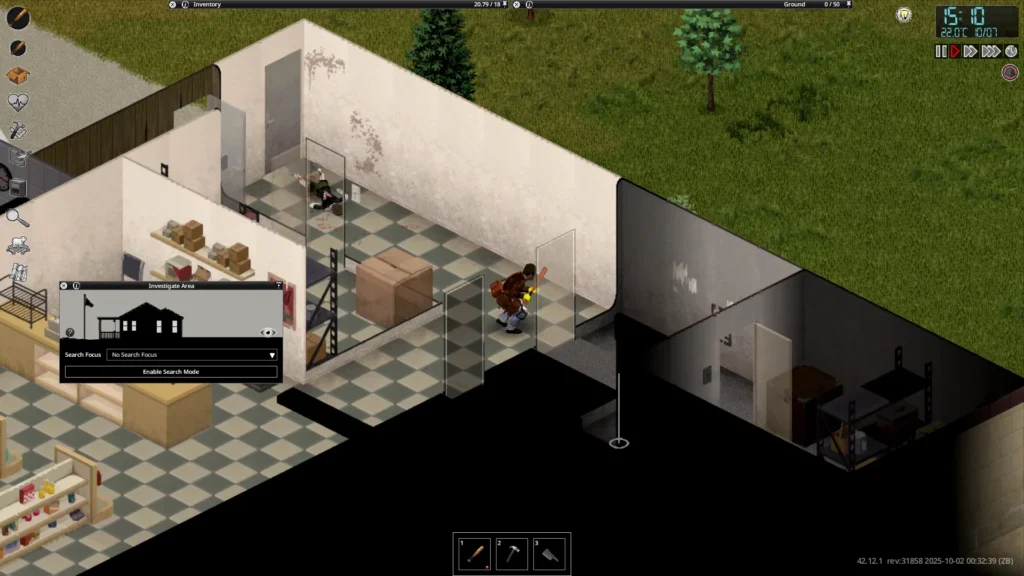
Cheat Limitations and Ethical Use
Even though Project Zomboid supports admin and debug functionality, there are ethical and gameplay considerations:
- Do not use cheats on public servers without disclosure or permission.
- Avoid unbalancing community gameplay by using admin powers for unfair advantage.
- Reserve god mode and teleportation for moderation, testing, or event management.
Respecting server rules maintains the integrity of multiplayer communities and ensures everyone enjoys a fair experience.
Troubleshooting Common Debug/Command Issues
1. Debug Menu Not Appearing
Check if the -debug parameter is still in your launch options. Certain mods may disable it.
2. Command Not Working in Chat
Ensure you are logged in as an admin. Prefix commands with / and use correct player names.
3. Admin Privileges Reset After Restart
Re-add your username in servertest.ini or use the console to restore admin status.
4. Multiplayer Desyncs When Using Debug
Avoid using map or terrain editing tools in active multiplayer sessions, these are best used offline.
Safe Alternatives to External Cheats
Instead of risking corruption with memory editors, rely on these supported systems:
- Admin Commands for in-game moderation.
- Debug Mode for controlled world editing.
- Sandbox Settings for adjusting survival conditions.
These tools offer extensive control while keeping your save files and servers safe.
Network Optimization and Lag Reduction
Smooth gameplay remains essential in Project Zomboid’s demanding multiplayer environments. While not officially endorsed by The Indie Stone, some players report that third-party routing tools like ExitLag can help stabilize connections or reduce latency. Use such tools at your discretion and only download from verified sources.
Reported Player Benefits
- Lower ping during high server load.
- More consistent performance during large events.
- Reduced desync in busy zones.
Always verify results with controlled testing; performance can vary by region and ISP.
Final Thoughts
Project Zomboid’s admin and debug systems deliver a robust set of tools that rival any external cheat software, legally and safely. Whether managing a large multiplayer world or experimenting solo, these features let you explore limitless creativity while maintaining stability and fairness.
Avoid external hacks, respect your community’s rules, and use official tools responsibly, that’s how true survivors dominate in Project Zomboid.
General Disclaimer
All game images and references to Project Zomboid belong to The Indie Stone. They are used here for educational and informational purposes only and do not imply any endorsement or affiliation.
Got questions or want to connect with other players? Join the conversation at the ExitLag Forum!



