
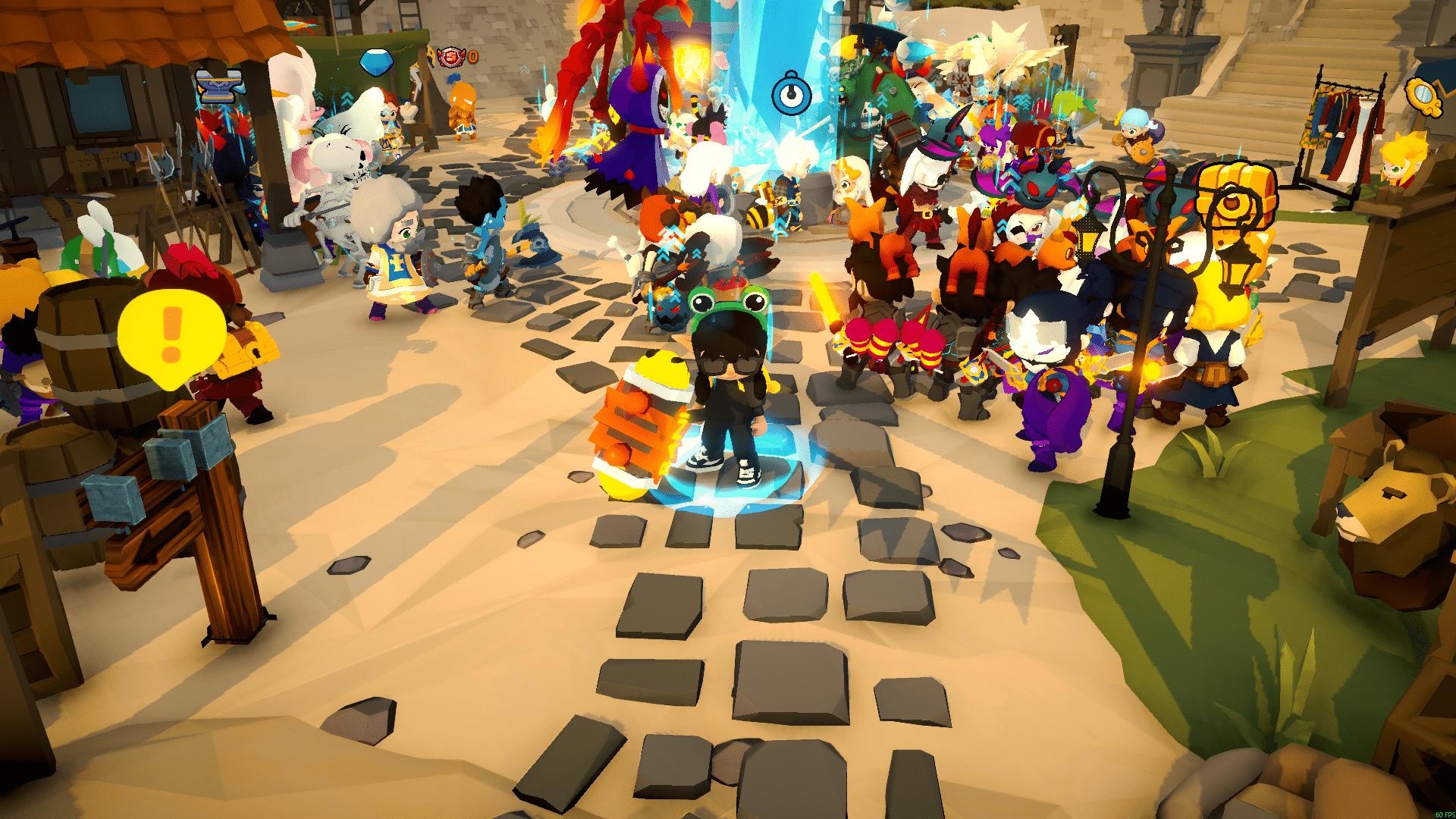
A world boss is almost defeated, your party begins its final attack rotation, and suddenly the game freezes for a fraction of a second. Your abilities respond late, the screen becomes choppy, and your character is caught by an attack that should have been easy to avoid. A SpiritVale FPS drop during real-time cooperative combat can turn a successful encounter into a frustrating defeat.
The same problem can appear while exploring crowded areas, loading new environments, collecting loot, or fighting several enemies at once. Instead of maintaining smooth movement, the frame rate becomes unstable every time new effects or players appear on the screen. When SpiritVale FPS drop happens alongside high ping or packet loss, identifying the real source of the problem becomes even more difficult. Similar connection-related issues can also affect other online releases, as explained in this guide.
The good news is that SpiritVale FPS drop does not always require a new graphics card or processor. Some problems come from graphics settings and hardware limitations, while others are connected to unstable network routes, background traffic, or inconsistent communication with the game server.ExitLag gaming optimization technology can reduce network instability, improve route consistency, and minimize connection-related micro-stuttering while you explore SpiritVale.
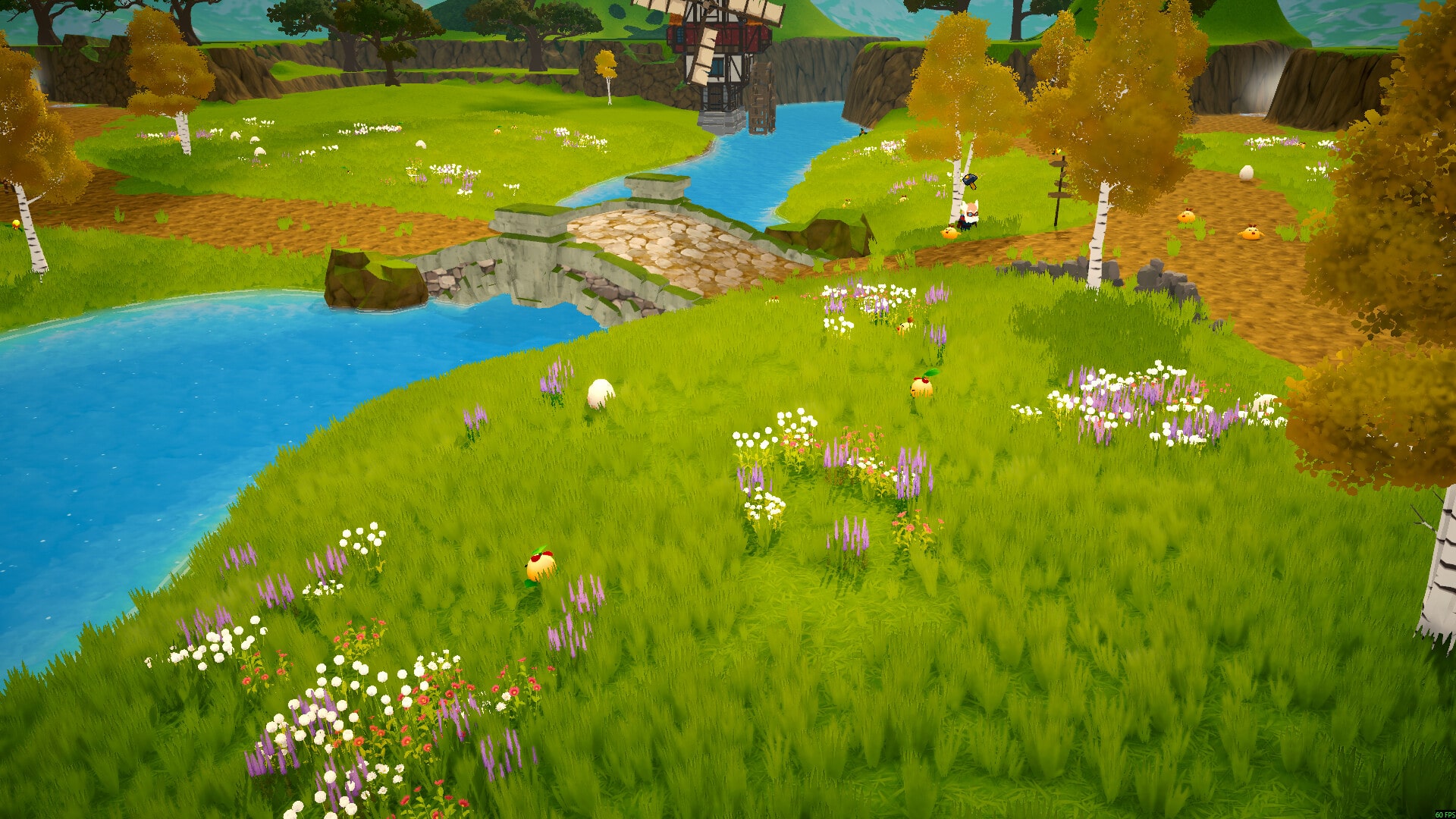
What Is SpiritVale FPS Drop and Why Does It Happen?
SpiritVale is a class-based action MMORPG developed and published by Baikun Interactive. The game combines real-time cooperative battles, character progression, exploration, loot hunting, PvE encounters, and PvP elements.
Because SpiritVale is an online game, your experience depends on two different performance systems. Your computer must render the world correctly, while your internet connection must continuously exchange information with the game server.
A problem in either system can make movement feel unstable. However, FPS problems and network lag do not have the same cause.
Understanding FPS and Frame Rate
FPS means frames per second. It measures how many individual images your graphics card produces every second.
A higher frame rate usually creates smoother movement and more responsive camera control. A lower frame rate makes animations look choppy and may increase the delay between your input and the visual response on the screen.
Frame-rate performance can generally be classified as follows:
- 144 FPS or higher: Extremely smooth movement, especially on high-refresh-rate monitors.
- 60–120 FPS: A strong experience for most action RPG and MMO gameplay.
- 30–60 FPS: Playable, but drops can become noticeable during crowded fights.
- Below 30 FPS: Choppy gameplay, reduced visual clarity, and difficult combat reactions.
A frame-rate drop happens when your system cannot maintain its normal performance. For example, the game may run at 90 FPS while you are alone but fall to 35 FPS when several players, monsters, projectiles, and spell effects appear.
These sudden changes are often more distracting than a consistently lower frame rate. Stable 60 FPS can feel better than performance that repeatedly jumps between 100 and 40 FPS.
Difference Between FPS Drop and Network Lag
Players frequently use “lag” to describe every performance problem. However, diagnosing the correct issue is essential before applying a solution.
| Aspect | FPS Drop | Network Lag |
| Main cause | GPU, CPU, RAM, heat, storage, drivers, or graphics settings | High ping, packet loss, congestion, or unstable routing |
| Main symptom | Choppy animation and visibly reduced frame rate | Delayed abilities, rubber-banding, teleporting, or slow server responses |
| Performance indicator | FPS counter decreases | Ping rises or packet loss appears |
| Common solution | Optimize graphics and system performance | Improve connection stability and routing |
| ExitLag’s role | Helps reduce network-related micro-stuttering, not hardware limitations | Optimizes routes and stabilizes the connection |
An FPS problem affects how quickly your computer draws the game. Network lag affects how quickly information travels between your PC and the SpiritVale server.
The two issues can also happen simultaneously. Your FPS counter may remain stable while your character moves unpredictably because of packet loss. Alternatively, your connection may be excellent while your graphics card struggles with visual effects.
Why SpiritVale Can Experience FPS Drops
SpiritVale features real-time multiplayer combat, open-world exploration, character customization, loot systems, and battles involving other players. These elements can create changing workloads for both your system and network connection.
Your computer may need to process:
- Multiple player characters in the same area;
- Enemy animations and combat calculations;
- Spell effects and ability particles;
- New terrain, objects, and textures;
- User interface updates;
- Inventory and loot information;
- Real-time information received from the server.
SpiritVale’s official Steam requirements list Windows 10 and DirectX 11. The minimum graphics recommendation includes a GTX 660 or Radeon HD 7870-class GPU, while a GTX 1060 or better is recommended for a stronger experience.
Meeting the minimum specification does not guarantee perfectly stable FPS in every situation. Minimum requirements generally indicate that the game can run, while the recommended tier provides more room for demanding encounters and changing Early Access builds.
SpiritVale is also an Early Access title. Performance characteristics, visual effects, balance, content, and optimization may continue to change as Baikun Interactive develops the game and considers player feedback.
6 Main Causes of SpiritVale FPS Drop
A reliable fix begins with identifying the correct source. Lowering every graphics option may help a weak GPU, but it will not repair an overheating processor or unstable network route.
The following causes are among the most common reasons for unstable SpiritVale performance.
1. CPU or GPU Overheating
High temperatures can force your processor or graphics card to reduce its operating speed. This protective behavior is known as thermal throttling.
SpiritVale may initially run smoothly and then begin stuttering after several minutes. The problem often becomes worse during world bosses, crowded locations, or extended play sessions.
Common signs include:
- FPS gradually decreasing over time;
- Fans becoming unusually loud;
- High CPU or GPU temperatures;
- Clock speeds falling during gameplay;
- Performance returning after the computer cools down.
Use a trusted hardware-monitoring application to observe temperatures and clock speeds. Also check whether dust, restricted airflow, old thermal paste, or an aggressive laptop power profile is affecting cooling.
ExitLag cannot correct overheating. Hardware temperature problems must be solved through cooling, maintenance, or system configuration.
2. Outdated or Corrupted Graphics Drivers
Graphics drivers control communication between SpiritVale, Windows, and your GPU. An outdated or damaged driver can cause frame-time spikes, crashes, visual artifacts, or inconsistent GPU usage.
The issue may appear after a game update, Windows update, or driver installation. Players may also notice that other games begin behaving differently at the same time.
To identify a possible driver problem:
- Check your current NVIDIA, AMD, or Intel driver version;
- Compare performance before and after a recent update;
- Look for GPU-related errors in Windows;
- Perform a clean driver installation when necessary;
- Restart the PC after completing the installation.
Always download graphics drivers from the GPU manufacturer’s official platform. Avoid third-party driver websites that may distribute outdated or modified packages.
3. Graphics Settings That Exceed Your Hardware
High resolution, shadows, anti-aliasing, particles, post-processing, and environmental detail can increase GPU demand. A setting may work well in an empty zone but become too demanding during a large fight.
This creates a classic SpiritVale FPS drop pattern: strong performance during exploration followed by severe drops when combat effects appear.
Reduce settings gradually rather than selecting the lowest preset immediately. Begin with the options that normally have the largest performance impact:
- Shadow quality;
- Effect and particle quality;
- Render resolution;
- Anti-aliasing;
- Ambient effects;
- View distance;
- Post-processing.
Keep texture quality within your available VRAM. When a game requires more video memory than your GPU can provide, it may repeatedly move assets between system memory and VRAM, causing stuttering.
4. Background Programs Consuming Resources
Browsers, streaming applications, launchers, recording tools, cloud-sync services, RGB software, and update processes can consume CPU time, RAM, storage access, or network bandwidth.
This is particularly important for systems close to SpiritVale’s minimum requirements. A browser with many open tabs can reserve enough memory to make asset loading less consistent.
Open Windows Task Manager and check for:
- High CPU usage;
- Nearly full memory usage;
- Constant disk activity;
- GPU usage from recording software;
- Applications downloading updates;
- Upload traffic from cloud-sync tools.
Close unnecessary programs before launching the game. However, do not terminate Windows services or security processes unless you understand their purpose.
5. Insufficient Hardware or Limited Memory
SpiritVale’s minimum requirements provide a baseline, but older processors and graphics cards can still struggle during complex multiplayer scenes.
A system bottleneck occurs when one component limits the rest of the computer. For example, a powerful GPU cannot maintain high frame rates if the CPU cannot process combat, player, and world information quickly enough.
Typical bottleneck indicators include:
- GPU usage remaining low while CPU usage is very high;
- RAM usage approaching maximum capacity;
- Stuttering when entering new locations;
- Slow texture or object loading;
- Performance declining as more players appear.
Lowering graphics settings primarily reduces GPU workload. It may not significantly help a CPU bottleneck. In that situation, reducing player visibility, effects, or other CPU-related settings can be more effective when those options are available.
Installing the game on an SSD may also reduce loading-related stutters. However, an SSD does not directly replace a weak processor or graphics card.
6. Network Instability and Route Fluctuations
Not every apparent FPS drop is caused by rendering performance. An unstable route can create delayed movement, inconsistent combat feedback, ability interruptions, or micro-stuttering that feels similar to a frame-rate problem.
This can happen when game packets travel through congested or inefficient network paths. The connection may be fast during one moment and unstable during the next.
Watch for these symptoms:
- Stable FPS but delayed abilities;
- Characters jumping between positions;
- Damage appearing late;
- Sudden ping spikes;
- Disconnects during crowded encounters;
- Problems that become worse at specific times of day.
A speed test alone may not reveal this issue. Download speed is not the same as route quality. Online games depend on latency, packet consistency, and a stable path to the game server.
How ExitLag Helps With SpiritVale FPS Drop
ExitLag addresses the network side of SpiritVale performance. It does not replace your GPU, repair overheating hardware, or transform an underpowered PC into a high-end system.
Instead, the software focuses on communication between your device and the game server. This distinction is important because ExitLag is NOT a VPN. It is specialized gaming optimization software designed to analyze routes and improve connection stability.
What Is ExitLag?
ExitLag uses proprietary gaming technologies to optimize the path taken by game traffic. A regular VPN commonly sends all traffic through a single remote server for privacy or location-related purposes.
ExitLag has a different objective. It is designed to improve game-data delivery through technologies such as real-time route optimization and multipath connections.
You can learn more about it at our technology page. And to reinforce: ExitLag is NOT a VPN. It is specialized gaming routing software built for performance optimization.
How ExitLag Optimizes SpiritVale Performance
After SpiritVale is added to the supported application list, ExitLag analyzes available routes and applies optimized paths to the game connection.
Its main network functions include:
- Game route optimization: Selects more efficient paths between your PC and the relevant server.
- Latency stabilization: Helps control abrupt ping variations that affect combat responsiveness.
- Packet-loss reduction: Uses route management to minimize disrupted or missing game data.
- Connection stabilization: Maintains more consistent communication during long play sessions.
- Traffic prioritization: Helps prevent unrelated applications from competing with important game traffic.
These improvements are especially relevant during multiplayer combat. SpiritVale requires continuous synchronization between players, enemies, abilities, movement, and server events.
By stabilizing packet flow, it prevents micro-stuttering caused by inconsistent synchronization. Check how it works on our official page!
Why ExitLag Can Improve Perceived Smoothness
A network optimizer does not directly render additional frames. Therefore, it should not be described as a guaranteed hardware FPS booster.
However, unstable networking can cause network-related micro-stuttering, delayed animations, rubber-banding, and inconsistent frame pacing. These symptoms are often mistaken for traditional FPS drops.
By stabilizing the route, ExitLag can help provide:
- More consistent movement synchronization;
- Fewer sudden latency spikes;
- Reduced packet-loss events;
- Faster and more predictable ability responses;
- Smoother real-time cooperative encounters;
- Greater stability during busy online sessions.
The result is not an artificial increase in GPU power. It is a more consistent online experience when the original problem comes from the connection.
Before changing hardware, compare your FPS, ping, temperatures, and system usage. If the frame-rate counter falls, investigate the PC. If FPS remains stable while movement and abilities become inconsistent, the network is the more likely source of the SpiritVale FPS drop sensation.
ExitLag Technologies That Help Reduce Network-Related Stuttering in SpiritVale
One of ExitLag's biggest advantages is its specialized networking technology. Rather than acting as a traditional VPN, ExitLag continuously analyzes your connection and chooses the most stable routes available for game traffic.
This approach helps reduce sudden connection fluctuations that often create gameplay interruptions during online MMORPG sessions.
The main technologies include:
- Multi-path routing: Sends game packets through multiple optimized routes to improve stability.
- Real-time route optimization: Continuously evaluates network conditions and automatically switches to better routes.
- Traffic prioritization: Gives SpiritVale network traffic priority over less important background applications.
- Packet recovery: Helps minimize the impact of packet loss during online gameplay.
- Global server infrastructure: Uses worldwide routing nodes to improve connection quality across multiple regions.
Together, these technologies help deliver a smoother online experience, especially during cooperative dungeons, world bosses, PvP battles, and crowded cities where network consistency becomes increasingly important.
ExitLag vs Other Solutions
Many players immediately lower graphics settings whenever they experience stuttering. While this may help GPU-related performance, it does not solve every problem.
| Solution | Improves Hardware FPS? | Reduces Network Lag? | Ease of Use | Recommendation |
| ExitLag | ⚠️ Indirectly improves perceived smoothness by stabilizing network conditions | ✅ | ⭐⭐⭐⭐⭐ | ✅ Best choice for network-related issues |
| Standard VPN | ❌ | ❌ Often increases latency | ⭐⭐⭐ | ❌ |
| PC Optimization | ⚠️ Yes, when hardware is the bottleneck | ❌ | ⭐⭐ | ⚠️ Combine with ExitLag |
| Do Nothing | ❌ | ❌ | ⭐⭐⭐⭐⭐ | ❌ |
You can explore more compatible titles in the official supported games directory, where we maintain an updated list of all optimized games.
Step-by-Step: Configure ExitLag for SpiritVale
The process is extremely simple:
Step 1
Access the official ExitLag website and download the application. There’s a free trial period for new users.
Step 2
Install and open the program. Log in with your account.
Step 3
In the search bar, type “SpiritVale” and select the game from the list.
Step 4
Choose between automated or manual route.
Based on the results, you can let ExitLag automatically select the best route or manually choose the server that showed the lowest latency for your connection.
AI-optimized automated route
You can let ExitLag automatically select the best route through AI optimization. The system analyzes multiple connection paths in real time and automatically identifies the most efficient route for your connection, ensuring the lowest possible latency without requiring manual choices.
Manual route
If you prefer to have full control over your connection, you can manually choose the server based on the ping test results. Simply select the server that showed the lowest latency or the one that best meets your specific gaming needs, allowing complete customization of your experience.
Step 5
Click “Apply routes” or the play button. ExitLag will begin optimizing your connection automatically.
Step 6
Wait a few seconds until optimization is complete. You’ll see ping indicators in the interface.
Step 7
Launch SpiritVale normally. The optimization will already be active.
ExitLag runs in the background while you play, constantly adjusting routes to maintain the best possible performance.
How to use Ping for Games: Step-by-Step Guide (SpiritVale)
Checking your connection quality before entering a co-op session has never been easier. Here’s how to use Ping for Games in just a few steps:
- Open the ExitLag software on your PC – Ensure the application is installed and open. The feature is integrated into the platform and available for free to all users.
- Access the Network Analyzer tool – Locate the Network Analyzer in the software menu. This is where you’ll find Ping for Games along with other connection analysis features.
- Select the game you want to test – Choose SpiritVale from the list. The tool supports major online multiplayer games, including FPS, Battle Royales, MOBAs, MMORPGs, survival games, and more.
- Choose the specific server – Select the exact SpiritVale server or route you want to test instead of a generic region. This ensures more accurate results for your gameplay session.
- Start the ping test – With one click, the measurement is performed in real time between your device and the selected SpiritVale route, considering your current connection, cable or Wi-Fi.
- Analyze the results – Results appear in milliseconds (ms), automatically sorted from best to worst ping. You can also reorganize the view alphabetically if you prefer.
- Choose the best server and play worry-free – With this information, simply select the server or route with the lowest latency and jump into SpiritVale knowing your connection is optimized.
Lag doesn’t have to decide your exploration sessions in SpiritVale anymore. Every stutter during underwater traversal, every FPS drop during co-op gameplay, every moment ruined because of unstable synchronization — all of that has a solution.
With ExitLag, you get optimized routes, lower ping, reduced packet loss, and the stable connection that survival gameplay demands. Your next expedition might depend less on hardware limitations and more on the quality of your connection.
Try ExitLag for free and discover what it’s like to play SpiritVale with maximum performance and zero lag.
SpiritVale Performance Comparison
| Metric | Without ExitLag | With ExitLag | Improvement |
| Average FPS | Hardware dependent | Hardware dependent | No direct GPU increase |
| Network micro-stuttering | Frequent | Rare | More consistent gameplay |
| Ping | Higher or unstable | Lower or more stable | Depends on route quality |
| Packet loss | Possible | Reduced | Better synchronization |
| Connection stability | ⭐⭐ | ⭐⭐⭐⭐⭐ | Significant improvement |
You can explore more compatible titles in the official supported games directory, where we maintain an updated list of all optimized games.
Additional Optimizations to Maximize FPS with ExitLag
ExitLag works on the network side of performance.
For the best results, combine route optimization with proper system, network, and in-game settings.
Network Optimizations
Use these adjustments to improve connection stability:
- Use an Ethernet cable instead of Wi-Fi.
- Close programs that consume bandwidth.
- Pause active downloads.
- Disable unnecessary cloud backups.
- Configure QoS on your router when available.
- Restart your modem and router periodically.
- Test another DNS service if your current connection is unstable.
A wired connection is usually more consistent because it avoids wireless interference and signal fluctuations.
System Optimizations
Use these Windows adjustments:
- Enable the High Performance power plan.
- Update your graphics drivers.
- Close unnecessary background programs.
- Disable unneeded startup applications.
- Keep enough free space on your SSD.
- Monitor CPU and GPU temperatures.
- Restart your PC before long gaming sessions.
- Keep Windows updated.
These changes help prevent resource conflicts while SpiritVale is running.
In-Game Optimizations
Start by adjusting the settings that usually have the greatest performance impact.
Recommended changes include:
- Lower Shadow Quality.
- Reduce Particle Effects.
- Lower Post-Processing Quality.
- Reduce View Distance if available.
- Disable Motion Blur.
- Turn V-Sync OFF if screen tearing is not a problem.
- Set an FPS limit slightly below your monitor refresh rate.
- Avoid Ultra settings on older hardware.
Change one setting at a time and test the result.
This makes it easier to identify which option is causing the largest SpiritVale FPS drop.
Frequently Asked Questions About SpiritVale FPS Drop
Does ExitLag Really Improve FPS?
ExitLag does not directly increase GPU rendering power.
It cannot turn a low-end graphics card into a high-performance model.
However, ExitLag can reduce network-induced micro-stuttering, packet loss, latency spikes, and unstable synchronization.
When the connection becomes more consistent, SpiritVale may feel smoother even if the FPS counter does not increase.
Is ExitLag Safe to Use?
Yes.
ExitLag is specialized gaming optimization software that works without modifying SpiritVale game files.
It focuses on routing and connection stability.
Players should always download the application from theofficial ExitLag website.
Does ExitLag Work on Console?
No.
ExitLag currently supports PC and Mobile platforms only.
It cannot be installed directly on PlayStation, Xbox, or Nintendo consoles.
How Much Does ExitLag Cost?
ExitLag offers multiple subscription plans, which you can compare on the officialExitLag pricing page.
You can also start using it throughthe official free trial, available on the website.
My PC Is Weak. Can ExitLag Help?
ExitLag cannot solve hardware limitations.
If your processor, graphics card, RAM, or storage cannot handle SpiritVale, you may need to lower graphics settings or upgrade your system.
However, ExitLag can still help when connection instability is contributing to:
- Packet loss
- Ping fluctuations
- Rubber-banding
- Delayed abilities
- Network-related micro-stuttering
The best approach is to optimize both your PC and your network.
Does ExitLag Work With SpiritVale?
You can check the latest compatibility information through theofficial supported games directory. ExitLag supports thousands of online games, and new titles are added regularly.
What Is the Difference Between ExitLag and a VPN?
ExitLag is NOT a VPN.
A traditional VPN usually redirects all internet traffic through a fixed remote server.
ExitLag focuses on gaming traffic and uses specialized routing technologies to improve connection stability.
| Feature | ExitLag | Traditional VPN |
| Gaming route optimization | Yes | No |
| Real-time route adjustment | Yes | Usually no |
| Multipath connection | Yes | No |
| Focus on privacy | No | Yes |
| Focus on gaming performance | Yes | No |
ExitLag is specialized gaming software designed to improve routing, reduce packet loss, and stabilize online connections.
Why Does SpiritVale Stutter Even When FPS Is High?
High FPS does not guarantee a stable online connection. If your FPS counter remains high but the game still feels inconsistent, the issue may involve:
- Packet loss
- Latency spikes
- Unstable routing
- Server synchronization
- Network congestion
These problems can create micro-stuttering even when your GPU is rendering frames normally.
Can Lower Graphics Settings Fix Every SpiritVale FPS Drop?
No.
Lower settings can help when the GPU is overloaded.
They will not fix:
- Overheating
- CPU bottlenecks
- Insufficient RAM
- Slow storage
- Packet loss
- High ping
- Unstable network routes
Identifying the correct cause is essential before applying a solution.
Why Does SpiritVale FPS Drop During World Bosses?
World boss encounters can increase both hardware and network demand.
Your computer must process:
- Multiple players
- Enemy animations
- Ability effects
- Damage calculations
- Environmental details
- Real-time server information
If your CPU or GPU is overloaded, the FPS counter may fall. If the connection becomes unstable, movement and combat may feel delayed even when FPS remains stable.
Why Does SpiritVale FPS Drop After Playing for a While?
Performance that becomes worse over time may indicate:
- CPU overheating
- GPU overheating
- Memory usage increasing
- Background processes activating
- Storage becoming overloaded
- Network congestion during peak hours
Monitor temperatures, memory usage, FPS, and ping to identify the source.
Resolve SpiritVale FPS Drop With ExitLag
SpiritVale combines exploration, progression, real-time combat, PvE encounters, and multiplayer synchronization.
That makes both hardware performance and connection stability essential.
ExitLag helps address the network side of SpiritVale FPS drop by optimizing routes, reducing packet loss, stabilizing latency, and minimizing network-related micro-stuttering.
Final Benefits
Combining ExitLag with proper PC optimization can provide:
- ✅ More stable gameplay
- ✅ Reduced network-related micro-stuttering
- ✅ Lower packet loss
- ✅ More consistent latency
- ✅ Faster ability responses
- ✅ Smoother cooperative combat
- ✅ Fewer connection interruptions
If you want to see all supported titles and verify SpiritVale optimization availability, check the official supported games page.
Next Steps
- Start the ExitLag free trial.
- Install the application on your PC.
- Search for SpiritVale.
- Apply the recommended routes.
- Compare your connection before and after optimization.
In conclusion, solving SpiritVale FPS drop issues requires balancing hardware performance, in-game settings, and network stability. ExitLag’s multi-path technology helps reduce routing delays and supports smoother gameplay across different SpiritVale regions and server routes. To emphasize one last time, ExitLag is NOT a VPN—it is a gaming performance tool built to stabilize and optimize your entire online experience.
Now that you know how to identify and reduce SpiritVale FPS drop, the next step is improving the consistency of your connection. Register at ExitLag now and experience SpiritVale with smoother movement, more stable combat, and fewer network-related interruptions.



