When players face sudden stutters, freezes, disconnects, or unstable ping inside Steam titles, the frustration can quickly ruin an entire match. Steam Lag can occur even when the connection seems fast, creating delays between your actions and the game’s response. This break in gameplay flow makes competitive play nearly impossible and casual sessions equally unpleasant. Therefore, understanding why this delay happens matters just as much as knowing how to fix it.
However, many gamers try generic solutions restarting the modem, closing background apps, lowering graphics settings and still see no improvement. That is because Steam Lag often comes from problems beyond the player’s PC. Like this, the issue becomes more about network routes, packet loss, and server distance than traditional hardware performance.
Finally, this guide explains what lag truly is, why Steam games can suffer from instability, and how ExitLag becomes the definitive solution for restoring full performance, stability, and a smooth gameplay experience. You will understand the causes, see a full comparison table, learn how the tool works, and finish with a simple step-by-step to optimize your connection instantly.
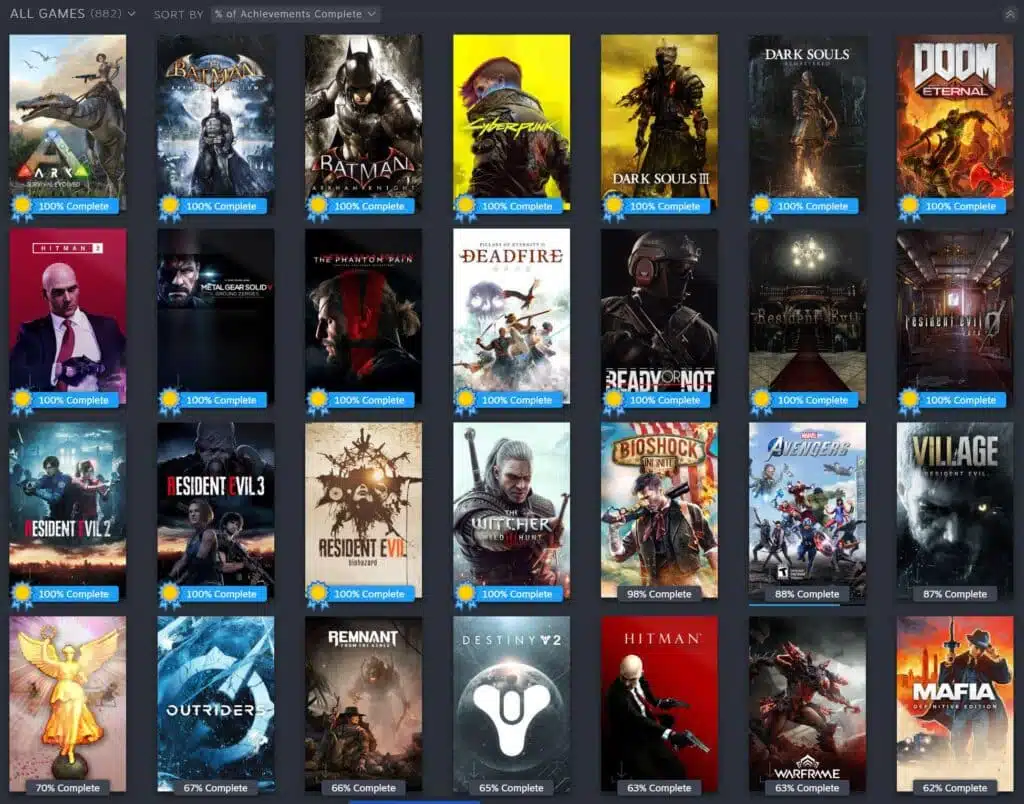
What is lag in Steam games
Lag is the noticeable delay between the moment you perform an action such as moving, shooting, or interacting and the moment the game processes that action. This delay can happen for several network-related reasons, including:
- Slow or inefficient routing between your PC and the game server
- Congestion on your ISP’s network
- High ping caused by long travel distance of data
- Packet loss interrupting communication
- Unstable servers or poor network synchronization
When lag affects Steam games, it results in rubberbanding, action delays, freezes, and disconnects. This is why issues like Steam Lag appear even on powerful computers with fast internet plans. The problem is usually not your PC, it’s the path your internet takes to reach the server.
Lag, ping and fps differences
Understanding the difference between these three metrics is essential:
- Lag: the generic name for delays or interruptions between command and response.
- Ping: time (in milliseconds) it takes for data to travel to the server and return.
- FPS: frames per second, related to your computer’s hardware performance and graphics rendering.
Therefore, when your Steam game feels slow or unresponsive, it is usually due to network-related lag, not graphical performance. This means tools like ExitLag become the correct fix, not GPU or CPU upgrades.

Why lag happens even with fast internet
You may have a high-speed connection and still experience Steam Lag. The reason is simple: your ISP automatically picks the route for your data, and that route is not always the shortest or most stable. Think of it as a digital traffic jam your data may be taking a long, congested path instead of a clean, optimized one.
Additionally:
- Your server location may be geographically distant
- The connection may be passing through overloaded nodes
- Your ISP may be prioritizing other traffic types
- International routing can vary daily
Therefore, even “fast” internet becomes unreliable for gaming if the chosen path is poor.
Exitlag as the definitive solution
ExitLag is a connection-optimization software built exclusively for gamers. Instead of relying on your ISP’s automatic routing, ExitLag uses intelligent multi-route technology that calculates the most efficient path between you and the game server reducing ping, stabilizing the connection, and avoiding packet loss.
Its features include:
- Multi-path connection algorithm
- Packet duplication to prevent data loss
- Real-time route optimization
- Fast configuration for Steam and non-Steam games
Like this, ExitLag eliminates the root cause of instability by controlling the network route instead of letting your ISP decide.
Exitlag benefits for Steam players
Lower and stable ping
ExitLag reduces latency by selecting the best possible route to the server. This ensures immediate response for competitive shooters, MOBAs, MMORPGs, or co-op titles.
Fewer freezes and less packet loss
Packet loss causes characters to teleport, skills to fail, or shots not to register. ExitLag eliminates this problem through stabilization and packet duplication.
Smoother gameplay during peak hours
Even when servers are overloaded, optimized routing avoids congested paths, ensuring fluid performance.
Consistent hit registration
Fast communication between client and server ensures shots and actions are registered accurately.
Easy-to-use interface
Select the game, apply the route, and start playing.
Comparison table
Before deciding whether ExitLag is the right solution for your connection problems, it helps to clearly understand how optimized routing compares to a standard ISP path. Therefore, the table below highlights the practical differences you will feel during gameplay.
| Feature | Without Optimization | With ExitLag |
| Ping | High / unstable | Lower and stable |
| Packet Loss | Frequent in peak hours | Nearly zero |
| Rubberbanding | Common | Rare |
| Hit Registration | Inconsistent | Reliable |
| Route Quality | Random ISP path | Optimized multi-routes |
| Setup | Manual attempts | One-click solution |
Step-by-step: how to use Exitlag
Setting up ExitLag is fast and intuitive, even if you’ve never used a connection-optimization tool before. Therefore, the guide below shows exactly how to activate your optimized routes and start reducing lag in any Steam game within minutes. Like this, you eliminate guesswork and jump straight into smoother, more stable gameplay.
- Go to the official ExitLag website.
Access the platform to download the most up-to-date version of the software.
2.Download the app and create your account.
The installation is quick, and your account gives you access to all optimization features.
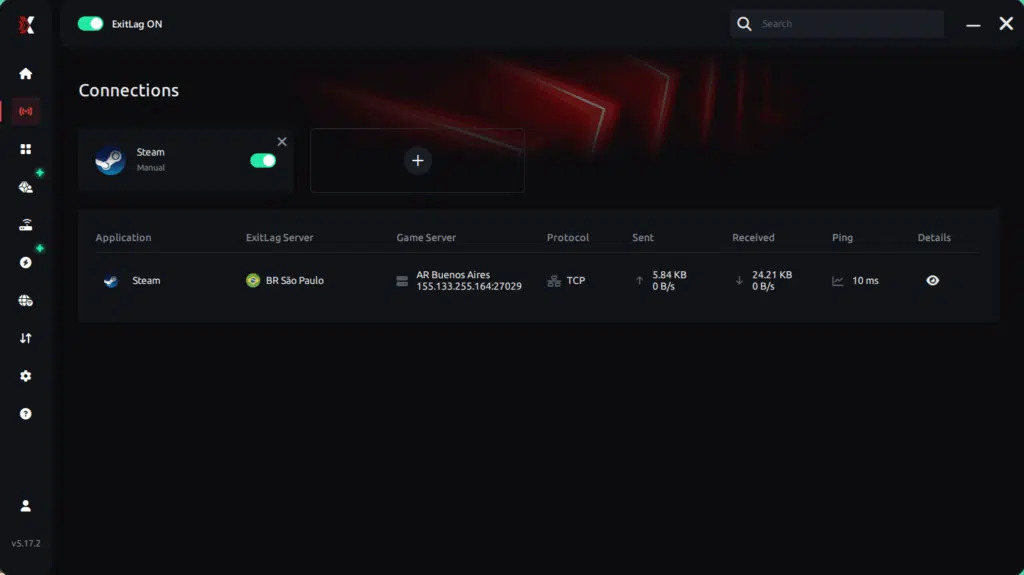
3.Activate the free trial to test the improvement instantly.
You can experience the full effect before committing to a subscription.
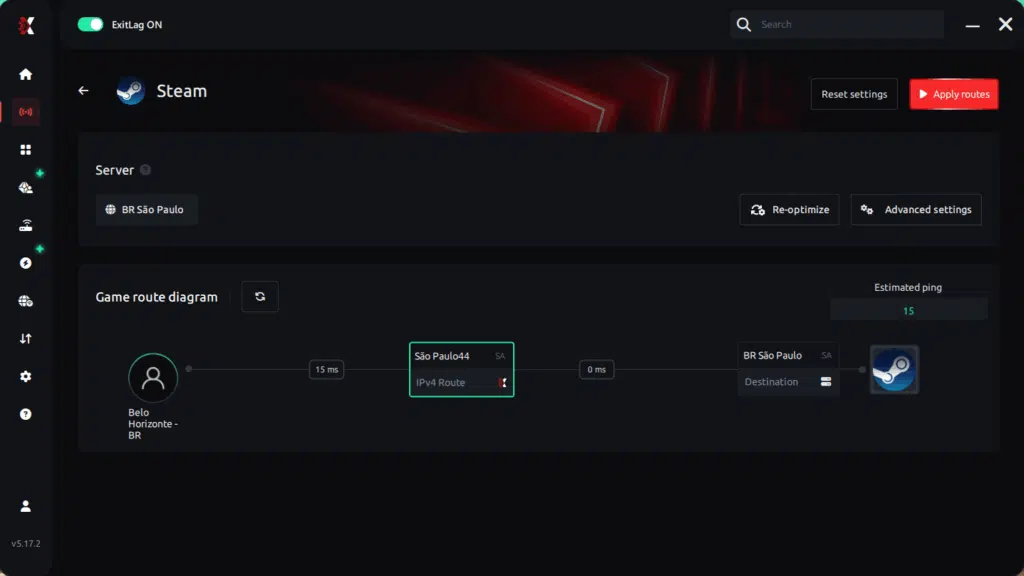
4.Search for your Steam game inside ExitLag.
The game list is extensive, and you can locate your title in just a few seconds.
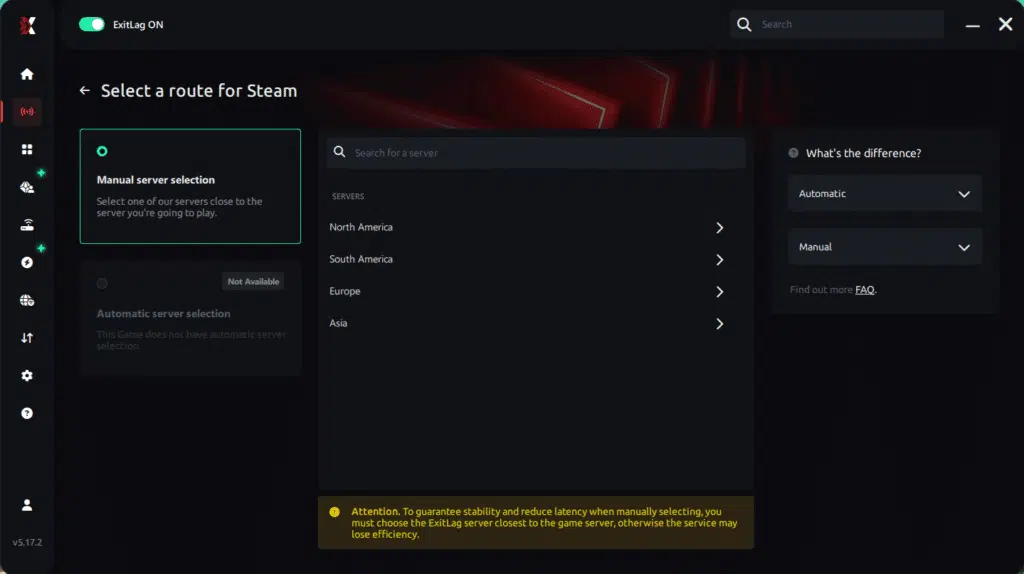
5.Click Apply Routes and launch the game.
ExitLag will automatically optimize and stabilize your connection in the background.
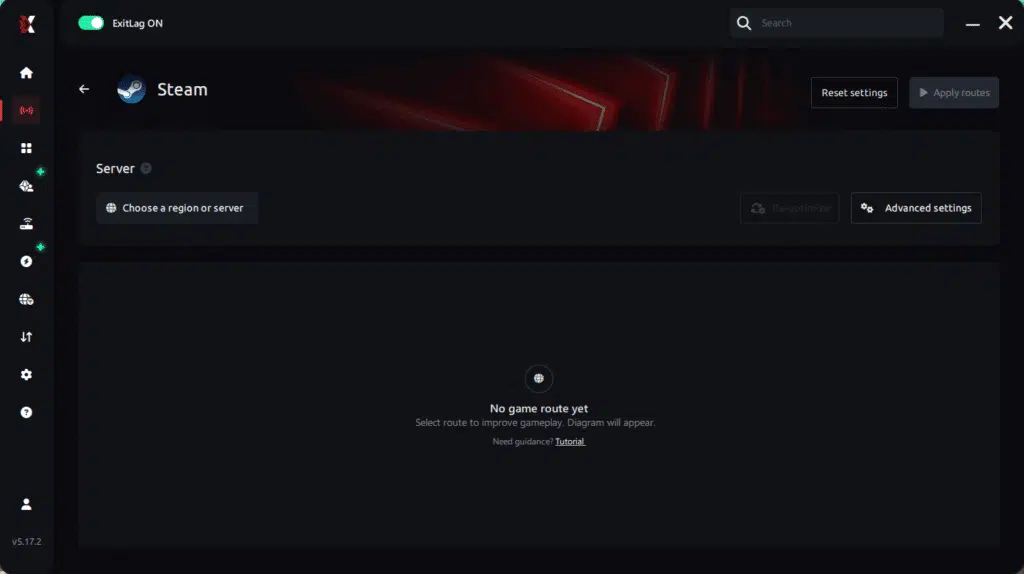
In just minutes, you will feel the difference in responsiveness, stability, and overall gameplay smoothness.
At this point, it is clear that Steam Lag is not about your PC or your internet plan—it is about the path your connection takes. However, you no longer need to endure freezes, delays, or rubberbanding. ExitLag gives you control over your connection, ensuring the fastest and most stable route possible.Finally, if you want true competitive performance, smoother gameplay, and a solution that fixes lag at its source, it is time to try ExitLag.
Start your free trial now and experience your Steam games with zero interruptions and maximum stability.
Got questions or want to connect with other players? Join the conversation at the ExitLag Forum!