Few things interrupt a good session of communication like joining TeamSpeak3 and suddenly dealing with high ping that makes voices cut out, delay responses, or distort audio. At first, it seems like the server is unstable, but the true cause is usually related to TeamSpeak3 high ping. This issue disrupts real-time conversations, coordination, and response clarity. You can also explore supported titles through the games list.

What is high ping in TeamSpeak3?
Ping is the time your device takes to send voice data packets to the server and receive feedback. When this latency increases, delays become noticeable during communication. In many cases, TeamSpeak3 high ping makes users talk over each other because audio arrives late or out of sync.
Even more, ping is measured in milliseconds (ms), and every additional millisecond affects the precision of real-time audio. Latency, packet flow, and server response determine how smoothly your voice connection works. When any of these behave inconsistently, the result is unstable communication.
At first sight, it may seem like a microphone or headset problem, but high ping is purely a network issue. In other words, slow or inefficient routes between your PC and the server cause the audible delays and instability you notice during calls.
How high ping affects gameplay in TeamSpeak3
Although TeamSpeak 3 is not a game, TeamSpeak3 high ping affects online communication in the same way latency affects in-game performance. Below are the main issues caused by high ping:
- Audio delay: Messages reach others seconds after you speak.
- Voice cutting or robotic sound: Caused by unstable TeamSpeak3 latency.
- Overlapping communication: Users talk simultaneously because audio arrives late.
- Connection drops: Sudden ping spikes trigger TeamSpeak3 connection issues.
- Desynchronized conversations: Long pauses or mismatched responses.
- Poor coordination in games: If used alongside gameplay, it causes strategic delays.
Delayed voice transmission
At first, the delay seems small, but soon after, phrases overlap and responses become mistimed. This happens when packets travel through long or congested routes. As a result, communication loses its natural flow.
Distortion and robotic audio
Similarly, unstable packet delivery generates digital distortion. That way, your voice sounds chopped, metallic, or unreadable when ping rises. This is a classic symptom of lag TeamSpeak3 problems.
Main causes of high ping in TeamSpeak3
Server distance
If you connect to a distant TeamSpeak server, packets must travel across many nodes. Constantly, this increases latency and creates a consistent base of TeamSpeak3 high ping. The farther the server, the slower the response.
ISP / routing issues
ISPs often choose inefficient routes for real-time communication. In advance, this leads to extra hops and unstable paths. As a result, users experience TeamSpeak3 latency spikes even with good internet speeds.
Network congestion
When multiple devices stream, download, or upload large files at the same time, bandwidth becomes limited. That way, TeamSpeak packets compete for space, generating lag TeamSpeak3 symptoms due to saturation.
Outdated hardware
While ping itself is network-based, outdated network adapters, drivers, or routers can produce packet delays. In the same way, old firmware often causes random instability.
Application-level issues
Certain codecs, server configurations, or voice settings may overload the connection. Sometimes, the TeamSpeak host may be under heavy load, causing unpredictable TeamSpeak3 connection issues.
How to check and test your ping in TeamSpeak3
You can check your ping directly in the TeamSpeak 3 client. At first sight, the value appears next to connected users or in the detailed connection information window. This lets you monitor latency changes in real time.
Alternatively, you can run operating-system ping tests to measure stability toward your server. This helps determine whether the issue is local or external. Soon after testing, you can compare values and understand if your ISP or the server is the culprit.
Good ping normally sits under 50 ms. Between 60–100 ms is acceptable. Above 150 ms, delays become obvious. Beyond 200 ms, communication becomes noticeably difficult.
Ping levels classification
(You will format this later.)
| Ping range | Classification | Experience |
| 0–30 ms | Excellent | Clear, instant communication |
| 30–60 ms | Good | Smooth audio |
| 60–100 ms | Playable | Minor delays |
| 100–150 ms | Poor | Noticeable delay |
| 150+ ms | Critical | Severe delay or distortions |
Basic fixes to reduce high ping in TeamSpeak3
Optimize local connection
- Use Ethernet instead of Wi-Fi to reduce interference.
- Close other apps using bandwidth, such as streaming or cloud sync.
- Restart your router to refresh routing tables.
- Update network drivers and check firmware updates.
- Limit connected devices consuming bandwidth.
- Test different servers to find the most stable region.
Contact your ISP
Beforehand, inspect if your ISP is facing outages or regional congestion. You can:
- Request a routing analysis.
- Ask for line stability checks.
- Verify packet loss in your area.
Additionally, follow this checklist:
- Test your ping at multiple times.
- Compare different networks if possible.
- Share results with your provider to escalate routing problems.
ExitLag: the best solution to fix TeamSpeak3 high ping
When every local fix fails, the root problem behind TeamSpeak3 high ping usually lies in routing. ISPs often send your packets through inefficient or overloaded paths, causing delays and unstable audio. ExitLag solves this by optimizing the route between your device and the TeamSpeak 3 server, ensuring consistent stability even during heavy network load.
Even more, ExitLag continuously monitors global pathways, avoiding congestion points and delivering cleaner communication. This makes it the most reliable solution for stabilizing TeamSpeak3 high ping, minimizing distortions and delays. You can explore all supported platforms through the technology page.
What is ExitLag?
ExitLag is a specialized software entirely focused on connection optimization for online communication and gaming. Instead of relying on your ISP’s automatic routing, it analyzes multiple routes simultaneously and selects the most stable option. That way, it eliminates the core causes behind TeamSpeak3 high ping, packet instability, and unpredictable latency.
Above all, ExitLag works in real time. It constantly evaluates route performance, adjusts your path dynamically, and ensures your packets take the shortest and cleanest corridor possible. This prevents sudden spikes or delays that interrupt voice flow.
You can learn how the technology works on the technology section.
How ExitLag works
ExitLag uses a multi-layer routing system engineered to prevent TeamSpeak3 high ping and communication instability.
- Real-time route analysis
The system scans available routes, calculating latency, loss, and stability. It instantly identifies the best-performing paths. - Multiple routes simultaneously
Rather than sending your voice data through a single pathway, ExitLag uses several routes at once. That way, your audio always takes the fastest return path. - Automatic best route selection
ExitLag dynamically discards inefficient routes and switches to optimal ones. This prevents sudden spikes common in TeamSpeak3 latency issues. - Hop optimization
Reducing unnecessary hops shortens the journey between your PC and the server. In summary, fewer hops = faster voice delivery. - Connection stabilization
The system ensures a smooth flow of packets, eliminating distortions, robotic audio, and the classic symptoms of lag TeamSpeak3.
To explore the system in detail, review the how it works explanation.
Advantages for TeamSpeak3 players
Stable ping and clear communication
ExitLag ensures your ping remains consistent instead of fluctuating. This delivers smooth audio flow without random pauses or clipping.
No robotic or distorted voices
Most robotic audio issues come from packet instability. ExitLag prevents this by delivering uniform packet timing, making your voice natural and delay-free.
Faster voice synchronization
If you use TeamSpeak alongside games, ExitLag improves timing between communication and gameplay cues. This is essential for competitive groups or raid coordination.
Reduced disconnections
By avoiding congested routes, ExitLag lowers the chance of micro-disconnects. This prevents sudden drops or reconnection loops common in TeamSpeak3 connection issues.
Reliable communication across regions
If your server is in another country, ExitLag’s optimized routing reduces the distance penalty, directly lowering TeamSpeak3 high ping.
Easy to use
No technical setup is required. Just select TeamSpeak 3, apply the routes, and enjoy stable communication.
Is ExitLag worth it for TeamSpeak3?
Definitely. If you rely on TeamSpeak 3 for competitive communication, content creation, or daily coordination, reducing TeamSpeak3 high ping is essential. ExitLag addresses the root cause: inefficient routing. With optimized paths, delays disappear, audio stabilizes, and communication becomes natural again.
You can check plans or trials through the pricing page.
How to use ExitLag in TeamSpeak 3
The process is extremely simple:
Step 1 – Access the official ExitLag website and download the application. There’s a free trial period for new users.
Step 2 – Install and open the program. Log in with your account.
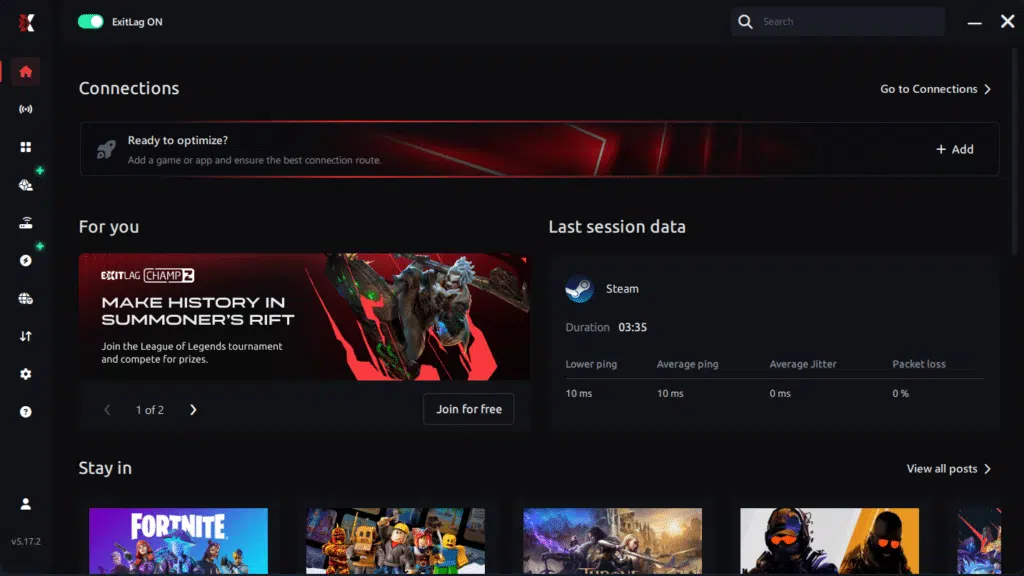
Step 3 – In the search bar, type “TeamSpeak 3” and select the game from the list.

Step 4 – Choose Your Route
You can manually choose the server based on the ping test results.
Simply select the server that showed the lowest latency or the one that best meets your specific needs, allowing full control over your connection.
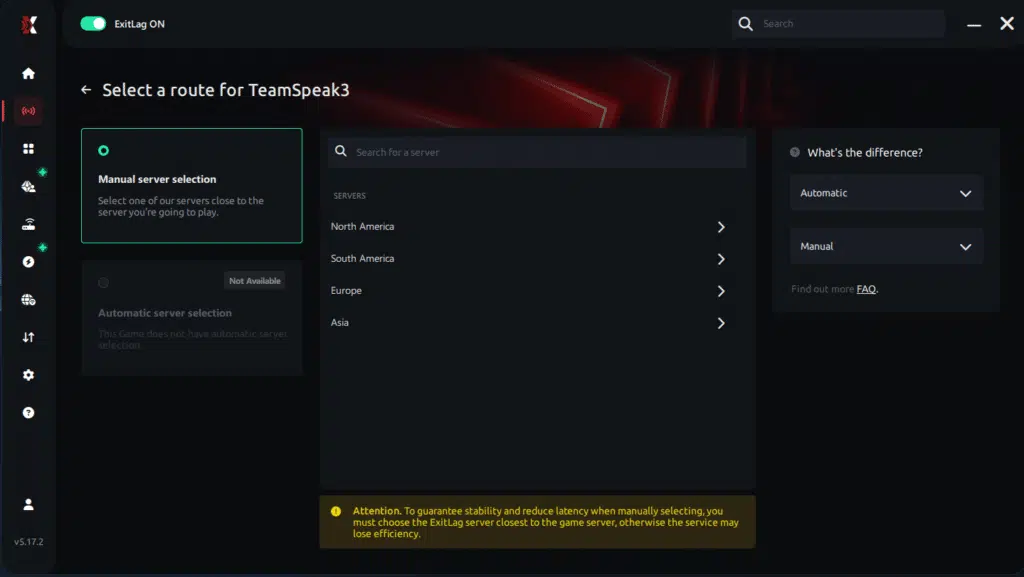
Step 5 – Click “TeamSpeak 3” or the play button. ExitLag will begin optimizing your connection automatically.

Step 6 – Wait a few seconds until optimization is complete. You’ll see ping indicators in the interface.
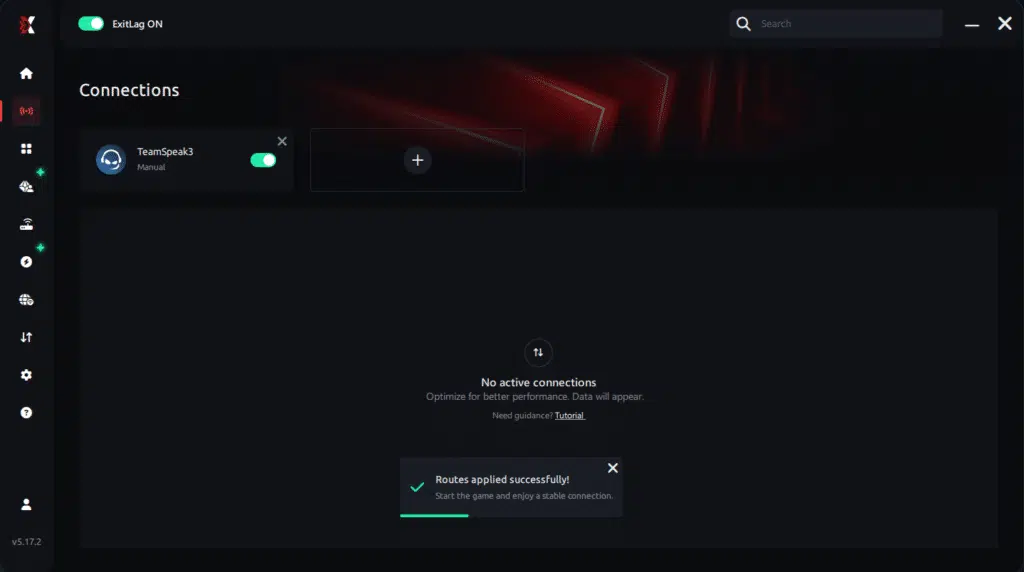
Step 7 – Launch TeamSpeak 3 normally. The optimization will already be active.
ExitLag runs in the background while you play, constantly adjusting routes to maintain the best possible performance.
Soon after applying these steps, you should notice clearer audio, fewer artifacts, and significantly lower TeamSpeak3 high ping.

FAQ: everything about high ping in TeamSpeak3
What causes high ping in TeamSpeak3?
Common causes include long-distance servers, ISP routing problems, home network congestion, or unstable regional infrastructure. Even when your internet speed is good, routing inefficiency can create TeamSpeak3 high ping symptoms.
How do I check my ping in TeamSpeak3?
You can view ping inside the client by checking connection info or viewing user statistics. Additionally, running OS ping tests helps confirm whether the issue is local or external. This combination reveals whether your connection is fluctuating.
What is good ping for TeamSpeak3?
Clear communication typically requires values under 60 ms. Between 60–100 ms is still acceptable, with minimal delay. Above 150 ms, responses become delayed and audio quality may suffer noticeable distortion.
Can high ping get you banned in TeamSpeak3?
No. High ping does not trigger bans. However, poor connection quality can lead to disconnects, audio drops, or voice inconsistencies. In group environments, unstable ping may disrupt coordination but never results in punitive action.
Does ExitLag work for TeamSpeak3?
Yes. ExitLag directly addresses inefficient routing, the main cause of TeamSpeak3 high ping. It stabilizes packet transmission, prevents robotic voices, and maintains clean communication in real time.
Why does my TeamSpeak audio sound robotic?
Robotic audio usually comes from packet delay or loss caused by routing problems, congestion, or Wi-Fi interference. When packets arrive out of order, TeamSpeak struggles to decode voice properly, producing metallic distortion.
Conclusion
High latency disrupts everything TeamSpeak 3 was designed to deliver: fast, clear, real-time communication. When TeamSpeak3 high ping strikes, coordination breaks down, audio becomes distorted, and conversations lose flow. Fortunately, with proper fixes and optimized routing, you can restore smooth communication.
For more insights, tutorials, and tips, visit the official ExitLag blog.
TeamSpeak3 high ping no longer needs to affect your experience. Start improving your communication today and enjoy smoother, delay-free sessions. Start your free trial and see the difference for yourself.
Got questions or want to connect with other players? Join the conversation at the ExitLag Forum!