

Safari blocks pop-ups by default to protect you from intrusive ads and malicious websites. This is a sensible default, but it occasionally blocks legitimate pop-ups from websites you trust, such as online banking portals, booking confirmations, or web apps that open new windows intentionally.
How To Allow Pop Ups On Safari is a common question because the setting is buried differently depending on the device and version of Safari you’re using. iPhone, iPad, and Mac each have slightly different paths to the same setting.
Understanding how to enable pop-ups for specific trusted sites, while keeping the blocker active for all other sites, gives you the best of both worlds: functionality on sites you trust and protection everywhere else.
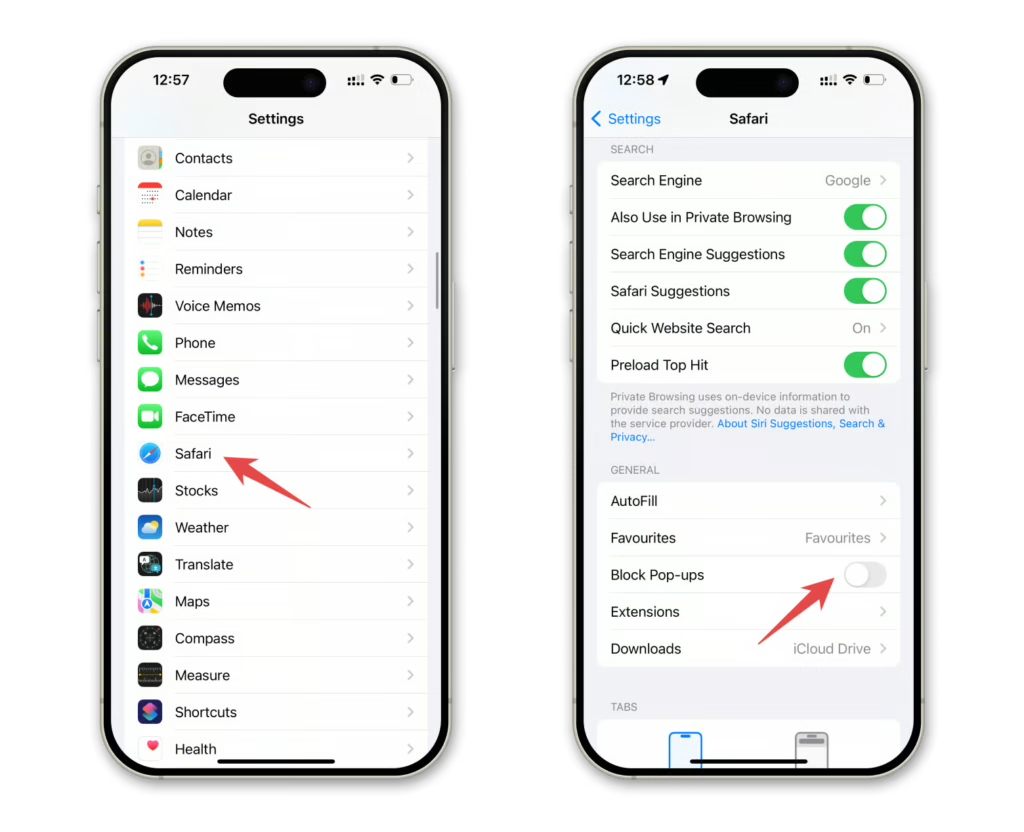
How To Allow Pop Ups On Safari on iPhone and iPad
Turning Off the Pop-Up Blocker on iOS Safari
On iPhone and iPad, Safari does not offer per-site pop-up exceptions. The setting is a global toggle that either blocks pop-ups everywhere or allows them everywhere.
Steps to allow pop-ups on iPhone and iPad:
1. Open the Settings app from your home screen
2. Scroll down and tap Apps, then tap Safari
3. Under the General section, find the Block Pop-ups toggle
4. Toggle it off (the toggle turns gray when off)
Pop-ups will now be allowed across all websites in Safari on that device.
Because this is a global setting, the recommended practice is to toggle pop-ups off, complete the task that requires the pop-up, and then toggle it back on. This minimizes your exposure to unwanted or malicious pop-up activity.
Why Safari Blocks Pop-Ups on iPhone
Safari’s built-in pop-up blocker prevents a category of attack called pop-up phishing, where malicious windows mimic legitimate login screens or security alerts to harvest credentials.
Common malicious pop-up types include:
– Fake browser alerts claiming your device is infected
– Imitation antivirus warnings demanding immediate payment
– Phishing windows that clone bank or account login pages
– Pages that auto-download files when the pop-up loads
Keeping the pop-up blocker on by default protects against all of these scenarios. Only disable it temporarily for sites you fully trust.
How To Allow Pop Ups On Safari on Mac
Allowing Pop-Ups for Specific Websites on Mac Safari
Mac Safari offers a more granular approach. You can allow pop-ups for specific trusted websites while keeping the block active for all others.
Steps to allow pop-ups for specific sites on Mac:
1. Open Safari and visit the website you want to whitelist
2. Click Safari in the top menu bar and select Settings (or Preferences on older macOS versions)
3. Go to the Websites tab
4. Click Pop-up Windows in the left sidebar
5. Find the website in the list (it appears because you’re currently visiting it)
6. Change the dropdown next to the site from Block to Allow
The site will now be allowed to show pop-ups while the block remains active for all other websites.
Changing the Global Pop-Up Setting on Mac Safari
If you prefer to allow or block pop-ups globally on Mac Safari:
- Open Safari Settings from the Safari menu
- Go to the Websites tab
- Click Pop-up Windows
- At the bottom of the page, change When visiting other websites to Allow or Block
- Close Settings to apply the change
The “Block and Notify” option is a useful middle ground. It blocks pop-ups but shows a small notification in the address bar, letting you manually allow the pop-up if you choose to.
How To Turn Off Pop Up Blocker on Mac in Other Browsers
Allowing Pop-Ups in Chrome on Mac
Many Mac users run both Safari and Chrome. Pop-up settings in Chrome are configured separately.
Steps for Chrome on Mac:
1. Click the three-dot menu in the top-right corner of Chrome
2. Go to Settings and then Privacy and Security
3. Click Site Settings and then Pop-ups and Redirects
4. Toggle off the block or add specific sites to the allowed list
Allowing Pop-Ups in Firefox on Mac
Firefox manages pop-ups through its built-in blocker in a similar way to Chrome.
Steps for Firefox on Mac:
1. Click the menu icon (three lines) and select Settings
2. Go to Privacy and Security
3. Scroll to Permissions and find Block Pop-up Windows
4. Click Exceptions to add trusted sites individually
| Browser/Device | Pop-Up Setting Location | Per-Site Exceptions |
|---|---|---|
| Safari on iPhone/iPad | Settings > Apps > Safari | No (global only) |
| Safari on Mac | Safari > Settings > Websites | Yes |
| Chrome on Mac | Settings > Privacy > Site Settings | Yes |
| Firefox on Mac | Settings > Privacy > Permissions | Yes |
How To Allow Pop Ups on Safari: Security Considerations
When Should You Actually Allow Pop-Ups?
Not all pop-ups are harmful. Legitimate pop-ups are used by many trusted services for important functionality:
- Banking and financial sites that open new windows for secure transactions
- Government portals that use pop-ups for forms and document downloads
- Web apps that open configuration dialogs in separate windows
- Online ticketing and booking platforms that confirm purchases in new windows
The key question before allowing a pop-up is whether you deliberately navigated to the site and whether the pop-up serves a clear functional purpose.
Recognizing Malicious Pop-Ups
Some pop-ups that appear are not blocked by Safari because they use techniques that bypass standard pop-up blocking, such as click-triggered overlays rather than new window launches.
Signs a pop-up may be malicious:
- Urgent security alerts claiming your device is infected
- Countdown timers creating artificial urgency
- Requests for personal information, passwords, or payment details
- Pop-ups that appear on sites you did not intentionally visit
- Windows that are difficult or impossible to close
Pro Tips: Managing Pop-Ups Safely on Safari
- Use per-site exceptions on Mac: Rather than disabling the pop-up blocker globally, use Safari’s per-site exception list to allow only the specific sites that genuinely need pop-ups.
- Re-enable blocking after each session: On iPhone and iPad, if you turn off the pop-up blocker temporarily, make a habit of turning it back on before closing the app.
- Check the address bar for blocked pop-up notifications: On Mac, Safari shows a notification when it has blocked a pop-up. Click it to review whether to allow or continue blocking.
- Pair pop-up permissions with a security scan: If you’ve been experiencing unusual pop-ups, run a malware scan before adjusting your pop-up settings. Some unexpected pop-ups are caused by adware, not by Safari settings.
Common Mistakes How To Allow Pop Ups On Safari Users Make
- Disabling the pop-up blocker globally instead of per-site: Turning off the entire blocker exposes you to pop-up attacks on every website. Fix: Use per-site exceptions on Mac, and only disable globally on iPhone when absolutely necessary, then re-enable immediately.
- Accepting malicious pop-ups as legitimate: Pop-ups claiming “Your Mac is infected, call this number” are scams. Fix: Never call phone numbers from pop-up alerts and never grant permissions requested through unexpected pop-ups.
- Not recognizing that unusual pop-ups may indicate malware: Persistent unexpected pop-ups across multiple sites can be a sign of adware infection. Fix: Run an antivirus scan before assuming the issue is a Safari setting.
How To Allow Pop Ups On Safari Safely with Norton 360 For Gamers
Adjusting Safari’s pop-up settings increases your exposure to malicious content if done without additional protection in place. This is where Norton 360 For Gamers plays a critical supporting role.
Norton’s Safe Web browser extension evaluates websites in real time, flagging known malicious sites before you interact with any pop-ups they generate. This protection works even when the pop-up blocker is temporarily disabled for legitimate use.
Its real-time scanning also detects adware that may be generating pop-ups from outside your browser. Many persistent pop-up problems that seem like Safari settings issues are actually caused by adware running on the device itself.
Norton’s lightweight operation means it provides this protection without slowing down Safari or your overall browsing experience. Background scans run efficiently so your device stays responsive.
For gamers on Mac or iOS who use Safari as their primary browser, ExitLag ensures that browsing security doesn’t come at the cost of gaming performance. ExitLag is NOT a VPN. It is a game connection optimizer that routes gaming traffic through the fastest, most stable paths in real time.
With support for 4,000+ titles and servers in 190+ countries, ExitLag’s Multipath Technology keeps your gaming sessions smooth regardless of what else is running on your device or network.
Stay secure while browsing and gaming with ExitLag + Norton 360 For Gamers.
All images used in this blog post belong to their respective owners and are used for informational and educational purposes only. They do not imply endorsement or affiliation with the rights holders.
Got questions or want to connect with other players? Join the conversation at the ExitLag Forum!



