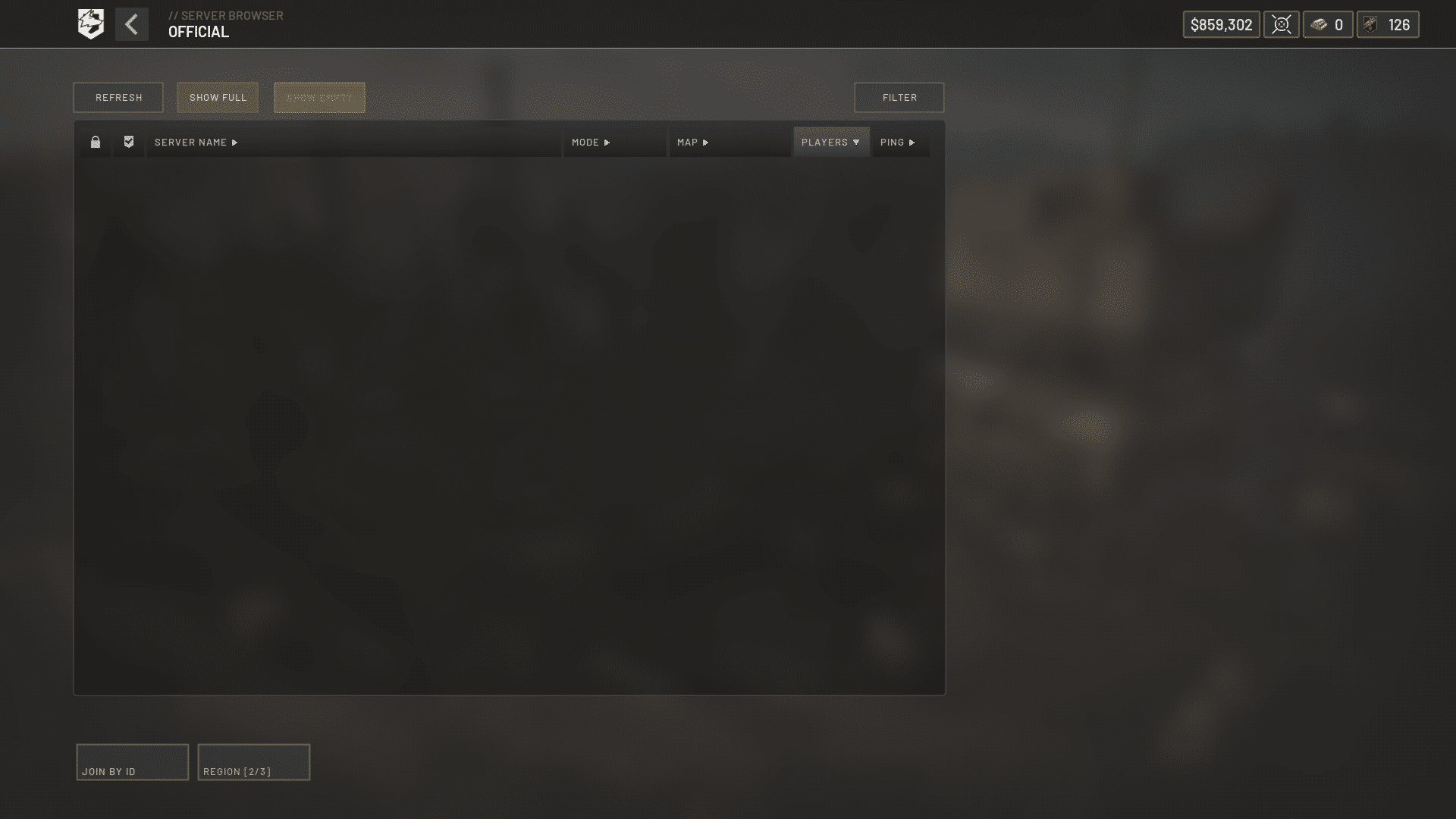
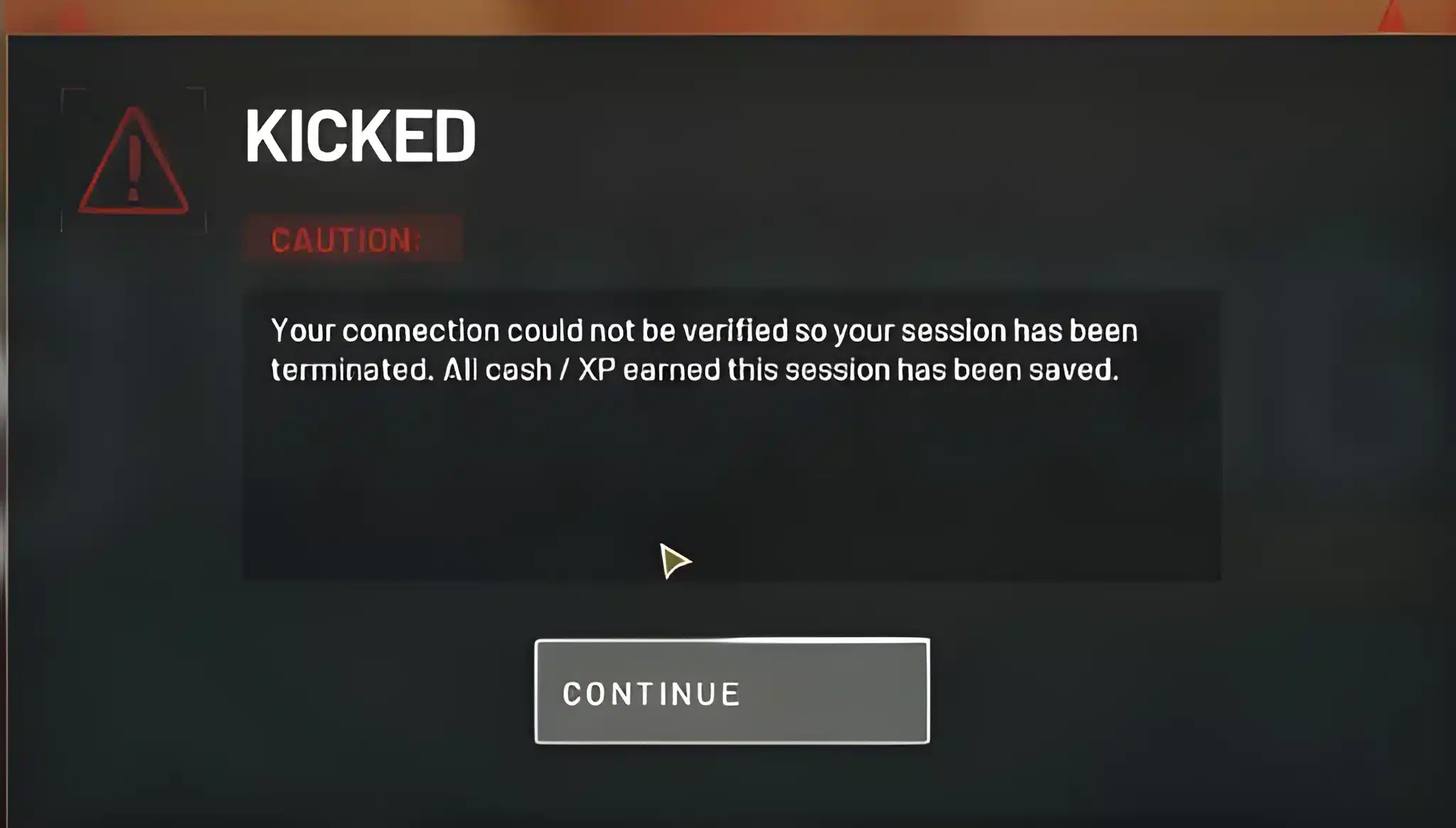
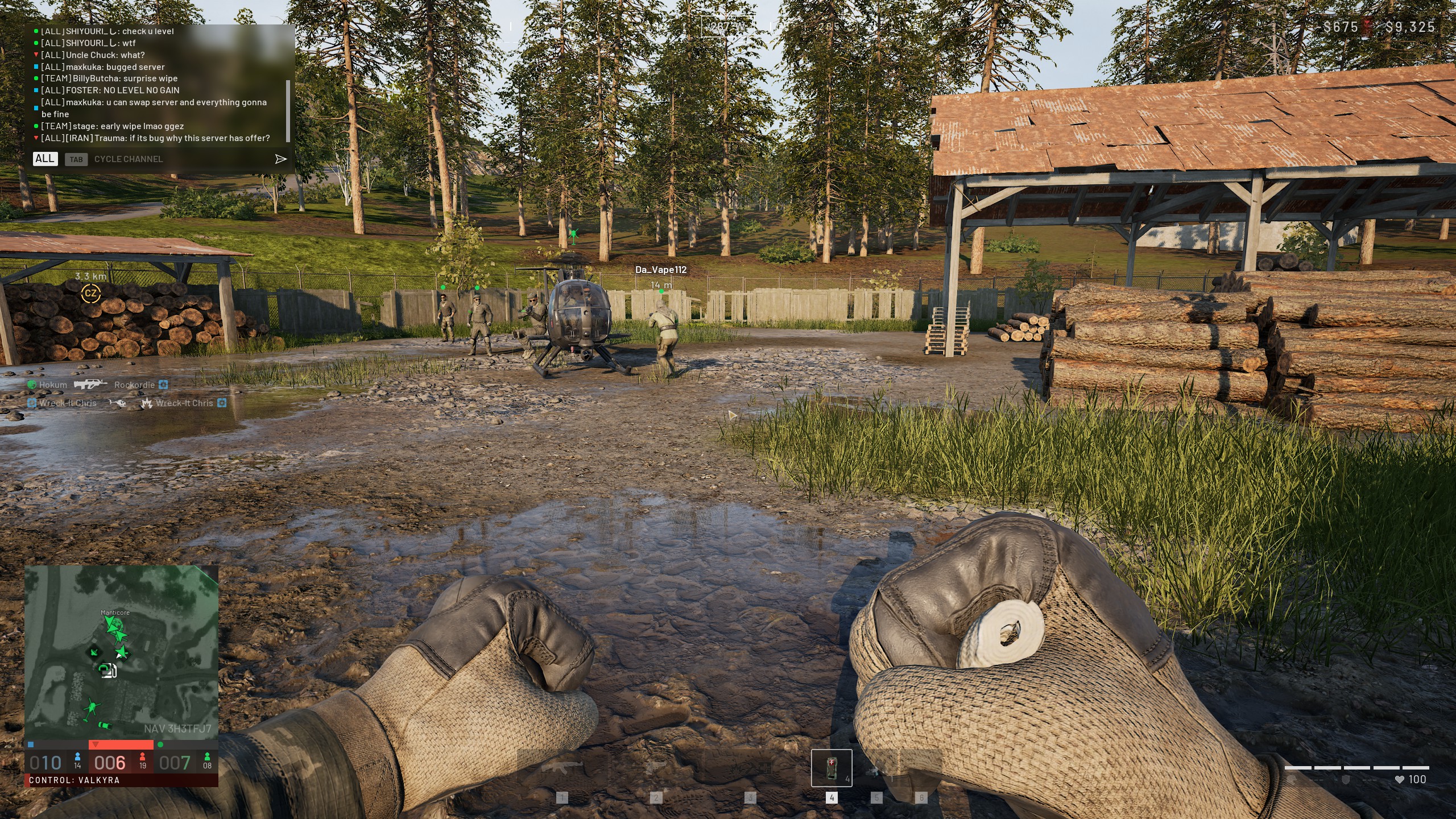
Booting up Wardogs only to get stuck on a black screen is frustrating, especially on a big match night. Many PC players report this exact wall right before the menu even loads.
The good news is that Unable To Launch Wardogs issues have a clear, repeatable fix. Most of them do not require a full reinstall.
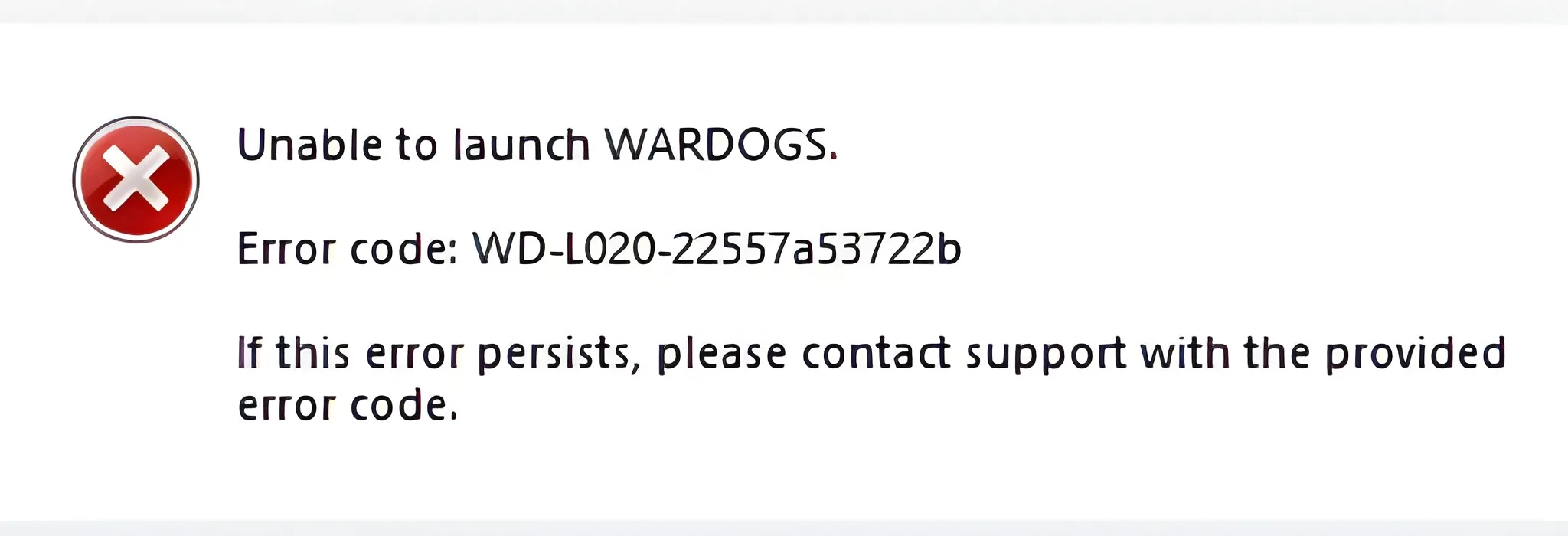
This guide walks through Unable To Launch Wardogs WD-L014 from start to finish. Furthermore, it covers the other WD-L error variants players see during launch, so you know exactly what you are dealing with.
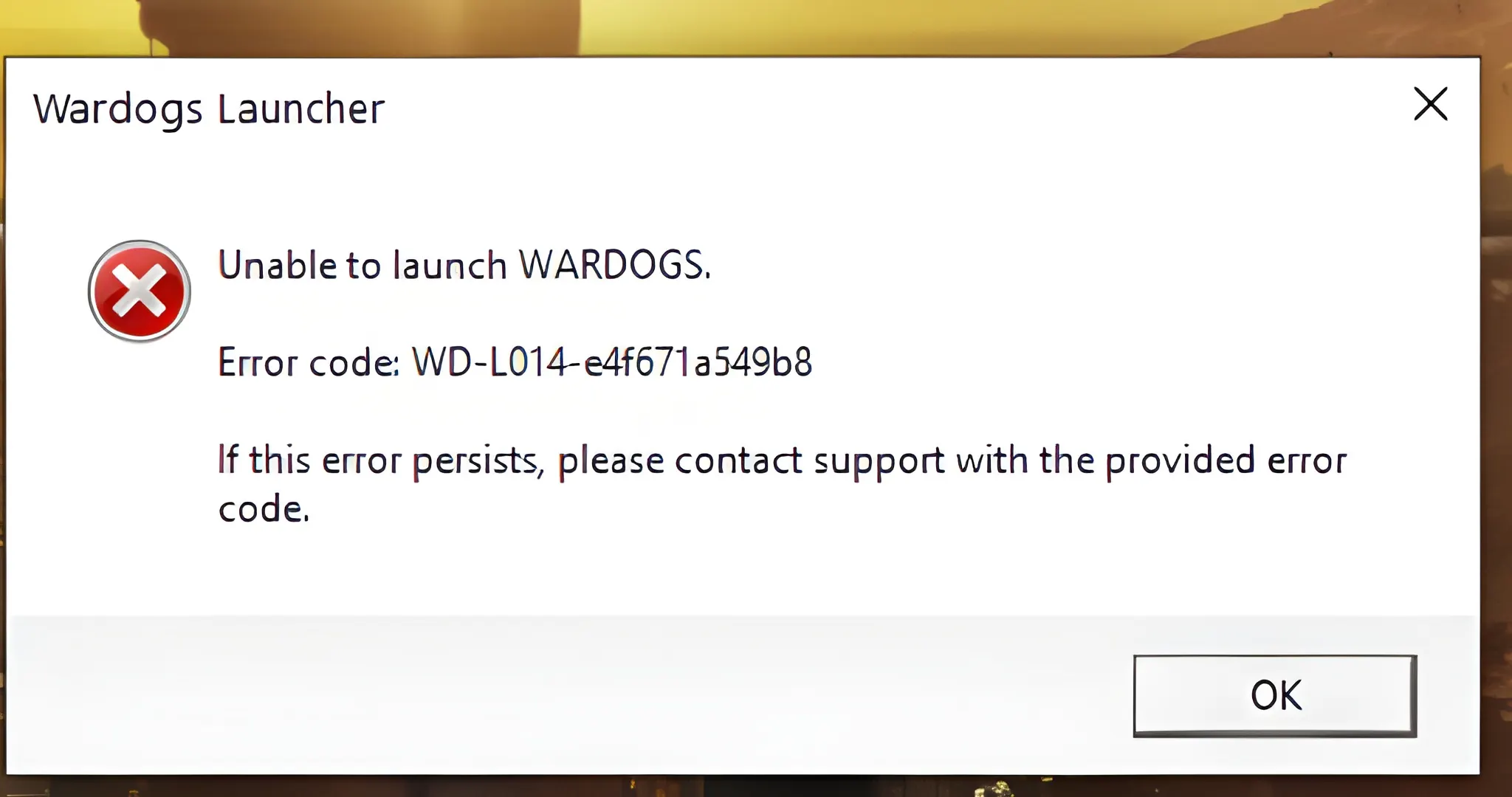
If your game will not open, the fastest fix is usually verifying game files, updating your graphics driver, and running Wardogs as an administrator. These three steps solve the majority of reported launch failures.
The rest of this guide breaks down why each fix works, and what to try if the basics do not clear Unable To Launch Wardogs on the first attempt.
Wardogs is a large-scale, 100-player team shooter where squads fight over control zones across shifting maps. It launched into Early Access on PC recently.
Like most fresh Early Access releases, it saw a wave of launch errors as thousands of players tried to log in at once. Understanding Wardogs Error Code WD-L014 helps you skip the guesswork.
Why Unable To Launch Wardogs Happens On PC
Launch failures are different from crashes that happen mid-match. They occur before you ever see the main menu, which usually points to a local software or driver conflict rather than a server issue.
Consequently, most cases of Unable To Launch Wardogs are things you control directly on your own machine. That is good news, because it means you rarely need to wait on a patch to get back into a match.
What Triggers A Launch Failure Before The Main Menu Loads
Several factors commonly stop Wardogs from opening at all:
- Corrupted or missing game files after an incomplete download or update
- Outdated graphics drivers that do not support the current build
- Missing Microsoft Visual C++ or DirectX redistributables
- Security software blocking the game's executable or anti-cheat process
- Insufficient permissions when the game tries to write local files
How This Differs From Mid-Match Crashes And Disconnects
A crash during a control zone fight usually points to performance settings, overheating, or a temporary server hiccup. A launch failure, however, almost always happens before any connection to Wardogs servers is attempted.
Therefore, if you never see the loading screen, treat it as a local installation problem first. Server status checks come later in this guide.
Understanding Wardogs Error Code WD-L014
The Wardogs Error Code WD-L014 specifically appears when the client fails to complete its startup sequence. Players on the official Steam discussions describe it happening immediately after clicking Play.
Notably, this code tends to spike right after major updates, when local files can fall out of sync with the servers. Reinstalled or newly downloaded copies are also common triggers of Unable To Launch Wardogs errors.
What The WD-L Numbering Actually Tells You
Wardogs uses a WD-L prefix for its launch-stage error family, with different numbers pointing to different failure points in the startup process. Knowing the family helps, even if you cannot pin down the exact internal cause.
- WD-L004 typically relates to file or package verification problems
- WD-L006 often points to permission or access conflicts
- WD-L014 generally signals a startup sequence failure
- WD-L020 is commonly tied to launcher or dependency issues
Wardogs Error Code WD At A Glance
The table below summarizes the most reported Wardogs Error Code WD variants and where to start troubleshooting each one.
| Error Code | Typical Trigger | First Fix To Try |
|---|---|---|
| WD-L004 | Incomplete or corrupted install | Verify integrity of game files |
| WD-L006 | Permission or folder access issue | Run as administrator |
| WD-L014 | Startup sequence failure | Update GPU drivers, verify files |
| WD-L020 | Launcher or dependency conflict | Reinstall redistributables |
How Do You Fix Unable To Launch Wardogs WD-L014?
Most players resolve Unable To Launch Wardogs WD-L014 without reinstalling the entire game. However, it does take working through the fixes in order.
Skipping steps is the most common reason a fix does not stick. Follow the checks below before moving on to the full repair process.
Quick Checks Before You Start Troubleshooting
Before diving into deeper fixes, rule out the simple stuff first:
- Restart your PC completely, not just the game client
- Confirm Wardogs and Steam are fully updated
- Check the official Wardogs status channels for known outages
- Make sure your antivirus is not actively quarantining game files
- Close any recently installed overlay or recording software
Step-By-Step Repair Process
If the quick checks do not solve Wardogs WD-L014, work through these steps in order.
- Right-click Wardogs in your library, select Properties, then Local Files, and choose Verify Integrity Of Game Files.
- Update your graphics drivers directly from the NVIDIA, AMD, or Intel website, then restart your PC.
- Right-click the Wardogs executable or shortcut and select Run As Administrator.
- Reinstall the Microsoft Visual C++ and DirectX redistributables through the game's install folder if present.
- Temporarily disable third-party overlays such as Discord, GeForce Experience, or recording tools.
- Add Wardogs and Steam to your antivirus and firewall exceptions list.
- As a last step, uninstall Wardogs, restart your PC, and reinstall the game fresh.
Is Wardogs WD-L014 A Server-Side Or Local Problem?
This is the question most players ask first when Unable To Launch Wardogs strikes, and understandably so. Knowing which side the problem sits on saves you from repeating fixes that were never going to work.
Signs The Problem Is On Your End
- The error appears instantly, before any loading bar shows
- Friends on the same server region are playing normally
- The issue persists across different times of day
- No outage is listed on official Wardogs communication channels
Signs It Is A Server Or Launch-Day Issue
- Many players report the exact same code at the same time
- The error clears on its own after a short wait
- It coincides with a known patch or maintenance window
- Official channels confirm ongoing login or server issues
Common Mistakes And Pro Tips For Unable To Launch Wardogs WD-L014
Even experienced PC gamers fall into a few traps when troubleshooting Unable To Launch Wardogs errors. In fact, avoiding these traps saves a lot of wasted time.
Common Mistakes Wardogs Players Make
- Skipping the verify files step: Many players jump straight to reinstalling, which takes far longer. Fix: always verify integrity of game files first, since it resolves most WD-L014 cases in minutes.
- Updating drivers through outdated tools: Relying on old driver management software can install the wrong version. Fix: download drivers directly from the manufacturer's official site.
- Ignoring background apps: Overlay tools and recording software can silently block the launch process. Fix: close everything unnecessary before opening Wardogs, then reopen tools one at a time.
Pro Tips: Fixing Unable To Launch Wardogs WD-L014
- Check one variable at a time: Changing several settings at once makes it hard to know what actually fixed the error, so isolate each step.
- Keep a clean startup list: Fewer background programs running means fewer conflicts for Wardogs to fight through during launch.
- Screenshot the exact code: WD-L014 versus a similar code like WD-L006 needs a different first fix, so note the precise text before searching further.
- Reach out to support early: If nothing works after the full checklist, contacting official support with your error code saves time versus guessing further on your own.
Keep Your Connection Stable After Fixing Unable To Launch Wardogs WD-L014
Once the game opens again, the next challenge is staying connected through a full 100-player match without lag spikes or rubber-banding. That is where a dedicated connection optimizer earns its place in your setup.
Why Connection Quality Matters In 100-Player Matches
Wardogs matches involve dozens of players fighting over control zones at once, which means your route to the server matters just as much as your hardware. Indeed, a single unstable hop can cause desync during a critical push.
ExitLag is not a VPN. It is a game connection optimizer that scans multiple network paths in real time. It routes your traffic through the fastest, most stable option available, without encrypting traffic or touching anything outside supported games.
Getting Started With ExitLag For Wardogs
ExitLag supports thousands of titles across PC and mobile, backed by a huge server network spanning dozens of countries. It is used by tens of millions of players worldwide.
For a fast-paced shooter like Wardogs, that translates directly into steadier ping once Unable To Launch Wardogs is no longer an issue.
- Multipath Technology sends your packets through several routes at once, so one bad hop does not cost you the fight.
- Real-time Optimization actively reduces delay and packet loss, keeping your commands responsive during firefights.
- Traffic Shaper prioritizes Wardogs traffic over background downloads or streaming that might otherwise cause spikes.
- PC Boost clears unnecessary background load, freeing up resources right before you queue into a match.
ExitLag does not modify game files, inject code, or interact with anti-cheat systems, so it stays safe to run alongside Wardogs. You can grab the ExitLag Download to start optimizing your PC connection today.
Mobile players who also track stats or squad chat on companion apps can reach for ExitLag for Android and ExitLag for iOS to keep those connections steady too.
Final Thoughts: Stop Unable To Launch Wardogs Errors For Good
Launch errors are frustrating, but they are rarely permanent. Working through the checks in order, rather than jumping straight to a reinstall, gets most players back into a match fast.
Unable To Launch Wardogs issues like WD-L014 almost always trace back to files, drivers, or background software fighting for the same resources. Once those are cleared, the game typically opens normally again.
Recap Checklist Before You Relaunch
Run through this list any time Unable To Launch Wardogs shows up again:
- Verify integrity of game files through Steam
- Update graphics drivers from the official manufacturer site
- Run Wardogs as administrator
- Reinstall redistributables and check antivirus exceptions
- Close overlay and recording software before launching
When To Contact Wardogs Support Directly
If you have worked through every step above and the error persists, it is time to reach out to official support. Include your exact error code and system specs.
A short description of when the error appears also helps. That detail helps the team diagnose issues that go beyond standard local fixes.
All game images used in this blog post belong to Bulkhead and Team17. They are used for informational and educational purposes only and do not imply endorsement or affiliation with the rights holders.