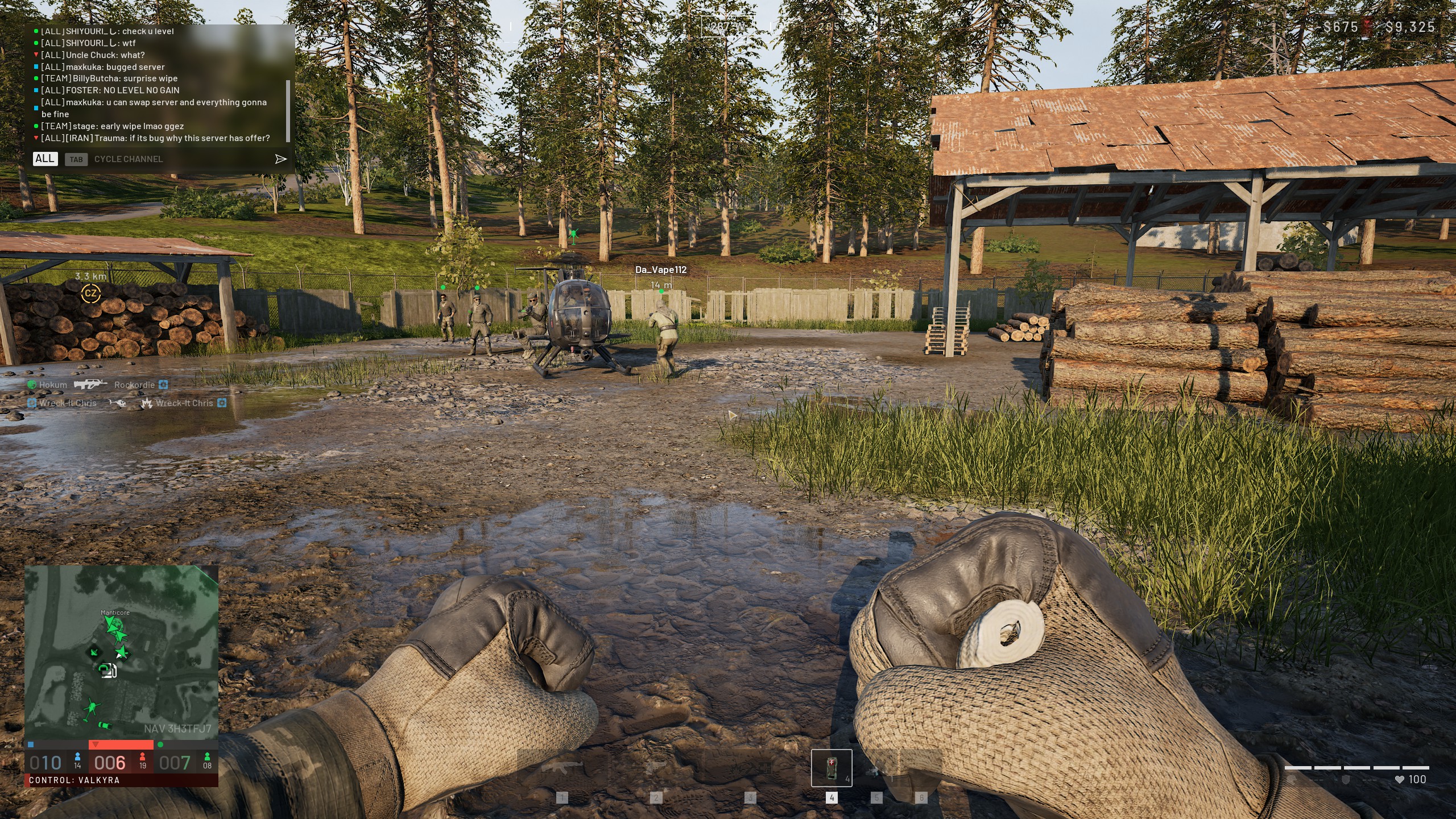
Wardogs throws up to 100 players onto a massive map where every second of visibility decides who wins the fight for a control zone. Your Wardogs Best Video Settings menu is not just about frame rate. In fact, it directly controls how fast you spot a target hiding in a treeline.
Getting your Wardogs Best Video Settings right changes how the whole match feels. Instead of guessing what each slider does, you get a setup built around spotting, stability, and comfort. This guide walks through every setting that actually matters.
If you only have five minutes, here is the short answer for Wardogs Best Video Settings: drop shadows and post-processing to low, then push view distance and textures higher. Also set your field of view between 90 and 100, and disable motion blur entirely.
Consequently, your visibility and frame rate both improve together. The rest of this guide explains why each choice works and how to fine tune it further.
Wardogs Best Video Settings: Where to Start
Before touching a single slider, it helps to understand why Wardogs behaves differently from a smaller arena shooter. Indeed, the map spans a huge area, and fights often happen at ranges where a single pixel of clarity matters.
Therefore, the philosophy behind strong Wardogs Best Video Settings is simple. Every setting that adds blur or clutter works against you. Every setting that adds clarity or draw distance works for you.
How Control Zone Combat Shapes Your Setup
Control zone fights pack dozens of players into a tight area, while long range engagements happen constantly on the approach. As a result, your setup has to handle close quarters chaos and distant spotting equally well.
- Crowded zone fights need a stable frame rate above anything else
- Open terrain fights reward higher view distance and sharper textures
- Vehicles and explosions on screen punish heavy post-processing effects
System Requirements and Baseline Performance
On the low end, Wardogs runs on hardware like a Core i5-8600 or Ryzen 5-3500 paired with a GTX 1660, targeting 1080p at 60 frames per second on lower settings. On the recommended tier, a Core i7-12700K or Ryzen 7-5700X with an RTX 3070 class card handles 1440p smoothly.
However, raw hardware power only gets you halfway there. The settings you choose on top of that hardware are what actually decide whether you spot the enemy first.
Wardogs Best FOV: Finding Your Ideal Field of View
Field of view is one of the most debated settings in any large scale shooter, and Wardogs is no exception. Generally, a wider view shows more of the battlefield, but it also shrinks distant enemies on your screen.
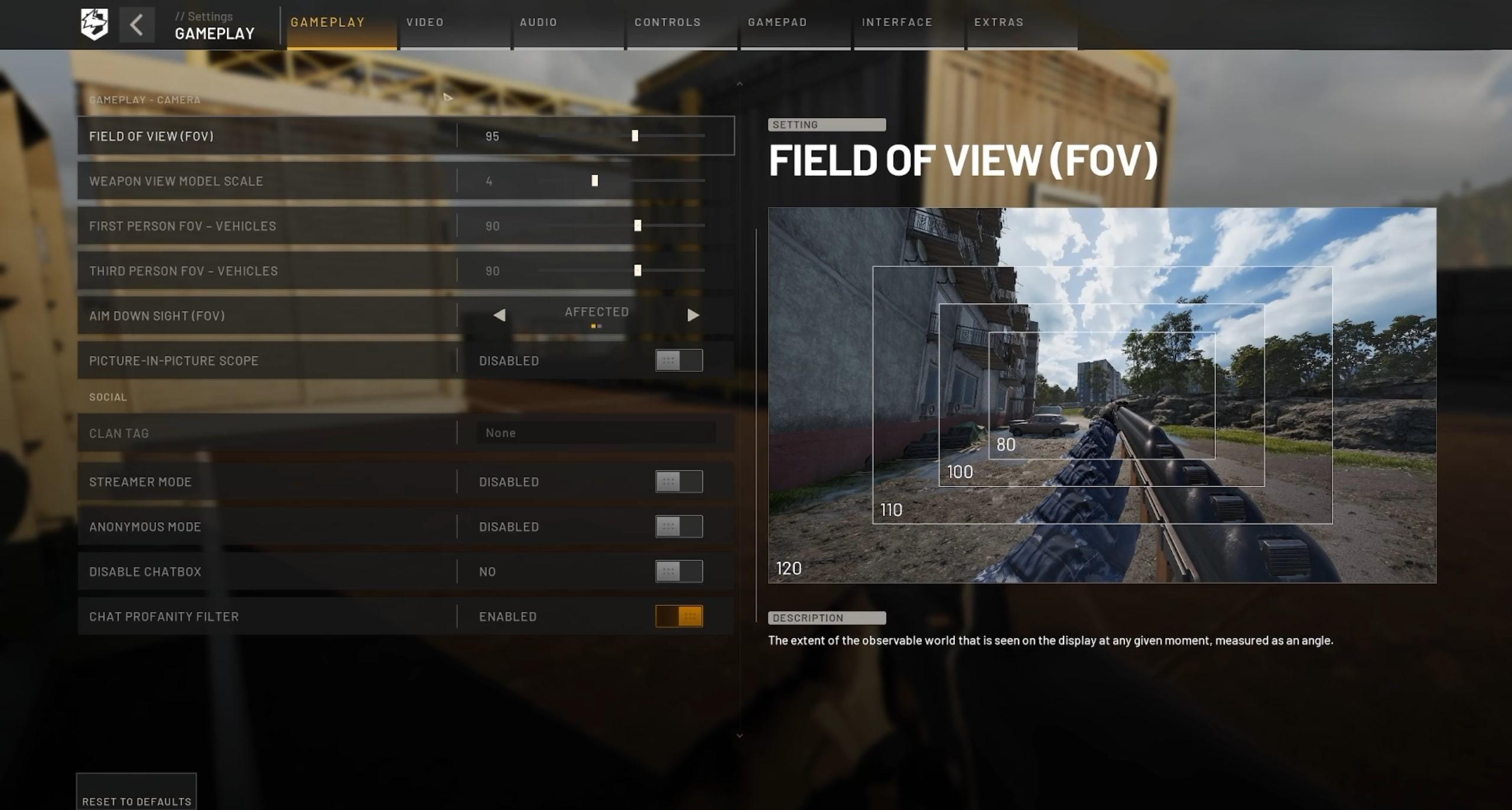
Most experienced players settle on a Wardogs Best FOV value between 90 and 95 degrees. This range keeps peripheral awareness for close range fights without making distant targets too small to notice.
Standard FOV vs ADS FOV Independent Mode
Wardogs separates your normal field of view from your aim down sight behavior through an independent ADS FOV option. Specifically, setting this to independent locks your zoom level when aiming, instead of letting it scale with your base FOV.
This matters because a high base FOV normally shrinks your view when you aim in, which can make long range targets harder to track. Independent mode keeps that zoom consistent regardless of your base FOV.
- Open the settings menu and find the field of view slider under video or camera options
- Set your base FOV between 90 and 95 for a balance of awareness and target size
- Switch ADS FOV to independent so aiming does not shrink your effective zoom
- Adjust your ADS sensitivity multiplier to roughly 0.90 to 1.00 so aiming still feels natural
How Wardogs Best FOV Choices Affect Spotting
A narrower FOV around 80 to 85 makes enemies appear larger, which helps newer players confirm hits at range. On the other hand, a wider FOV around 100 to 110 gives better awareness during chaotic zone fights but shrinks distant silhouettes.
Notably, most competitive players avoid pushing past 100 in Wardogs. Beyond that point, the added peripheral vision rarely outweighs how small enemies become at typical engagement ranges.
Wardogs Best Visibility Settings for Spotting Enemies First
Visibility is where most of your competitive advantage actually comes from. After all, two players with identical aim will not perform the same if one of them can see enemies half a second sooner.
Strong Wardogs Best Visibility Settings focus on removing anything that blurs, darkens, or clutters your view of the map. Every effect below either helps you see clearly or works against you.
Post-Processing Effects to Disable
Cinematic effects look good in trailers, but they cost you information during a firefight. As a result, most of these should be turned off entirely for competitive play.
- Motion blur: disable completely, since it smears movement exactly when you need to track it
- Depth of field: disable, because it blurs the background you are scanning for movement
- Bloom: disable or set to minimum, since bright light sources can wash out silhouettes
- Lens flare: disable, as it adds visual clutter with zero gameplay benefit
Shadows, Textures, and View Distance for Better Visibility
View distance is arguably the single most important slider in the entire menu. Specifically, setting it to high ensures distant players, vehicles, and structures render in properly instead of popping in late.
Shadows, meanwhile, can stay on a lower setting without hurting your Wardogs Best Visibility Settings. Heavy dynamic shadows can create dark patches that hide crouched or prone enemies, so a lower shadow setting often helps.
Textures are worth keeping high if your VRAM allows it, since sharper world textures make enemy silhouettes stand out more clearly against terrain and foliage.
What Are the Best Graphics Settings for Low-End PCs in Wardogs?
Not everyone runs a top tier graphics card, and Wardogs still needs to feel smooth on more modest hardware. Fortunately, the same visibility-first philosophy works at every performance tier.
Balancing FPS and Visual Clarity on Older Hardware
On lower end systems, the priority order shifts slightly. Overall, frame rate stability matters more than pushing every slider to maximum, since a game feels better at a smooth 60 frames per second than at a stuttering 40.
- Lower shading and reflections first, since they rarely affect your ability to spot enemies
- Keep view distance as high as your frame rate allows before lowering anything else
- Reduce particle effects to avoid explosions tanking your frame rate
Upscaling Options: DLSS, FSR, and Native Resolution
Wardogs supports upscaling technology, which can meaningfully boost frame rate on weaker hardware. Typically, quality mode upscaling offers the best balance between sharpness and performance.
If your GPU still struggles, switching to balanced mode trades a small amount of clarity for a noticeably smoother frame rate. Native resolution stays sharpest, but only if your hardware can sustain it.
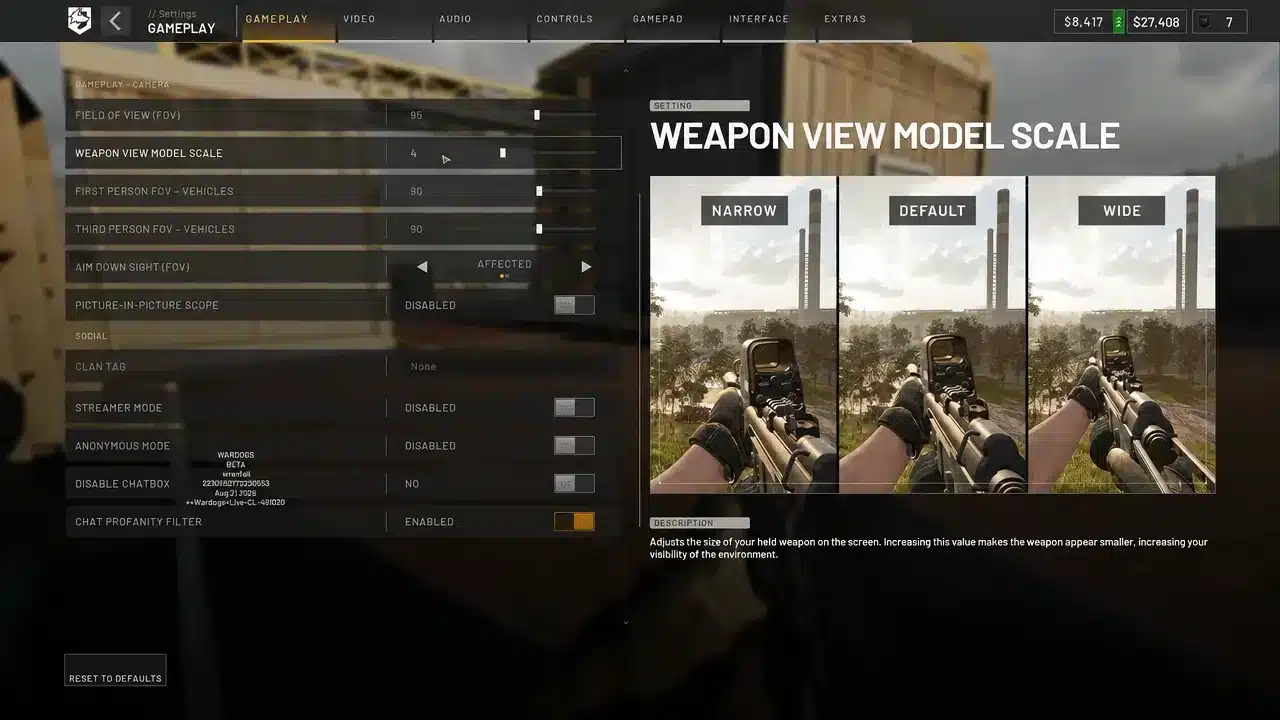
Is a Higher FOV Always Better in Wardogs?
This is one of the most common questions newer players ask once they realize FOV is adjustable. Actually, the honest answer is no, higher is not automatically better for your Wardogs Best FOV choice.
Trade-offs Between Peripheral Vision and Target Size
A very high Wardogs Best FOV setting, above roughly 105 to 110, gives you more peripheral awareness of players flanking around a control zone. Nevertheless, it also shrinks every distant target, which can cost you fights at medium to long range.
Meanwhile, a lower FOV around 80 makes enemies easier to spot at range, but it can feel claustrophobic during hectic multi-team pushes on a control zone.
Recommended FOV Ranges by Playstyle
| Playstyle | Recommended FOV | Why It Works |
|---|---|---|
| Long range and vehicle focused | 85 to 90 | Larger distant targets, easier tracking |
| Balanced all-round play | 90 to 95 | Good mix of awareness and target size |
| Close quarters and zone rushing | 95 to 105 | Wider awareness during chaotic pushes |
| Flight and pilot roles | 100 to 110 | Better spatial awareness while airborne |
Recommended Wardogs Best Video Settings by Hardware Tier
Your ideal configuration depends heavily on what hardware you are running. Therefore, use the table above as a baseline for FOV, then apply the tier notes below for the rest of your menu.
Low-End and Mid-Range Setup
Players on a GTX 1660 or similar card should lean on upscaling plus lower shadow and effects settings. Consequently, this keeps frame rate stable during large control zone fights where dozens of players appear on screen at once.
High-End Setup
On an RTX 3070 or stronger, you can afford higher textures and mesh detail while still disabling all post-processing clutter. Even with strong hardware, the same visibility-first settings still apply, since clarity matters more than raw fidelity.
Advanced Tips and Mistakes to Avoid in Wardogs
Even with the right baseline settings, small habits separate players who consistently spot first from those who get spotted first. Below, the following tips and mistakes cover the details most guides skip.
Pro Tips: Wardogs Best Video Settings
- Match your frame limit to your monitor: Uncapped frame rates can introduce stutter and screen tearing, so capping to your refresh rate keeps input feel consistent.
- Disable VSync entirely: VSync adds noticeable input lag in fast paced fights, which matters more in Wardogs than a small amount of screen tearing.
- Revisit your FOV after a hardware upgrade: A new monitor or GPU can change what feels comfortable, so retest your field of view rather than assuming your old value still fits.
- Use windowed fullscreen for stability: This mode generally offers better alt-tab behavior and fewer crashes during long sessions without a real performance cost.
- Keep audio tuned alongside your Wardogs Best Visibility Settings: Footsteps and vehicle engines often reveal enemies before you see them, so clear audio complements a clean image.
Common Mistakes Wardogs Players Make
- Maxing out every slider by default: Many players assume higher always means better, but this tanks frame rate without improving visibility. Fix: prioritize view distance and textures over shadows and reflections.
- Ignoring ADS FOV behavior: Leaving ADS FOV on a scaling setting can shrink your effective zoom unexpectedly when aiming. Fix: switch to independent ADS FOV and test how it feels at your chosen base FOV.
- Leaving motion blur and depth of field enabled: These effects look cinematic but blur exactly the information your Wardogs Best Visibility Settings are meant to protect. Fix: disable both immediately, since neither offers a real gameplay benefit.
- Never revisiting settings after patches: Recent rendering updates, including shadow and frame generation changes, can shift what the optimal configuration looks like. Fix: recheck your settings after major updates instead of assuming nothing changed.
Boost Your Connection Alongside Wardogs Best Video Settings
Dialing in your Wardogs graphics settings menu only solves half the equation. Similarly, in a 100 player match spread across a huge map, your connection to the server matters just as much as what you see on screen.
This is where a tool like ExitLag comes in handy for Wardogs players. ExitLag is not a VPN. Instead, it analyzes multiple network paths in real time and routes your connection through the fastest, most stable path to the game server.
Why Connection Quality Matters in 100-Player Matches
Large scale fights create heavy network traffic, with dozens of players, vehicles, and effects all needing to sync between your PC and the server. Consequently, a single spike in packet loss can cause a target to warp right as you land a shot.
- Real-time optimization reduces delay and packet loss, so your shots and movement register more accurately
- Multipath technology sends your data through multiple routes at once, keeping you connected even if one path degrades
- Multi-Internet support lets you combine up to four connections, so a dropped line does not end your match
- Traffic Shaper prioritizes your game traffic over background downloads or streaming apps competing for bandwidth
Getting Started with ExitLag
ExitLag supports thousands of titles across PC and mobile, with a large global server network. An AI-powered routing option picks the fastest path automatically, though manual routing is also available.
Notably, it does not modify game files or interact with anti-cheat systems. As a result, it works safely alongside your existing Wardogs setup.
Since Wardogs is a PC title, grabbing the ExitLag Download is the natural next step if unstable routing has been costing you fights. Pairing a clean connection with your video settings gives you the fullest picture of the battlefield around you.
Final Thoughts on Wardogs Best Video Settings
Getting the most out of Wardogs is not about maxing every slider or chasing the highest possible FOV. Ultimately, it comes down to clarity, consistency, and a setup tuned to how the game is actually played.
Quick Recap Checklist
- Set field of view between 90 and 95 for most playstyles, adjusting up for close range roles
- Switch ADS FOV to independent so aiming does not shrink your effective zoom
- Disable motion blur, depth of field, bloom, and lens flare entirely
- Push view distance and textures higher while keeping shadows and reflections lower
- Cap your frame rate to your monitor and disable VSync for lower input lag
Next Steps for Dialing In Your Setup
Start with the baseline values in this guide, then adjust gradually based on your own hardware and comfort. Ultimately, Wardogs Best Video Settings work best when they let you consistently spot enemies before they spot you.
All game images used in this blog post belong to BULKHEAD and Team17. They are used for informational and educational purposes only and do not imply endorsement or affiliation with the rights holders.