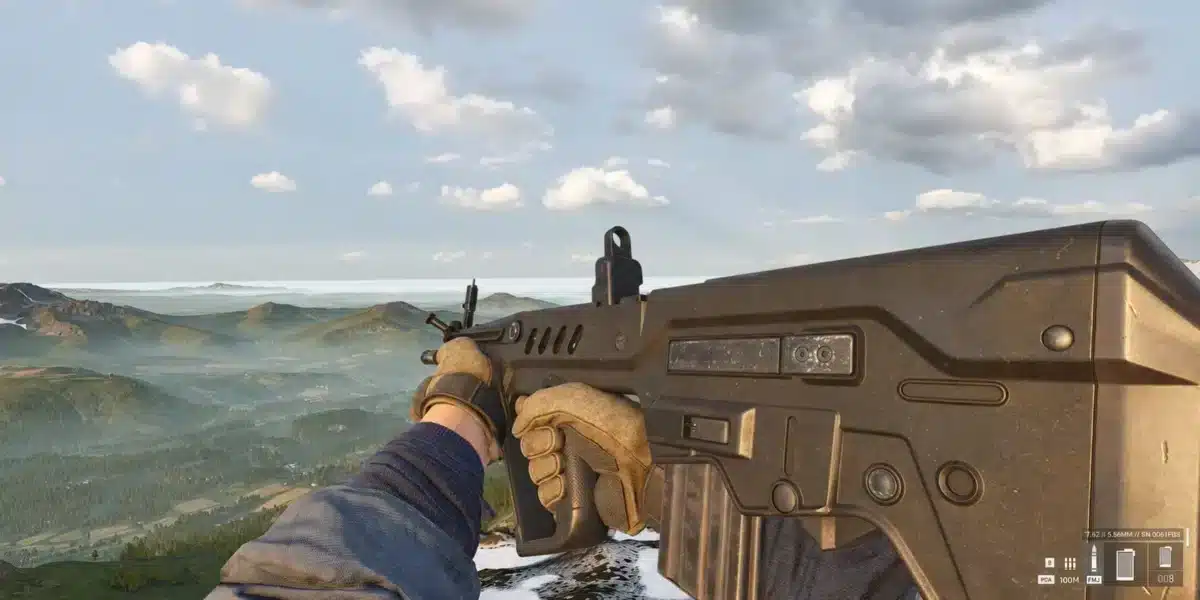
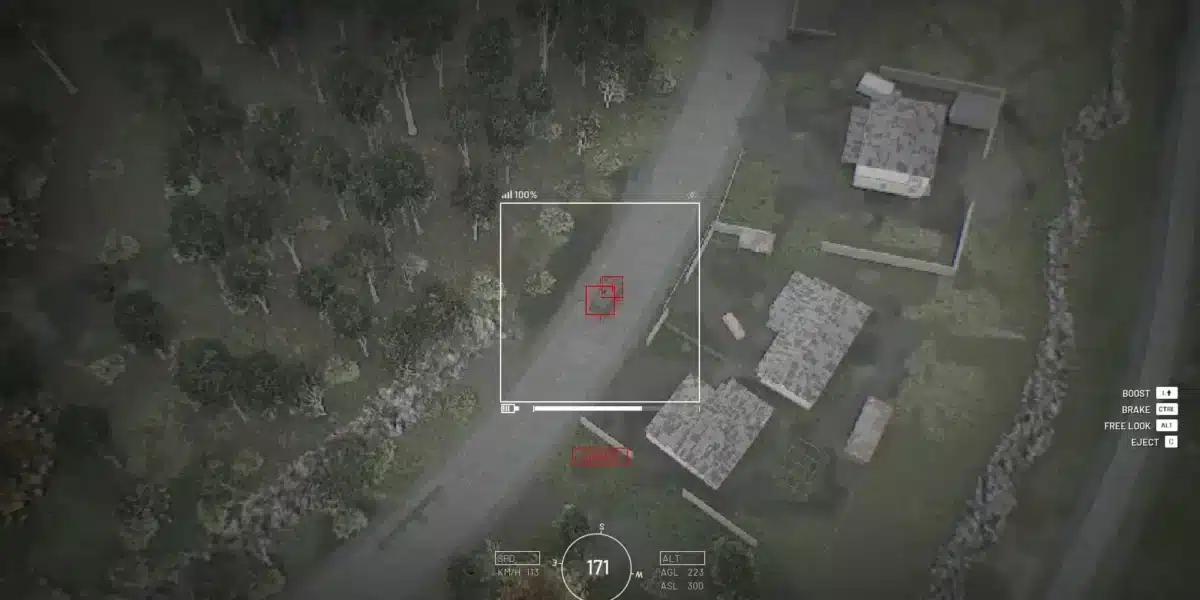
Finding the right WarDogs Graphics Settings can be the difference between spotting an enemy squad early and getting flanked near the control zone. BULKHEAD built this tactical shooter around long sightlines and destructible buildings, so a messy menu setup punishes you fast.
The WarDogs Graphics Settings menu looks intimidating at first glance, with sliders for shadows, reflections, particles and more. Most of these options barely change performance, while a handful control almost everything you see and how smooth the match feels.
In short, the best WarDogs Graphics Settings lower shadows, reflections and post processing while keeping textures and view distance high. That combination frees up frame rate without hiding enemies behind blurry terrain, smoke or foliage.
This guide breaks down every menu option worth touching, from display settings to mouse sensitivity. It also covers the mistakes new players make and a few tricks that competitive squads already use in the 100 player control zone fights.

Best WarDogs Graphics Settings For Every PC Setup
Before touching a single slider, it helps to know what your hardware can realistically handle. Because WarDogs is still in Early Access, older machines can struggle even on lower presets.
Minimum And Recommended PC Specs
BULKHEAD published official specs for this Early Access shooter, and they are worth checking before you chase maxed out settings. Undershooting your hardware is the fastest way to hit stutter during a firefight.
- Minimum: Windows 10, Intel Core i5 8600 or AMD Ryzen 5 3500, 16 GB RAM, Nvidia GTX 1660 or Radeon RX 590, targeting 1080p Low at 60fps
- Recommended: Windows 11, Intel Core i7 12700k or AMD Ryzen 7 5700x, 16 GB RAM, Nvidia RTX 3070 or Radeon RX 6700 XT
- Recommended target: 1440p Medium at 70fps or higher, or 4K Medium around 60fps
- Storage: 50 GB of free space, ideally on an SSD for faster level loads
Display, Resolution And Frame Rate Options
Your display settings decide how sharp the image looks and how much strain your GPU takes on. Competitive players almost always favor a stable frame rate over a higher resolution scale in a shooter this fast.
- Resolution: Native resolution, with 1080p as the competitive standard even on stronger rigs
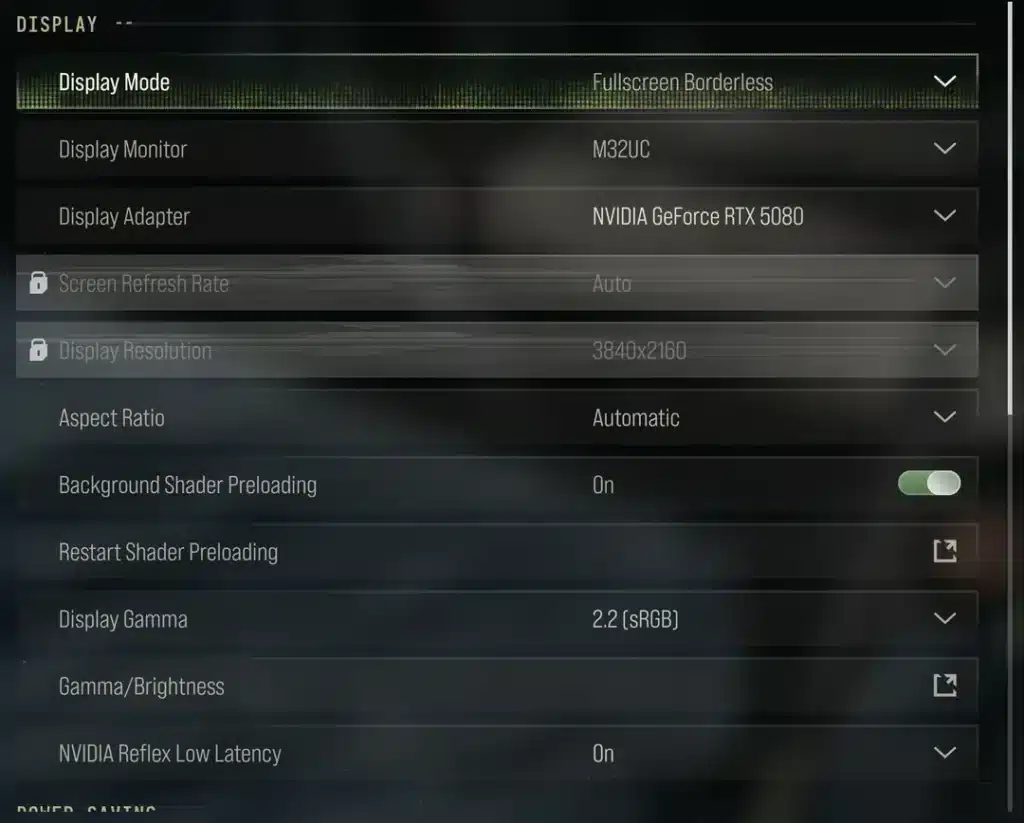
- Display Mode: Fullscreen or Borderless Fullscreen for the lowest input delay
- Frame Rate Limit: Match your monitor’s refresh rate, or leave it unlimited on a high refresh panel
- VSync: Off, since it adds input lag without improving visibility
- Reflex Style Latency Reduction: On, whenever the option appears in your menu
Best WarDogs Graphics Settings For Sharp Visibility
Visibility wins more fights than raw frame rate once your FPS is already stable. The Best WarDogs Graphics Settings for spotting enemies trim away the lighting effects that clutter the screen.
Shadows, Textures And Lighting
Shadows and global illumination look great in trailers, but they also hide players in dark corners during real matches. Lowering them barely changes how readable the map feels.
- Shadows: Low, since high shadow quality darkens hiding spots and drains frames
- Global Illumination: Off for competitive play, on only for screenshots or cinematics
- Reflections: Low, since they rarely affect gameplay but still cost performance
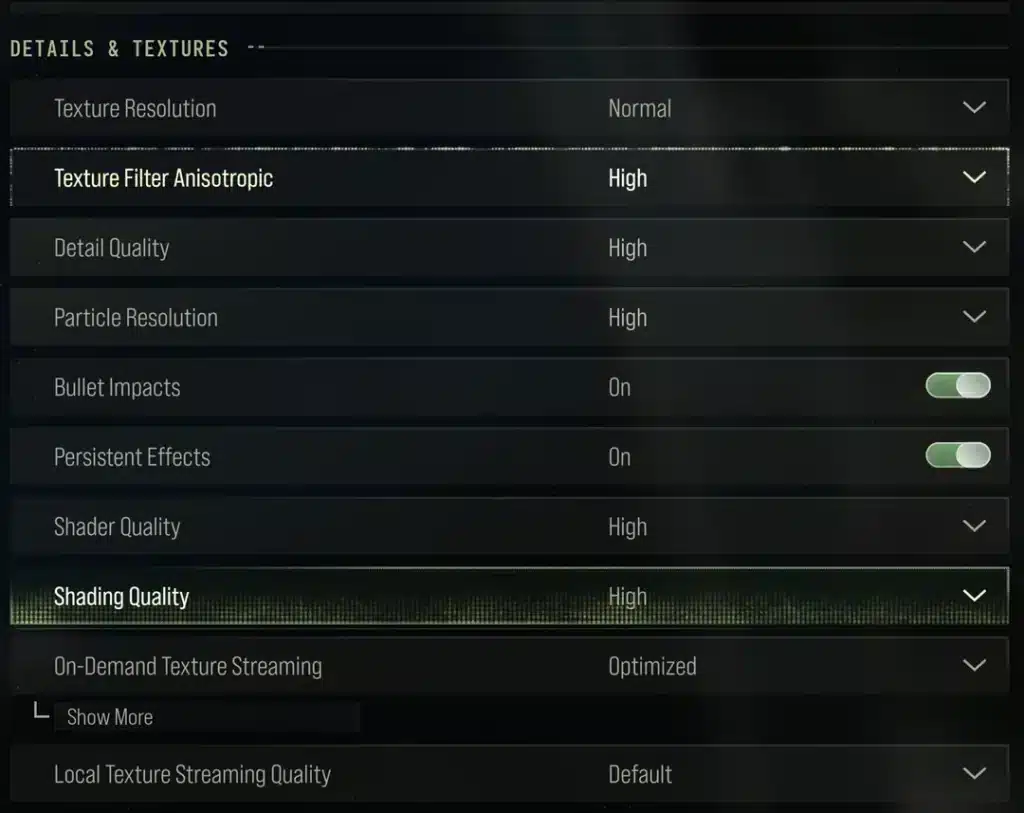
- Textures: High if your GPU has enough VRAM, because this setting barely touches FPS
- Texture Filtering: High, which sharpens surfaces at almost no performance cost
Post-Processing Effects To Disable
Post processing effects add cinematic flair, yet they blur exactly the details you need in a firefight. Turning them off is one of the fastest visibility upgrades available.
- Turn off Motion Blur, since it smears movement during fast vehicle chases
- Disable Depth Of Field, which softens anything outside your immediate focus
- Switch off Lens Flare, because bright glare can hide an enemy silhouette
- Turn off Bloom, since it washes out contrast around windows and doorways
WarDogs Gameplay And Input Settings That Matter
Graphics options are only half the picture in a shooter like this. A handful of gameplay sliders change how consistently you aim and react under pressure.
Field Of View And Aim Down Sights
A wider field of view shows more of the control zone and any squads trying to flank you. However, it does cost a small amount of performance, so balance it against your frame rate.
- Field Of View: Around 95 to 100 for a good balance of awareness and clarity
- ADS FOV: Set to Affected, so aiming does not feel jarring when the camera zooms
- HUD Scale: Slightly smaller than default once you are comfortable, for a cleaner view
Mouse Sensitivity And DPI
Consistent sensitivity matters more than chasing one specific number. That said, community testing across many matches points to a comfortable starting range.
- Mouse DPI: 800 is the most common starting point among competitive players
- In Game Sensitivity: Around 0.70 at 800 DPI, then adjust in small steps from there
- Mouse Acceleration: Off, so every flick feels the same no matter the speed
What Are The Best WarDogs Graphics Settings For Low-End PCs?
Not everyone runs a recommended spec machine, and that is completely fine. The best WarDogs Graphics Settings for older hardware focus on stability instead of eye candy.
Low-End Configuration
On minimum spec hardware, the goal is a steady 60fps rather than a locked 100fps ceiling. Every setting you drop below helps more than it visually costs you.
High-End Configuration For Visual Fidelity
Stronger rigs can afford a little more detail without losing competitive clarity. The table below shows where to push sliders once frame rate is no longer a real concern.
| Setting | Low-End PC | High-End PC |
|---|---|---|
| Resolution Scale | 80-90% | 100% Native |
| Shadows | Low | Medium |
| Textures | Medium | High |
| Reflections | Off | Low |
| View Distance | Medium | High |
| Post Processing | Off | Low |
| Upscaling (DLSS/FSR) | Performance | Quality |
- Global Illumination: On for a more atmospheric look once frames allow it
- Reflections: Medium once frame rate sits comfortably above 100fps
- Upscaling: Quality mode DLSS or FSR to keep textures crisp at 1440p or 4K
Is WarDogs Well Optimized At Launch?
Early Access shooters rarely launch perfectly, and WarDogs is no exception. Server queues and CPU spikes have shown up during peak hours since the game entered Early Access.
Common Performance Issues In Early Access
- Stutter during large vehicle explosions or building collapses
- CPU usage spikes when many players group inside the control zone
- Occasional texture pop-in on the map right after spawning
Quick Fixes For Stutter And FPS Drops
- Update your graphics driver before every Early Access patch lands
- Lower Effects and Particle Spawn Rate first, since crowd fights cause most stutter
- Close background apps that compete for CPU threads during 100 player matches
- Verify game files through Steam if textures fail to load properly
Pro Tips And Mistakes To Avoid With WarDogs Graphics Settings
A few extra habits separate a smooth setup from a great one. These tips come from players who have spent real hours fighting over the control zone.
Pro Tips: WarDogs Graphics Settings
- Save Two Profiles: Keep a competitive profile for ranked play and a cinematic one for clips, since switching takes seconds and protects your frame rate when it matters.
- Match Resolution To Refresh Rate: Running a resolution scale above 100 percent only helps if your monitor’s refresh rate can actually display the extra detail.
- Recheck Settings After Patches: Early Access updates sometimes reset sliders to default, so confirm your WarDogs Graphics Settings after every patch.
- Prioritize CPU Cooling: This shooter leans heavily on CPU performance during 100 player fights, so clean airflow and updated drivers matter as much as raw GPU power.
- Test In A Real Match: Training areas rarely show the frame drops that happen once smoke, gunfire and vehicles fill the screen at once.
Common Mistakes WarDogs Players Make
- Maxing Out Shadows And Reflections: Many new players assume higher always looks better, but this hides enemies in dark corners. Fix: drop both to Low and rely on texture clarity instead.
- Leaving Motion Blur On: This effect smears fast vehicle chases and close range firefights. Fix: turn it off in the post processing tab right after installing the game.
- Ignoring Frame Rate Caps: An uncapped frame rate can cause inconsistent frame times and unnecessary GPU strain. Fix: cap it to your monitor’s refresh rate or a stable number below your average.
- Skipping Driver Updates: Outdated drivers cause more stutter than any in game slider ever will. Fix: update graphics drivers before every Early Access patch, not after problems appear.
Boost Your WarDogs Performance With ExitLag
Graphics settings only control what you see, not how your connection behaves during a 100 player match. That is exactly where ExitLag comes in.
Is ExitLag Safe To Use With WarDogs?
ExitLag is not a VPN, so it never encrypts your traffic or masks your IP address. Instead, it analyzes multiple network paths in real time and picks the fastest, most stable route to WarDogs servers.
It does not modify game files, inject code, or interact with anti-cheat systems in any supported title. That makes it safe to run alongside a tactical shooter like WarDogs without adding extra risk.
How ExitLag Supports Every WarDogs Match
In a 100 player fight, packet loss and desync are just as damaging as a bad graphics setup. ExitLag’s Multipath Technology sends your data through multiple routes at once, so a single bad hop does not ruin your push.
- Real-Time Optimization: Cuts delay and packet loss so commands and shots register faster
- Multi-Internet: Keeps you connected across up to four internet sources if one drops mid match
- Traffic Shaper: Prioritizes WarDogs traffic over background downloads and updates
- PC Boost: Frees up RAM and background processes for smoother frames on top of your WarDogs Graphics Settings
If you want every push through the control zone to feel as smooth as your graphics menu looks, grab the ExitLag Download and test it during your next WarDogs session.
Final Thoughts On The Best WarDogs Graphics Settings
Getting your setup right does not require touching every slider in the menu. Focus on the handful that actually change visibility and frame rate, and leave the rest at default.
Quick Recap Checklist
- Lower shadows, reflections and post processing effects first
- Keep textures and texture filtering high whenever VRAM allows
- Set field of view between 95 and 100 for better awareness
- Cap your frame rate to match your monitor and turn VSync off
- Recheck your WarDogs Graphics Settings after every Early Access patch
When To Revisit Your WarDogs Graphics Settings
Early Access games change fast, and WarDogs will keep receiving balance and performance patches. Revisit your menu after major updates to make sure nothing reset silently.
Dialing in the best WarDogs Graphics Settings is not a one time job, it is part of staying competitive. Once your WarDogs Graphics Settings are locked in and your connection is stable, the only thing left to improve is your aim.
All game images used in this blog post belong to BULKHEAD and Team17. They are used for informational and educational purposes only and do not imply endorsement or affiliation with the rights holders.
Got questions or want to connect with other players? Join the conversation at the ExitLag Forum!