Wardogs throws up to 100 players into three teams fighting over a single control zone, and every gunfight rewards fast, precise input. Finding the right Wardogs Controller Settings matters just as much on a pad as it does on a mouse.
Because Bulkhead built this shooter as a PC-first title, native support is still limited. However, the Wardogs Controller Settings you choose, combined with a proper Steam Input profile, can close most of that gap.
The short answer for Wardogs Controller Settings is that the in-game menu is still fairly basic. You get sensitivity, deadzone, and response curve sliders, plus light aim assist, and the rest of the precision comes from pairing those sliders with a custom Steam Input layout.
Wardogs Controller Settings: What Native Support Actually Offers
Controllers are detected natively in Wardogs without any extra setup, which surprised players who assumed the game shipped keyboard and mouse only. However, the Steam store page does not officially list controller support, so treat everything here as functional rather than fully polished.
Does Wardogs Have Full Controller Support?
Not yet. Currently, you can move, aim, shoot, and navigate menus with a pad, and vehicle seats like the helicopter gunner position work fine.
Bulkhead has been clear that Wardogs is designed as a PC-focused game first. Therefore, deeper controller support is expected to arrive alongside future console versions rather than sooner.
What You Can And Cannot Remap
Before you spend time tweaking sliders, it helps to know exactly what the native menu covers and what it does not.
- Movement, aiming, and firing: fully functional on a standard layout.
- Menu navigation: works through a virtual cursor or stick input.
- In-game rebinding: unreliable, and many players report it simply does not stick.
- Utility actions like dropping supplies: sometimes still require a quick keyboard tap.
This is exactly why most controller players route around the native menu and configure everything through Steam Input instead, which is covered further down.
Best Wardogs Sensitivity Settings For Aim Control
Sensitivity is the first thing to fix, since Wardogs separates hip-fire look speed from aim-down-sights speed. Tuning both parts of your Wardogs Sensitivity Settings independently gives you fast target acquisition without losing control once you actually aim down sights.
Look Sensitivity Versus Aim-Down-Sights Sensitivity
Set your hip-fire look sensitivity first, since it controls how fast you turn to react to footsteps or a flanker. Then lower your aim-down-sights sensitivity until you can track a moving target smoothly.
- Turn speed test: time a full stick turn between two landmarks, then repeat until it feels identical every attempt.
- ADS multiplier: many tactical shooter players land between a 0.6 and 0.8 multiplier relative to hip-fire.
- Scope sensitivity: if optics are split separately, drop that value further for anything above 4x zoom.
Finding Your Response Curve
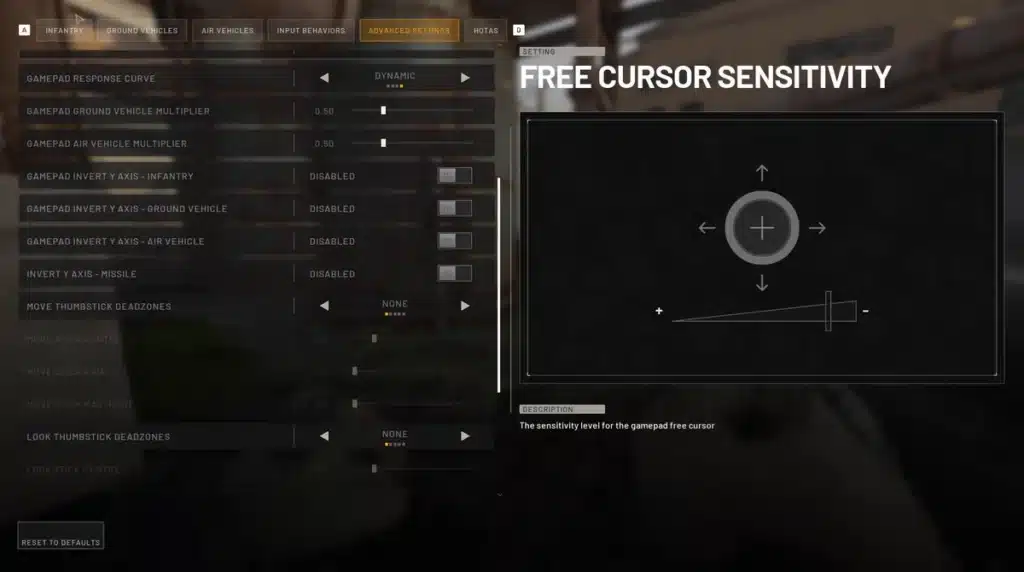
Wardogs offers a response curve option that changes how quickly the stick ramps from small nudges to full turns. A more linear curve suits players who like consistent tracking, while a curved response rewards players who flick onto targets.
Consequently, there is no single perfect curve for every player. Test both for a few matches before deciding which one supports good Wardogs Controller Settings for your own playstyle.
Wardogs Deadzone Settings And Stick Drift
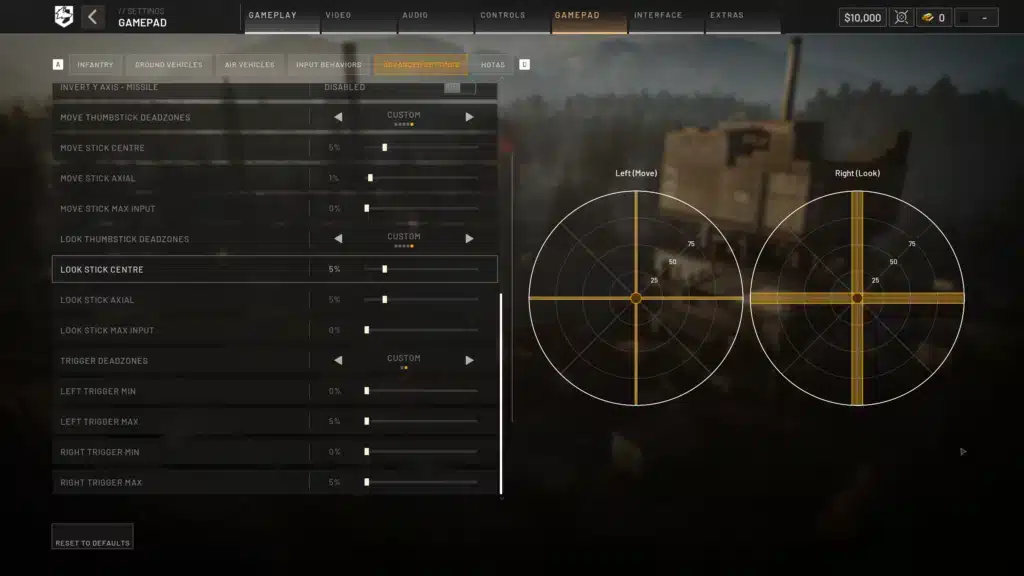
Deadzone is the buffer zone around your stick center that the game ignores completely. Getting your Wardogs Deadzone Settings too high wastes stick travel, while too low causes your character to drift even when your hands are still.
How To Test For Stick Drift
Stand still in a safe area and watch your crosshair closely. If it drifts left, right, or in circles without you touching the stick, your deadzone is too low.
- Aim stick drift: raise the aim deadzone in small increments until drift stops.
- Movement stick drift: raise only the movement deadzone, since raising both wastes precision.
- Controller wear: an aging pad drifts more over time, so retest deadzone after months of heavy use.
Deadzone Shapes And Why They Matter
Some players never realize that deadzone shape, square versus circular, affects diagonal aiming more than the raw slider number does. If diagonal flicks feel slower than straight up or down movement, the shape is usually the real culprit.
As a result, adjusting the number alone will not always fix a drifting or sluggish feel.
Does Wardogs Have Aim Assist On Controller?
This is one of the most searched questions about Wardogs Controller Settings, and the honest answer about Wardogs Aim Assist is genuinely nuanced.
What Bulkhead Has Confirmed About Aim Assist
Bulkhead has stated that aim assist will exist in some form, since playing without any help on a pad against mouse players would be close to unplayable at range.
That said, the strength of the assist is intentionally kept light rather than the strong magnetism seen in console shooters.
Tuning Around Light Aim Assist
Because the assist is subtle, your manual tracking still matters more than it would in a heavier system.
- Lower your aim-down-sights sensitivity slightly so the assist has more time to help you settle.
- Practice tracking manually, since light assist will not carry a full gunfight alone.
- Watch for balance changes each season, since Bulkhead has already signaled ongoing adjustments to core systems.
Setting Up Steam Input For Wardogs Controller Settings
Because native rebinding is unreliable, Steam Input is the real backbone of solid Wardogs Steam Input Settings for anyone who wants full control over their pad.
Building A Custom Layout Step By Step
Follow these steps in order the first time you set this up, then revisit them only when something feels off.
- Open your Steam library, right click Wardogs, and select Properties.
- Under Controller, set the option to force Steam Input for this game.
- Open the Controller Configuration screen and pick a template close to a tactical shooter layout.
- Remap any action that feels awkward, especially utility and vehicle controls.
- Save the layout as a personal binding so it loads automatically every session.
Borrowing Layouts From Similar Tactical Shooters
Since Wardogs plays close to other large-scale team shooters, community layouts built for similar military simulation games are a solid starting point for your own Wardogs Controller Settings. Search the Steam Community layouts browser first, then adjust from there instead of starting from scratch.
Notably, this shortcut saves a lot of trial and error compared to building a layout completely blind.
What Is The Best Controller For Wardogs?
Hardware matters almost as much as software once your Wardogs Controller Settings are dialed in properly.
Wired Versus Wireless Considerations
A wired connection removes any chance of extra input lag or dropped signal between your pad and PC. This matters in fast, close-range fights over the control zone.
Wireless is fine for casual sessions, but competitive players chasing tighter Wardogs Controller Settings should stick to wired when possible.
Back Paddles And Extra Buttons
If you are shopping for a new pad specifically for Best Controller For Wardogs searches, a few features consistently pay off.
- Back paddles: let you jump, crouch, or reload without moving your thumb off the stick.
- Adjustable triggers: shorter trigger travel speeds up your time to first shot.
- Hall effect sticks: reduce the chance of drift developing over months of heavy play.
Keyboard And Mouse Vs Wardogs Controller Settings: Which Wins?
Neither input method is strictly better across every situation, so it helps to see the tradeoffs side by side.
| Input Method | Precision Aiming | Vehicle Control | Menu Navigation | Rebinding Support |
|---|---|---|---|---|
| Keyboard And Mouse | Excellent | Good | Excellent | Full |
| Native Controller | Fair | Good | Functional | Unreliable |
| Controller Plus Steam Input | Good | Good | Functional | Full |
Where Controller Struggles
Long-range duels and fast helicopter free-look remain the toughest spots for pad players, and no amount of Wardogs Controller Settings tweaking fully closes that gap. Meanwhile, precise recoil control at range still favors keyboard and mouse overall.
Where Controller Holds Up
Ground vehicle driving, casual close-range fighting, and general navigation all feel comfortable on a pad. Indeed, many players prefer a controller specifically for piloting and vehicle-heavy roles, and in fact some switch inputs mid session depending on the role.
Pro Tips And Common Mistakes For Wardogs Controller Settings
Once your base sliders are set, these extra details separate a decent setup from a genuinely competitive one. In fact, most players stop tuning far too early.
Pro Tips: Wardogs Controller Settings
- Test in a private match first: An empty server lets you feel sensitivity and deadzone changes without pressure from live gunfights.
- Change one slider at a time: Adjusting sensitivity and deadzone together makes it impossible to tell which change actually fixed the feel.
- Save multiple Steam Input profiles: Keep a separate layout for infantry combat and one for vehicle-heavy rounds.
- Revisit settings after patches: Bulkhead continues to adjust core systems each season, so a slider that felt right before may need retuning.
Common Mistakes Wardogs Controller Players Make
- Copying a stranger’s exact numbers: Sensitivity that suits one player’s hand size and monitor rarely transfers directly. Fix: use community numbers only as a starting range, then fine-tune from there.
- Ignoring deadzone shape: Players raise the slider endlessly without noticing diagonal aim is the real issue. Fix: test diagonal flicks specifically before touching the deadzone number again.
- Skipping Steam Input entirely: Relying only on native rebinding leads to lost keybinds mid-match. Fix: force Steam Input from the start so your layout is consistent every session.
Why Your Connection Matters As Much As Your Wardogs Controller Settings
Controller tuning only solves half the equation, since a hundred players converging on one control zone puts real strain on your connection. This is where ExitLag comes in, and it works alongside your Wardogs Controller Settings rather than replacing them.
How ExitLag Helps In 100-Player Matches
ExitLag is a game connection optimizer, not a VPN. It scans multiple network routes in real time and selects the fastest, most stable path between your PC and the game servers.
That matters when a hundred players are firing on one zone at once, and it complements whatever Wardogs Controller Settings you have already locked in.
- Real-time optimization reduces delay and packet loss, so your inputs land on time during chaotic fights.
- Multipath technology keeps you connected through a backup route if your main path starts dropping packets.
- Multi-Internet support lets you combine up to four connections, useful if your home connection is shaky.
- Traffic Shaper stops background downloads or streams from stealing bandwidth mid match.
With over 4,000 supported titles, 1,500-plus servers across 190-plus countries, and more than 30 million users routing traffic through it every week, ExitLag has become a normal part of the setup for competitive shooter fans.
Is ExitLag Safe To Use With Wardogs?
Yes. ExitLag does not modify game files, inject code, or interact with anti-cheat systems, so it stays safe alongside Wardogs and other competitive shooters.
Just avoid running it at the same time as a VPN, since the two can conflict and reduce its effectiveness.
If ping spikes or desync have been costing you fights on the control zone, you can grab the ExitLag Download and test it on your very next match.
Getting your Wardogs Controller Settings right takes some testing. Once sensitivity, deadzone, and your Steam Input layout all agree with each other, a pad becomes a genuinely viable way to fight for the control zone.
Pair that setup with a stable connection, and you are ready to hold your ground against a hundred other players.
All game images used in this blog post belong to Bulkhead and Team17, the developer and publisher of Wardogs. They are used for informational and educational purposes only and do not imply endorsement or affiliation with the rights holders.
Got questions or want to connect with other players? Join the conversation at the ExitLag Forum!