
Every competitive gamer eventually asks the same question: why does my game feel choppy even on decent hardware? The answer almost always comes back to FPS.
FPS, or frames per second, is the single number that decides how smooth, responsive, and readable your gameplay actually feels. Whether you play shooters, racing sims, or open-world titles, FPS shapes every reaction you make.
In simple terms, FPS measures how many complete images your system renders and displays every second. Higher FPS means smoother motion, sharper aim tracking, and less input delay between your mouse and the screen. Consequently, understanding FPS is the first step toward real performance gains.
This guide walks through what FPS really means, how an fps calculator works, how to run a proper fps test, and the exact settings that raise your numbers without gutting visual quality. We will also cover Roblox tuning, common misconceptions, and a network-side fix most players overlook entirely.
What Is FPS and Why It Defines Your Gaming Experience
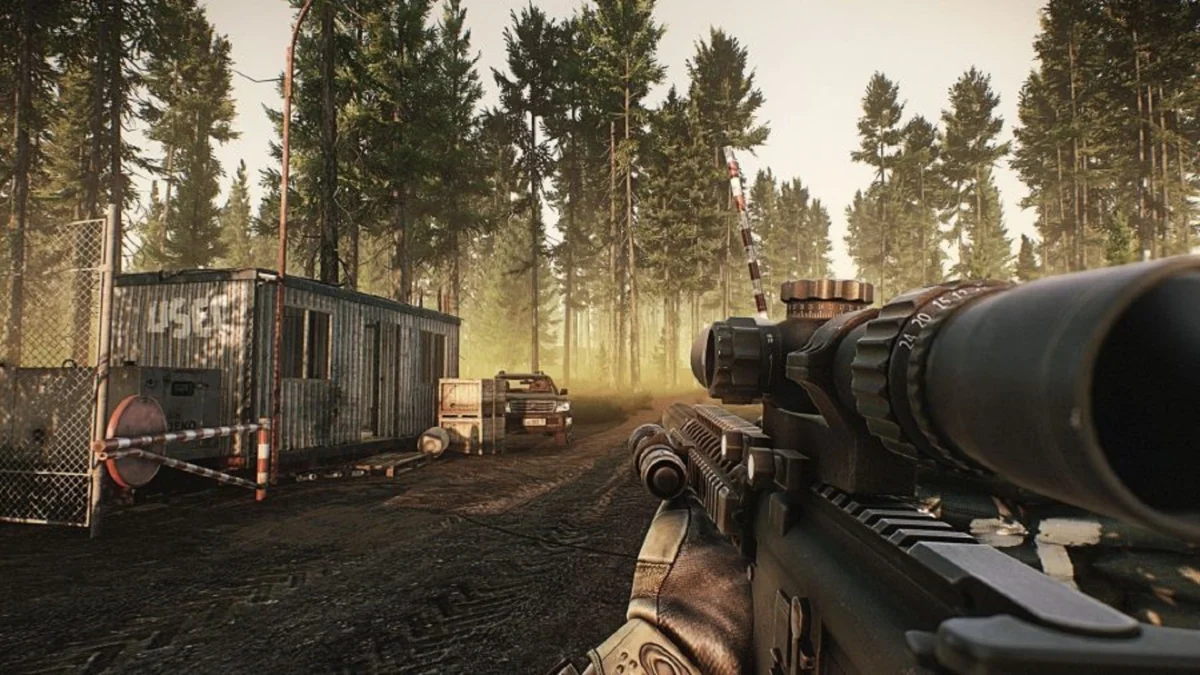
FPS is a rendering metric, not a marketing number. Every frame your GPU finishes gets sent to your monitor, and the count of finished frames per second is your FPS.
However, raw average FPS only tells part of the story. Consistency (avoiding sudden drops) matters just as much as the top-line number for a comfortable session.
FPS and Human Perception
Most people notice smoothness improvements up to roughly 120-144 FPS, after which gains become harder to perceive visually. Still, competitive players value the reduced input lag that comes with higher frame rates, even beyond what the eye consciously registers.
- 30 FPS: playable for slow-paced or story-driven games, but sluggish for action.
- 60 FPS: the long-standing baseline for smooth, responsive gameplay.
- 120-144 FPS: preferred by competitive shooter and racing players.
- 240 FPS+: chased by esports professionals on high refresh monitors.
FPS Versus Refresh Rate
FPS and monitor refresh rate are related but not identical. Your monitor can only display as many frames as its refresh rate allows, even if your GPU renders more.
Therefore, pairing a high FPS game with a low refresh rate monitor wastes performance. Matching or exceeding your monitor's refresh rate with your FPS is the real goal.
How to Test FPS and Measure Real Performance
Before changing any setting, you need a reliable way to measure where you currently stand. Running an accurate fps test first prevents you from chasing the wrong fix.
Several free browser-based tools now let you check your monitor's real frame rate without installing anything. These tools report average, minimum, and maximum FPS, along with a stability score.
Best Tools to Test FPS
- Built-in overlays from Steam, GeForce Experience, or AMD Software for in-game readings.
- MSI Afterburner, paired with RivaTuner, for detailed real-time graphs.
- Browser-based FPS test sites for a quick, no-download check on any device.
- Benchmark suites like 3DMark for controlled, repeatable GPU stress testing.
Reading Your Results Correctly
An average FPS number alone can hide serious problems. Furthermore, a game averaging 90 FPS but dipping to 20 FPS during fights will still feel bad to play.
Players often compare notes using phrases like FPS FPS test comparisons when they search benchmark forums for matching hardware setups. Focus on your one percent low FPS value instead, since that number represents your worst real moments, not just the average.
Using an FPS Calculator to Predict Your Real Frame Rate
An fps calculator estimates expected frame rates for a given CPU, GPU, resolution, and game combination before you buy new hardware or change settings. This saves time compared to trial and error.
Most calculators pull from community-submitted benchmark databases. As a result, accuracy improves for popular titles with large sample sizes and drops for newer or niche releases.
When an FPS Calculator Helps Most
- Planning a GPU or CPU upgrade before spending money.
- Deciding whether a laptop can handle a specific competitive title.
- Comparing 1080p versus 1440p versus 4K performance expectations.
- Checking if a new game will run acceptably before purchase.
Limitations Worth Knowing
Calculators assume clean background conditions and default driver settings. Consequently, your real results may vary based on overlays, browser tabs, thermal throttling, or an outdated driver.
Indeed, a calculator gives a starting estimate, not a guarantee. Always confirm with an actual in-game FPS test once the hardware is in hand.
Why Do FPS Drops Happen During Intense Moments?
This is one of the most common questions competitive players ask, and the answer usually involves more than one bottleneck at once.
FPS drops typically happen when the CPU cannot feed frame data fast enough during busy scenes, such as team fights or explosions with many effects on screen. Additionally, thermal throttling, background updates, and outdated drivers can all cause sudden dips.
Common Causes of FPS Drops
- CPU bottleneck during scenes with many players, NPCs, or physics objects.
- VRAM running out on cards with limited memory at high resolutions.
- Background applications silently consuming CPU or disk bandwidth.
- Thermal throttling from dust buildup or poor case airflow.
- Network stutter that feels like an FPS issue but actually is not.
Diagnosing the Real Bottleneck
Open a hardware monitor overlay while playing and watch CPU and GPU usage together. If GPU usage sits below 95% while FPS drops, the CPU or another component is usually the limiting factor.
Best Ways to Increase FPS in Any FPS Game
Raising your numbers in a demanding fps game does not always require new hardware. Many of the biggest gains come from software and settings changes that cost nothing.
AI upscaling technology has become the single highest-impact change available in 2026. Modern upscalers render at a lower internal resolution and reconstruct a sharp image, adding significant FPS with minimal visual cost.
Software and Settings Fixes
- Enable AI upscaling or frame generation if your GPU supports it.
- Update graphics drivers, since game-ready releases often include specific FPS fixes.
- Switch your Windows power plan to High Performance instead of Balanced.
- Lower shadow quality and motion blur, which are expensive but low-impact visually.
- Cap your FPS slightly below your monitor's refresh rate to reduce tearing and heat.
Hardware and System Fixes
- Install your active games on an SSD to cut loading stutter significantly.
- Keep at least 20% of your drive free to avoid throttling.
- Upgrade to 16GB of RAM as a minimum, with 32GB as the comfortable 2026 target.
- Clean dust from fans and reapply thermal paste on older builds.
- Close overlays and recording software you are not actively using.
How Does Roblox FPS Unlocker Work and Is It Safe?
Roblox caps its default frame rate, which frustrates players with hardware capable of much more. This is where a roblox fps unlocker comes into the conversation.
An FPS unlocker does not create extra performance by itself; it simply removes the artificial cap so your PC can render as many frames as it is already capable of producing. Therefore, weak hardware will not suddenly hit 240 FPS just because the cap is gone.
Setting Up FPS Correctly in Roblox
- First, check the built-in Maximum Framerate setting inside Roblox before installing anything external.
- Only download unlocker tools from the original, official project page.
- Never enter your Roblox account login or cookie into a third-party FPS tool.
- Test performance with a proper fps test before and after changing the cap.
- Finally, monitor for stability issues, since some unlockers interact poorly with certain games.
Safety Considerations
Reputable, source-verified unlockers do not modify game files and are generally considered safe in 2026. However, random executables from unknown sites remain a real account and malware risk.
FPS to MPH and Other FPS Stock Confusions Gamers Should Know
Not every search for FPS relates to gaming. The term fps to mph actually refers to a physics unit conversion, converting feet per second into miles per hour.
The formula is straightforward: multiply feet per second by roughly 0.6818 to get miles per hour. Shooter fans sometimes encounter this when comparing in-game bullet velocity stats to real-world muzzle speeds.
Where FPS to MPH Shows Up in Gaming
- Ballistics-focused shooters that display projectile speed in feet per second.
- Racing games converting vehicle speed between imperial units.
- Community discussions comparing realism settings across simulation titles.
Clearing Up the FPS Stock Question
Similarly, some searches for fps stock are unrelated to frame rate at all, referring instead to unrelated finance ticker symbols or default factory hardware configurations. If your goal is gaming performance, the frames per second metric described throughout this guide is the one that matters.
FPS Comparison Table by Genre and Hardware Tier
| Game Genre | Recommended Minimum FPS | Competitive Target FPS | Primary Bottleneck |
|---|---|---|---|
| Competitive Shooter | 60 FPS | 144-240 FPS | CPU and network latency |
| Racing Simulation | 60 FPS | 120-144 FPS | GPU and frame pacing |
| Open-World RPG | 30-45 FPS | 60-90 FPS | GPU and VRAM |
| MOBA | 60 FPS | 120 FPS | CPU during team fights |
| Sandbox (Roblox-style) | 30-60 FPS | 60-120 FPS | Engine cap and CPU |
Pro Tips
- Cap FPS below your refresh rate: setting a small cap (2-3 frames under your monitor's maximum) reduces heat and screen tearing without hurting smoothness.
- Prioritize one percent lows over averages: a stable 90 FPS feels better competitively than a spiky 120 FPS average with frequent dips.
- Update drivers before every major patch: new drivers often contain game-specific optimizations that a fresh fps test will immediately reveal.
- Test FPS in the actual busiest scene: benchmark during team fights or crowded areas, not the main menu, since that is where drops actually happen.
- Separate network stutter from FPS issues: rubber-banding or freezing during otherwise stable FPS usually points to connection quality, not rendering.
Common Mistakes
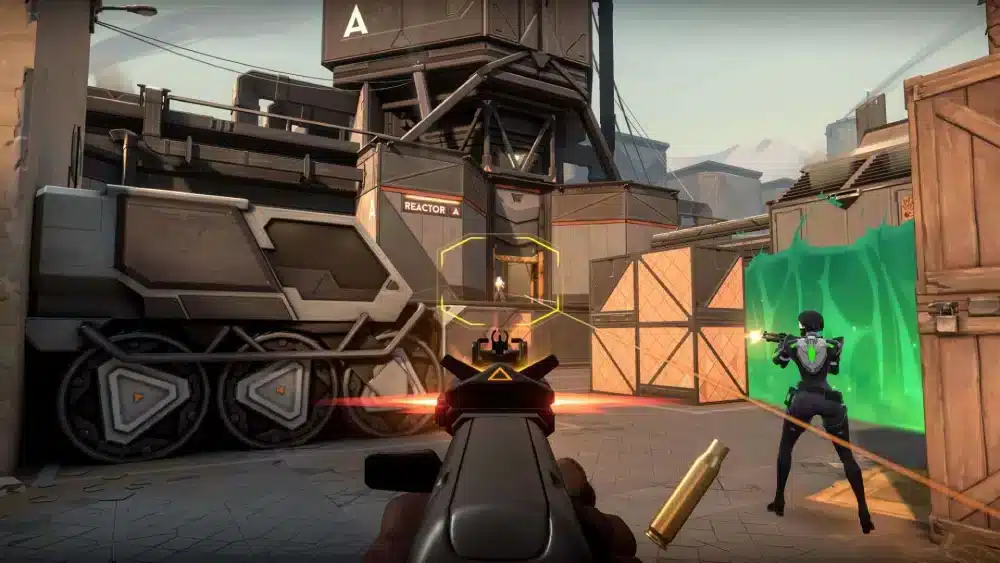
- Chasing maximum settings blindly: many players max every graphics option without testing impact. Fix: change one setting at a time and rerun an fps test after each.
- Ignoring background processes: browsers, launchers, and chat apps quietly eat CPU cycles. Fix: close unnecessary applications before a competitive session.
- Assuming an fps unlocker fixes weak hardware: unlocking the cap only helps if your PC can already exceed it. Fix: upgrade the actual bottleneck first, then unlock the cap.
- Confusing input lag with low FPS: sometimes the game feels delayed even at a good frame rate. Fix: check network latency and packet loss alongside your FPS numbers.
How ExitLag Helps You Get the Most Out of Every Frame
Raising FPS solves half the smoothness equation, but network quality decides the rest. This is exactly where ExitLag becomes a natural companion tool for any serious player.
ExitLag is not a VPN. Instead, it is a game connection optimizer that constantly analyzes multiple network routes in real time and selects the fastest, most stable path between your PC and the game server.
For FPS-sensitive competitive titles, that translates directly into faster input registration, lower ping, and noticeably reduced packet loss during intense fights. A high FPS count means little if your connection is stuttering behind the scenes.
Features That Matter for Performance-Focused Players
- Real-time Optimization: continuously adjusts your route as network conditions change mid-session.
- Multipath Technology: sends data across several paths simultaneously to cut packet loss.
- PC Boost: helps free up system resources that would otherwise compete with your FPS.
- Multi-Internet: combines up to four simultaneous connections for extra stability during peak hours.
ExitLag supports more than 4,000 titles across PC and Mobile, runs on over 1,500 servers spanning 190-plus countries, and is trusted by more than 30 million players worldwide, processing 18 million optimizations every week. It does not modify game files, does not inject code, and does not interact with anti-cheat systems, so it works safely alongside Fortnite, Valorant, CS2, and League of Legends. Just avoid running it alongside a separate VPN, since the two can conflict.
If you play on PC, grabbing the ExitLag Download takes only a couple of minutes and pairs naturally with the FPS tips in this guide. Mobile players are not left out either: ExitLag for Android and ExitLag for iOS bring the same route optimization to phones and tablets.
Final Verdict: Mastering FPS for Competitive Gaming Success
FPS is not just a number in the corner of your screen; it is a direct reflection of how your hardware, settings, and network work together. Getting it right takes measurement, tuning, and honest testing.
Start with an accurate fps test, use an fps calculator when planning upgrades, and apply the settings changes covered above before spending money on new parts. From there, tools like a properly configured roblox fps unlocker and a network optimizer round out the full picture.
Ultimately, FPS improvements compound: better settings, cleaner hardware, and a smarter network route all stack together. Treat FPS as one part of a complete performance strategy, and the smoothness gains will follow.



