You finally decide to grab that new release, click install, and watch the progress bar crawl at 2 MB/s.
If you have ever asked yourself why does Epic Games download so slow compared to other launchers, you are not alone. Thousands of players report the exact same issue.
The short answer: why does Epic Games download so slow usually comes down to a mix of launcher settings, throttled bandwidth caps, DNS routing issues, server congestion, or background apps eating your connection. Most of these are fixable in minutes.
This guide breaks down the real causes behind slow Epic Games Launcher downloads and walks through official fixes plus a few advanced tricks most guides skip.
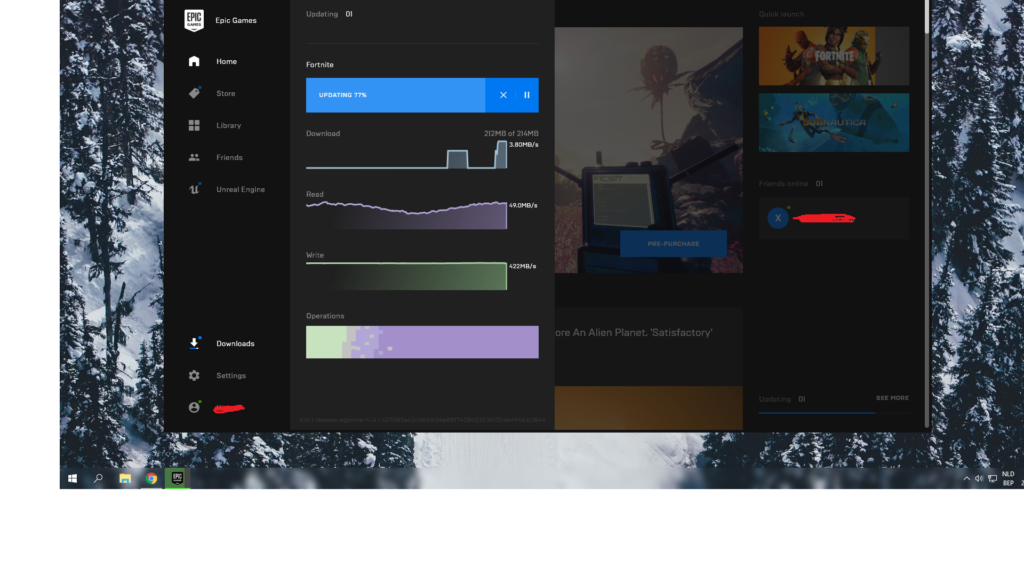
Why Does Epic Games Download So Slow? The Main Culprits Explained
Before jumping into fixes, it helps to understand what actually controls download speed inside the Epic Games Launcher. Several settings and system factors work together, and any one can bottleneck the process.
Unlike Steam, the Epic Games Launcher handles downloads and installation differently, which can make speeds feel inconsistent. Furthermore, the launcher has internal limits many users never realize are turned on.
Epic Games Launcher Settings That Cap Your Speed
The launcher ships with a built in bandwidth limiter that many players forget exists. If "Limit Download Speeds" or "Throttle Downloads" is checked, your Epic Games Launcher will never use your full connection.
Common settings-related causes include:
- Download speed limit enabled under Download Settings.
- Throttle Downloads checked, which caps speed while you are playing another game.
- An outdated Download Region set far from your actual location.
- A corrupted cache folder forcing constant re-verification of files.
Network and ISP Factors Behind Slow Download Speed
Even with perfect launcher settings, your network itself can cause a slow download speed. Wi-Fi interference, an overloaded router, or an ISP throttling large downloads during peak hours all play a role.
Additionally, a wired Ethernet connection is consistently more stable than Wi-Fi for large installs, since wireless signals drop packets more often and force constant re-requests.
How the Epic Games Launcher Downloads Games (And Why It Feels Slower Than Steam)
Understanding the download process itself explains a lot of the confusion players feel.
Chunk Downloading vs Unpacking
Epic Games downloads game files in chunks and, in many cases, installs them after the download finishes rather than unpacking while it downloads. Steam, by contrast, often unpacks during the download itself.
Therefore, the perceived speed can feel slower on Epic even when actual megabits per second are similar.
Server Regions and Epic Games Status
Epic Games routes traffic through specific regional data centers. If a nearby center is congested during a big release, your download speed drops no matter how fast your internet plan is.
Before assuming your setup is broken, check the official Epic Games status page first.
Step-by-Step Fixes for Epic Games Launcher Slow Download Speed
Work through these steps in order, since the earlier ones fix the problem for most people.
- Open the Epic Games Launcher, click your profile icon, go to Settings, scroll to Download Settings, and uncheck Limit Download Speeds.
- In the same menu, make sure Throttle Downloads is unchecked so background downloads do not get capped.
- Under Downloads, change your Download Region to the closest or least congested option available.
- Close the launcher, delete the webcache folders inside AppData/Local/EpicGamesLauncher/Saved, and relaunch it.
- Flush your DNS cache and switch to a public DNS server to rule out resolution issues.
- Restart your router, or better yet, switch from Wi-Fi to a wired connection for the download.
If the launcher is still crawling, the table below breaks down deeper causes and matching fixes.
| Cause | How It Shows Up | Recommended Fix |
|---|---|---|
| Download speed limit enabled | Speed capped even on fast internet | Uncheck Limit Download Speeds in settings |
| Corrupted cache files | Downloads stall, restart, or error out | Delete webcache and vault cache folders |
| Wrong download region | Consistently slow regardless of time of day | Manually switch Download Region in settings |
| Antivirus or firewall interference | Speed fluctuates or drops to near zero | Allowlist Epic Games Launcher in security software |
| Epic server congestion | Slow for everyone during major releases | Check status page, wait or try later |
Quick Settings Fixes
Most of the time, the answer to why does Epic Games download so slow lives inside the app itself, so checking these settings first saves troubleshooting time.
- Confirm Limit Download Speeds is off and set to unlimited or a high custom value.
- Reset the Vault Cache location if downloads keep stalling or restarting.
- Verify you have enough free disk space, since a nearly full drive can slow writes dramatically.
Deeper Network Fixes
If settings alone do not solve it, the problem is likely network related, though these fixes take more effort and usually resolve the toughest cases.
- Allowlist Epic Games domains in your firewall and antivirus software so security tools stop scanning every packet.
- Enable Quality of Service (QoS) on your router and prioritize your gaming PC's traffic.
- Adjust your MTU setting if you consistently see dropped packets or connection resets during large downloads.
Advanced Optimization: Router, DNS, and Background Apps
Once the basics are covered, a few advanced tweaks can squeeze out extra speed.
DNS and Router-Level Tweaks
Switching to a public DNS provider can shave time off connection setup and reduce failed lookups. Flushing DNS first clears stale records pointing to a slower or outdated path.
Rebooting your router periodically clears its memory and connection tables, which helps if it has run for weeks without a restart.
Background Apps and Antivirus Interference
Cloud backup tools, browser downloads, and Windows Update quietly eat bandwidth in the background, leaving your Epic Games Launcher download with whatever is left over.
Before starting a large download:
- Pause OneDrive, Dropbox, or other cloud sync tools.
- Close streaming apps and browser tabs playing video.
- Check Task Manager for any app actively using network resources.
- Temporarily pause non essential Windows Updates until the download finishes.
Is Epic Games Server Congestion the Real Problem?
Sometimes the issue genuinely is not on your end at all, and it is worth ruling out early.
Checking Epic Games Server Status
Epic maintains an official status page reporting outages and degraded performance across regions. First, check it whenever a download suddenly slows with no changes on your side.
If other players report the same issue during a major launch, server congestion is the likely explanation, and waiting an hour or two usually resolves it.
Choosing a Better Download Region
Even without an outage, some regions handle traffic better than others depending on time of day. Testing two or three nearby regions can reveal a consistently faster option.
Pro Tips: Epic Games Launcher Slow Download Speed
- Download during off peak hours. Early morning or late night traffic is lighter on both your ISP and Epic's servers, so speeds are typically higher.
- Keep the launcher updated. Epic regularly patches the client, and outdated versions sometimes carry bugs that affect download throughput.
- Use a wired connection whenever possible. Ethernet avoids the packet loss and interference that Wi-Fi introduces on large, sustained downloads.
- Run downloads with other heavy traffic paused. Competing for bandwidth with streaming or cloud backups is one of the most overlooked causes of a slow download speed.
- Verify your actual internet speed first. A quick speed test confirms whether the bottleneck is really the launcher or simply your connection plan.
Common Mistakes Epic Games Launcher Players Make
- Assuming the launcher is always to blame. Many players skip checking their own network setup entirely. Fix: run a speed test and check the Epic Games status page before troubleshooting the app.
- Never checking the Download Settings menu. The speed limit and throttle options are easy to miss but directly cap performance. Fix: open Settings and confirm both options are disabled.
- Ignoring accumulated cache files. A bloated or corrupted cache folder can silently slow every future download. Fix: clear the webcache and vault cache folders periodically.
- Downloading over Wi-Fi during peak hours. This combines two of the worst conditions for a stable transfer. Fix: switch to Ethernet and schedule large downloads for quieter hours.
Keep Your Connection Stable While You Download and Play With ExitLag
Fixing your download speed solves half the equation. Once the game is installed, your connection to Epic's services still needs to stay stable, and that is where ExitLag comes in.
ExitLag is not a VPN. It is a game connection optimizer that continuously analyzes multiple network routes and automatically picks the fastest, most stable path between your PC and the servers you are connecting to.
It does not encrypt traffic, does not mask your IP, and does not touch apps outside the games it supports. Today, ExitLag supports more than 4,000 titles on PC and Mobile, with over 1,500 servers across 190+ countries, trusted by 30 million+ users processing 18 million optimizations weekly.
What ExitLag Actually Does
For anyone dealing with inconsistent connections around Epic Games services, a few features stand out:
- Real-time Optimization: reduces delay and packet loss by constantly monitoring your route quality.
- Multipath Technology: sends packets through multiple routes simultaneously, so if one path fails, others keep your connection alive.
- Multi-Internet: combines up to four simultaneous internet connections with automatic failover if one drops.
- Traffic Shaper: prioritizes your game traffic and limits bandwidth from other apps competing on the same network.
- PC Boost: cleans up RAM and reduces background processes for a smoother experience overall.
Features That Matter for Epic Games Players
Traffic Shaper pairs well with the background app issue covered earlier, since it actively keeps other programs from stealing bandwidth during gameplay. Meanwhile, Multi-Internet and Multipath Technology help keep your connection to Epic's services stable while you play.
ExitLag should not run alongside a VPN, since the two can conflict and reduce effectiveness. It also does not modify game files, inject code, or interact with anti-cheat systems, making it safe with major titles on the Epic Games Store.
If unstable connections and inconsistent ping are part of your frustration beyond just the download itself, grabbing the ExitLag Download is a practical next step for a smoother overall experience.
Final Verdict: Why Does Epic Games Download So Slow, and What Fixes It Fastest
At this point, the picture should be clear. Why does Epic Games download so slow almost always traces back to throttled settings, cache buildup, DNS issues, background bandwidth competition, or genuine server congestion.
Quick Recap of Fixes
- Disable Limit Download Speeds and Throttle Downloads in the launcher settings.
- Clear webcache and vault cache folders if downloads stall or restart repeatedly.
- Switch download regions and flush DNS to rule out routing problems.
- Allowlist the launcher in your antivirus and firewall, and prefer a wired connection.
When to Call It Server-Side
Finally, if every local fix has been tried and speeds are still poor, check Epic's status page before assuming your setup is the problem. Server congestion during major releases affects everyone and usually clears within a few hours.
Working through these steps should resolve most cases of why does Epic Games download so slow, and pairing them with a stable connection tool like ExitLag keeps things smooth well after the download bar hits 100%.
All game images used in this blog post belong to Epic Games. They are used for informational and educational purposes only and do not imply endorsement or affiliation with the rights holders.