Learning How to Add Widgets to Lock Screen can make your iPhone much more useful. Instead of unlocking the device every time you want basic information, you can see weather, battery levels, calendar events, and other details directly from the Lock Screen.
Apple introduced Lock Screen widgets with iOS 16. Since then, the feature has become an important part of iPhone personalization. You can add compatible widgets, remove them, and create different Lock Screens for different situations.
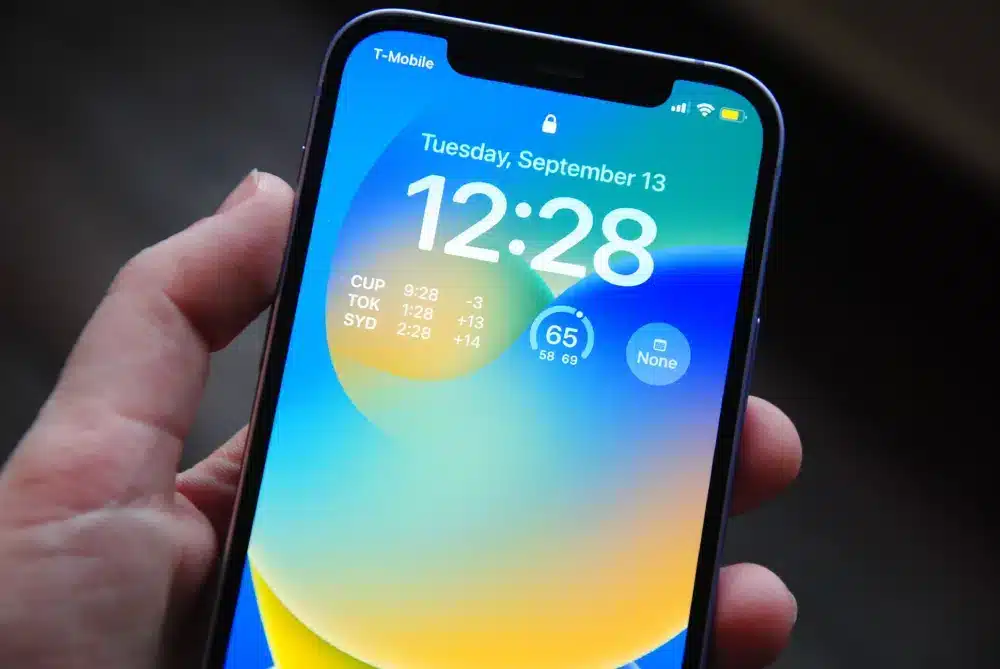
So, how do you add widgets to the Lock Screen? Touch and hold the Lock Screen, tap Customize, choose the Lock Screen, tap Add Widgets, and then select or drag the widgets you want. When finished, close the widget picker and tap Done.
How to Add Widgets to Lock Screen
Open Lock Screen Customization
The easiest way to Add Widget to Lock Screen is directly from the Lock Screen. First, wake your iPhone and display the Lock Screen. Then touch and hold the screen.
You should see your available Lock Screens and a Customize option. Tap Customize to begin editing the selected Lock Screen. Apple currently provides this method for changing wallpapers, clocks, widgets, and other Lock Screen elements.
Select the Widget Area
After tapping Customize, choose the Lock Screen you want to change. Tap the widget area below the time. If you already have widgets there, you can remove or replace them.
Then tap Add Widgets. The widget gallery will appear, showing compatible options from Apple and installed apps.
How to Add Widgets on Lock Screen
Choose a Widget
When you tap Add Widgets, you can browse the available widget options. Depending on the apps installed on your iPhone, you may see widgets for weather, battery, calendar, reminders, fitness, and other services.
Apple specifically gives examples such as temperature, air quality, battery level, and upcoming calendar events. Tap the widget you want. Some apps provide more than one widget style or size.
Drag or Tap the Widget
Apple allows you to tap or drag widgets into the Lock Screen widget area. This gives you some flexibility when arranging your preferred information. However, the available space is limited.
If there is not enough room for another widget, iOS can ask you to remove an existing widget before adding the new one.
A practical setup might include:
- Weather.
- Battery.
- Calendar.
- Reminders.
- Fitness information.
- Air quality.
- Other compatible app information.
Add Widgets Lock Screen: Step-by-Step
Follow These Steps
If you want the quickest answer to Add Widgets Lock Screen, use this sequence:
- Wake your iPhone and display the Lock Screen.
- Touch and hold the Lock Screen.
- Tap Customize.
- Select the Lock Screen.
- Tap Add Widgets.
- Choose a compatible widget.
- Tap or drag it into the widget area.
- Remove another widget if there is not enough space.
- Close the widget picker.
- Tap Done.
The exact appearance of the buttons can vary depending on the iOS version and language settings, but the basic process remains the same. Apple’s current iPhone documentation confirms the Lock Screen customization workflow.
Why Use Lock Screen Widgets?
The main advantage is speed. You can get important information without opening an app. For example, you could glance at your Lock Screen to see the weather before leaving home.
You could also check your next calendar event without unlocking the iPhone. That makes Lock Screen widgets particularly useful for information you check frequently.
iPhone Lock Screen Widgets: What Can You Add?
Apple’s Built-In Widgets
The iPhone Lock Screen Widgets available to you depend on the apps installed and the widgets those apps support. Apple provides several built-in options.
Common examples include:
- Weather information.
- Battery status.
- Calendar events.
- Air quality.
- Fitness information.
- Clock-related information.
- Other supported Apple app data.
Apple’s documentation explains that widgets provide current information from apps at a glance.
Third-Party Widgets
Third-party applications can also provide widgets. For example, a productivity app may offer a widget for tasks. A weather application may provide more detailed forecasts. A finance application may provide market information. The important requirement is that the app must support Lock Screen widgets. Not every iPhone application provides one.
Add Widgets to Lock Screen: Why Can’t I Find an App?
The App May Not Support Lock Screen Widgets
One common reason an app does not appear in the widget picker is simple. The app may not provide a compatible Lock Screen widget. Installing an app does not automatically mean that it will appear as a widget option.
Widget support is provided by the app developer. If the app is missing from the Add Widgets list, check whether the developer offers Lock Screen widgets.
The App May Need an Update
Another possibility is that the app needs to be updated. Open the App Store and check for available updates. Developers can add or improve widget support through app updates.
If the widget still does not appear after updating, the application may simply not support that type of widget.
How to Add Widgets to Lock Screen With Different Lock Screens
Create Multiple Lock Screens
One of the most useful features is the ability to create more than one Lock Screen. Apple allows you to create multiple personalized Lock Screens and switch between them. You can also associate a Lock Screen with a Focus. This means you do not need to use the same widgets all day.
For example, you could create:
Work Lock Screen
- Calendar.
- Reminders.
- Weather.
- Productivity information.
Personal Lock Screen
- Fitness.
- Weather.
- Battery.
- Personal calendar.
Travel Lock Screen
- Weather.
- Calendar.
- Battery.
- Travel-related information.
This makes the Lock Screen more adaptable to your daily routine.
Connect a Lock Screen to Focus
You can also associate certain Lock Screens with Focus modes. This means a particular Lock Screen can be displayed when a specific Focus is active. For example, a Work Focus could use a Lock Screen containing work-related information.
A Personal Focus could switch to another Lock Screen with different widgets. This can reduce the amount of manual customization you need to do throughout the day.
Add Widgets on Lock Screen: How to Rearrange Them
Remove an Existing Widget
If your Lock Screen is full, you need to remove something before adding another widget. Open Lock Screen customization. Tap the existing widget area.
Then remove the widget you no longer want. After that, select Add Widgets and choose the replacement. Apple specifically notes that if there is not enough room for a new widget, you can remove an existing one to make space.
Choose the Most Useful Information
Space is limited, so avoid adding widgets simply because they are available. Think about what you actually check throughout the day.
A simple setup could include:
| Widget | Best For | Why Add It |
| Weather | Daily planning | Quick conditions and forecast |
| Calendar | Appointments | See upcoming events |
| Battery | Device monitoring | Check charge quickly |
| Reminders | Tasks | View important tasks |
| Air Quality | Outdoor activities | Check environmental conditions |
| Fitness | Activity tracking | Monitor relevant fitness information |
| Third-party widget | App-specific information | Access supported data quickly |
The best Lock Screen is not necessarily the one with the most widgets. It is the one that shows the information you need most often.
How to Add Widgets to Lock Screen From Settings
Use Wallpaper Settings
You do not always have to start from the Lock Screen itself. You can also access Lock Screen customization through Settings. Open Settings, then select Wallpaper.
Find the Lock Screen preview and tap Customize. Apple provides options there for changing the wallpaper, clock appearance, widgets, and other Lock Screen elements.
When Is This Method Useful?
The Settings method is useful if you are already customizing your wallpaper. It also gives you another way to reach the same personalization tools.
Once you enter the Lock Screen customization interface, the widget process is essentially the same. Tap the widget area, choose Add Widgets, and select the information you want.
Widgetable Lock Screen: What Does It Mean?
Is Widgetable an iPhone Setting?
The phrase Widgetable Lock Screen can refer to a Lock Screen that supports widgets. It can also appear in searches related to third-party widget applications. However, Widgetable is not the name Apple uses for the built-in Lock Screen widget system.
Apple calls these features widgets and Lock Screen customization. If you are simply trying to add widgets to an iPhone Lock Screen, you do not need a separate application. The built-in iOS customization tools already support compatible Lock Screen widgets.
Should You Install a Widget App?
That depends on what you want. A third-party widget app can provide additional designs or information. However, if your goal is simply to display weather, battery, calendar events, or similar information, Apple’s built-in widgets may already be enough. Before installing another application, check the widgets already available on your iPhone.
iPhone Widgets on Lock Screen: Privacy Considerations
Information Can Be Visible While Locked
Lock Screen widgets are designed to provide information at a glance. That convenience also means some information can be visible without fully unlocking the device. Apple allows users to control which features are accessible while the iPhone is locked.
Think carefully about what information you place on the Lock Screen. For example, a calendar widget could reveal upcoming events. A reminder widget could display task information. A different app might show other personal data.
Choose Widgets Carefully
If privacy is important, prioritize widgets that show general information. For example, weather information is usually less sensitive than a detailed personal calendar. You should also review your Lock Screen access settings.
Go to Settings, then Face ID & Passcode or Touch ID & Passcode, and review the options under Allow Access When Locked. Apple provides controls for features that can be accessed while the device remains locked.
Add Widgets to Lock Screen: Common Problems
Problem 1: Add Widgets Does Not Appear
If the Add Widgets option does not appear, first check whether you are actually editing the Lock Screen. Touch and hold the Lock Screen. Then tap Customize.
Select the Lock Screen itself rather than trying to edit the Home Screen. Apple separates Home Screen widgets from Lock Screen widgets, so the editing interface is different.
Problem 2: There Is No Room
The Lock Screen widget area has limited space. If you cannot add another widget, remove one of the existing widgets. Then try adding the new one. This is normal behavior, not necessarily a software problem.
Problem 3: Your App Is Missing
If a particular app does not appear in the widget gallery, confirm that the app supports Lock Screen widgets. Then check for an app update. If the developer has not created a compatible widget, there may be nothing to add.
Problem 4: Widget Information Is Outdated
Widgets display information provided by their associated apps. If the data looks outdated, open the related application and check whether it is working correctly. Also make sure your iPhone has an active internet connection when the widget requires online information.
Pro Tips for Lock Screen Widgets
Tip 1: Keep the First Row Useful
Use your most frequently checked information first. Weather, calendar, and battery information are good examples. Avoid filling the Lock Screen with information you rarely need.
Tip 2: Create a Dedicated Work Lock Screen
If you use Focus modes, create a Lock Screen specifically for work. Add your calendar and task-related widgets. Then connect that Lock Screen to your Work Focus.
Tip 3: Create a Travel Lock Screen
A travel-specific Lock Screen can provide useful information at a glance. Consider adding weather, calendar, battery, and relevant travel app widgets.
Tip 4: Check Privacy Before Adding Sensitive Widgets
Remember that Lock Screen information can potentially be visible while the device is locked. Avoid displaying information you would not want someone nearby to see.
Tip 5: Update Apps Regularly
Third-party widget support can improve through app updates. If a widget is missing or behaving incorrectly, check whether an update is available.
Common Mistakes When Adding Lock Screen Widgets
Mistake 1: Editing the Home Screen
Home Screen widgets and Lock Screen widgets use different customization interfaces. If you are trying to Add Widgets to Lock Screen, start by touching and holding the Lock Screen. Do not start from the Home Screen widget gallery.
Mistake 2: Expecting Every App to Have a Widget
Not every app supports Lock Screen widgets. The widget gallery only shows compatible options. If your favorite app is missing, check its App Store listing or developer documentation.
Mistake 3: Trying to Add Too Many Widgets
The available space is limited. Adding more widgets is not always better. Choose the information you actually need.
Mistake 4: Ignoring Lock Screen Privacy
Widgets can make useful information visible before unlocking. Review your privacy preferences before adding personal information.
Mistake 5: Following Outdated Tutorials
Older iOS versions may show different menus or customization options. Apple’s current documentation continues to support Lock Screen widgets, but the appearance of the interface can change with iOS updates.
How to Add Widgets to Lock Screen: Best Setup Ideas
For Everyday Use
A practical everyday Lock Screen could include:
- Weather.
- Calendar.
- Battery.
- Reminders.
This combination provides information that many users check frequently.
For Fitness
A fitness-focused Lock Screen could prioritize:
- Activity information.
- Weather.
- Calendar.
- Battery.
This makes it easier to check conditions and device status before a workout.
For Work
A work-focused setup could include:
- Calendar.
- Reminders.
- Weather.
- Productivity information.
Pairing this Lock Screen with a Work Focus can make the setup change automatically when you enter work mode.
Does Adding Widgets Affect iPhone Performance?
Widgets Are Designed as Part of iOS
Apple’s widget system is integrated into iOS. You do not need to treat Lock Screen widgets as a special performance mode. However, individual widgets can behave differently depending on the app and the information they need to display.
A widget that frequently updates online information may behave differently from a simple static information widget.
Choose Widgets Based on Usefulness
The best approach is to use widgets that provide information you genuinely need. If a widget is not useful, remove it. You can always add it again later. This keeps the Lock Screen simple and easier to read.
Add Widgets to Lock Screen: Quick Checklist
Before You Start
Make sure:
- Your iPhone supports Lock Screen widgets.
- You are editing the Lock Screen, not the Home Screen.
- The app provides a compatible widget.
- There is enough space for the widget.
- The app is updated if necessary.
The Fastest Method
Remember this sequence:
- Touch and hold the Lock Screen.
- Tap Customize.
- Select the Lock Screen.
- Tap Add Widgets.
- Select or drag a widget.
- Remove an existing widget if necessary.
- Close the widget picker.
- Tap Done.
Apple’s current support documentation confirms this basic process for adding widgets to the Lock Screen.
How to Add Widgets to Lock Screen
The easiest way to How to Add Widgets to Lock Screen is to start directly from the Lock Screen. Touch and hold the Lock Screen, tap Customize, select the Lock Screen you want to edit, and tap Add Widgets. From there, select or drag the widgets you want into the available space. When you finish, close the widget picker and tap Done.
The feature has been available since iOS 16 and lets you see useful information without opening individual apps. Weather, air quality, battery levels, and upcoming calendar events are among the examples Apple provides.
If you cannot find a particular widget, check whether its app supports Lock Screen widgets. If there is no space, remove an existing widget first.
You can also create multiple Lock Screens and associate them with Focus modes. This makes it possible to have different widgets for work, personal use, travel, fitness, or other situations.
For anyone searching for Add Widgets on Lock Screen, iPhone Lock Screen Widgets, or iPhone Widgets on Lock Screen, the process is essentially the same. Start with the Lock Screen, choose Customize, open Add Widgets, and select the information you want to see.
The result is a more useful Lock Screen that gives you important information at a glance while keeping your most frequently used details only one glance away.
Got questions or want to connect with other players? Join the conversation at the ExitLag Forum!